

Overview
Taboola Custom Audience sends your Zeotap audiences to Taboola as first-party audiences in your Taboola advertiser account, where you can target them in your campaigns. Users are matched on hashed emails and mobile advertising IDs through the Taboola Backstage API.This is a separate Destination from Taboola, which sends Taboola cookies and MAIDs to a Taboola seat. Use Taboola Custom Audience to activate audiences built on your own customer emails or device IDs in your Taboola advertiser account.
Supported Identifiers
This integration supports the following identifiers:- Emails, sent as SHA-256 hashes. Taboola requires the email address to be converted to lowercase before hashing.
- MAIDs (GAID for Android and IDFA for iOS), sent in clear text.
Available Actions and Supported Features
The following table lists the available action types for the integration and the supported features for each action type:Components of Taboola Custom Audience
This integration requires a Taboola advertiser account. Ensure that you have the following details from that account before creating a Destination:- Client ID
- Client Secret
- Taboola Account Id
Client ID, Client Secret and Taboola Account Id
Zeotap uses these details to connect to your Taboola advertiser account and manage your audiences in it. You get all three when you generate API credentials in Taboola. Perform the following steps:1
Log into your Taboola advertiser account.
2
Go to the API Keys page.
3
Generate a new set of API credentials, then copy the Client ID, Client Secret and Account ID.
taboolaaccount-, as shown in the hint on the field. Do not use a numeric account ID in its place.
If the API Keys page is not available in your account, ask your Taboola account manager to enable API access or to issue the credentials for you.
Create a Destination for Taboola Custom Audience
Perform the following steps to create a Destination for Taboola Custom Audience:1
Log into the Zeotap CDP App and go to the DESTINATIONS application.
2
Click + Create Destination.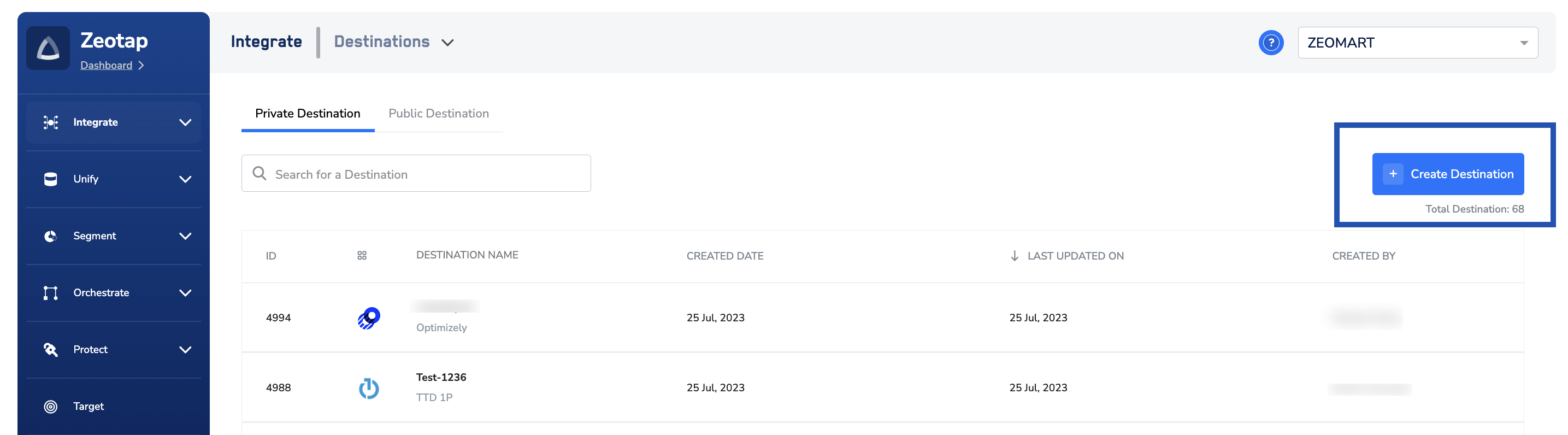
3
Under All Destinations, search for Taboola Custom Audience.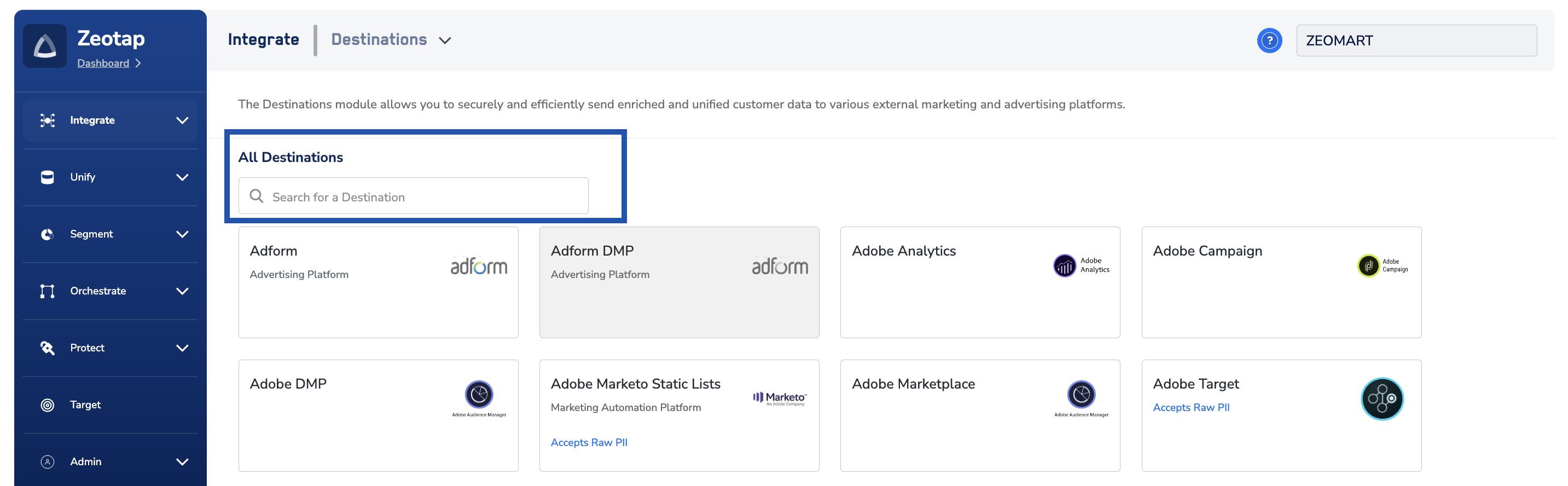
4
Click Taboola Custom Audience. A screen appears displaying details about the particular destination towards the left. On the right-hand side of the screen find a list of fields that are required for the integration to be established. Enter the required details as mentioned in the following steps:a. Under Destination Name, enter a name for the Destination.b. Enter the Client ID.c. Enter the Client Secret.d. Enter the Taboola Account Id.e. Review all the values entered above and then click Next to proceed.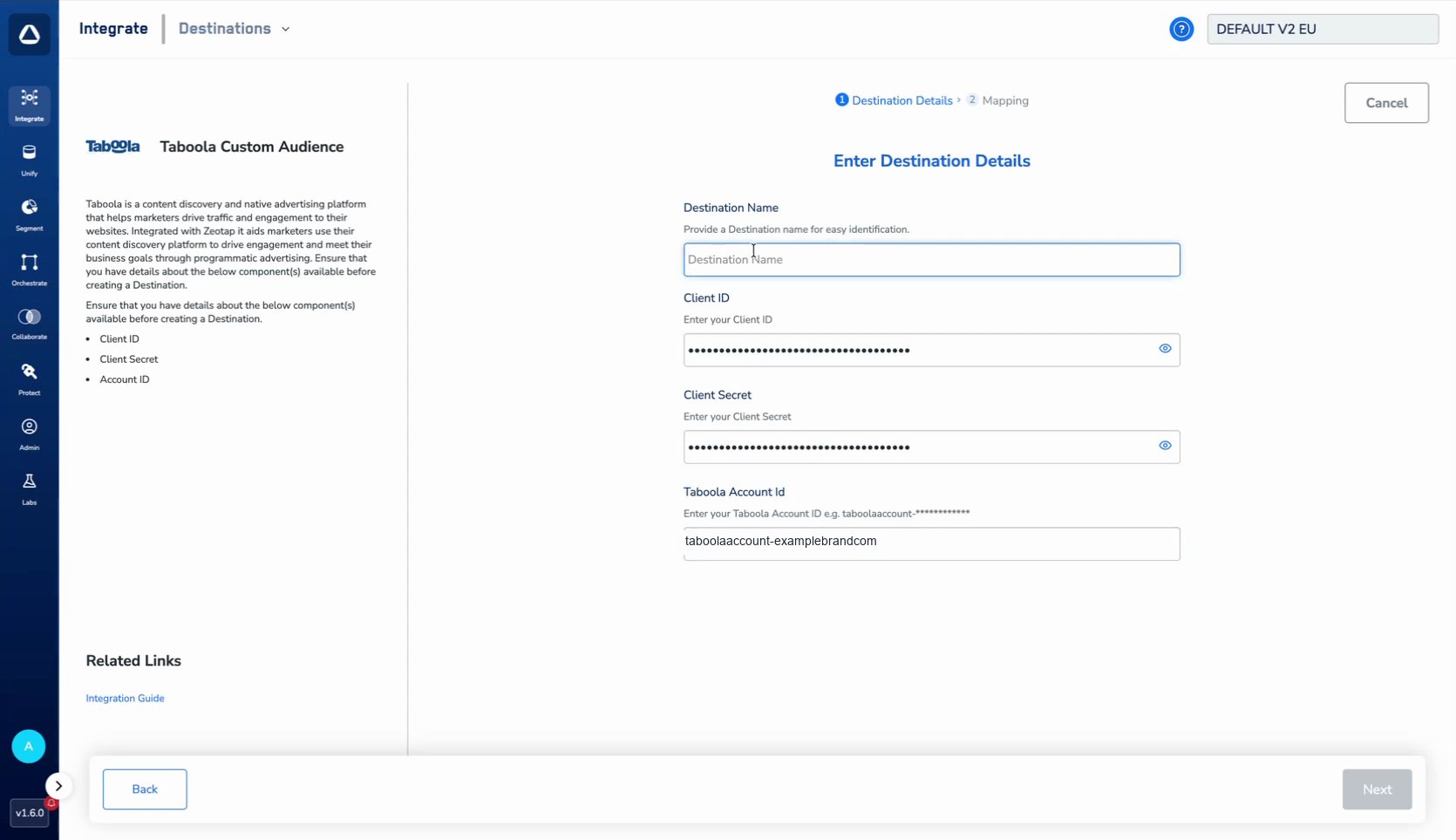
5
In the new screen that appears, choose the appropriate action and mapping as explained below.a. Under Choose your Action, choose Add Email ID to 1P Audience or Add Device ID to 1P Audience, and then choose the corresponding identifiers under Map the Fields: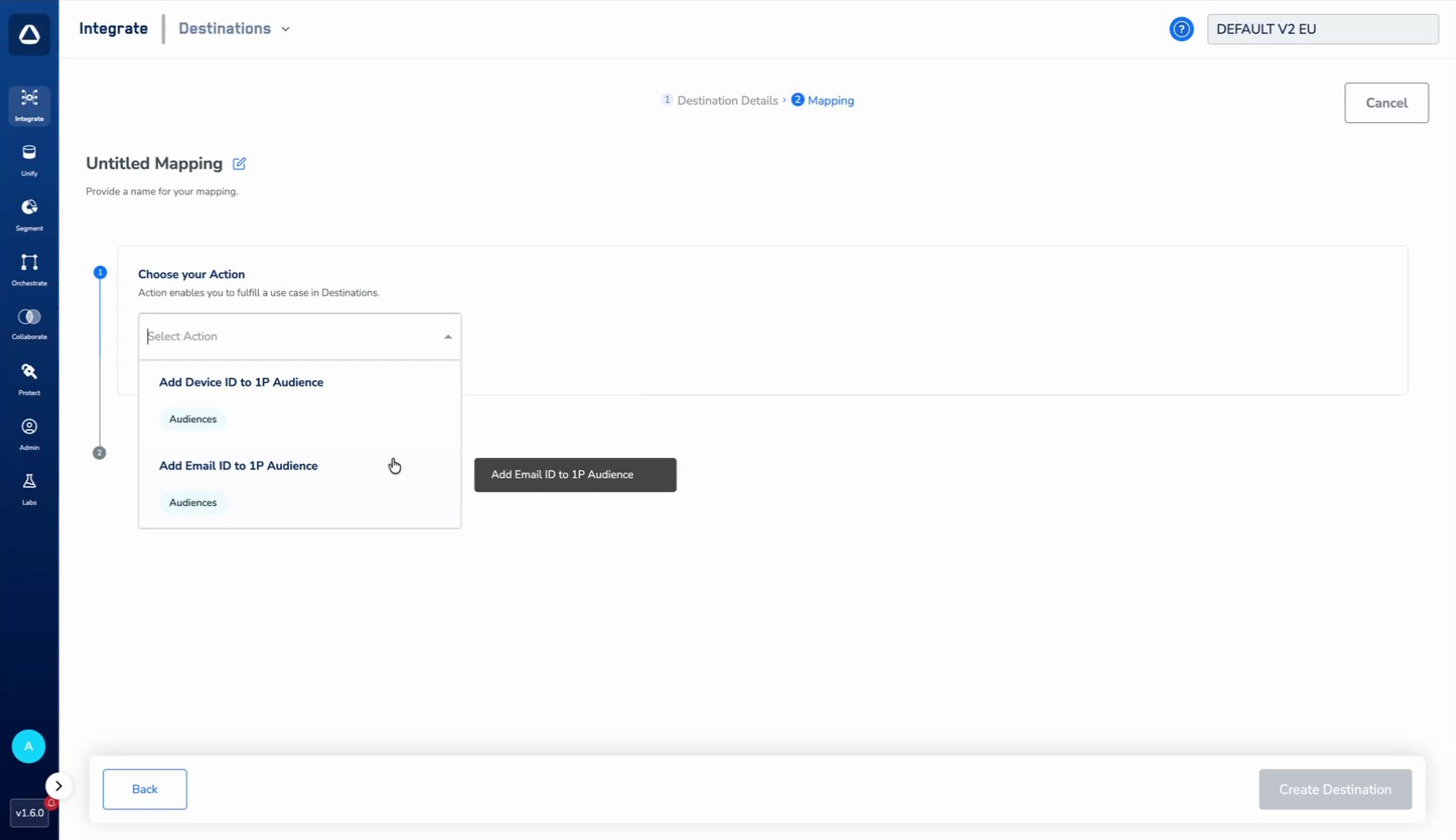
- Add Email ID to 1P Audience maps a Catalogue Field to the
Email Id (hashed)Destination Field. Map an email identifier hashed with SHA-256 in lowercase. - Add Device ID to 1P Audience maps a Catalogue Field to the
Device IDDestination Field. Map MAIDs.
Link an Audience to the Taboola Custom Audience Destination
For information about how to link an Audience or segment to the created Destination in the Audiences and Target applications, refer here. When you link an Audience, Zeotap creates a first-party audience in your Taboola account and adds the matched users to it. With Delta Upload and Delete enabled, each later refresh adds new users and removes users who no longer qualify. Keep the following in mind after linking:- A newly created audience can take up to one hour to become available in Taboola.
- Allow one to three days for the audience to reach its full size.
- Taboola reports audience size as the number of uploaded users it has seen on its network in the last 30 days. This is usually lower than the number of users Zeotap sends.
- Taboola recommends testing with an audience of at least 1,000 users.
View Your Audiences in Taboola
To see the audiences that Zeotap has sent, log into your Taboola advertiser account and perform the following steps:1
Go to Audiences.
2
Open the Custom Audiences tab. Audiences that Zeotap has pushed appear here with Taboola API in the Source column.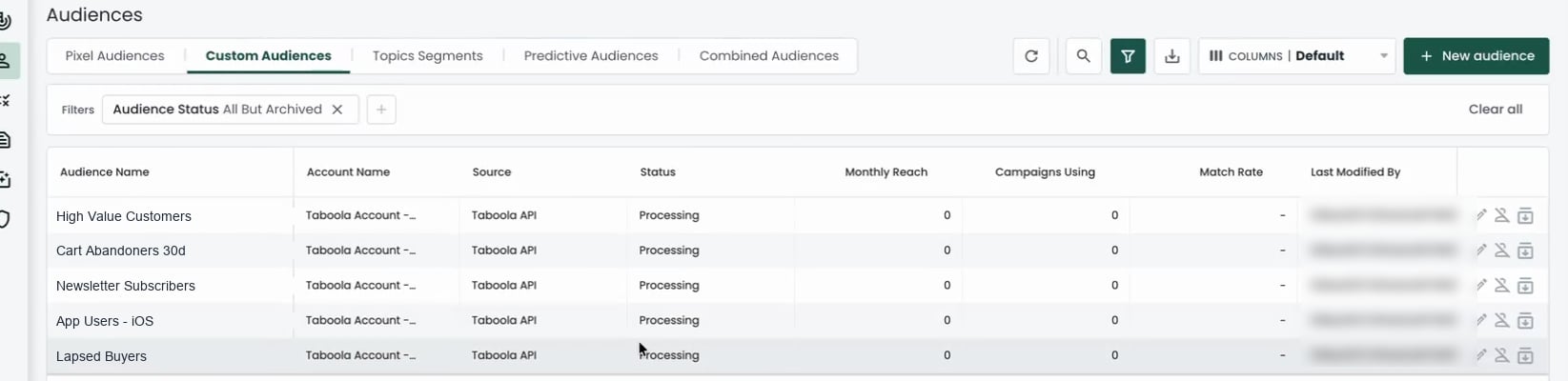
If a newly linked audience is not listed yet, wait and check again — a new audience can take up to one hour to appear, and one to three days to reach its full size. Use the Audience Status filter if you have archived audiences in the account.
Note:The terms Audiences and Segments are used interchangeably to refer to customer cohorts belonging to a specific category. For example, an Audience or a segment can be a specific group of customers who are over 18 years of age and have performed an
addToCart event within the last 30 days.