Documentation Index

Fetch the complete documentation index at: https://docs.zeotap.com/llms.txt

Use this file to discover all available pages before exploring further.

Overview

This integration lets you monetise audience data from Zeotap CDP by publishing it directly into The Trade Desk (TTD) as third-party data segments — complete with the rate at which buyers can purchase access. Once you set up the TTD destination in Zeotap and link it to an audience, Zeotap automatically creates the segment in TTD’s third-party data taxonomy, applies the CPM and percent-of-media-cost rate you configure, and uploads the matched user identifiers (TTD cookies, mobile ad IDs, ID5 decrypted) so the segment becomes immediately buyable. You stay inside Zeotap for the entire setup — no manual taxonomy work or file uploads in TTD are required.
This page covers the Data Monetisation flow (seller side). For the buyer-side TTD destinations — activating audiences against TTD inventory — see TTD, TTD 1P, or TTD CRM Data.

How It Works

When you link a TTD destination to an audience in Zeotap CDP, the following happens automatically behind the scenes:
  1. You set up TTD as a destination in Zeotap CDP by entering your Brand ID, Provider ID, Data API Secret Key, Currency, Type of Audience, and (where applicable) Org Type with a Partner ID or Advertiser ID.
  2. You select the Send Identifiers to The Trade Desk action and map your Zeotap identifiers (Adid, TheTradeDesk cookie, ID5 Decrypted) to the corresponding TTD destination fields (MAID, TheTradeDesk Cookie, ID5 Decrypted).
  3. You attach the destination to a segment, enter the Price (CPM) and Percent of Media Cost for that segment, and choose a refresh frequency.
  4. Zeotap creates the audience in TTD’s third-party data taxonomy as a new segment.
  5. Zeotap applies the data rate to that segment using the CPM and percent-of-media-cost you provided, the currency from the destination, and the rate level derived from your audience and org type configuration.
  6. Zeotap uploads the matched user identifiers to TTD on the schedule you configured, making the segment immediately available to buyers in the TTD platform.

Before You Begin

Make sure you have everything ready before starting the setup. In The Trade Desk:
  • An active TTD Data Provider account with completed initial setup by your TTD Technical Account Manager (TAM).
  • Your Brand ID — provided by your TTD TAM. You can also look it up via the GET /datarate/brands/ endpoint.
  • Your Provider ID — provided by your TTD TAM.
  • Your Data API Secret Key — used to authenticate data uploads.
  • If you operate as a Partner or Advertiser for custom audiences, your Partner ID or Advertiser ID ready.
  • A clear understanding of whether you are publishing Syndicated (open marketplace) or Custom (private to a Partner or Advertiser) audiences.
In Zeotap CDP:
  • Access to the Integrate module with permission to create new destinations.
  • One or more audience segments ready to be monetised.
  • The CPM Price and Percent of Media Cost values you want to charge buyers for each segment.
  • Mapped identifiers in your Zeotap catalogue: Adid, TheTradeDesk cookie, and/or ID5 Decrypted.
The Data API Secret Key authenticates every data upload to TTD. Treat it like a password — never share it in client-side code, screenshots, or chat messages.

Create the TTD Destination in Zeotap CDP

1

Open the Destinations catalogue

Log in to Zeotap CDP, then go to Integrate → Destinations. Click + Create Destination and search for The Trade Desk. Select the The Trade Desk card to begin.
2

Enter the destination details

Fill in the credential fields:
  • Destination Name — a descriptive label (e.g., TTD — Q2 Monetisation).
  • Brand ID — paste the Brand ID provided by your TTD TAM.
  • Provider ID — paste the Provider ID provided by your TTD TAM.
  • Data API Secret Key — paste your Data API Secret Key. The field is partially masked once saved.
  • Currency — select the ISO 4217 currency code you want CPM rates priced in (for example USD, EUR, GBP, AED). All standard ISO 4217 codes are supported.
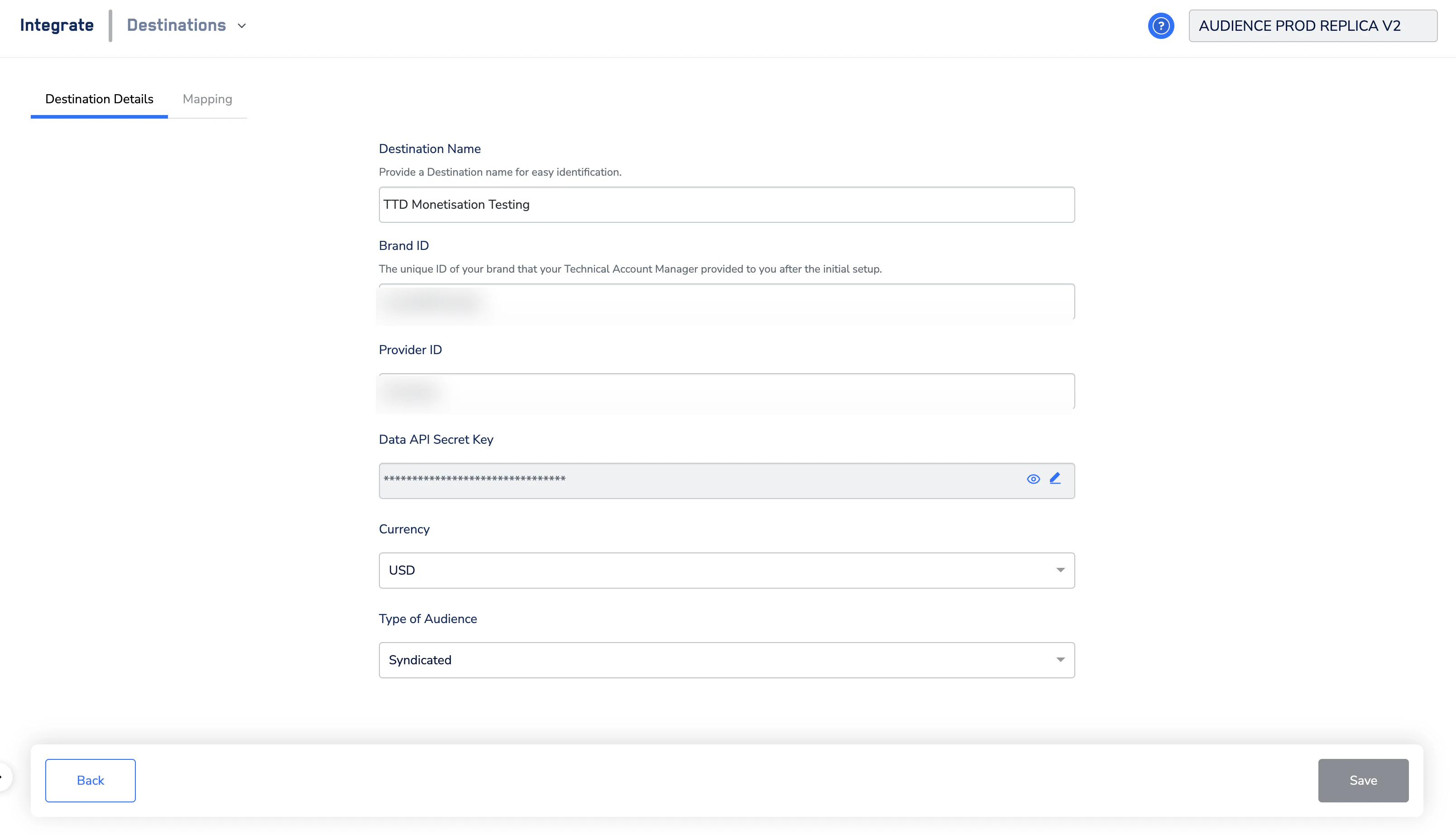
TTD Data Monetisation destination details form with Destination Name, Brand ID, Provider ID, Data API Secret Key, Currency, and Type of Audience fields.
3

Choose the Type of Audience

The Type of Audience controls how segments are exposed in TTD’s marketplace and which IDs are required.
Type of AudienceWhat it meansWhat you need to do next
SyndicatedSegments are published to TTD’s open marketplace and available to all buyers.No further inputs needed.
CustomSegments are private and only purchasable by a specific Partner or Advertiser.A nested Org Type dropdown appears.
If you selected Custom, the Org Type dropdown appears:
Org TypeWhat it meansWhat you need to enter
PartnerThe segment is restricted to a specific TTD Partner.A text box opens — enter your Partner ID.
AdvertiserThe segment is restricted to a specific TTD Advertiser.A text box opens — enter your Advertiser ID.
This selection determines the rate level Zeotap sends to TTD when applying CPM rates: system for Syndicated, partner for Custom + Partner, and advertiser for Custom + Advertiser. Choose carefully — changing this later may require recreating the segment in TTD.
4

Save the destination

Click Save. Your TTD destination now appears on the Destinations page, ready for action and field mapping.

Configure the Action and Field Mapping

Open the saved TTD destination and switch to the Mapping tab.
1

Create a new mapping

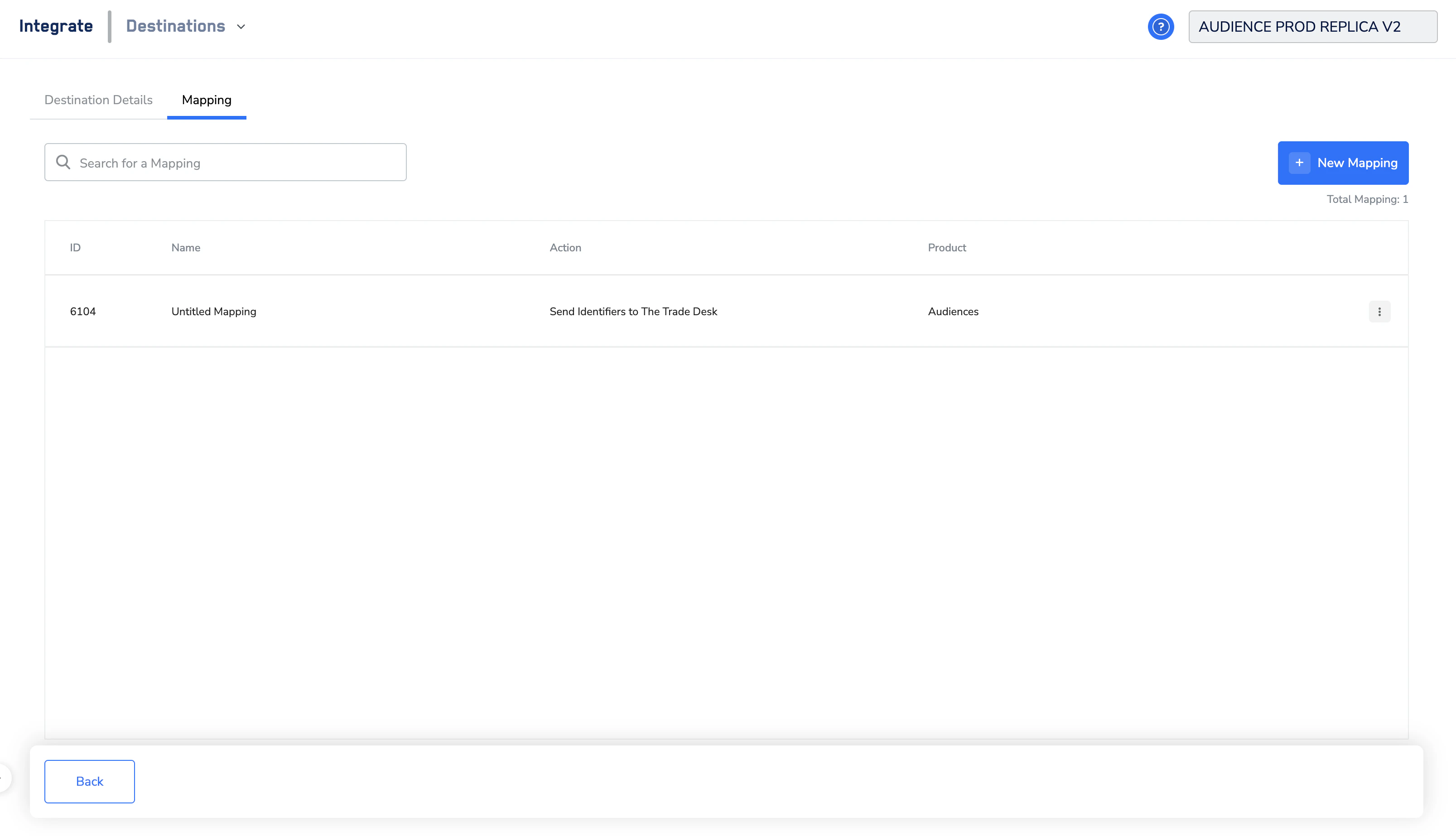
Click + New Mapping. The mapping is created with the action Send Identifiers to The Trade Desk — this is the only action available for this destination.
Mapping tab listing one mapping with action Send Identifiers to The Trade Desk.
2

Map your identifiers

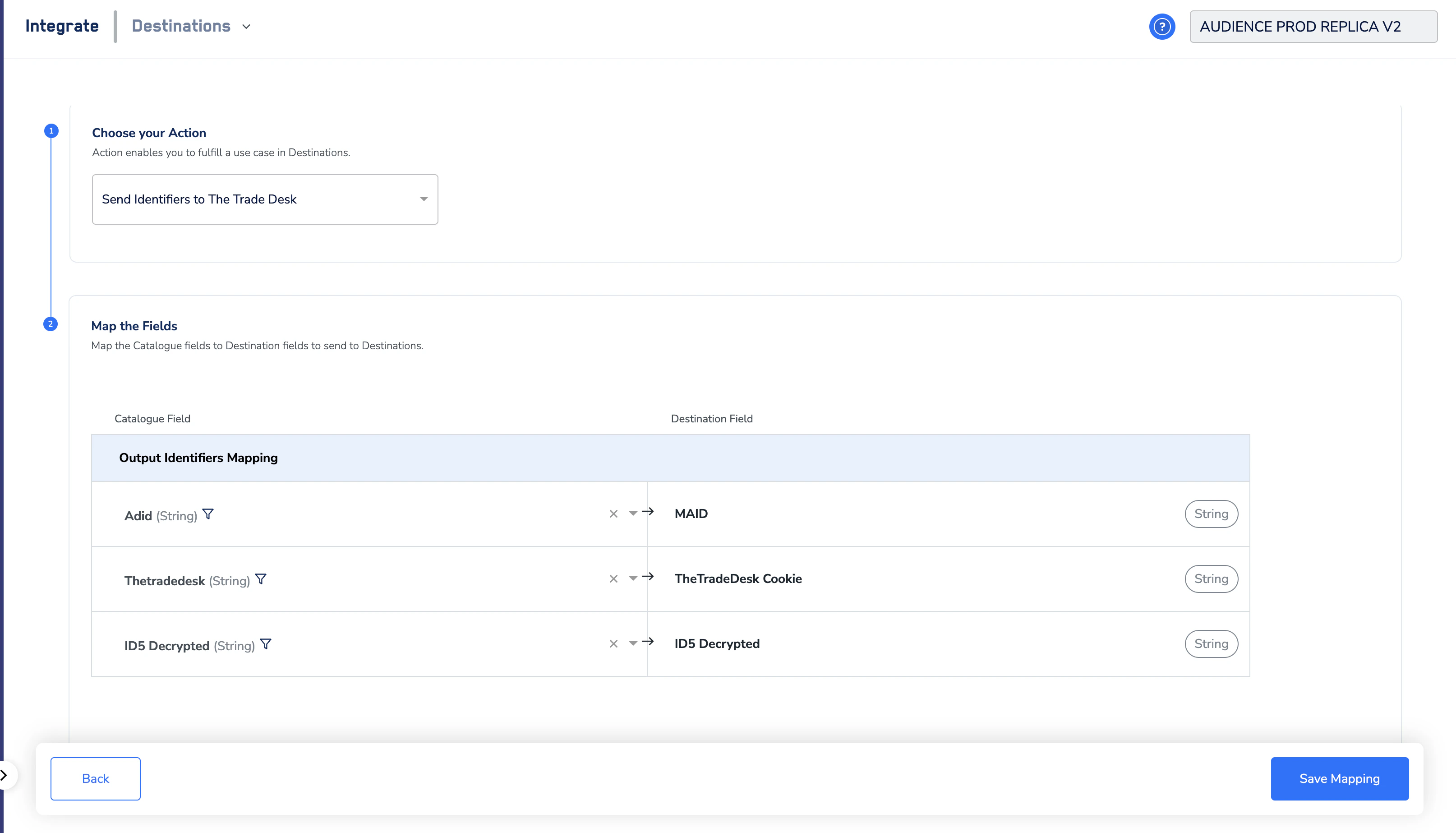
Open the mapping. Under Map the Fields → Output Identifiers Mapping, map each catalogue identifier to the corresponding TTD destination field:
Catalogue field (Zeotap)Destination field (TTD)Type
AdidMAIDString
ThetradedeskTheTradeDesk CookieString
ID5 DecryptedID5 DecryptedString
Output Identifiers Mapping showing Adid, Thetradedesk, and ID5 Decrypted mapped to MAID, TheTradeDesk Cookie, and ID5 Decrypted.
TTD supports two identifier families — TTD Cookies (web) and MAIDs (mobile: iOS IDFA, Android AAID). Mapping all three available identifiers maximises match rates across web and mobile inventory.
3

Save the mapping

Click Save Mapping. The mapping now appears in the destination’s mapping list, ready to use when you link a segment.
With the destination and mapping saved, link it to an audience and set the rate.
1

Open the link panel

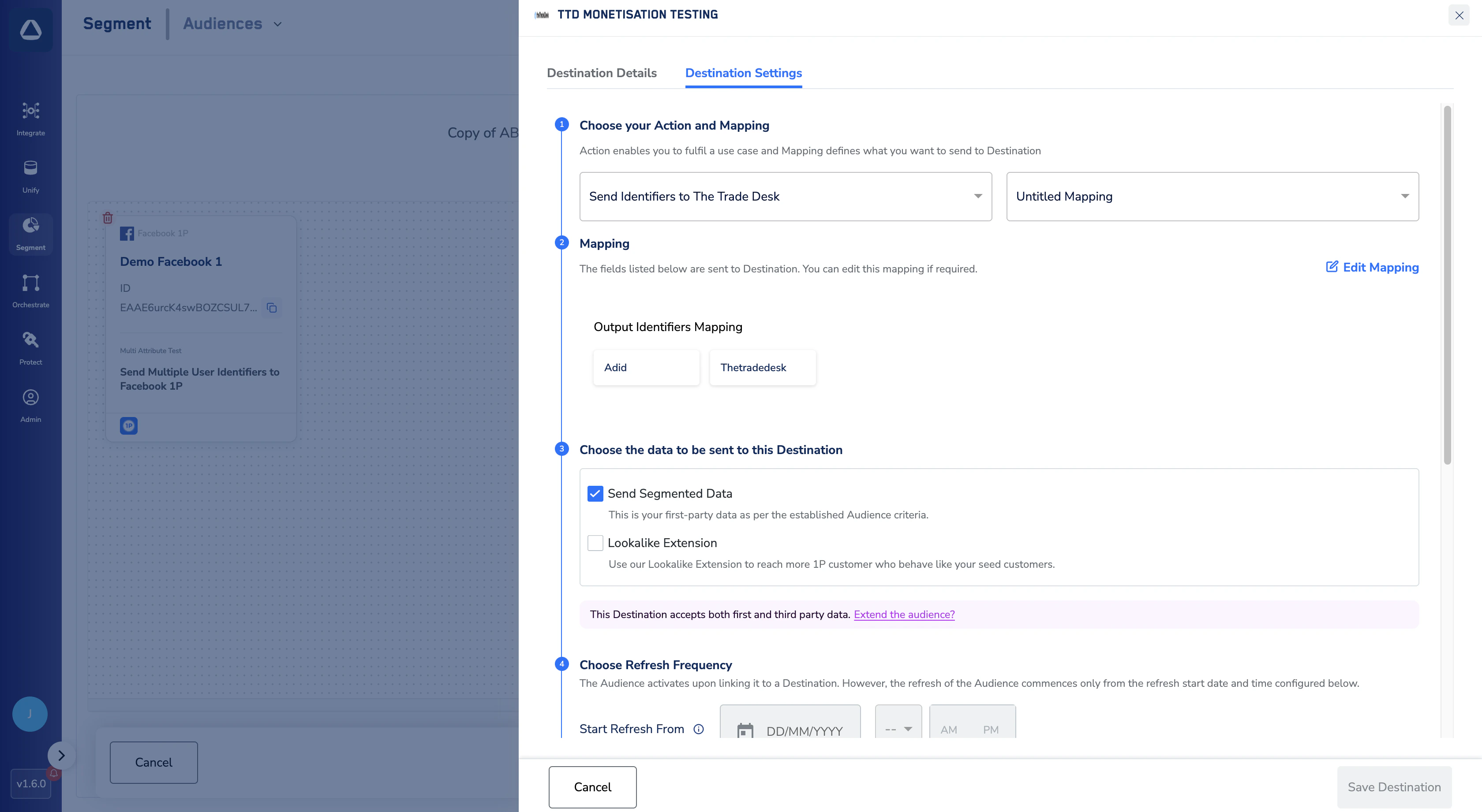
In Zeotap CDP, navigate to Segment → Audiences. Open the audience you want to monetise, click Link to Destination, and select your TTD destination. Switch to the Destination Settings tab.
Destination Settings tab on the audience link panel showing Action, Mapping, data scope, and refresh frequency configuration.
2

Confirm action, mapping, and data scope

Confirm:
  • ActionSend Identifiers to The Trade Desk (selected automatically).
  • Mapping — the mapping you just created.
  • Choose the data to be sent — keep Send Segmented Data ticked. Lookalike Extension is not supported for this destination.
3

Set the refresh frequency

Under Choose Refresh Frequency, set:
  • Start Refresh From — the date and time the first refresh runs.
  • Refresh Every — the cadence (e.g., every 24 hours).
  • Refresh Until — the end date, or leave No End Date ticked.
  • For a one-time send only, tick Do Not Refresh.
4

Enter the CPM details

Scroll to Audience Settings → CPM Details and enter:
  • Price (required) — the CPM amount buyers will pay for this segment, in the currency configured on the destination. This maps to CPMRate.Amount in the TTD payload.
  • Percent of Media Cost (required) — a decimal percentage of media cost charged on top of (or instead of) the CPM. This maps to PercentOfMediaCostRate.
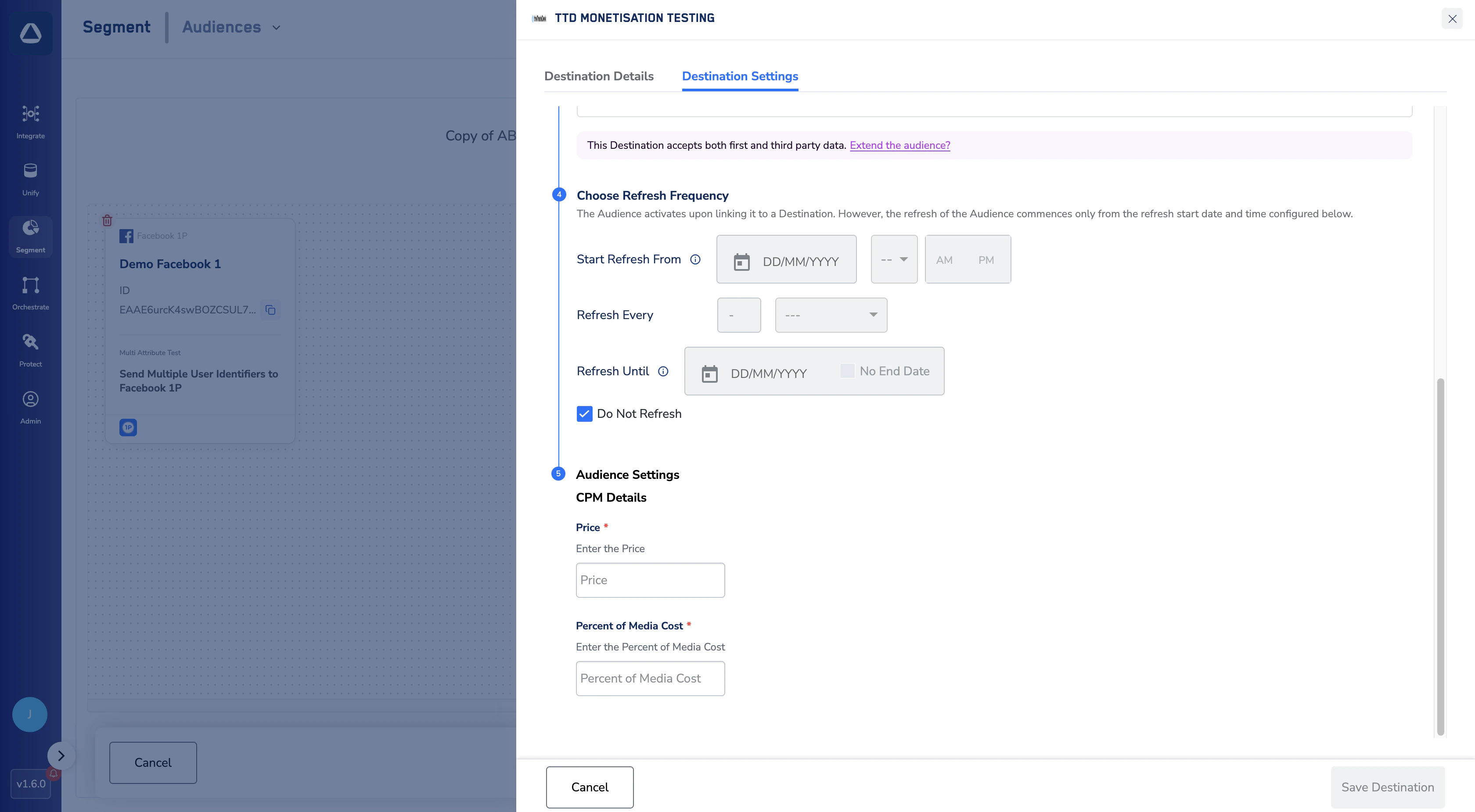
CPM Details section on the audience link panel showing Price and Percent of Media Cost inputs.
5

Save the destination

Optionally enter an Audience Name (the segment’s display name in the TTD taxonomy) and Audience Description (shown to buyers). Click Save Destination to finalise.

Field Mapping

Below is the complete reference for how data from Zeotap CDP maps to The Trade Desk.

Destination inputs (set once per destination)

Zeotap fieldRequired / OptionalNotes
Brand IDRequiredProvided by your TTD TAM.
Provider IDRequiredProvided by your TTD TAM.
Data API Secret KeyRequiredUsed to authenticate data uploads. Partially masked once saved.
CurrencyRequiredISO 4217 code (e.g., USD, EUR, GBP, AED). Used as the currency for the segment’s CPM rate.
Type of AudienceRequiredSyndicated for open marketplace, Custom for restricted access. Custom reveals the Org Type dropdown.
Org Type (when Custom)Required when CustomChoose Partner or Advertiser to determine which ID is required.
Partner ID (when Custom + Partner)Required in this combinationThe TTD Partner the segment is restricted to.
Advertiser ID (when Custom + Advertiser)Required in this combinationThe TTD Advertiser the segment is restricted to.

Audience / segment inputs (set per audience)

Zeotap fieldRequired / OptionalNotes
Audience NameOptionalShown to buyers as the segment’s display name in the TTD third-party data taxonomy.
Audience DescriptionOptionalFree-text description of the segment.
PriceRequiredCPM amount buyers will pay, in the destination’s currency.
Percent of Media CostRequiredDecimal value (e.g., 0.2 = 20%) charged as a percentage of media cost.

Identifier mapping (set in field mapping)

Catalogue fieldDestination field (TTD)TypeNotes
AdidMAIDStringMobile ad ID — iOS IDFA or Android AAID.
ThetradedeskTheTradeDesk CookieStringTTD’s web cookie identifier.
ID5 DecryptedID5 DecryptedStringID5 universal ID, decrypted.

Activate and Test the Integration

Once the segment is linked and saved, verify the data has reached TTD.
1

Wait for the first sync

Zeotap creates the taxonomy element, applies the data rate, and uploads identifiers in the background, on the refresh frequency you chose.
2

Verify in The Trade Desk

Log in to The Trade Desk as a Data Provider and navigate to the third-party data taxonomy for your provider account. Confirm the new segment appears with the Audience Name you entered in Zeotap.
3

Check the rate, currency, and buyable status

Open the segment and verify:
  • The rate matches the Price and Percent of Media Cost you set.
  • The currency matches the destination Currency.
  • The segment is marked Buyable.
4

Confirm the uniques count

Check the uniques count on the segment. After the first identifier upload completes, the count should reflect the matched users from your Zeotap audience. Match rates depend on which identifiers were available in your audience.
A successful integration looks like this: your segment appears in TTD’s taxonomy, the rate and currency match what you configured in Zeotap, and the uniques count populates on the schedule you set.

Important Notes & Limitations

Type of Audience drives the rate level and cannot be changed easily after segment creation. Decide upfront whether each destination is for Syndicated (open marketplace), Custom + Partner, or Custom + Advertiser audiences. Changes typically require recreating the segment in TTD.
Multiple destinations with the same Brand ID are supported. You can create more than one TTD destination in Zeotap pointing at the same Brand ID — for example, one for Syndicated and one for Custom + Partner.
One audience, one segment ID across destinations. If multiple TTD destinations are attached to the same audience, the underlying TTD ProviderElementId remains the same — buyers see one consistent segment.
Each org has its own taxonomy. Segments are isolated per organisation, so taxonomies of different brands or business units do not mix.
RateType is fixed to Hybrid. Every segment is published with both a CPM and a percent-of-media-cost rate. This is hardcoded by the integration and cannot be changed per audience.
Supported identifiers. This integration uploads TTD Cookies, MAIDs (iOS IDFA + Android AAID), and ID5 Decrypted identifiers. Other ID types are not supported.
Lookalike modelling is not supported for this destination. Only direct audience publication and rate application are available.
User deletion is supported. When a user is removed from your Zeotap audience or requests deletion, that change propagates to TTD on the next sync.
Asynchronous processing. Audience creation, rate application, and identifier upload happen sequentially in the background. After saving, allow a few minutes for the segment to appear and the uniques count to populate in TTD.
Keep your Data API Secret Key private. This key authenticates every identifier upload to TTD. Never expose it in client-side code, public repositories, or shared documents.

Support

If you run into any issues during setup or have questions about the Zeotap-to-The Trade Desk integration, please reach out to your Zeotap account manager or contact the Zeotap support team.
Last modified on May 7, 2026