

What this is
Google Ad Manager (GAM) is an ad management platform for large publishers with significant direct sales, used to manage the display of advertisements on websites, in video, and in mobile apps. It was formerly known as DoubleClick for Publishers (DFP) or DoubleClick AdX. This integration sends Publisher Provided Identifiers (PPIDs) — raw or encrypted — from a Zeotap CDP audience to a Google Ad Manager audience so those users can be targeted in your ad delivery. For sending MAIDs and Cookies, use the Google DMP integration instead; use Google Ad Manager only for PPIDs.Prerequisites
Before you configure the destination, confirm all of the following:
- Your Google Ad Manager account has Zeotap whitelisted as a linked Data Management Platform (DMP: Zeotap). Without this, Zeotap CDP cannot send PPID lists to Google Ad Manager. See Google’s linked-account instructions.
- You have your Google Ad Manager Audience link ID ready (a numeric value — it is not your Network code).
- For audiences that include users in the European Economic Area (EEA), you have supplied Zeotap CDP with the two consent parameters Google requires (
ad_user_dataandad_personalization) and set up Consent Orchestration rules so only consented users are ingested. Starting March 6, 2024, Zeotap CDP transmits aGRANTEDconsent status for both signals. See the Google consent update FAQ.
Get your Audience link ID from Google Ad Manager
The Audience link ID is the identifier Zeotap CDP uses to route PPID lists to the correct Google Ad Manager account. It is not the same as your Network code.1
Sign in to Google Ad Manager.
2
Go to Admin → Global settings → Network settings.
3
Copy the numeric value shown next to Audience link ID.
Your Audience link ID and your Network code are different values. Confusing the two is a known cause of a Zeotap-created audience failing to appear inside Google Ad Manager.
Configure the Google Ad Manager destination in Zeotap CDP
Open the Destinations application in Zeotap CDP and add a new Google Ad Manager destination.1
Log into the Zeotap CDP App and open the DESTINATIONS application.
2
Click + Create Destination.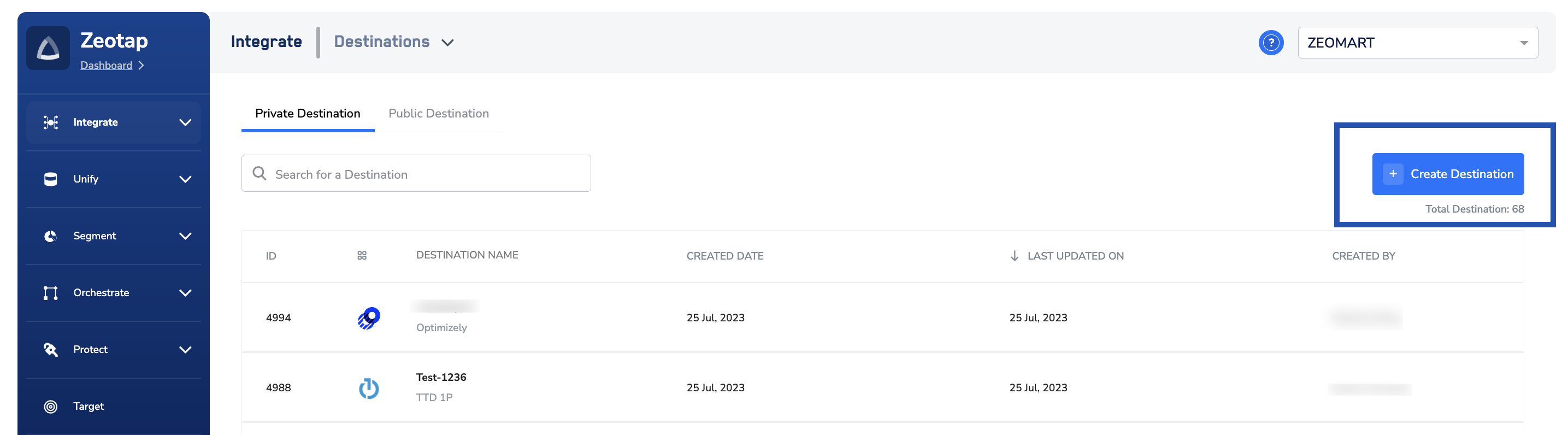
3
Under All Destinations, search for Google Ad Manager.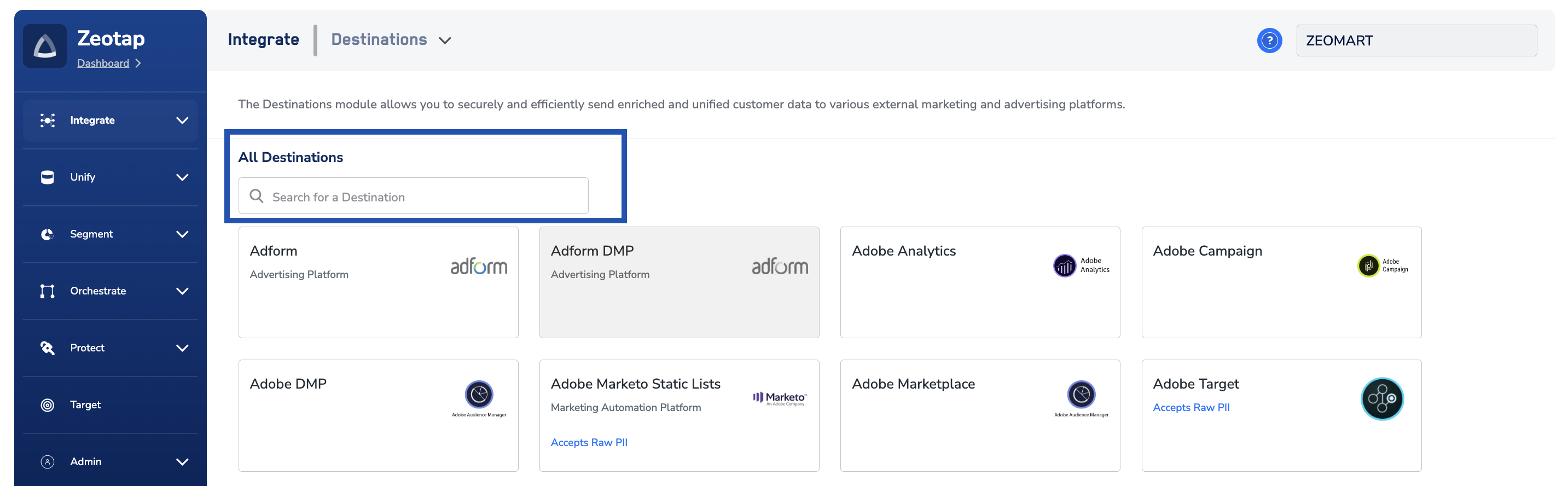
4
Click Google Ad Manager. On the right-hand side of the screen, enter the required fields:a. Enter a descriptive name for the destination.b. Enter the Audience Link ID you copied from Google Ad Manager.c. Click Next to proceed to Actions and Mapping.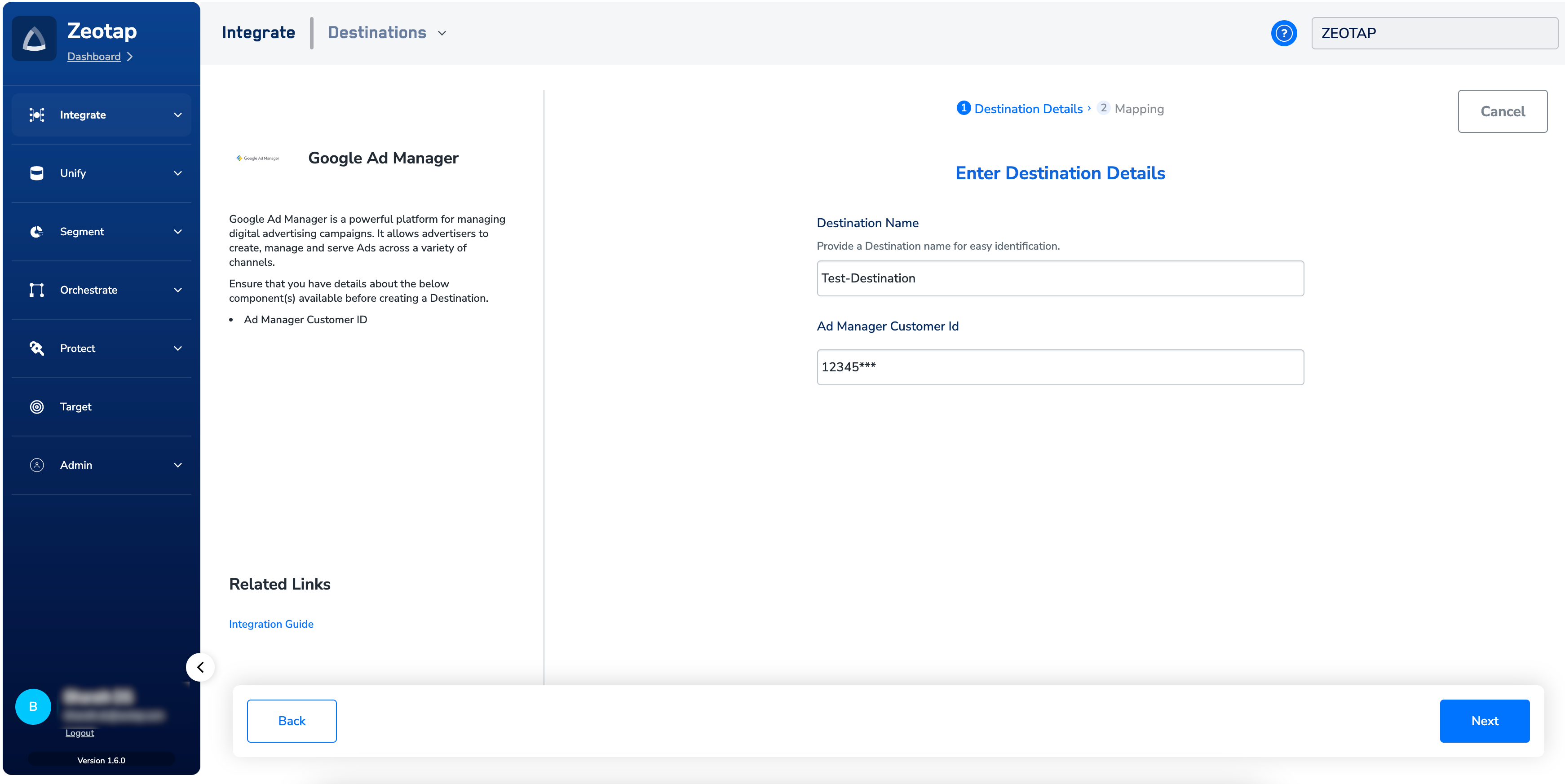
5
Under Choose your Action, select Send PPIDs to Google Ad Manager. Under Map the Fields, map the identifier you want to send as the PPID.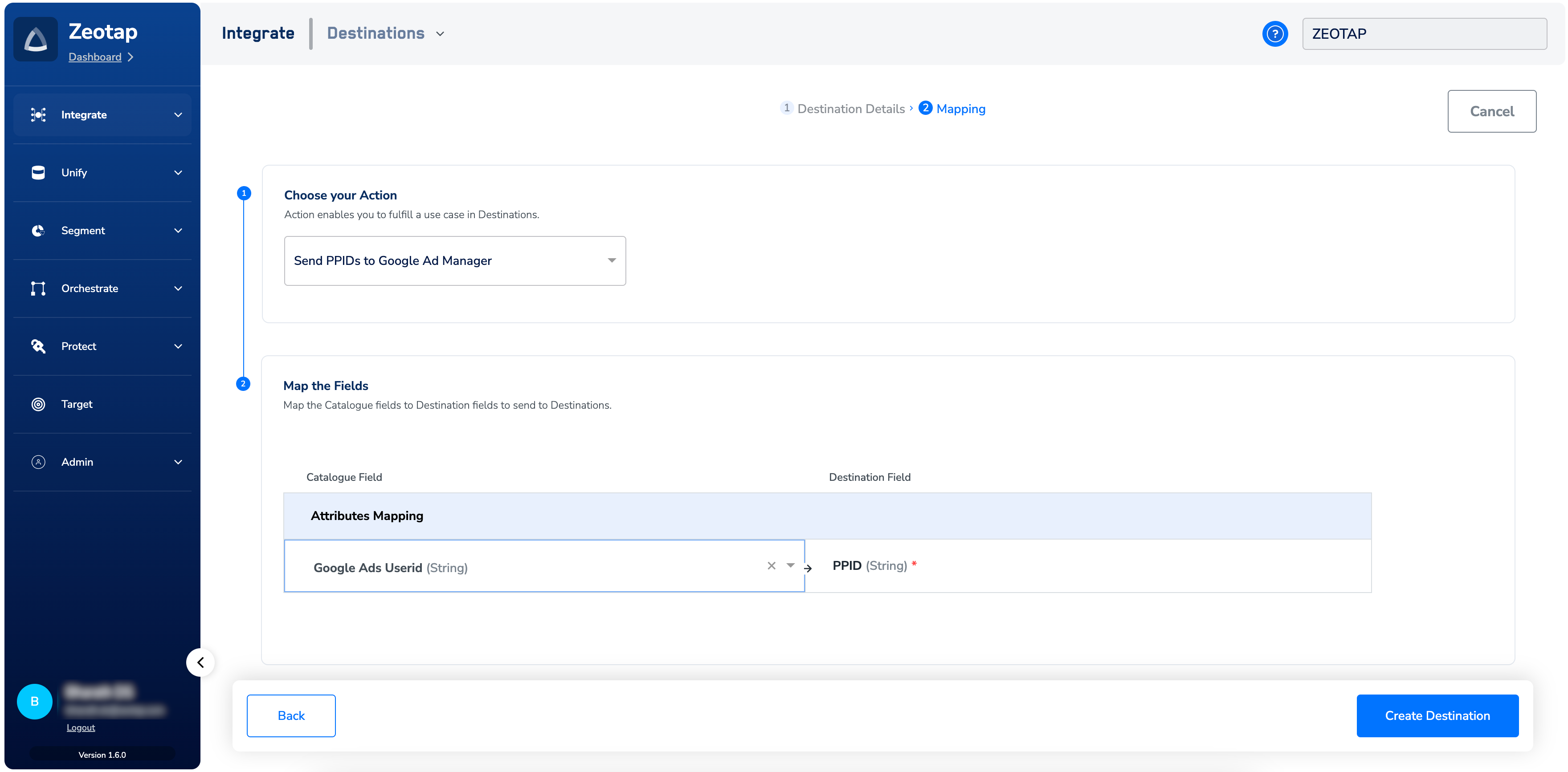
6
Click Create Destination. The destination appears in the Audiences application, where you can link an audience to it.
Supported identifiers and actions
This integration accepts PPIDs (raw and encrypted) only. PPIDs are unique publisher-defined codes used to track users across platforms; encrypted PPIDs are long alphanumeric strings. Use Google DMP for MAIDs or Cookies.Consent signals sent for EEA audiences
Starting March 6, 2024, Zeotap CDP transmits the following consent signals to Google Ad Manager for every user in the audience. Use Consent Orchestration to ensure only users who have granted these consents are ingested into the audience upstream:Link an audience to the destination
To activate an audience through this destination, link it in the Audiences application. See Link an Audience to the destination for the full procedure.The terms Audiences and Segments are used interchangeably to refer to customer cohorts belonging to a specific category. For example, an audience or segment could be a group of customers who are over 18 years of age and who have performed an
addToCart event within the last 30 days.Verify the destination is delivering PPIDs
After you link an audience to the destination and the first refresh runs, confirm the audience shows up in Google Ad Manager:- In Zeotap CDP, open the Audiences application and confirm the audience is linked to the Google Ad Manager destination you created.
- In Google Ad Manager, go to Admin → Global settings → Network settings and confirm the Audience link ID matches the one entered in the destination configuration.
- In Google Ad Manager’s audience segments view, confirm the audience name from Zeotap CDP is present and the member count is non-zero.
Why activations fail
Use this table to map what you see to what to check.FAQ
Is the Audience Link ID the same as the Network code?
Is the Audience Link ID the same as the Network code?
No. They are two different numeric values in Google Ad Manager. The Audience link ID is what you enter in the Zeotap CDP destination configuration; entering the Network code in its place prevents audiences from landing in Google Ad Manager.
Why does the EEA portion of my audience look smaller than expected?
Why does the EEA portion of my audience look smaller than expected?
Starting March 6, 2024, Zeotap CDP transmits a
GRANTED status for ad_user_data and ad_personalization for every user sent to Google Ad Manager. To keep this consistent with each user’s actual consent, supply the two consent parameters to Zeotap CDP and configure Consent Orchestration rules so only consented users are ingested into the audience upstream.What is a PPID?
What is a PPID?
A Publisher Provided Identifier (PPID) is a unique code you assign to a user to track them across platforms. Encrypted PPIDs are long alphanumeric strings. PPIDs let you share user data with Google Ad Manager to serve more relevant ads.