

What this is
Google DMP is the Zeotap CDP destination that pushes audience segments into your Google advertising stack. A single Google DMP destination is configured for either Google Ad Manager (publisher-side ad management) or Display & Video 360 (programmatic buying) — you choose which one by setting the Client Product Type on the destination. This page covers the prerequisites Google requires, the account details you gather up front, how to configure the destination, and how to confirm it is ready to link to an audience.Google’s EU User Consent Policy requires the
process_consent flag on this integration. Zeotap CDP always sends process_consent=True, so before you share first-party seed data through this destination you must obtain end-user consent. Google describes how the flag is processed in the Authorized Buyers bulk-uploader reference.Google Ad Manager vs Display & Video 360
Use this comparison to decide which mode to configure:Supported identifiers
This integration supports MAIDs and Google cookies. If you need to send Publisher Provided Identifiers (PPIDs, raw or encrypted), use the dedicated Google Ad Manager destination instead — it is purpose-built for PPIDs.Supported actions
Prerequisites
Complete every step below before you create the destination. Google will not accept segments from Zeotap until the account pairing is in place.- Sign the Zeotap Data Usage agreement. Any client consuming Zeotap data through this integration must have this in place.
- Contact your Google Account Team. Reach out to the account team that manages your DBM or DFP contract and tell them you want to activate audiences from Zeotap.
- Sign the Google legal agreement. Google will send the legal document that authorises Zeotap DMP to access your DBM or DFP account for segment creation. Sign it before pairing.
- Have Google pair Zeotap with your account. The Google Account Team performs the formal whitelisting (also called “pairing”) of Zeotap DMP with your DBM or DFP account. Ask your Zeotap Customer Success representative for the Zeotap DMP identifier that Google will need for this pairing request.
- Gather the destination details listed in the next section. You need all of them before you start the configuration flow.
Details you need before configuring the destination
Seat ID
The Seat ID identifies the Google account that will receive your segments.- For an Advertiser account, the Seat ID is the numeric ID shown next to your account name in Google.
- For a Publisher account, the Seat ID is the Audience Link ID from your Google Ad Manager network settings. The Audience Link ID is not the same value as your Network Code.
Client Product Type
The Client Product Type pins the destination to a single Google surface. Choose the value that matches your Google account:
In DV 360, the field label on your account’s basic details tells you which value to choose: an Advertiser ID field means
INVITE_ADVERTISER; a Partner ID field means INVITE_PARTNER.
Configure the Google DMP destination
Create a new destination of type Google DMP in Zeotap CDP and provide the values you gathered above:- Give the destination a name that identifies the target Google account and the mode, so an Ad Manager destination is easy to distinguish from a DV 360 destination in the destinations list.
- Enter the Seat ID from the “Seat ID” section above.
-
Set the Client Product Type to
DFP_BY_GOOGLE,INVITE_PARTNER, orINVITE_ADVERTISER— whichever matches your Google account.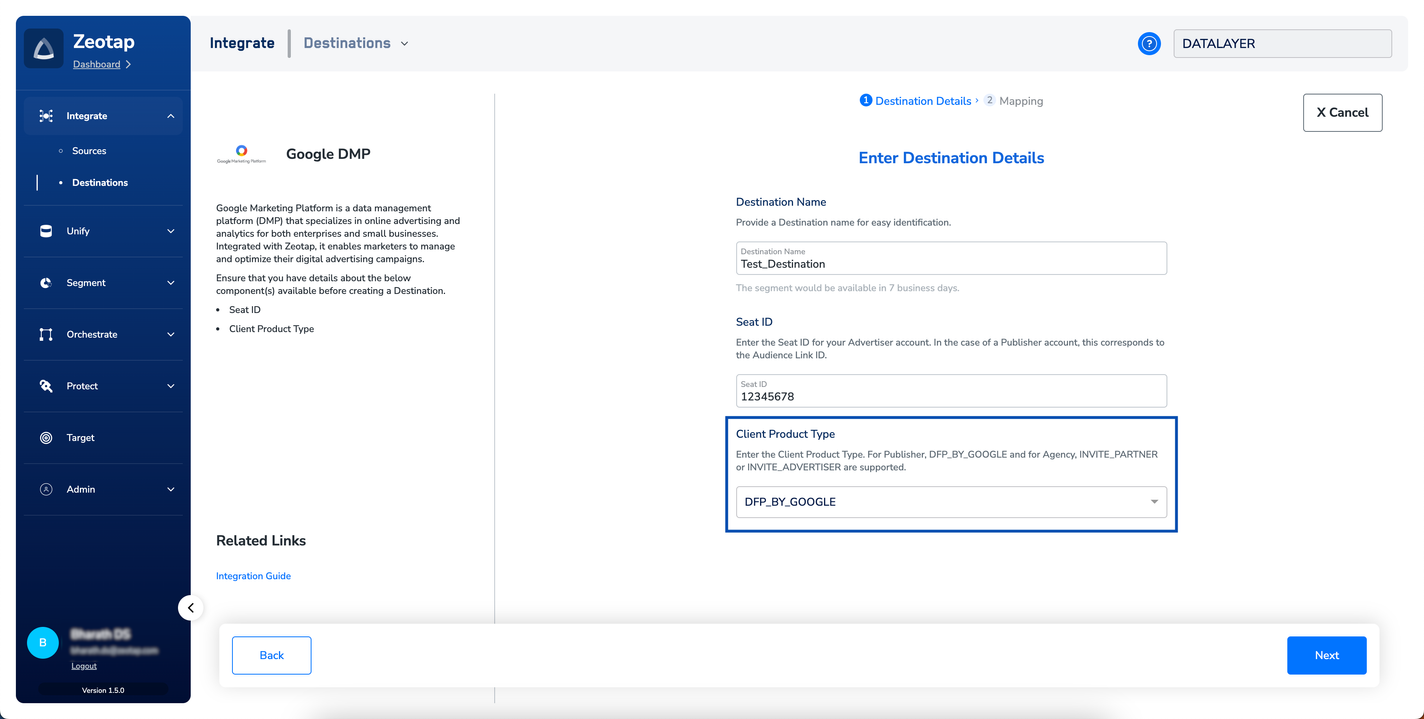
-
Configure the action and identifier mapping. Select Send identifiers to Google DMP as the action and map the audience’s output identifiers to the identifiers Google accepts (MAIDs and Google cookies). You can add, remove, or edit identifiers in the mapping — see Choose the output identifiers for how mapping works.
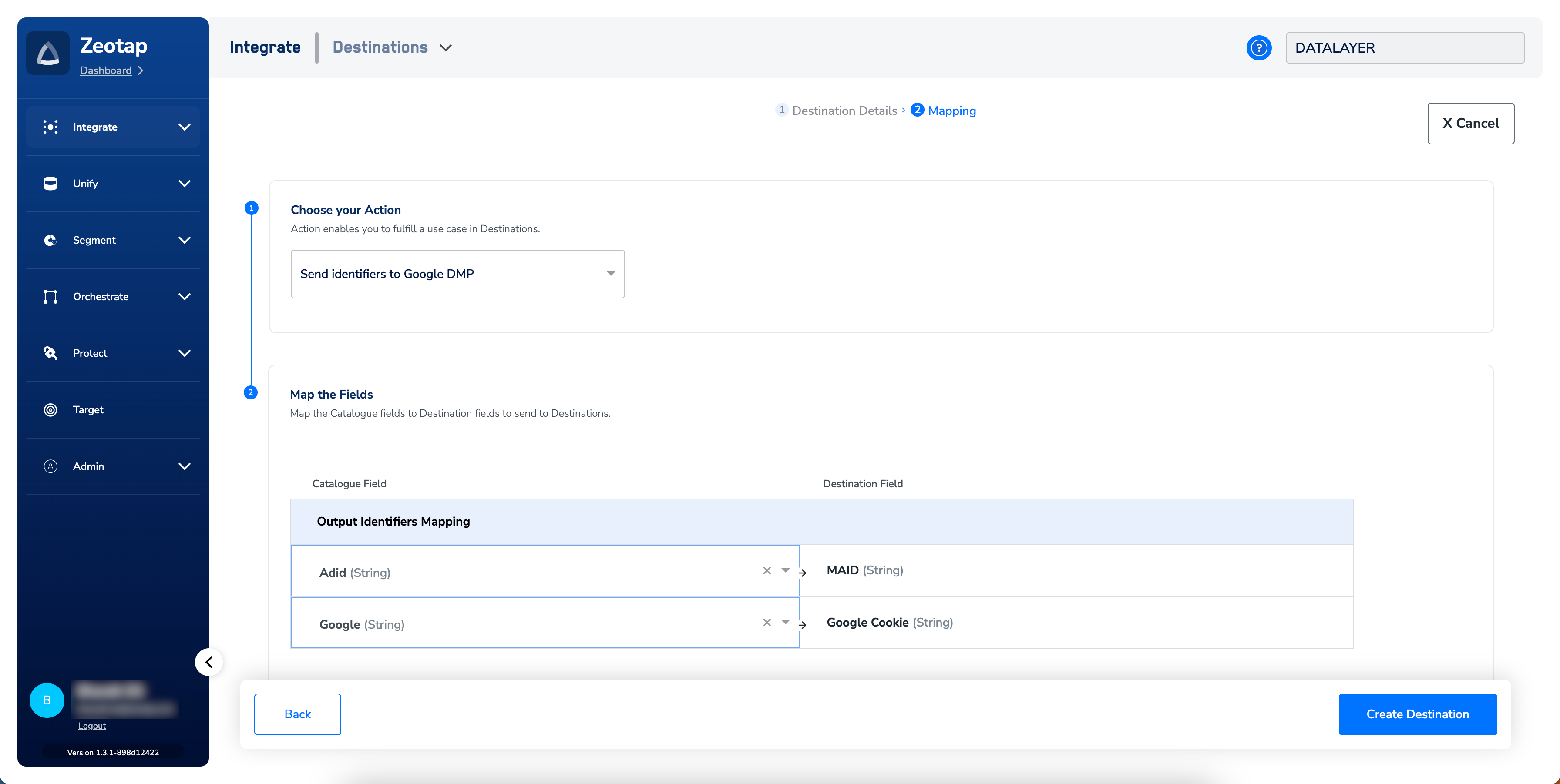
- Save the destination. Once saved, it is available to link to an audience.
process_consent is always true for this integration, which is why the consent prerequisites above are non-negotiable.
Link an audience to the destination
Once the destination exists, link the audience you want to activate — Link an audience to a destination walks through the linking flow. The terms audience and segment are used interchangeably in Zeotap CDP.Verify the destination is ready
You know the setup worked when:- The destination appears in your destinations list with the Seat ID and Client Product Type you entered.
- You are able to select the destination when linking an audience.
- After the audience is linked, the segment reaches your Google DMP seat. Segment availability at the seat is governed by Google’s own propagation schedule — confirm the expected timing with your Google Account Team so you know when to expect the segment to be usable in campaigns.
User disqualification from audiences
This integration supports user disqualification. When a user no longer meets an audience’s criteria (or their consent state changes), Zeotap CDP issues a deletion request for that user on the next refresh cycle for every audience linked to this destination. Disqualification is automatic — you do not need to configure it separately. The cadence follows the refresh frequency configured on each audience.Troubleshooting
Segment creation fails at Google
This happens when the account pairing at Google is missing or incomplete. Confirm with your Google Account Team that Zeotap DMP has been whitelisted against your DBM or DFP account and that the legal agreement authorising Zeotap access is signed. Re-attempt segment creation once Google confirms the pairing is live.Wrong Client Product Type selected
If you pickINVITE_ADVERTISER for a Partner account (or vice versa), Google rejects the segment even though the Zeotap destination saves successfully. Recheck the field label in your DV 360 account’s basic details — Partner ID means INVITE_PARTNER, Advertiser ID means INVITE_ADVERTISER — and edit the destination to match.
Users are not being removed from Google-side audiences
Disqualification runs on the refresh cadence configured on each linked audience. If a user still appears in the audience at Google’s end, first check when the audience was last refreshed in Zeotap CDP; a slow-cadence audience takes longer for removals to propagate.FAQ
Can one destination push to both Google Ad Manager and Display & Video 360?
Can one destination push to both Google Ad Manager and Display & Video 360?
No. The Client Product Type field pins the destination to a single Google surface —
DFP_BY_GOOGLE for Google Ad Manager, or INVITE_PARTNER / INVITE_ADVERTISER for DV 360. Create one Zeotap destination per Google account you want to activate to.Do I need to send process_consent myself?
Do I need to send process_consent myself?
No. Zeotap CDP always sends
process_consent=True for this integration. Your responsibility is to make sure the seed data you send us was collected with valid end-user consent under Google’s EU User Consent Policy.What identifiers can I send?
What identifiers can I send?
MAIDs and Google cookies. If your use case needs Publisher Provided Identifiers (raw or encrypted), use the Google Ad Manager destination instead.
What is the difference between the Audience Link ID and the Network Code in Google Ad Manager?
What is the difference between the Audience Link ID and the Network Code in Google Ad Manager?
They are distinct values. The Audience Link ID is what Zeotap CDP needs in the Seat ID field for a Publisher account; the Network Code identifies the ad network and is not accepted here.
Next steps
- Explore the Google Ad Manager destination → for sending PPIDs instead of MAIDs and cookies.
- Explore the Google Analytics 4 destination → to activate segments into GA4 audiences.
- Explore the Adform DMP destination → for another DMP activation option supporting MAIDs and cookies.