

What this is
Salesforce Marketing Cloud (SFMC) — Data Extension is a destination that writes audience members and their attributes as rows into a Data Extension table inside your SFMC account, where they become addressable for journeys, sends and filtered subsets. The integration uses a Server-to-Server API Integration on the SFMC side, paired with a matching Destination on the Zeotap CDP side; the two are joined by a Client ID, Client Secret, subdomain, and Data Extension External Key. Once linked, any audience you activate in Zeotap CDP appears as rows in the specified Data Extension.Prerequisites
Before you start, confirm you have:
- An Admin account in Salesforce Marketing Cloud with permission to install packages and create Data Extensions.
- Access to the Zeotap CDP Destinations application with permission to create a destination.
- A decision on which identifiers and attributes you will send. The Data Extension column names must match the destination field names in Zeotap exactly (case-sensitive).
Create the SFMC package and API Integration
The package holds the API Integration component that authorises Zeotap to write to your Data Extensions. Create it once per SFMC business unit that will receive data.1
In the SFMC console, go to Settings → Setup → Apps → Installed Packages. The existing list of packages appears.
2
Click New, enter a name for the package, and save. Include the word Zeotap in the name so the package is easy to identify later.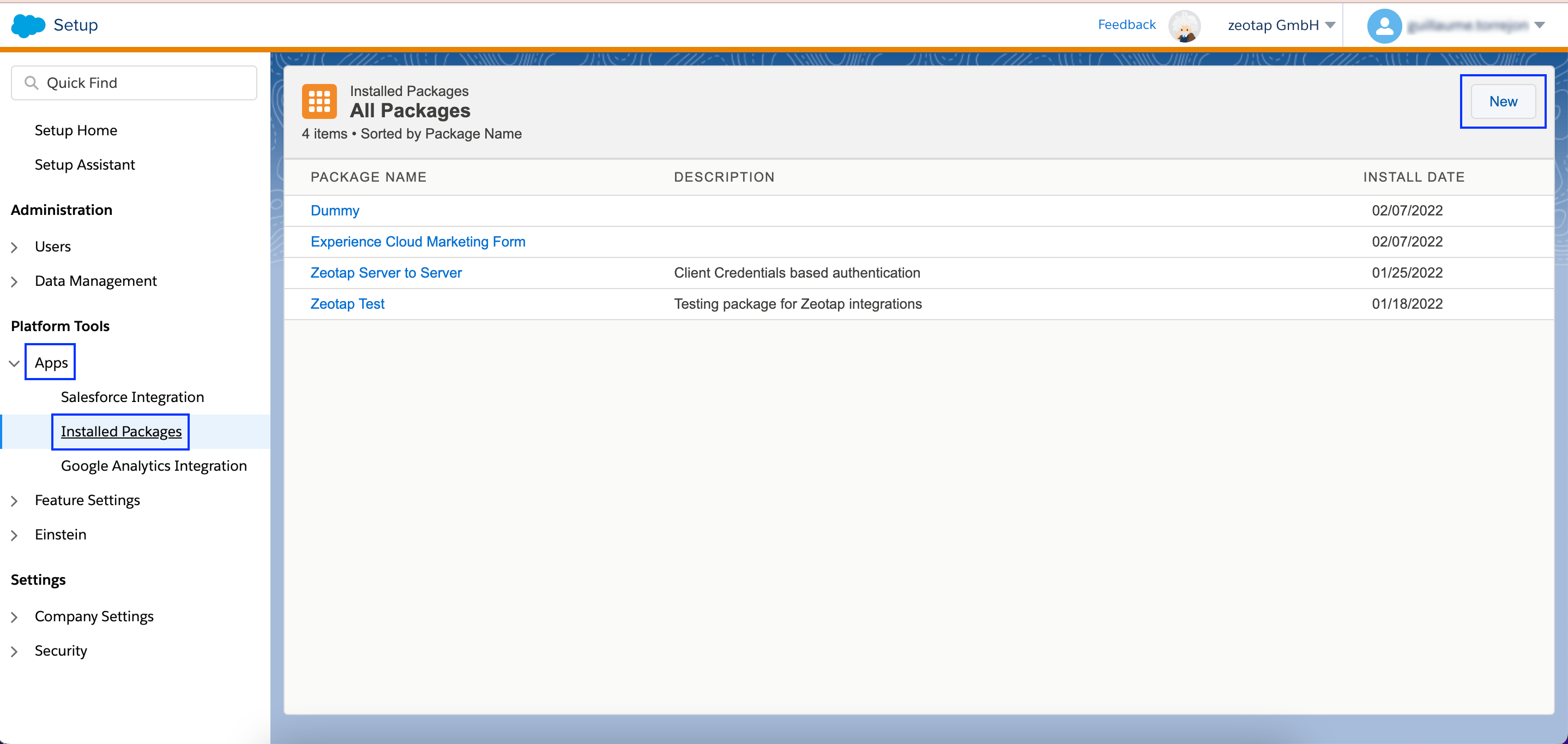
3
Open the package you just created and click Add Component.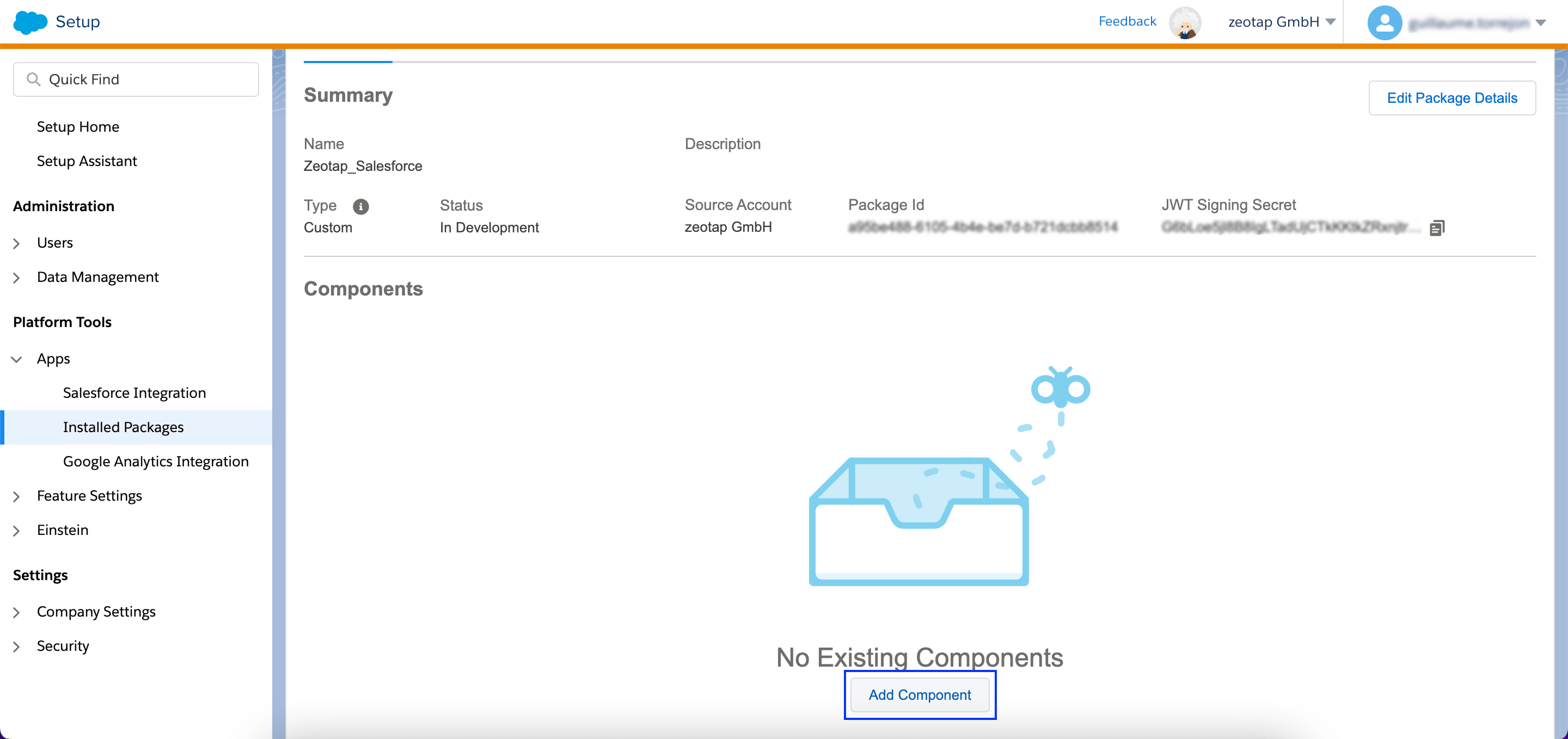
4
Choose API Integration as the Component Type and click Next.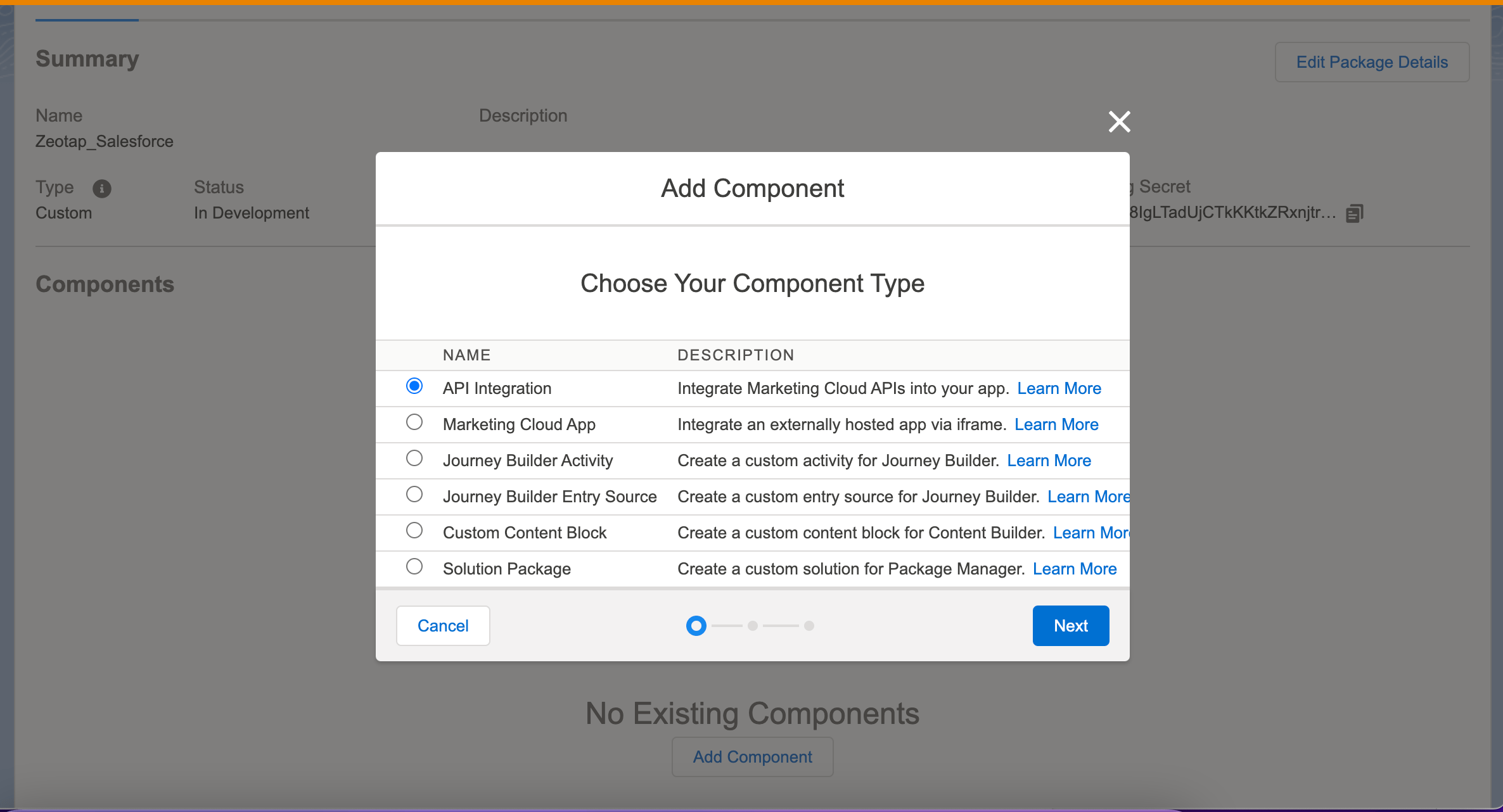
5
Choose Server-to-Server as the Integration Type and click Next.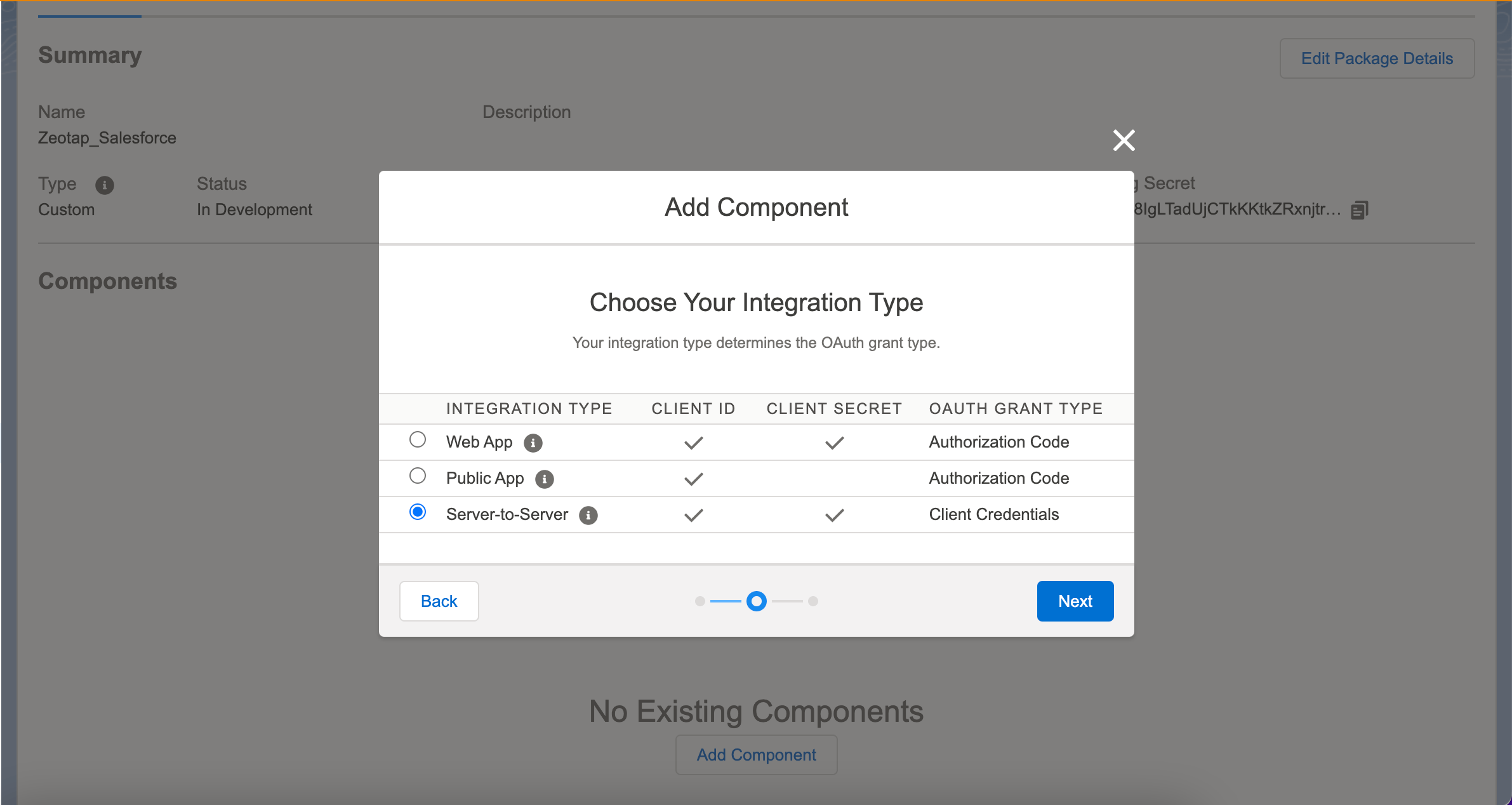
6
Under Data, enable both Read and Write permissions for Data Extensions. Without both permissions, SFMC returns an Insufficient Privileges error when Zeotap attempts to write records.
7
Click Save. The API Integration details — Client ID, Client Secret and the authentication base URI — appear under the package Summary. Keep this tab open; you will copy these values in a later step.
Create the Data Extension table
The Data Extension is the table that Zeotap writes rows into. Column names on the SFMC side must match the destination field names on the Zeotap side exactly.1
In the SFMC console, go to Audience Builder → Contact Builder → Data Extensions and click Create.
2
Under Properties, set: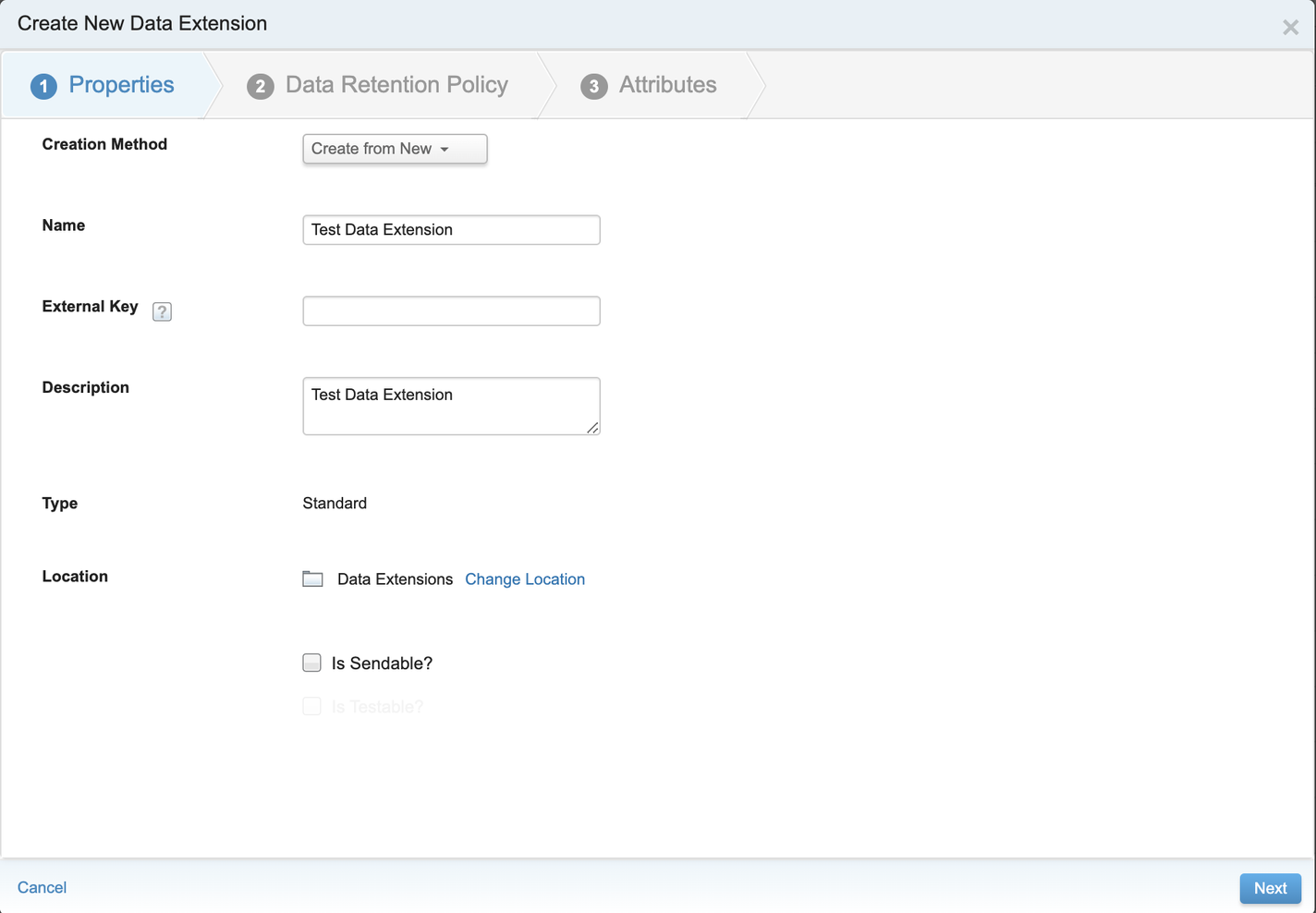
- Creation Method — Create from New
- Name — a descriptive name for the table
- Description — the purpose of this table
- External Key — enter your own, or leave blank to use the system-generated key
- Type — Standard (the only Type this integration supports)
- Is Sendable? — checked, so the Data Extension can be used as the audience source for a send
3
Under Data Retention Policy, set the retention rules you want SFMC to apply to rows in this Data Extension.
4
Under Attributes, define at least one column and mark one column as the Primary Key. Set the Length of each column to accommodate the largest value you will send. For hashed emails from Zeotap, set the column length to 200.
5
Review the fields and click Complete.
6
Copy the External Key for the Data Extension from the properties panel. You will paste it into the Zeotap destination configuration in the next section.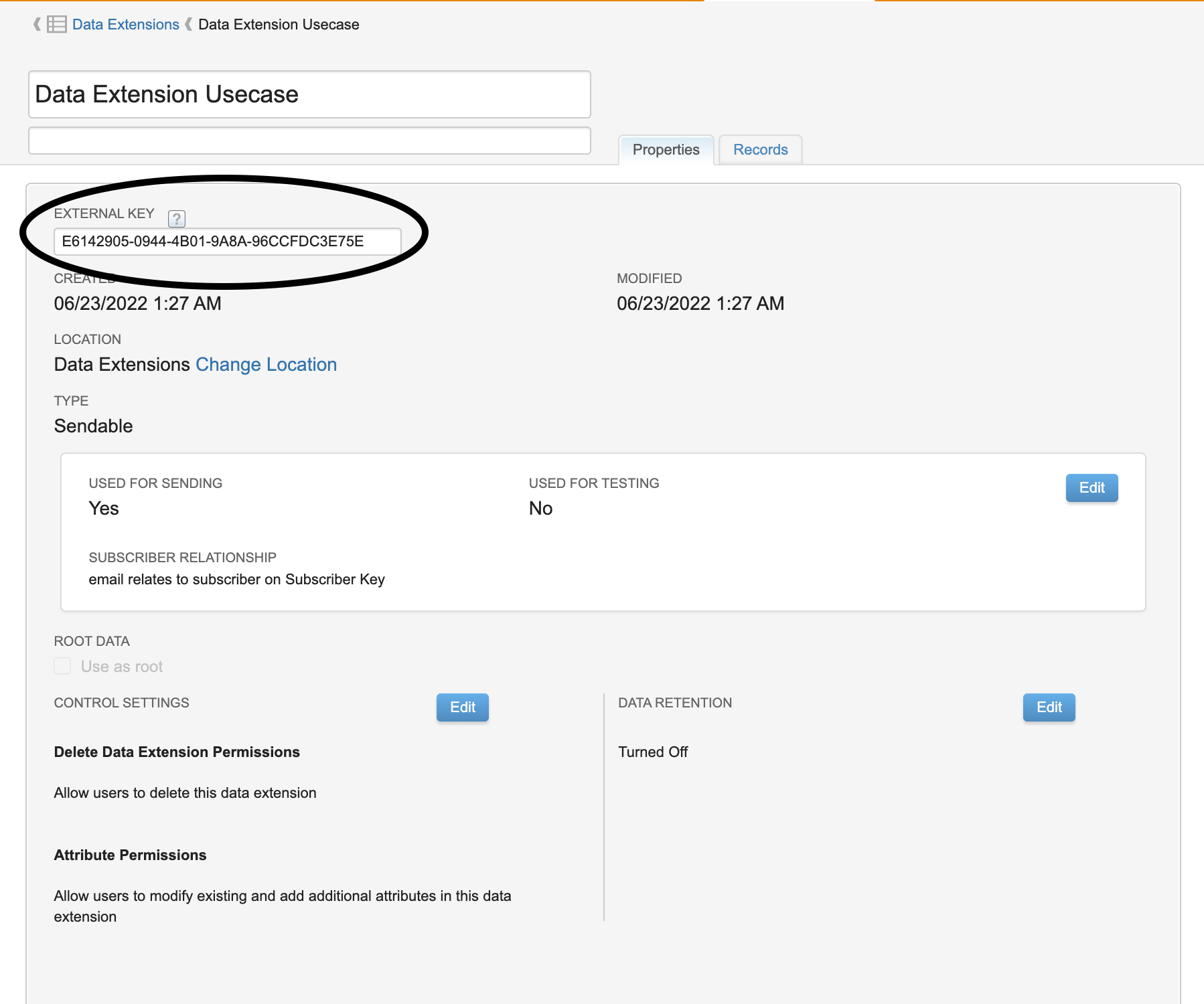
Collect the four connection values
Before you configure the Zeotap destination, gather these four values from SFMC:
The subdomain is the tenant-specific prefix of your SFMC base URI. It has the shape:
mc… prefix (without the protocol, the dot, or the rest of the hostname) into the Zeotap Sub Domain field.
Create the destination in Zeotap CDP
With the four values in hand, open the Zeotap CDP Destinations application and add a new destination for Salesforce Marketing Cloud — Data Extension.1
Open the Destinations application in Zeotap CDP and start a new destination using + Create Destination.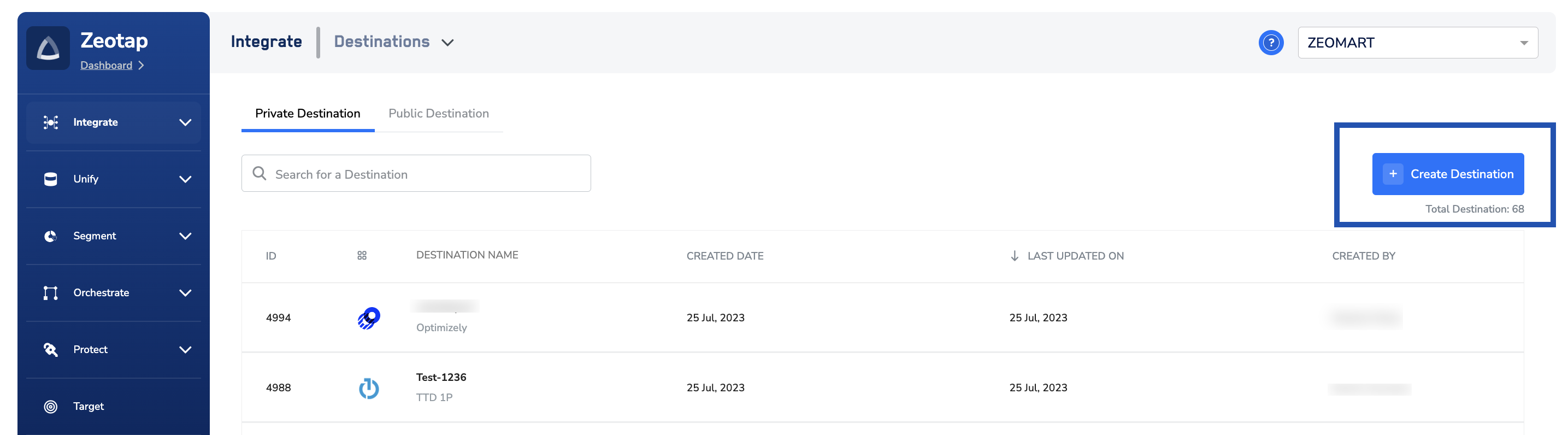
2
Under All Destinations, search for Salesforce Marketing Cloud — Data Extension and select it.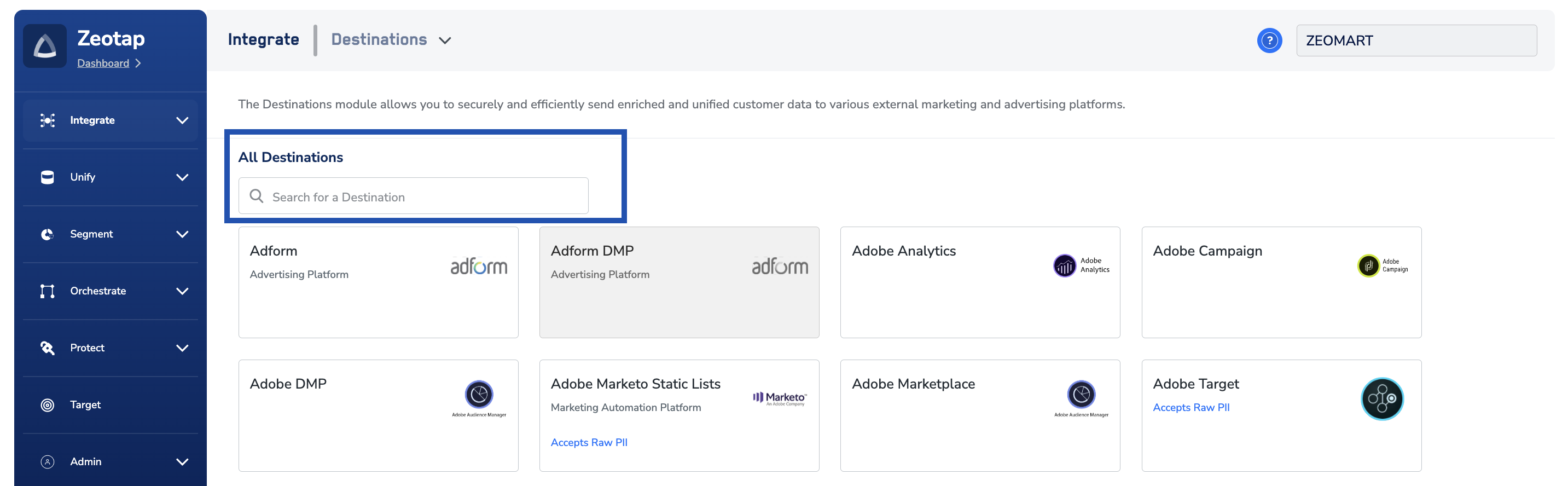
3
Fill in the destination form: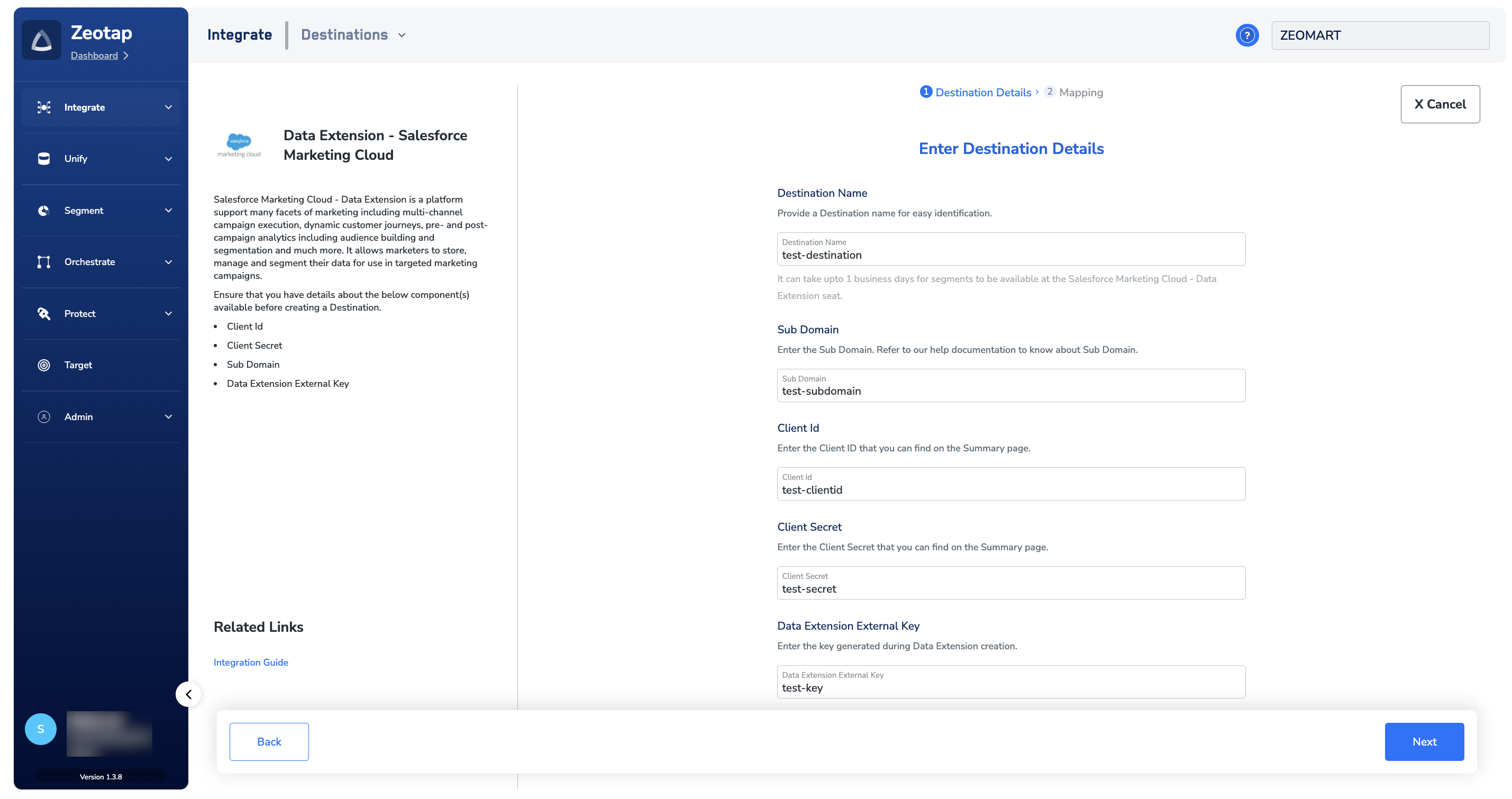
- Name — a name for this destination in Zeotap
- Sub Domain — the 28-character
mc…subdomain - Client ID — from the SFMC package
- Client Secret — from the SFMC package
- Data Extension External Key — from the Data Extension properties
4
Under Choose your Action, pick one:
- Send Raw emails to Data extension — sends only raw email addresses to the Data Extension.
- Send email and attributes to Data extension — sends the full set of attributes defined on the Data Extension. Under Map the Fields, the Zeotap catalogue fields are mapped to Destination fields; edit, add, or remove identifiers as needed. See the destination field mapping reference for the mapping mechanics.
5
Save the destination with Create Destination. It now appears in the destination list and is available to link to an audience.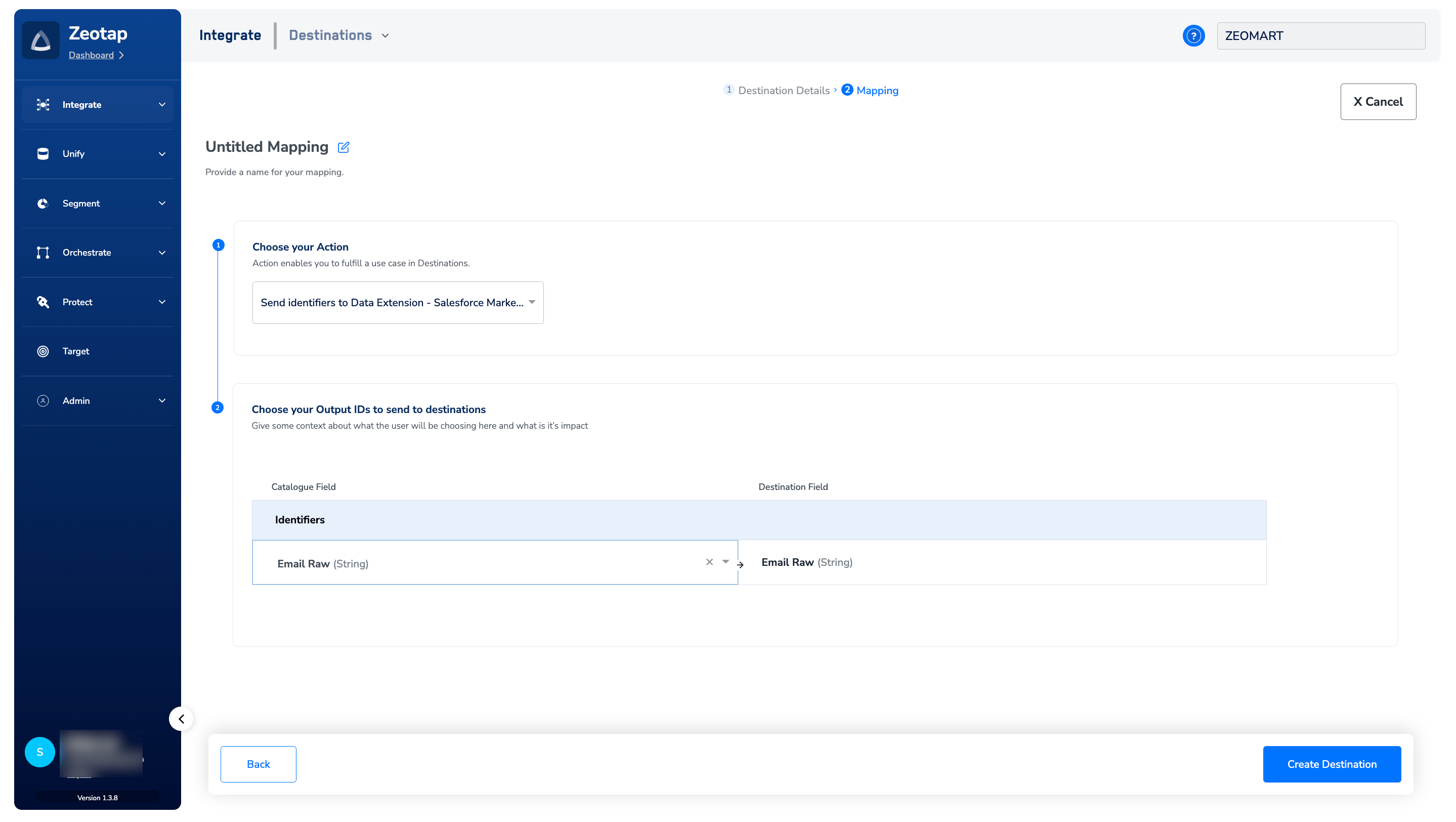
Link an audience to the destination
Once the destination is saved, link it to an audience in the Audiences application using the standard flow described in Link an audience to the destination. Segment delivery to the Salesforce Marketing Cloud — Data Extension seat takes up to one business day after the audience is linked.“Audience” and “Segment” refer to the same object in this context — a cohort of customers who share a definition, for example customers over 18 who performed an
addToCart event within the last 30 days.Verify the integration worked
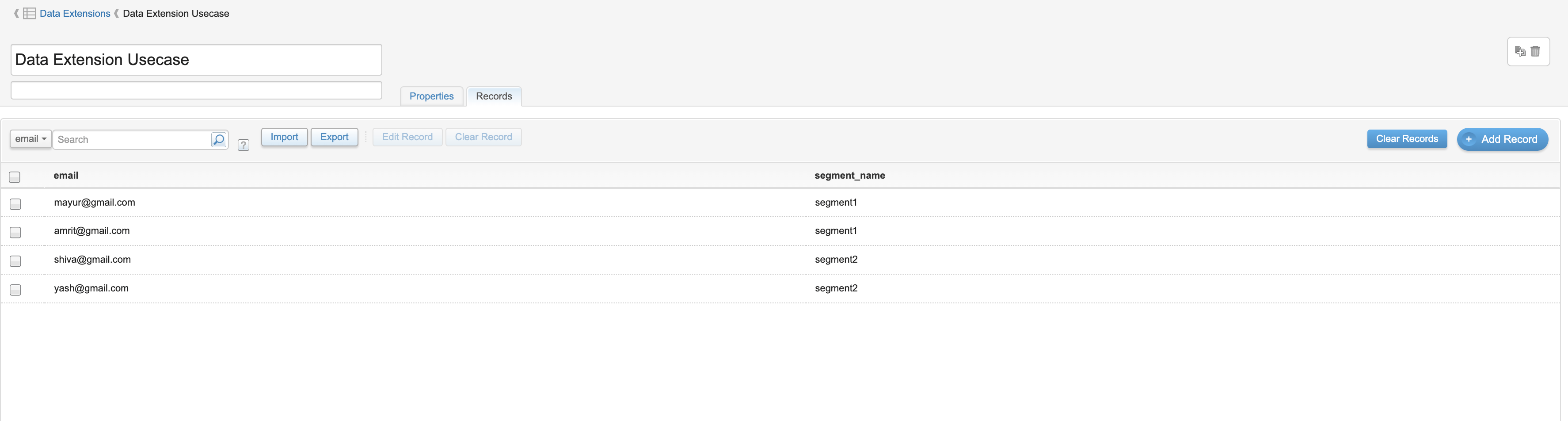
Open the SFMC console and go to Audience Builder → Contact Builder → Data Extensions. Select the Data Extension you created for this integration, then open the Records tab. You know the integration is working when:- The Data Extension shows a non-zero row count after Zeotap has processed the linked audience (allow up to one business day for the first delivery).
- Rows in the Records tab contain values for every column you mapped in the Zeotap destination.
- Hashed identifier columns (for example a
SHA-256email column) contain the full-length hash — a truncated value points to a column-length problem.
Troubleshoot
If records are missing or the destination is failing, match the symptom you see against this table, then work through the numbered steps for that row.Insufficient Privileges from SFMC
SFMC rejects the write because the API Integration does not have Data Extension permissions.
- In SFMC, open Settings → Setup → Apps → Installed Packages and open the Zeotap package.
- Open the API Integration component and confirm both Read and Write are enabled under Data → Data Extensions.
- Save the component. New writes from Zeotap use the updated permissions on the next attempt — no re-creation of the destination is required.
Records never appear in the Data Extension
The destination is saved and the audience is linked, but the Records tab in SFMC stays empty, or specific columns stay empty.- In SFMC, open the Data Extension and note the Name of every column, exactly as spelled.
- In Zeotap, open the destination and open Map the Fields. Confirm the Destination field value for each mapping matches an SFMC column name character-for-character, including case.
- Correct any mismatched names in the destination mapping and save.
- Wait for the next audience refresh, then re-check the Records tab.
Hashed identifier values are truncated
The Data Extension column is shorter than the hash string Zeotap sends.- In SFMC, open the Data Extension and open Attributes.
- Set the Length of the hashed identifier column to 200 and save.
- Re-run the audience so the truncated rows are overwritten with the full hash value.
Data Extension is not selectable as a send source
The Data Extension was created without Is Sendable? checked, so SFMC will not allow it to be used as an audience source for a send.- In SFMC, open the Data Extension’s Properties and check whether Is Sendable? is enabled.
- If it is unchecked, create a new Data Extension with Is Sendable? checked and repoint the Zeotap destination to the new External Key.
Before you contact support
If the steps above did not resolve the symptom, contact your Zeotap customer success representative and include the following in your request:- The destination name and destination ID in Zeotap CDP.
- The Data Extension External Key and the SFMC business unit the Data Extension lives in.
- The audience (or segment) name you linked to the destination.
- The timestamp of the last successful delivery and the timestamp of the first failed or empty delivery.
- The exact error string from the destination activity log (for example
Insufficient Privileges). - Whether the Client ID, Client Secret, or Data Extension External Key was rotated in SFMC in the last 24 hours.
FAQ
Which identifiers and attributes can I send?
Which identifiers and attributes can I send?
Any identifier or attribute for which you have created a matching column in the Data Extension. Zeotap writes whatever fields are mapped in the destination configuration; SFMC accepts values for the columns that exist on the Data Extension.
How long after linking an audience will rows appear in SFMC?
How long after linking an audience will rows appear in SFMC?
Segment delivery to the Salesforce Marketing Cloud — Data Extension seat takes up to one business day after the audience is linked.
Can I filter the Data Extension further inside SFMC?
Can I filter the Data Extension further inside SFMC?
Yes. Once Zeotap is writing rows to the Data Extension, build a Filtered Data Extension on top of it using SFMC’s standard tooling. See the Salesforce documentation on filtered Data Extensions.
Do I have to send hashed identifiers, or can I send raw?
Do I have to send hashed identifiers, or can I send raw?
Both are supported. If you send hashed emails, set the Data Extension column length to 200 to hold the full hash. If you send raw values, size the column to fit your longest expected value.