

What this is
Google Analytics Hub is a data exchange platform that lets you share data and insights at scale across organisations within a security and privacy framework. It acts as a marketplace for data, bringing together producers (Publishers) and consumers (Subscribers), and makes sharing efficient across organisational boundaries. Analytics Hub is built on BigQuery and uses the publish-and-subscribe model of BigQuery datasets. Because BigQuery separates compute from storage, a Publisher can share one dataset with as many Subscribers as it wants without making multiple copies of the data. Publishers are charged only for data storage; Subscribers pay only for the queries they run against the shared data. In this integration Zeotap is the Publisher and you are the Subscriber. Zeotap publishes the dataset privately on Analytics Hub, and your nominated users subscribe to it. The shared dataset is the Profile (Profile + ID) store hosted in Zeotap’s Google BigQuery account, to which Zeotap grants you access. It gives you profile, consent, IDs and campaign-related data. Once the subscription is in place, you can leverage that data through any other data warehouse you use.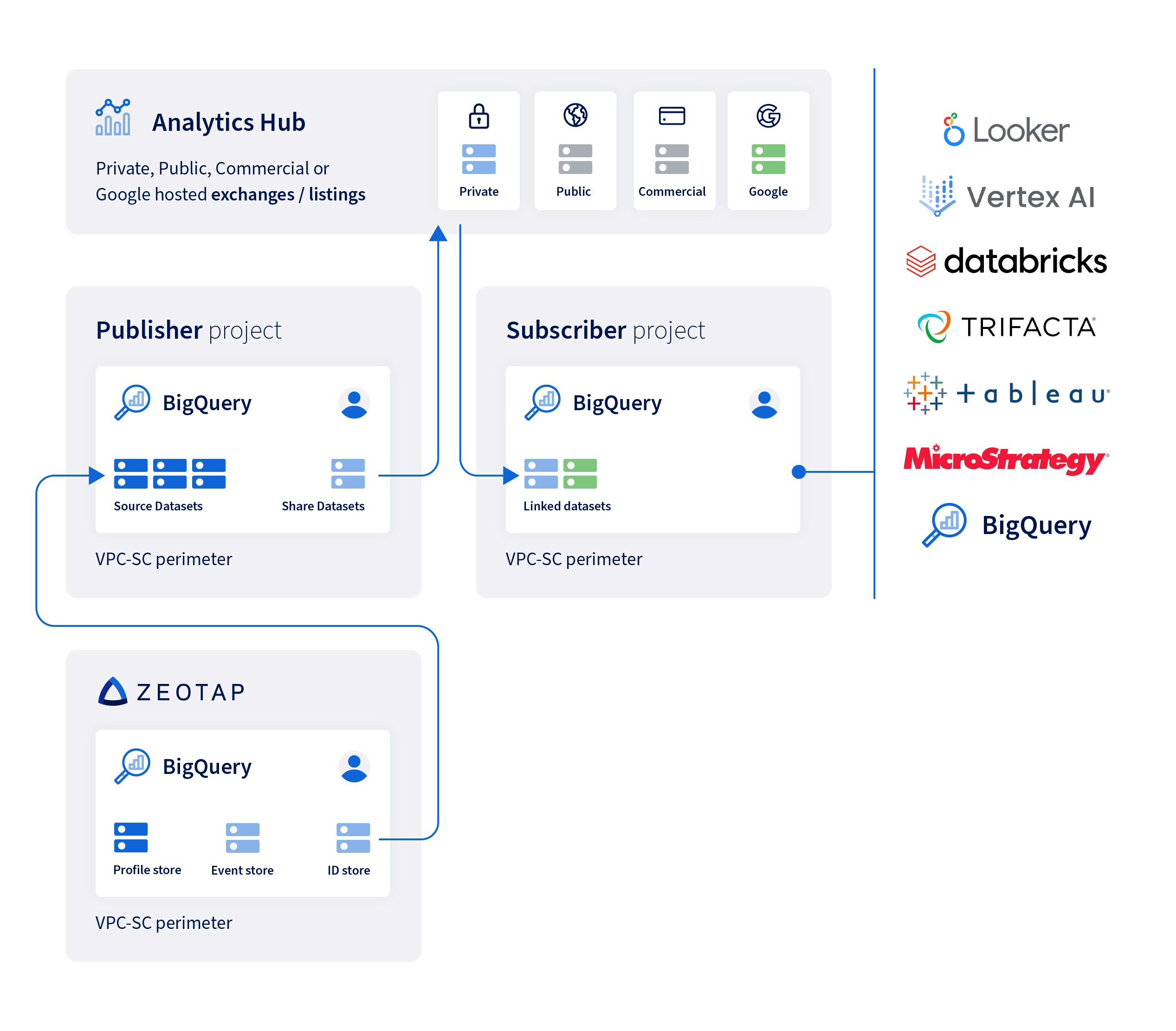
Prerequisites
Before you request access, confirm the following:
- A Google Cloud project with BigQuery, in which your users will subscribe to the shared dataset.
- The users who will subscribe — individual or group — must have access to Google Analytics Hub on your GCP.
- The email group address, or the individual email addresses, of the users to be granted access. Zeotap recommends sending an email group; individual email addresses also work.
Key concepts
The Publisher-Subscriber model of Analytics Hub has four moving parts. Knowing them makes the setup steps below easier to follow.Shared dataset
A shared dataset is a BigQuery dataset that is the unit of data sharing in Analytics Hub. In this integration, the shared dataset is the Profile (Profile + ID) store in Zeotap’s BigQuery account.Data exchange
A data exchange is a container that enables self-service data sharing. It contains listings that reference shared datasets.Listing
A listing is a reference to a shared dataset that a Publisher lists in a data exchange. A listing can carry a dataset description, sample queries to run on the dataset, links to relevant documentation, and any additional information that helps Subscribers use the dataset.Linked dataset
A linked dataset is a read-only BigQuery dataset that serves as a symbolic link to a shared dataset. Subscribing to a listing creates a linked dataset in your project rather than a copy of the dataset, so Subscribers can read the data but cannot add or update objects within it. For Google’s own reference on all four concepts, see Introduction to Analytics Hub.Request access from Zeotap Support
Enabling this integration is support-gated. You cannot turn it on yourself from the Zeotap CDP application.1
Raise a ticket with the Zeotap Support team at support@zeotap.com to enable unified data sharing as per your requirement.
2
Provide the email group address, or the individual email addresses, of the users who should be granted access to the shared dataset. An email group is recommended; individual addresses also work.
3
Confirm that each of those users — individual or group — has access to Google Analytics Hub on your GCP.
4
Wait for confirmation. The Zeotap Support team grants access to the email group address or the individual email addresses you shared with them.
Subscribe to the shared dataset in BigQuery
Once the Zeotap Support team has granted access, each nominated user completes the following in their own Google Cloud project.1
Log in to your Google BigQuery account and open Analytics Hub.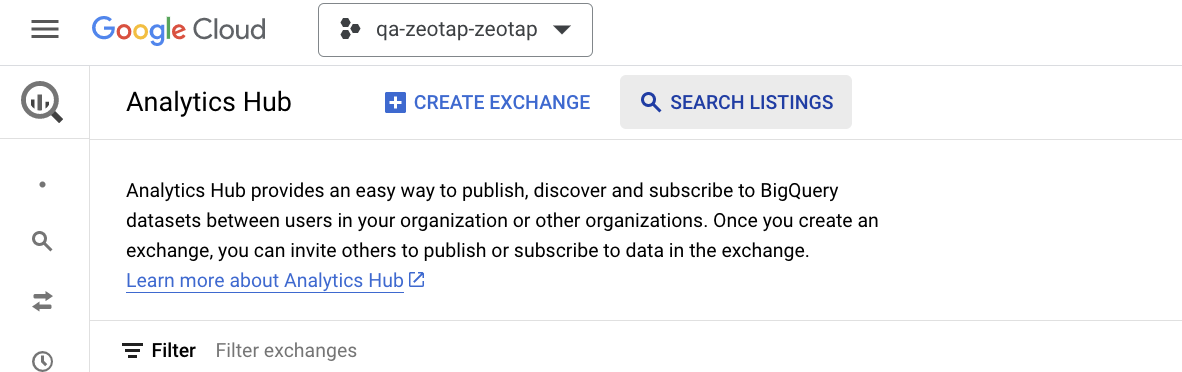
2
Click Search Listings and search through the datasets available to you.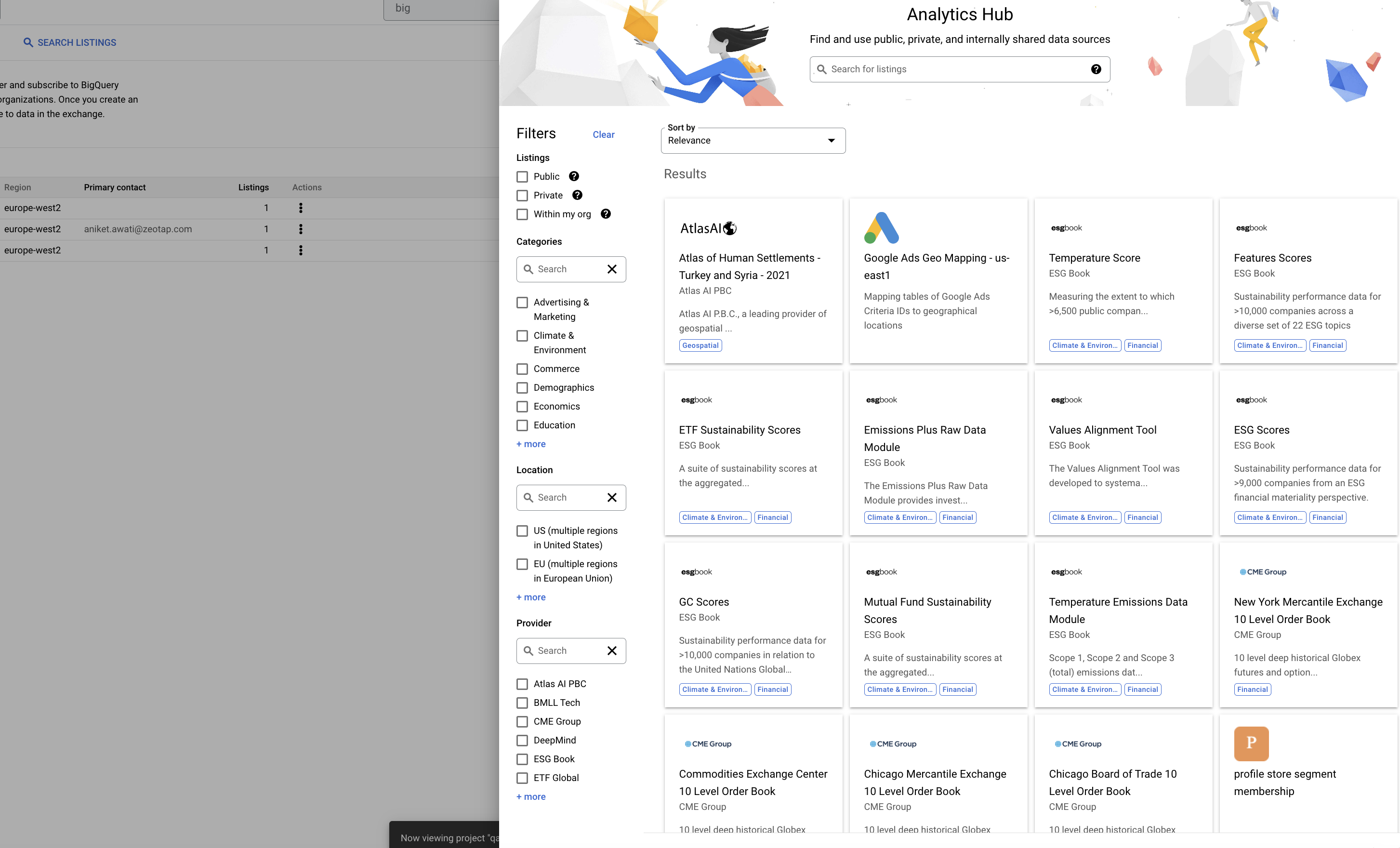
3
Navigate to the relevant listing and subscribe to it. Filtering Listings to Private narrows the results to the datasets shared privately with your project.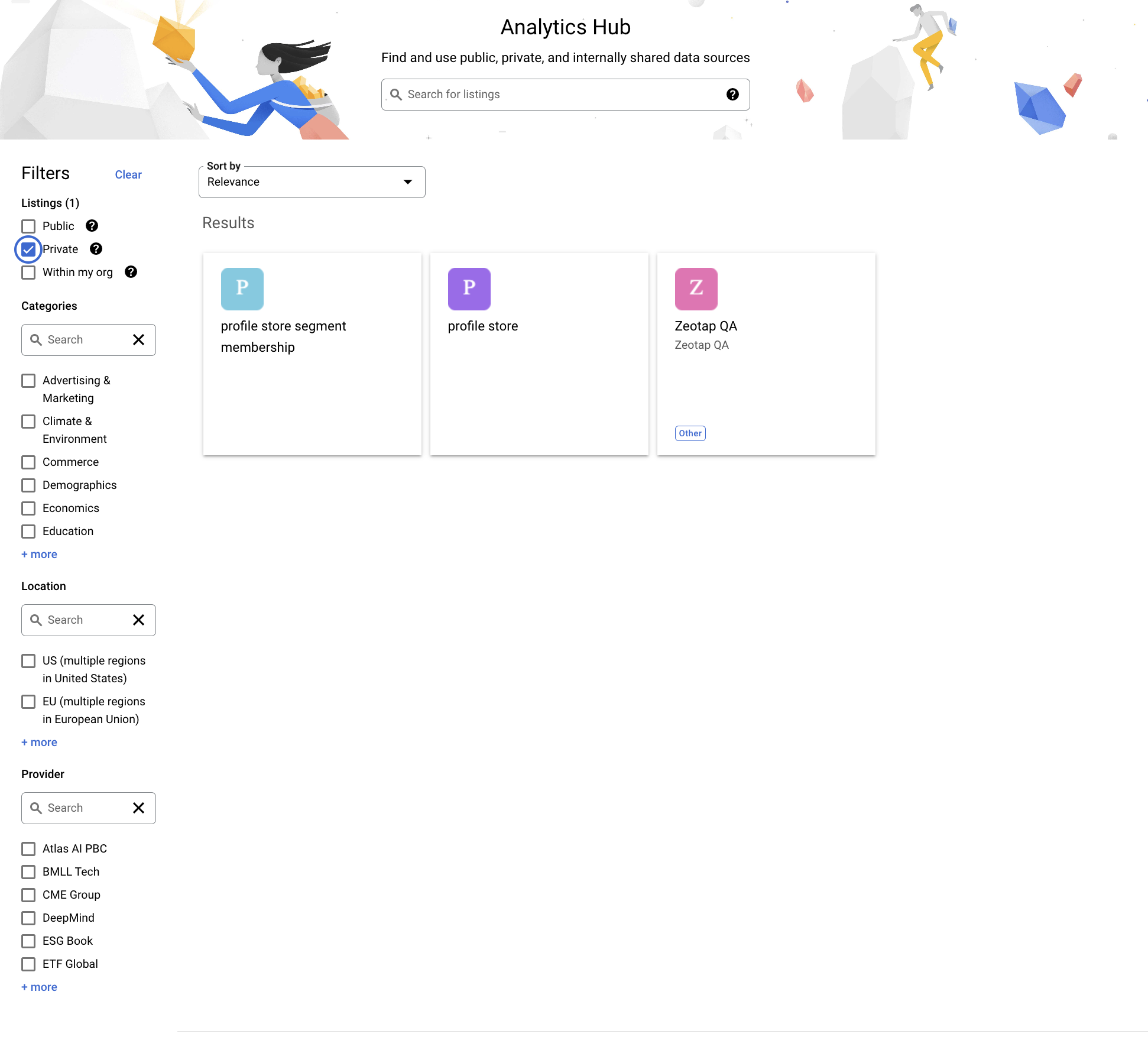
4
Subscribing creates a linked dataset in your project and gives you access to the shared dataset.