

Overview
Smadex is a mobile-first programmatic demand-side platform (DSP) for user acquisition, retargeting and branding campaigns. The Smadex integration with Zeotap allows you to upload audience segments to Smadex using their API. Zeotap sends CSV files containing user data, along with a specified source and description for the audience update, so that your audiences become available for targeting in your Smadex campaigns — without any manual exports or file transfers.Supported Identifiers
The integration supports the following ID types:Note:Smadex accepts a single ID type per audience. Select the ID type under Additional Settings that corresponds to the identifier you map, and ensure it matches how your Smadex campaigns are configured. You cannot activate the same audience using a different identifier. In Smadex, uploaded audiences appear under the tab matching their ID type (Device ID, IP or IDFV).
Available Actions
- Smadex Audience Upload
Prerequisites
Before you create a Smadex Destination in Zeotap CDP, ensure that you have the following:- An active Smadex account with access to the Smadex platform (
hub.smadex.com). - A Smadex API Key, used for Smadex API authentication. If you are unsure where to find your API Key, contact your Smadex account representative.
Create a Destination for Smadex
Perform the following steps to create a Destination for Smadex:1
Log into the Zeotap CDP App and go to the DESTINATIONS application.
2
Click + Create Destination.
3
Under All Destinations, search for Smadex and click the Smadex card.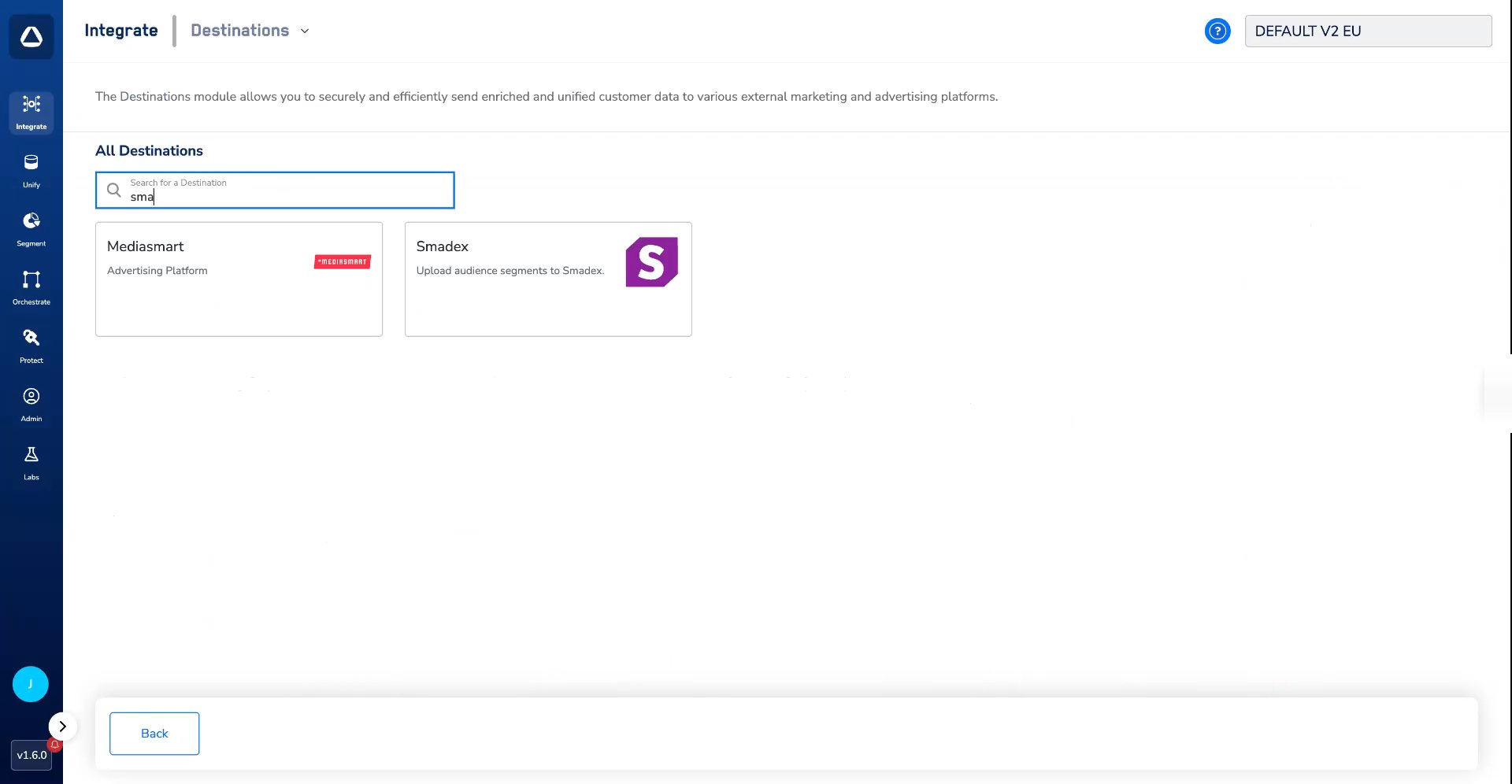
4
On the Enter Destination Details screen, enter the required details:a. Enter a name for the Destination.b. Enter your Smadex API Key.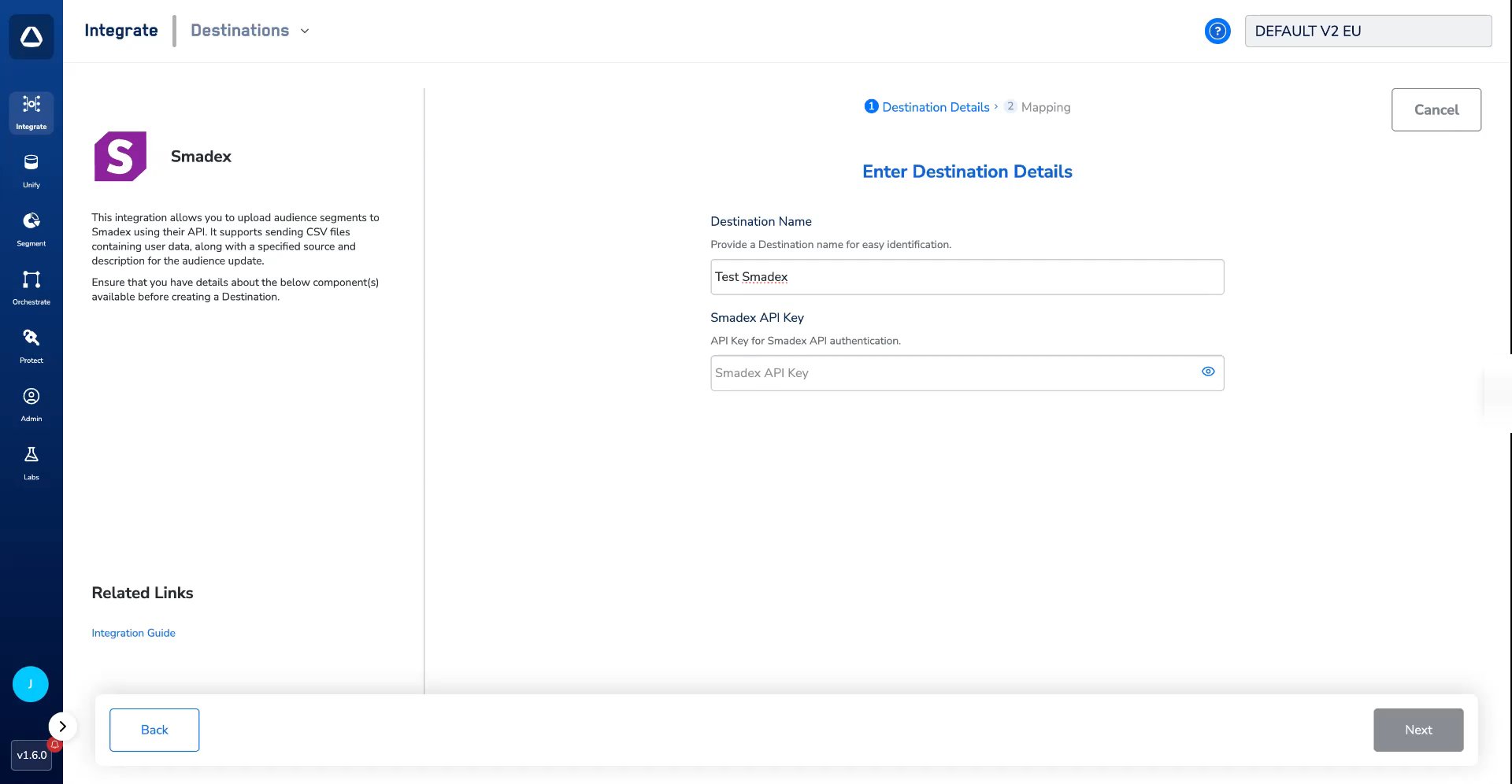
5
On the Mapping screen, under Choose your Action, select Smadex Audience Upload.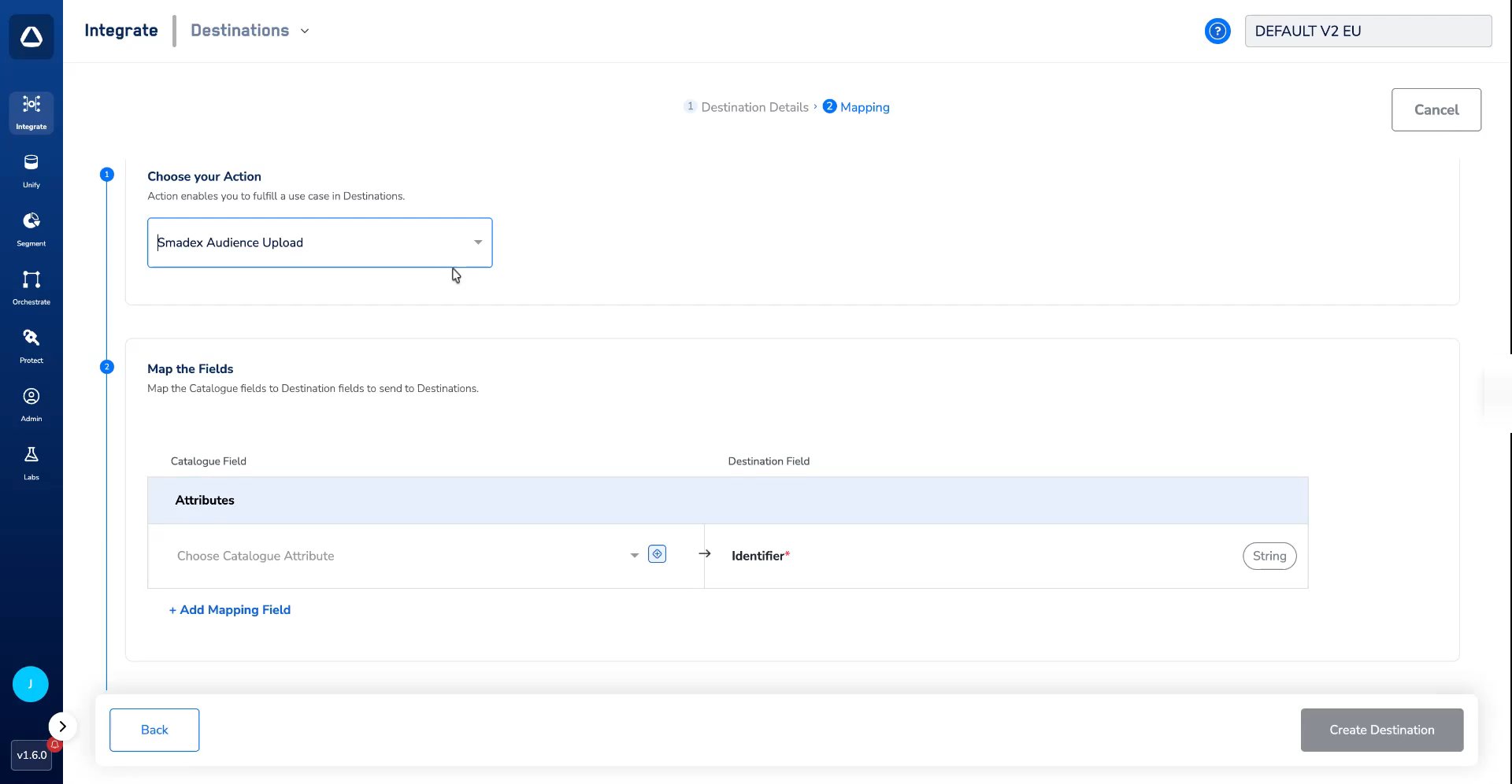
6
Under Map the Fields, map the Catalogue attribute that holds your identifier (for example, Maid) to the Identifier Destination field.Then, under Additional Settings, select the ID type that corresponds to the mapped identifier from the Supported Identifiers list.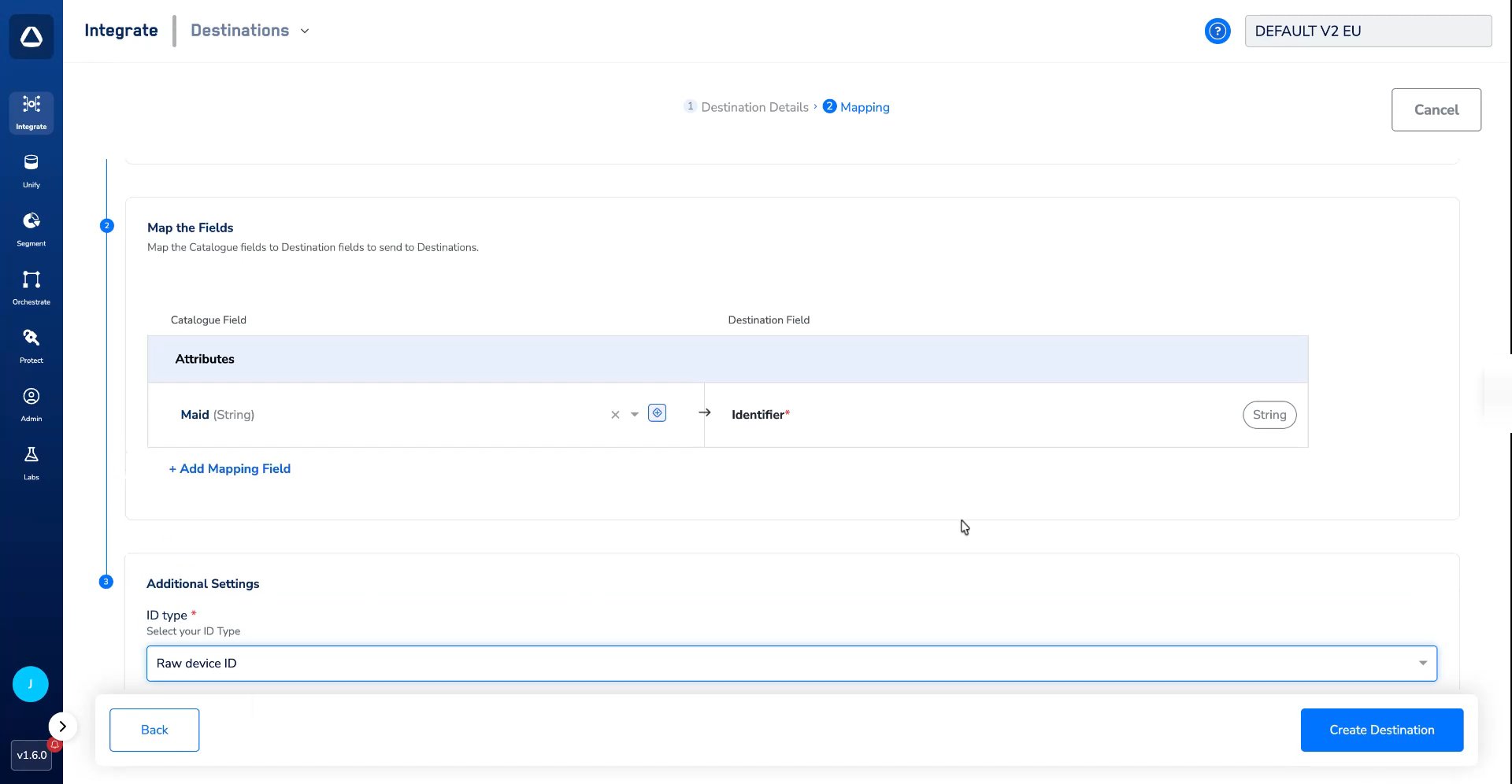
7
Once the mapping is complete, click Create Destination. A confirmation message appears, and the created Destination gets listed on the Destinations page. It can now be linked to an audience (segment) in the Audiences application.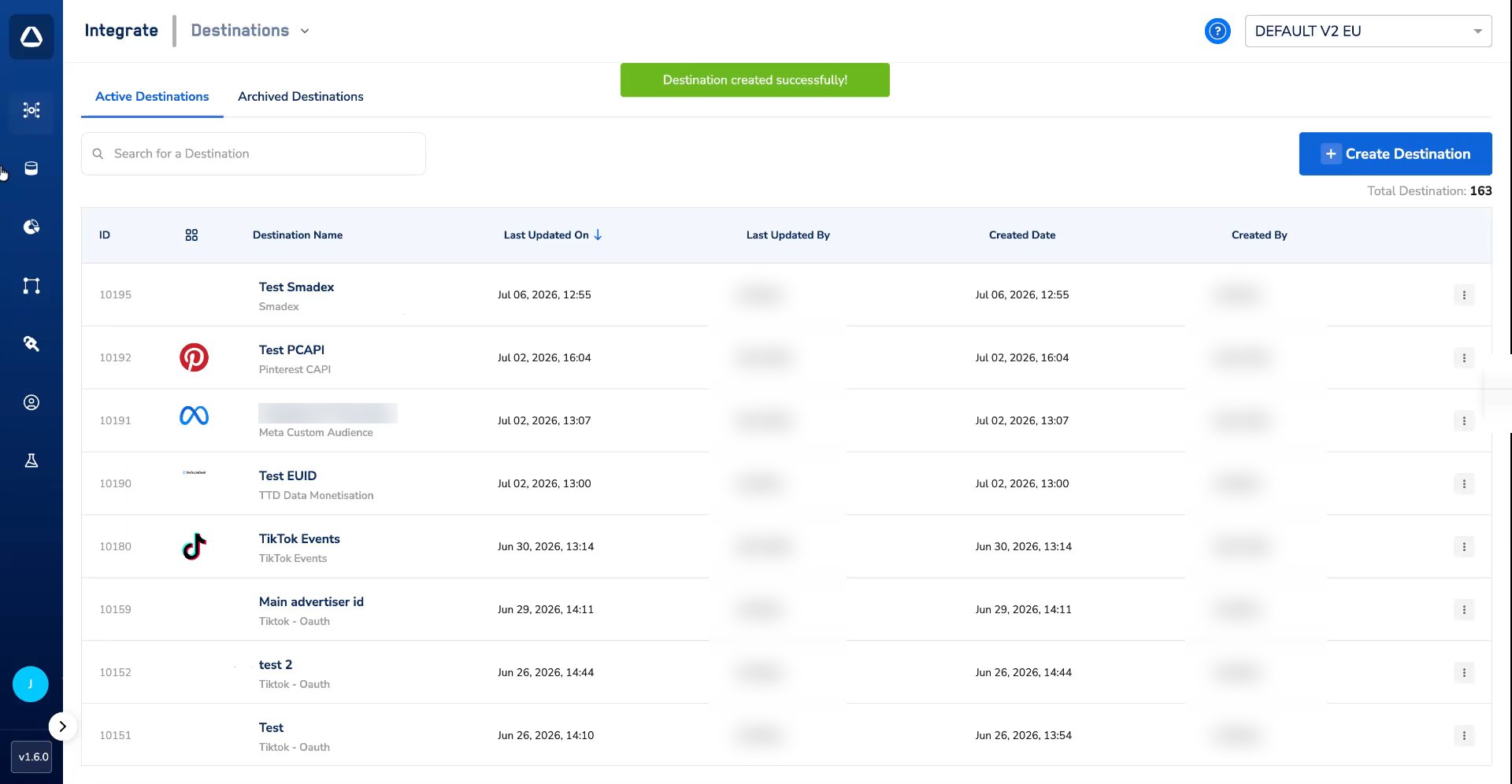
Link an Audience to the Smadex Destination
Create the audience that you want to send to Smadex in the Audiences application: define the audience criteria as a Batch audience, click Check Estimates to review the estimated audience size, and then save the audience. After the audience is created, you can attach the Smadex Destination to it.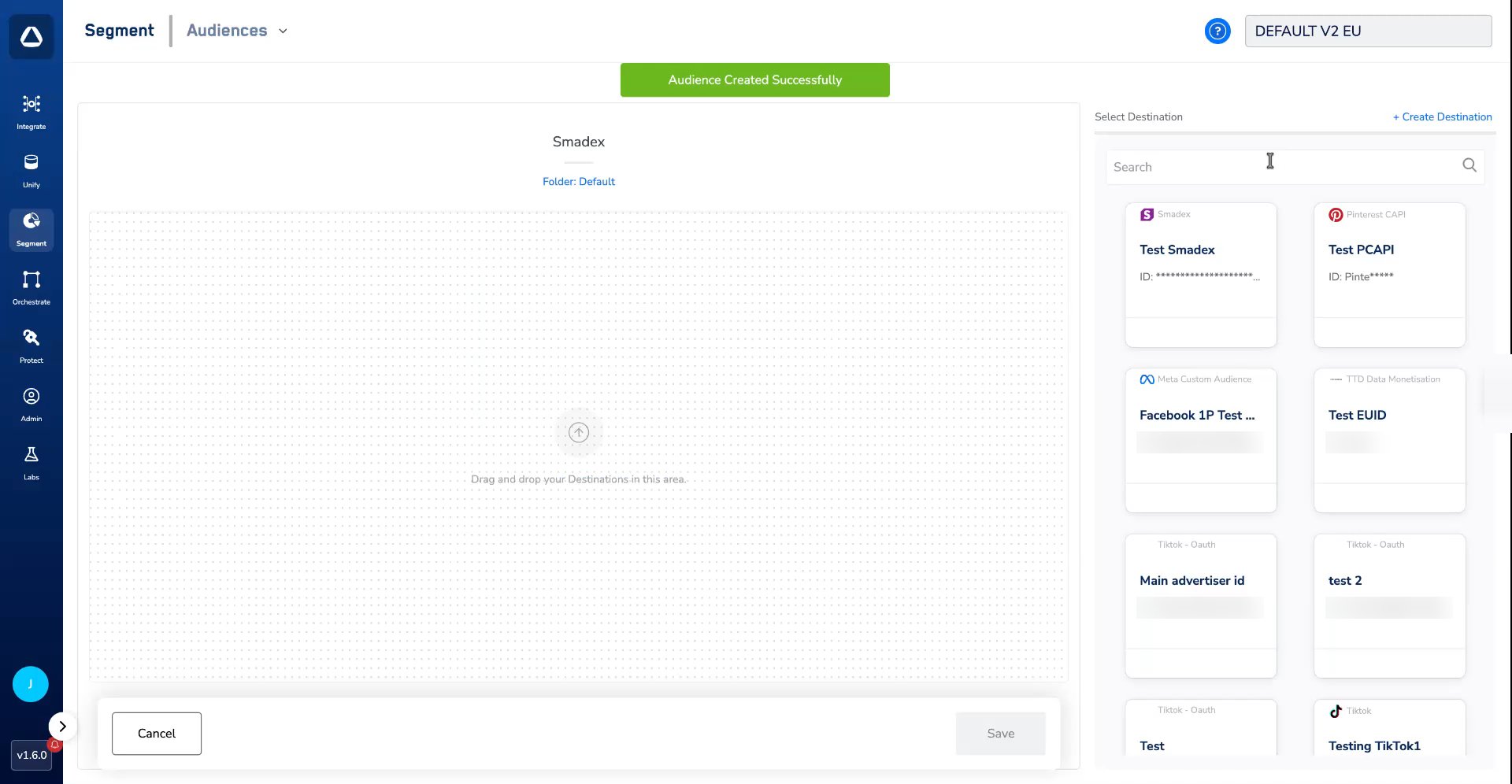
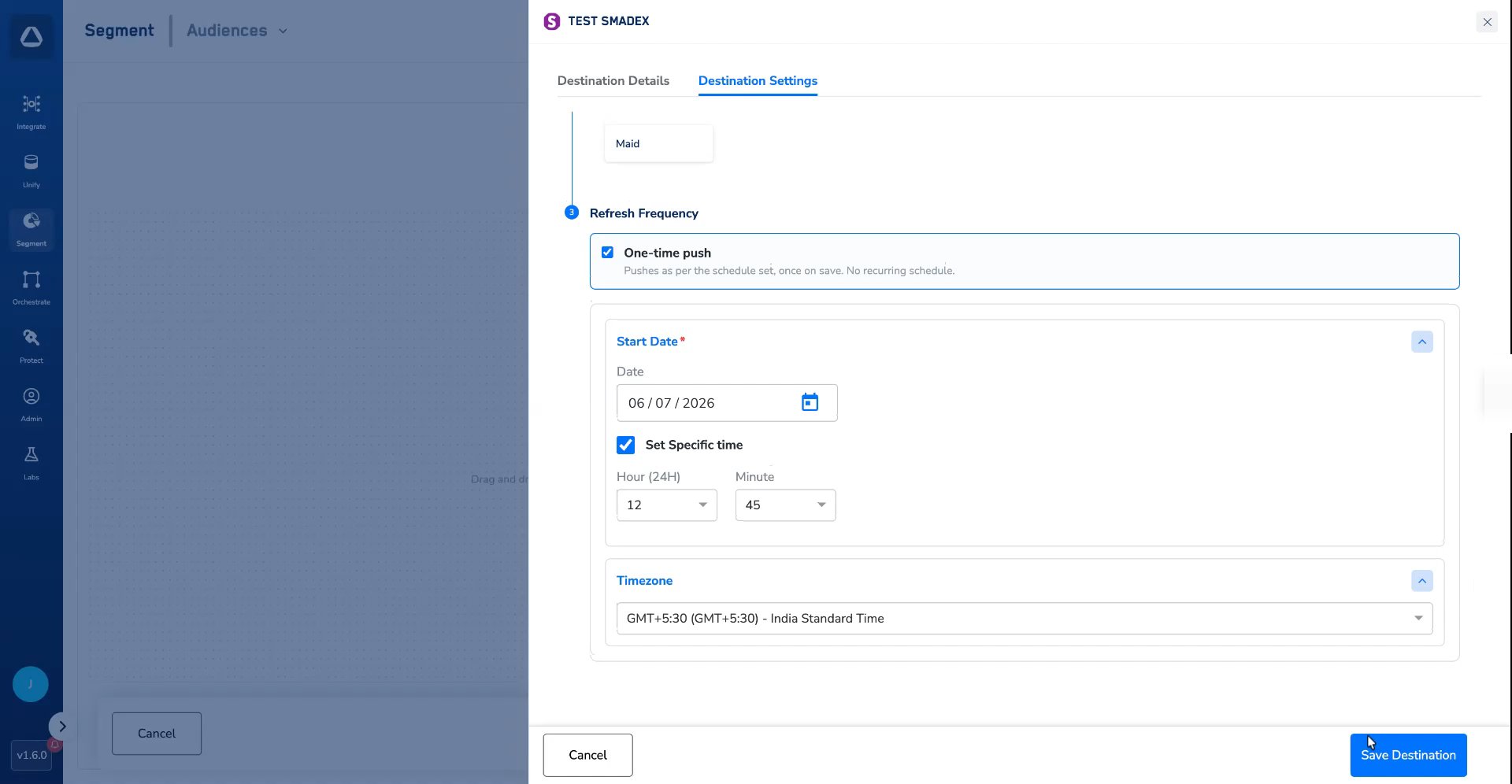
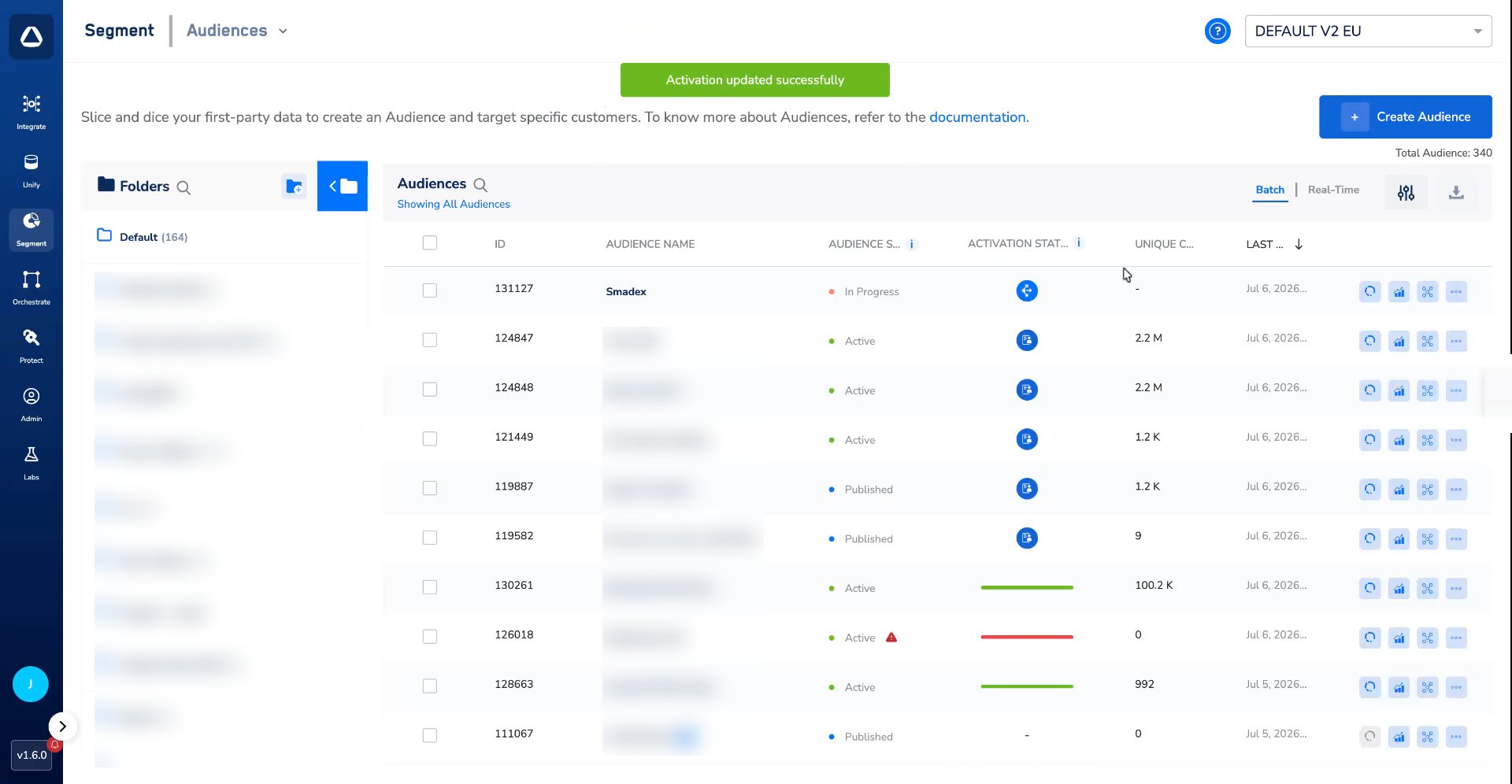
Note:Every push delivers a full refresh of the audience to Smadex; incremental (delta) uploads are not sent.
View the Pushed Data on Smadex
Once the audience is activated and the data is delivered, you can verify it in Smadex:1
Log into your Smadex account and go to Audiences > My Audiences.
2
On the My Audiences list page, find the audience sent from Zeotap. Audiences are grouped under the tab that matches their ID type (Device ID, IP or IDFV), and the list shows the audience ID, name, number of active files, type and Dev ID Type (Raw or Hashed), along with the created and updated dates.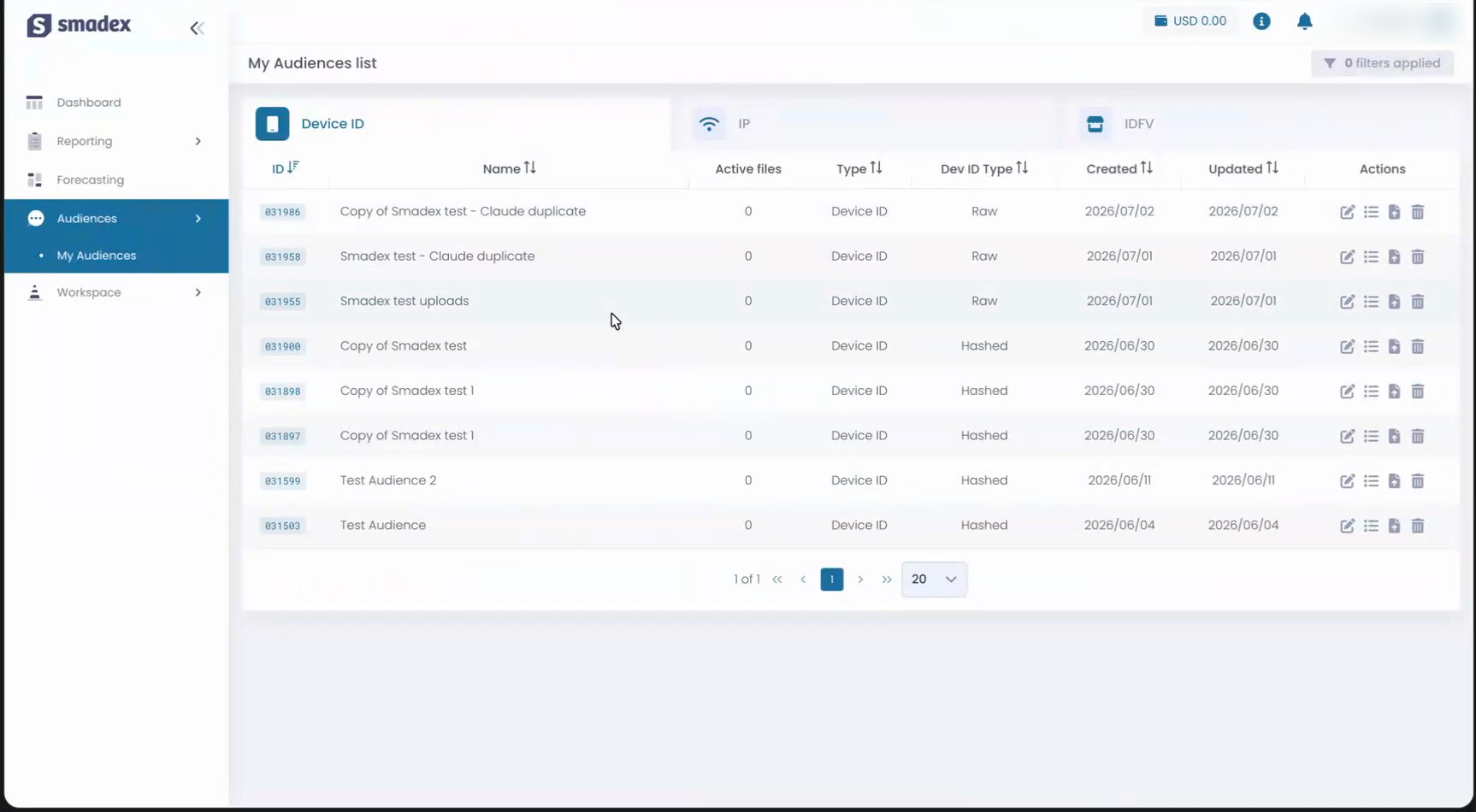
3
Open the audience to review its details and upload activity. The uploaded files sent by Zeotap are listed with names in the 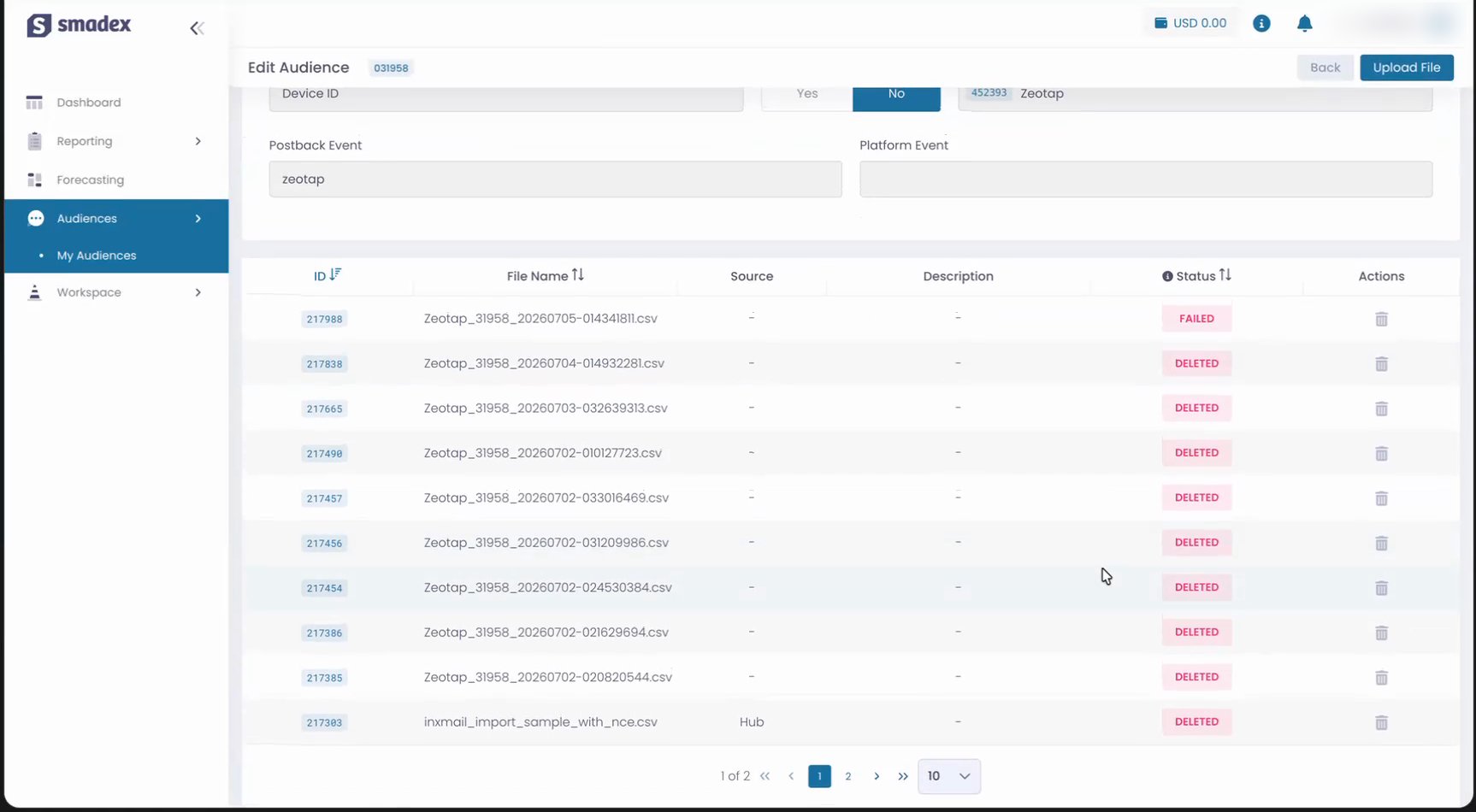
Zeotap_<audience_id>_<timestamp>.csv format, along with the status of each file.Note:When a new file is uploaded, Smadex automatically removes the older files of the audience. This keeps the audience data fresh and prevents an incorrect audience count, so files showing a DELETED status after a new upload are expected and not an error.
Note:The terms Audiences and Segments are used interchangeably to refer to customer cohorts belonging to a specific category. For example, an Audience or a segment could be a specific group of customers who are over 18 years of age and who have performed an
addToCart event within the last 30 days.