

What this is
This page is the reference for both vocabularies. Each column header on the listing carries an info icon that opens the same definitions set out below, so you can check a value without leaving the listing. Use Audience Status when you want to know whether the audience exists and is being refreshed. Use Activation Status when you want to know whether the data reached a destination. If Audience Status is healthy and Activation Status is not, the problem is on the destination side, not in the audience definition. This page defines the values only. For the icons and row actions that sit beside them, see Explore audience listing page options. For the dated history of how one audience reached its current state, see Audience lifecycle.Audience status
Audience Status describes the audience definition and its build. Every audience has one, whether or not a destination is linked to it.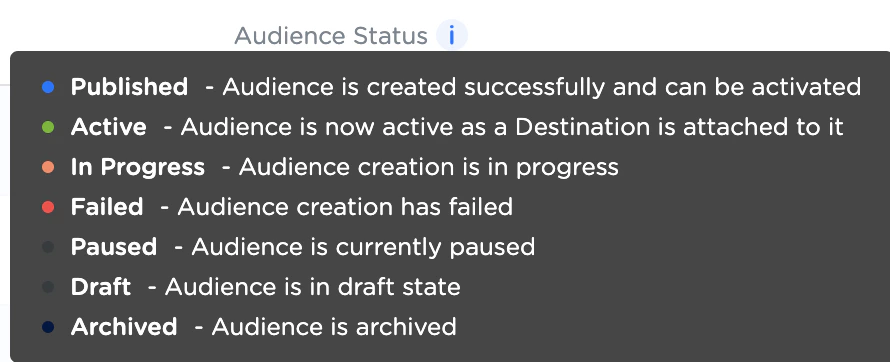
A newly created audience moves from In Progress to Published, and changes to Active only once a destination is attached. See Create an audience for that sequence.
Which row actions are offered depends on this status — Edit appears only on Active and Failed audiences, and Continue Build and Delete only on Draft ones. See Explore audience listing page options for the full set.
Activation status
Activation Status describes the most recent upload of the audience to a destination. It is recorded per audience–destination pair, so an audience linked to four destinations has four activation outcomes, not one.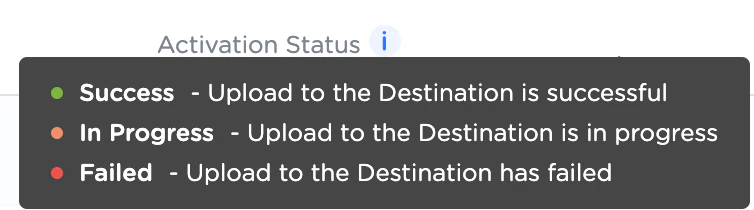
The tooltip on the column header lists those three values. The column itself can also show Paused: a paused audience is not refreshed and sends nothing onward, so no new upload outcome is recorded against its destinations until you resume it.
On the listing, those per-destination outcomes are summarised as a single colour-coded bar. A dash in the column means no destination is linked to that audience yet, so there is nothing to report.
See the per-destination breakdown
Hover over an audience’s Activation Status to open a panel covering every destination linked to it:- The count of successful destinations.
- The count of failed destinations.
- The count of in-progress destinations.
- A message about the overall destination status, where there is one.
- An icon for each destination, in the colour of that destination’s own status.
Read the two columns together
Most questions about these columns are really questions about a combination. The table below maps the pairs you are likely to see.An audience that qualifies zero customers does not move to Failed. It stays Published or Active and is flagged with an error indicator instead, so a healthy-looking status does not by itself prove that anybody was delivered. See Audience alerts for how that case is reported and resolved.
Find out why a status shows Failed
AFailed value tells you that something failed, not why. The reason is recorded against the thing that failed, and is explained on the page that owns it:
- The audience build failed — re-open the audience and check that its conditions reference attributes that exist in your data and that the estimated count is non-zero. A build that fails for an internal reason is retried automatically, so contact support only if it keeps failing. An audience that built but qualified nobody, or whose A/B cohort or membership refresh failed, raises an email alert naming the cause and the action that clears it. See Audience alerts.
- A destination rejected the upload — rejected credentials, mandatory fields missing from the mapping, permission scoping on the owning organisation, and the per-account caps the destination platform enforces are all covered in Why deliveries fail.
- The identifiers were not what that platform accepts — a destination rejects an upload whose identifiers are not in the format it requires, for example mobile advertising IDs that are not valid SHA-256 hashes, or a push upload whose device values do not resolve to an app the destination recognises. Where the identifiers are accepted but still wrong for the platform, the upload completes and matches almost nobody. See Choose the output identifiers for what each destination accepts and in which format.
- The destination’s authorisation has lapsed — an expired destination stops receiving syncs and is flagged with a warning icon on the listing. See Expired and soon-to-expire destinations.
Verify an audience is delivering
An audience and its destinations are healthy when all of the following are true on the listing:- The Audience Status column reads Active.
- The Activation Status bar is green across its full width.
- The hover panel reports the number of successful destinations you expect, and zero failed.
When to contact support
Contact the Zeotap support team when:- An Audience Status of Failed persists after you have corrected the definition and re-run the audience.
- An Activation Status of Failed persists after you have cleared the error recorded against the audience–destination pair.
- An Activation Status of In Progress has not changed after the destination’s next scheduled refresh has elapsed.
- A status value appears that is not listed on this page.
- The audience name and audience ID.
- The name and ID of the affected destination.
- The exact error text shown against the failing audience–destination pair.
- The date and time of the failing run, and of the last successful run.
FAQ
My audience is Active but one destination shows Failed. Which one do I trust?
My audience is Active but one destination shows Failed. Which one do I trust?
Both — they describe different things. Active confirms the audience was built and is live. A Failed activation on one destination means the latest upload to that destination did not complete. The audience definition is not the problem; open the hover panel to identify which destination failed, then read the error recorded against that pair.
Why is the Activation Status column empty for one of my audiences?
Why is the Activation Status column empty for one of my audiences?
A dash means no destination is linked to it. Activation Status only has something to report once the audience is attached to at least one destination.
The audience shows Active, but nobody was delivered. Is the status wrong?
The audience shows Active, but nobody was delivered. Is the status wrong?
No. A run that qualifies zero customers leaves the status unchanged and raises an error indicator and an alert email instead. Treat an Active status as confirmation that the audience is live, not as confirmation that it delivered a population. The estimate is taken when you build the audience and qualification is re-evaluated at every refresh, so the two can disagree — most often on the first run after new data has been ingested. See Audience alerts.
What happens to both statuses when I pause an audience?
What happens to both statuses when I pause an audience?
The Audience Status changes to Paused. The audience stops being refreshed and stops sending data to its linked destinations, so no fresh activation outcome is recorded until you resume it. Resuming the audience returns the Audience Status to Active.
Where can I see when a status last changed, and who changed it?
Where can I see when a status last changed, and who changed it?
These columns show the current value only. For a timestamped record of every state change and activation event on one audience, including the user who caused it, open Audience lifecycle.
Why can I not find an archived audience in the status filter?
Why can I not find an archived audience in the status filter?
Archived is a status value but not a filter option. Archived audiences are held in the Archived folder in the folders panel — open that folder instead of filtering the listing.