

Note:Scheduling is configured per destination, in the Refresh Frequency section of the Destination Settings panel.
Editing a Live Audience
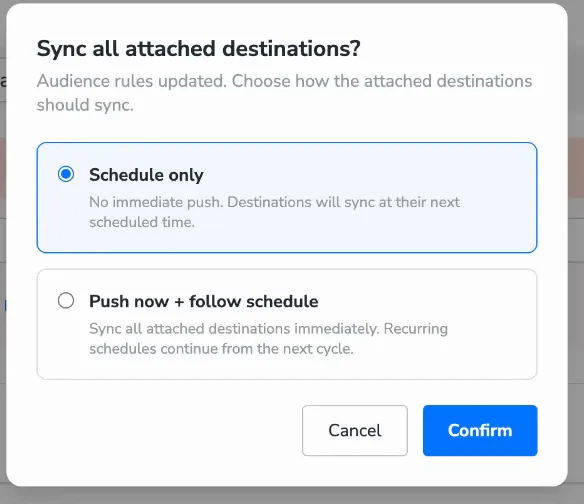
You can update an audience that is already live and syncing — both its rules and each destination’s schedule — without deleting or re-creating the destination link. When you edit the audience’s rules and save, a Sync all attached destinations? popup asks how all attached destinations should sync (the audience-level popup — distinct from the per-destination Saving and Choosing How to Start popup shown when you first save a single destination link):
This gives you flexibility over how each change rolls out. Choose Push now + follow schedule when, for example, you are correcting a targeting error and need all destinations refreshed right away. Choose Schedule only when an audience-logic update can go out as per the regular schedule — each destination then picks up the change at its next scheduled cycle, with no immediate push.
Getting Started
To open the schedule settings for an audience:1
Go to Segment → Audiences.
2
Find the audience you want to configure.
3
Navigate to its destination linking screen.
4
In the Destination Settings panel, go to Refresh Frequency.
One-Time Push
If you want to send the current audience data to a destination once without setting up a recurring schedule, check One-time push at the top of the Refresh Frequency step.
- By default, the audience data is sent to the destination immediately when you click Save Destination. If you want the single push to run at a particular time instead, set a Start Date and a specific time (and timezone) in the Start Date and Time section.
- No recurring schedule is created.
- The destination becomes inactive after the push completes.
Note:When One-time push is selected, the recurring cadence and end date settings do not apply to a single sync and are hidden. You can still set a start date and a specific time so the push runs at a particular moment.
Recurring Schedules
For ongoing audience syncs, configure a cadence. After saving, you are asked how you want the first sync to run.Choosing a Cadence
Select one of four cadence types: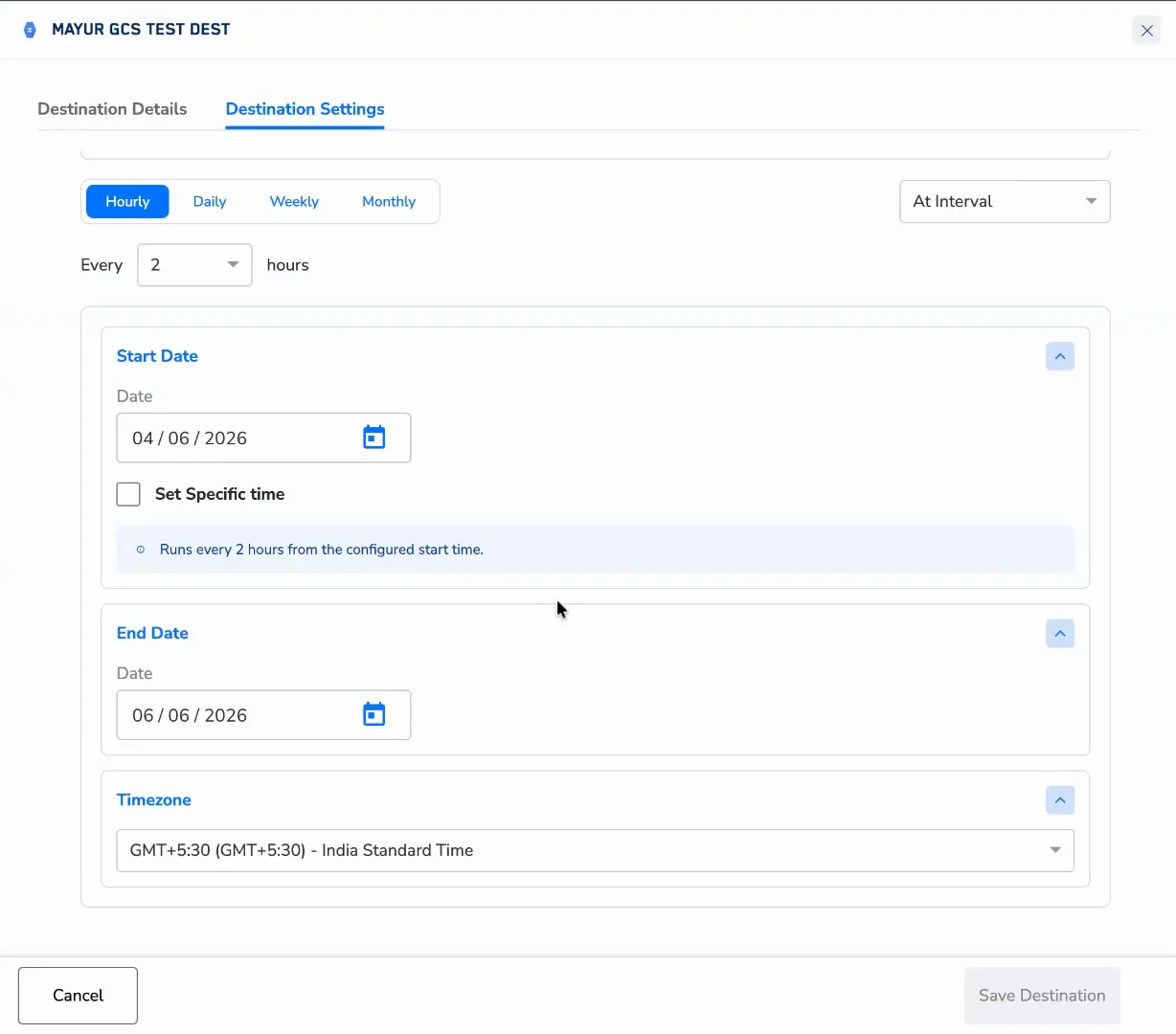
Hourly
Hourly schedules have two modes. At interval — Sync every fixed number of hours. Choose from every 1, 2, 4, 6, or 12 hours. The schedule anchors to the Start Time you configure in the Start Date and Time section. For example, if you set a start time of 02:00 and choose every 4 hours, the audience syncs at 02:00, 06:00, 10:00, 14:00, 18:00 and 22:00.Hourly cadence would need to be exclusively enabled.
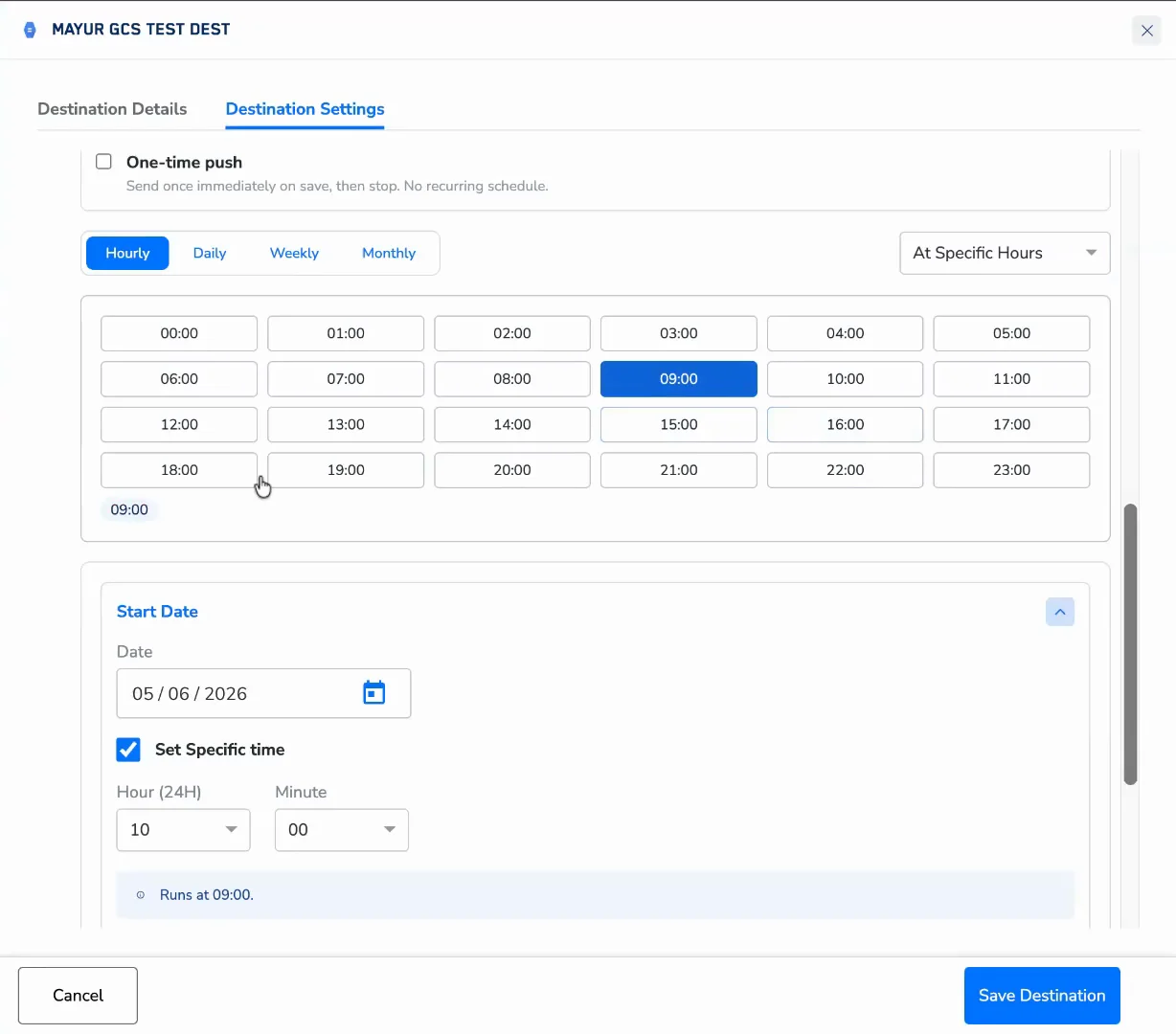
Hourly cadences are compute-intensive. Use them only when near-real-time data freshness is required.
Daily
Sync once every N days. Choose from every 1, 2, 3, 5, or 7 days. The sync fires at the time configured in the Specific Time section (optional). If no specific time is set, the platform runs it at a system-default time.Weekly
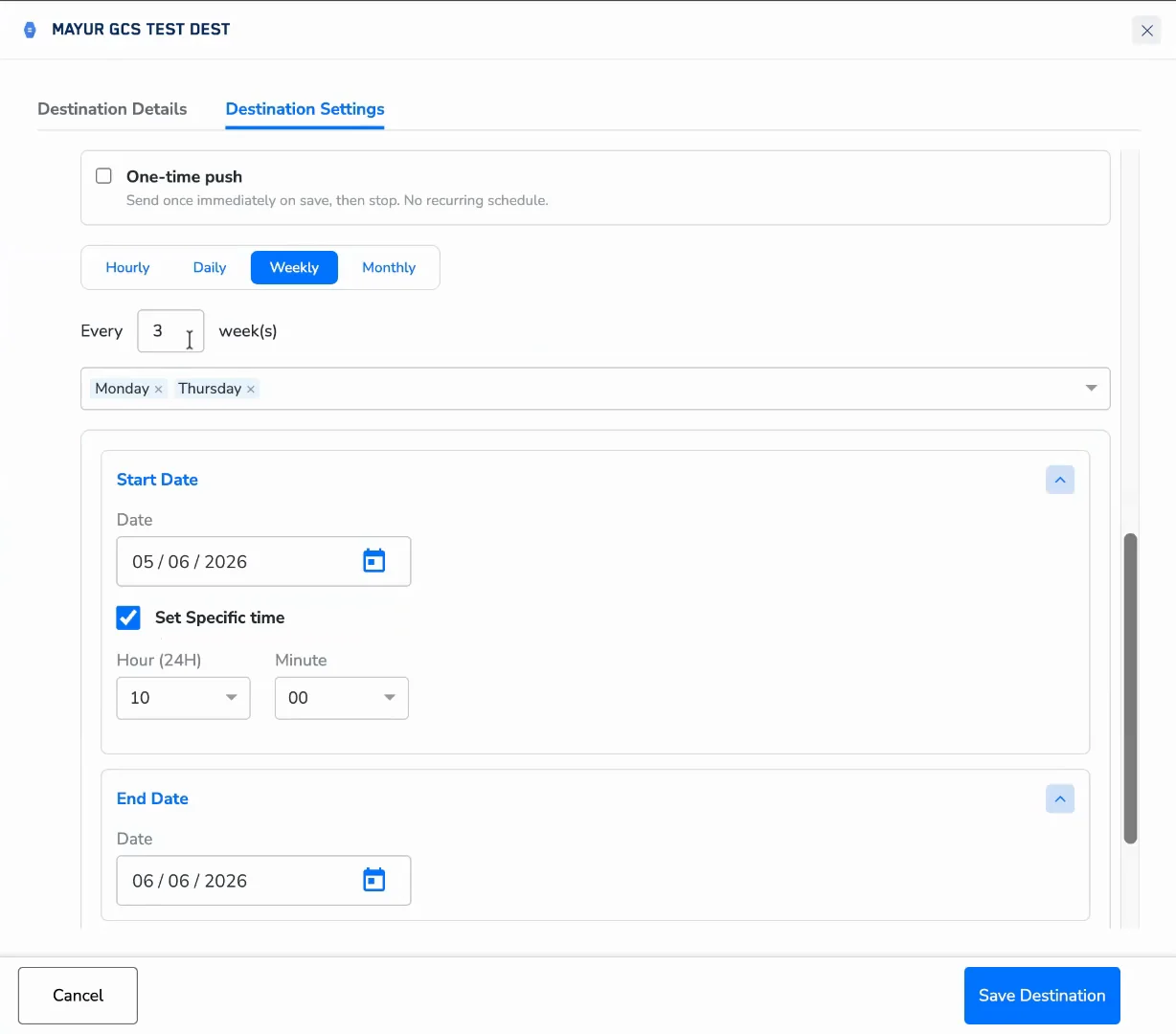
Sync on specific days of the week.1
Choose how many weeks between cycles: every 1, 2, 3, or 4 weeks.
2
In the day grid, select one or more days (Mon – Sun).
Monthly
Sync once a month. Choose between two options:- Every month on the Nth (recommended) — Automatically derived from your start date. If your start date is April 9, the schedule runs on the 9th of every month. This option updates automatically if you change the start date.
- On a specific day — Choose a fixed day: 1st, 5th, 9th, 10th, 15th, 20th, or the Last day of the month.
For months with fewer days than the selected date (for example, February when the 30th is chosen), the sync runs on the last available day of that month.
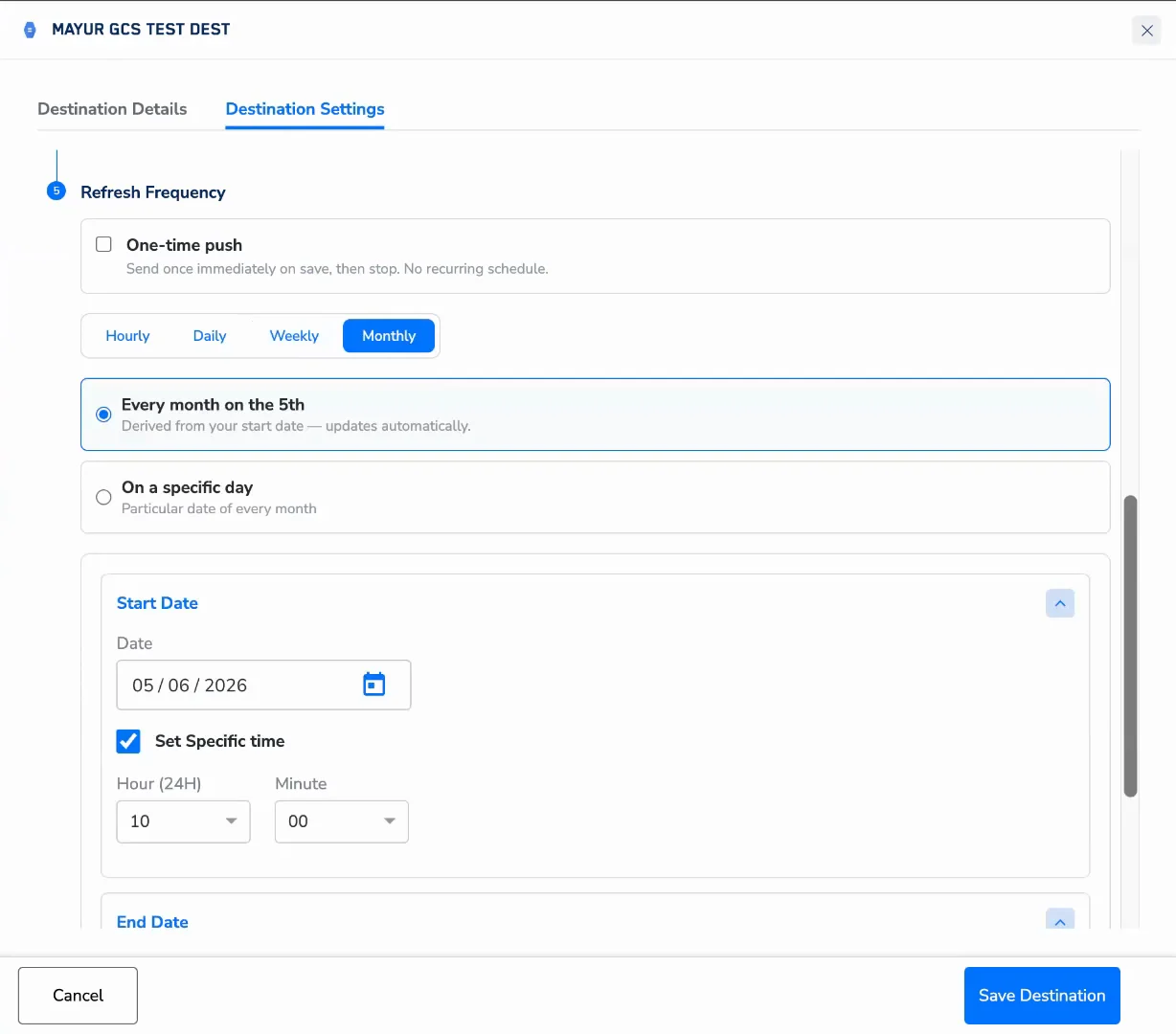
Start Date and Time
Start Date (required)
Enter the date from which the schedule should begin, in DD / MM / YYYY format. The start time must be at least 2 hours in the future.Specific Time (optional for daily, weekly, monthly)
By default, no specific time-of-day is set for daily, weekly and monthly cadences. To run the sync at a particular time:1
Check Set a specific time.
2
Choose an Hour (00–23, 24-hour format) and a Minute (:00, :15, :30, :45).
3
Choose the Timezone this time applies to — the dropdown lists all standard IANA timezones. Your local time zone is selected by default (pre-filled from your browser’s auto-detected timezone), and you can change it.
Syncs run at quarter-hour intervals only (:00, :15, :30, :45). For hourly cadences, the time and timezone fields are always visible, since they define when the interval sequence starts.
Timezone
Choose the timezone for your schedule. The platform auto-detects your browser’s timezone and pre-selects it. You can change it at any time by selecting from the dropdown, which includes all standard IANA timezones. UTC is always at the top.End Date (required)
Every schedule must have an end date. Enter the last date the sync should run, in DD / MM / YYYY format. The schedule stops after the sync that falls on or before this date — no further syncs are queued.Saving and Choosing How to Start
When you click Save Destination, a popup asks how the first sync should run:
Choose the option that suits your campaign launch needs and click Confirm.
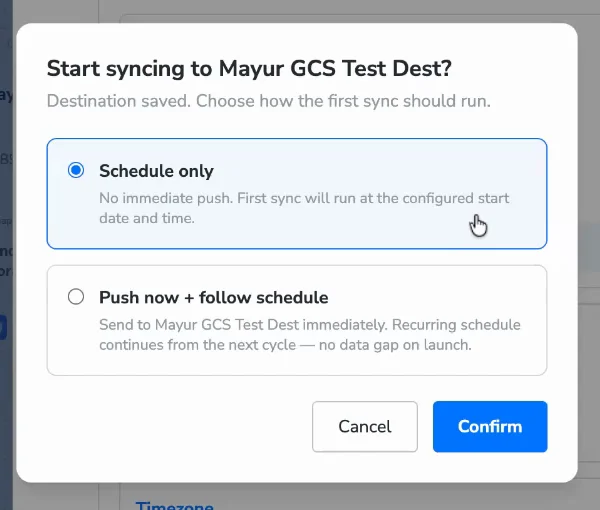
Note:If you selected One-time push, this popup does not appear — the data is sent immediately on save.
The Last Refresh Column
The destination card in the Insights section now includes a Last Refresh column showing when each audience was last synced to that destination. For deeper monitoring of refresh runs and schedules, see Audience Insights and the Observability Hub.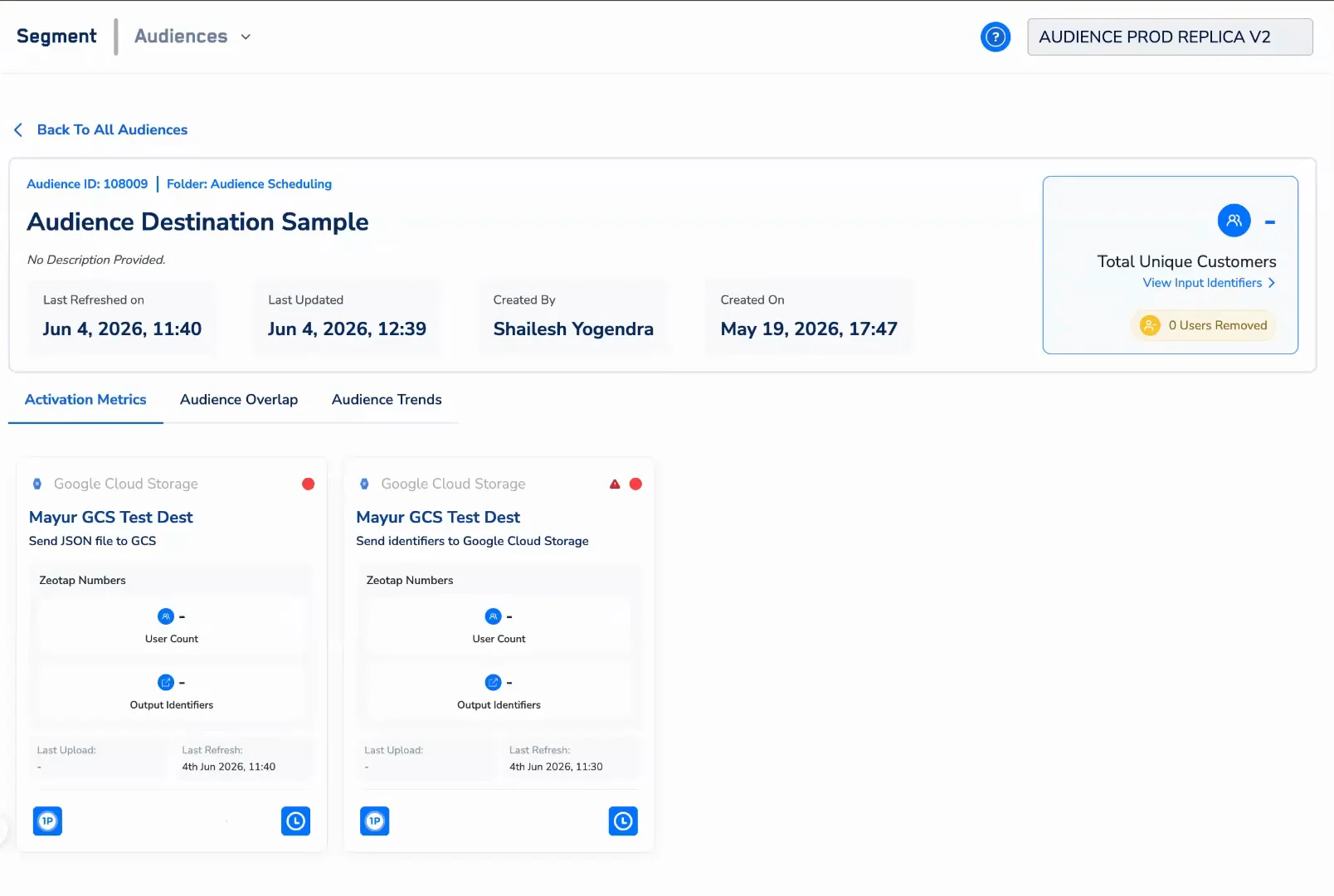
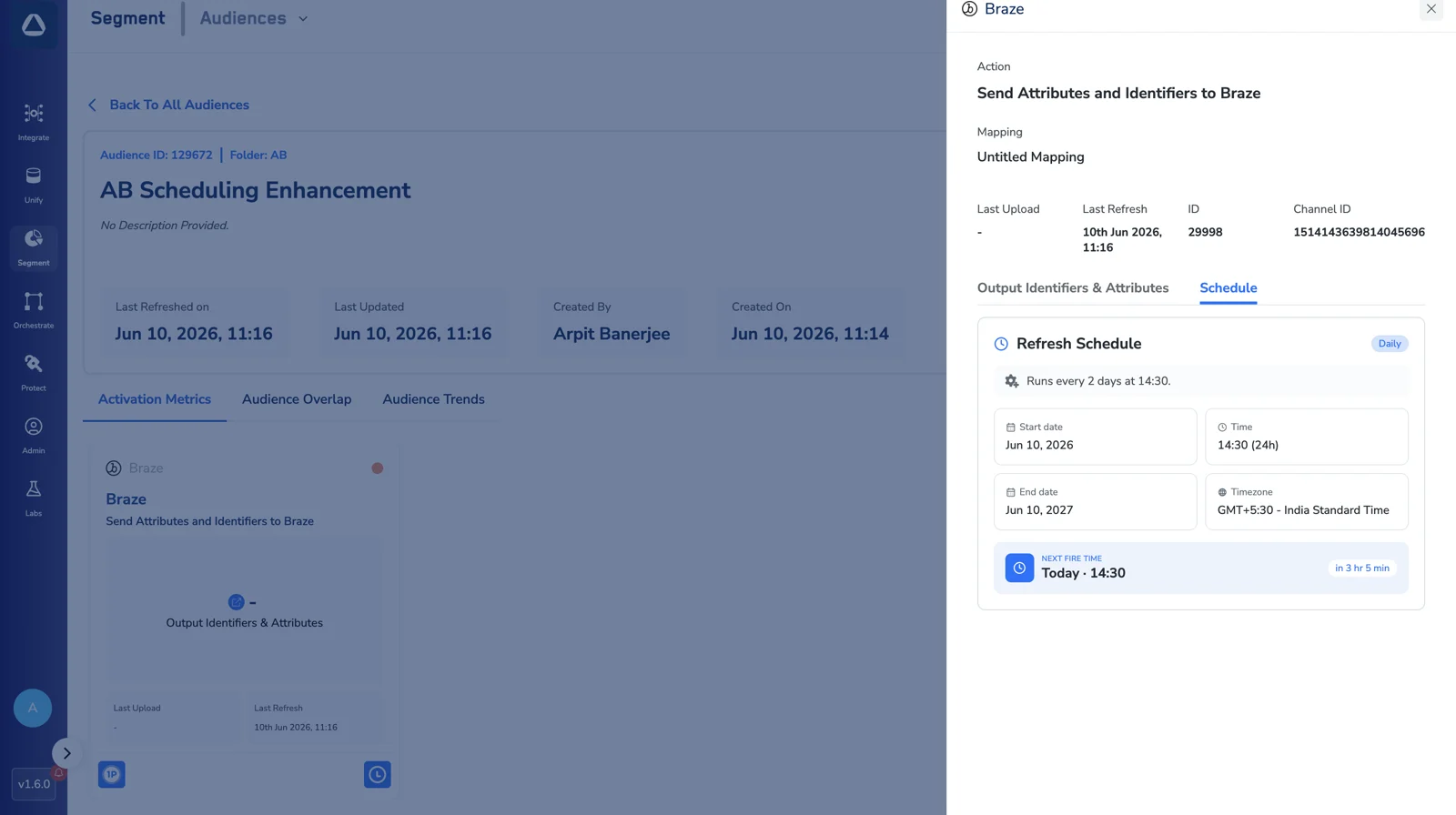
Schedule and Next Fire Time
Open a destination’s card in Audience Insights and select the Schedule tab to see the refresh schedule currently saved for that destination:- The Refresh Schedule — the cadence in plain language (for example, “Runs every 2 days at 14:30”), with the Start date, Time, End date and Timezone.
- The Next Fire Time — when the next sync is scheduled to run, with a countdown (for example, “Today · 14:30 · in 3 hr 5 min”).
Reading Destination State
Each destination card in the Lifecycle Panel surfaces its current state at a glance.Yellow border — destination currently being edited
When a destination’s settings modal is open and unsaved changes exist, that destination card in the Lifecycle Panel is highlighted with a yellow border. This makes it immediately clear which destination is in an edit state, especially useful when an audience has multiple destinations linked. The yellow border clears as soon as you save or discard the changes.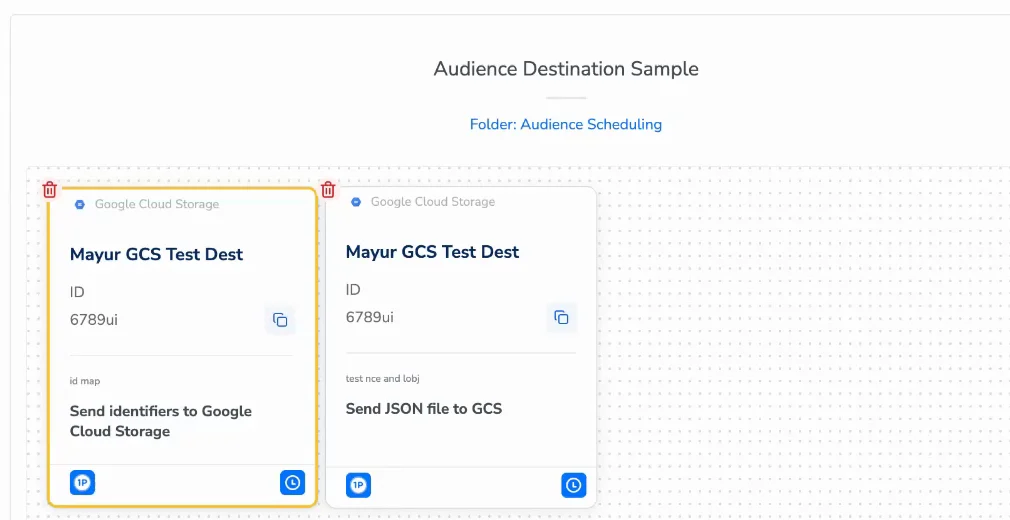
Clock icon — current schedule configuration
Each destination card in the Lifecycle Panel shows a clock icon. Hovering over or clicking the clock shows a compact summary of the schedule currently saved for that destination. This is the confirmed saved configuration — not any in-progress edits. Use it to quickly verify what a destination is set to without opening the full settings modal.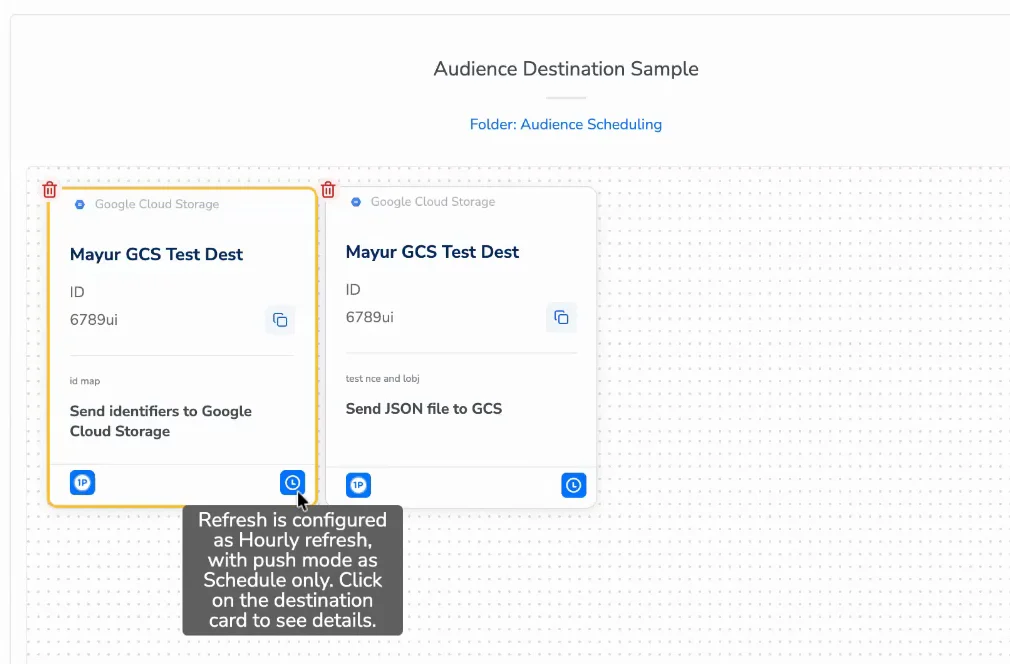
Expired and Soon-to-Expire Destinations
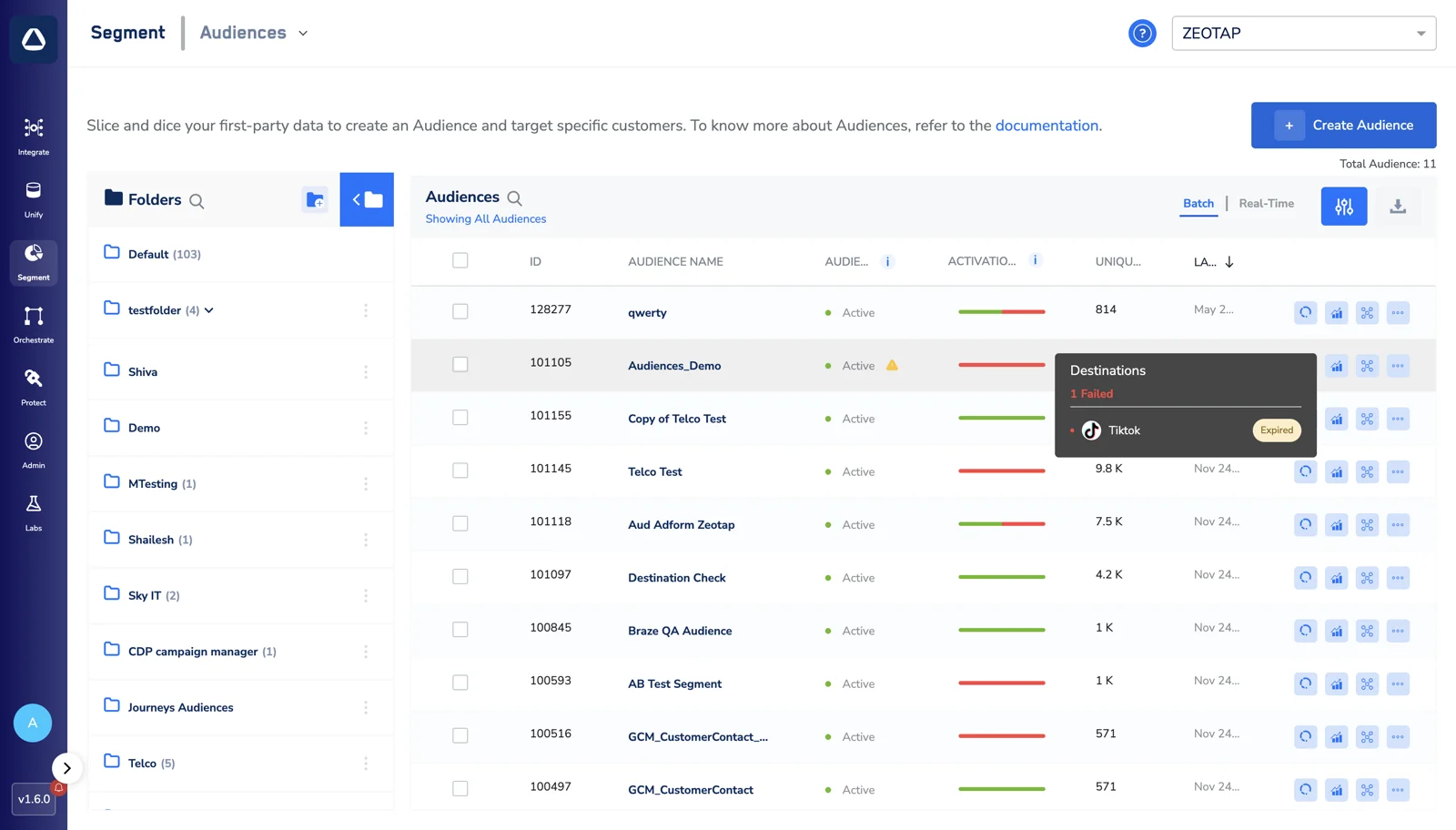
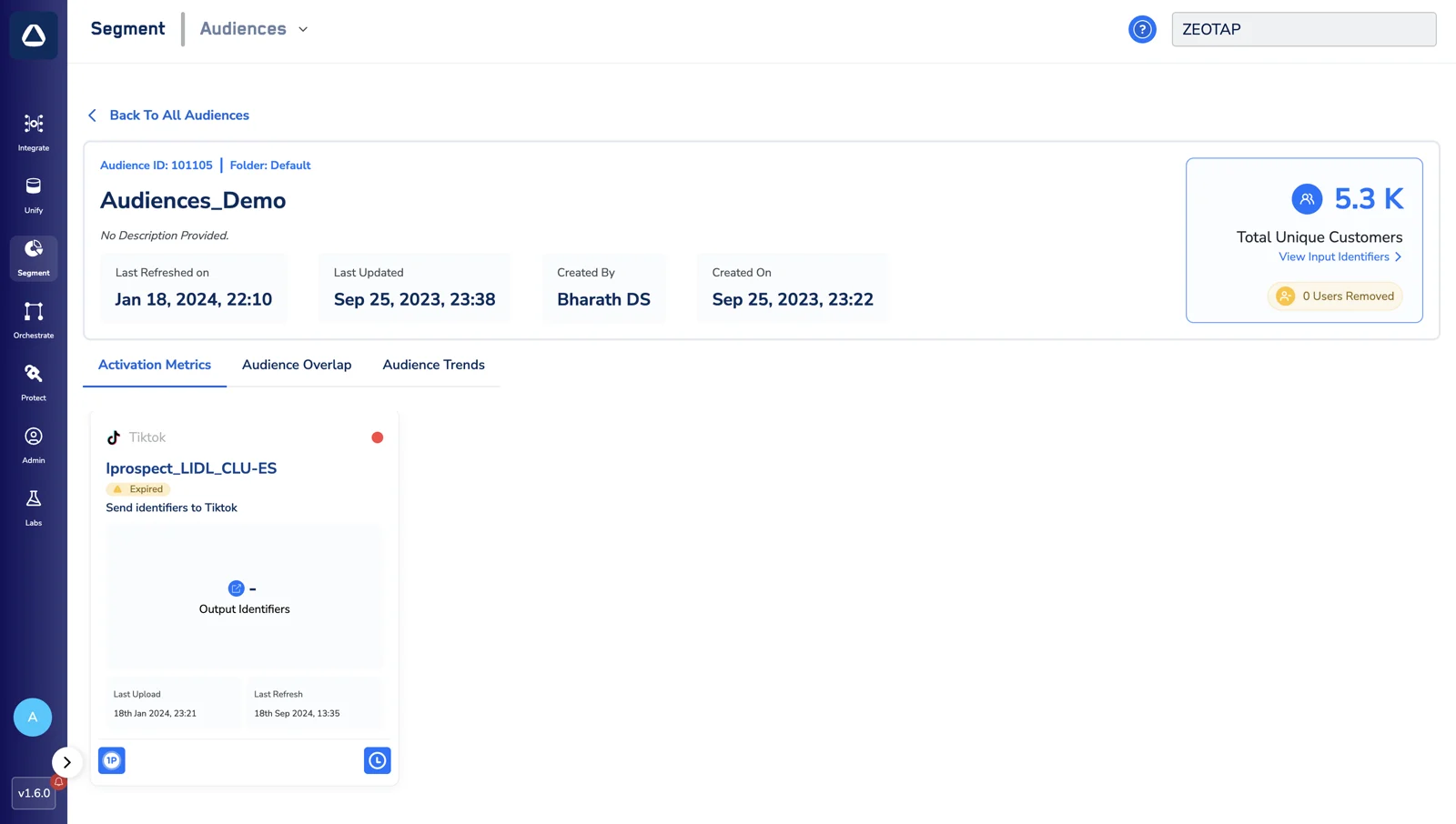
A destination can expire — for example, when its authorisation needs to be renewed — which stops it from receiving syncs. Zeotap warns you about destinations that have expired, or are soon to expire, so you can act before activation is affected. The warning appears in three places:- Audience listing screen — audiences with an affected destination show a warning icon. Hover over it to see the affected destinations and their status (for example, 1 Failed — Tiktok · Expired).
- Destination card in Audience Insights — the card shows an Expired badge.
- Destination card in Link to Destination — the same warning appears on the destination card while you link or edit it.
FAQs
Can I set different schedules for different destinations on the same audience?
Can I set different schedules for different destinations on the same audience?
Yes. Each destination link has its own independent schedule. One audience can sync to Braze weekly and to Google Ads daily.
Will editing the schedule interrupt an in-progress sync?
Will editing the schedule interrupt an in-progress sync?
No. A change saved while a sync is running takes effect from the next cycle. The in-progress sync completes normally.
What happens if I set the start time in the past or too close to now?
What happens if I set the start time in the past or too close to now?
The start time must be at least 2 hours in the future. If you choose an earlier time, an error message appears and the Save button is blocked until you pick a valid time.
If I choose 'Push now + follow schedule' at the post-save popup, does it count as a scheduled sync or a manual one?
If I choose 'Push now + follow schedule' at the post-save popup, does it count as a scheduled sync or a manual one?
It is recorded in Refresh History as a Manual trigger. It does not move or replace the next scheduled cycle.
What does 'Skipped (no delta)' mean?
What does 'Skipped (no delta)' mean?
The platform checked your source data before running and found that nothing had changed since the last successful sync. The sync was skipped to avoid unnecessary processing. This is normal behaviour.
Can I switch from a recurring schedule to a one-time push without creating a new destination link?
Can I switch from a recurring schedule to a one-time push without creating a new destination link?
Yes. Open the destination’s settings and change the configuration — there is no need to create a new destination link.
Related Topics
- To link an Audience to a Destination, refer here.
- To understand what affects how long a sync takes to reach a destination, refer to Factors Influencing the Data Upload Time to Destinations.
- To view metrics and the destinations linked to an Audience, refer to Audience Insights.
- For advanced refresh monitoring and lifecycle traces, refer to the Observability Hub.