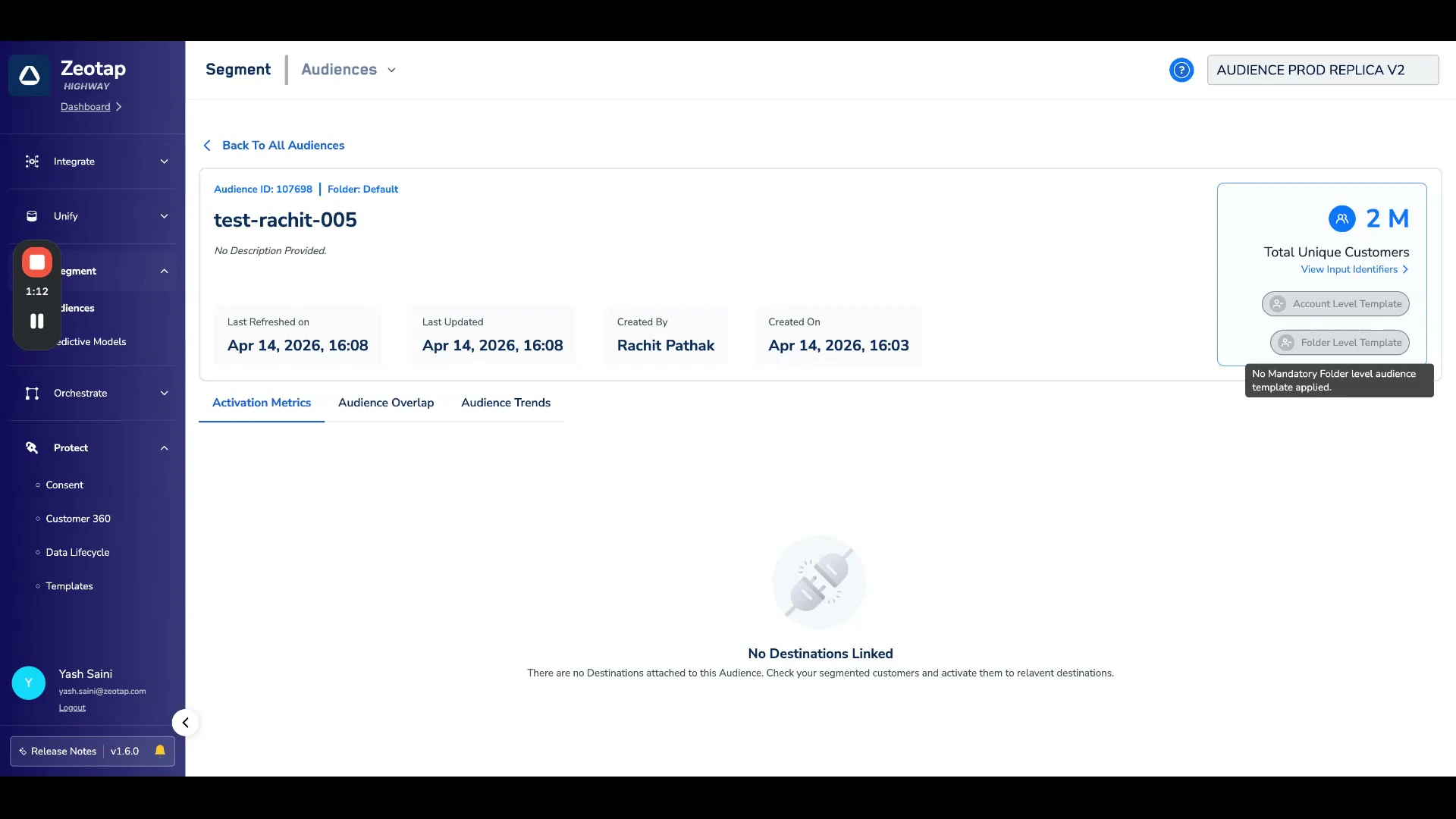
Create an Audience Template
1
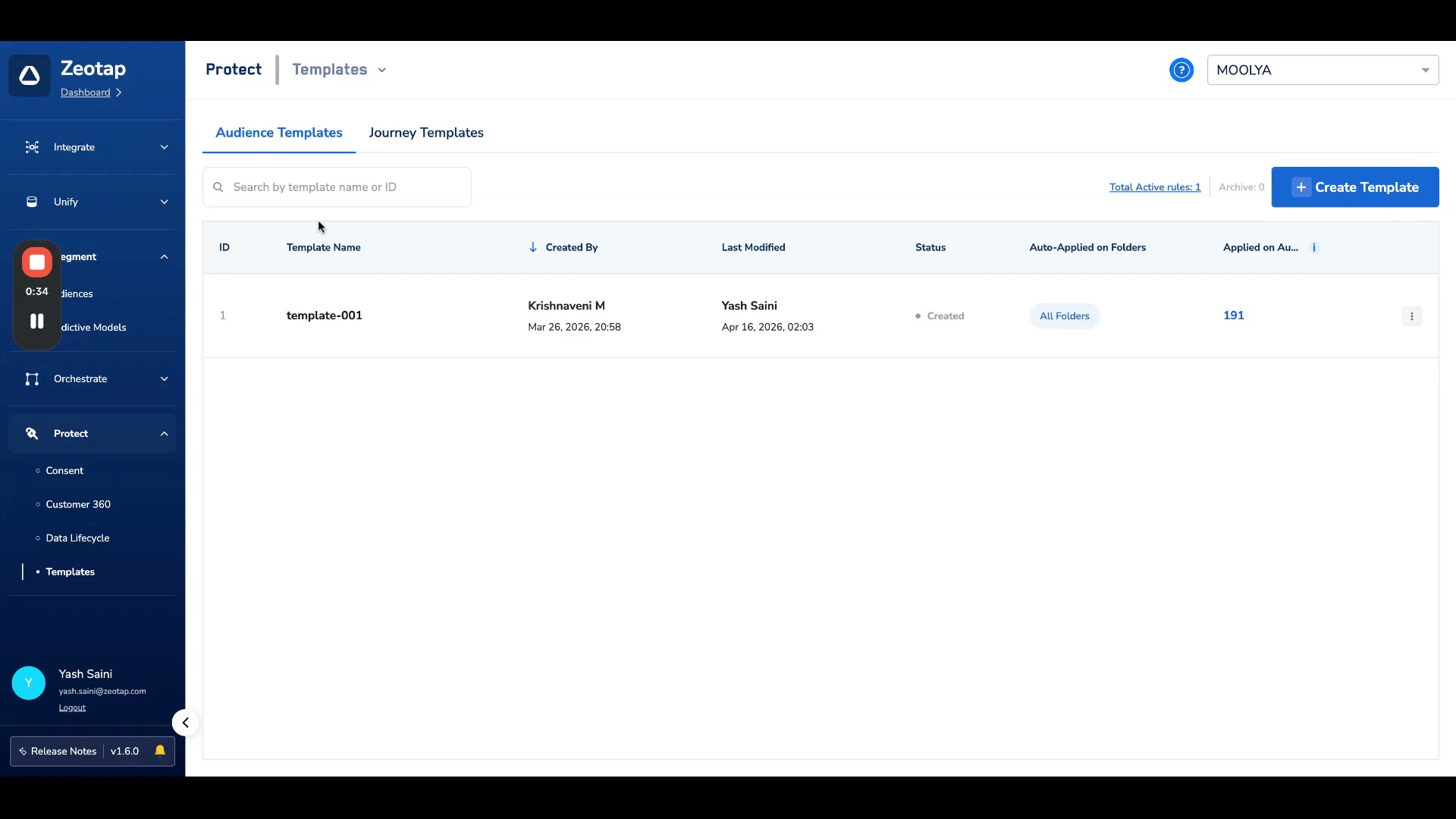
Navigate to Protect → Templates and select the Audience Templates tab.
2
Click Create Template.
3
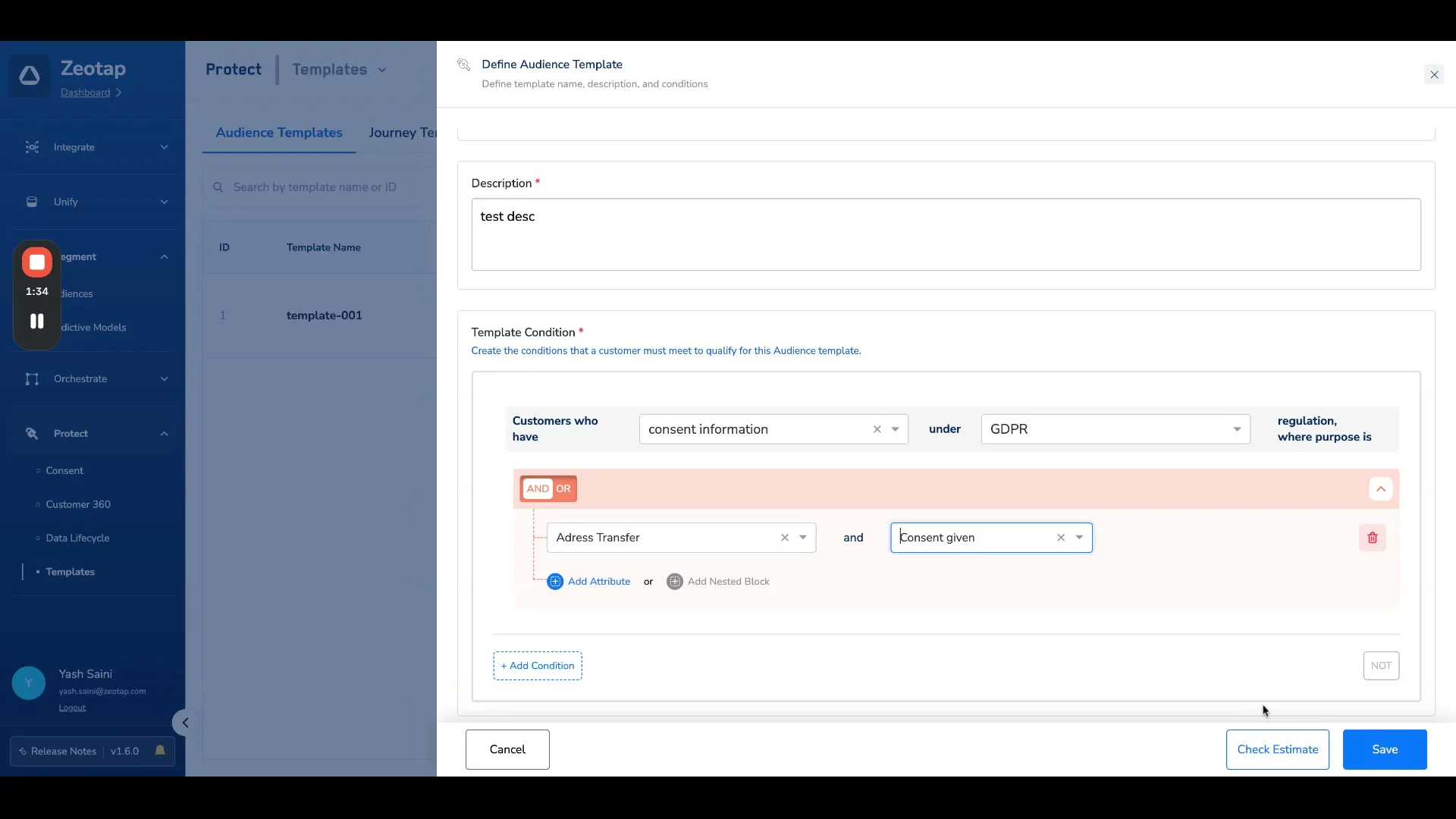
In the Define Audience Template dialog, provide a Template Name and Description.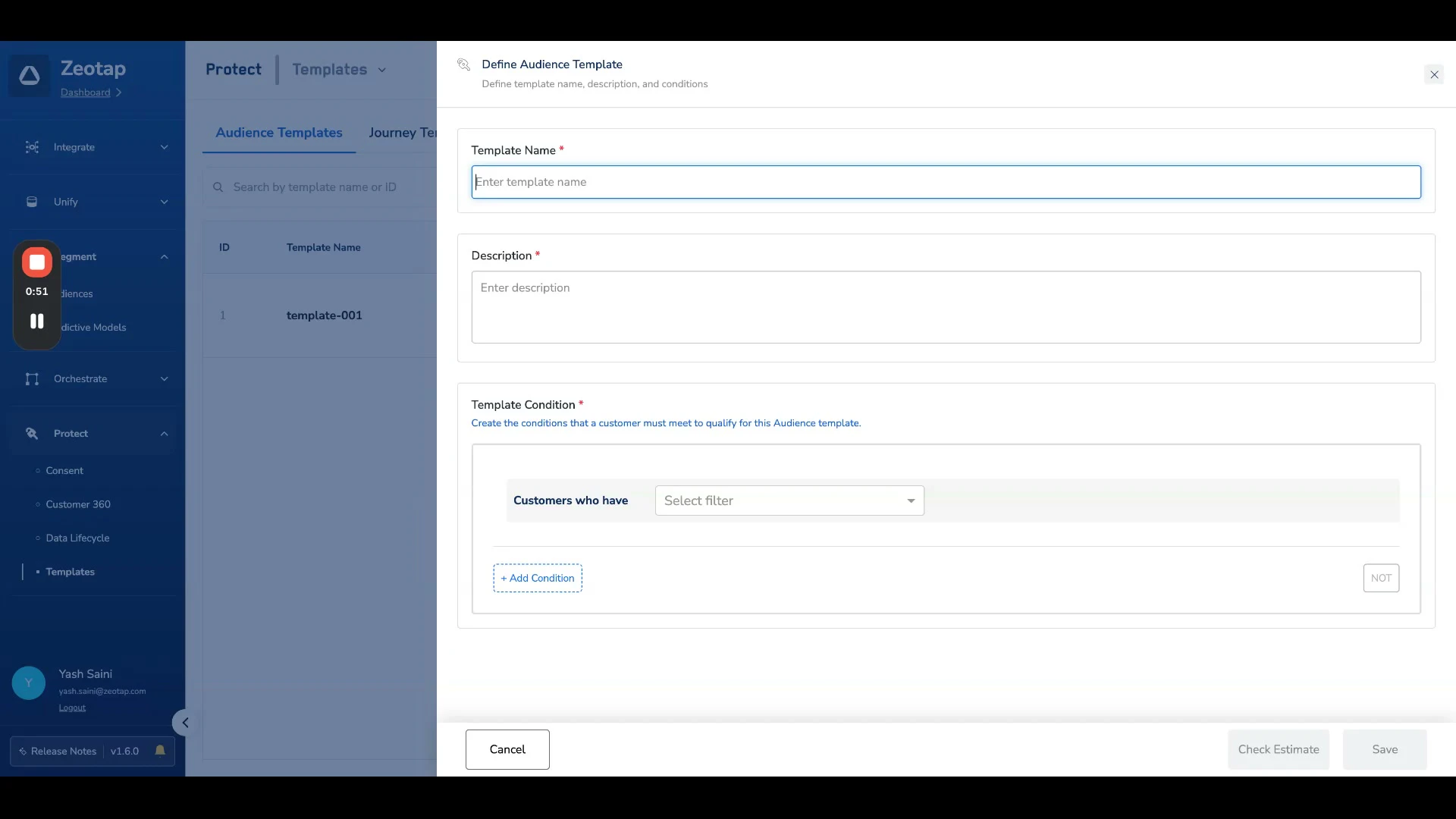
4
Define the conditions or configuration that should be included in the template. The template condition builder uses the same interface as the audience block builder — you can use all catalogue and/or Zero Copy attributes (for example, Profile, Event, Consent etc.).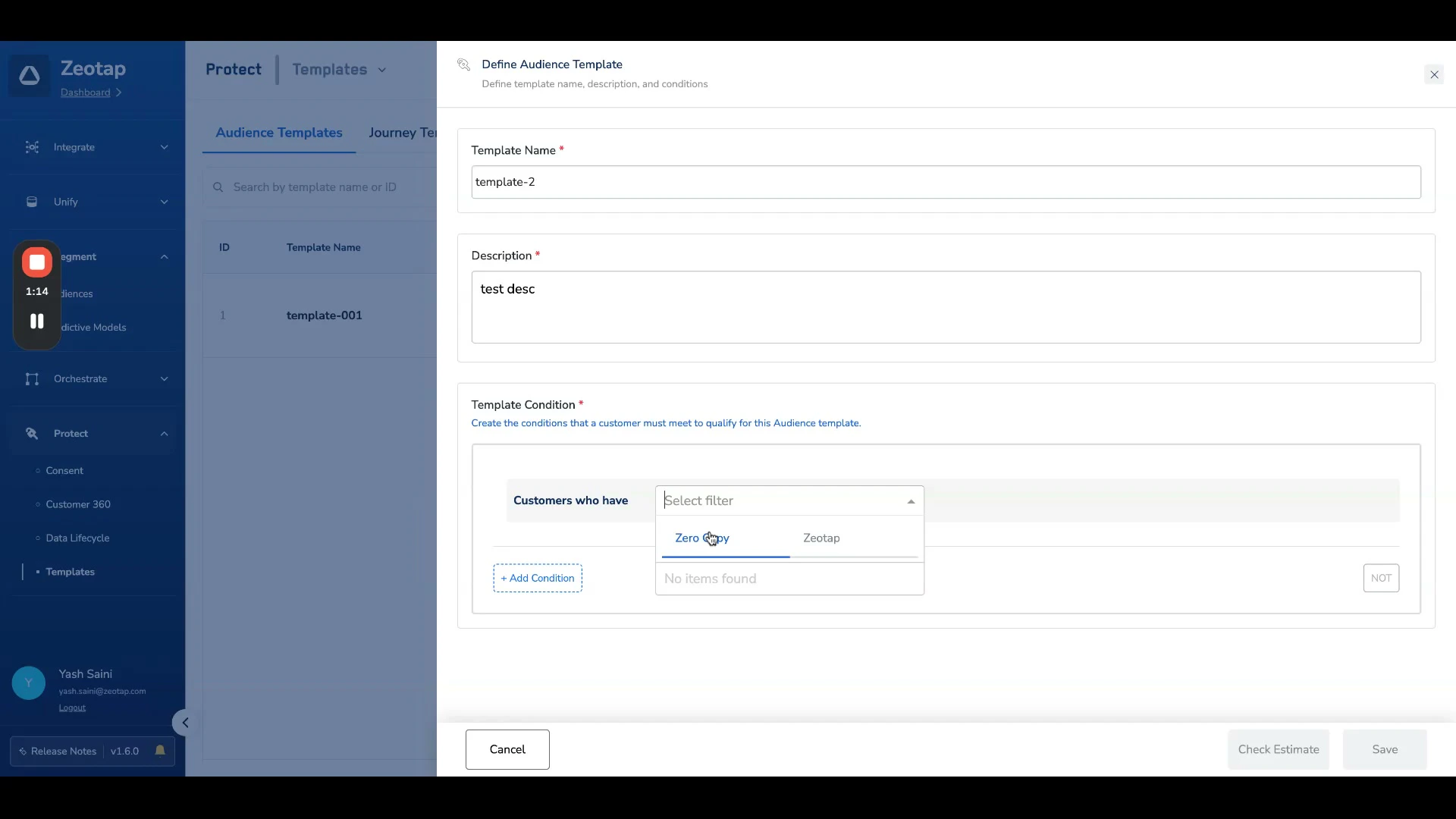
5
Optionally, click Check Estimate to see the estimated count of users qualifying this condition.
6
Click Save. The template is now in the Created state, meaning it is not yet applied to any audiences.
Note:Currently, Real-time Audiences do not support Zero Copy Attributes. Therefore, templates created using Zero Copy Attributes will not be available or applied in Real-time Audiences.
Configure Template Application
After creating a template, you need to decide where it should be applied. Templates can be configured for manual use or auto-apply.Auto-Apply Settings
Auto-apply ensures the template is automatically attached as a top-layer condition to all existing and future audiences within the selected scope. There are two auto-apply options:- Apply at Folder Level — Automatically applied to audiences created in selected folders. Every audience in the chosen folders will follow the same standard rules.
- Apply at Account Level — Automatically applied to all audiences across the entire account.
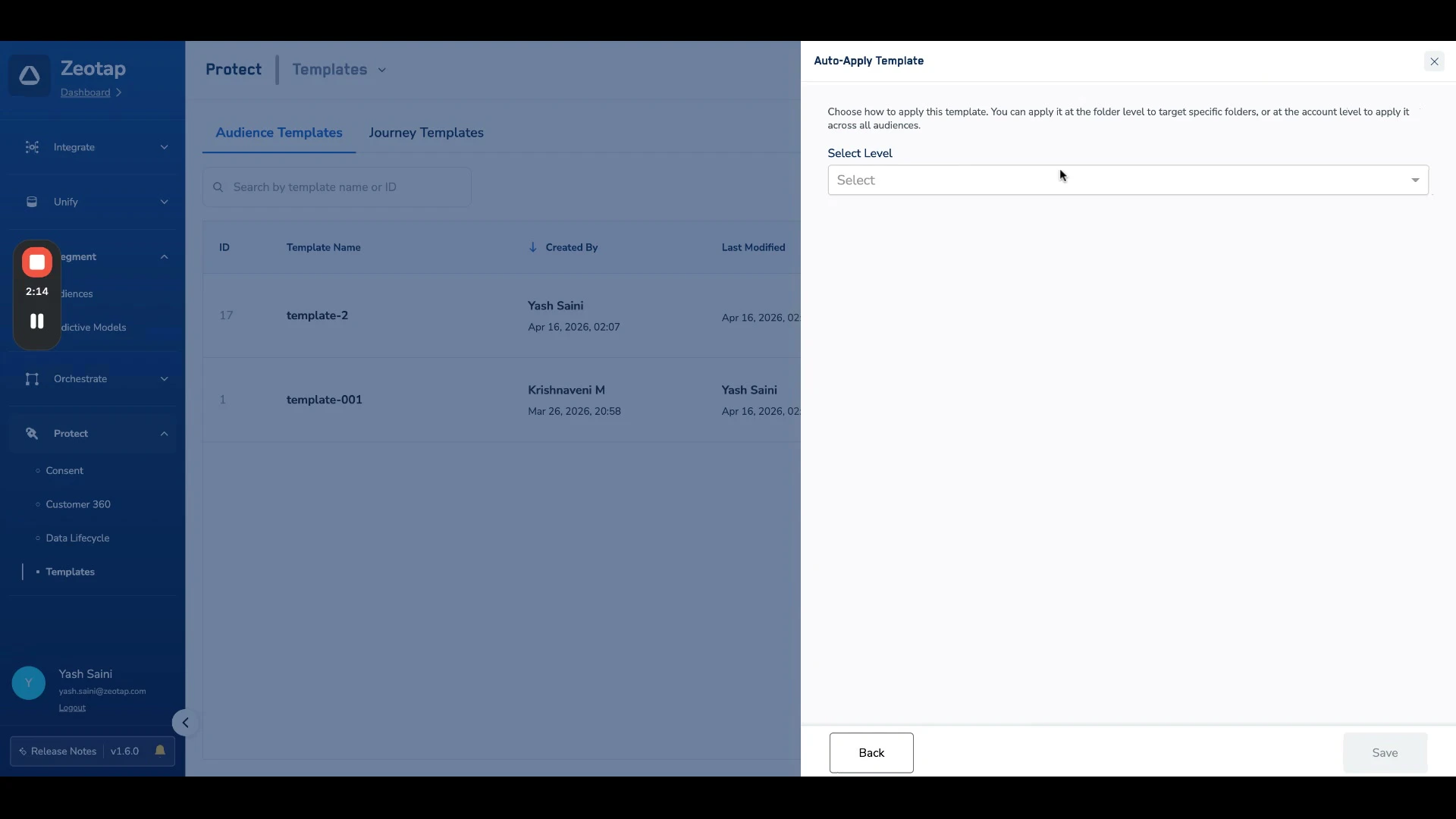
Note:When auto-apply is enabled for a folder, the template is automatically attached as a top-layer condition to all existing and future audiences created within that folder. Only one template can be enabled for auto-apply per folder.
Manual Application
Users can manually select and apply templates when creating or editing an audience. This is covered in the Use Templates in Audiences section below.Manage Templates on the Listing Page
The Audience Templates listing page provides an overview of all templates, including: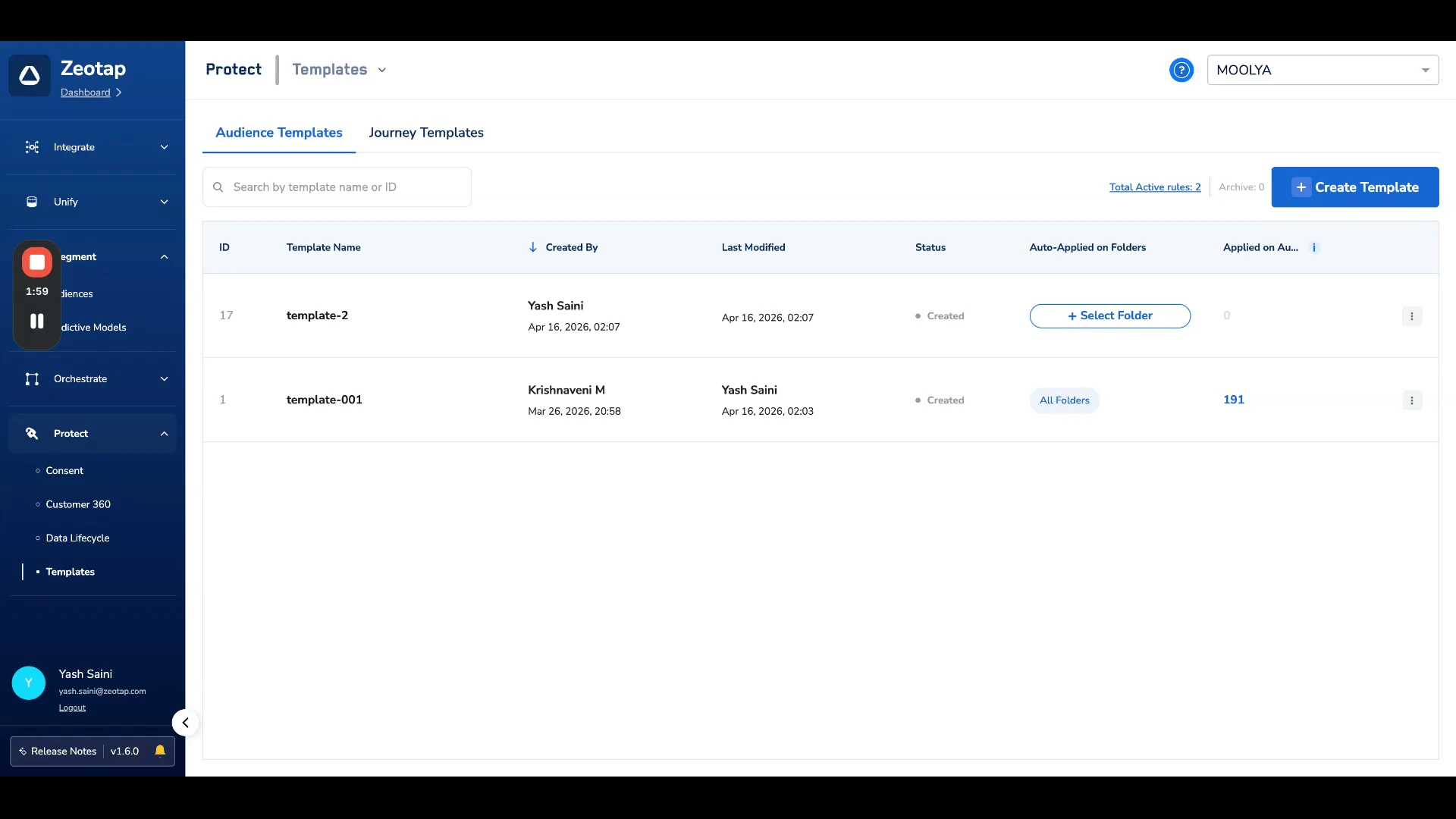
Use Templates in Audiences
When creating or editing an audience, templates can be selected and applied manually alongside any auto-applied templates.1
In the audience builder, look for the + Add a template option at the bottom of the condition blocks.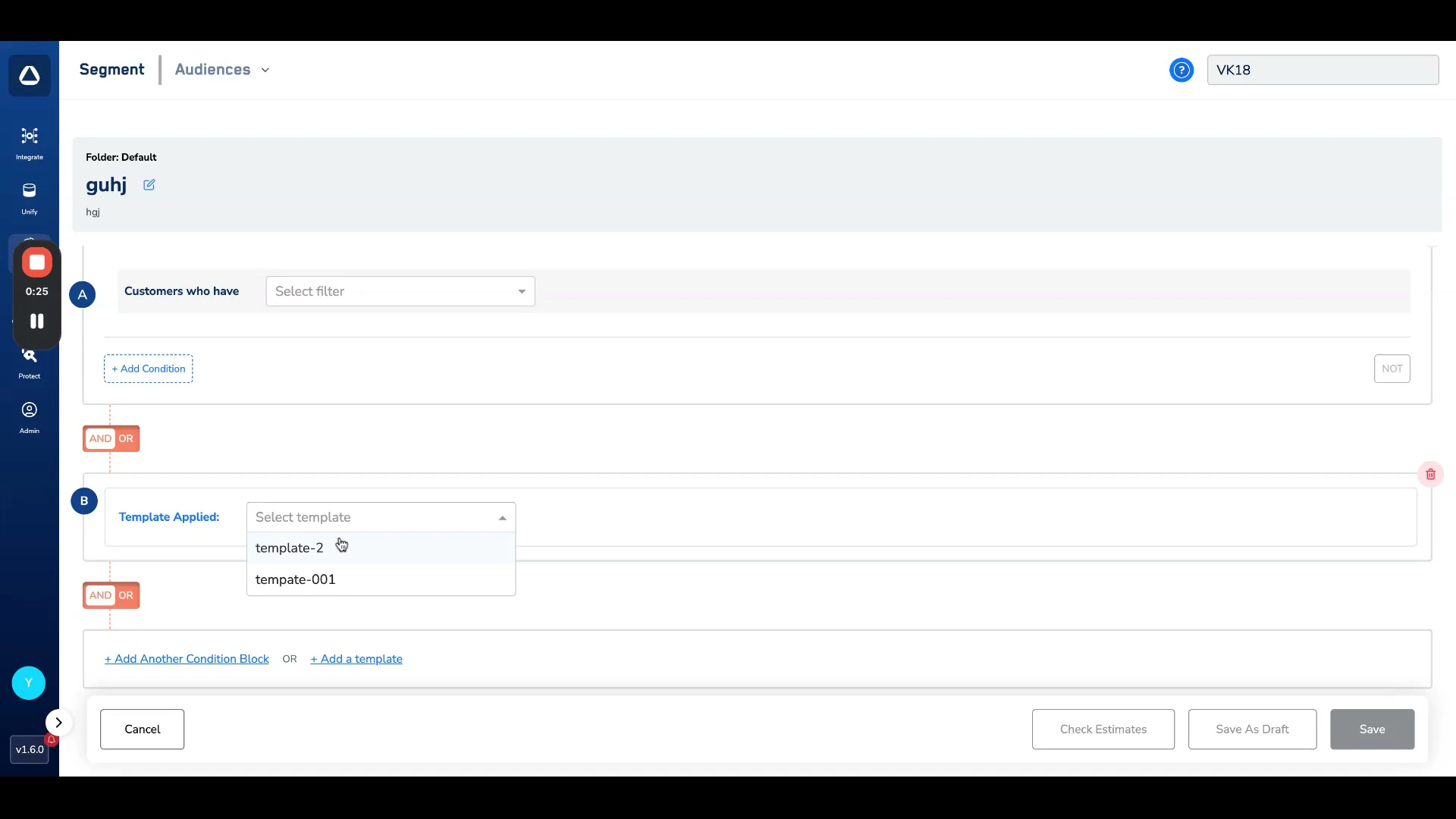
2
Select which template you want to apply from the dropdown. The template conditions are added as a separate block in the audience builder.
3
Auto-applied templates (folder-level and account-level) are also visible in the audience builder. These act as baseline conditions ensuring the audience complies with predefined standards.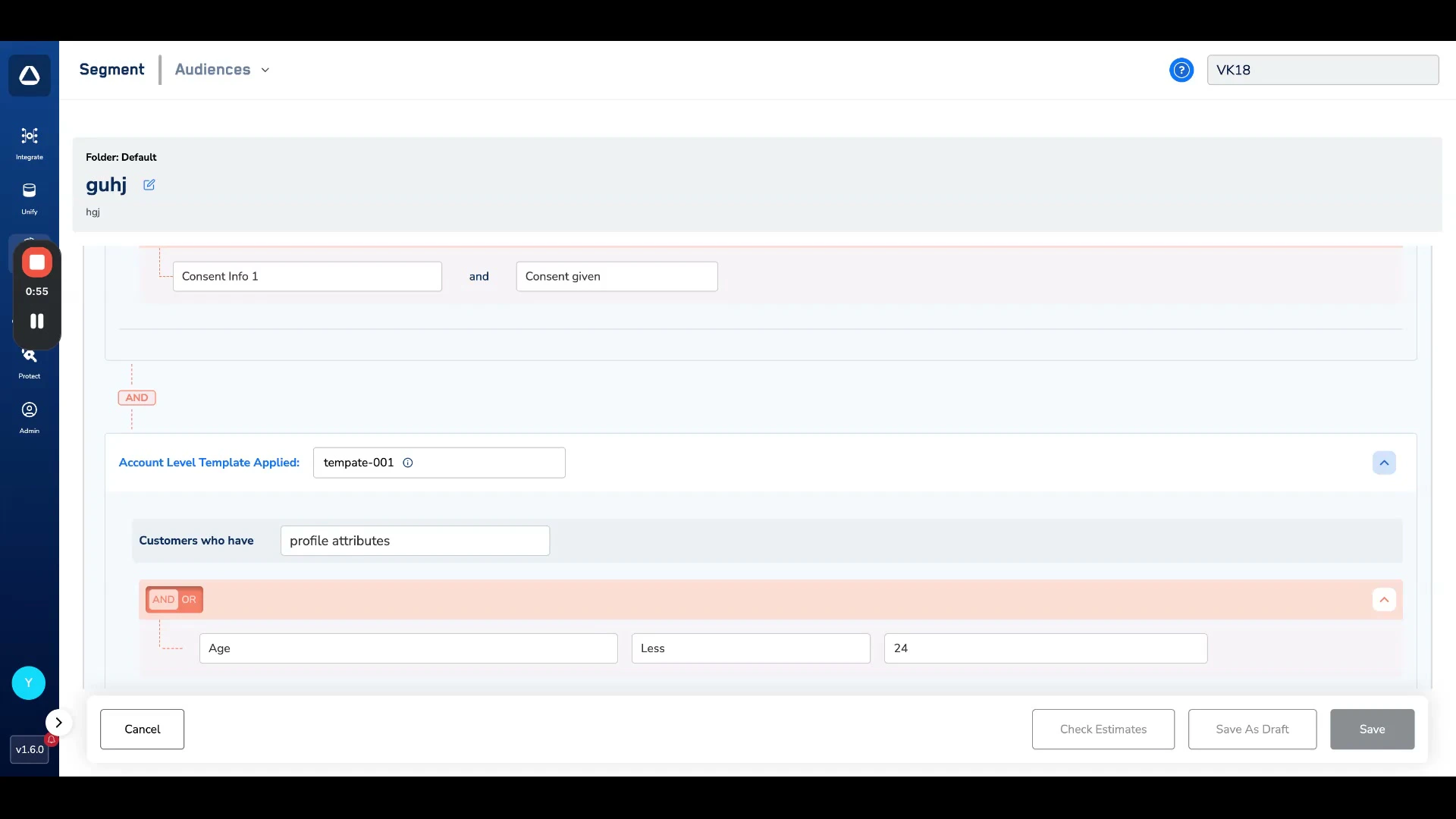
4
Continue building your audience on top of the template conditions. The audience estimator takes all templates into account — templates appear as separate entities alongside other condition blocks.
Audience Templates and Consent Rules
With the introduction of audience templates, the Audience Consent Rule section in the Consent module is being retired. Previously, the Consent module provided an option to create a consent rule that was applied to all audiences from the backend. The same rule can now be replicated as an audience template and applied at the account level, which provides:- More visibility — Template conditions are visible during audience creation, so users can see exactly which rules are being applied.
- More granularity — Templates support a wider range of attributes beyond just consent, allowing for more flexible governance rules.
- Folder-level control — Consent rules can be redefined for specific audiences by following a folder structure, rather than applying a single rule globally.
Audience Insights with Templates
In the Audience Insights section of an audience, you can see the count of users removed by templates. With audience templates, two separate counts are displayed:- Users removed by the account-level template
- Users removed by the folder-level template