

What is the Observability Hub?
The Observability Hub gives you real-time visibility into the health of your audiences — from when a refresh kicks off, all the way through to successful delivery at the destination. Instead of guessing whether your audiences are running on time or reaching their intended destinations, you can monitor, diagnose, and act directly from one central place.The Observability Hub is currently available as a Beta feature. It will continue to be refined based on your feedback. Once enabled for your organisation, it appears under Labs in the Zeotap CDP navigation.
What can you do with it?
- See at a glance whether all your audiences are running and delivering successfully.
- Understand why an audience is late or failing — and which stage in the pipeline is causing it.
- Track delivery history over the last 1 hour, 24 hours, or 7 days.
- View the complete lifecycle trace of an audience refresh, step by step.
- Spot and flag schedule drift when your audiences start firing at different times than expected.
Who can access it?
All users with the CDP Admin or CDP Manager role in an enabled organisation can access the Observability Hub.How do I get to it?
The Observability Hub is accessible from the Labs section in the Zeotap CDP navigation. Clicking on it opens the dashboard in a new tab.Audience Health Overview
The Audience Health page is the main screen you see when you open the Observability Hub. It gives you a high-level picture of how all your audiences are performing, and lets you quickly find any that need attention.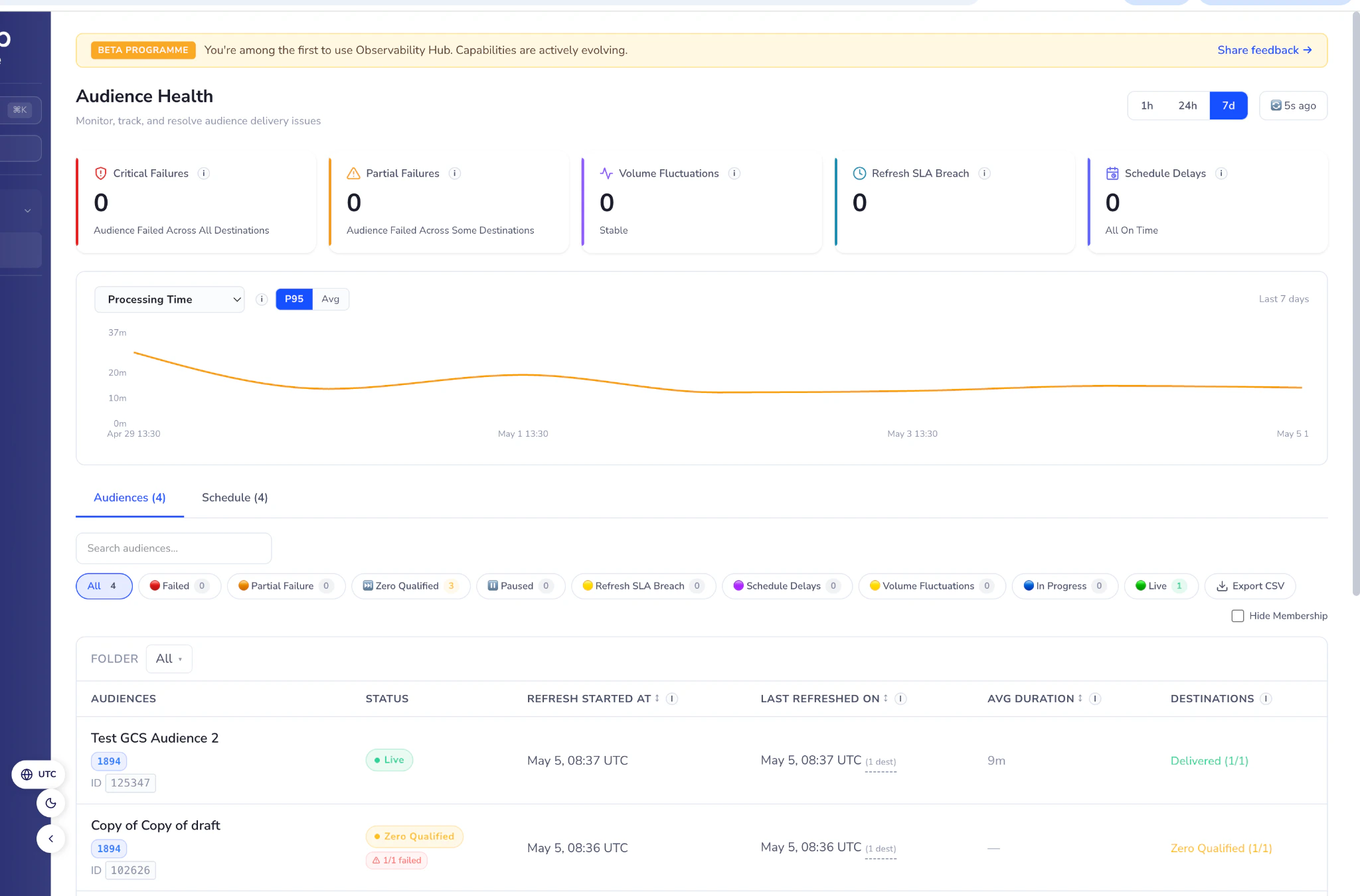
Figure 1 — Audience Health dashboard with KPI tiles, processing-time chart, and the audience list.
KPI Tiles
Across the top of the page, five tiles give you an instant health summary. Click any tile to filter the audience list below to show only the relevant audiences.Time Range Filter
Use the time range selector in the top-right corner to control how much history you see:- 1h — last 1 hour
- 24h — last 24 hours
- 7d — last 7 days (default)
There can be a latency of around 10 minutes before the latest status is reflected in the dashboard.
Processing Time Chart
Below the summary tiles, a chart shows how long audience refreshes are taking over your selected time range. Toggle between P95 (95th percentile — the longer end of run times) and Avg (average) to see whether processing is trending slower than usual.Audience List
The main table shows all your audiences. You can search by name, filter by status using the chips above the table, and filter by folder.Status filter chips
Click any chip to see only audiences with that status. Click All to clear the filter.Audience table columns
Audience Detail
Click any audience name to open the Audience Detail page. This gives you a deeper view into that specific audience — its current status, recent changes, and delivery results for each connected destination.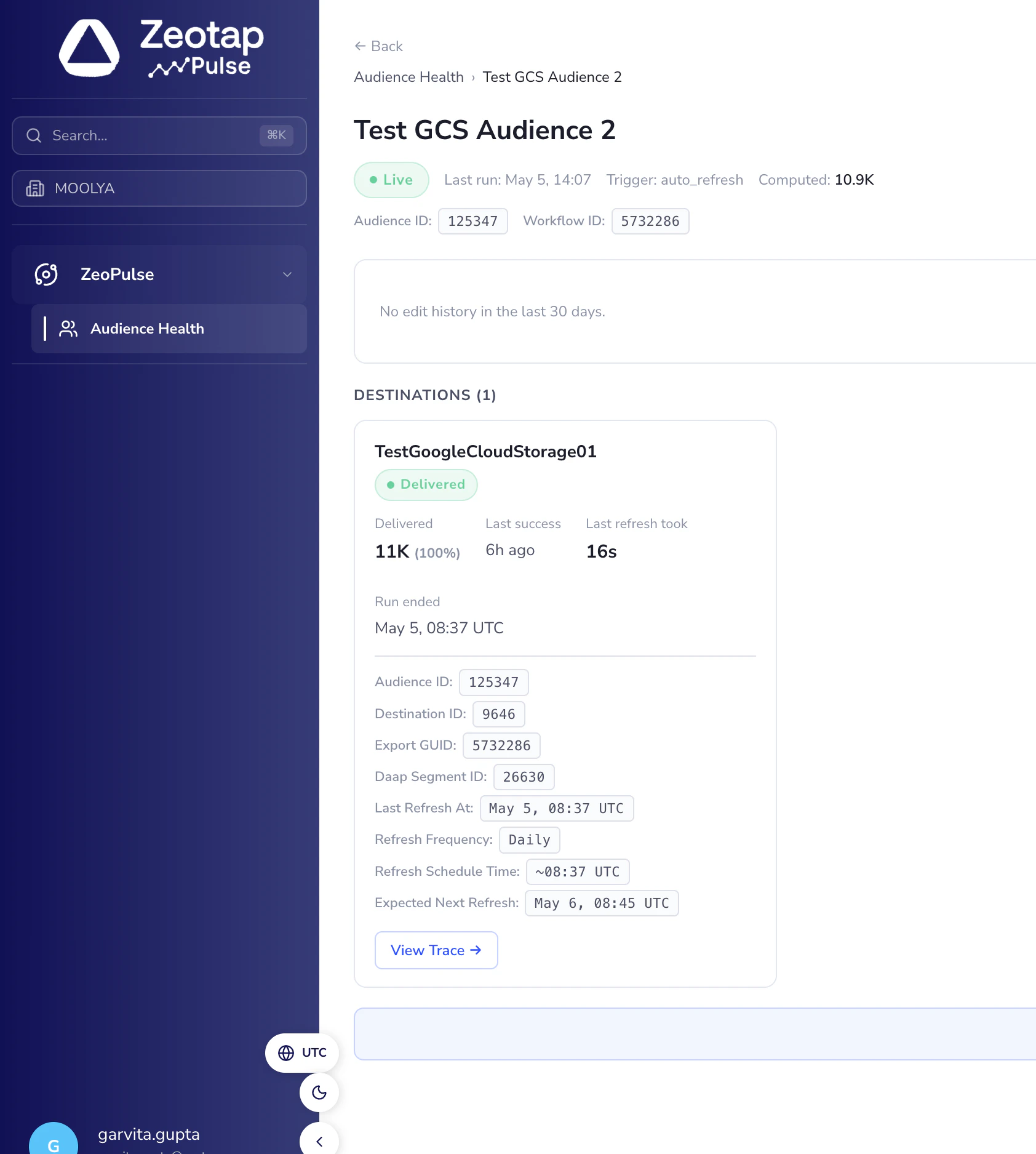
Figure 2 — Audience Detail page with status header, change history, and a destination card.
Header information
At the top of the page you’ll see:- The audience name and its current status (e.g., Live, Failed, Paused).
- When it last ran and what triggered it — for example,
auto_refreshfor scheduled runs ormanualfor user-triggered runs. - The Audience ID and Workflow ID — useful when raising support requests.
Change History
This panel shows a record of recent changes made to this audience, including who made the change and when. It covers:- Audience rule edits
- Pause and resume actions
- Name changes and scheduling updates
Destination Cards
Each destination linked to this audience has its own card. The card shows you exactly how that specific delivery channel is performing.Viewing the full lifecycle trace
Each destination card has a View Trace button. This opens a step-by-step timeline of everything that happened during the last refresh for that destination — from when the audience was computed, through enrichment, upload, and final delivery confirmation. You can also click View Full Lifecycle Trace (all destinations) at the bottom of the page to see a combined view across every destination linked to the audience.Lifecycle Trace
The Lifecycle Trace shows you every stage of an audience refresh, in sequence, with timestamps. This is the most detailed view available and is particularly useful when you need to understand exactly what happened during a specific run.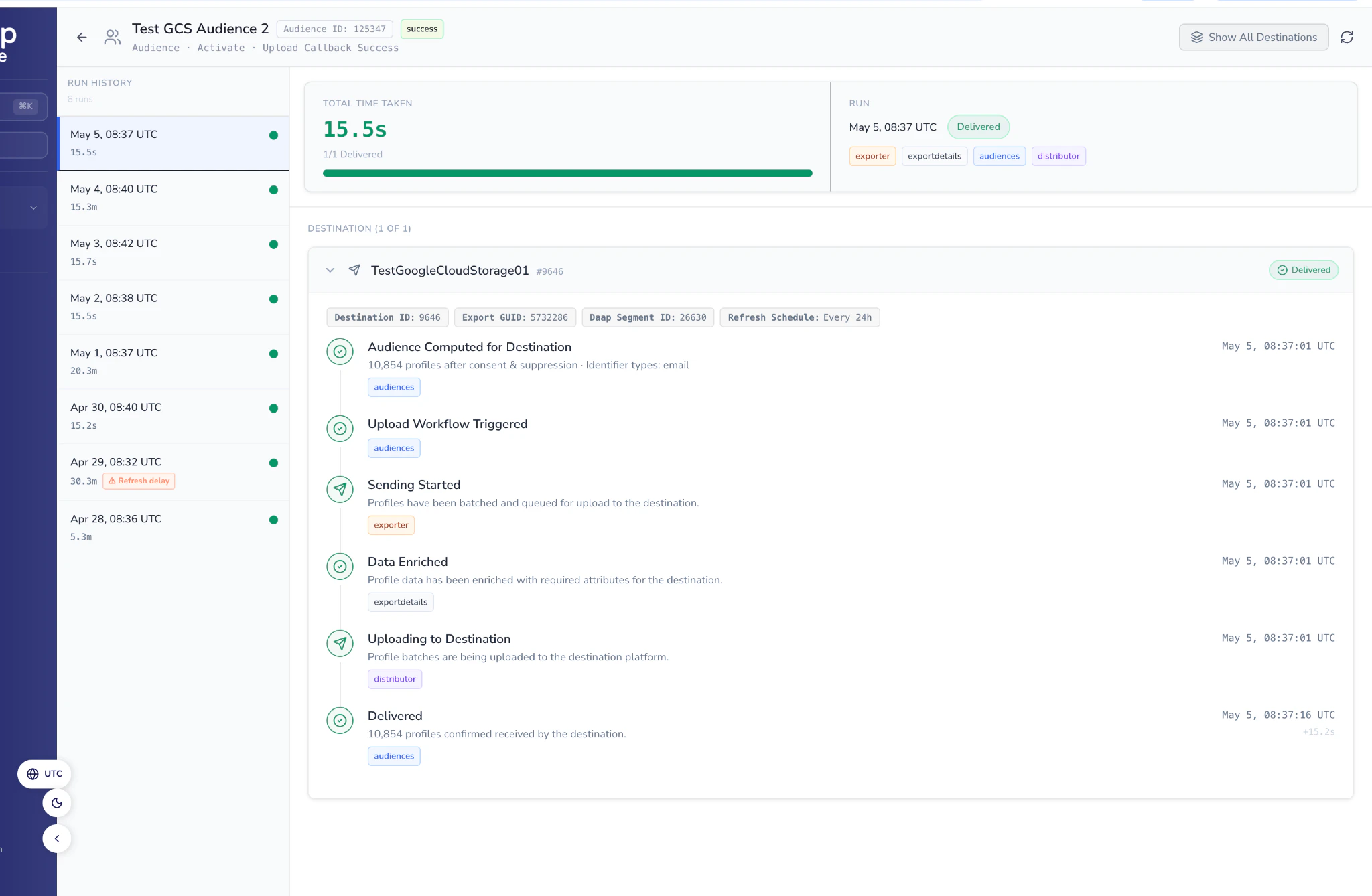
Figure 3 — Lifecycle Trace with run history (left) and the span timeline for the selected run (right).
What you’ll see
The span trace is organised chronologically from top to bottom. Each step is labelled, timestamped, and tagged with the component responsible. The glossary below explains every span you may see.Span glossary
Run History
On the left side of the trace view, a run history panel lists previous runs with their duration and status. Click any past run to view its trace. This makes it easy to compare what happened across different days.How Schedules Work
Most audiences are set up to refresh automatically on a recurring schedule — for example, once a day at a set time. The platform runs these refreshes automatically based on the configured cadence, so your audience data stays up to date without any manual action. The Refresh Schedule Time on each destination card shows when the most recent refresh actually ran. Expected Next Refresh is calculated from that, giving you a forward-looking view of when to expect the next update. A few things can affect when your audience refreshes:- Pausing and resuming an audience may shift when it next fires, depending on when it was resumed relative to its original schedule. The new timing is reflected from the next run onwards.
- Schedule changes — whether made by you or by the Zeotap support team on your request — show up in the system with a lag of around 10–15 minutes. The schedule-delay calculation catches up from the next run, so there may be a brief window after a change where the expected timing looks slightly off. This corrects itself automatically.
Common Workflows
Step-by-step guides for the situations you’re most likely to encounter.Why is this audience late? / Are all my audiences running on time?
1
Open Audience Health
Open the Audience Health page and find the audience in the table.
2
Open Audience Detail
Click the audience name to open its detail page.
3
Check the status pill
Is it In Progress, Failed, or something else?
4
Check Change History
Was the audience paused and recently resumed? That would push the schedule forward.
5
Compare scheduled vs. expected times
Check each destination card and compare Refresh Schedule Time (when it actually fires now) with Expected Next Refresh.
6
Flag schedule drift
If you see an amber drift pill, the schedule has shifted — click it to flag for reset.
Why is delivery to a specific destination failing?
1
Open Audience Detail
Open the Audience Detail page for the affected audience.
2
Read the error message
Find the failing destination card and read the error message. Click see more if it’s truncated.
3
Open the Lifecycle Trace
Click View Trace to see the step-by-step lifecycle. The failing span shows you exactly which stage failed.
4
Check for cross-audience patterns
If the same destination is failing across multiple audiences, check whether other audiences are also experiencing failures to the same destination — that points to a destination-side issue rather than something specific to this audience.
Getting Help
The Observability Hub is in Beta. Some features are still being developed and you may occasionally encounter issues. Your feedback helps us improve — please share anything you notice.
What’s available in this release
In this beta release, the Audience Health view and Lifecycle Trace are fully available. The Destinations tab and User Actions tab will be enabled in an upcoming release.Contact us
- To enable the Observability Hub for your organisation — contact your Zeotap account manager or Customer Success Manager.
- For bugs, data inconsistencies, or urgent questions — reach out to Zeotap support.
- For general feedback and feature suggestions — share via the Share feedback link in the Beta banner at the top of the dashboard.