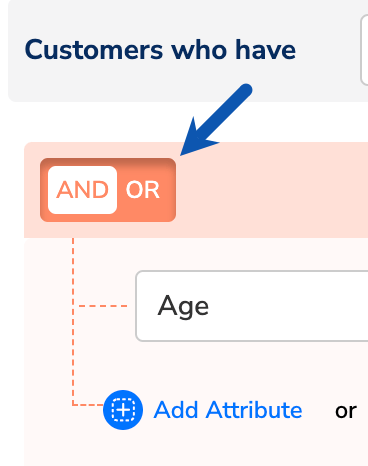
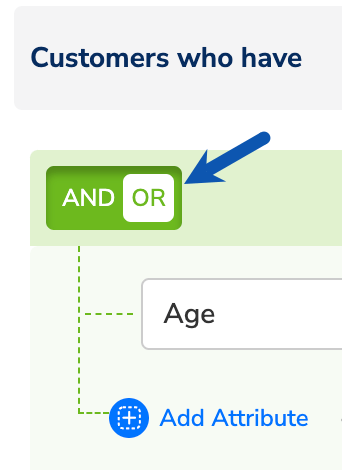
When applying attributes, use the different data types accepted by the system to provide values for the fields. For example, when providing customer information such as gender, you can only input a string value like male or female.Below, you can find information about the different data types and the operators available for the them in the system.
String values store textual information, such as gender (for example “male” or “female”) or city (for example, “New York,” “London”). The following table explains how different string operators work with examples:
Operator
Description
Example Condition
User Profile
Included in Audience?
Reason
Equal
Matches an exact string value.
Gender = “Male”
Gender: Male
✅ Yes
The value matches exactly.
Not Equal
Excludes users with the exact value.
Gender ≠ “Male”
Gender: Female
✅ Yes
The value is different from “Male”.
Contains
Includes users if the value contains a specific substring.
City contains “York”
City: New York
✅ Yes
”New York” contains “York”.
Not Contains
Excludes users if the value contains a specific substring.
City not contains “York”
City: New York
❌ No
”New York” contains “York”, so the user is excluded.
In
Includes users if the value matches any value in a list.
City in (“New York”, “London”)
City: London
✅ Yes
”London” is in the specified list.
Not In
Excludes users if the value matches any value in a list.
City not in (“New York”, “London”)
City: Paris
✅ Yes
”Paris” is not in the specified list.
Begins With
Includes users if the value starts with a specific substring.
City begins with “San”
City: San Francisco
✅ Yes
”San Francisco” starts with “San”.
Not Begins With
Excludes users if the value starts with a specific substring.
City not begins with “San”
City: San Diego
❌ No
”San Diego” starts with “San”, so the user is excluded.
Ends With
Includes users if the value ends with a specific substring.
City ends with “ton”
City: Boston
✅ Yes
”Boston” ends with “ton”.
Not Ends With
Excludes users if the value ends with a specific substring.
City not ends with “ton”
City: Houston
❌ No
”Houston” ends with “ton”, so the user is excluded.
Integer values represent whole numbers such as age, purchase count, or event occurrences. The following table explains how different integer operators work with examples:
Operator
Description
Example Condition
User Profile
Included in Audience?
Reason
Greater or Equal (>=)
Includes users if the value is greater than or equal to a specified number.
Age >= 18
Age: 20
✅ Yes
20 is greater than 18.
Lesser or Equal (<=)
Includes users if the value is less than or equal to a specified number.
Age <= 18
Age: 16
✅ Yes
16 is less than 18.
Greater (>)
Includes users if the value is strictly greater than a specified number.
Purchase Count > 5
Purchases: 6
✅ Yes
6 is greater than 5.
Less (<)
Includes users if the value is strictly less than a specified number.
Purchase Count < 5
Purchases: 4
✅ Yes
4 is less than 5.
Equal (=)
Includes users if the value matches exactly.
Age = 30
Age: 30
✅ Yes
The value matches exactly.
Not Equal (≠)
Excludes users if the value matchesexactly.
Age ≠ 30
Age: 25
✅ Yes
25 is different from 30.
In
Includes users if the value matches any number in a list.
Age in (25, 30, 35)
Age: 30
✅ Yes
30 is in the specified list.
Not In
Excludes users if the value matches any number in a list.
List of Objects (LOO) operators apply when an attribute contains multiple values, such as a list of purchased products, visited locations, or transaction records. The following table explains how different List of Object operators work with examples:
Operator
Description
Example Condition
User Profile
Included in Audience?
Reason
ANY
Includes users if at least one object in the list meets the specified condition.
Purchased Products ANY = “Laptop”
Purchased Products: [“Laptop”, “Tablet”, “Phone”]
✅ Yes
The list contains “Laptop”.
ALL
Includes users only if all objects in the list meet the specified condition.
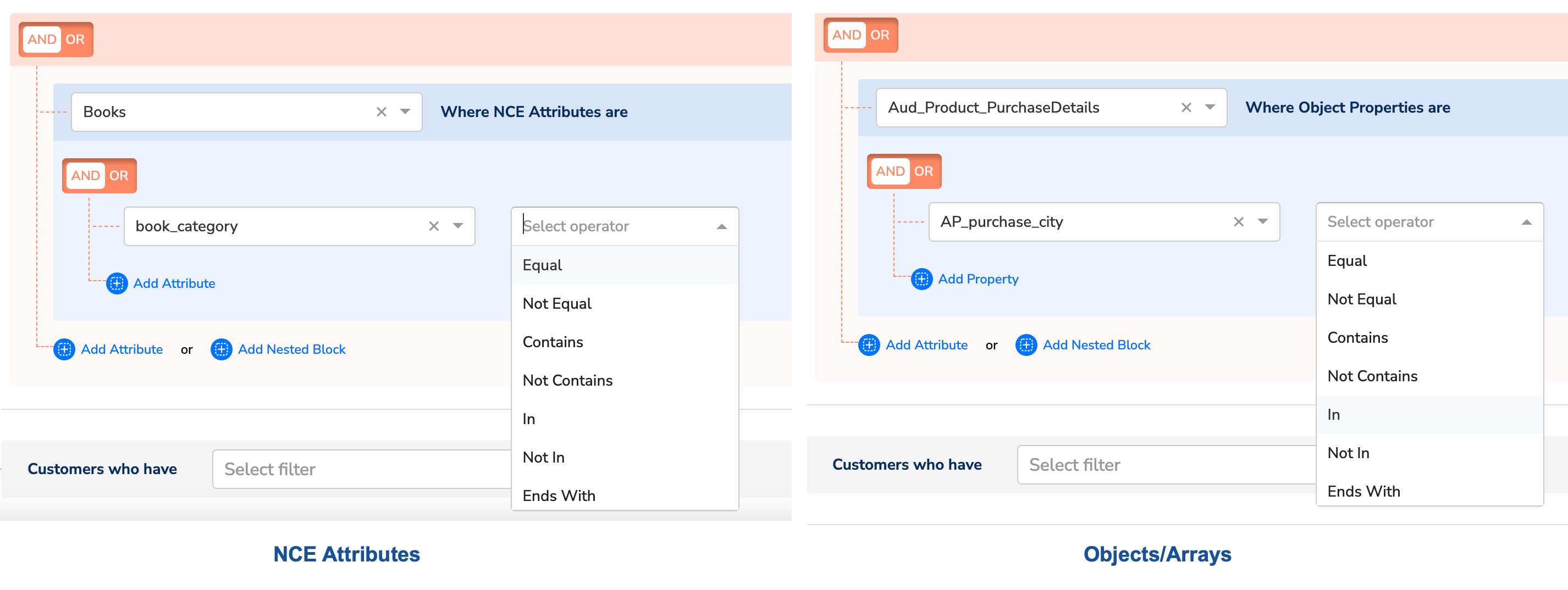
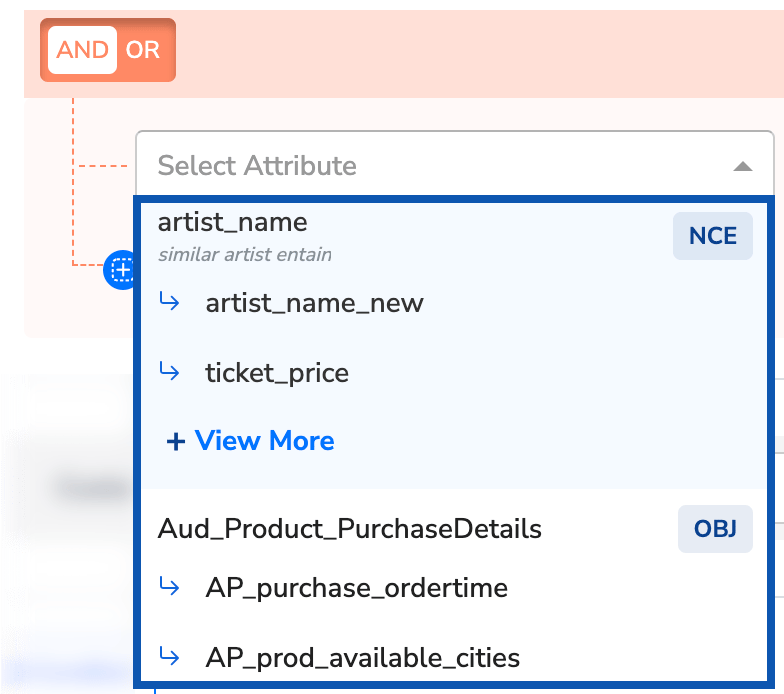
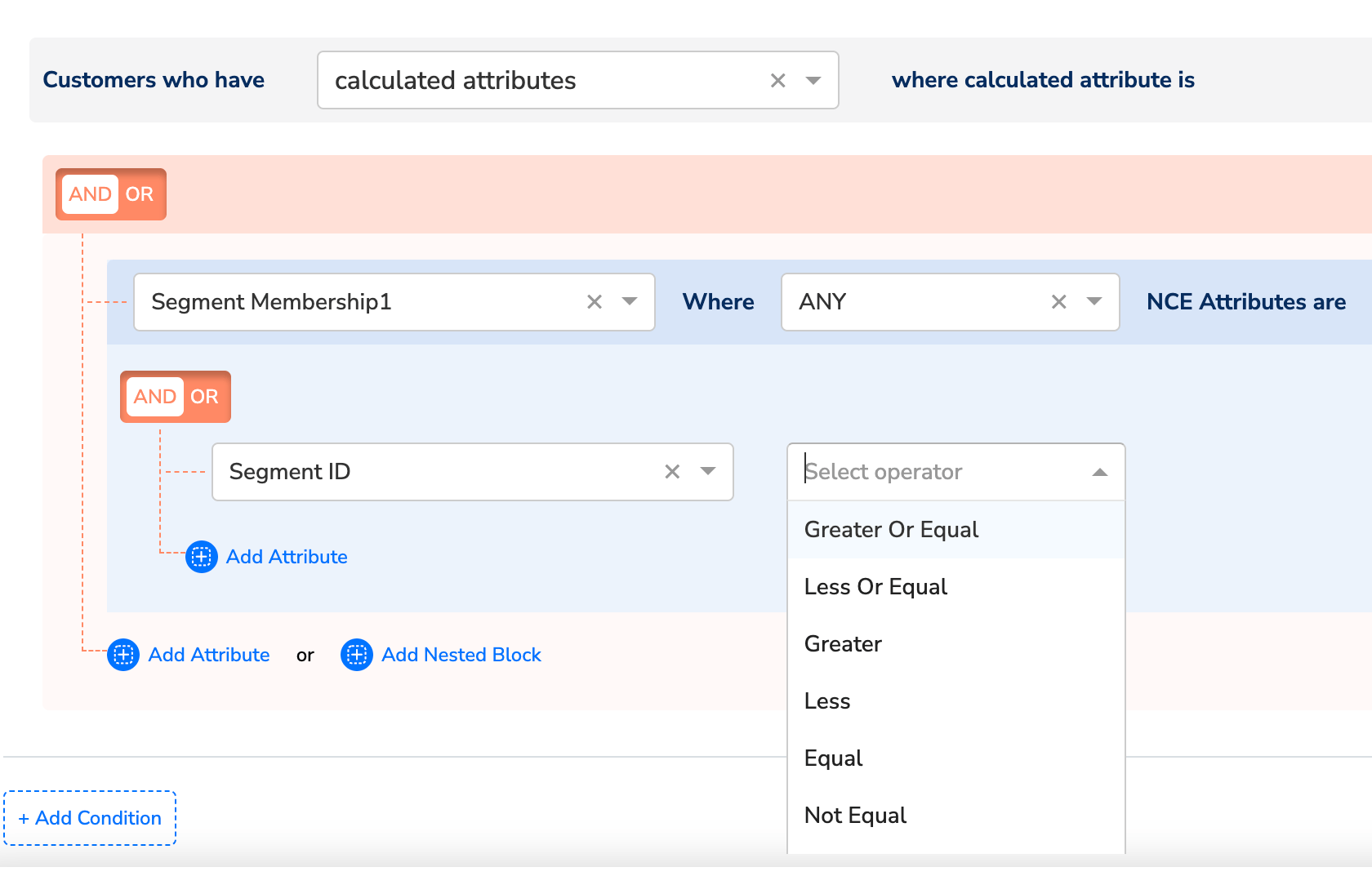
When using Object attributes or Non-Customer Entities (NCE) in audience segmentation, you must specify the relevant properties or attributes in the audience criteria. The available operators depend on the data type of these properties, such as String or Integer.
When Objects or Non-Customer Entity (NCE) attributes are used in Calculated Attributes, the ANY or ALL operators are available. Based on the data type (String or integer) of the selected Object property or the NCE attribute, different operators are displayed as shown below.
Event operators define conditions for audience segmentation based on Event Attributes. Depending on whether you choose Event Name or Event Properties, different operators apply.
A company tracks user interactions as events. The Event Name could be “Purchase,” “Login,” or “Add to Cart,” while Event Properties could include details like “Category” (Electronics, Clothing, an so on) or “Payment Method” (Credit Card, PayPal, and so on).
Operator
Example Condition
User Activity
Included in Audience?
Reason
Equal
Event Name = “Purchase”
Event: Purchase
✅ Yes
The event name matches “Purchase.”
Not Equal
Event Name ≠ “Login”
Event: Purchase
✅ Yes
The event name is different from “Login.”
In
Event Name IN (“Purchase”, “Checkout”)
Event: Purchase
✅ Yes
”Purchase” is in the specified list.
Not In
Event Name NOT IN (“Logout”, “Cancel Order”)
Event: Add to Cart
✅ Yes
”Add to Cart” is not in the exclusion list.
Exists
Event Property (Category) EXISTS
Category: Electronics
✅ Yes
The event has a “Category” property.
Does Not Exist
Event Property (Category) DOES NOT EXIST
Event: Login (No Category)
✅ Yes
The “Category” property is missing for this event.
Timestamp operators filter users based on when an event occurred. These operators apply after selecting an Event Attribute (such as “Add to Cart,” “View Page,” or “Checkout”).
Consent operators filter customers based on their consent status. These operators help segment users based on whether they have agreed to data processing or other terms.
Operator
Example Condition
User Consent Status
Included in Audience?
Reason
Consent Given
Users who have given consent
✅ Consent Given
✅ Yes
The user has provided consent.
Consent Not Given
Users who have not given consent
❌ Consent Not Given
✅ Yes
The user has explicitly denied or not provided consent.