

What this is
Ada is an AI-based audience builder, developed in partnership with Google’s Vertex AI and named in honour of the first woman programmer. It turns a plain-English description of a cohort into the conditional blocks you would otherwise assemble by hand, so you can define an audience without first learning how the block editor is laid out. Rewrite the prompt to explore a different cut of the same data, or edit any block Ada generates.Ada carries a BETA label in the product. Always read the blocks it generates before you save — the definition you save is the one that runs, not the sentence you typed.
Before you begin
Ada appears as the Generate with AI panel at the criteria step of audience creation. If that panel is not on your builder screen, contact your Zeotap POC or email support@zeotap.com with your organisation name. You also need:- Access to create audiences in Segment, and an audience already named and placed in a folder — see Create an audience.
- The attributes and events you want to filter on present in your catalogue. Ada builds conditions from the attributes your organisation already has; it cannot create one for you.
- A one-sentence description of the cohort, including the time window for any event.
Write the prompt
Type the description into the Generate with AI box and click Generate Audience. Write it in English, name the attributes the way they appear in your catalogue, and state the time window for every event explicitly. For example: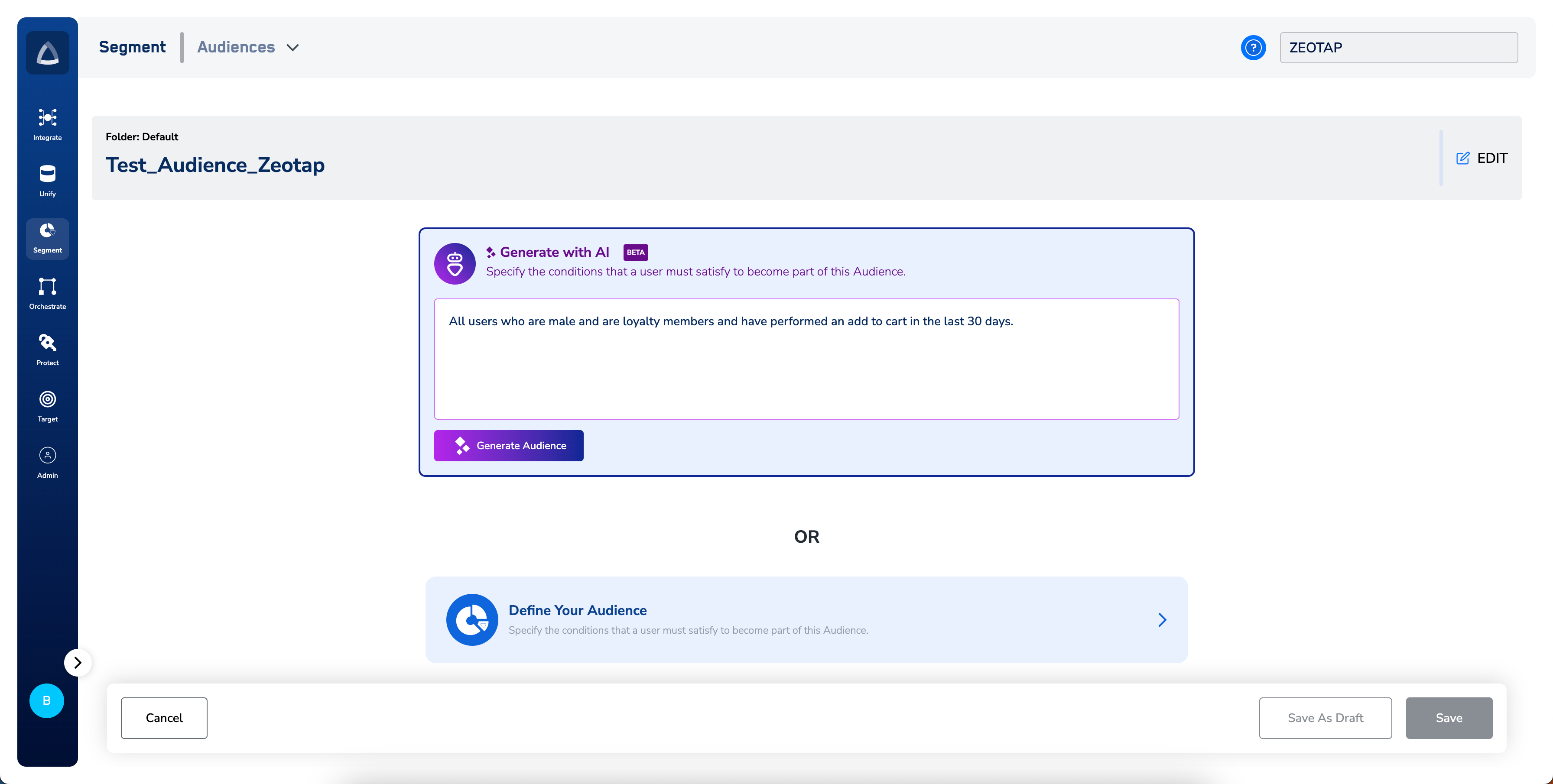
Review and edit the generated conditions
Ada returns the definition as ordinary conditional blocks. The example prompt above resolves into two: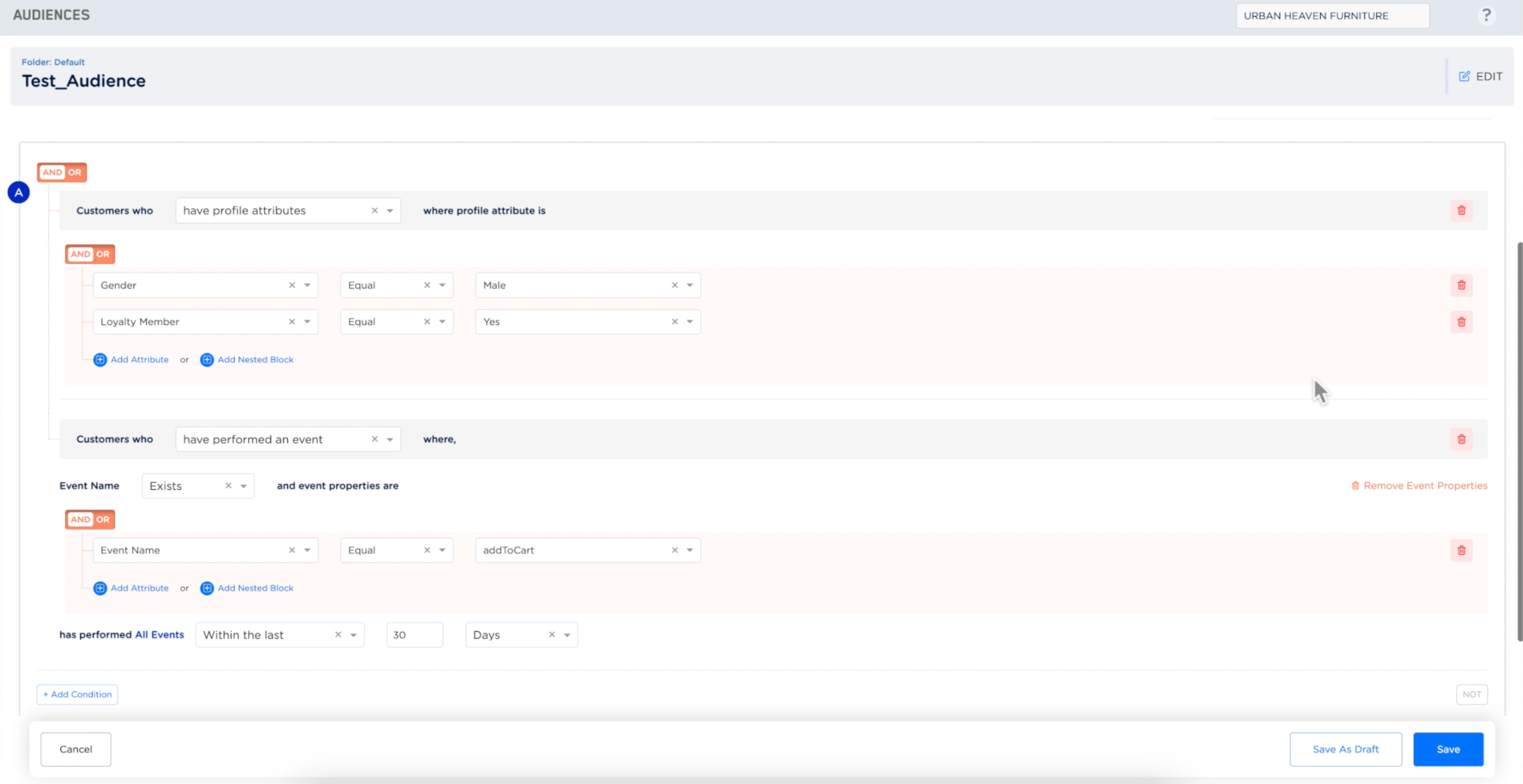
- The wrong attribute. Where your catalogue holds several similarly named attributes, the one Ada chose may not be the one you meant. Compare the attribute in each block against the one you intended.
- The wrong time window. Check the Within the last row on every event block, and that the value and unit beside it are the period you described.
Verify the audience before you save
Work down this list before you commit the definition:- Every clause in your prompt appears in one of the blocks. Nothing was dropped.
- Profile conditions sit in a have profile attributes block and event conditions in a have performed an event block.
- Each event block shows a value and a unit under Within the last.
- Save As Draft and Save are no longer greyed out — they become available once the builder holds a definition.