

What this is
Sendinblue (Brevo) is a destination: data flows out of Zeotap CDP into Sendinblue (Brevo), where an audience arrives as a List stored in a Folder. This appendix covers the two pieces of Sendinblue (Brevo)-side setup the destination depends on — creating a custom contact attribute, and displaying that attribute as a column in the Contacts table. You need this page when you configure the Sendinblue (Brevo) destination with the Send attributes to Sendinblue action. The custom attribute has to exist on the Sendinblue (Brevo) platform before it appears under Map the Fields in Zeotap CDP, so complete the steps here first, then return to Sendinblue (Brevo) to create or edit the destination. Zeotap CDP also ships a real-time Sendinblue (Brevo) destination — see Brevo — which sends user data out to a Brevo contact list as events occur, rather than as a batch audience push.Prerequisites
- An active account on Sendinblue (Brevo).
- The Zeotap Catalogue attributes you intend to send, so you can give the Sendinblue (Brevo) attribute a type that suits the Catalogue value you map onto it.
Add custom attributes
Perform the following steps to add custom attributes on the Sendinblue (Brevo) platform:1
Log into the Sendinblue (Brevo) console and navigate to Contacts → Settings.
2
In the Contacts settings screen that appears, click Contact attributes.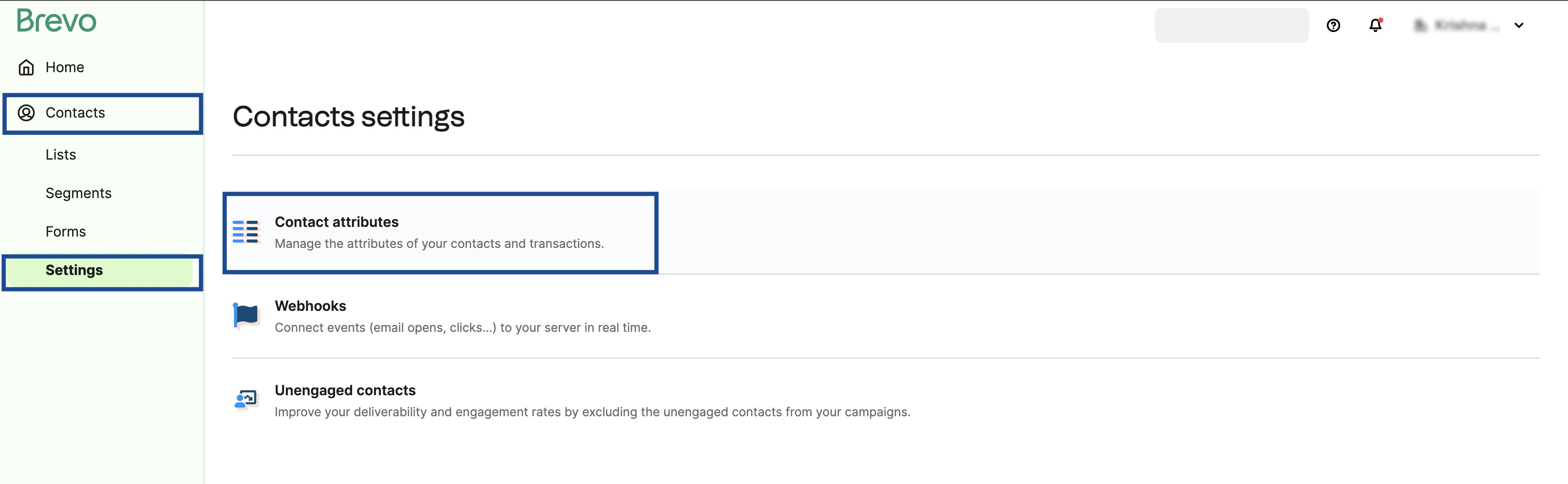
3
In the following screen that appears, click + Add a new attribute.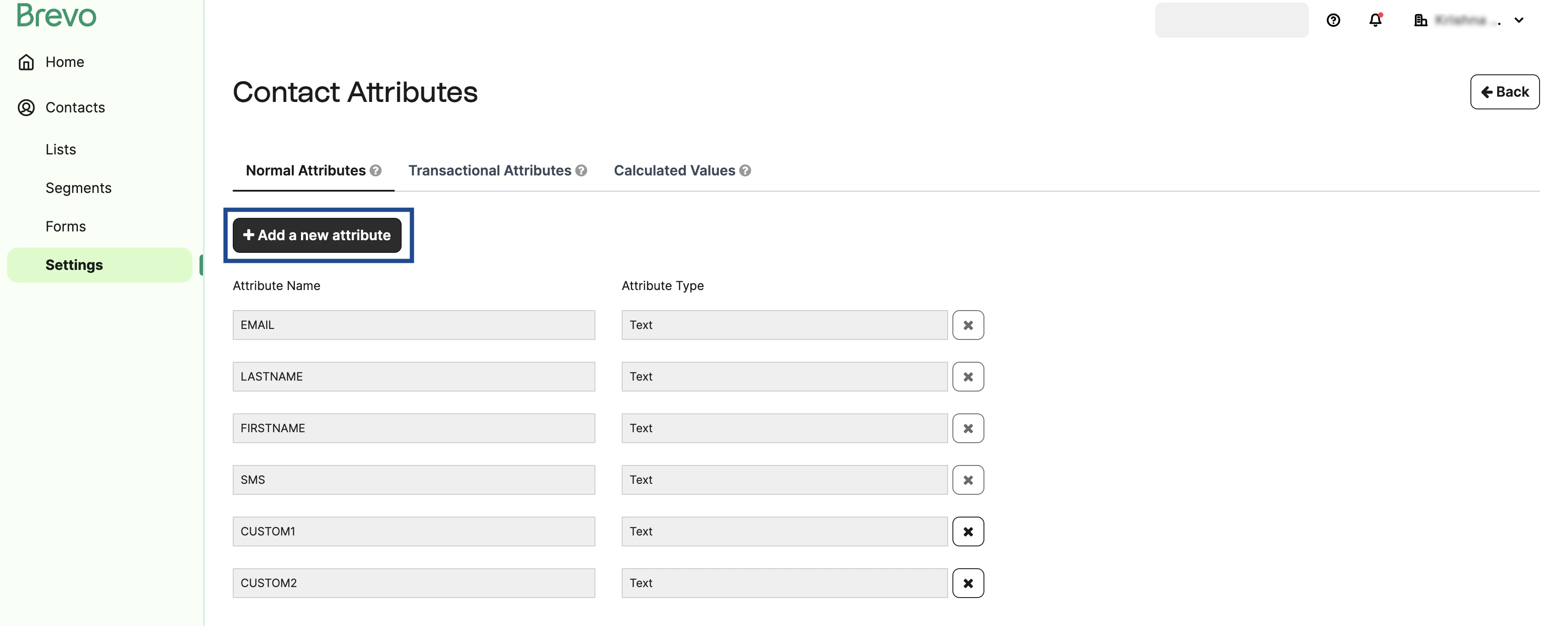
4
In the Attribute Settings window that appears, provide an Attribute Name in capital letters, choose the desired Attribute Type from the drop-down list and click OK. Note that the attribute type can be Text, Number, Category and Boolean.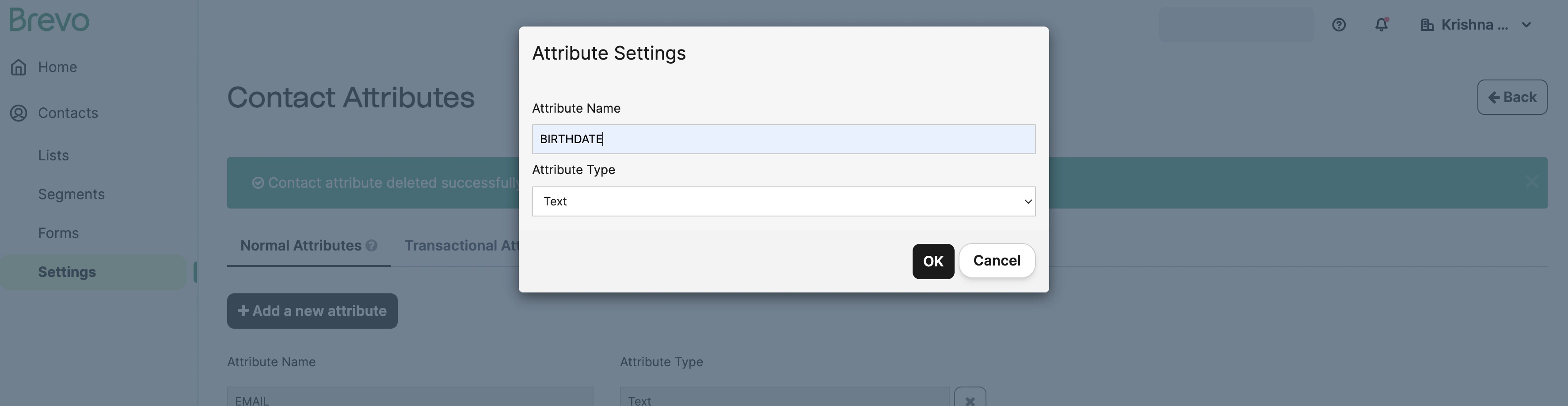
5
The custom attribute gets listed in the Contact Attributes screen. This custom attribute gets listed under the Map the Fields section while creating a Destination in Zeotap CDP.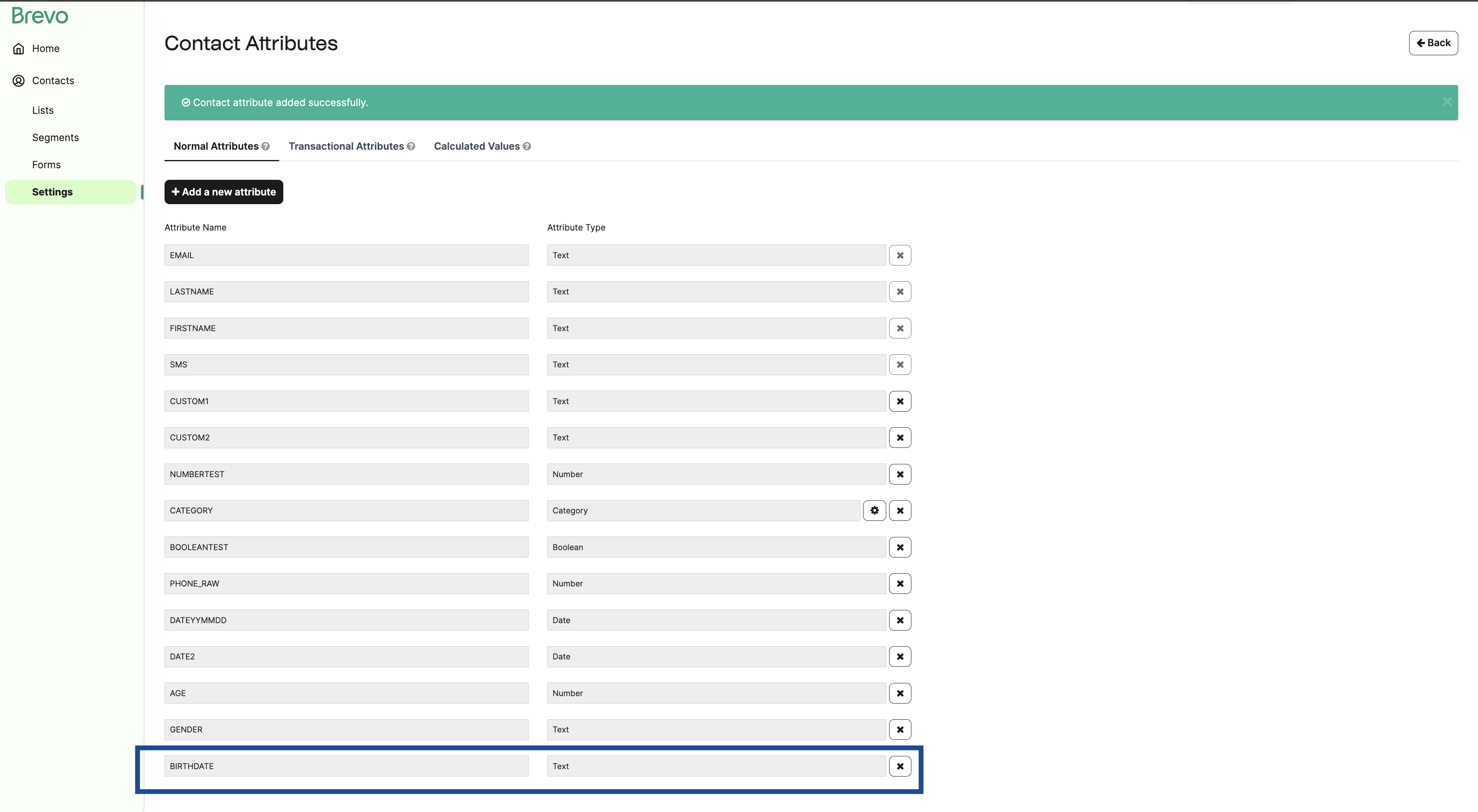
Add new columns for custom attributes
Adding an attribute under Contacts settings does not display it in the contact table. Perform the following steps to add new columns for the custom attributes on the Sendinblue (Brevo) platform:1
Log into the Sendinblue (Brevo) platform, go to Contacts and click Edit column attributes.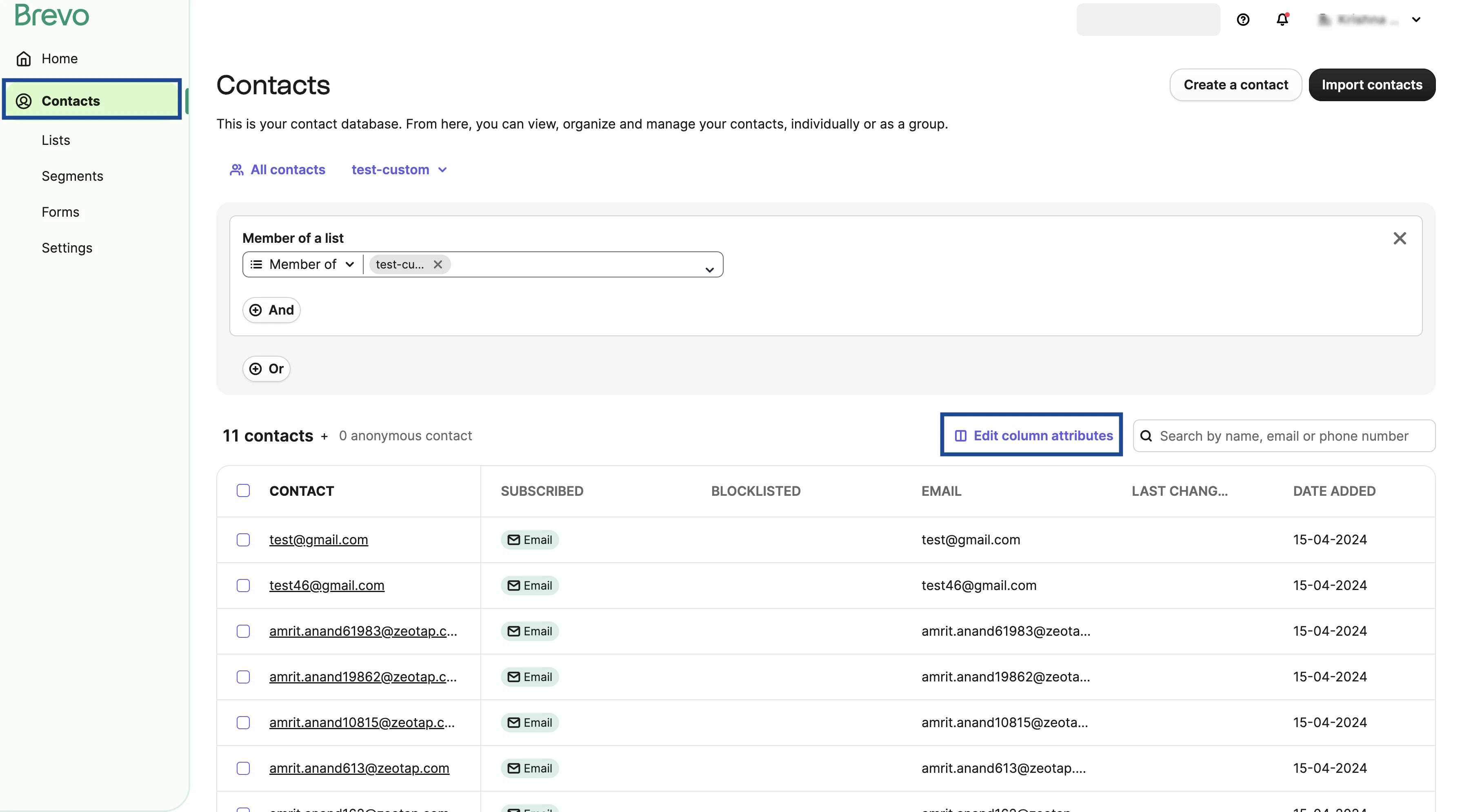
2
In the Edit displayed columns panel that appears, click Add columns.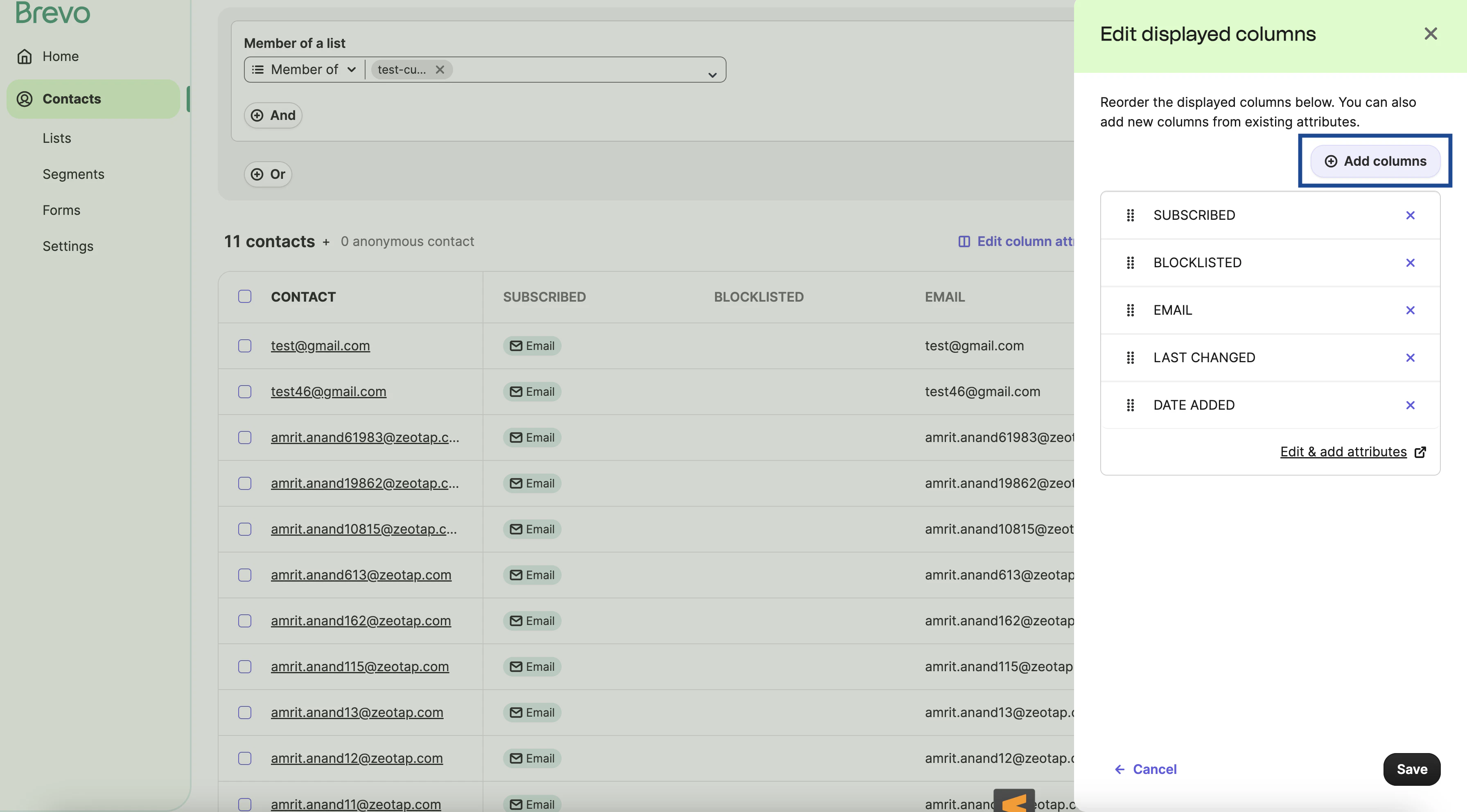
3
Search and add the desired custom attributes that you wish to view on Sendinblue (Brevo) using the drop-down menu and click Save.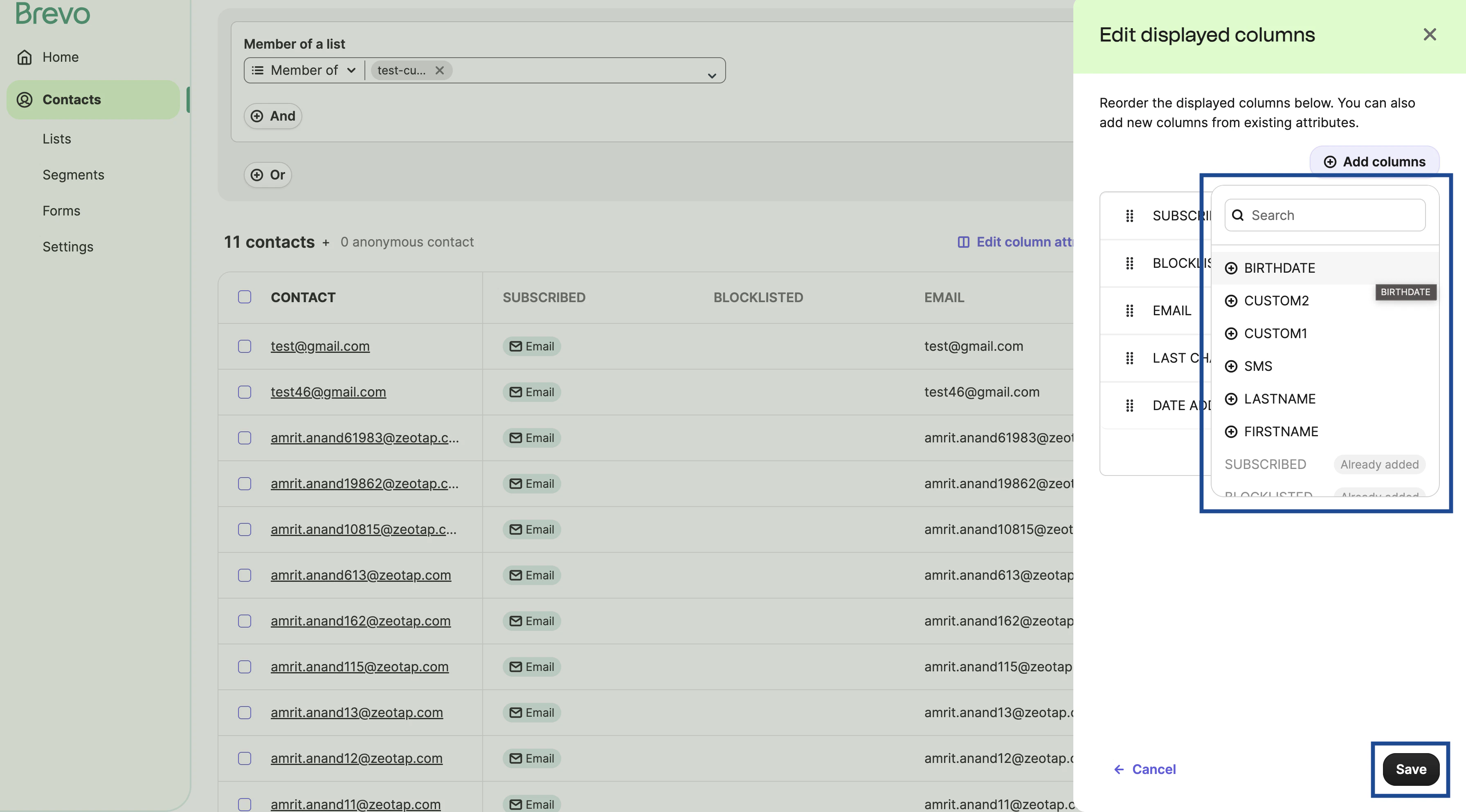
4
The newly added custom attribute column is then displayed as shown in the image below.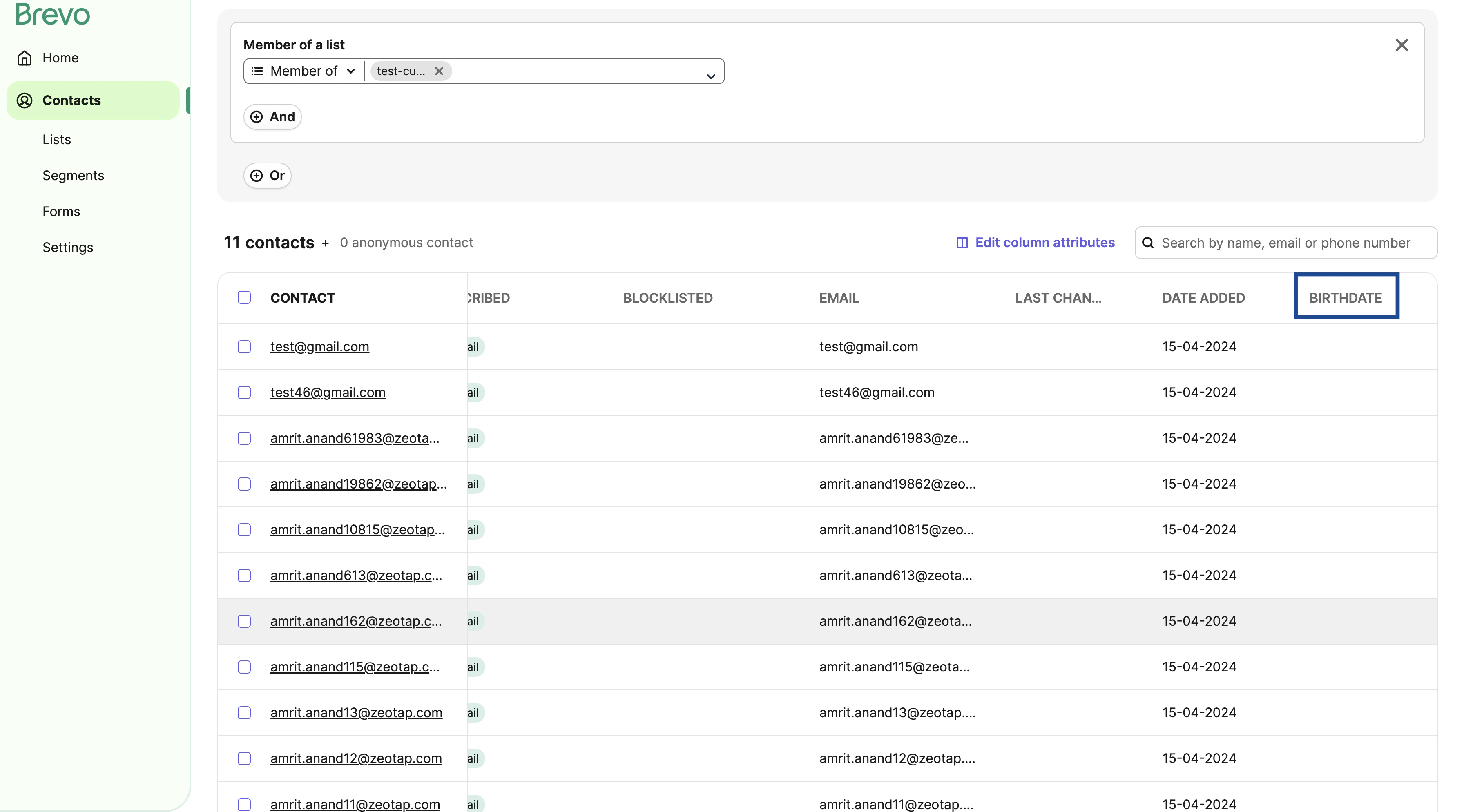
Verify the attribute reaches Zeotap CDP
Open the Sendinblue (Brevo) destination in Zeotap CDP, choose Send attributes to Sendinblue as the action, and confirm the new attribute is listed under Map the Fields. If it is, you can map a Zeotap Catalogue attribute onto it. For the full destination walkthrough, see Sendinblue (Brevo).Troubleshoot custom attributes
- The attribute is not listed under Map the Fields in Zeotap CDP. The attribute has to be added on the Sendinblue (Brevo) platform before you push an audience that carries custom attributes. Add it as described above, then reopen the destination’s Actions and Mapping screen.
- The attribute exists but does not show in the contact table. Creating an attribute under Contacts settings does not add it as a column. Add it using Add new columns for custom attributes.
- The mapping is rejected, or the value does not arrive as expected. The Sendinblue (Brevo) attribute type has to suit the Catalogue field mapped onto it — map a Text-type attribute against text, a Number-type attribute against a number, and replicate the values of a Category-type attribute exactly as they are configured in Sendinblue (Brevo). A Zeotap Catalogue attribute can be mapped only once. For the full set of mapping rules, see the note on Sendinblue (Brevo).
Next steps
- Sendinblue (Brevo) — create the destination, choose the action and map the fields.
- Link an audience to the destination — activate an audience on the destination you created.
- Brevo — the real-time Sendinblue (Brevo) destination, for sending user data as events occur.
- Destinations — how mapping works across every destination.