Block specific destinations from individual audience and journey folders. Govern which activation channels each team can send to. Part of Zeotap’s Access Rules governance model.
Destination Access Rules let admins control which destinations are available for activation from specific audience and journey folders. They govern which channels each team can send to, ensuring that high-value, regulated, or cost-sensitive activation channels are only used in the right contexts.For the broader governance model — including how Destination Access Rules relate to Folder Access Control and Mandatory Templates — see Access Rules.
Unlike Source Access Rules, Destination Access Rules apply to the entire destination. There is no mapping-level or attribute-level granularity — the governance concern here is about which channels a team can activate to, not the specific data being sent.
Restrict premium or high-cost channels. Your org uses a premium DMP that carries significant activation costs. You want to ensure only compliance-reviewed, high-quality audiences can be sent to it. Block it from all marketing folders and keep it available only in the compliance folder.Prevent unauthorised channel use. Certain destinations — for example, a channel used exclusively for regulated financial communications — should only be available to specific teams. Blocking it from other folders prevents accidental or unauthorised sends.Enforce channel governance by region. A destination configured for a specific market should not be available to teams building audiences for other markets. Destination Access Rules let you scope activation channels to the folders where they are relevant.Protect brand safety. High-reach or high-visibility channels can be restricted to folders where audiences have been properly reviewed, preventing untested or incomplete audience segments from reaching those channels.
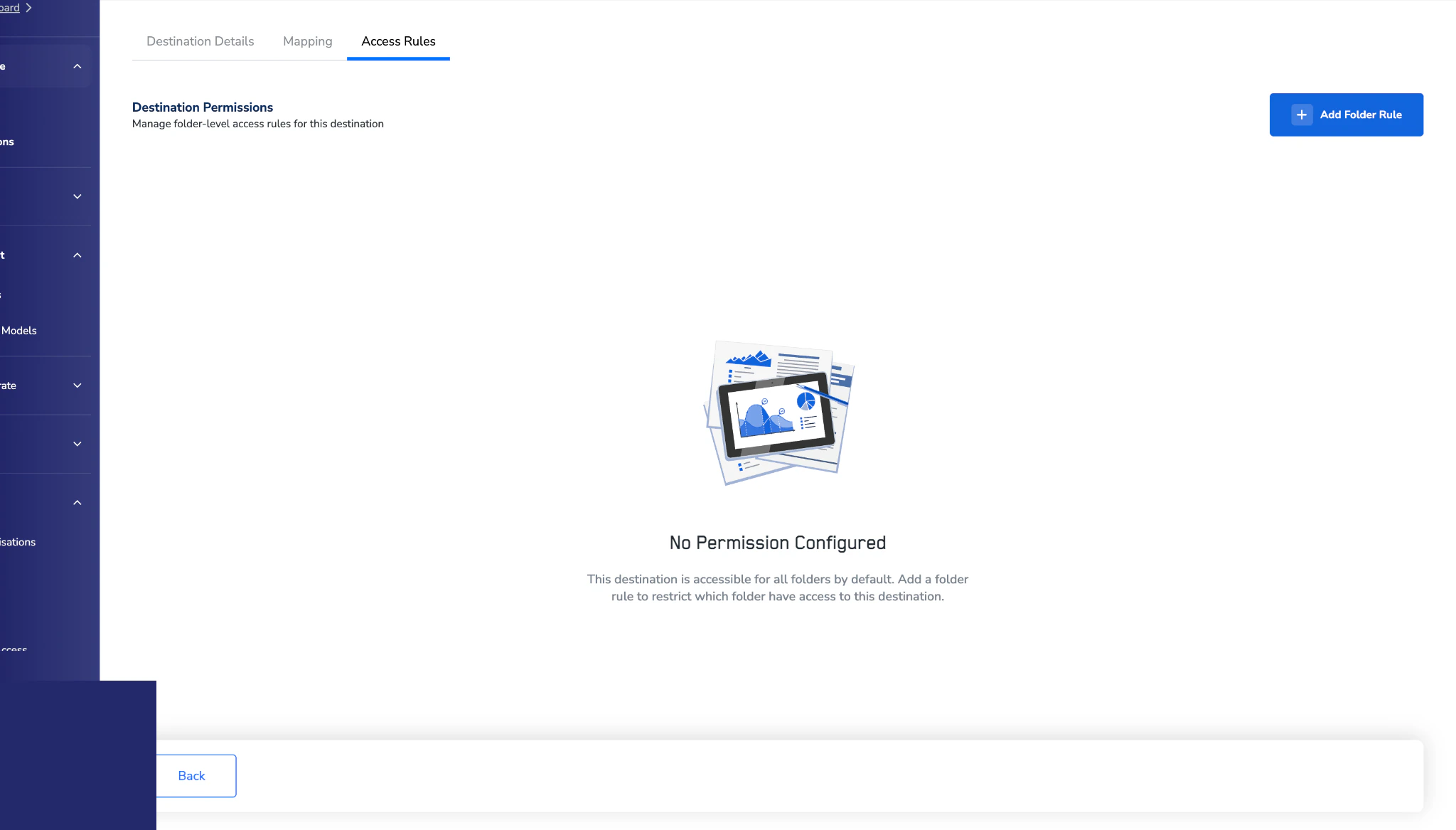
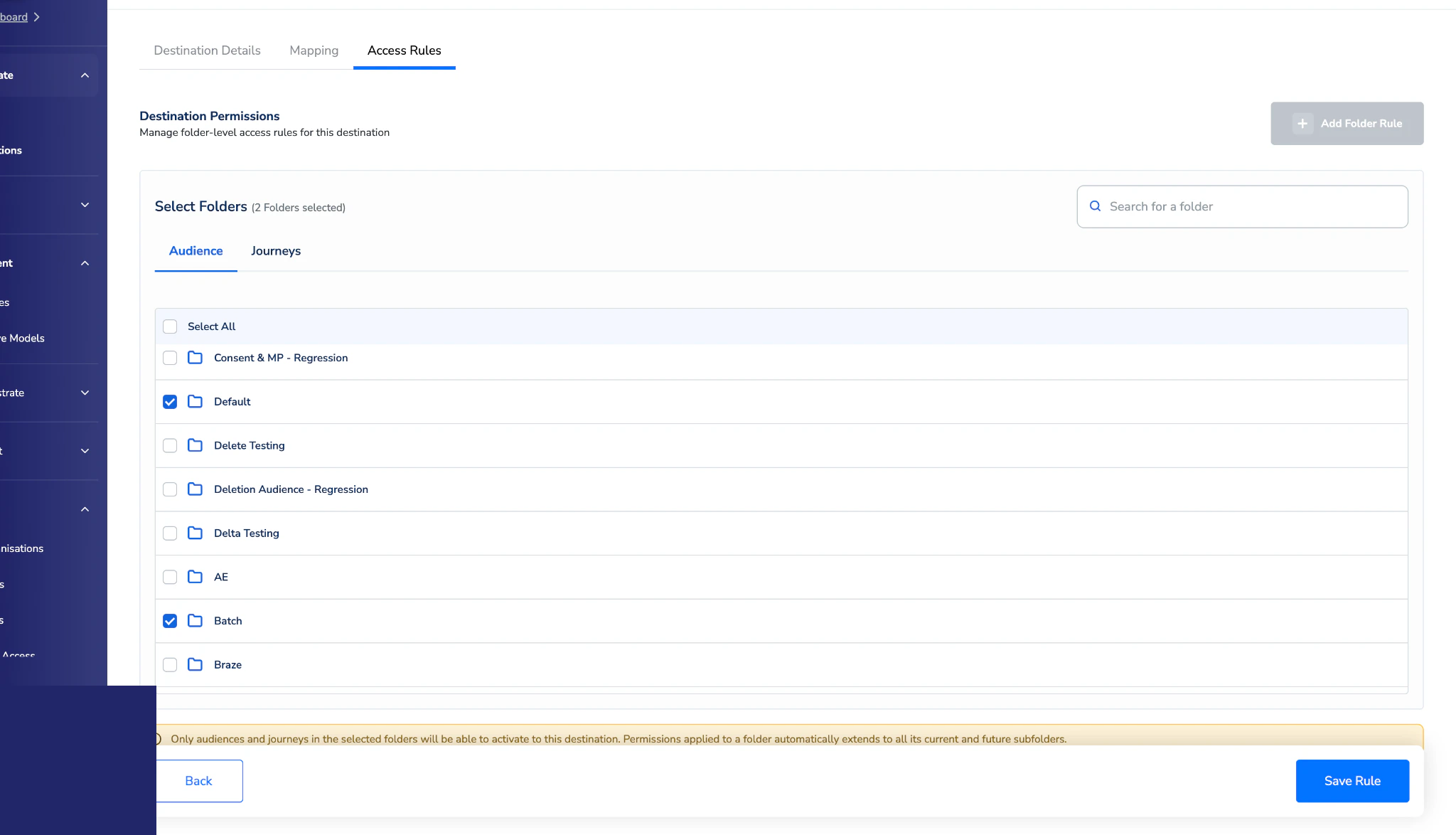
Navigate to Destinations, open the destination, and select the Access Rule tab.
2
Clear all or remove specific folders
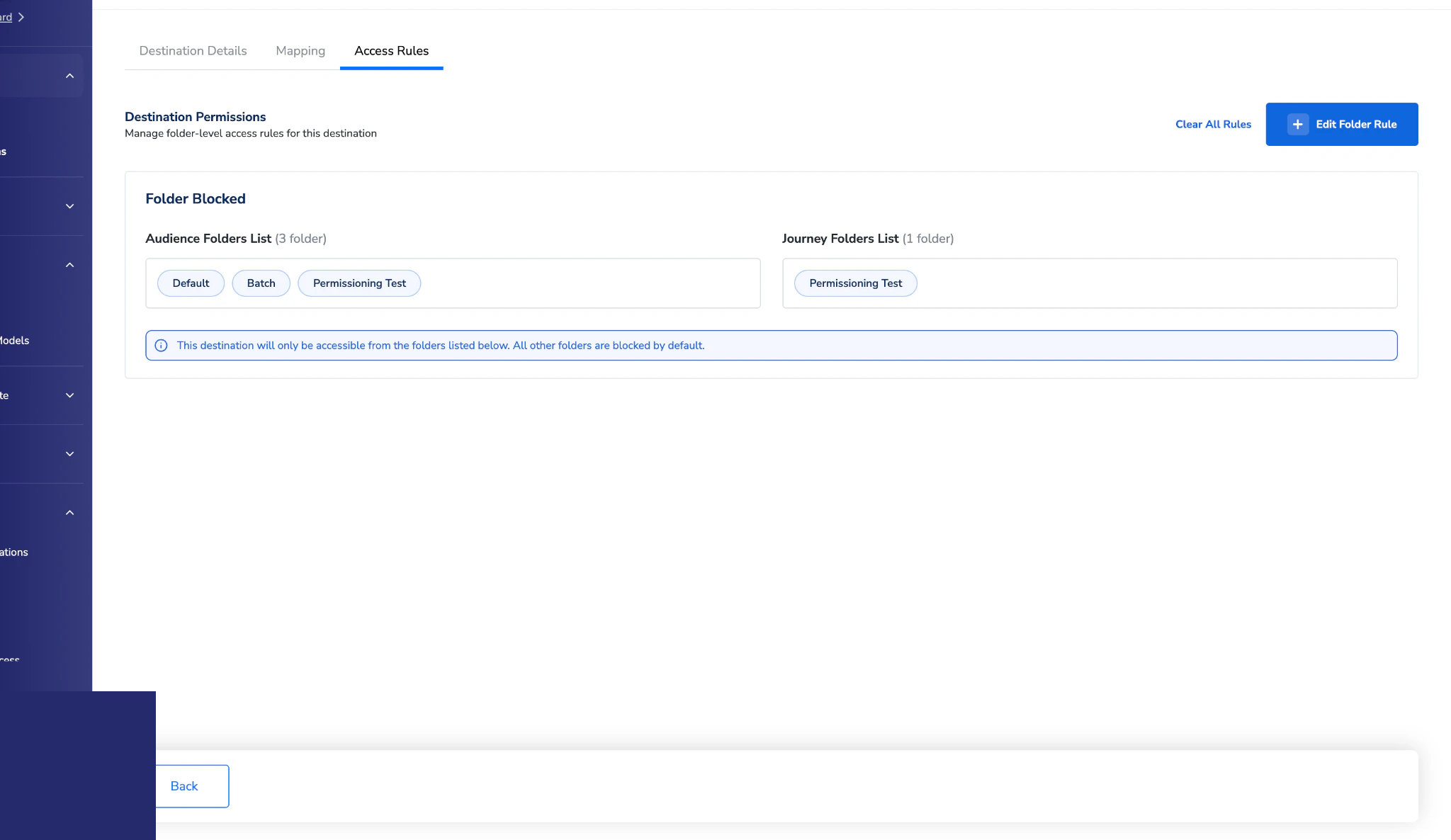
Click Clear All Rules to remove every folder rule. To remove specific folders only, click Edit Folder Rules and use the cross icon next to the folders you want to remove.
A blocked destination does not appear in the activation destination list for that folder.Existing audiences affected by a new rule: Existing audiences continue running without interruption. However, any audience using a now-restricted destination is flagged with a warning status on both the folder and the audience definition page.
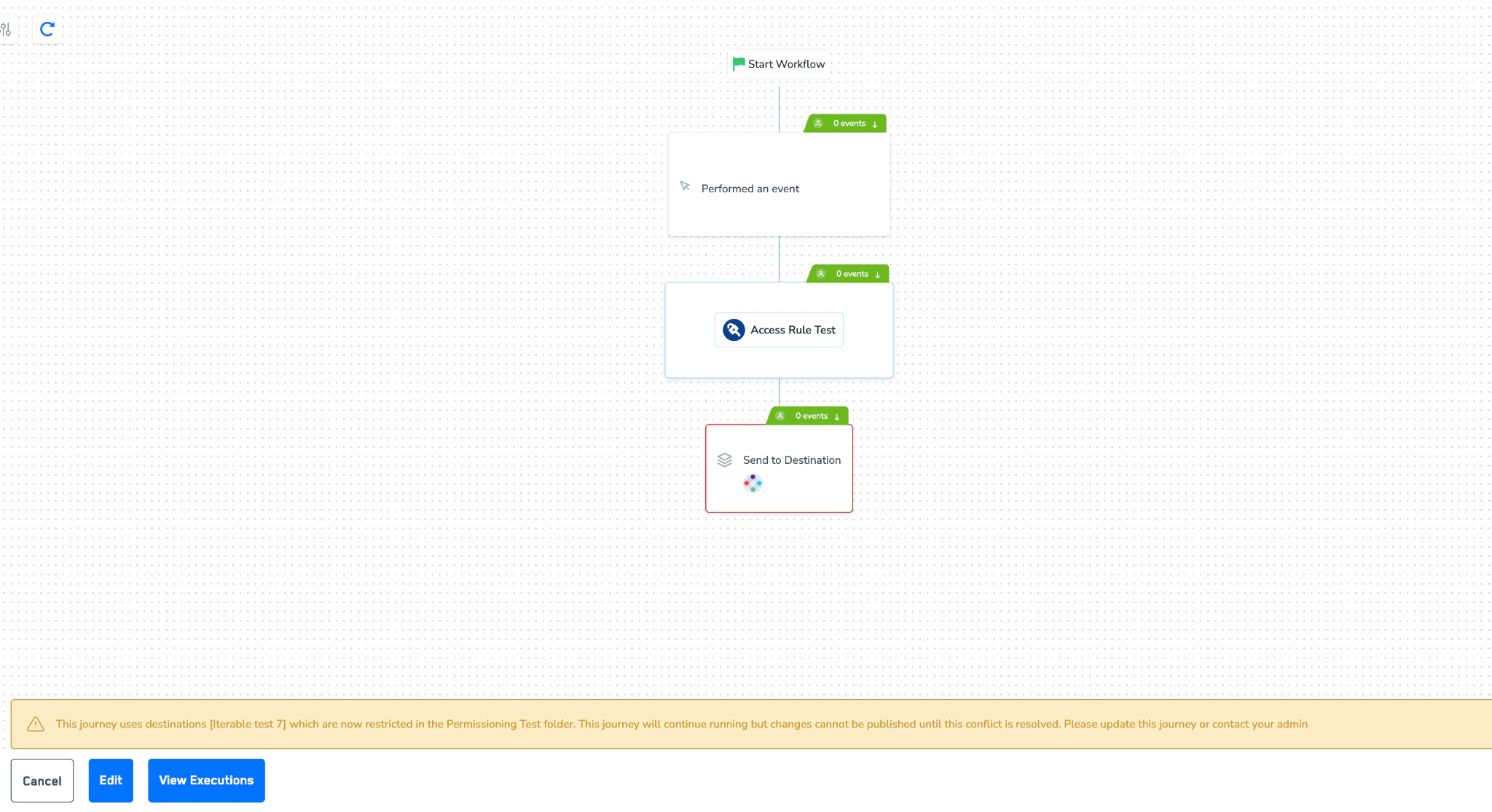
A blocked destination does not appear in the activation destination list for that folder.Existing journeys affected by a new rule: Existing journeys continue running without interruption. However, any journey using a now-restricted destination is flagged with a warning status on both the folder and the journey definition page.
Figure 4 — Journey workflow with the inline banner explaining which destination is now restricted and what action is required.
Users cannot publish changes to a flagged journey until the conflict is resolved — either by removing the restricted destination from the journey definition, or by an admin updating the rule.
Last modified on May 11, 2026
Was this page helpful?
Assistant
Responses are generated using AI and may contain mistakes.