

Overview
Source Access Rules let admins control which data sources — and optionally which specific attributes within those sources — are available when building audiences or journeys in a given folder. This is useful when you have sources that contain a mix of safe and sensitive data. Rather than making the entire source off-limits, you can make it broadly available but block only the sensitive fields in contexts where they shouldn’t be used. For the broader governance model — including how Source Access Rules relate to Folder Access Control and Mandatory Templates — see Access Rules.When to use Source Access Rules
Block sensitive attributes from specific teams. Your CRM source contains email, transaction history, loyalty tier, and national ID. Your marketing teams need email and transactions to build campaign audiences. They do not need national ID. You can block the national ID attribute from the marketing folders while keeping the rest of the source fully accessible. Restrict an entire source to specific contexts. You have a source containing medical or financial data that should only be accessible to a compliance-approved folder. You can block the entire source from all other folders, ensuring it only appears in the right context. Enforce data minimisation. Different teams should work with the minimum data necessary for their use case. A growth marketing team running acquisition campaigns doesn’t need loyalty or retention attributes. Blocking those attributes from the acquisition folder keeps the data environment clean and reduces the risk of misuse. Meet regional data requirements. Certain attributes may be permissible in one market but restricted in another. You can apply different rules to region-specific folders — for example, blocking a sensitive field from your Germany marketing folder while keeping it accessible in other markets.How Source Access Rules work
Default state
By default, every source — both new and existing — is available across all folders. No restrictions are applied unless an admin explicitly configures them.Attribute-level control
Admins can either select all attributes from the source or select specific attributes within it.- Only the explicitly selected attributes are blocked in the targeted folders.
- All other attributes from that source remain fully accessible in those folders.
- For any new folder created after the rule is set, the source is fully accessible — including the otherwise blocked attributes. The new folder must be explicitly added to the rule for attribute restrictions to apply.
- Any new attribute mapping added to the source after the rule is set is accessible in all folders by default. It is not automatically blocked unless explicitly added to the rule.
Configure Source Access Rules
Create a Source Access Rule
Open the source
Open the Access Rule tab
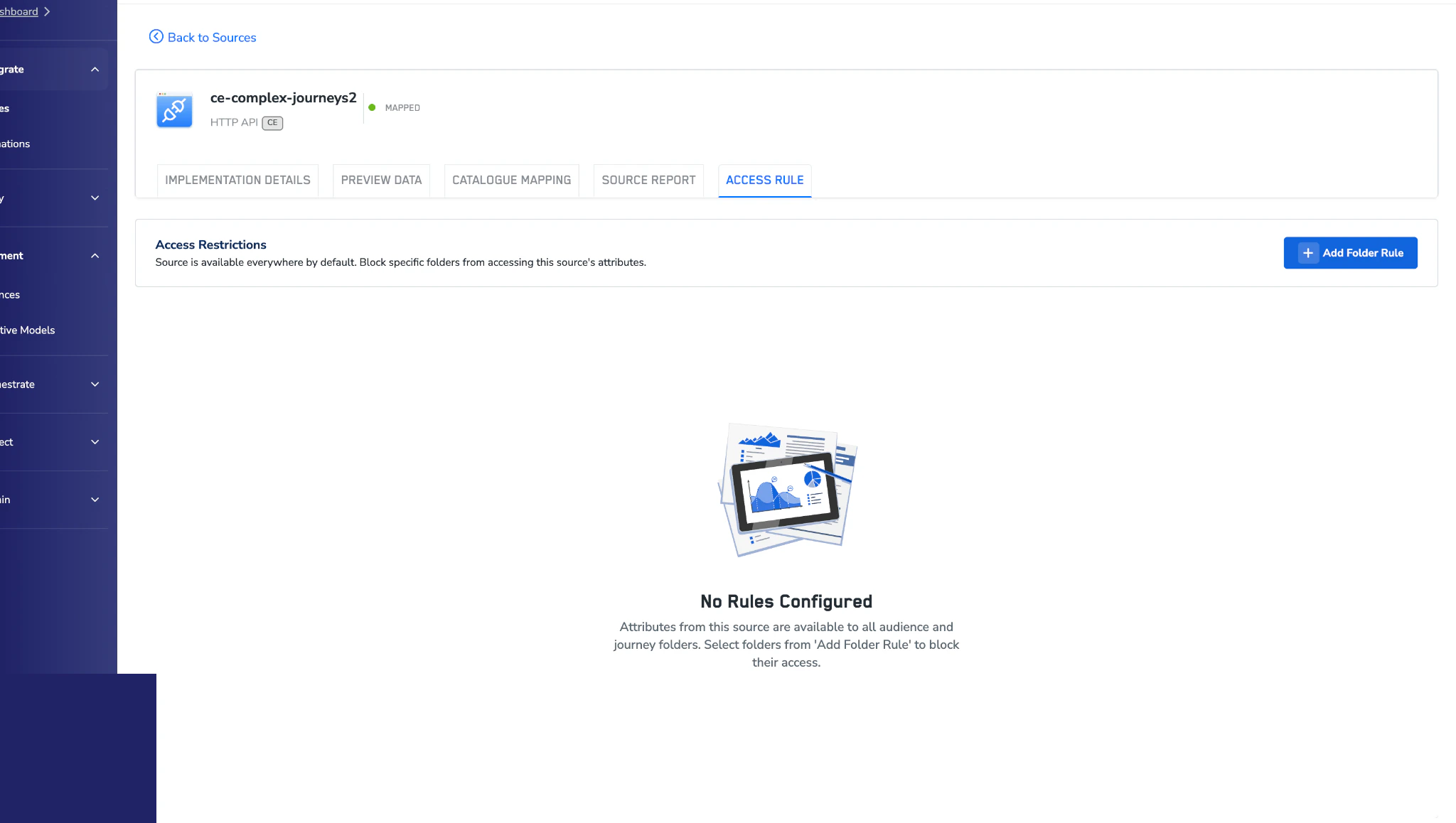
Figure 1 — Access Rule tab on a source with no rules configured yet.
Add a folder rule
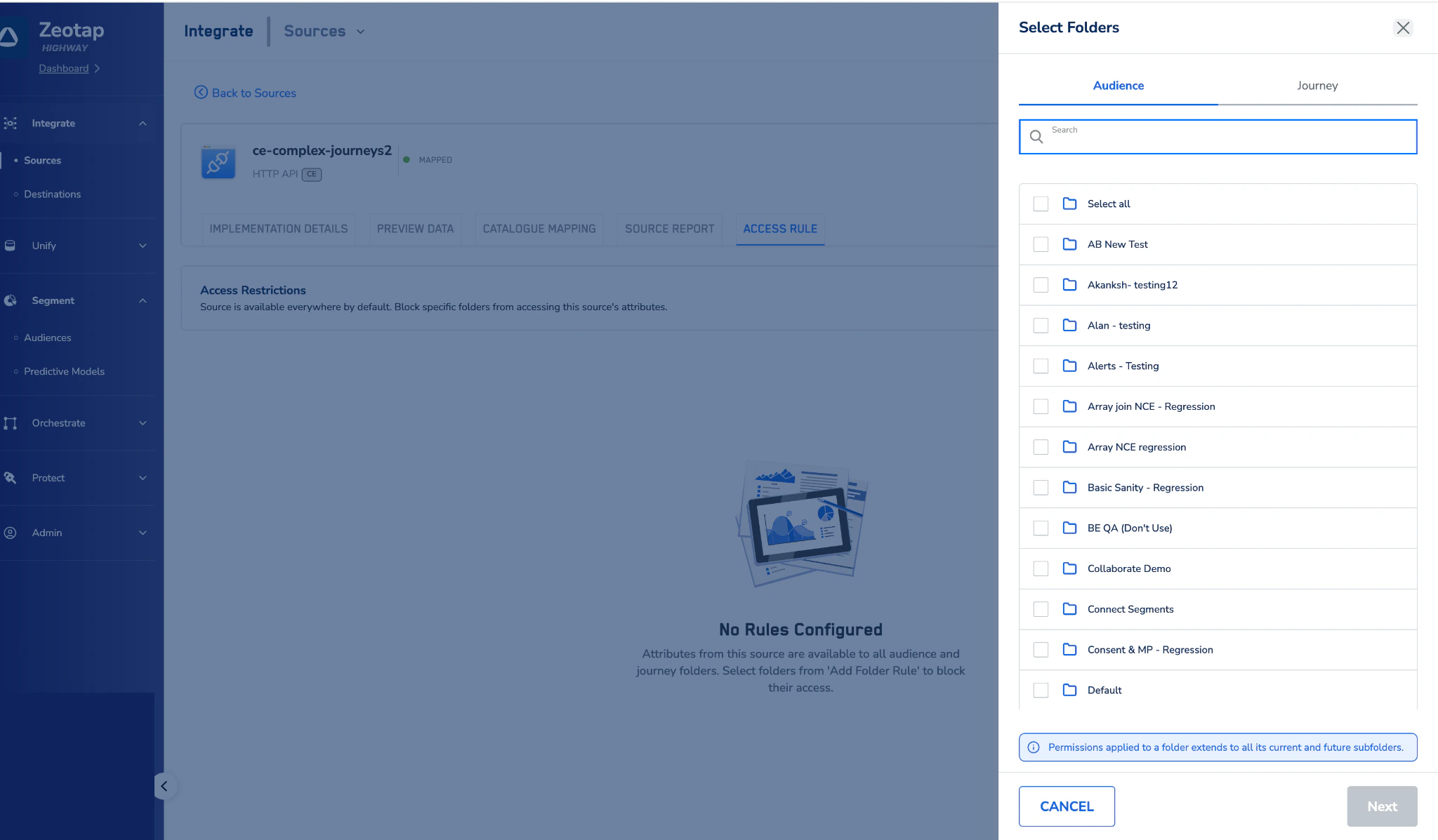
Figure 2 — Select the audience and journey folders the rule should apply to.
Select the attributes to block
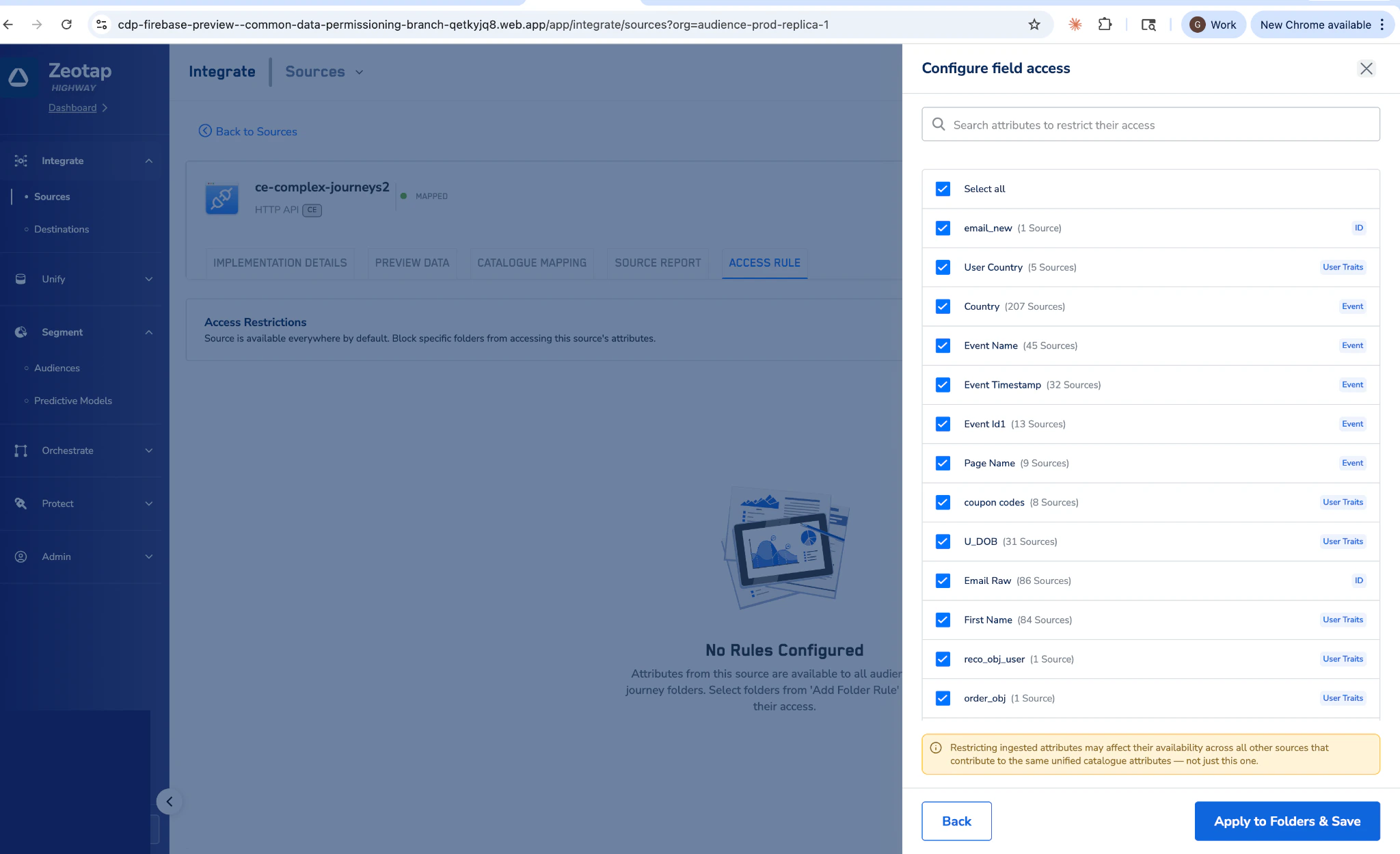
Figure 3 — Configure field access. Pick All or only the specific attributes to block in the selected folders.
Review the impact warning
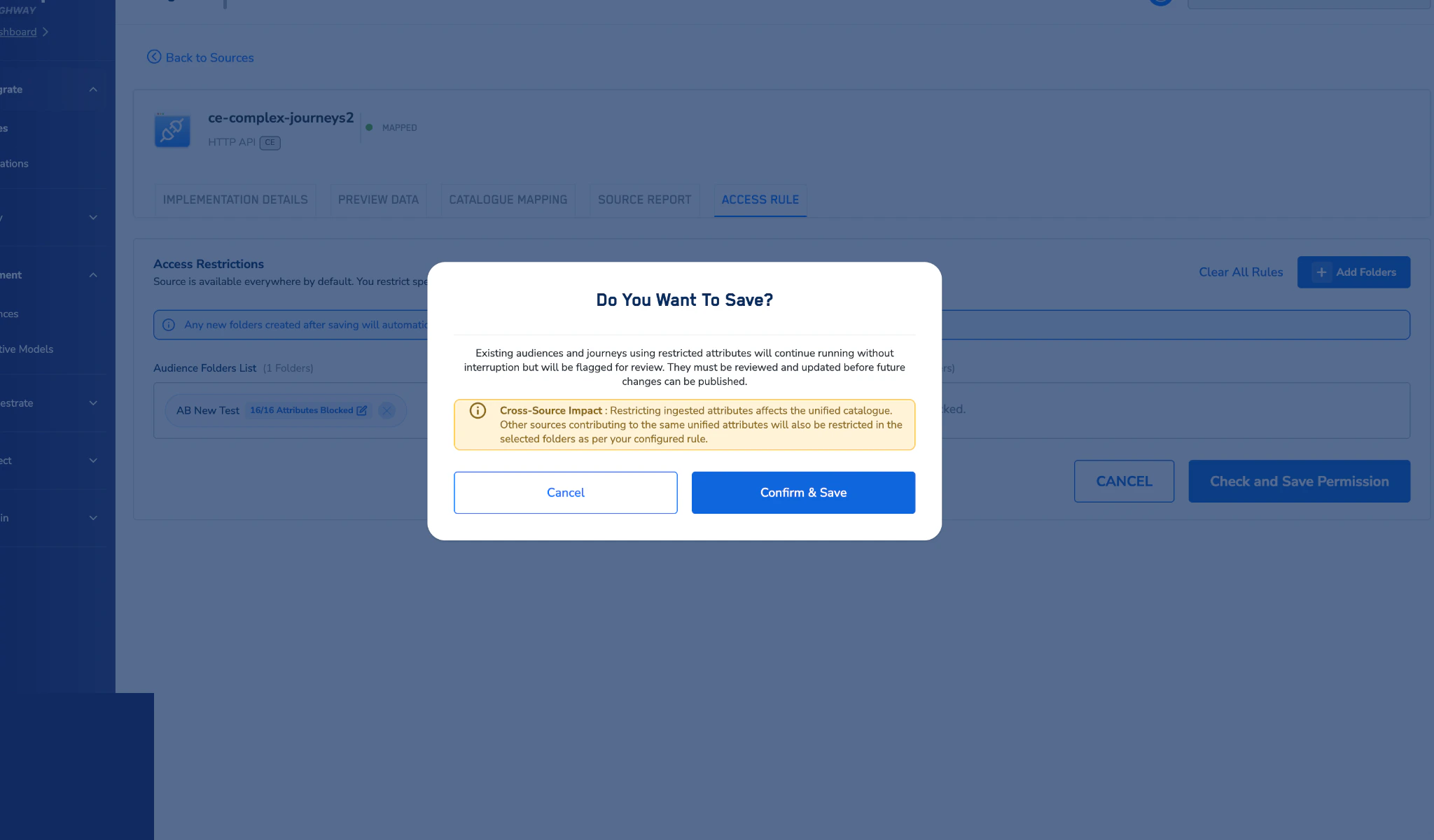
Figure 4 — Save confirmation with a cross-source impact warning when blocked attributes also affect unified attributes.
Save the rule
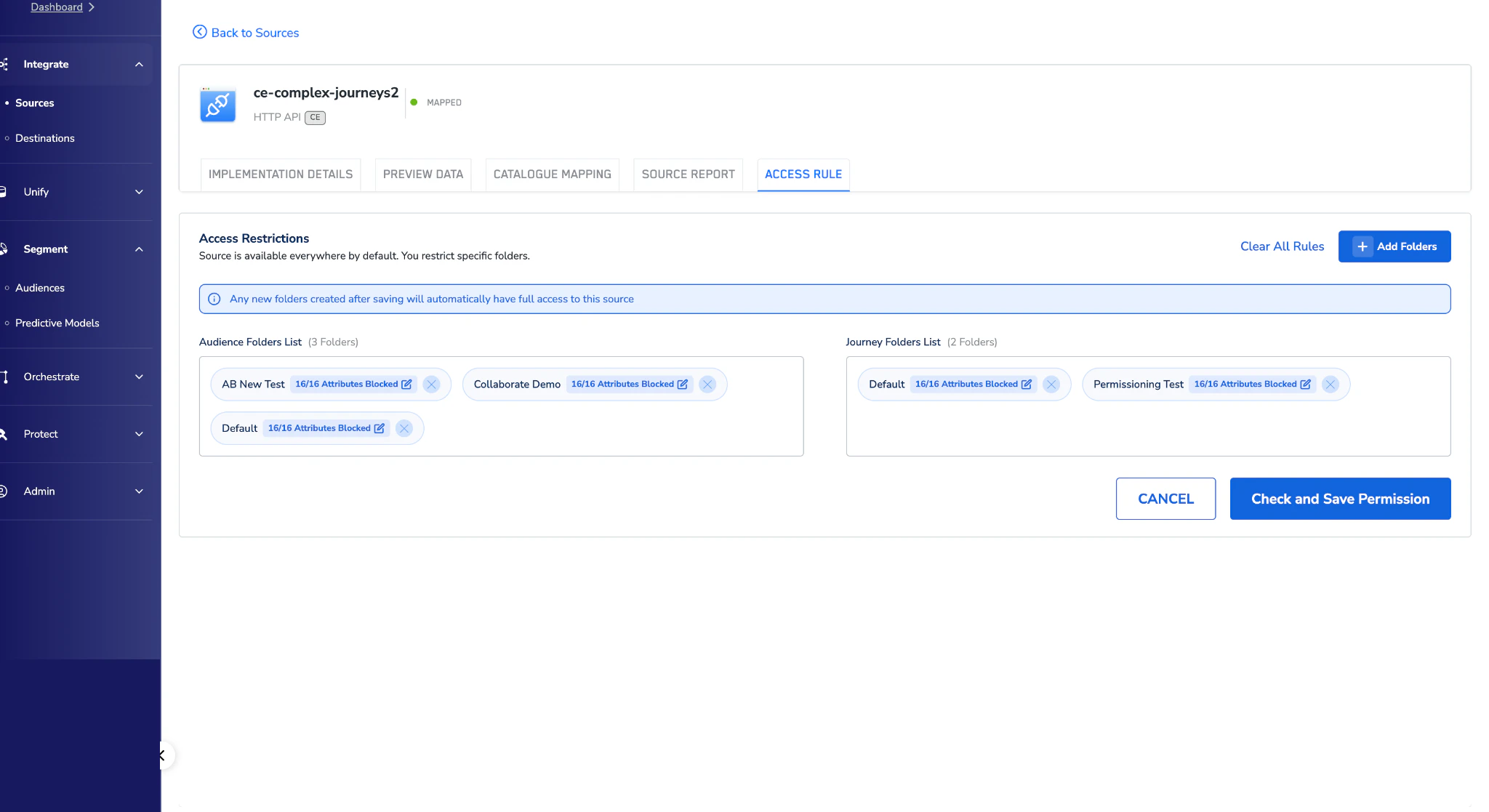
Figure 5 — Saved rule showing folders with blocked-attribute counts.
Edit an existing rule
Open the source's Access Rule tab
Edit folder rules
Delete a rule
Open the source's Access Rule tab
Clear all or remove specific folders
What users see when a source is restricted
In the Audience Builder
Blocked attributes are not available for selection — even if the source itself is otherwise accessible. Templates that use restricted attributes cannot be used either. Users also cannot send the restricted attributes to any destinations within the folder. Existing audiences affected by a new rule: Existing audiences continue running without interruption. However, any audience using a now-restricted attribute is flagged with a warning status on both the folder and the audience definition page.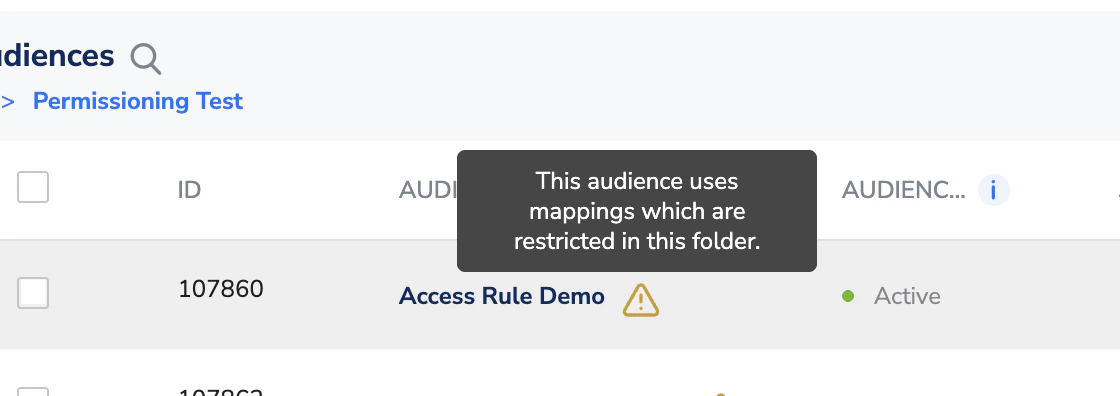
Figure 6 — Audiences listing with a hover tooltip warning that the audience uses mappings restricted in this folder.
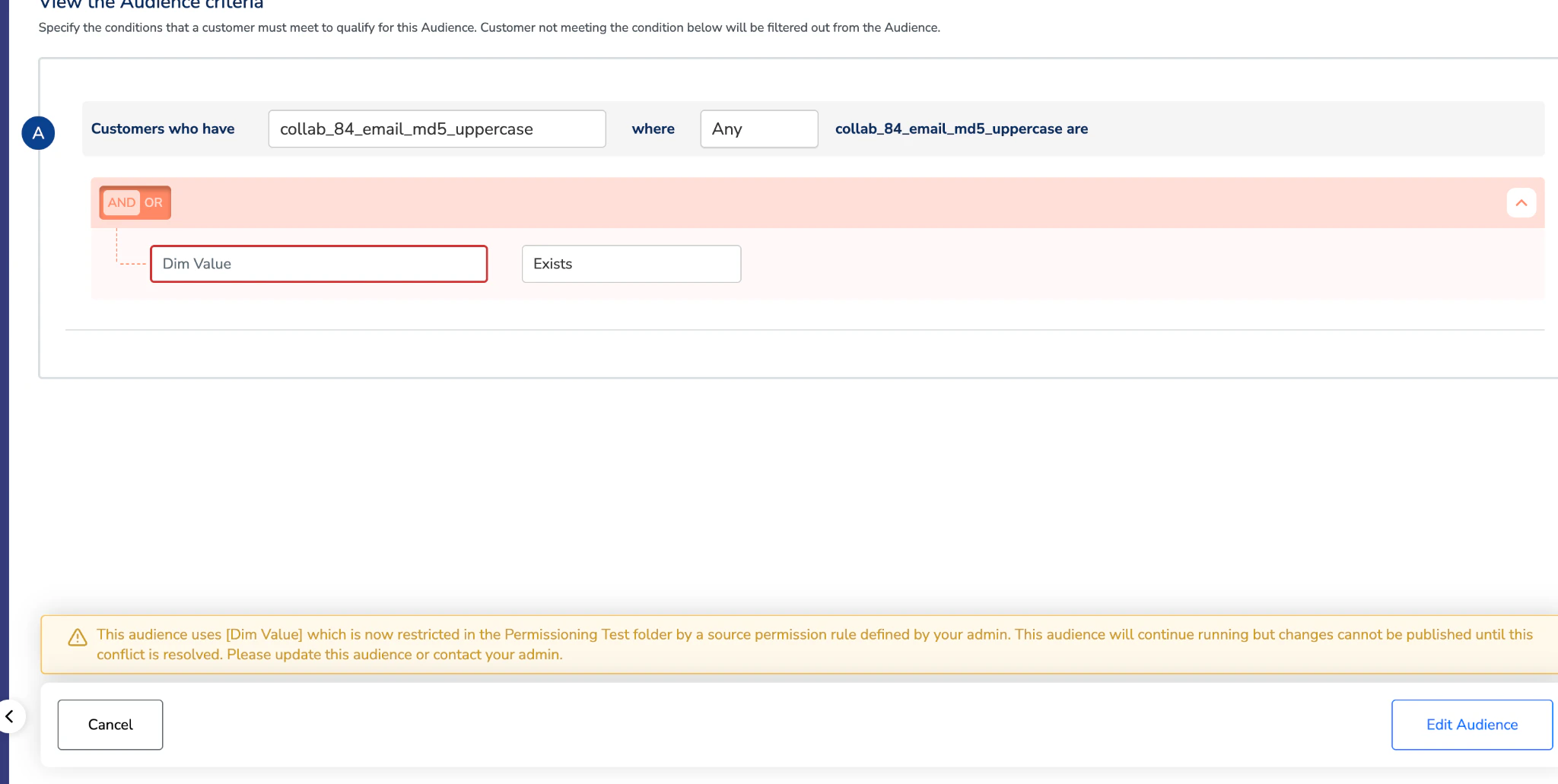
Figure 7 — Audience criteria view with the inline banner explaining which attribute is now restricted and what action is required.