

What this destination does
Amazon S3 (Simple Storage Service) is a widely used object storage service provided by Amazon Web Services (AWS). This page documents Amazon S3 as a destination — data flows out of Zeotap CDP. Once the destination is created and an audience (segment) is linked to it, Zeotap CDP writes that audience to a bucket you own as CSV files, which you can then use for delivering more personalised targeting across your touch points. To move data the other way — reading data into Zeotap CDP from a bucket you own — see the Amazon S3 source and Create and Implement an Amazon S3 Source.Prerequisites
Before you create an Amazon S3 destination in Zeotap CDP, have the following ready:
- An Amazon S3 account containing the bucket you want Zeotap CDP to export into.
- The bucket details covered in Gather your Amazon S3 details: the Bucket name, the S3 Bucket Region, the Folder path, and the Access Token and Secret Access Token.
- An audience (segment) defined in Zeotap CDP, if you want to link one as soon as the destination exists.
Supported identifiers and actions
This integration supports MAIDs, hashed email addresses, hashed mobile numbers and CRM IDs. You can send any number of identifiers and attributes to Amazon S3 using this integration.Gather your Amazon S3 details
Collect the following from your Amazon S3 account before you create the destination.Bucket
This is the name of your S3 bucket. You can obtain this information on your Amazon S3 account by navigating to Buckets. In the example shown below, test-adobe-s3-bucket is the bucket name.
S3 Bucket Region
This is the geographical location where the Amazon S3 storage is available. You can obtain this information by navigating to the Properties tab under the Amazon S3 bucket as shown in the image below.
Folder
In Amazon S3, a folder serves as a logical container for organising stored objects within a bucket. In reality, there are no actual folders in Amazon S3. Instead, the folder concept is emulated by employing object key names containing slashes (”/”) to replicate a hierarchical arrangement. You can obtain this information from your Amazon S3 account by navigating to the Objects tab under the Amazon S3 bucket. Ensure that you follow the folder structure shown below.Access Token and Secret Access Token
These are the security tokens that provide secure access to your Amazon S3 resources. You can obtain the Access Token and Secret Access Token by navigating to the AWS IAM Credentials tab under Security credentials in your Amazon S3 account.Create the Amazon S3 destination in Zeotap CDP
1
Open the Destinations application
Log into the Zeotap CDP App and go to the DESTINATIONS application, then click + Create Destination.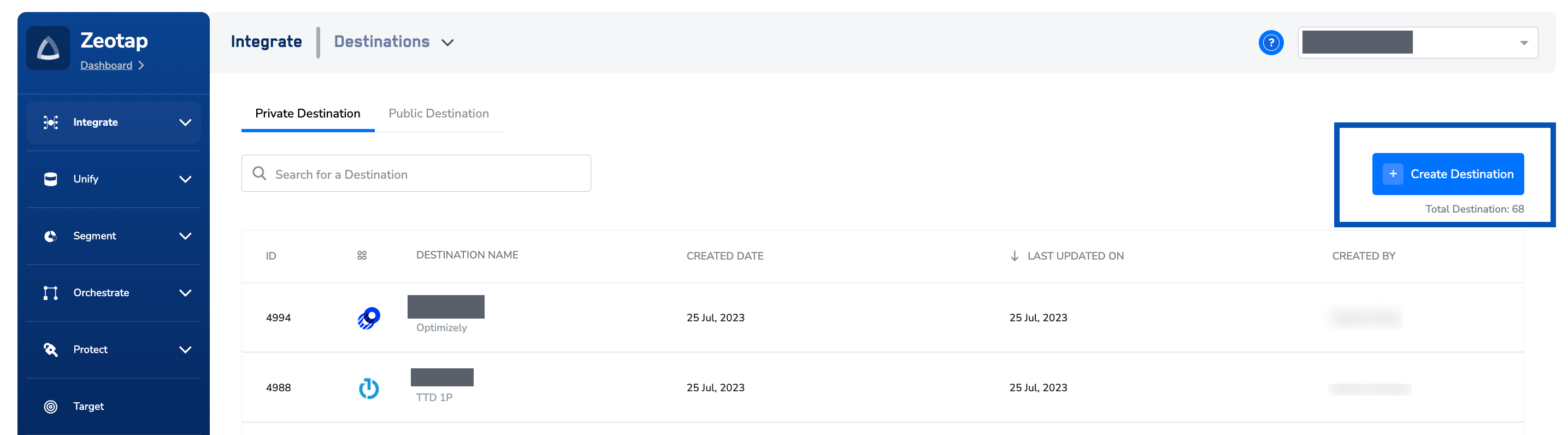
2
Select Amazon S3 from the destination catalogue
Under the All Destinations section, search for Amazon S3 and click it.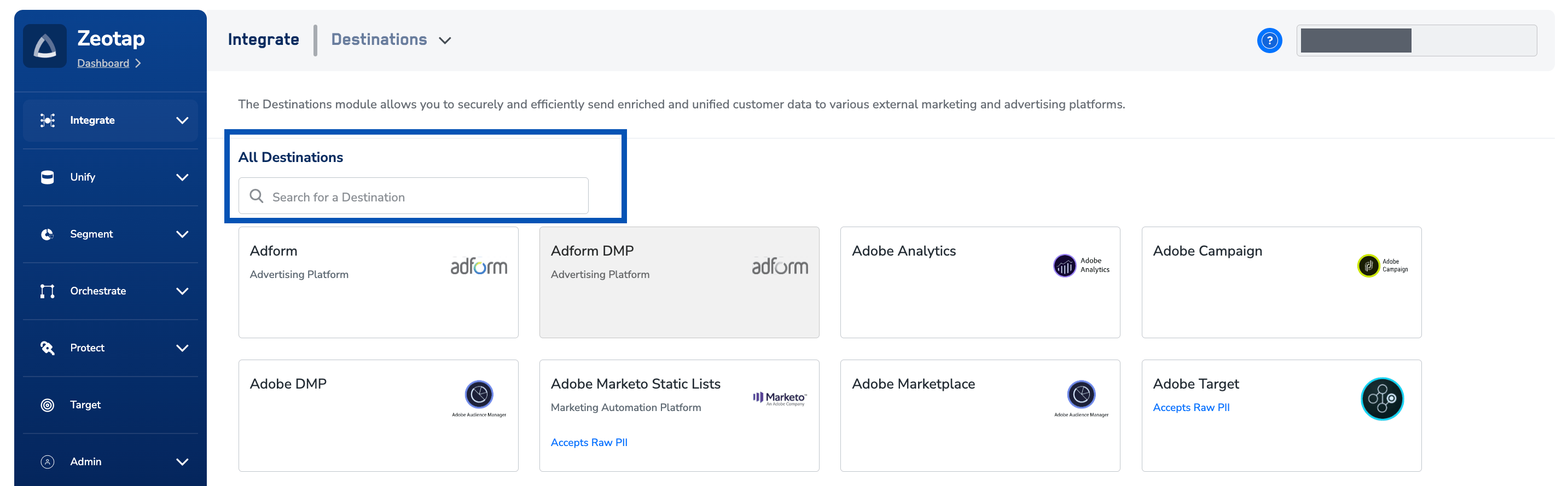
3
Enter the destination details
A screen appears displaying details about the particular destination towards the left. On the right-hand side of the screen you find the list of fields required for the integration to be established. Provide the following:
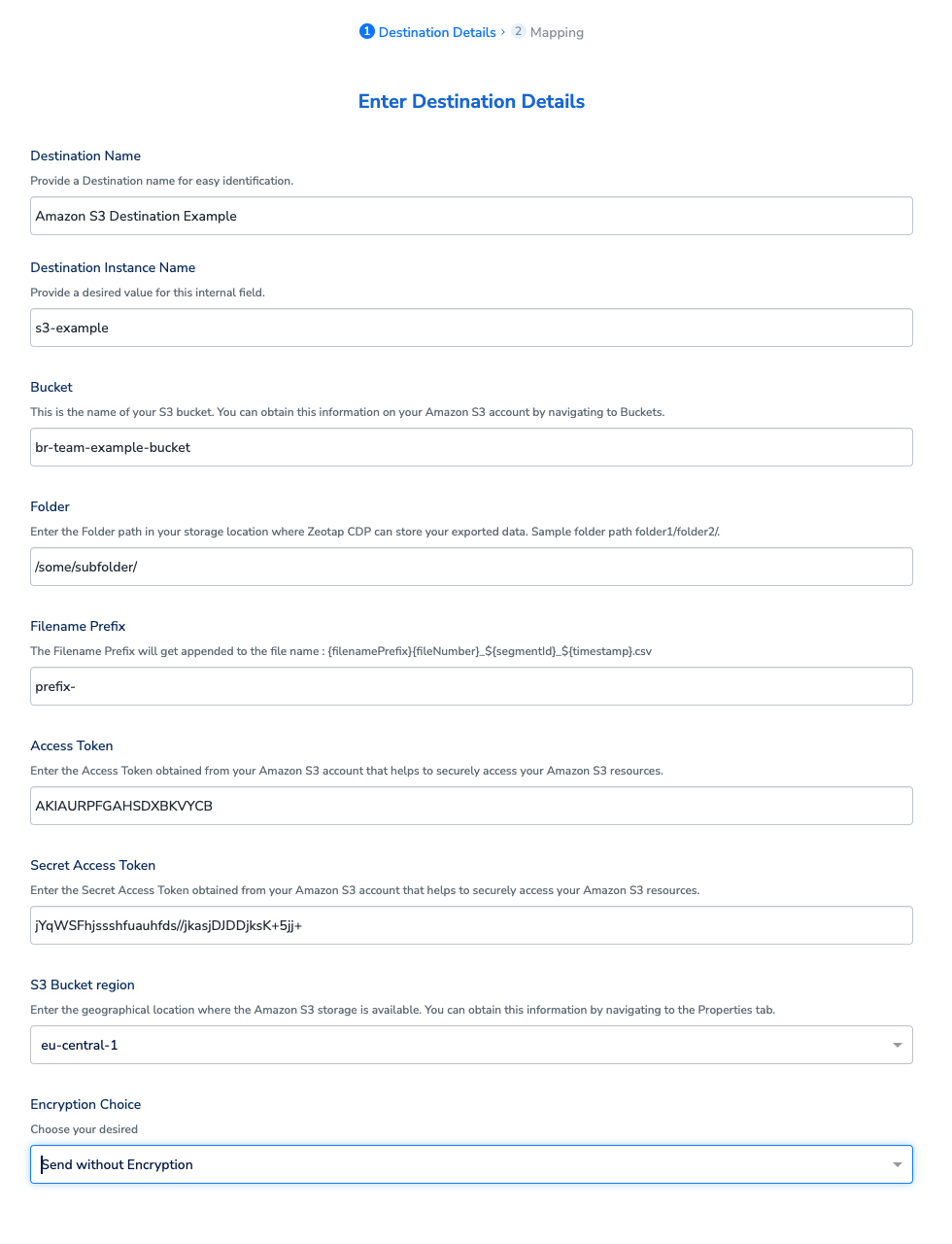
- Destination Name — a name for the destination, for easy identification.
- Destination Instance Name — a value of your choice for this field.
- Bucket — the name of the Amazon S3 bucket.
- Folder — the folder path in your storage location where Zeotap CDP can store your exported data.
- Filename Prefix — a text value without special characters, such as underscores (_), spaces, or symbols (
#, @, $, %, &, /*). The prefix is combined with the generated file name described below. - Access Token and Secret Access Token — the tokens you obtained from your Amazon S3 account.
- S3 Bucket Region — the geographical region where your Amazon S3 bucket is available.
- Encryption Choice — how the file is encrypted before it is written. The field has no default: open Select your choices and pick an option.
${filenamePrefix}part-${sequence}_${destinationAudienceId}_${timestamp}.csv, where the timestamp is the file generation time in epoch milliseconds (UTC) and destinationAudienceId is the ID associated with your audience (segment) in Zeotap CDP, generated after the audience (segment) is linked to a destination.Example file name:
exportpart-0_894548842_1722931200000.csv4
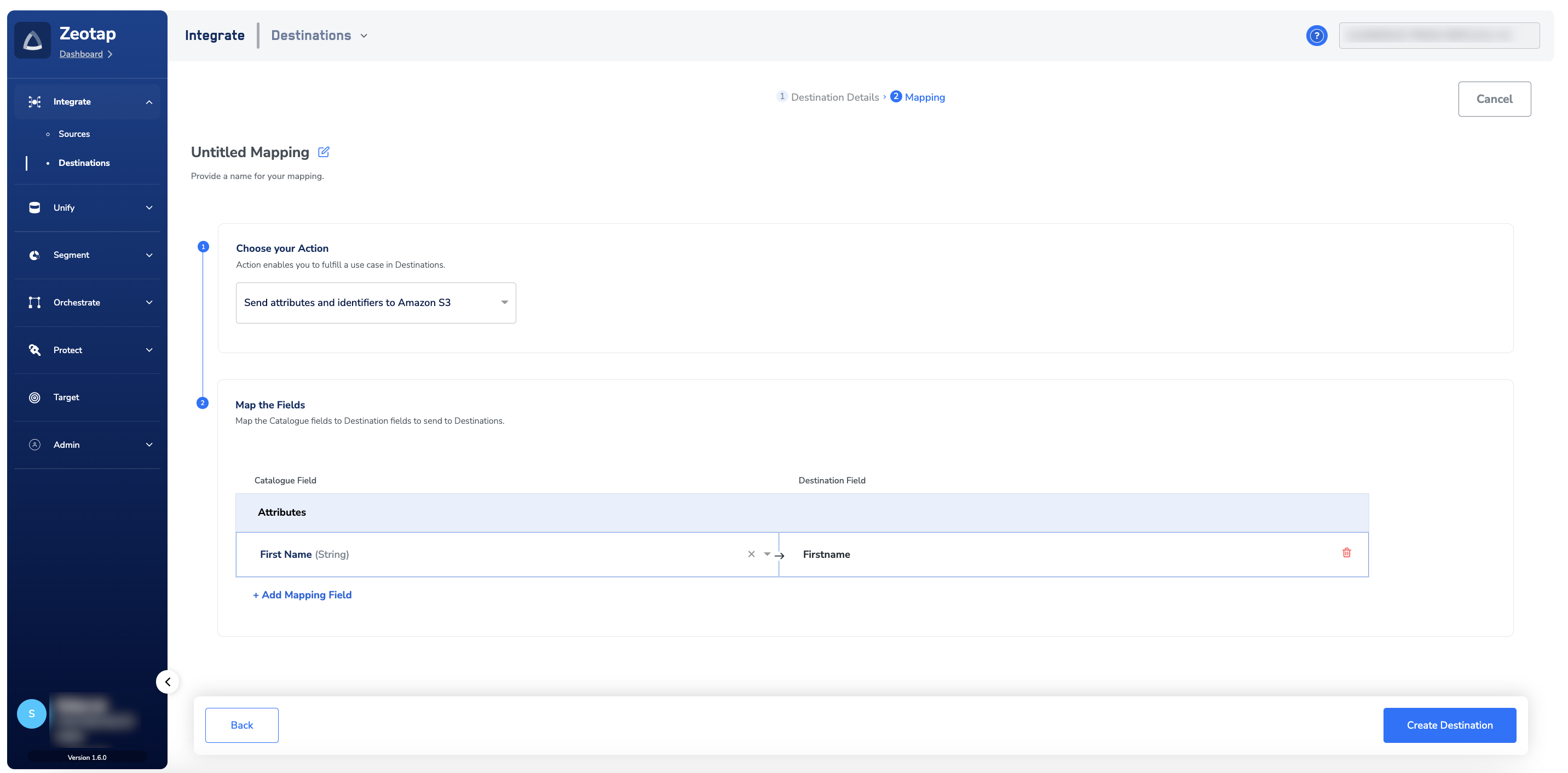
Choose an action and map the fields
In the new screen that appears, choose the appropriate action and mapping. Under Choose your Action, select either Send identifiers to Amazon S3 or Send attributes and identifiers to Amazon S3 as the action for activating your audience (segment) in Audiences.If you choose Send identifiers to Amazon S3, you can send MAIDs, IDP Base, raw mobile numbers and raw email addresses to Amazon S3.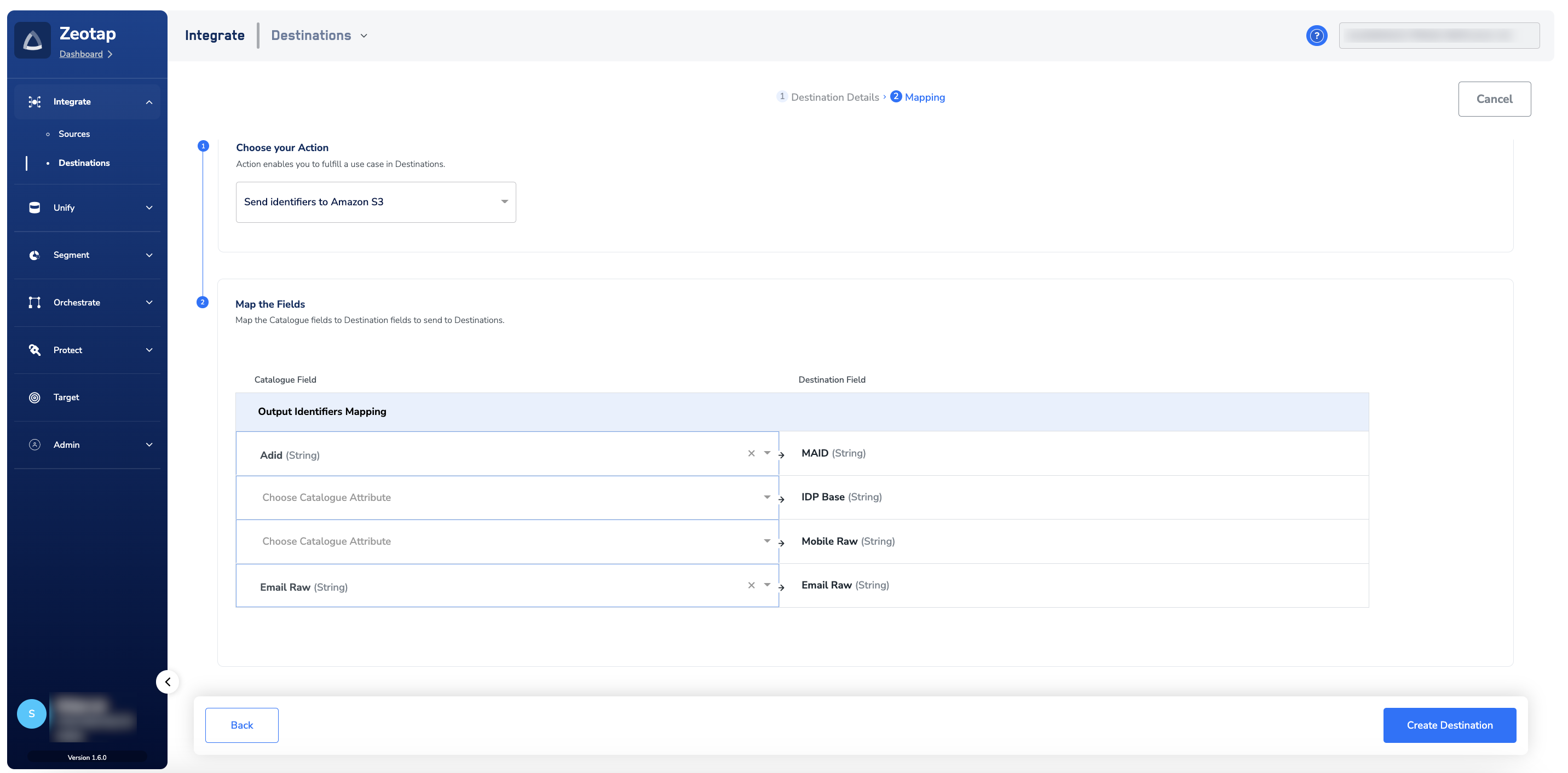
5
Create the destination
Click Create Destination. The created destination gets listed in the Audiences application, where it can be linked to an audience.
Link an audience to the destination
For information about how to link an audience or segment to the created destination in the Audiences application, see Link an Audience to the Destination.The terms Audiences and Segments are used interchangeably to refer to customer cohorts belonging to a specific category. For example, an audience or a segment could be a specific group of customers who are over 18 years of age and who have performed an
addToCart event within the last 30 days.Verify the export reached your bucket
After you link an audience and an activation run completes, confirm delivery from both sides:- In Zeotap CDP — open the audience–destination pair and review its activity. A successful delivery records a completed run; a failed run records an error message you can use to diagnose the cause.
- In Amazon S3 — open the bucket you configured, go to the Objects tab, and navigate to the folder path you entered in the Folder field. Confirm that a
.csvfile is present and that its name matches the pattern described above, including your Filename Prefix and the generation timestamp in epoch milliseconds.
Troubleshooting
Delivery errors surface on the audience–destination pair in Zeotap CDP. For the shared error reference that applies to every destination, see Why deliveries fail.Next steps
- Explore the Amazon S3 source → — bring data from a bucket into Zeotap CDP
- Explore linking an audience to a destination → — activate an audience against the destination you just created
- Explore destination actions and mappings →
- Explore ID extension for audiences → — extend your audience across identifier types before exporting