

Overview
Appademic is a mobile marketing and analytics platform that helps businesses understand and engage their users more effectively. With this integration, you can export your segmented audience data from Zeotap CDP to an Amazon S3 bucket that Appademic reads for downstream audience activation and analytics.Supported Identifiers
You can send any identifiers and attributes available in your catalogue to Appademic S3. The fields that are exported are the ones you select in the Map the Fields step while creating the Destination.Prerequisites
Before you create an Appademic S3 Destination in Zeotap CDP, ensure that you have the following Amazon S3 details available:- S3 bucket name
- S3 folder path
- AWS Access Key ID
- AWS Secret Access Key
- S3 bucket region
Components of Appademic S3
Ensure that you have the details about the below components of the Amazon S3 account before creating a Destination.S3 Bucket Name
This is the name of the Amazon S3 bucket where the exported files are stored. You can obtain this information from your Amazon S3 account by navigating to Buckets.S3 Bucket Region
This is the geographical location where the Amazon S3 storage is available. You can obtain this information by navigating to the Properties tab under the Amazon S3 bucket.S3 Folder Path
This is the optional folder path within the S3 bucket where Zeotap CDP stores your exported data. In Amazon S3, a folder serves as a logical container for organising stored objects within a bucket. You can obtain this information from your Amazon S3 account by navigating to the Objects tab under the Amazon S3 bucket. Ensure that you follow the folder structure shown below.folder_name/sub_folder_name/
AWS Access Key ID and AWS Secret Access Key
These are the security credentials that provide secure access to your Amazon S3 resources. You can obtain the AWS Access Key ID and AWS Secret Access Key by navigating to the AWS IAM Credentials tab under Security credentials in your Amazon S3 account.Create a Destination for Appademic S3
Perform the following steps to create a Destination for Appademic S3:1
Log into the Zeotap CDP App and go to the DESTINATIONS application.
2
Click + Create Destination.
3
Under the All Destinations section, search for Appademic S3 and click Appademic S3.
4
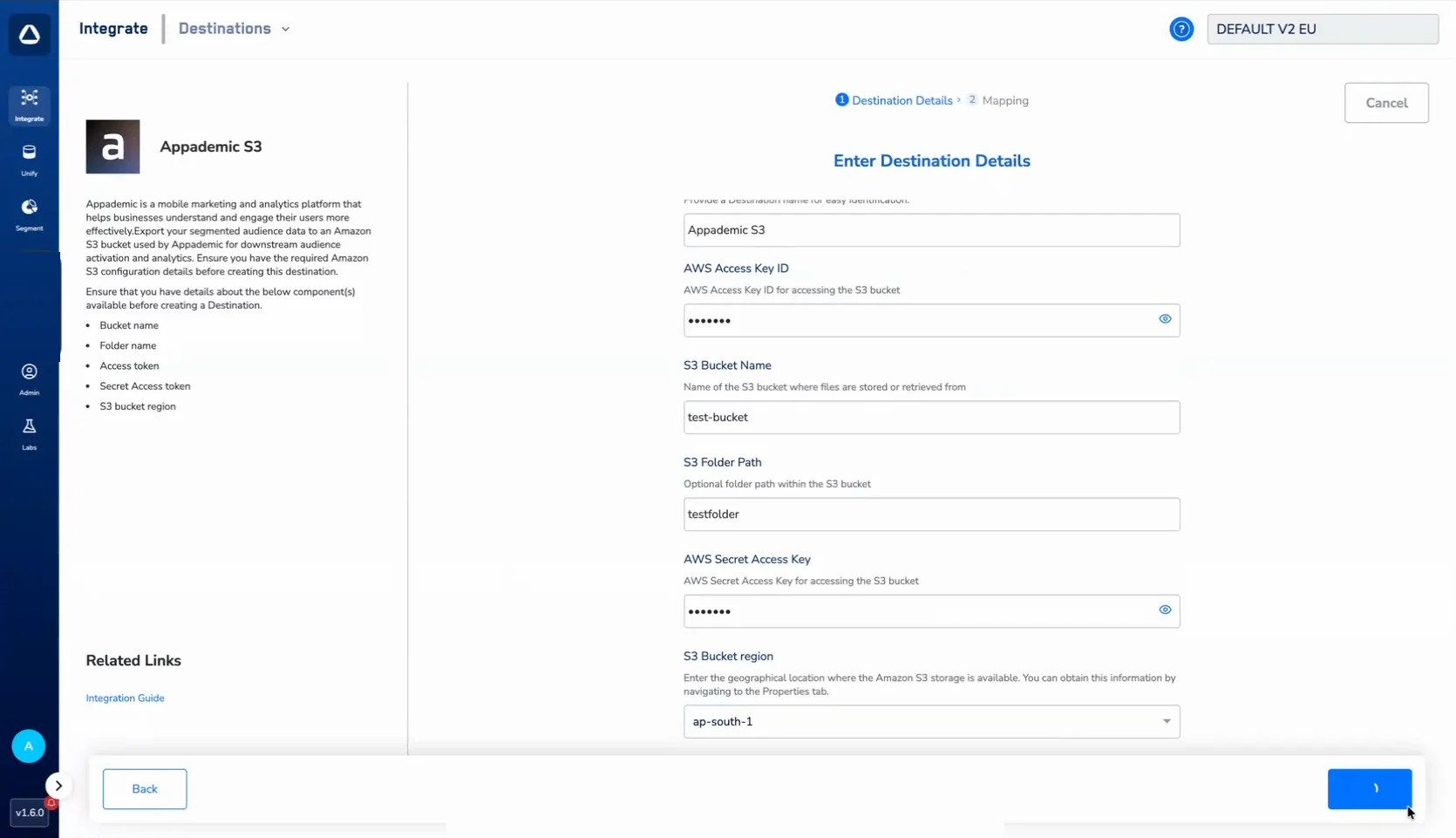
A screen appears displaying details about the particular Destination towards the left. On the right-hand side of the screen, find a list of fields that are required for the integration to be established. Provide the required details as mentioned in the following steps:a. In the Destination Name field, enter a name for the Destination.b. In the AWS Access Key ID field, enter the AWS Access Key ID for accessing the S3 bucket.c. In the S3 Bucket Name field, enter the name of the S3 bucket where files are stored or retrieved from.d. In the S3 Folder Path field, optionally enter the folder path within the S3 bucket.e. In the AWS Secret Access Key field, enter the AWS Secret Access Key for accessing the S3 bucket.f. In the S3 Bucket region field, select the geographical location where the Amazon S3 storage is available.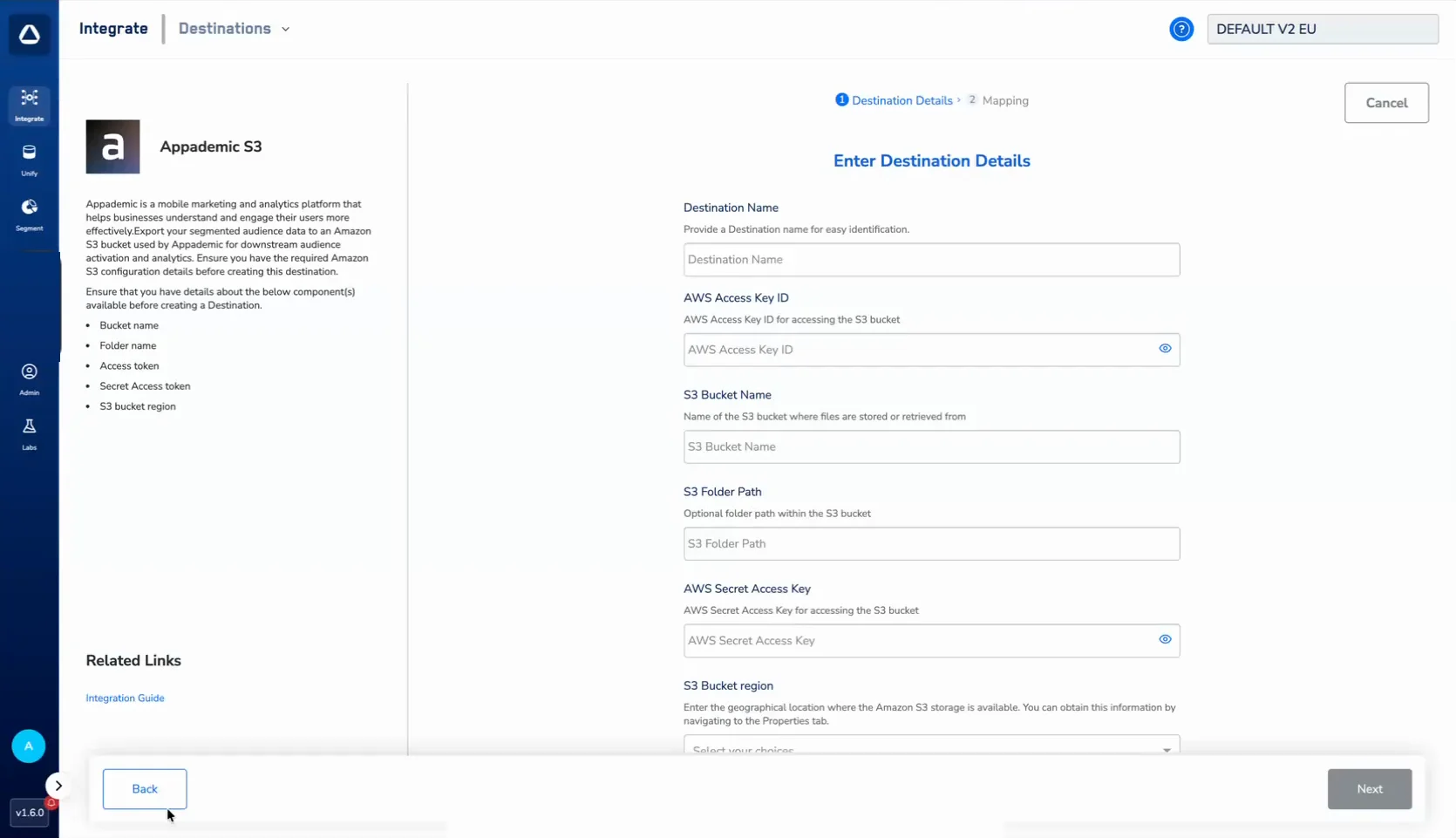
5
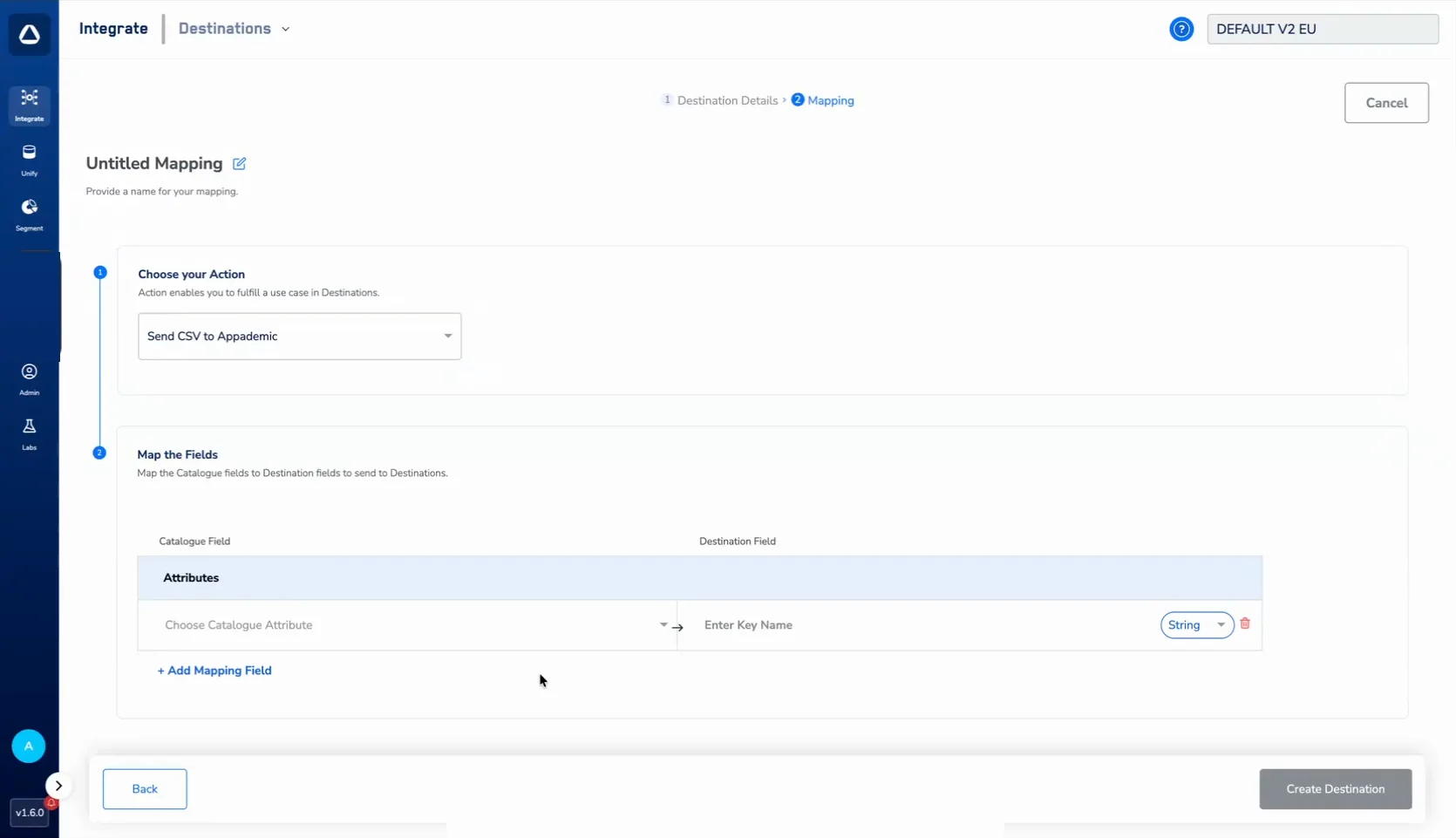
In the Mapping screen that appears, provide a name for your mapping and configure the action and field mapping as explained below:a. Under Choose your Action, select Send CSV to Appademic. This action enables you to send your audience data to the Appademic S3 bucket.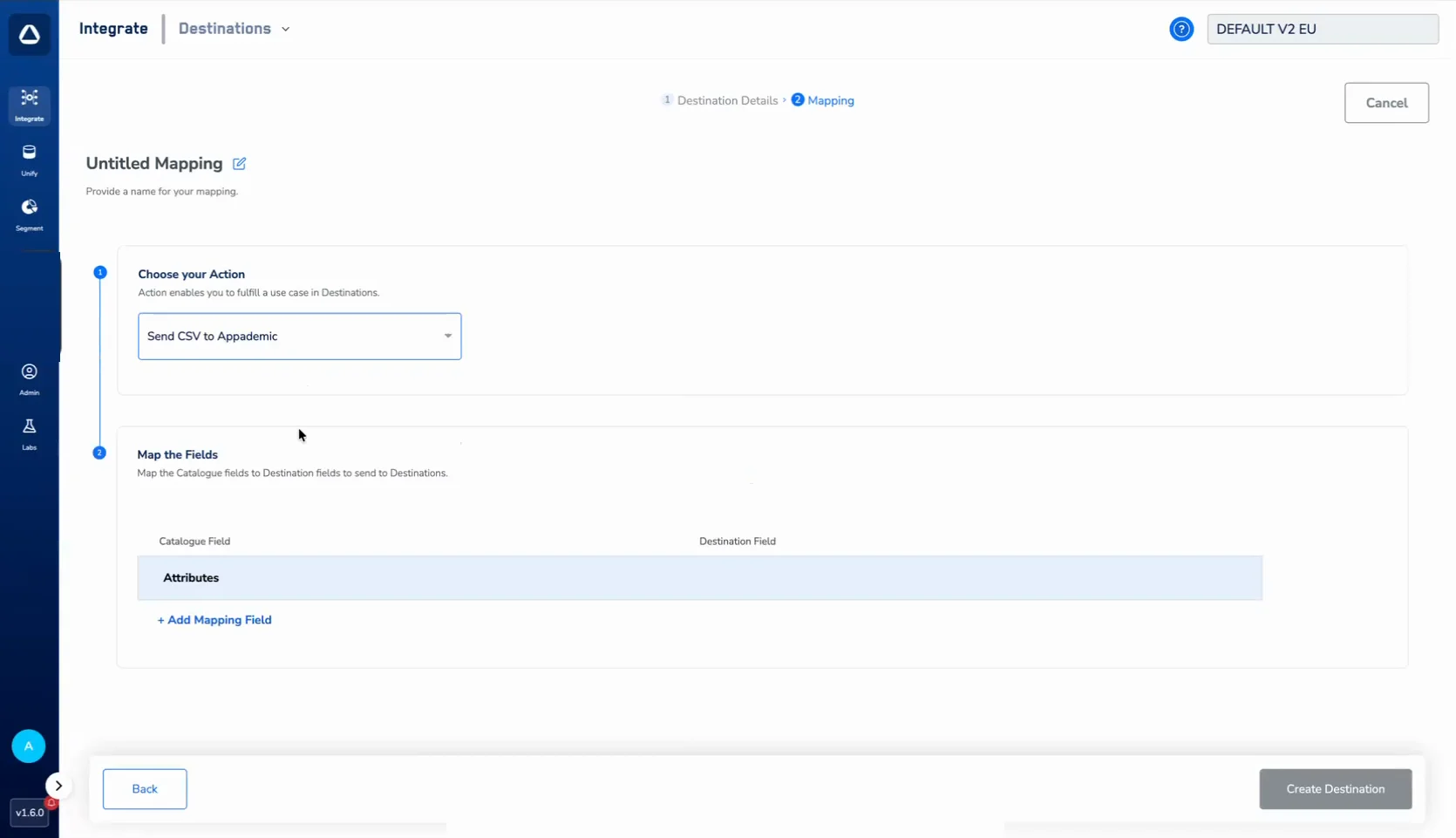
6
Click Create Destination. The created Destination gets listed in the Audiences application, which can be linked to an audience.
Handling List of Objects and NCE in the Export
When you export a List of Objects or a Non-Customer Entity (NCE) to Appademic, each object is flattened into a separate row in the CSV file.- If an NCE contains 3 objects, the export generates 3 rows in the CSV.
- If multiple NCEs are attached, the export performs a cross-product across them. For example, if one NCE contains 3 objects and another contains 2 objects, the export generates 6 rows (3 × 2).
Link an Audience to the Appademic S3 Destination
For information about how to link an Audience or segment to the created Destination in the Audiences application, refer here.Note:The terms Audiences and Segments are used interchangeably to refer to customer cohorts belonging to a specific category. For example, an Audience or a segment could be a specific group of customers who are over 18 years of age and who have performed an
addToCart event within the last 30 days.