What this is
PubMatic is a sell-side platform (SSP) that helps publishers monetise digital content by connecting them with advertisers. The PubMatic destination in Zeotap CDP delivers your audience segments to a PubMatic account so you can target those users in programmatic campaigns. Because PubMatic does not acceptmap and mwebIDs identifiers together in a single segment, a Zeotap segment that includes both is split into two entries in your PubMatic console — worth understanding before you build segments and configure sharing permissions.
Prerequisites
Before you create the destination, collect the following from your PubMatic point of contact:- Account ID — the unique identifier for your PubMatic account, used for tracking and reporting.
- Account Type — one of
PUBLISHER,DEMAND_PARTNER, orBUYER. - Currency — the currency for reporting. USD is selected by default.
Supported identifiers
The PubMatic destination accepts these identifier types:- PubMatic Cookies
- MAIDs (mobile advertising IDs)
- IDP Base
- ID5
Create the PubMatic destination
1
Open the Destinations app and start a new destination
In the Zeotap CDP app, open the Destinations application and choose + Create Destination.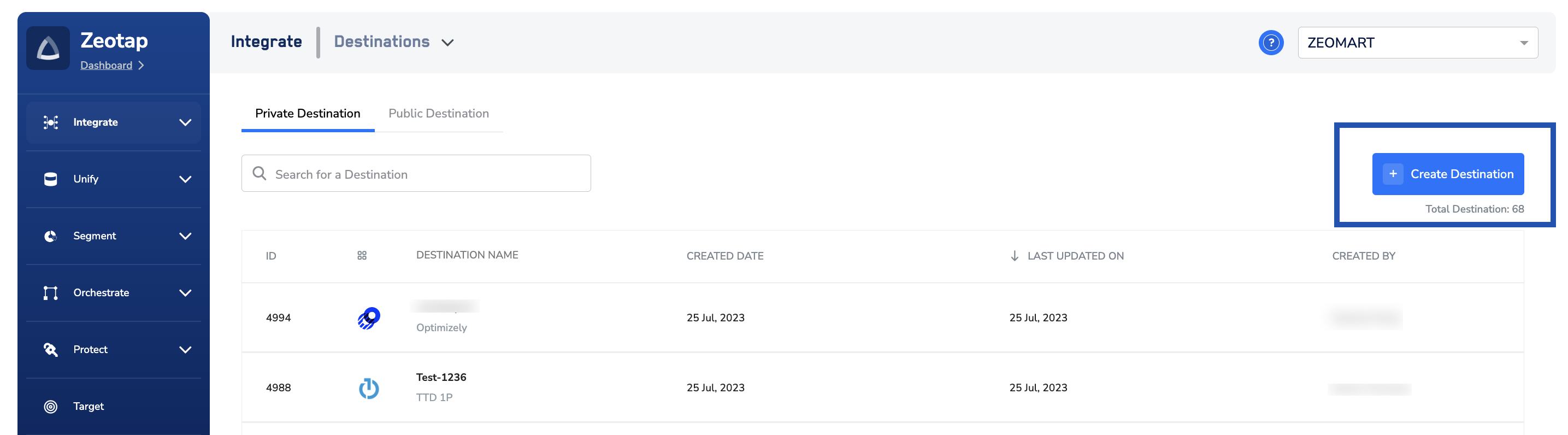
2
Select PubMatic from the destination catalogue
Under All Destinations, search for PubMatic and select it.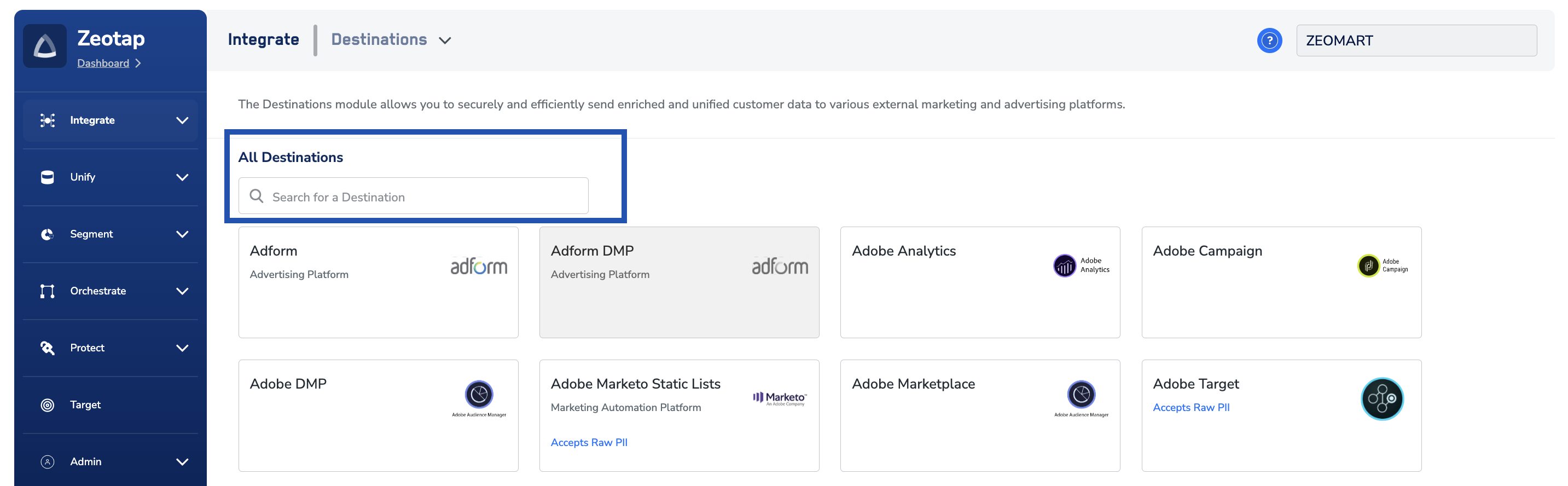
3
Enter the account details
On the destination detail screen, provide the values gathered in Prerequisites: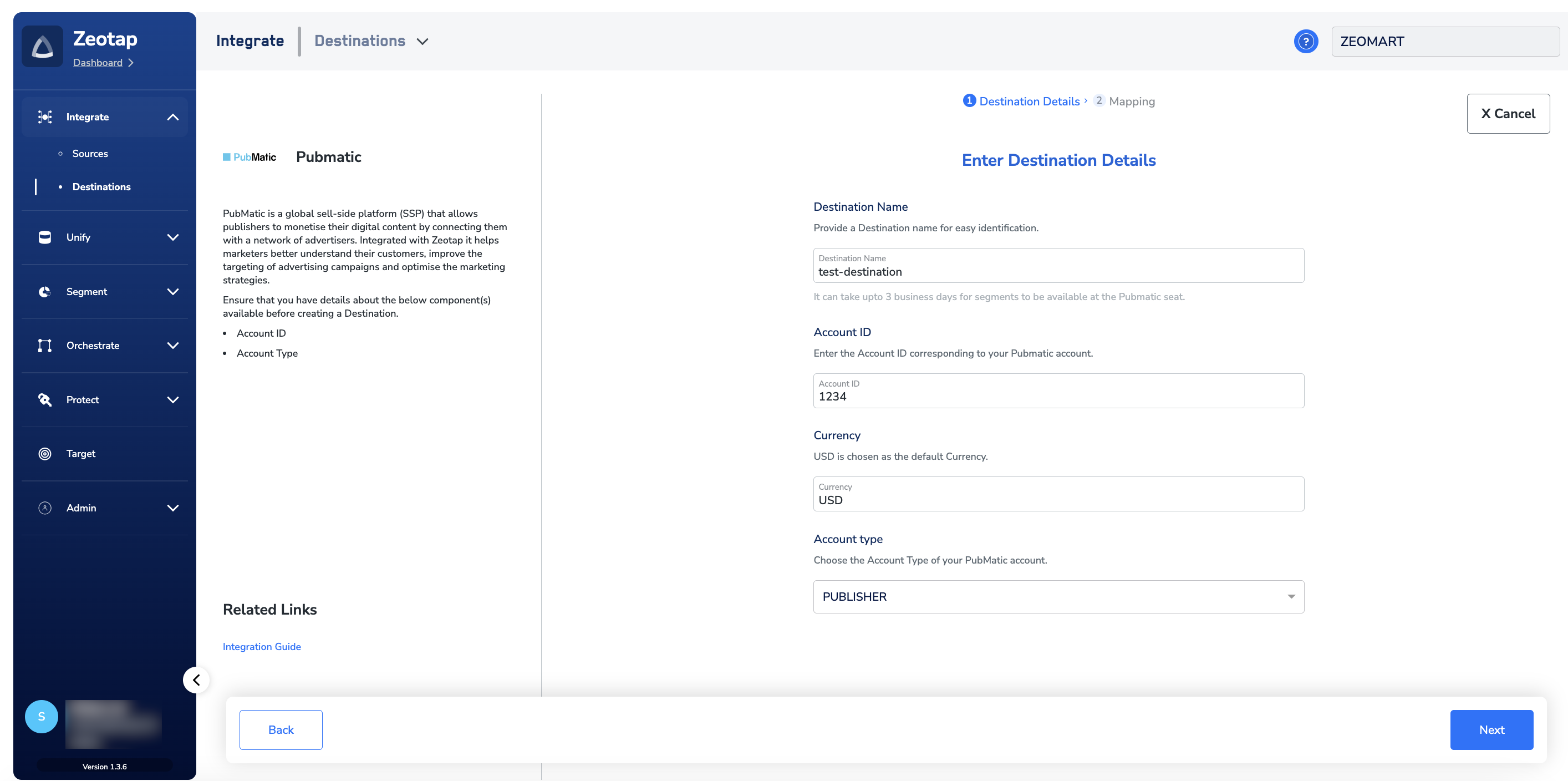
- A name for the destination
- The Account Id for the account receiving the segment
- The Currency (USD by default)
- The Account type:
PUBLISHER,DEMAND_PARTNER, orBUYER
4
Choose an action and map identifiers
Choose an action under Choose your Action, then pick the identifiers under Map the Fields. The identifiers PubMatic accepts — MAIDs, Cookies, IDP Base, ID5 — are shown by default; edit the list if you need a different mapping. See the mapping reference for details.Click Create Destination to save. The new destination is added to the Audience application, where you can link it to a segment.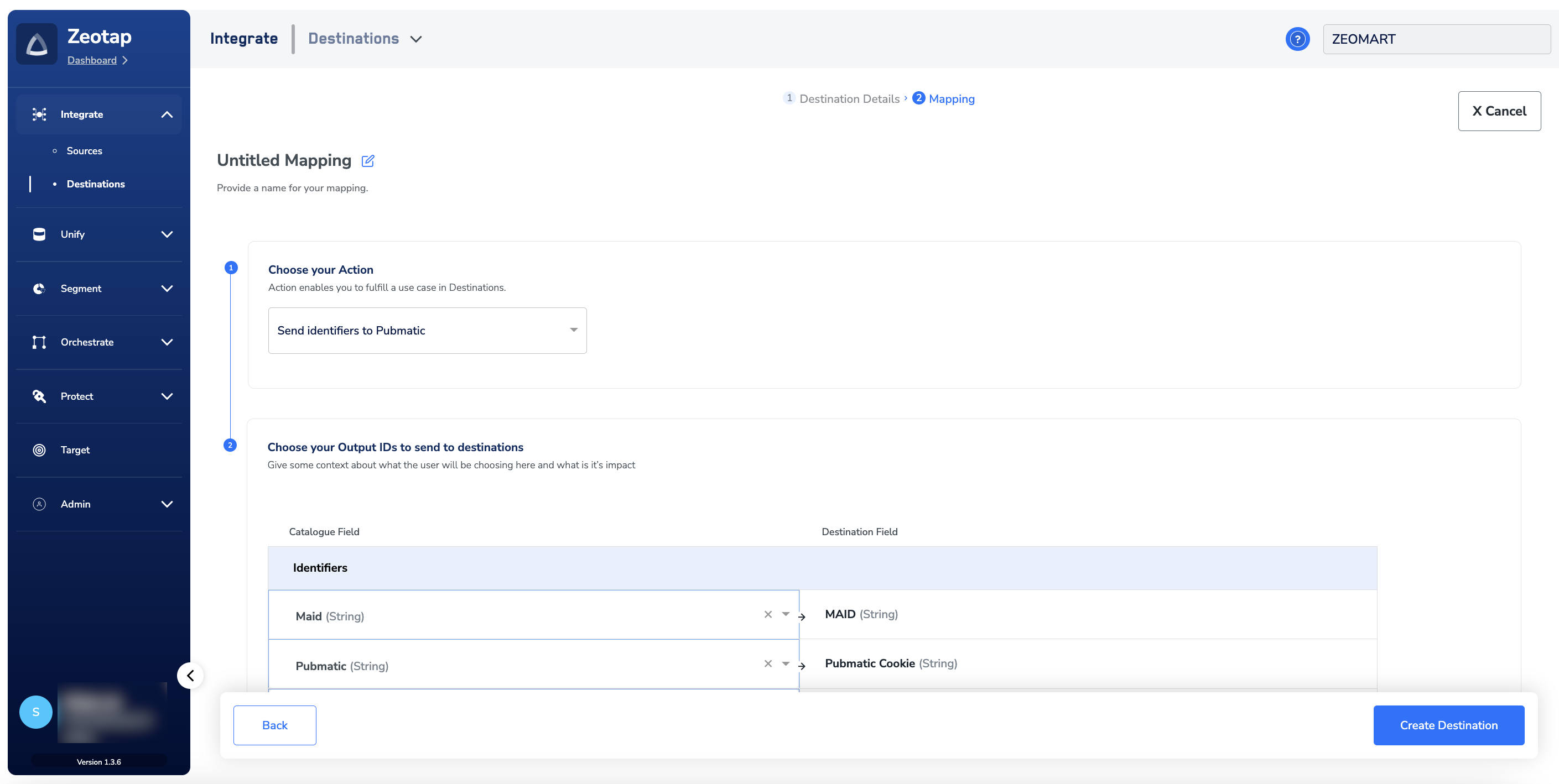
Link an audience to the destination
Attach an audience or segment to the PubMatic destination from the Target or Connect applications — see Link an Audience to the Destination for the linking workflow. After linking, delivery to the PubMatic seat takes up to three business days.The terms Audience and Segment are used interchangeably to refer to a customer cohort — for example, users over 18 who performed an
addToCart event in the last 30 days.Verify the segment reached PubMatic
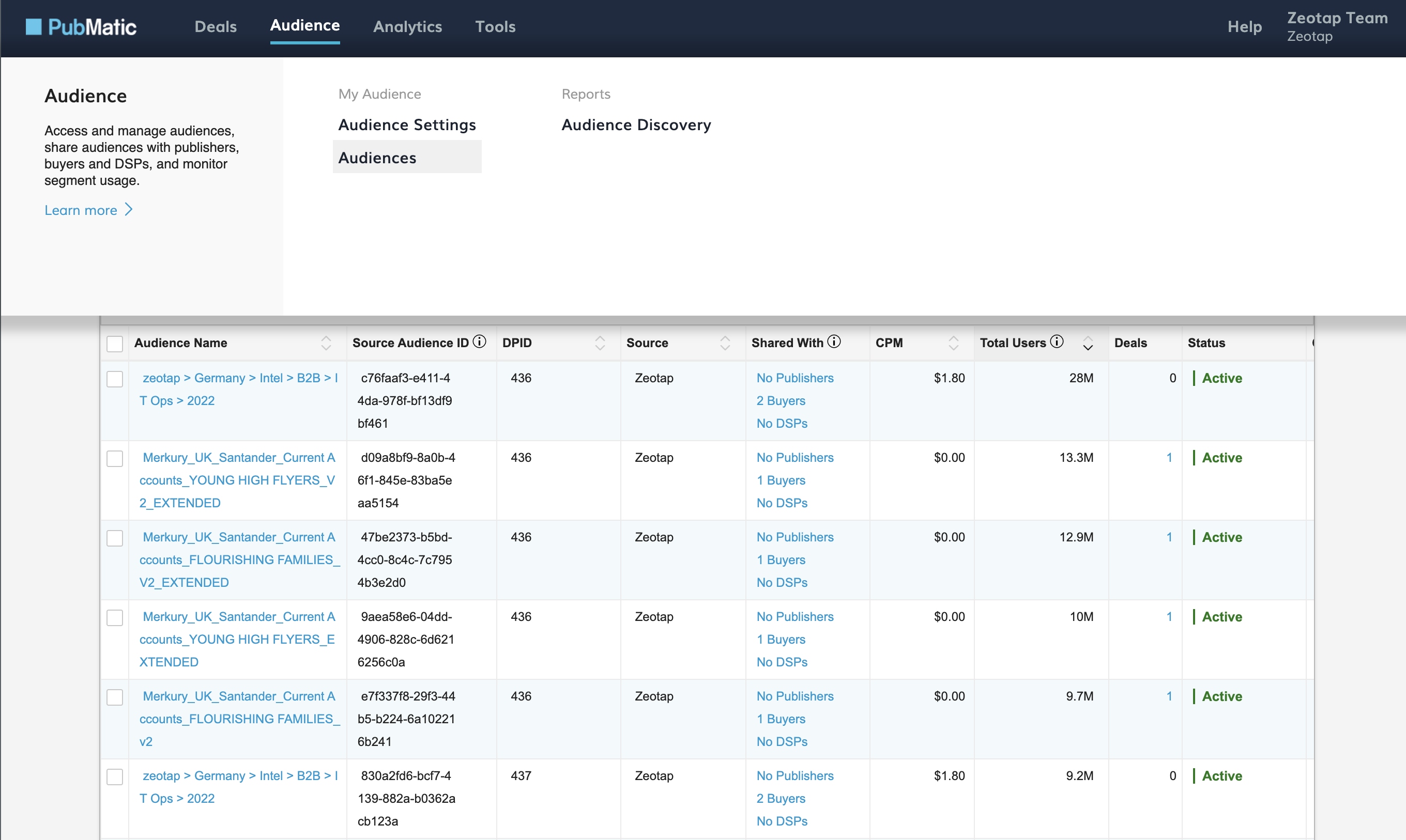
Once the destination is linked and the delivery window has passed, confirm the segment is available on PubMatic:- Open the PubMatic console and go to Audience Segments.
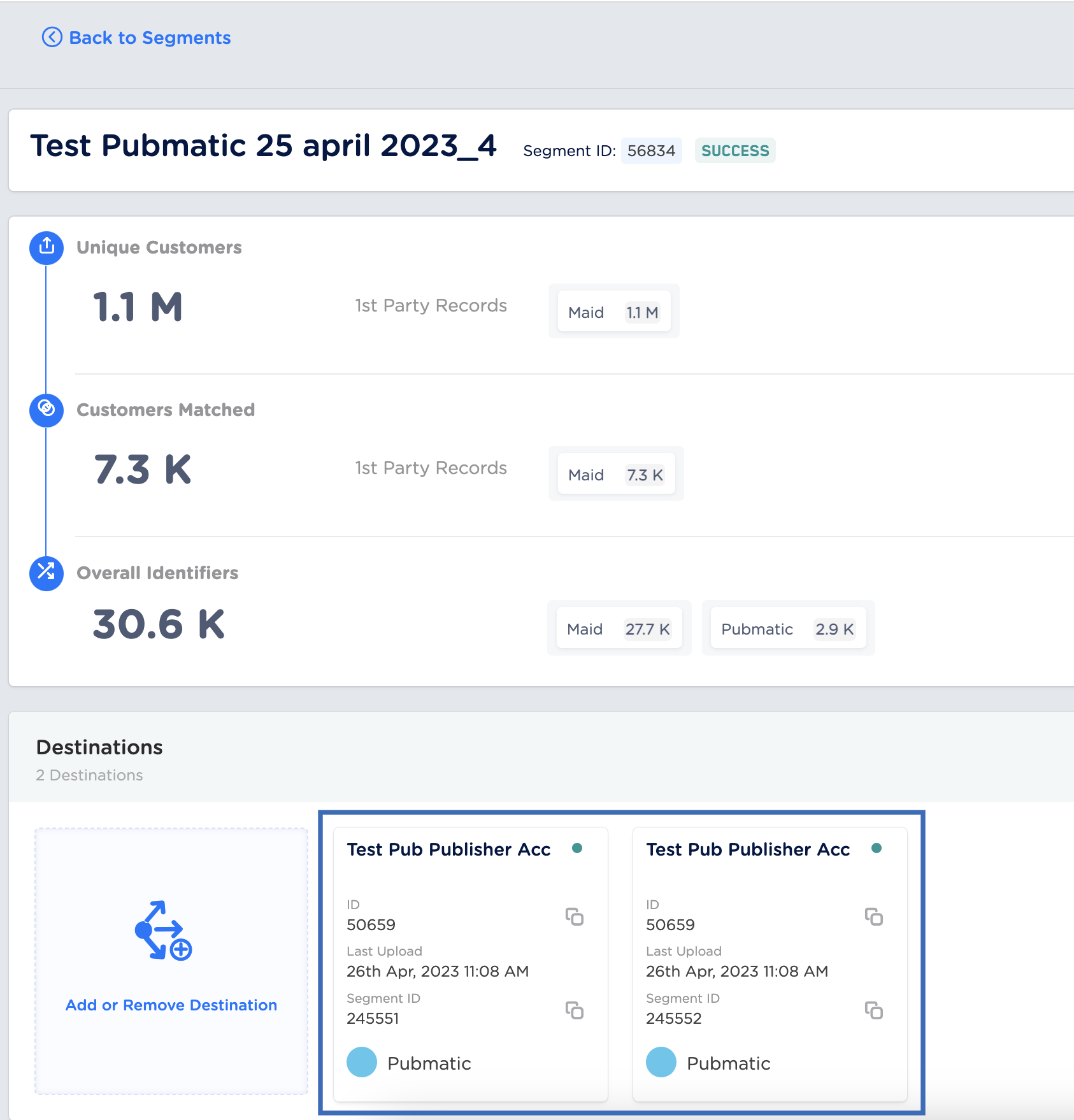
- Locate the segment you linked. If your Zeotap segment used both
mapandmwebIDsidentifiers, you will see two separate entries for the same segment name — Zeotap creates two versions of the segment and pushes both, because PubMatic does not accept these two identifiers in one segment. - In the Zeotap CDP app, the two versions show as two cards with two separate segment IDs — one for cookie and one for Device IDs.
- Update the sharing permissions in PubMatic for the delivered segment(s) so downstream buyers can access them.
How user disqualification works
A user is disqualified from a Connect segment when they no longer meet the segment criteria, when required consent is withdrawn, or when another condition set on the segment no longer holds.- On the next refresh cycle after disqualification, Zeotap issues a user-deletion request for that user against the corresponding PubMatic audience.
- Disqualified users are excluded from segments on the refresh frequency you configured for the Connect segment.
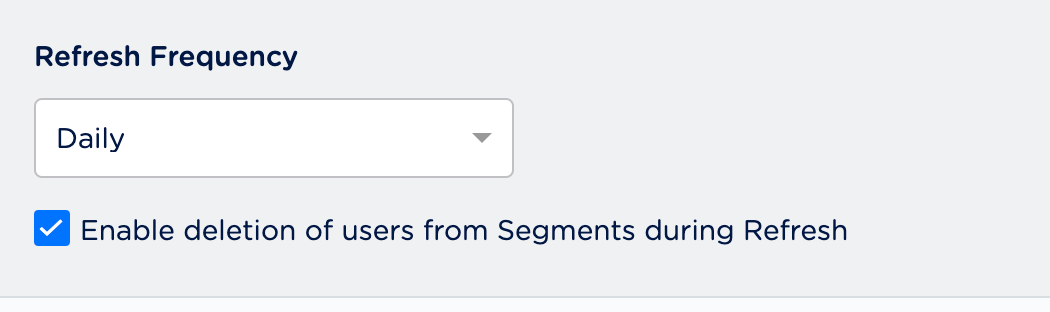
- Disqualification runs automatically — you do not trigger it manually. You do need to enable deletion of users from segments during refresh in the Admin application for those deletions to be sent.