

Overview
This integration allows you to send contacts and audience segments from Zeotap CDP directly into Hello Charles, so your conversational commerce and WhatsApp messaging workflows always run on fresh customer data. Once you set up the Hello Charles destination and attach it to an audience, Zeotap automatically upserts contacts in Hello Charles in batches — creating new contacts and updating existing ones based on the external reference ID you map. You can also send tags and custom properties so you can recreate your Zeotap audience segmentation inside Hello Charles for downstream filtering and outreach.How It Works
When you attach the Hello Charles destination to an audience in Zeotap CDP, the following happens automatically behind the scenes:- You set up Hello Charles as a destination in Zeotap CDP by entering your API Key and your customer-specific Base URL.
- You select the Send Contacts to Hello Charles action and configure the field mapping — telling Zeotap which identifier, names, phone numbers, emails, tags, and custom properties to send.
- You attach the destination to an audience in Zeotap.
- Zeotap upserts the contacts in Hello Charles in batches of up to 1,000 — existing contacts are updated and new contacts are created, matched by the external reference ID you map.
- Tags and custom properties land alongside the contact data, letting you filter and segment those contacts inside Hello Charles afterwards.
Before You Begin
Make sure you have everything ready before starting the setup. In Hello Charles:- An active Hello Charles account with API access enabled.
- Approval from a Hello Charles success manager to access the closed-beta Batched Contacts API.
- Your customer-specific Base URL (the subdomain segment of your Hello Charles workspace URL).
- A valid API Key generated from your Hello Charles account.
- Any tags you plan to send already created in Hello Charles (Settings → Manage Tags).
- Any custom properties you plan to send already created in Hello Charles, with their technical names noted.
- Access to the Integrate module with permission to create new destinations.
- An audience segment ready to send to Hello Charles.
- The user identifier you plan to use as the external reference ID (usually a phone number).
- Phone numbers in your audience formatted correctly — see Important Notes below.
Get Your API Key from Hello Charles
Before connecting Zeotap to Hello Charles, generate (or copy) the API Key Zeotap will use to authenticate.Open API Keys in Hello Charles
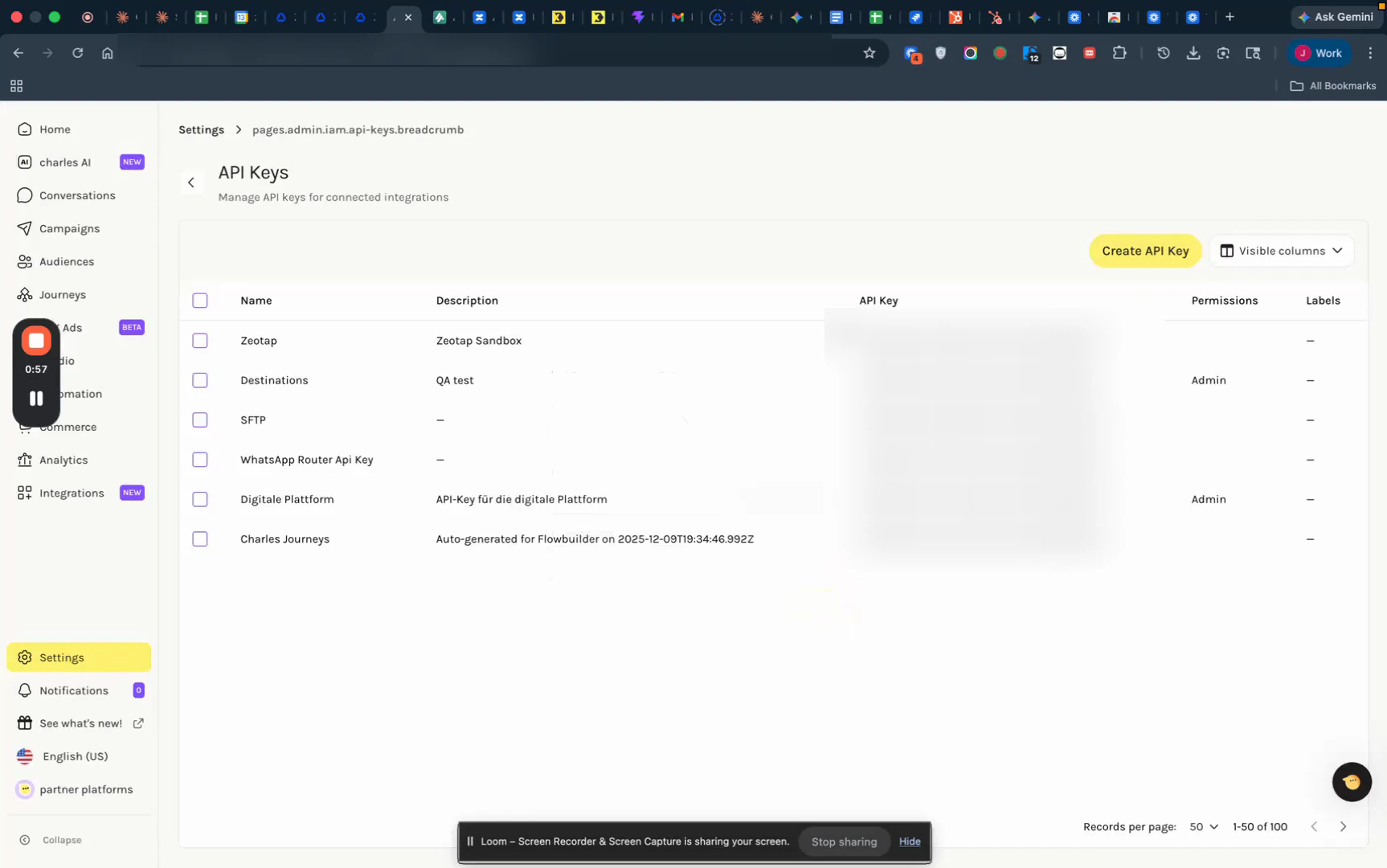
Figure 1 — Hello Charles Settings → API Keys with the Create API Key button at the top right.
Create a key for Zeotap (if you don't already have one)
- Enter a recognisable name (e.g.,
Zeotap CDP Integration) and a short description. - Set the permissions — admin permissions are recommended so the integration can both upsert contacts and write tags / custom properties.
- Click Save.
Copy the API Key
Pre-create Tags and Custom Properties in Hello Charles
This is a critical preparation step. Tags and custom properties must exist in Hello Charles before you send them from Zeotap — otherwise Hello Charles will not ingest those values.Create the tags
984, create a tag called 984 (or any label that fits your taxonomy).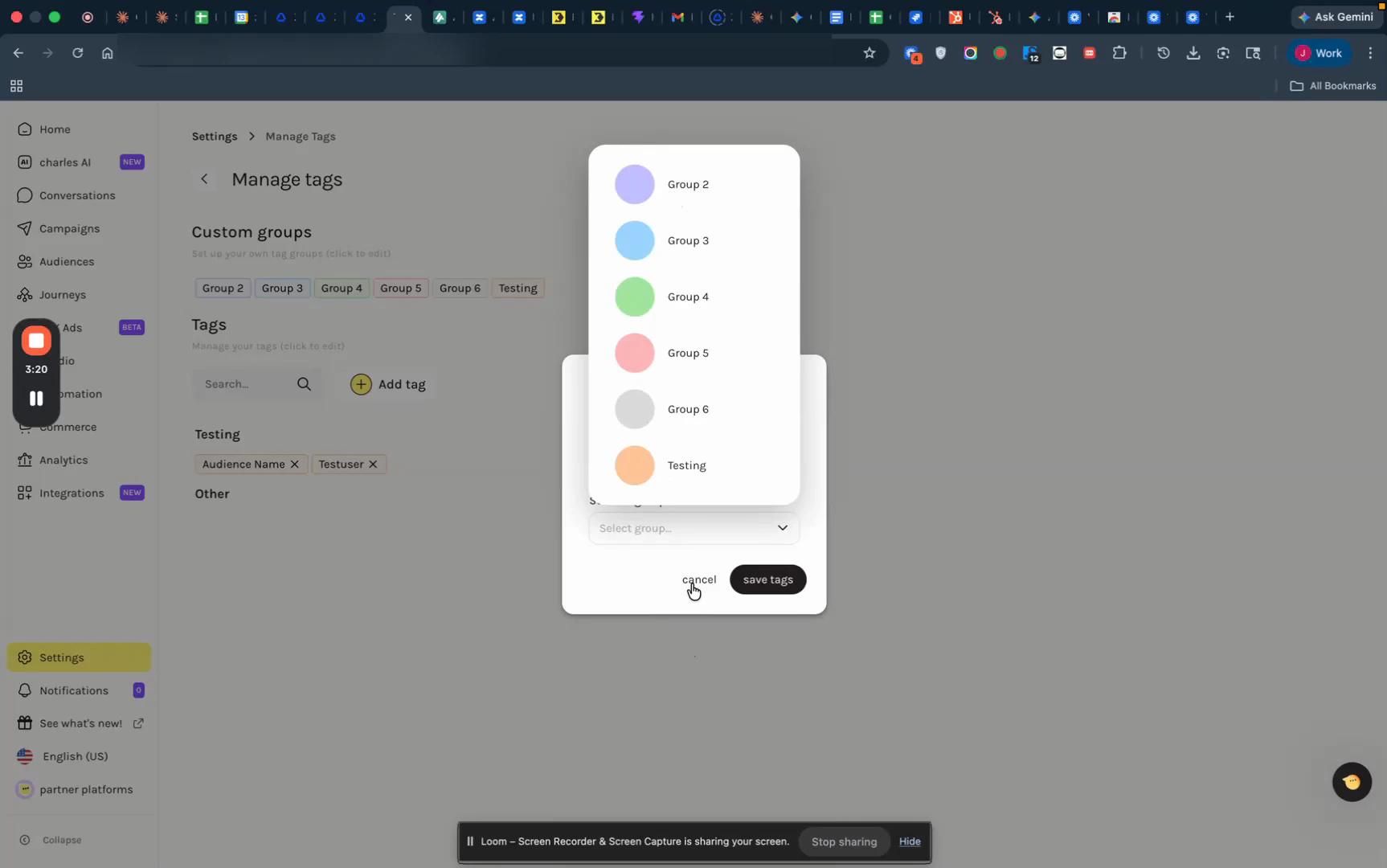
Figure 2 — Hello Charles Manage Tags screen with custom groups and the tag-creation dialog.
Create the custom properties
Create the Hello Charles Destination in Zeotap CDP
Open the Destinations catalogue
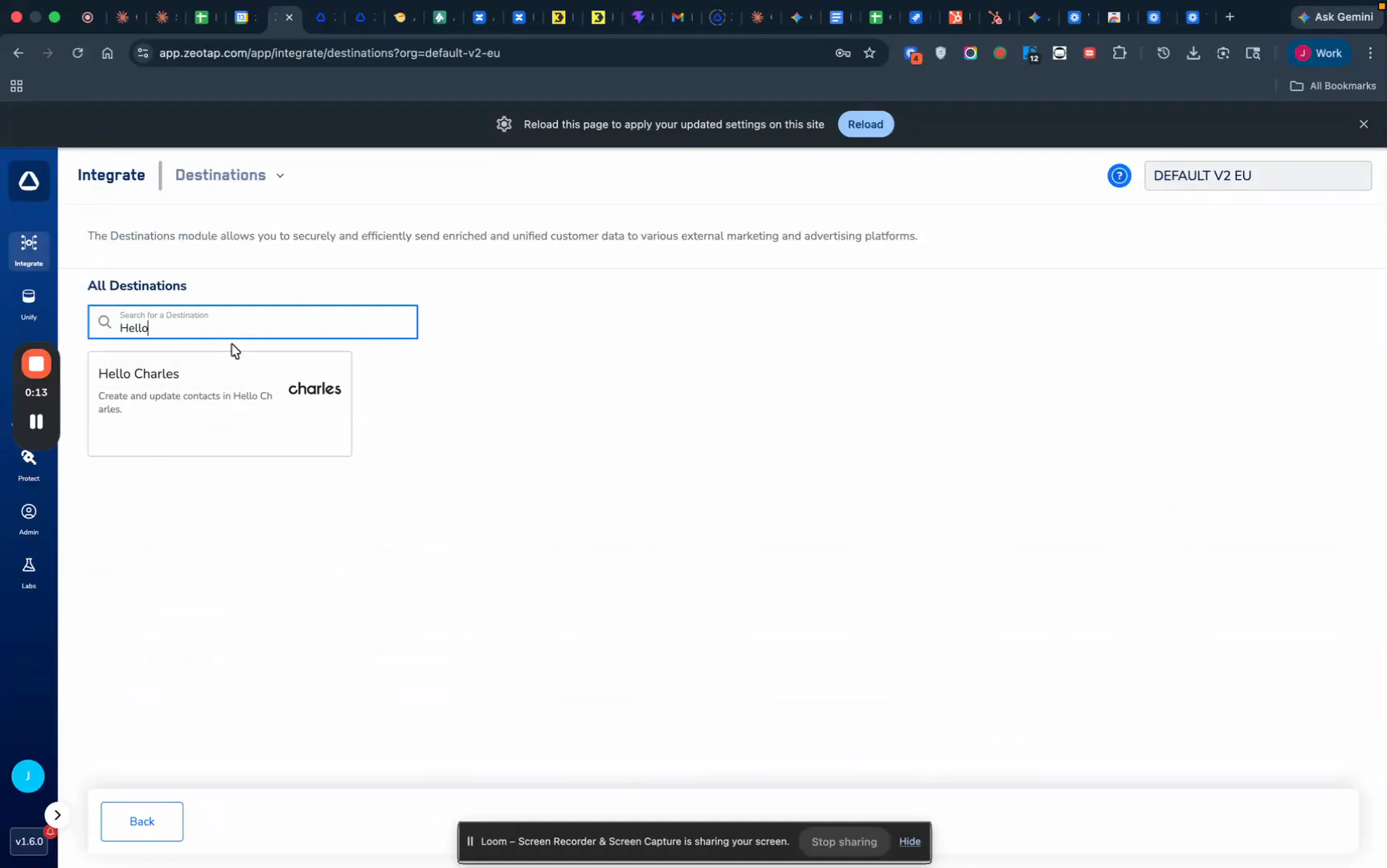
Figure 3 — Zeotap destination catalogue with the Hello Charles card surfaced.
Enter the destination details
- Destination Name — a descriptive label (e.g.,
Hello Charles V1 TestingorHello Charles — VIP Sync). - Base URL — the Base URL for your Hello Charles API endpoint (the subdomain segment of your Hello Charles workspace URL).
- API Key — paste the API Key you copied from Hello Charles. The field is masked once saved.
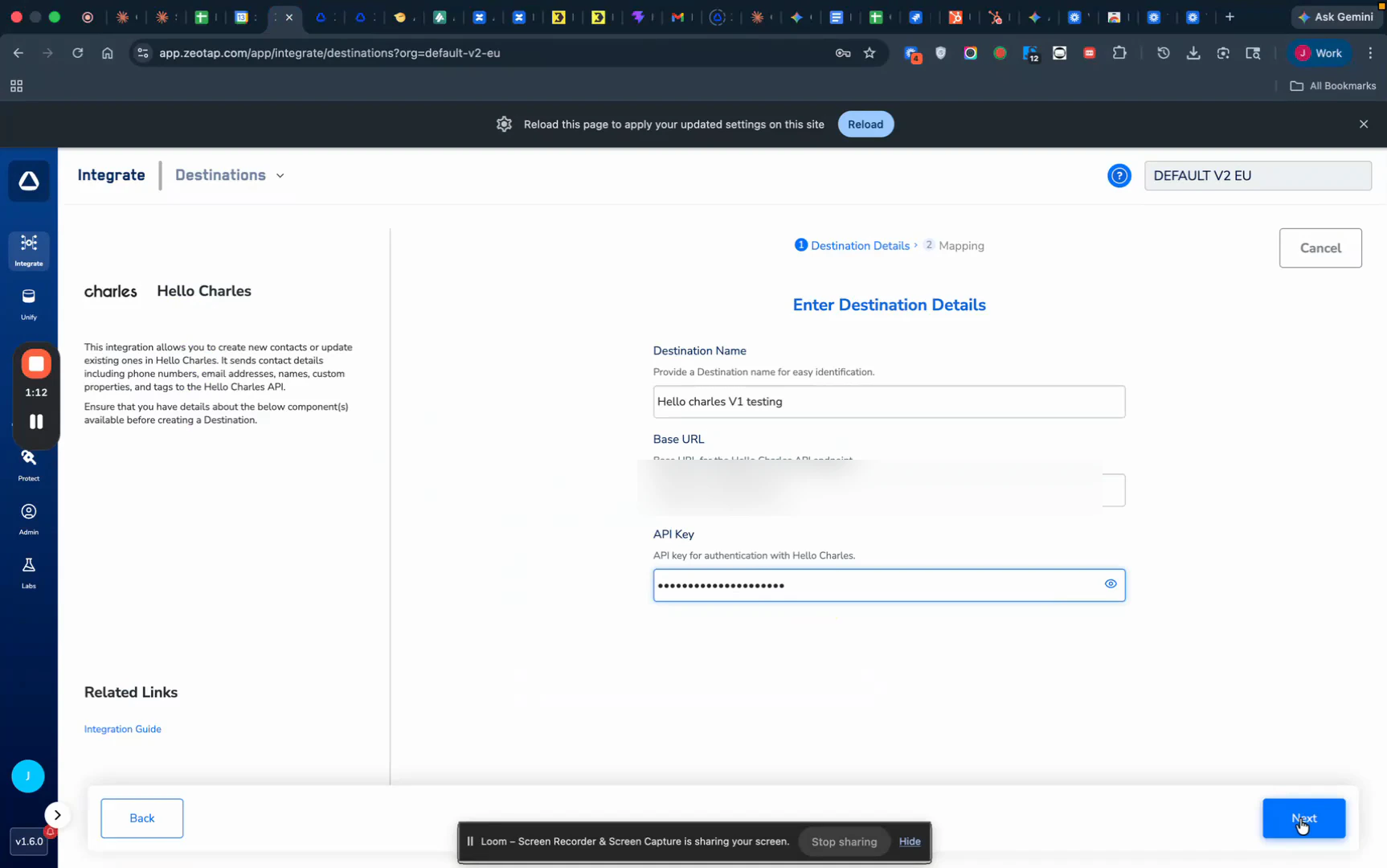
Figure 4 — Hello Charles destination form with Destination Name, Base URL, and API Key fields.
Choose the action and map the fields
- Under Choose your Action, select Send Contacts to Hello Charles — this is the only action available for this destination.
-
In the Map the Fields area, map your Zeotap catalogue fields to the Hello Charles destination fields:
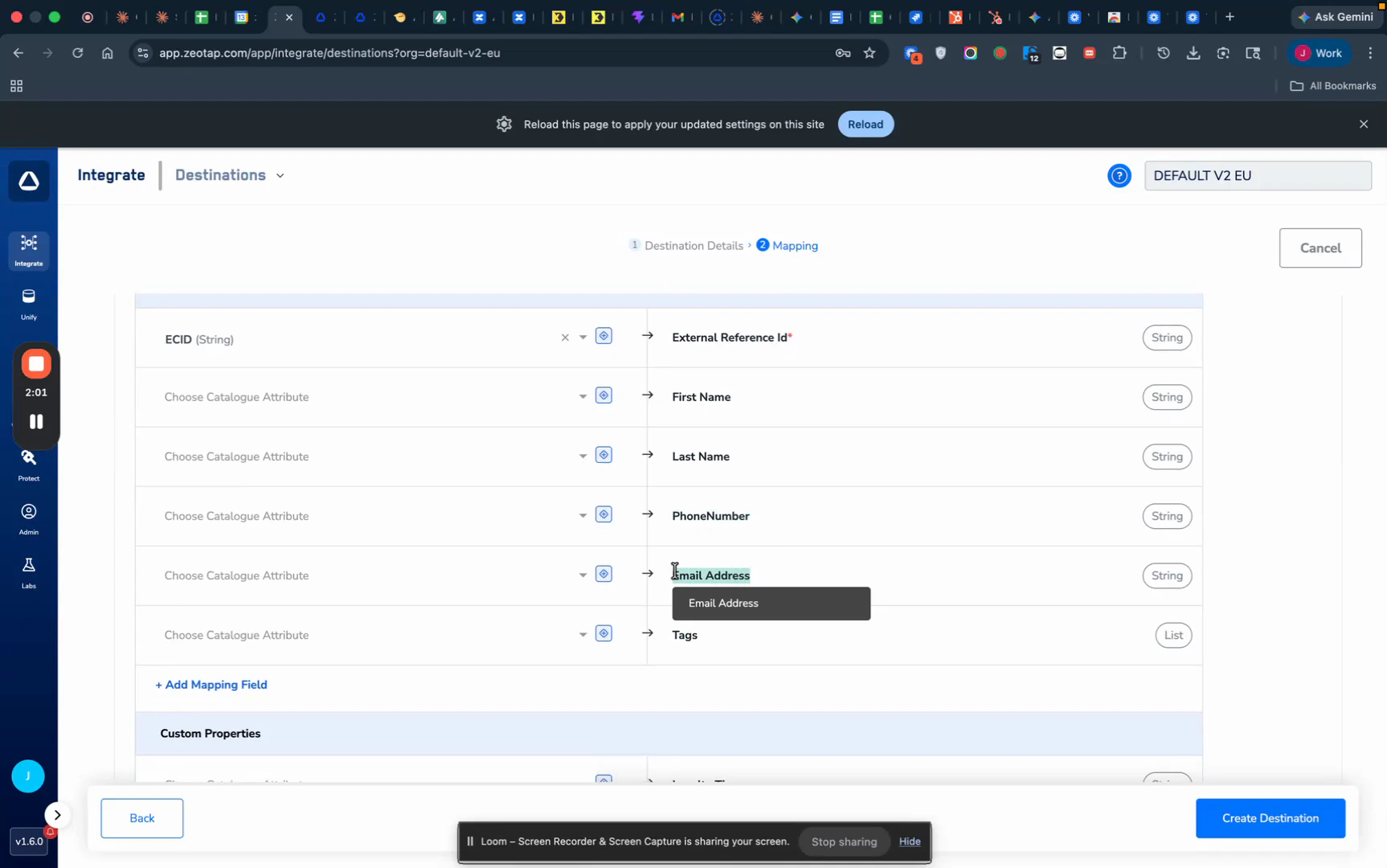
Figure 5 — Mapping screen with the Send Contacts to Hello Charles action selected and the destination fields ready to map.
Map Audience or Segment Data for Segmentation
To recreate your Zeotap audience structure inside Hello Charles, use a tag or custom property to carry the audience identifier. Decide how you want to represent audience membership in Hello Charles:- Option A — Tag: Map your Zeotap audience ID (or the Segment Membership (List) catalogue field) to Tags so every contact in this sync gets tagged with that audience ID.
- Option B — Custom Property: Map the Zeotap audience name or ID to a custom property like
zeotap_audience_nameso the value is stored as a structured field on the contact.
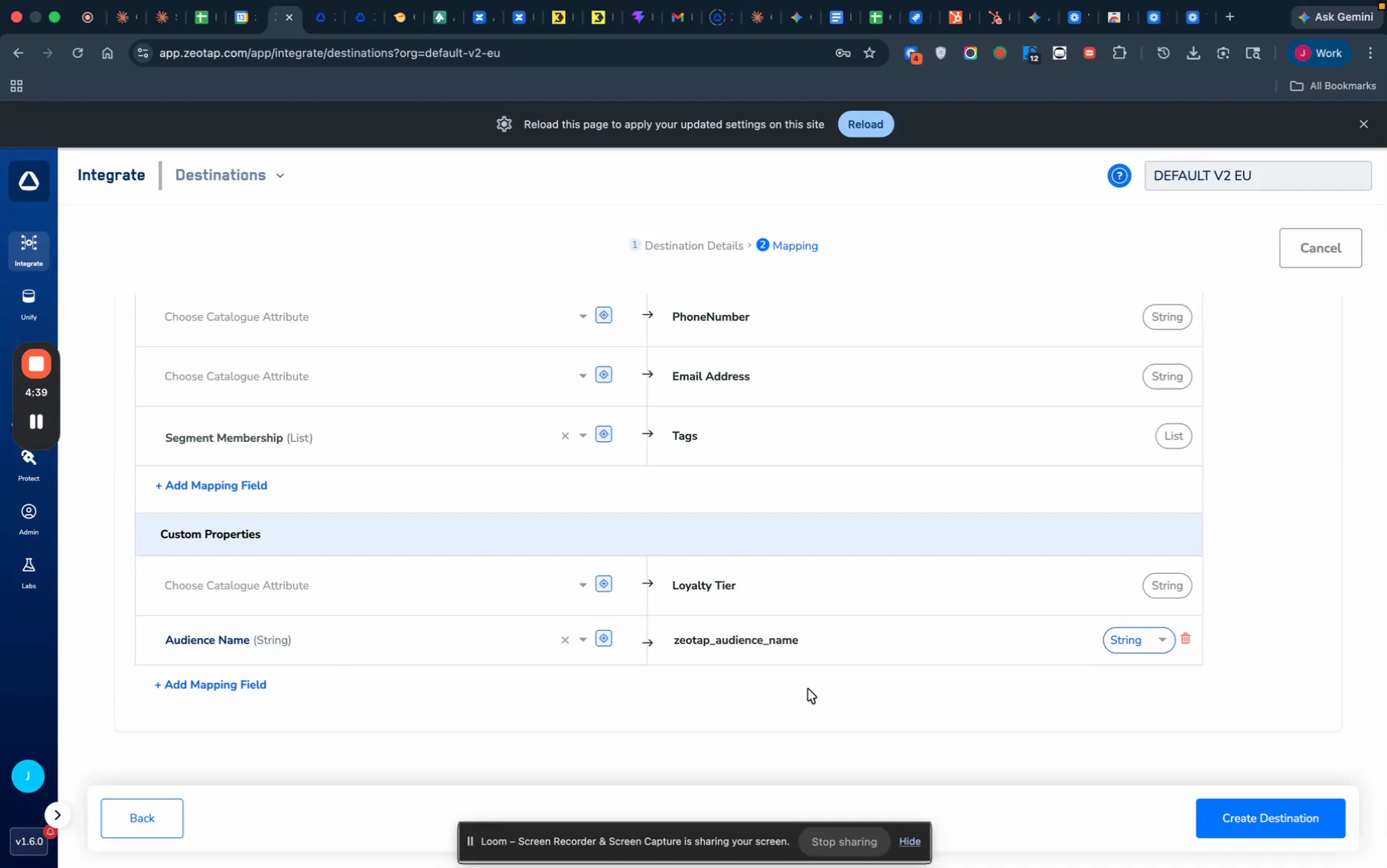
Figure 6 — Mapping example with Segment Membership routed to Tags and Audience Name routed to the zeotap_audience_name custom property.
Attach the Destination to an Audience
With the destination and mapping saved, link it to your audience.Open the audience flow
Drag in the Hello Charles destination
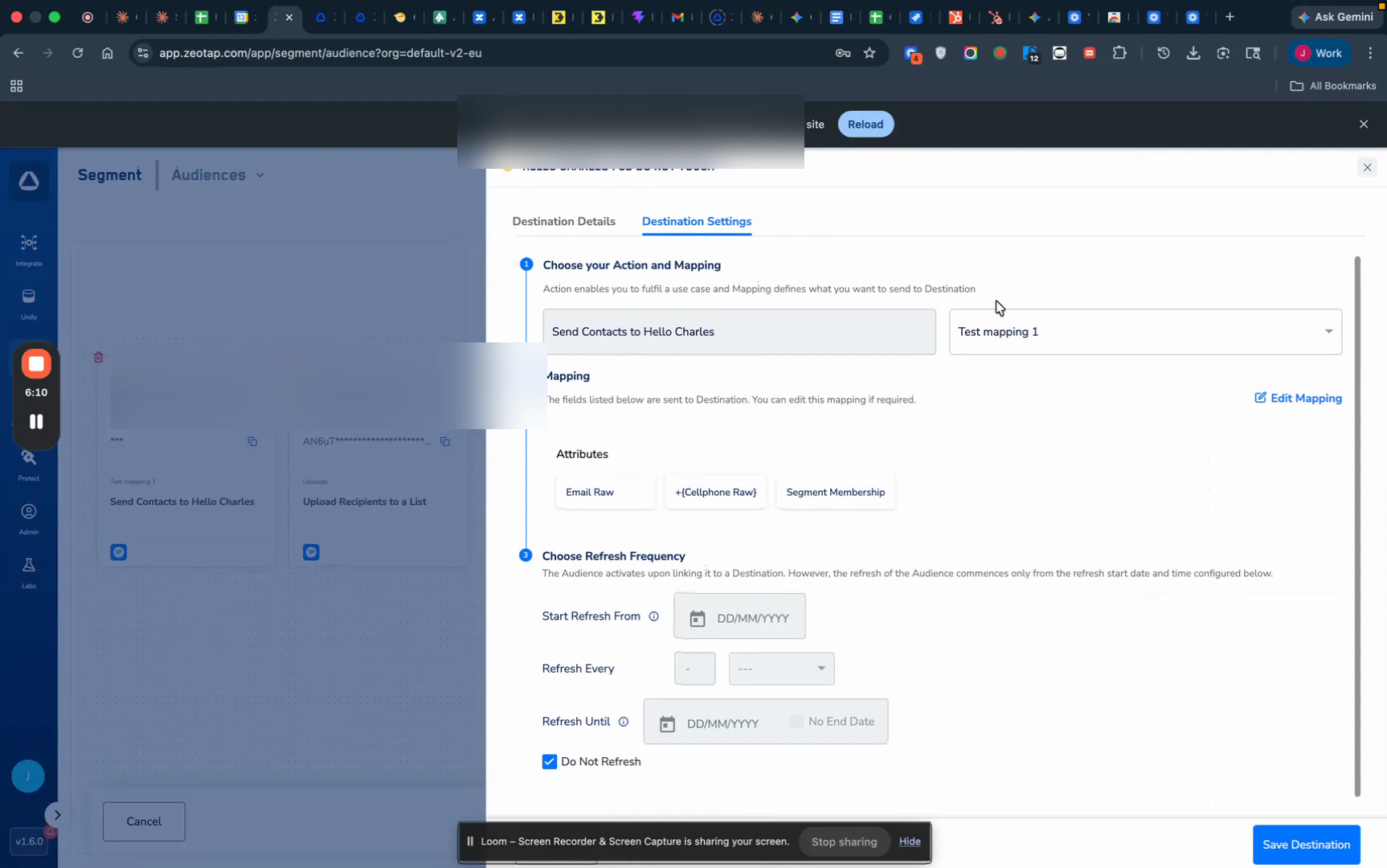
Figure 7 — Audience flow with the Hello Charles destination attached and the Send Contacts to Hello Charles mapping selected.
Save the destination
Field Mapping
Below is the complete reference for how data from Zeotap CDP maps to Hello Charles.Contact Fields
How Upsert Works
- Contacts are matched on External Reference Id.
- If a matching contact exists in Hello Charles, it is updated with the new field values.
- If no match exists, a new contact is created.
- Sending a tag adds it to the contact’s tag list; sending a custom property sets or overwrites that property.
Activate and Test the Integration
Once the audience is attached and saved, follow these steps to verify the sync.Wait for the first sync
Confirm contacts in Hello Charles
- The contact appears with the name, phone, and email you mapped.
- The tags you sent are attached to the contact.
- The custom properties you sent appear with the correct values.
Verify the audience as a Hello Charles segment
Contact's custom property → Zeotap Audience Name contains <your audience value>. Confirm the contact count matches (or closely matches) the audience size in Zeotap.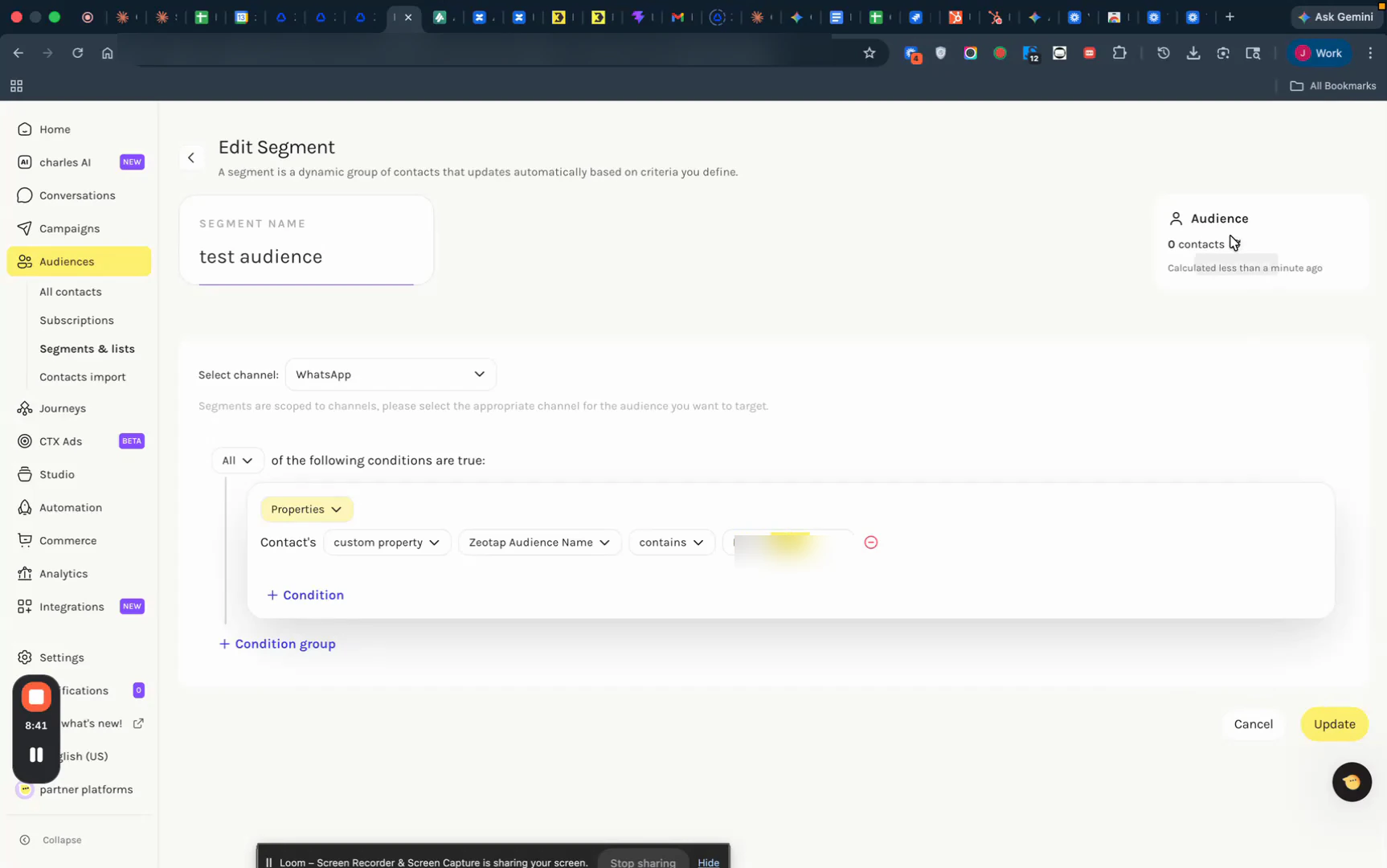
Figure 8 — Hello Charles Edit Segment with a condition filtering on the Zeotap Audience Name custom property.