What this is
PubMatic Publisher is a batch destination: data flows one way, out of Zeotap CDP to your PubMatic account. You build an audience in Zeotap, activate it to this destination, and Zeotap uploads the mapped identifiers to your PubMatic seat, where the segment becomes available for programmatic monetisation. PubMatic is a global sell-side platform (SSP) that allows publishers to monetise their digital content by connecting them with a network of advertisers. Integrated with Zeotap it helps marketers better understand their customers, improve the targeting of advertising campaigns and optimise the marketing strategies. Zeotap offers two PubMatic destinations, and they differ only in what they ask for at setup:Supported identifiers and actions
This channel supports PubMatic Cookies, MAIDs, IDP Base and ID5.Prerequisites
Before you create the destination, have the following ready.Create the PubMatic Publisher destination
1
Open the Destinations application
Log into the Zeotap CDP App and go to the DESTINATIONS application.
2
Start a new destination
Click + Create Destination.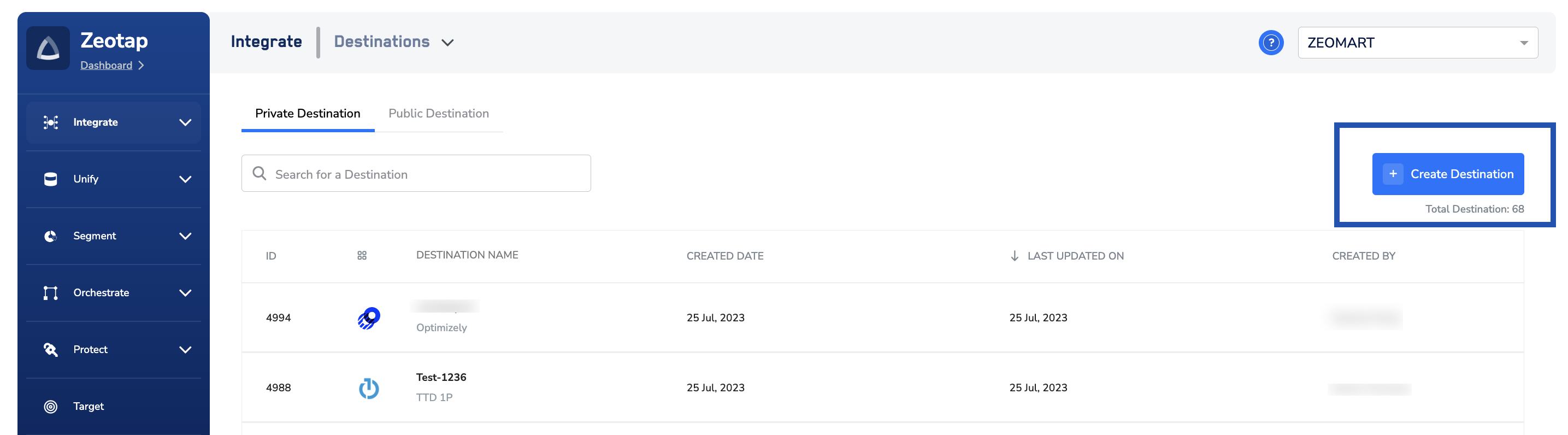
3
Find the destination in the catalogue
Under All Destinations, search for PubMatic Publisher.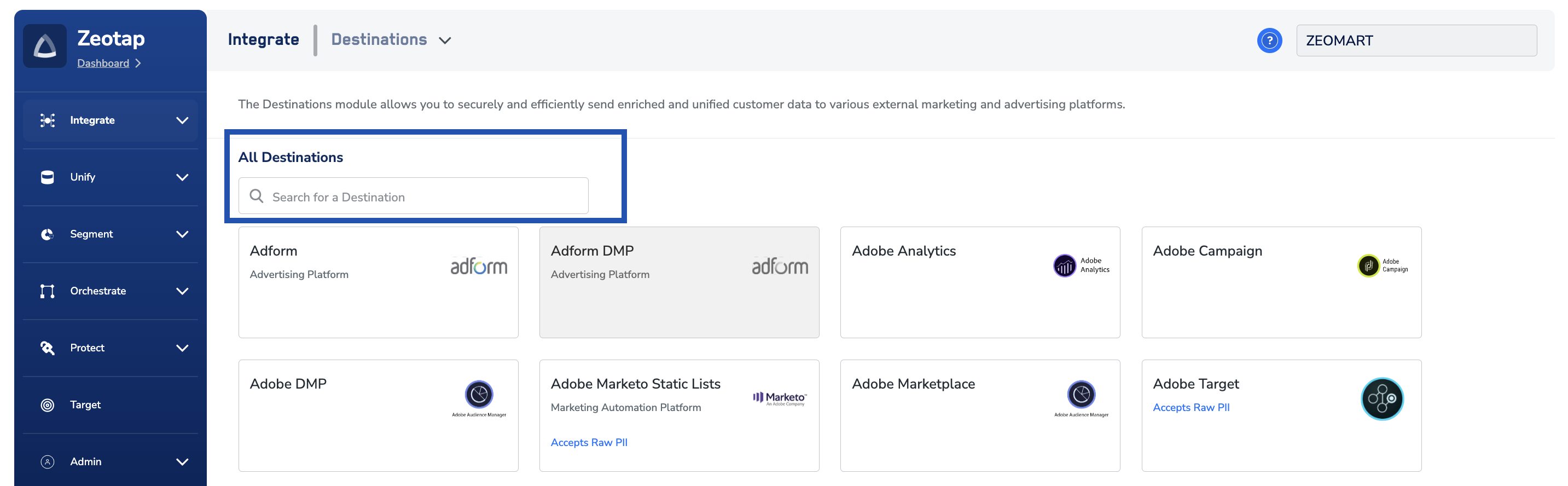
4
Enter the destination details
Click PubMatic Publisher. Details about the destination appear on the left of the screen; the fields required for the integration appear on the right. Enter:a. A Destination Name, for easy identification.b. The Account ID corresponding to your PubMatic account.c. The Data Provider ID corresponding to your PubMatic account.d. Review the values, then click Next.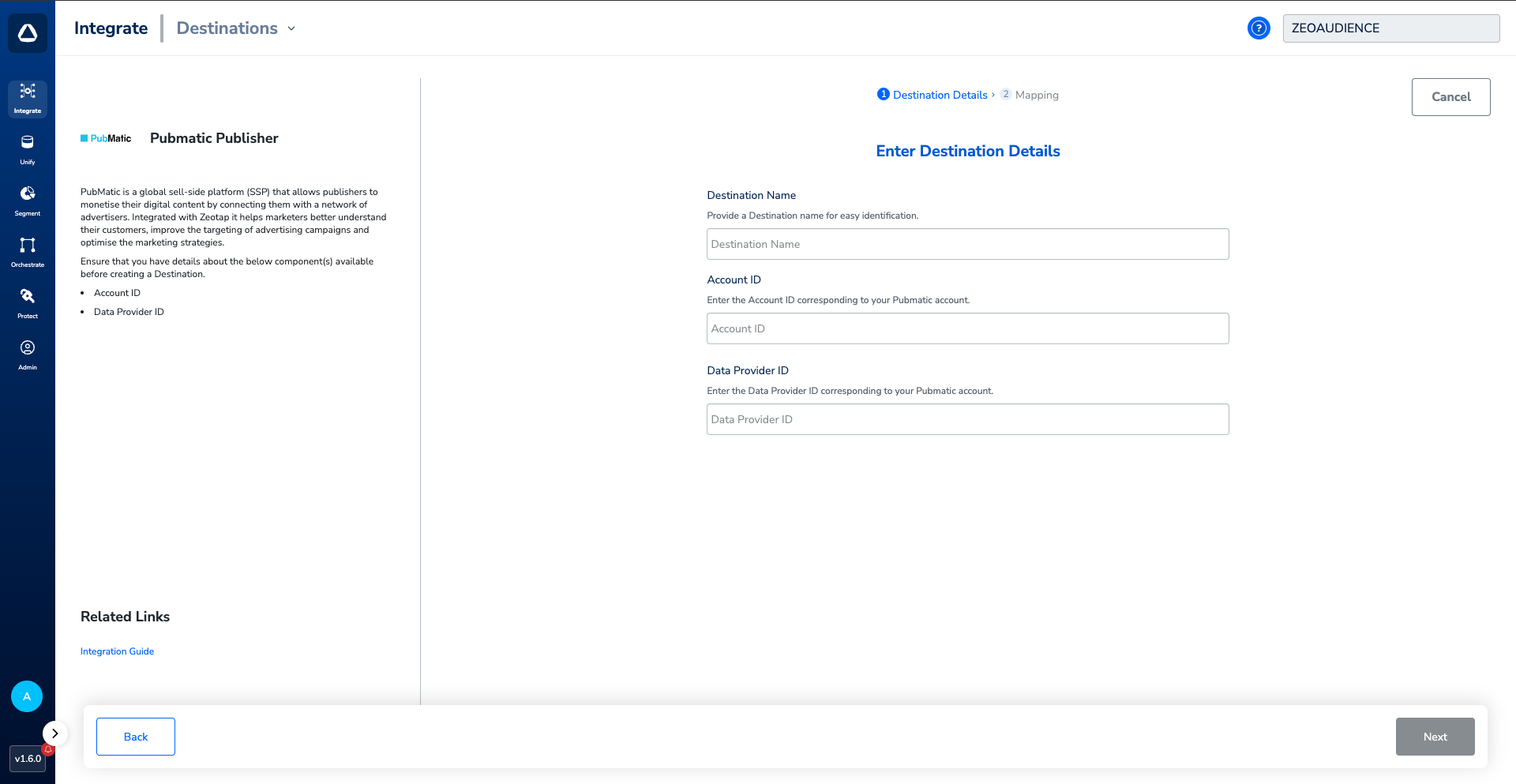
5
Choose the action and mapping
On the Mapping screen:a. Choose Send identifiers to Pubmatic under Choose your Action, then choose the corresponding identifiers under Map the Fields. The output identifiers accepted by the platform — MAIDs, Cookies, IDP Base and ID5 — are displayed by default. You can edit, add or remove an identifier from the list; see defining the mapping.b. Click Create Destination. The destination is then listed in the Audience application, ready to be linked to an audience or segment.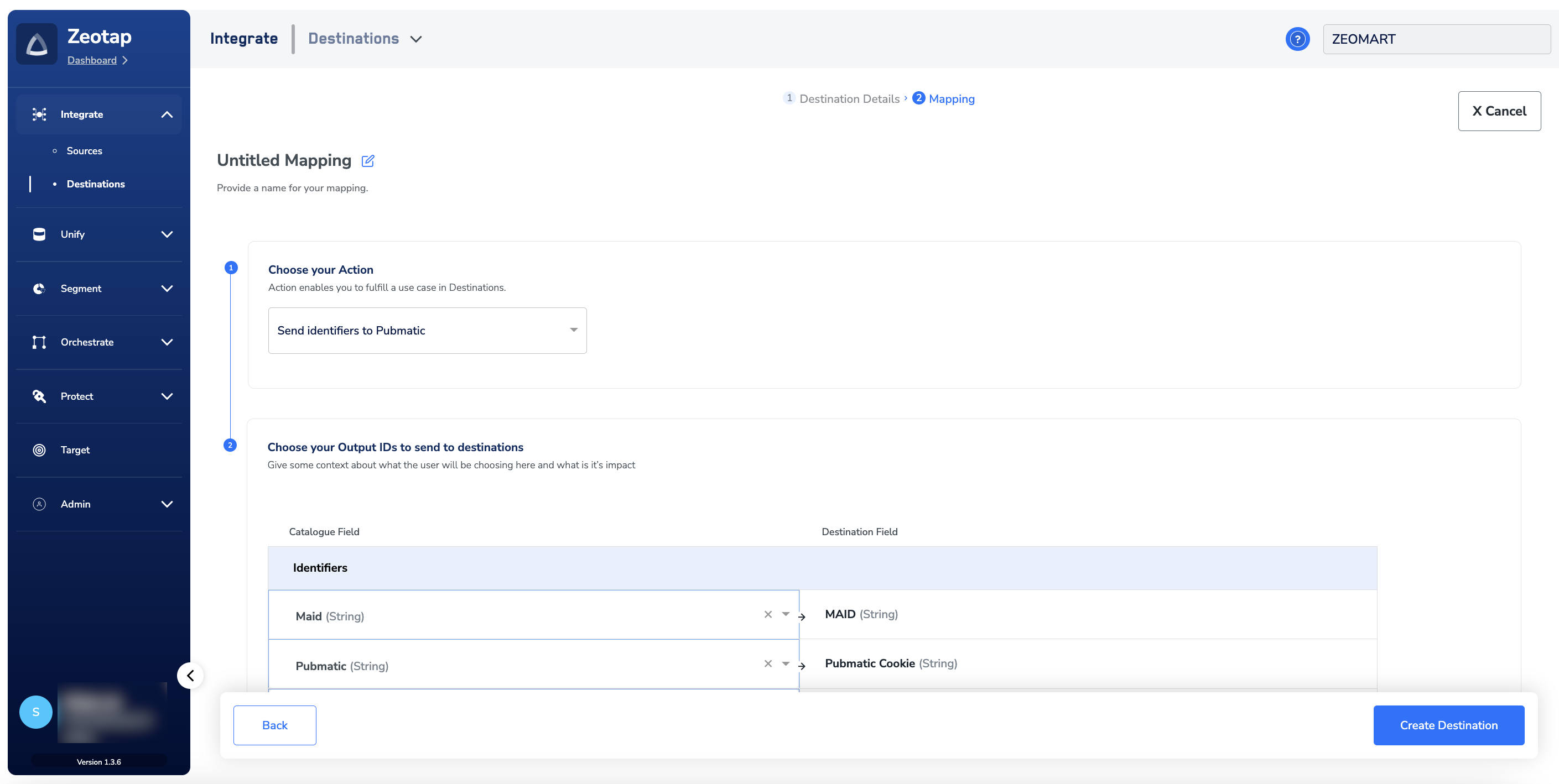
Link an audience to the destination
For how to link an audience or segment to the destination in the Target and Connect applications, see Link an audience to the destination. It can take up to three business days for the segment to be available at the PubMatic seat.The terms Audiences and Segments are used interchangeably to refer to customer cohorts belonging to a specific category. For example, an audience or a segment can be a specific group of customers who are over 18 years of age and have performed an
addToCart event within the last 30 days.Verify the segments in PubMatic
In the PubMatic console, the segments pushed by Zeotap appear under Audience Segments, listed against the data provider ID they were uploaded for.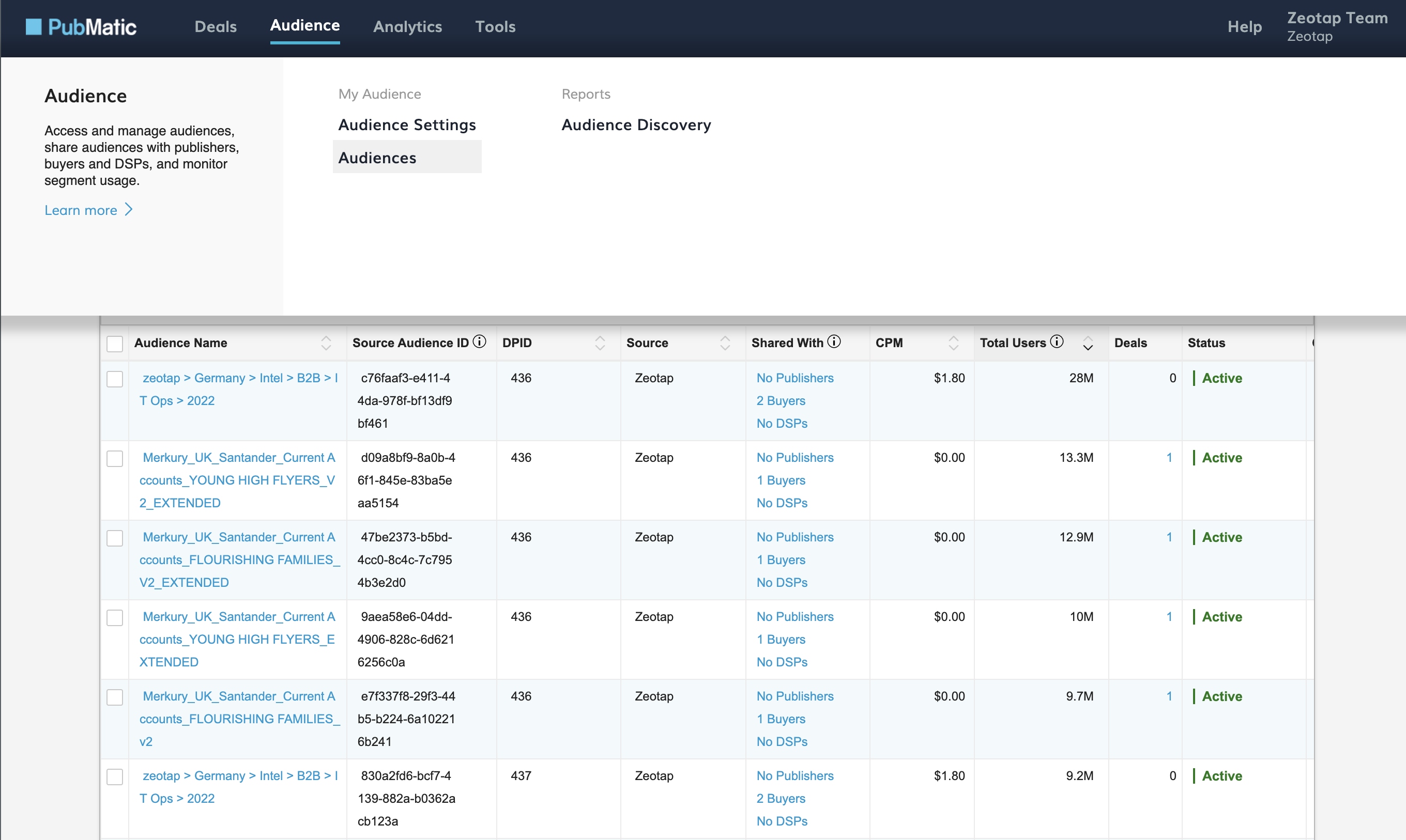
map and mwebIDs within the same segment. If you create a segment in the Zeotap CDP App that includes both map and mwebIDs, Zeotap creates two versions of it and pushes them both to PubMatic. As a result, both versions are listed together under Audience Segments, and you are required to update the sharing permissions for both segments accordingly.
Within the Zeotap CDP App you can see the matching pair as two cards with two separate segment IDs (one for cookie and the other for device IDs).
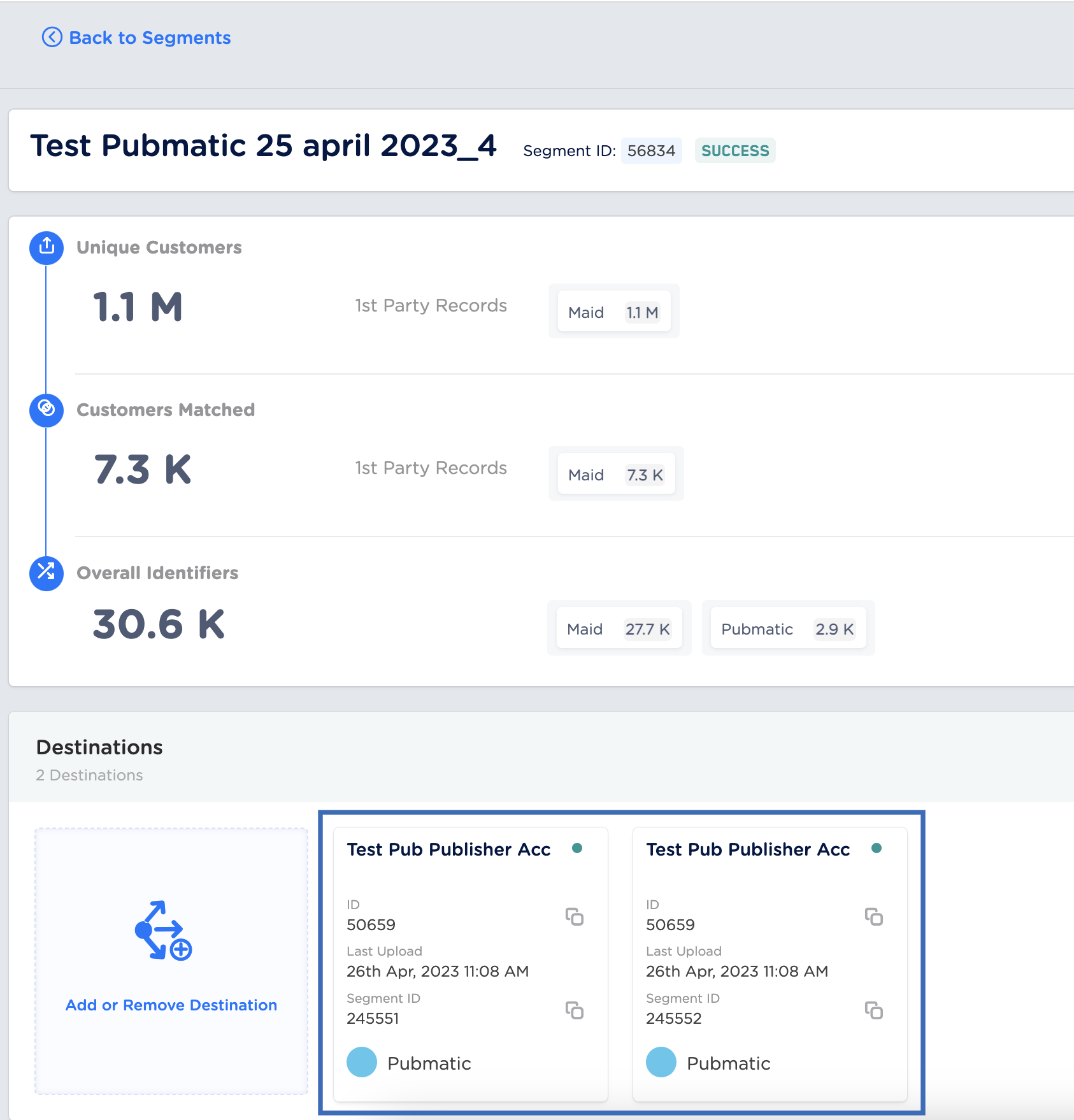
Once uploads are completed from Zeotap, it may take a few hours for the files to appear and be ingested on the PubMatic platform.
How users are disqualified from segments
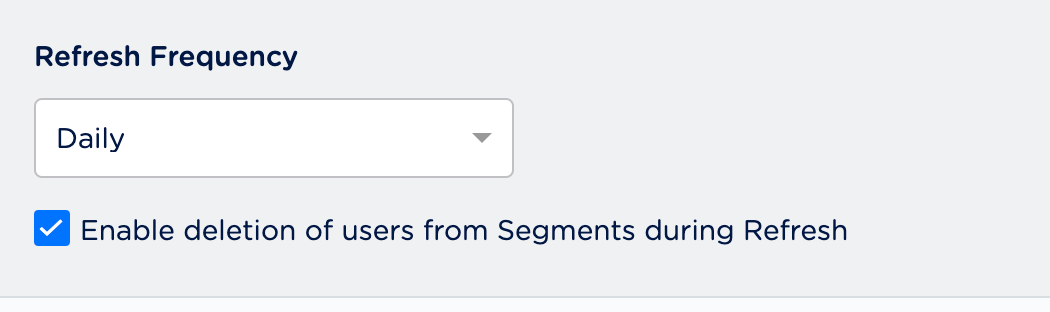
A user may be disqualified from a segment for various reasons, such as not meeting the segment criteria, a consent requirement, or any other condition set for a particular Connect segment.- Once a user disqualifies from a Connect segment, Zeotap initiates a user deletion request in the subsequent refresh cycle. These requests are sent to the audiences that were created on PubMatic.
- Disqualified users are excluded from the segments based on the refresh frequency configured for that Connect segment.
- Disqualification is a programmatic process that works automatically — you do not have to specify anything to trigger it. You do, however, have to enable the deletion of users from segments during refresh, on the Admin application.