

What this is
TTD 1P (The Trade Desk First-Party Data) is a destination that publishes an audience from Zeotap CDP directly into your own TTD advertiser account as a first-party segment, ready to target on TTD-bought inventory. This page walks you through creating the destination in Zeotap CDP, mapping the supported identifiers, and linking a segment so it appears on your TTD seat. Use this page for the buyer-side first-party flow; for the seller-side flow that publishes segments to TTD’s third-party marketplace with a CPM rate, see TTD Data Monetisation.Before you begin
Have the following ready before you start:
- Access to the Destinations application in Zeotap CDP with permission to create a new destination.
- Your TTD Advertiser ID — this is your TTD 1P Ad Account ID.
- Your TTD Secret Key — used to encrypt and decrypt uploaded data. Treat it like a password.
- An audience segment in Zeotap CDP that contains the identifiers you want to send. TTD 1P accepts MAIDs / Device IDs, TTD cookies, EUID, EUID Token, and netID.

What TTD 1P supports
The following documented limits apply to every TTD 1P segment. Zeotap CDP enforces the upload-size limits automatically by splitting large files; TTD stitches the parts back together on its side.
The 1,000-ID floor is a hard minimum. TTD applies additional minimum sizes per campaign type, so a segment that clears 1,000 IDs still needs to meet the specific campaign’s minimum before you can target on it.
Supported identifiers
TTD 1P has always accepted MAIDs / Device IDs and TTD cookies. Support has since been added for three further identifiers, which apply to the TTD, TTD 1P, and TTD Data Monetisation destinations alike:- EUID — the European Unified ID, The Trade Desk’s UID2-derived identifier for logged-in, consented traffic, designed to comply with GDPR privacy laws. Zeotap also offers a dedicated destination for sending email addresses and cell phone numbers through TTD’s CRM Data Platform; see TTD CRM Data (EUID).
- EUID Token and netID — both accepted by this integration as identifier types.
Create the TTD 1P destination
1
Open the Destinations catalogue
Sign in to Zeotap CDP and open the Destinations application. Click + Create Destination.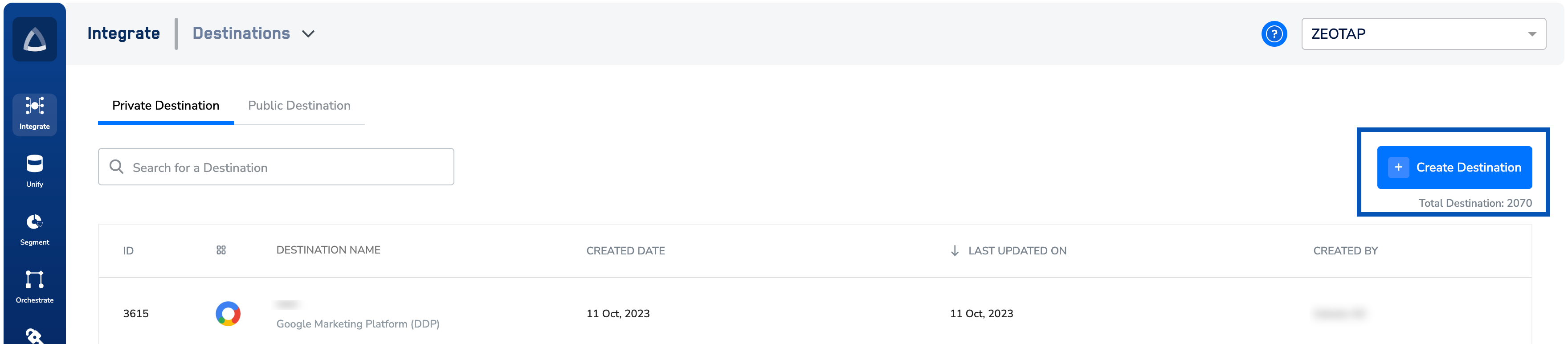
2
Select TTD 1P from the catalogue
Under All Destinations, search for TTD 1P and click it. A screen opens with destination information on the left and the credential fields required for the integration on the right.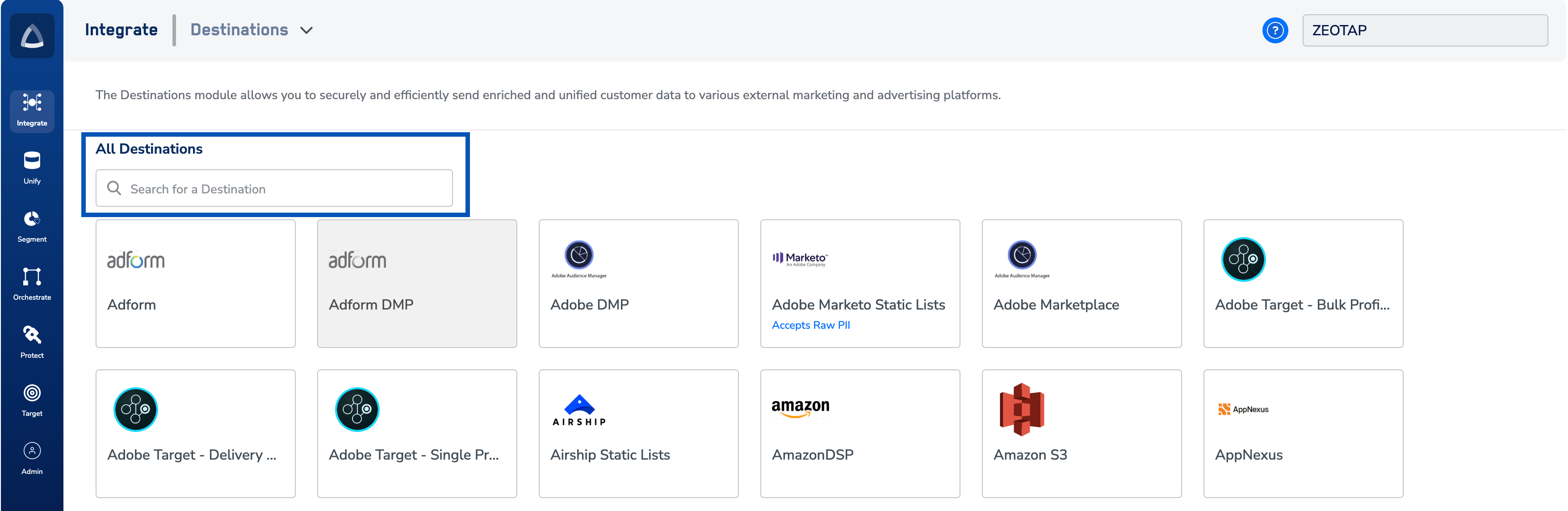
3
Enter the destination details
The setup runs in two stages, shown as Destination Details and Mapping at the top of the screen. On the Enter Destination Details stage, fill in the credential fields: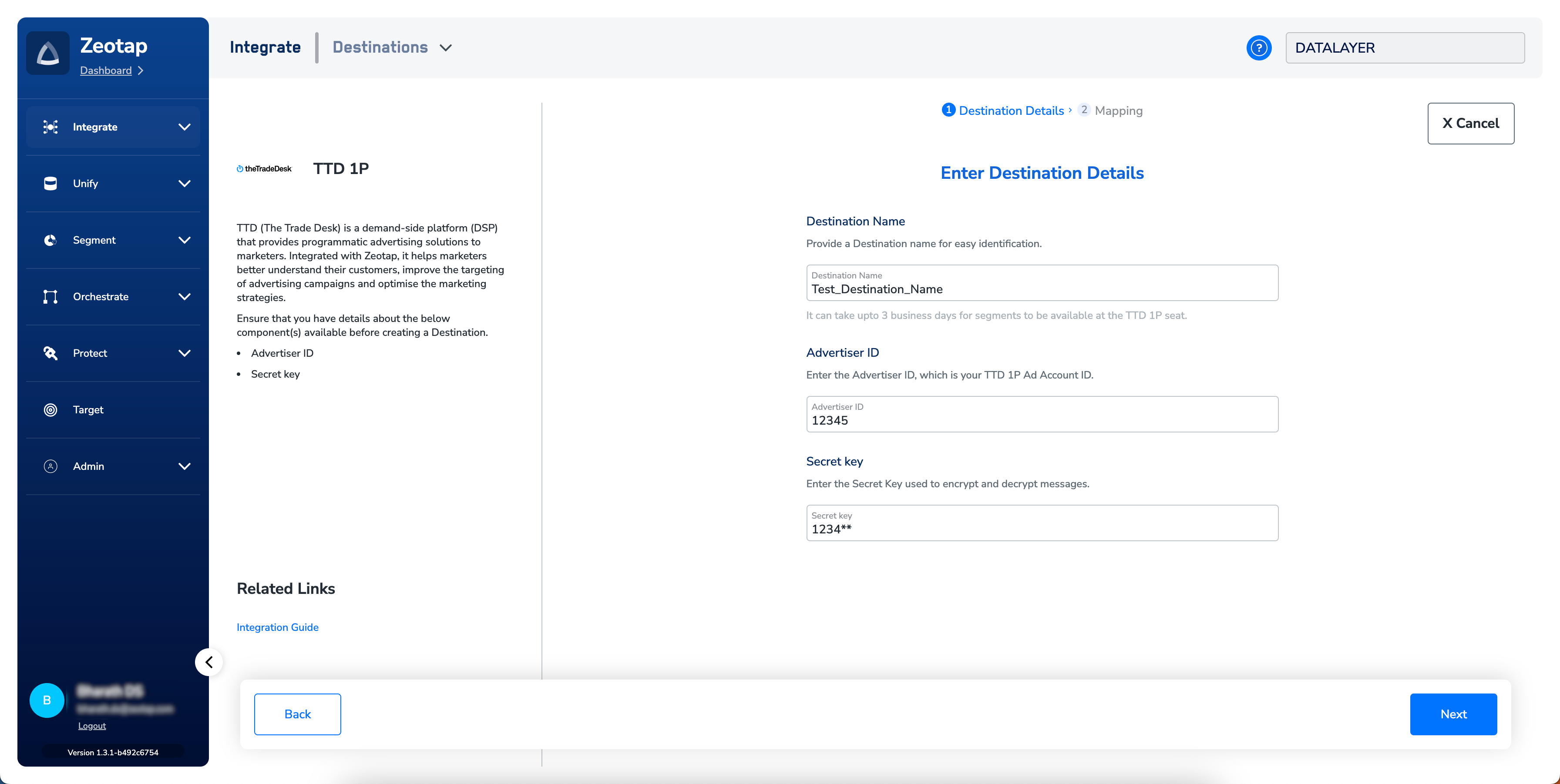
- Destination Name — a descriptive label for easy identification of this destination.
- Advertiser ID — your TTD 1P Ad Account ID from the First Party Data Credentials section of the TTD 1P console.
- Secret key — the key used to encrypt and decrypt messages, taken from the same First Party Data Credentials section.
4
Choose the action and map identifiers
On the Mapping stage, give the mapping a name, then under Choose your Action select Send identifiers to TTD 1P. Under Choose your Output IDs to send to destination, map each Output Identifier in the Catalogue Field column to the matching TTD Destination Field — for example, the Zeotap Adid attribute to TTD’s MAID field. By default the panel lists the identifiers accepted by the platform (MAIDs, cookies, email IDs, and more) — edit, add, or remove entries as needed. For what an action is, see Destinations — key concepts; for the mapping mechanics, see Destinations — define the mapping.Click Create Destination. The new destination is listed in the Audiences application, ready to link to a segment.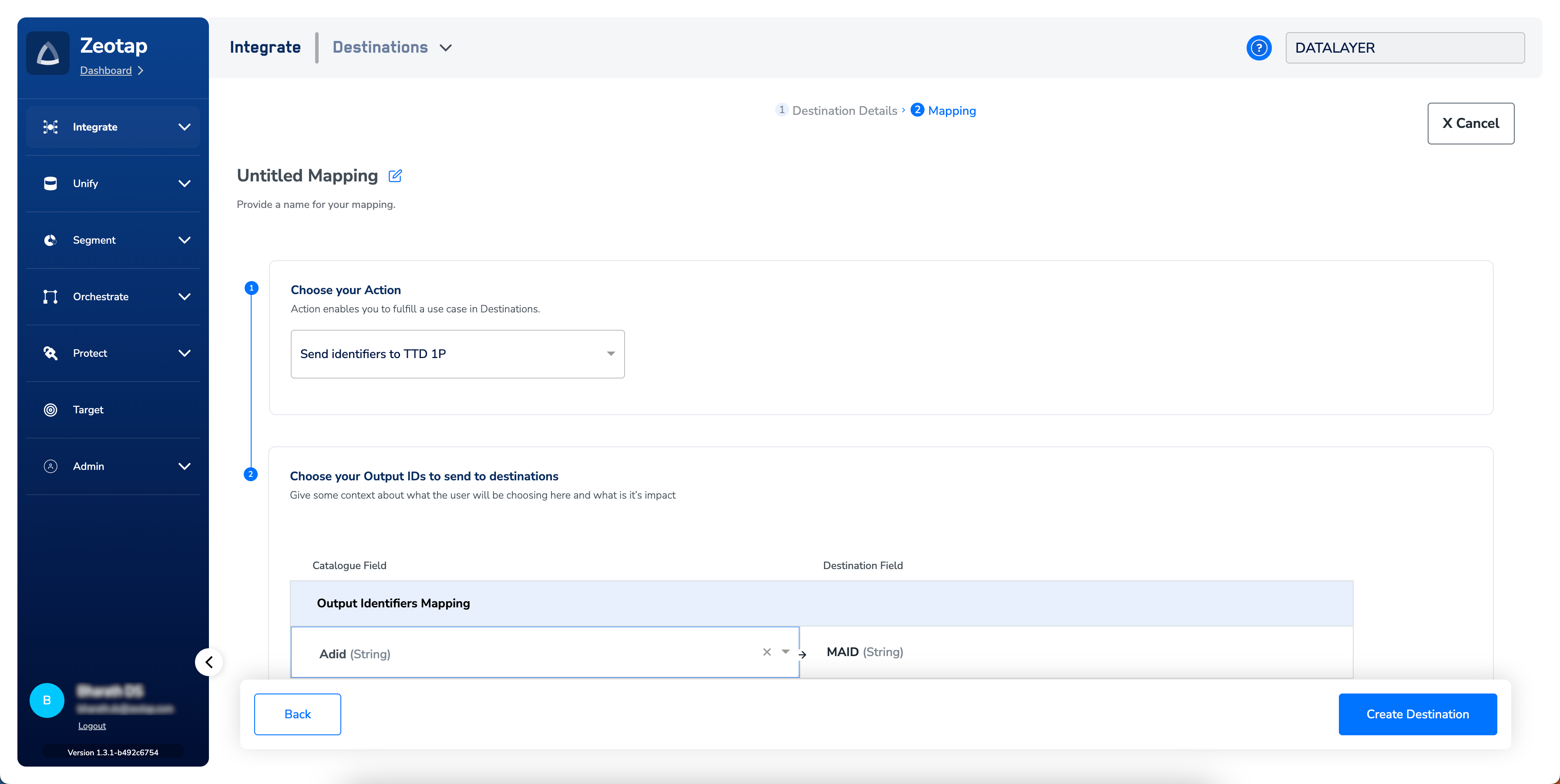
Link an audience to the TTD 1P destination
Open the audience you want to send to TTD 1P in the Audiences application and link it to your TTD 1P destination. For the full linking workflow, see Link an audience to the destination. Keep the following in mind when linking:- The identifiers offered in the link panel are the intersection of what your audience contains and what TTD 1P accepts.
- Audience IDs shown in Zeotap CDP are for internal reference only. The segment becomes available in the client’s TTD account once the upload completes.
- A segment can be refreshed daily. If no refresh is pushed for 30 consecutive days, TTD deletes the segment.
Verify the segment reached TTD
After linking and saving, confirm the segment made it to the TTD 1P seat:- Allow up to three business days for the segment to propagate to the TTD 1P seat.
- Sign in to your TTD account and check the segments available for the advertiser matching your Advertiser ID.
- Confirm the audience holds at least 1,000 IDs in the Audiences application — segments smaller than 1,000 IDs are not made available in TTD.
- Confirm the segment is available in the campaign type you plan to run — the campaign type’s own minimum size applies on top of the 1,000-ID floor.
Troubleshoot
If the segment is missing after three business days and the audience size clears the 1,000-ID minimum, contact your Zeotap customer success representative. Include your destination name, Advertiser ID, audience name, and the timestamp of the first refresh.