

What this is
Batch is a mobile marketing automation platform that enables marketers to engage with their mobile app users through push notifications, in-app messaging and email. Integrated with Zeotap it provides a range of features and capabilities that enable marketers to create personalised and relevant experiences for their users and drive engagement, retention and revenue. Use this integration to send custom audiences to Batch. A custom audience can contain a list of custom user IDs, advertising IDs (GAID or IDFA) or install IDs.- Batch — the connector described on this page. It sends custom audiences to Batch and is configured with a Live API Key and a REST API Key.
- Batch CEP — a newer connector that reflects recent improvements to the Batch APIs and is recommended for new audience and profile integrations. It is configured with an API Bearer Token and a Project Key, and it can also update attributes on existing Batch profiles without creating an audience.
Prerequisites
- A Batch account. After logging in to Batch you are taken to the Batch dashboard.
- Your mobile applications integrated with Batch. Applications that are already integrated appear on the Batch dashboard.
- Your Batch Live API Key and REST API Key — see Get your Batch API keys.
- In Zeotap CDP, a role that grants destination edit rights, and an audience ready to activate. For the upstream set-up every destination depends on, see Destinations.
Key concepts
addToCart event within the last 30 days.Supported identifiers
This integration supports MAIDs, Custom IDs and Install IDs.Available actions and supported features
The action you choose on the mapping screen decides which identifiers Zeotap sends and which delivery features apply to the destination. A tick means the feature is supported for that action.User disqualification from audiences
This integration supports user disqualification from audiences. That is, a user can be disqualified from an audience (segment) for various reasons, such as not meeting audience criteria, consent requirements or other conditions set for a particular audience.- When a user is disqualified from an audience, Zeotap CDP initiates a user deletion request in the next refresh cycle. These requests are sent to the audiences linked to the specific destination.
- The disqualified users are excluded from the audiences based on the configured refresh frequency for a particular audience.
- User disqualification is a programmatic process that works automatically. You do not need to specify anything to trigger the disqualification and exclusion of users from audiences.
Get your Batch API keys
Collect both keys from the Batch dashboard before you create the destination in Zeotap CDP.Open Settings on the Batch dashboard
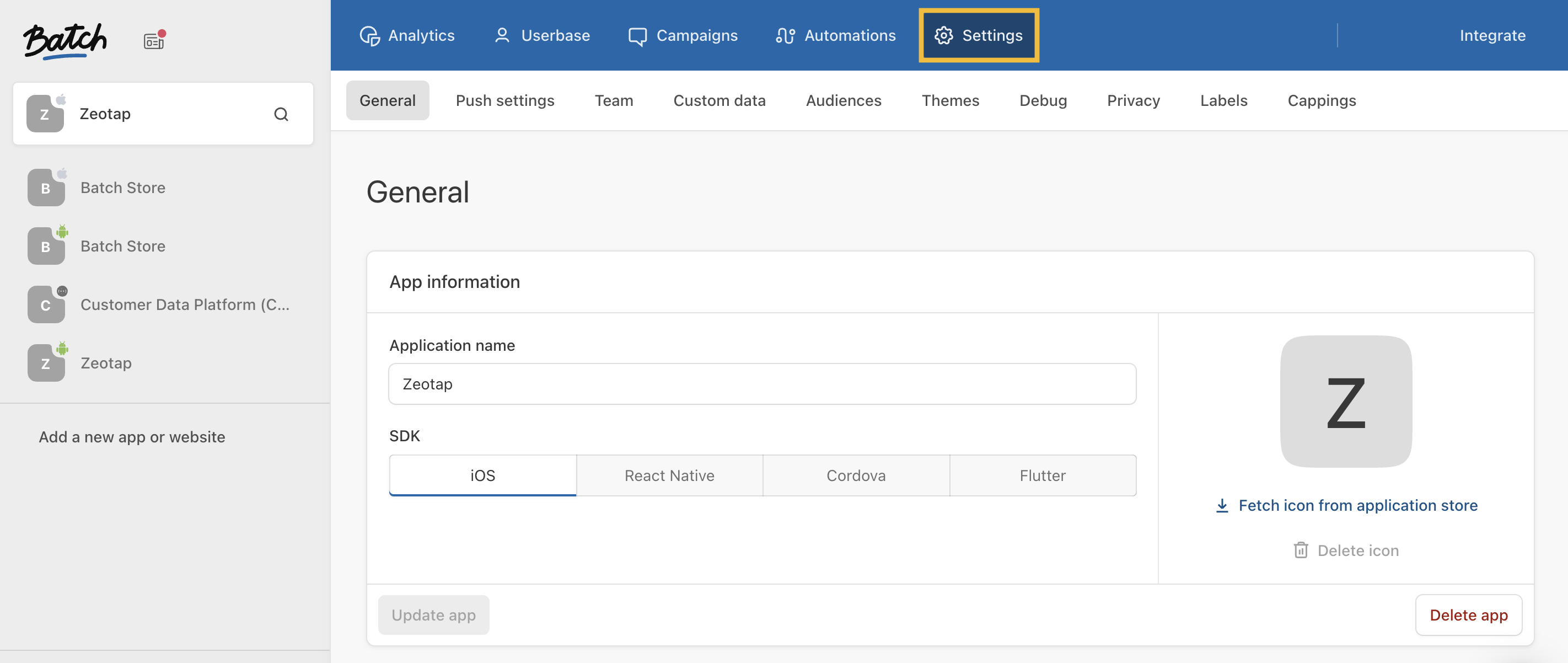
The Batch dashboard with Settings selected in the top panel and the General tab open.
Copy the Live API Key and the REST API Key
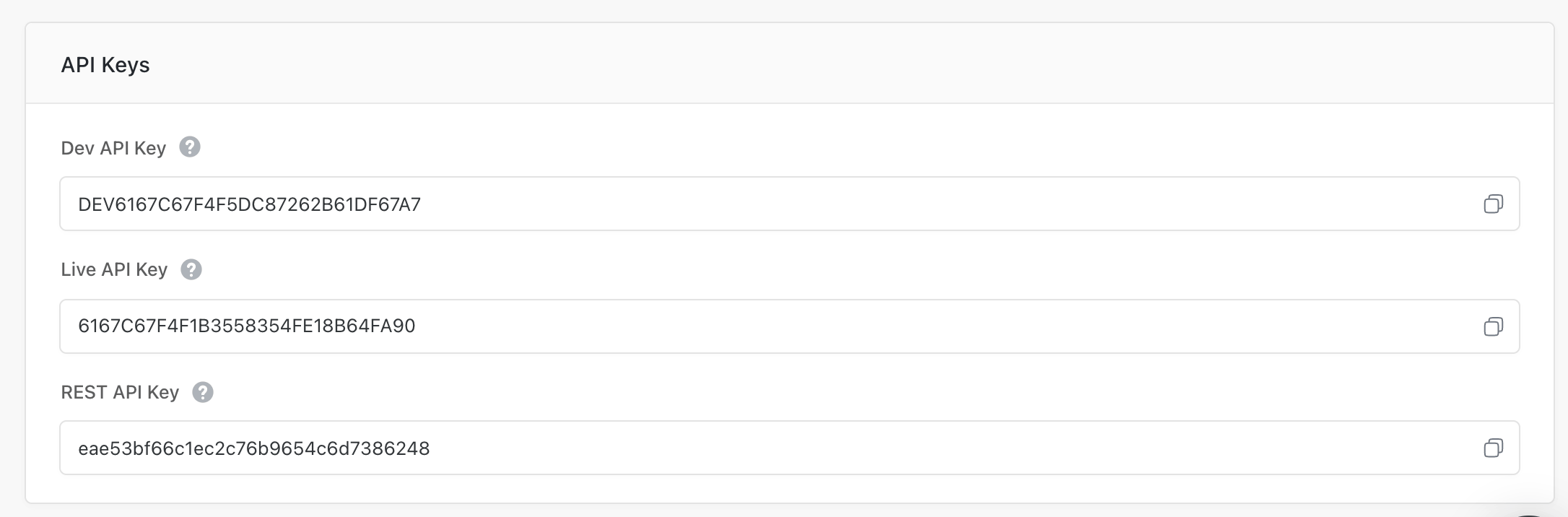
The API Keys card on the General tab, listing the Dev API Key, Live API Key and REST API Key.
Create a destination for Batch
Open Destinations
Start a new destination
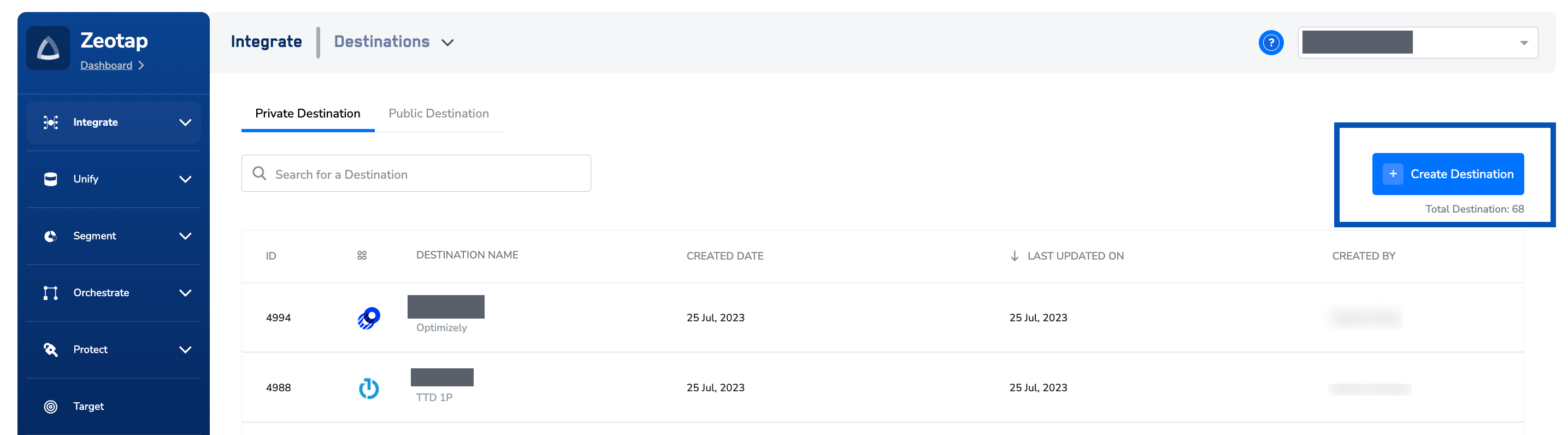
The Destinations list, with + Create Destination at the top right.
Find the Batch connector
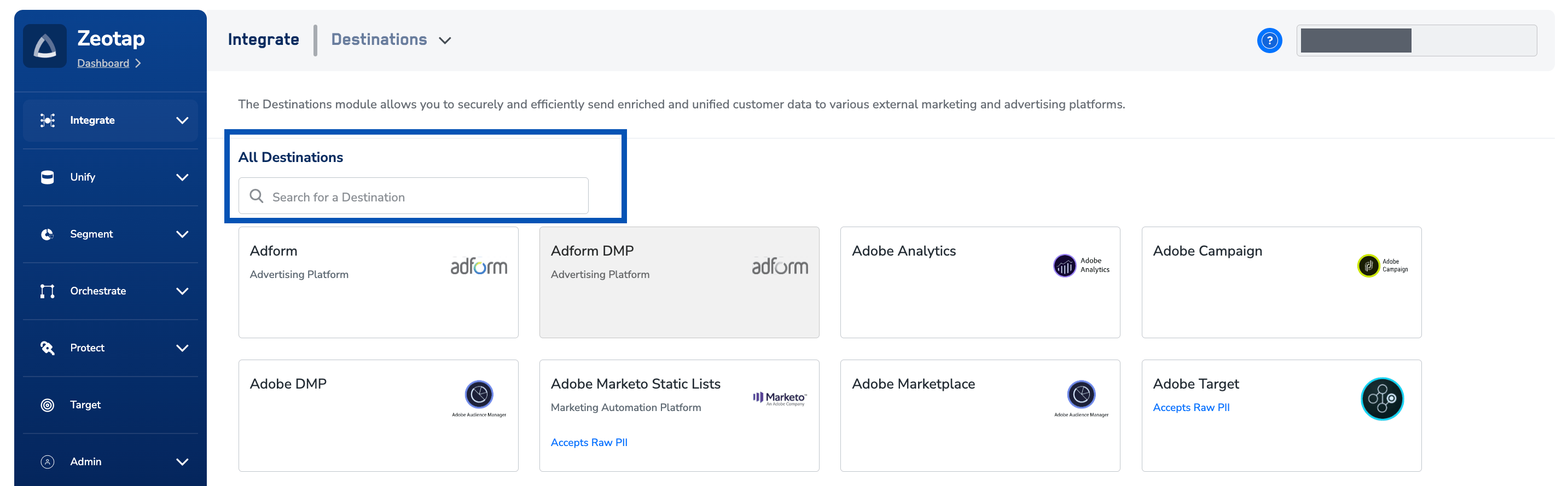
The All Destinations catalogue, where the search box filters the available connectors.
Enter the destination details
- A name for the Destination.
- The Live API Key and the REST API Key you copied from Batch.
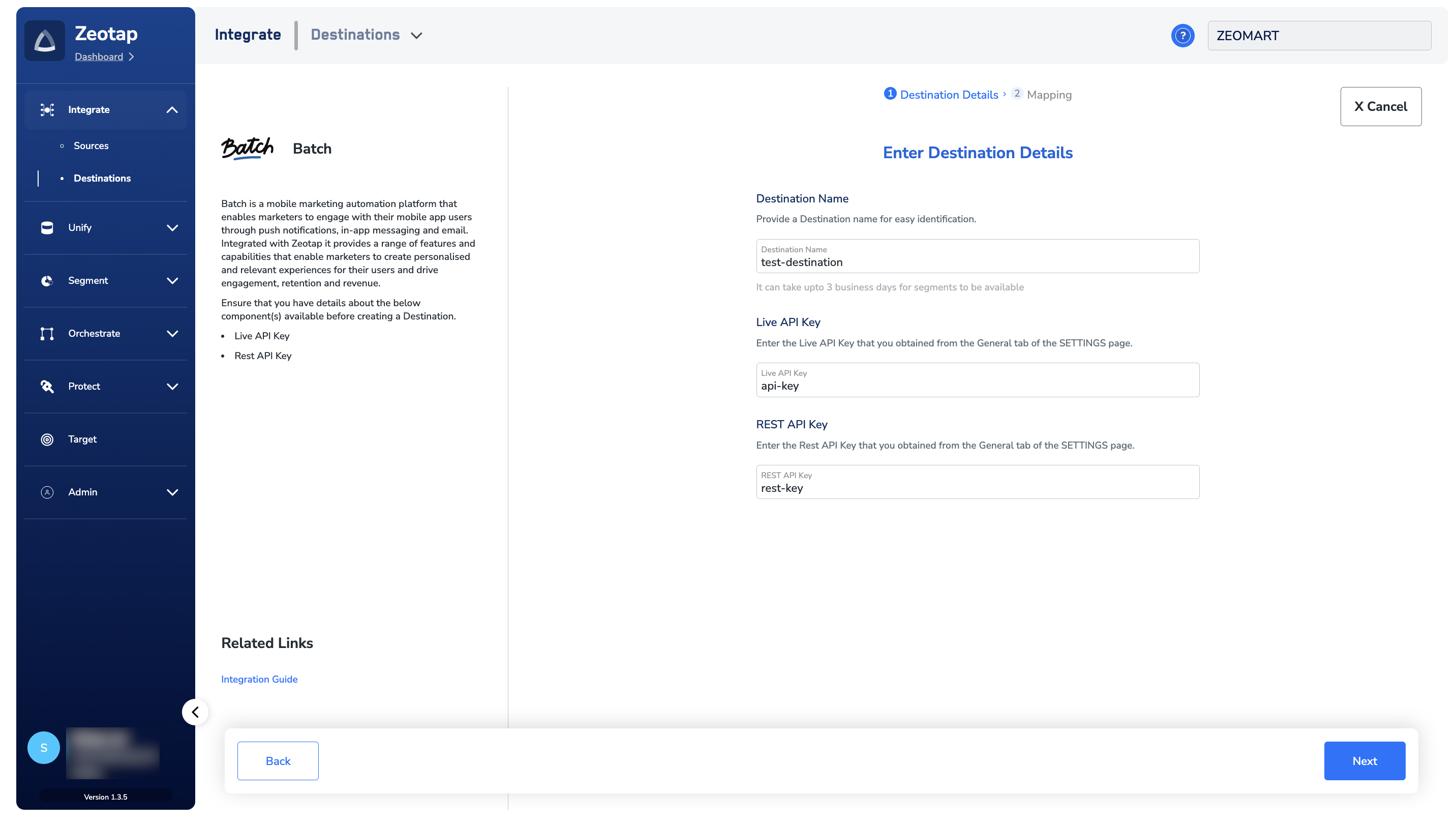
The Enter Destination Details step for Batch, with the Destination Name, Live API Key and REST API Key fields.
Choose your action and map the fields
- Send Advertising IDs to Batch — sends advertising identifiers, such as MAIDs, to the Batch platform.
- Send Install Ids to Batch — sends Install IDs generated by Batch when a new user is created in the Batch application.
- Send Custom Ids to Batch — sends custom identifiers of your choice to Batch.
- Send Attributes to Batch — sends attributes such as First Name, Last Name, Email Address, Gender and Age, among others, to Batch. Ensure that you have created the attribute in Batch before using it in Zeotap CDP.
- Ensure all Install IDs are ingested into Zeotap before using Send Install Ids to Batch as an action.
- Ensure that the identifiers are sent to Batch in the following format only:

The Mapping step with the Choose your Action list open and a MAID Catalogue field mapped to the Batch destination field.
Create the destination
Link an audience to the Batch destination
For information about how to link an Audience or segment to the created Destination in the Audiences application, see Link an Audience to the Destination.Verify the audience reached Batch
The first-party and third-party audiences (segments) pushed by the Zeotap CDP appear on the Batch dashboard under the Audiences tab. Each row lists the audience display name, its name in Batch, its type, the Tokens / IDs count and when it was last updated.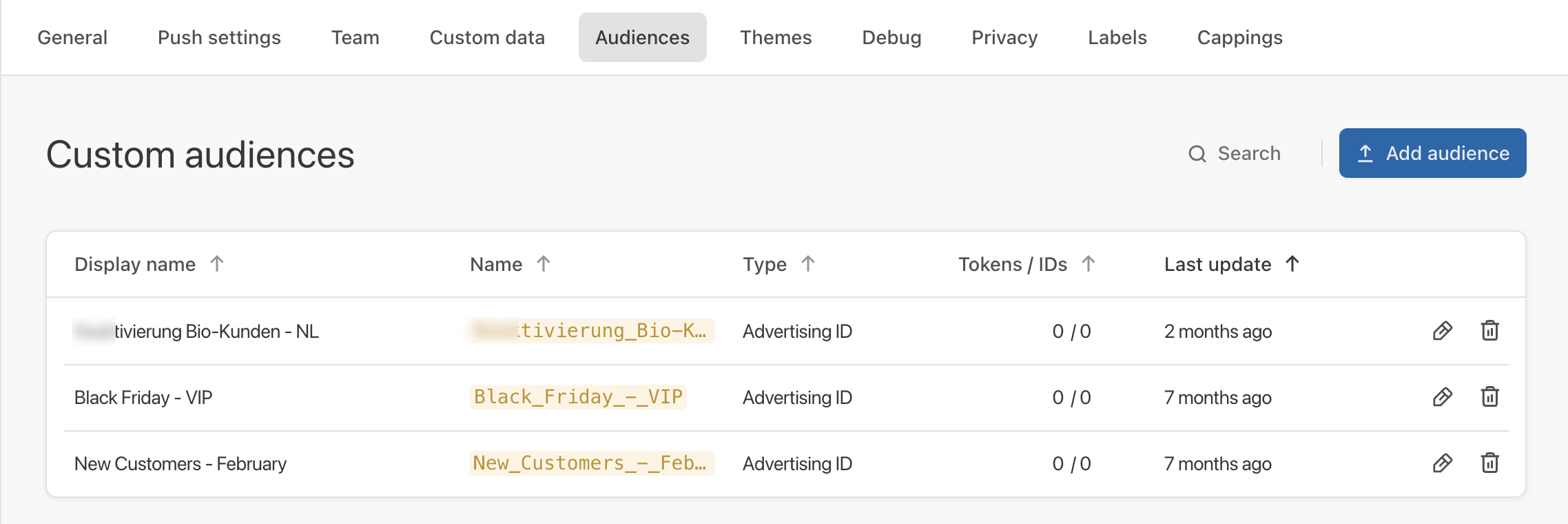
The Custom audiences list on the Batch Audiences tab, showing each synced audience with its type and Tokens / IDs count.
FAQ
Should I use the Batch connector or Batch CEP?
Should I use the Batch connector or Batch CEP?
Which identifiers can I send to Batch?
Which identifiers can I send to Batch?
How long does it take for an audience to appear in Batch?
How long does it take for an audience to appear in Batch?
Why does the Tokens / IDs column show no token values?
Why does the Tokens / IDs column show no token values?