

What this is
A Batch source brings user data out of Batch — a mobile marketing automation platform for push notifications, email, SMS and in-app messaging — and into Zeotap CDP. Batch is listed under the Customer Engagement Channels category and uses Batch’s built-in connector, so no custom pipeline is required: you authenticate with two keys taken from the Batch dashboard, then Zeotap fetches data on the sync frequency you choose, as JSON or CSV files. Creating the source is only the first stage. Once records are arriving, map the source’s fields to the catalogue so they resolve into unified customer profiles — see Map the Catalogue.Prerequisites
Before you create a Batch source, confirm:
- You have a Batch account and can open the Batch dashboard.
- You have permission to create sources in your Zeotap CDP tenant.
- You know the region where the records live, so you can set the region of upload — see Region of Storage.
Obtain your Batch API keys
Collect the following details from the Batch console before you start in Zeotap CDP.1
Open the Batch settings page
Navigate to the Batch dashboard and click SETTINGS from the top panel, as shown below.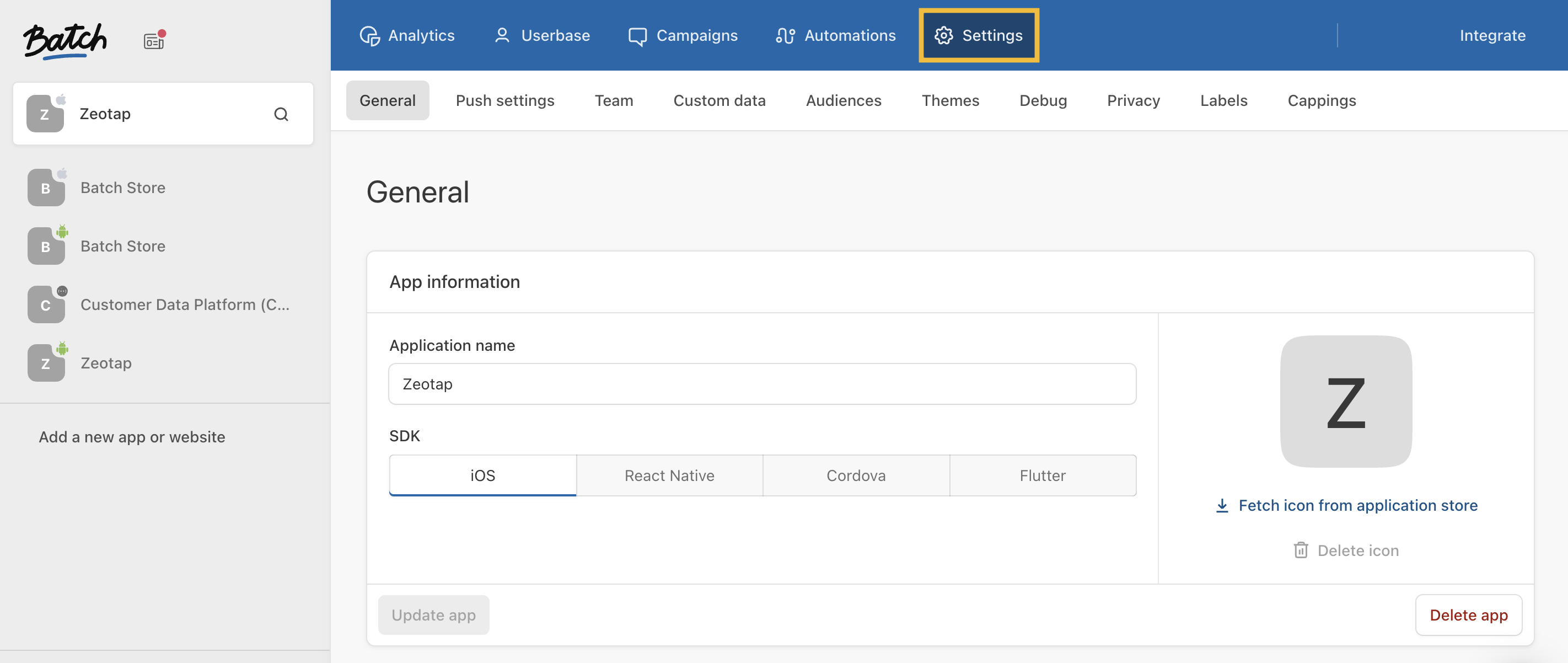
2
Copy the Live API Key and the REST API Key
The General tab of the SETTINGS page displays the API keys. Copy the Live API Key and the REST API Key — you enter both while creating the source in Zeotap CDP.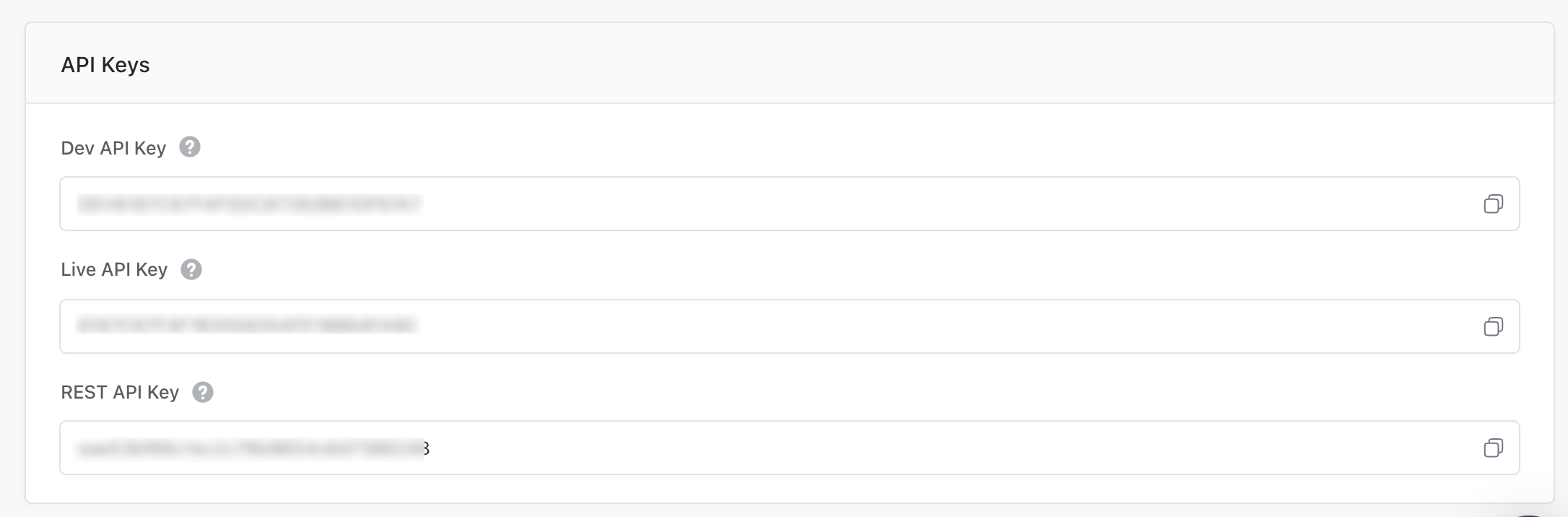
Create the source
Perform the following steps to establish a connection with Batch by using their built-in connector through Sources.1
Open the Sources application
Navigate to the Sources application under Integrate, in the Zeotap CDP App.
2
Start a new source
Click CREATE SOURCE.
3
Choose the category
Choose Customer Engagement Channels as the Category.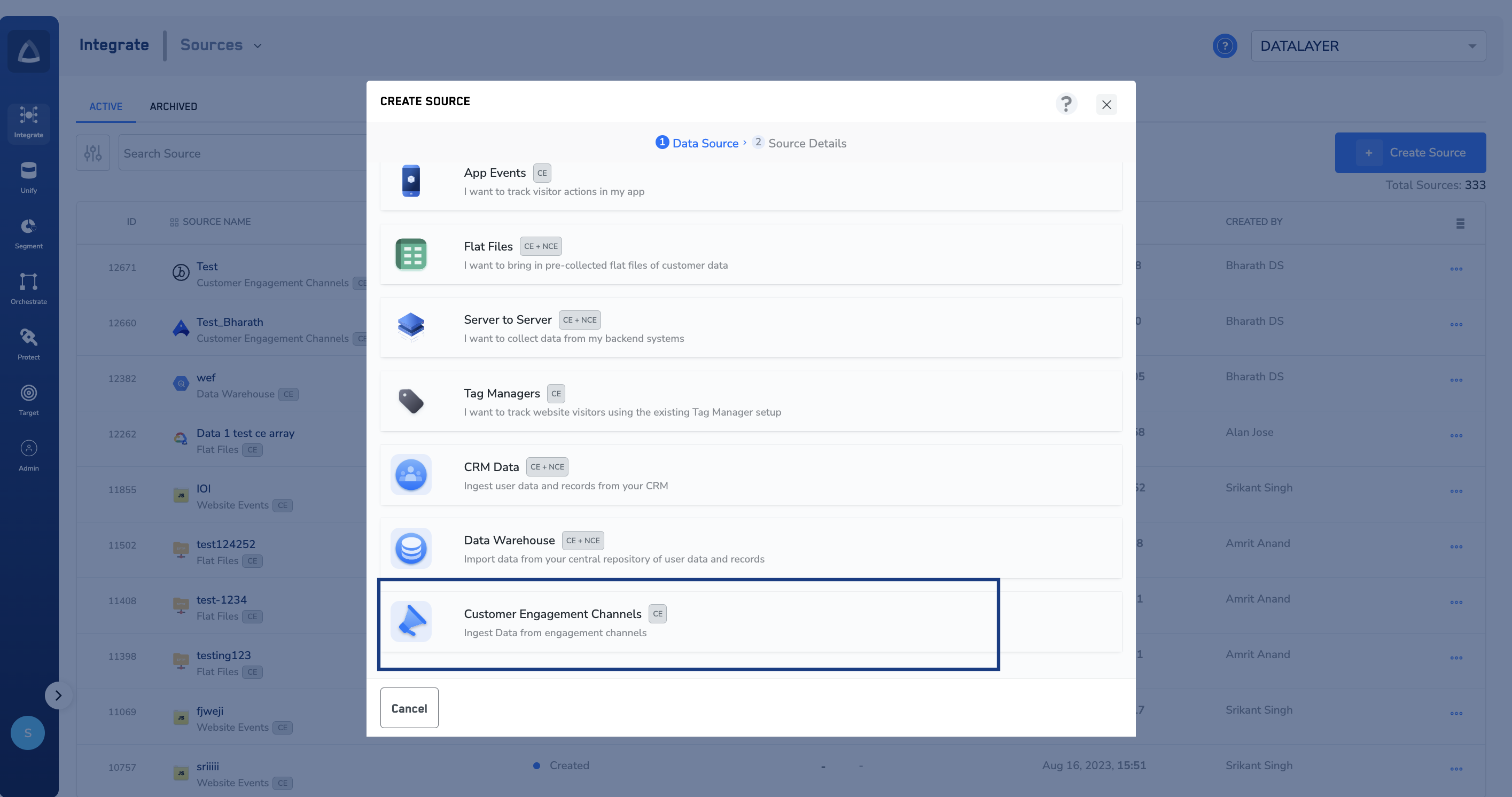
4
Choose Batch as the data source
Click Batch as the Data Source.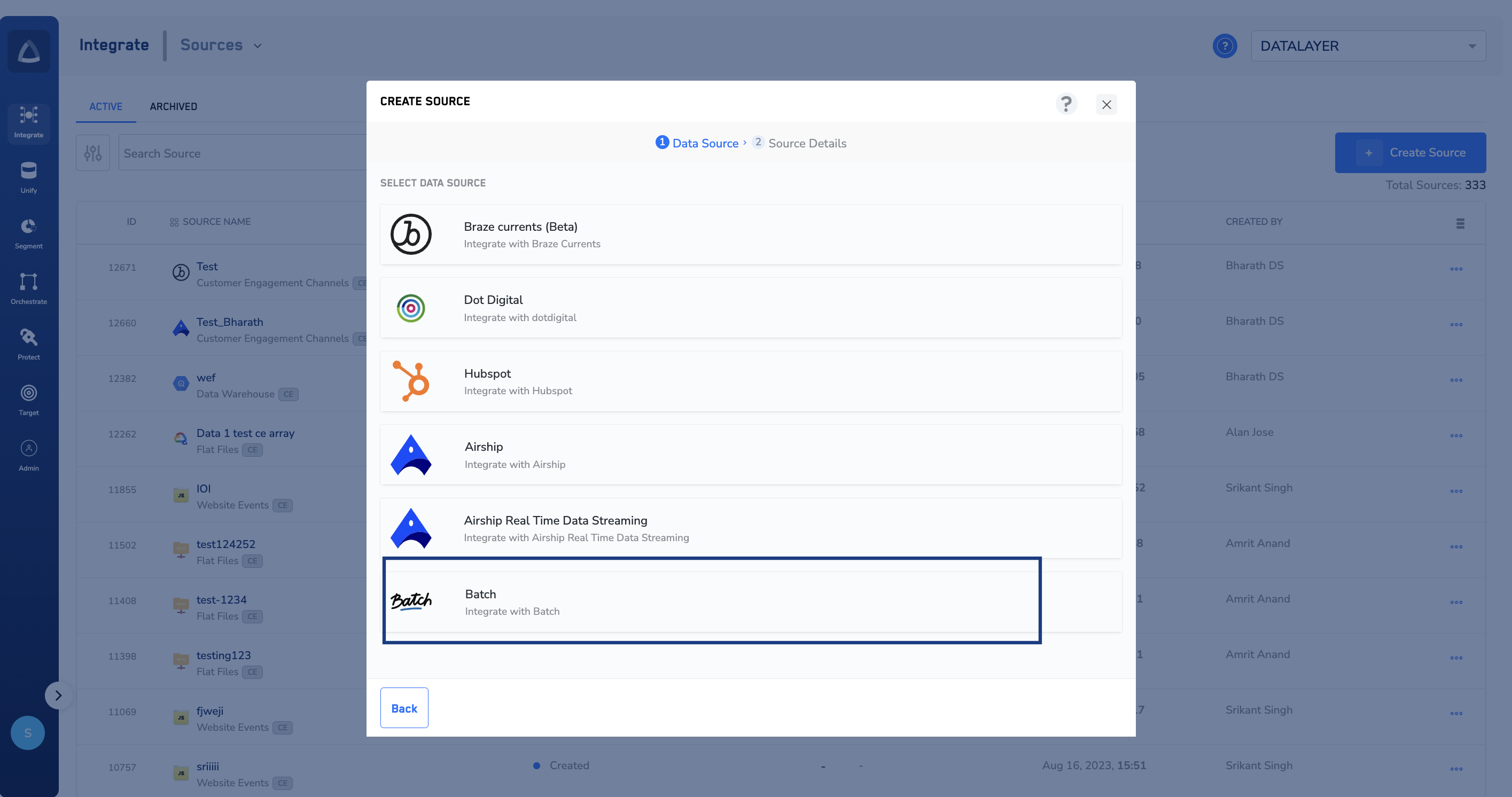
5
Enter the source details
In the window that appears, provide the following details: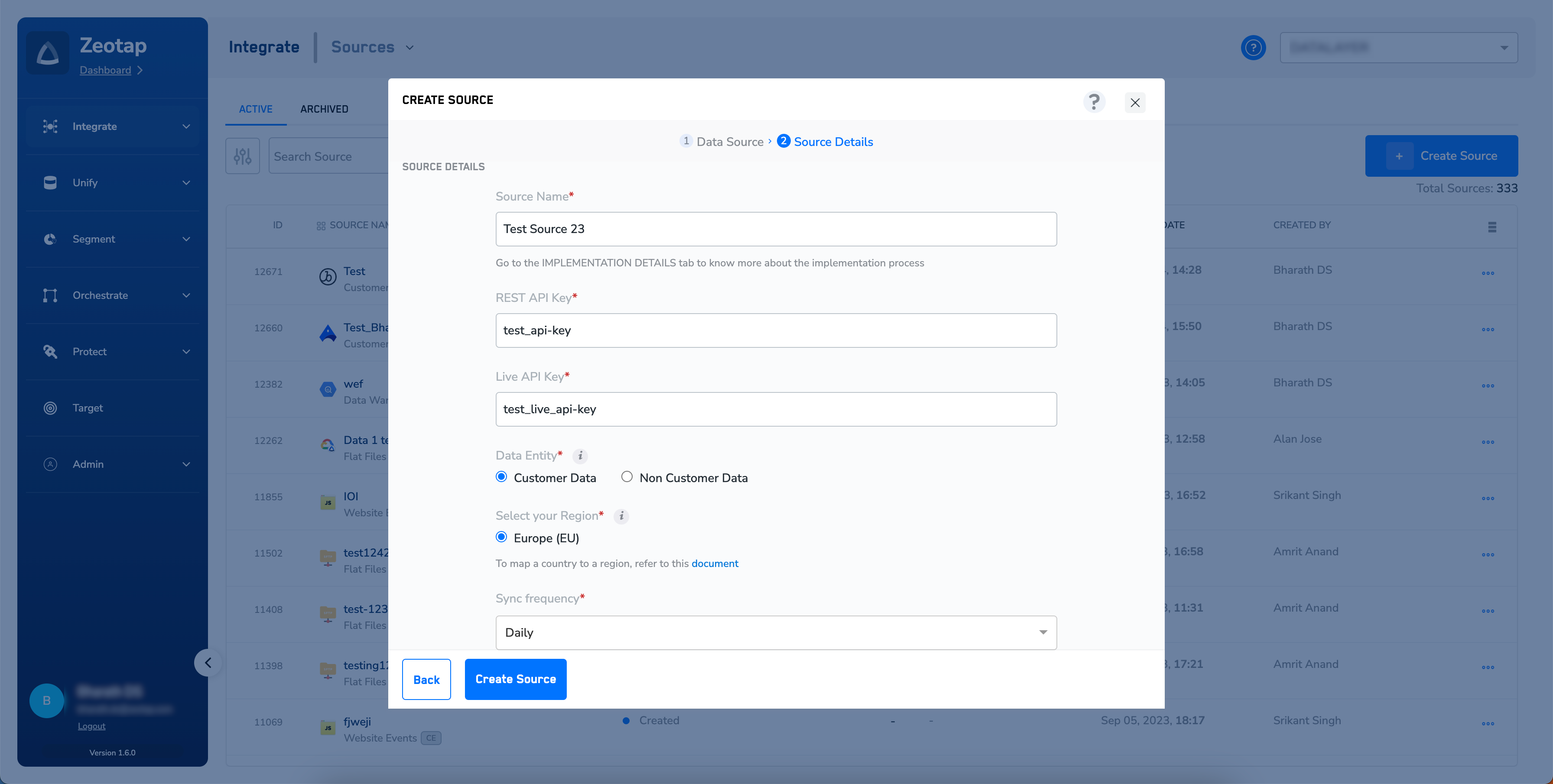
- Source Name — enter a name for the source.
- REST API Key and Live API Key — enter the keys you obtained from Batch.
- Data Entity — select the entity type for the data you are ingesting. A Batch source carries Customer Data (CE) only. To know more about Customer Data and Non Customer Data, refer to Supported Data Entities.
- Region — select the region of upload.
- Sync Frequency — choose the desired frequency from the drop-down list. The first data sync takes place once you create the source; subsequent syncs take place based on the frequency you select here. Zeotap currently supports Daily, Weekly and Monthly.
- File Type — choose either JSON or CSV from the drop-down menu. If you choose CSV, you must also provide the file delimiter: a character or sequence of characters used to separate individual data fields within a file. This can be a comma, tab or semicolon.
6
Create the source
Click CREATE SOURCE.
Verify the source was created
- The new source appears on the SOURCES listing page.
- Open the source you created. The IMPLEMENTATION DETAILS tab carries the essential details of that source.
- The first data sync runs as soon as the source is created. Open the SOURCE REPORT tab on the source detail page to follow the ingestion health and status of the source — see Source Report.
- Map the source’s fields to the catalogue before you use it downstream. An unmapped source does not resolve into unified profiles and cannot be used in an audience.
Troubleshooting
- No new data after the first sync — after the initial sync that runs at creation, Zeotap fetches data on the Sync Frequency you selected, so the next run of a weekly or monthly source can be several days away. Check the last run on the SOURCE REPORT tab.
- Data is arriving but the source is not selectable in an audience — the source has not been mapped to the catalogue yet. See Map the Catalogue.
- The source has stopped ingesting altogether — check whether it has been archived. Archiving retains the data already ingested but pauses all future ingestion; unarchiving resumes it. See Archived Source.
- You want to be alerted when ingestion fails, rather than checking the report — Zeotap can email designated recipients on pull-failure, ingestion-failure, delayed-ingestion and no-data conditions. See Sources for the alert conditions, and contact your Zeotap customer success representative to enable them for your organisation.
FAQ
When does the first sync happen, and how often after that?
When does the first sync happen, and how often after that?
The first data sync takes place once you create the source. Every subsequent sync follows the Sync Frequency you chose during creation — Daily, Weekly or Monthly.
Do I have to provide a file delimiter?
Do I have to provide a file delimiter?
Only when you choose CSV as the File Type. The delimiter is the character or sequence of characters that separates individual data fields within the file, and it can be a comma, a tab or a semicolon. JSON files need no delimiter.
Where do I find the details of the source after creating it?
Where do I find the details of the source after creating it?
Open the source from the SOURCES listing page. The IMPLEMENTATION DETAILS tab carries the essential details of the source, and the SOURCE REPORT tab carries its ingestion health and status.
How soon after mapping does ingestion begin?
How soon after mapping does ingestion begin?
Once a source is mapped, ingestion may take up to 15 minutes to begin; the delay accounts for processing the data collected between the time the source was integrated and when it was mapped. For sources that share data as files, ingestion of each file begins within 15 minutes of the file being dropped successfully. See Exploring Source Reports.