

What this is
The source report is the per-source view of ingestion health in Zeotap CDP. It sits on a source’s details page under the SOURCE REPORT tab, alongside IMPLEMENTATION DETAILS, PREVIEW DATA and CATALOGUE MAPPING, and it answers one question about a single source: of everything this source has sent, how much arrived, how much was ingested and is available for activation, and how much failed. This page covers what the tab is, how to reach it, and what each of its two panels is for. Exploring Source Reports documents every field in both panels in full, and Understanding the Ingestion Log Error explains the errors the report surfaces.Prerequisites
Before you open a source report, confirm:
- The source already exists under Integrate → Sources. A source still in Created status has not received any data yet, so its report has no counts to show.
- You have permission to view source reports for that source.
- The File Ingestion Details panel appears only for sources that share data in files.
Key concepts
The SOURCE REPORT tab is divided into two panels: Data Ingestion Details, which counts records for the lifetime of the source, and File Ingestion Details, which lists the individual files a batch source has dropped.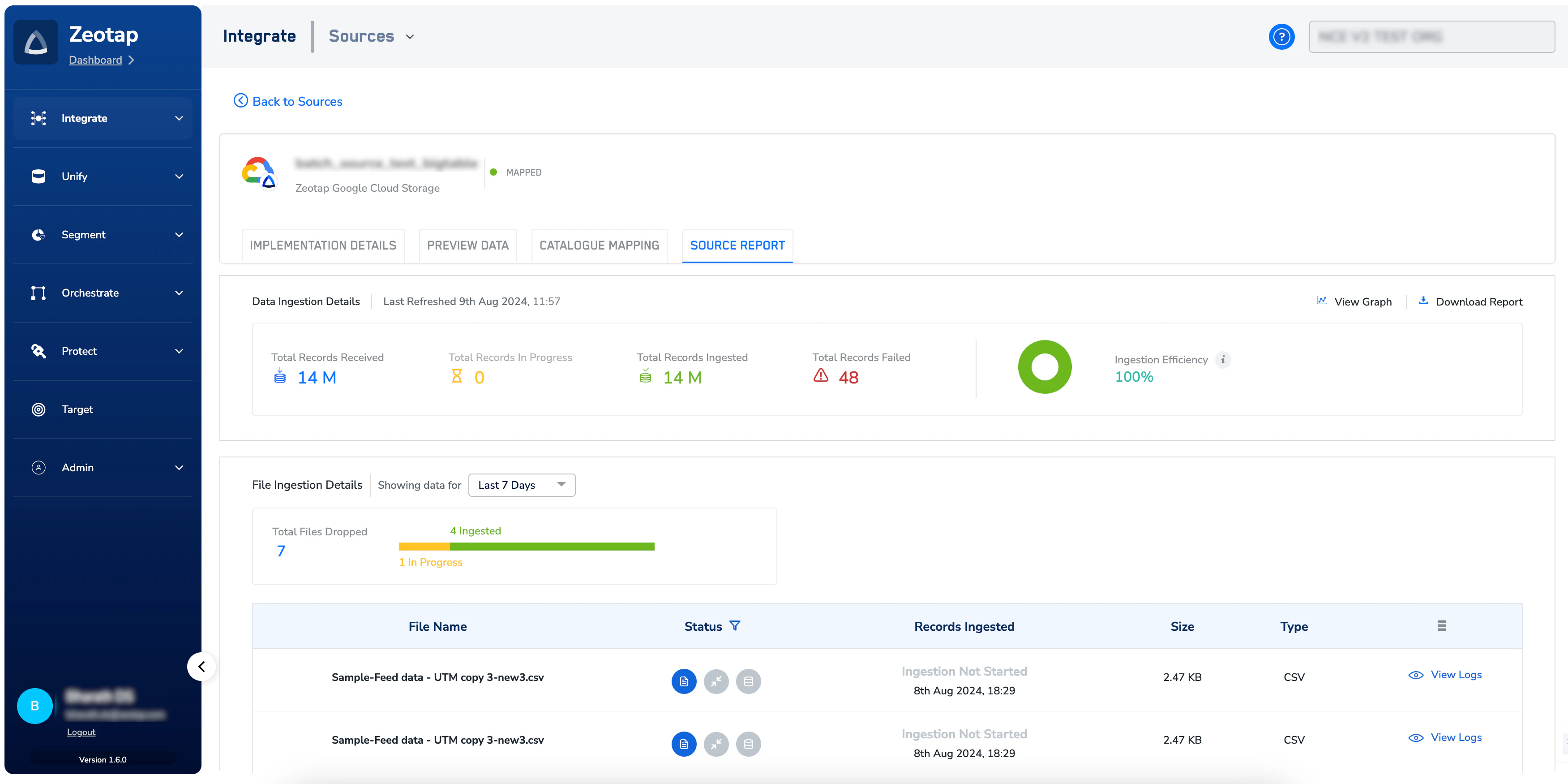
The SOURCE REPORT tab of a source details page, with the Data Ingestion Details panel above the File Ingestion Details panel.
Data Ingestion Details
This panel counts records for the lifetime of the source — from the moment the source was created — and shows how they split between received, in progress, ingested and available for activation, and failed, together with an Ingestion Efficiency figure and a chart of the same split. The timestamp of the last refresh appears beside the panel name. Two controls sit at the top of the panel:- View Graph plots the trend of records received and processed by status over a period you choose.
- Download Report saves an image snapshot of the source report.
File Ingestion Details
This panel lists one row per file a batch source has dropped, and is shown only for sources that share data in files. Each row names the file, its ingestion status for both real-time and batch activation, the records ingested against the total record count, the file size, the file type, and a View Logs link that opens the detailed ingestion log for that file — including the errors found when a file fails. A filter above the table limits the rows to the last 7, 30 or 90 days, with 7 days as the default, and the panel also reports the total number of files dropped.Once a source is mapped, ingestion may take up to 15 minutes to begin, so a report opened straight after mapping can show no counts yet. Exploring Source Reports covers the ingestion timings for streaming and batch sources in full.
Open the source report
1
Open the Sources listing
In Zeotap CDP, go to Integrate → Sources. The listing shows your sources with their status and total records ingested.
2
Open the source details page
Click the source name. The details page opens with the source name, its data source type and its current status in the header, and a Back to Sources link above them.
3
Select the SOURCE REPORT tab
Select SOURCE REPORT. The Data Ingestion Details panel loads first; for a batch source, the File Ingestion Details panel follows it.