Overview
The Talon.One Audience integration lets you update customer profiles in Talon.One by adding or removing them from specific audiences. Zeotap sends a batch of customer profile IDs along with the audiences they should be added to or removed from, so you can keep your promotion, loyalty, and incentive campaigns targeted to the right users in real time. If a customer profile ID sent from Zeotap does not yet exist in Talon.One, it is created automatically when the audience is sent — there is no need to pre-create profiles in Talon.One before using this integration.Prerequisites
- An active Talon.One account and Application.
- A Talon.One API Key.
a. In your Talon.One instance, select the Application you want to use and go to Settings > Integration API Keys > + Create API Key.
b. Enter a Key name and select an expiration date, then click Create API Key.
c. Copy the key immediately — it is shown only once and cannot be retrieved later. - The Talon.One Destination Hostname — the initial part of the URL of your Talon.One instance (for example,
mycompany.europe-west1.talon.one).
Creating the Destination
1
Log in to the Zeotap CDP app and go to the Integrate > Destinations module. Click + Create Destination and search for Talon.One Audience.
2
Select Talon.One Audience. On the Enter Destination Details screen, the left panel describes the integration; enter your credentials on the right.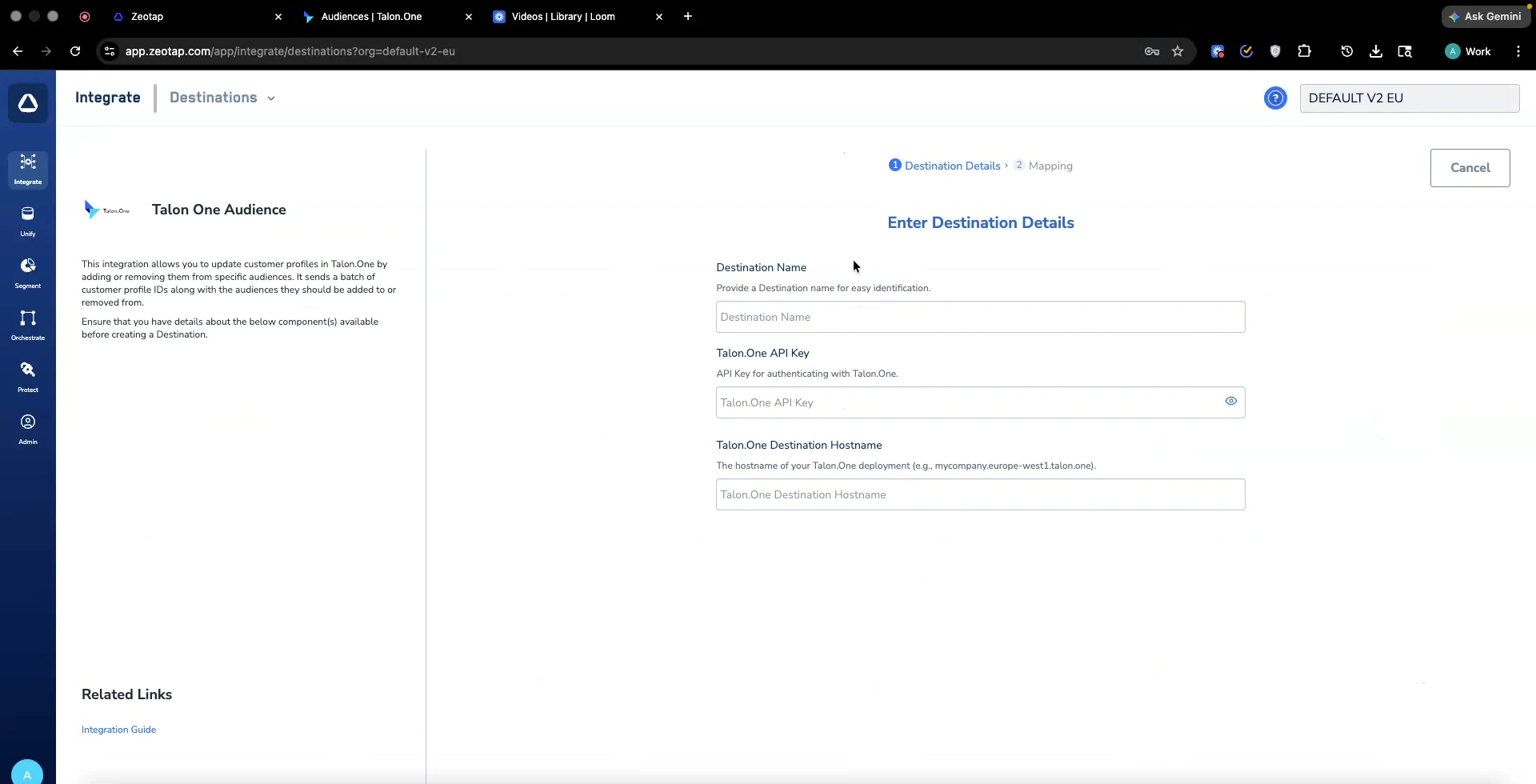
3
Provide the following details:a. Destination Name — a name to identify this destination in Zeotap.
b. Talon.One API Key — the key you generated in Talon.One.
c. Talon.One Destination Hostname — the hostname of your Talon.One instance (copied from the initial part of your Talon.One URL).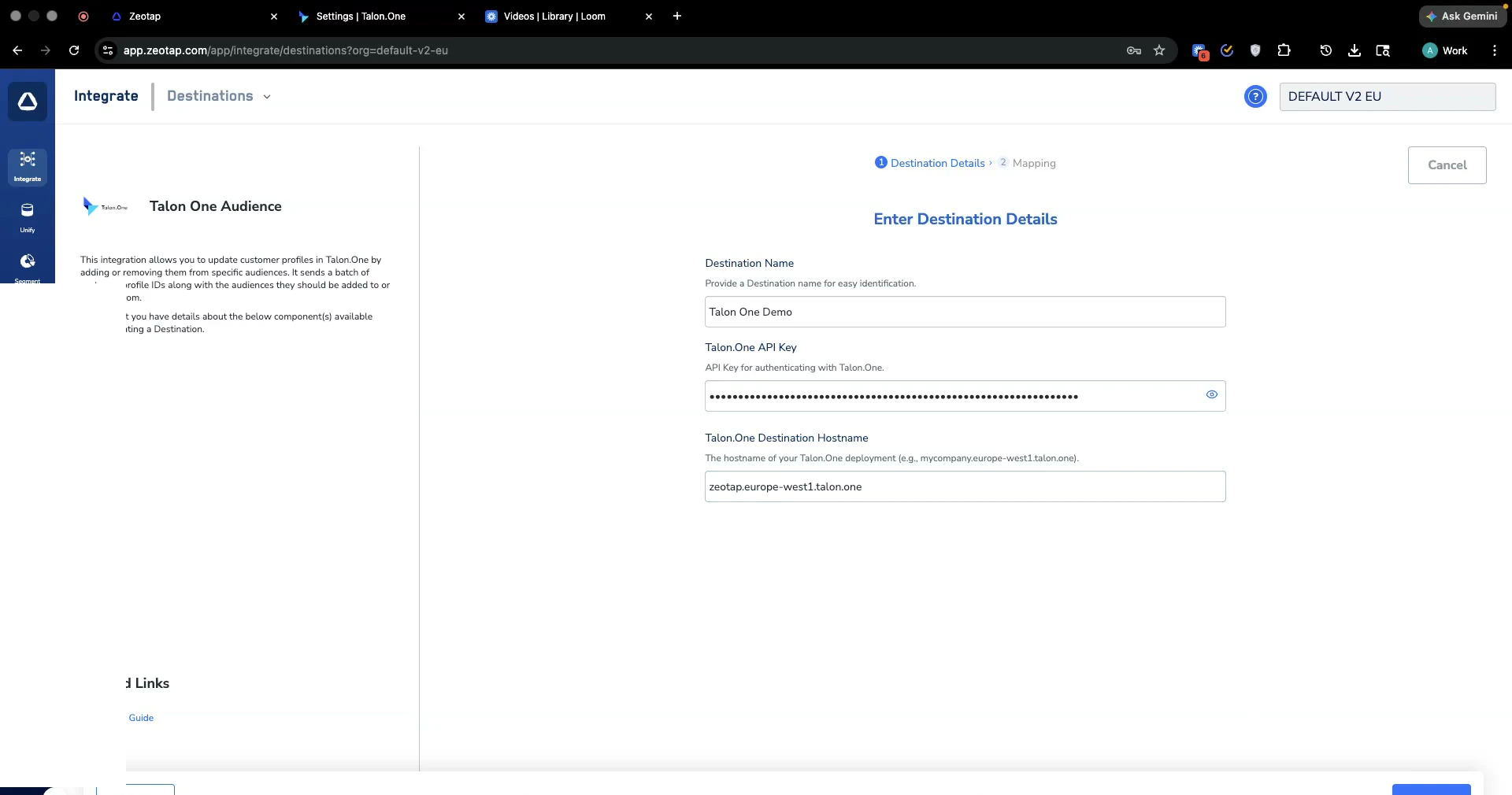
b. Talon.One API Key — the key you generated in Talon.One.
c. Talon.One Destination Hostname — the hostname of your Talon.One instance (copied from the initial part of your Talon.One URL).
4
Click Next to proceed to the Mapping step.
Retrieving the Talon.One API Key
1
In your Talon.One instance, select the Application you want to use and open Settings. Scroll down the left menu and click Integration API Keys.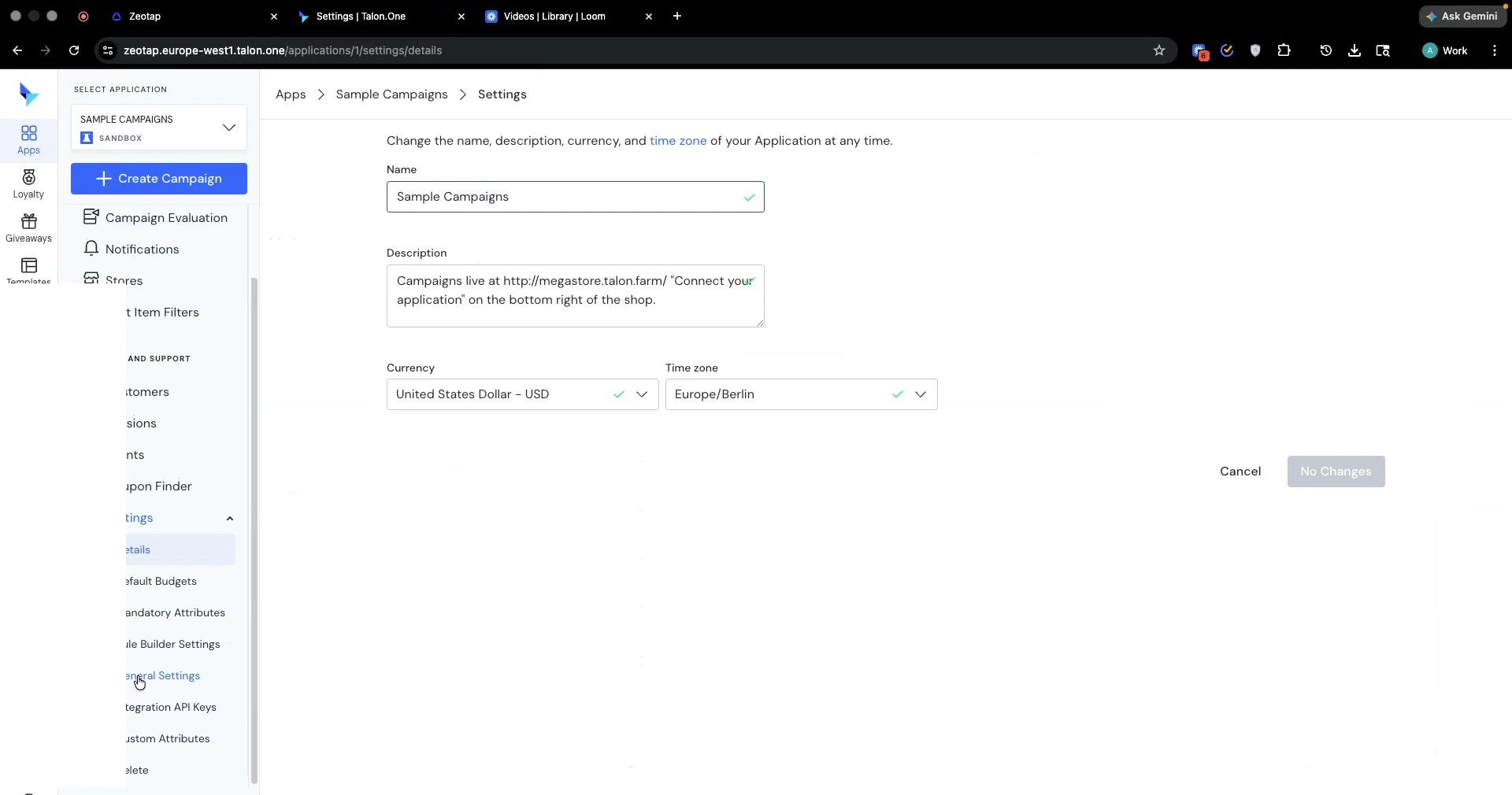
2
Click + Create API Key. Enter a Key name, select an expiration date, choose whether it will be used with a third-party integration, and click Create API Key.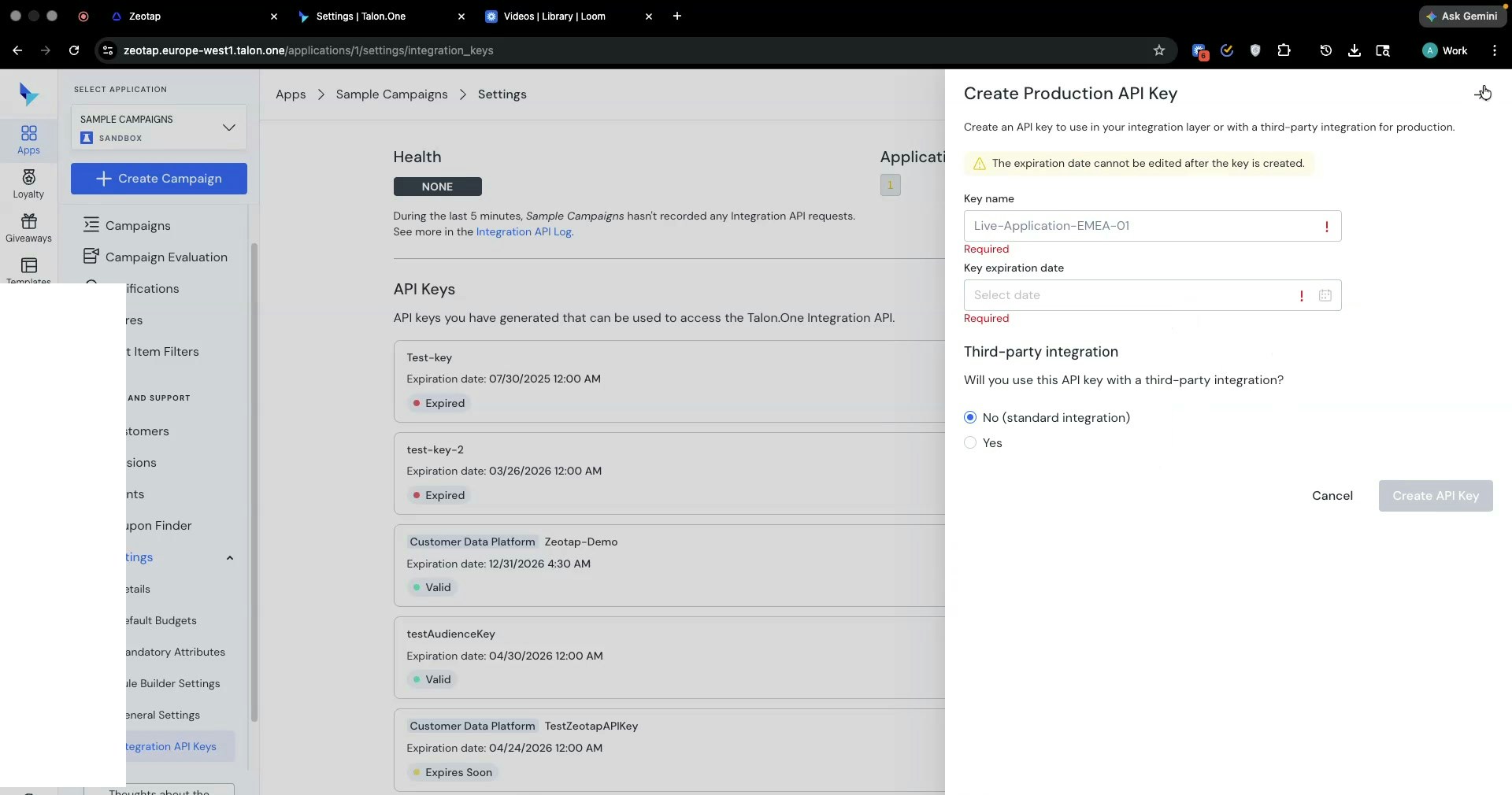
3
Copy the generated API key and paste it into the Talon.One API Key field in Zeotap.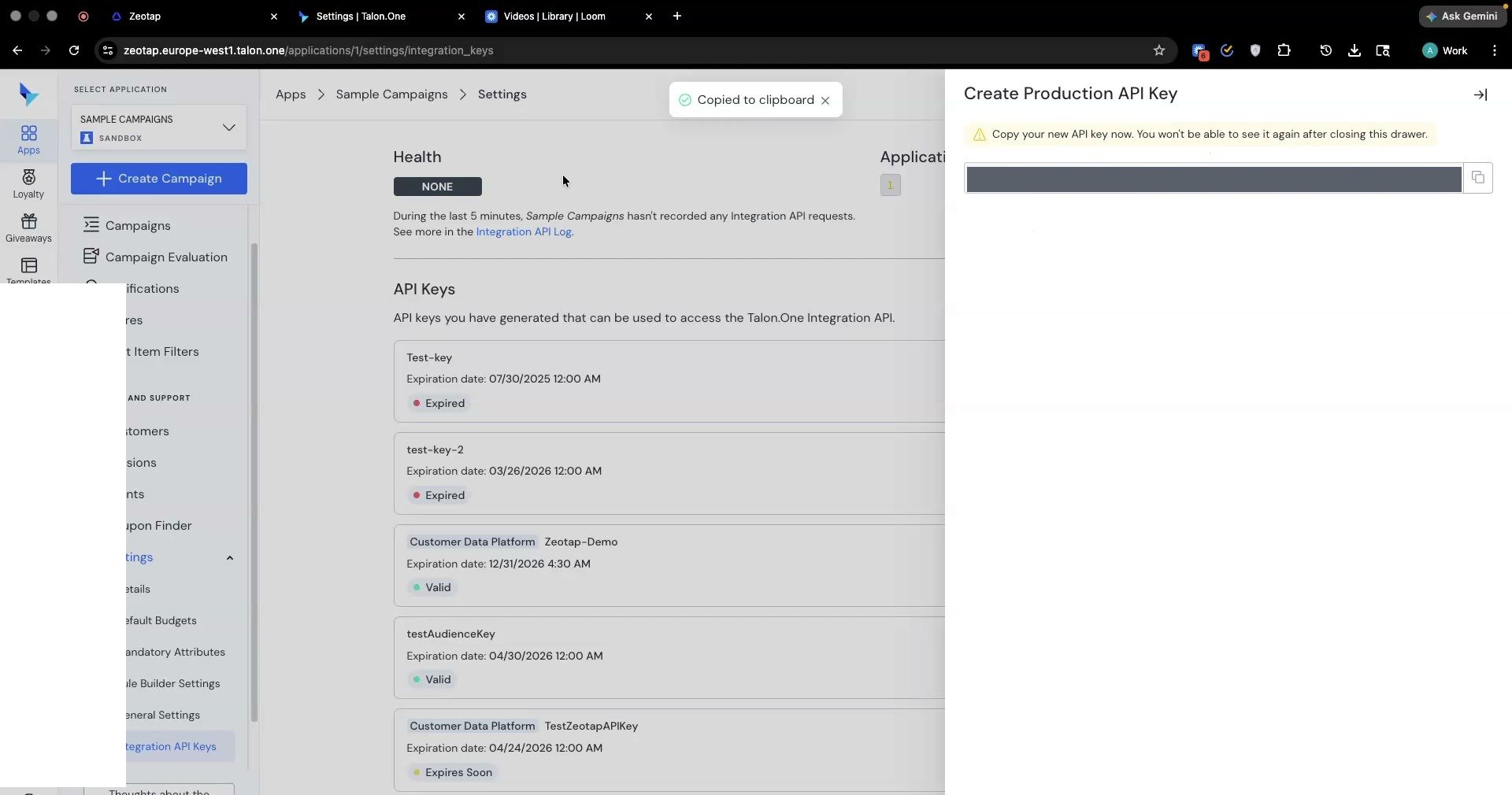
Mapping
On the Mapping step, choose your action and map the fields you want to send to Talon.One.1
Under Choose your Action, select Send Audience to Talon One.
2
Under Map the Fields, map a Catalogue Attribute to the Customer Profile Id destination field. The Customer Profile Id can be any identifier you want to send to Talon.One — for example, email, MAID, or any other customer profile ID. There is no restriction on the identifier type.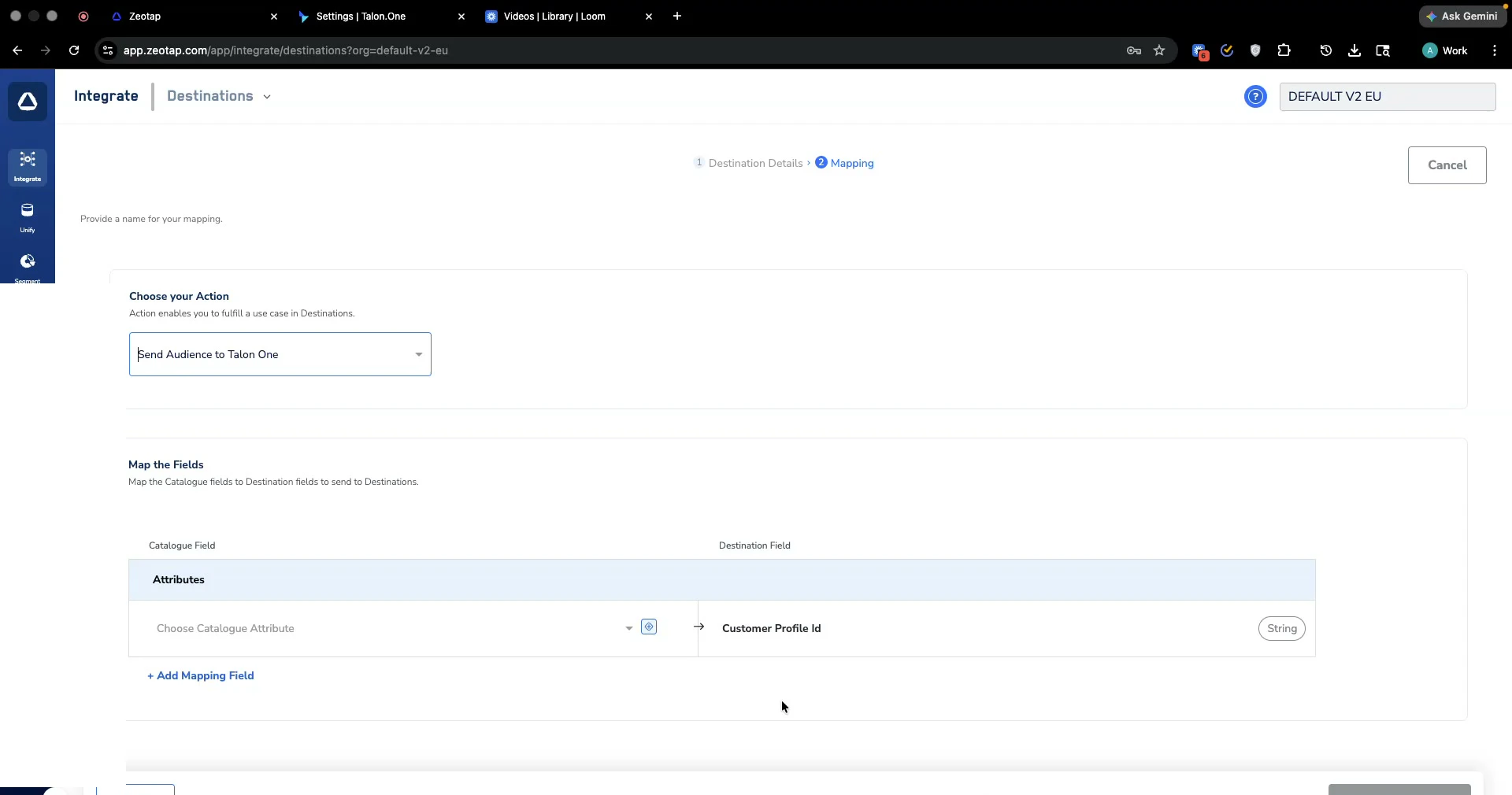
3
Click Create Destination to save the destination.
If a profile sent from Zeotap does not already exist in Talon.One, it is created automatically when the audience is sent. You do not need to pre-create profiles in Talon.One.
Viewing Audiences in Talon.One
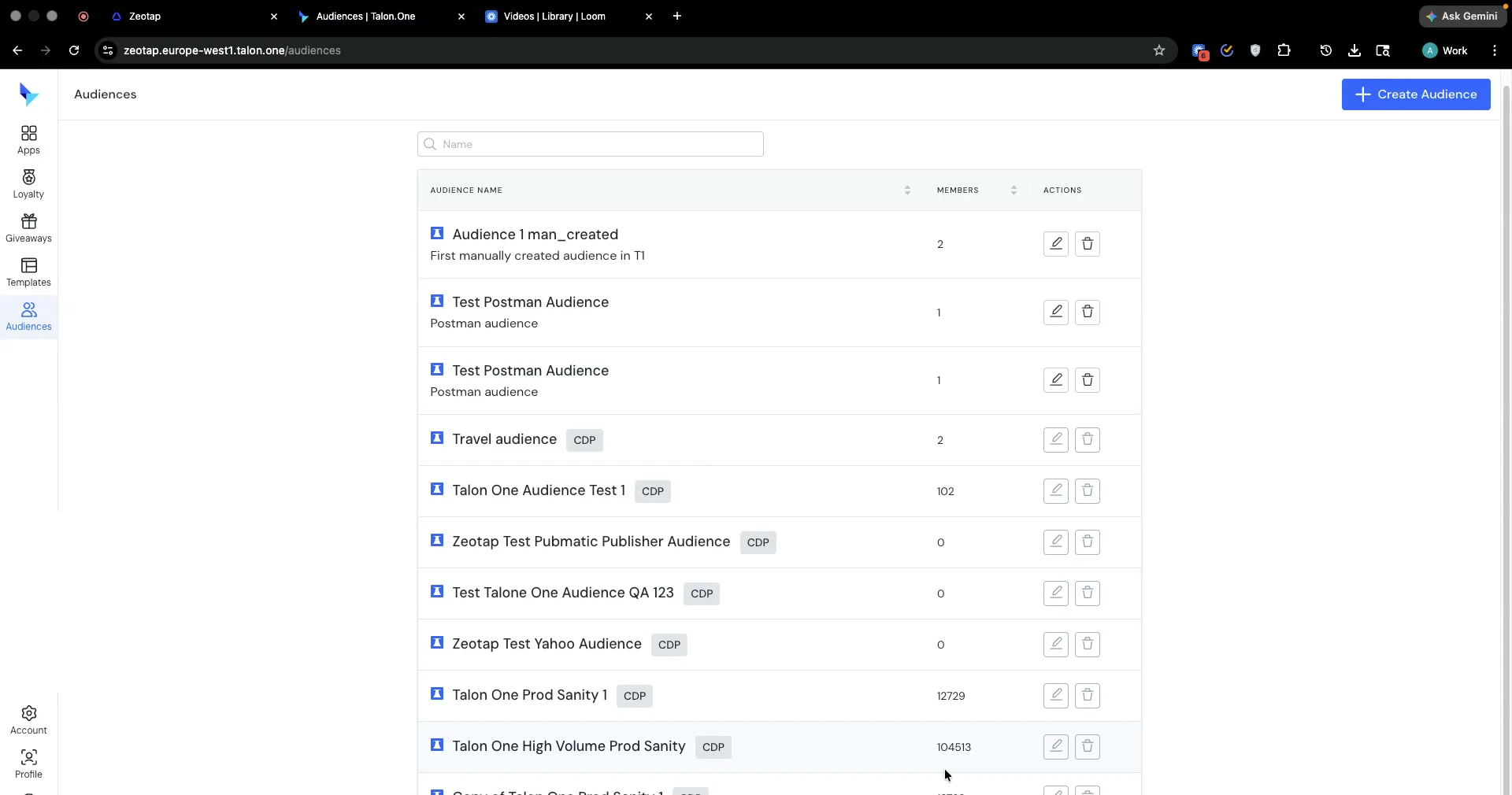
Once you send an audience from Zeotap, it appears in Talon.One under the Audiences tab in the left navigation, along with the number of members in the audience.