

What this is
Criteo Retail Media is a digital advertising platform that places ads near the digital point of sale on retailer and marketplace websites and apps. When you connect it as a Zeotap CDP destination, an audience you build in Zeotap becomes a contact-list segment inside Criteo that you target from your campaigns. This page walks through the one-time setup: collecting the credentials Criteo requires, connecting the destination in Zeotap CDP, choosing the identifier you want to send, and confirming the segment lands in Criteo. Two identifier paths are available. Send email addresses (raw or SHA256-hashed) for offsite targeting, or send a customer identifier — the user ID for a logged-in shopper on the retailer’s own website — for onsite targeting. The path you pick determines which action you select on the destination and which permissions your Criteo account needs.Supported identifiers and actions
This integration supports email addresses (raw and SHA256-hashed) and a customer identifier (the user ID for a logged-in user on the retailer’s website).Prerequisites
Collect these before you start — the destination cannot be saved without them.
- Criteo Advertiser ID. Sign in to your Criteo account (Commerce Yield or Commerce Max) and open Settings > Overview. Criteo labels this value Account ID; you enter it as the Advertiser ID when you create the destination in Zeotap CDP. If you cannot find it, check the setup email Criteo sent when your account was provisioned, or contact Criteo support.
- Criteo admin access. The person completing the Criteo authorization step must have admin access to the Criteo account being connected. Without admin rights the authorization will not succeed and the destination cannot be saved.
- Offsite permission for email-based segments. To push email-based segments — or any other offsite identifier — the retailer ID you are using must have
offsitepermissions enabled in Criteo Retail Media. Request this from your Criteo representative if it has not been granted. - Access to the Zeotap CDP Destinations application on your workspace.
Hashing emails before upload
This integration accepts both raw and SHA256-hashed emails, so pre-hashing on your side is optional. When your governance policy requires that raw emails never leave your environment, hash them yourself after normalising (lowercase, trim whitespace). A minimal Python example:Send Email to Criteo - Retail media action.
Create the Criteo Retail Media destination
Complete the following in Zeotap CDP.-
Create a new destination and pick Criteo Retail Media from the destination catalogue. Give it a descriptive name so you can distinguish it from other Criteo integrations you own — Criteo and Criteo Offline Sales Reporting — which cover different use cases.
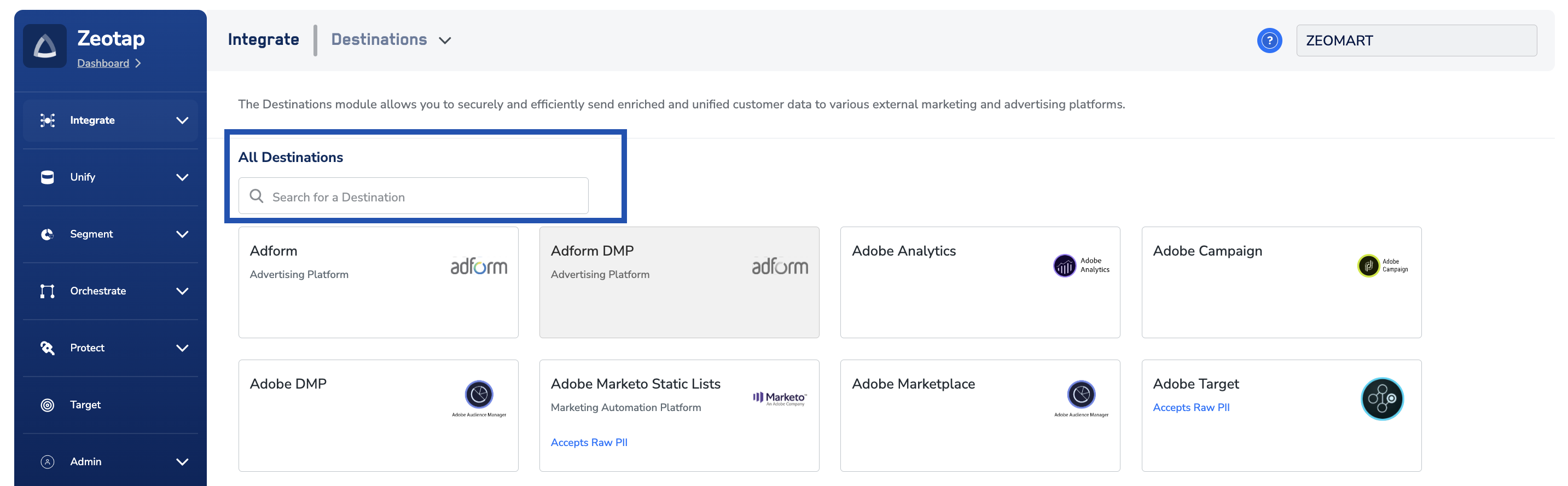
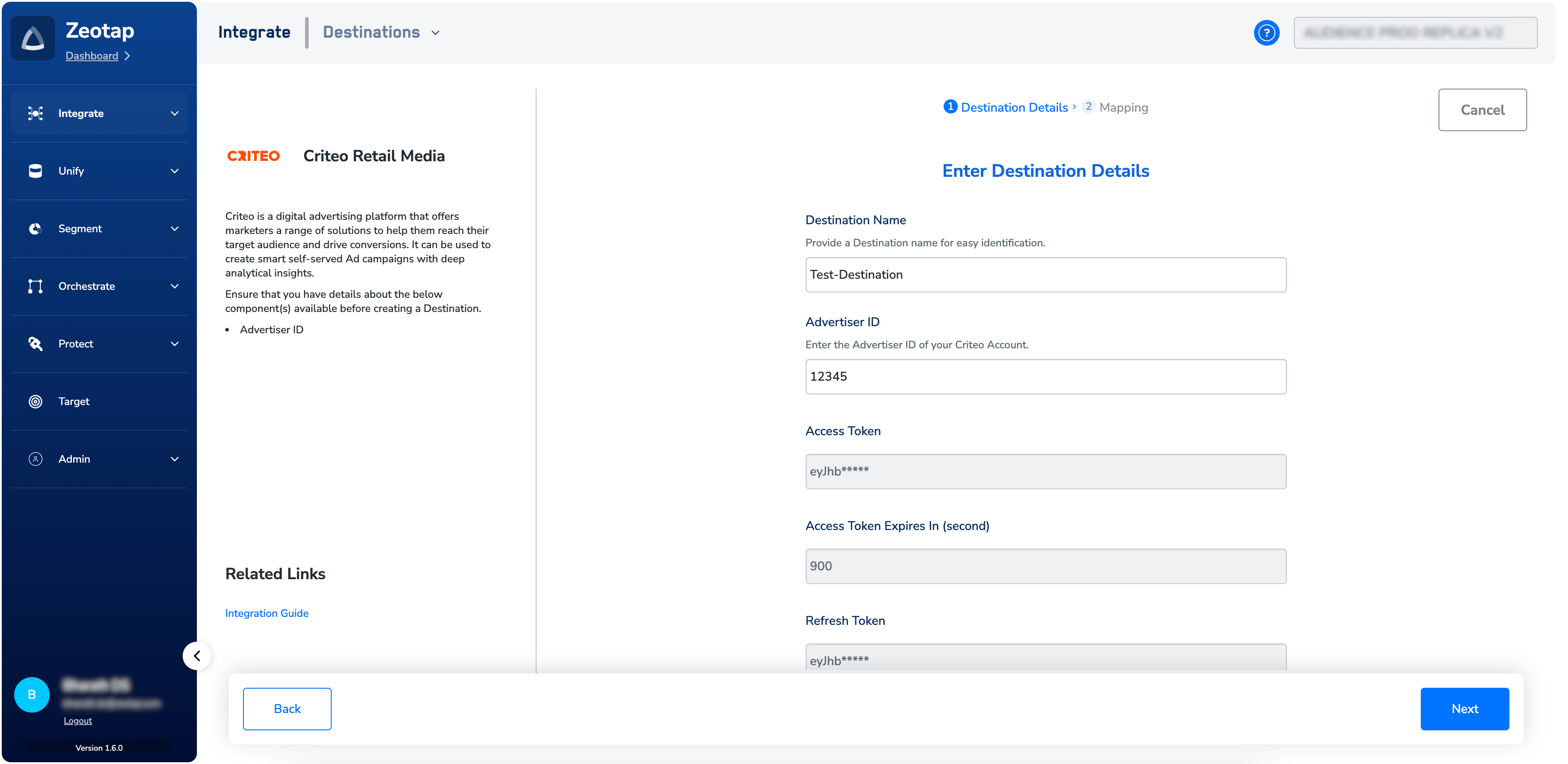
- Enter the Advertiser ID you collected in the prerequisites.
-
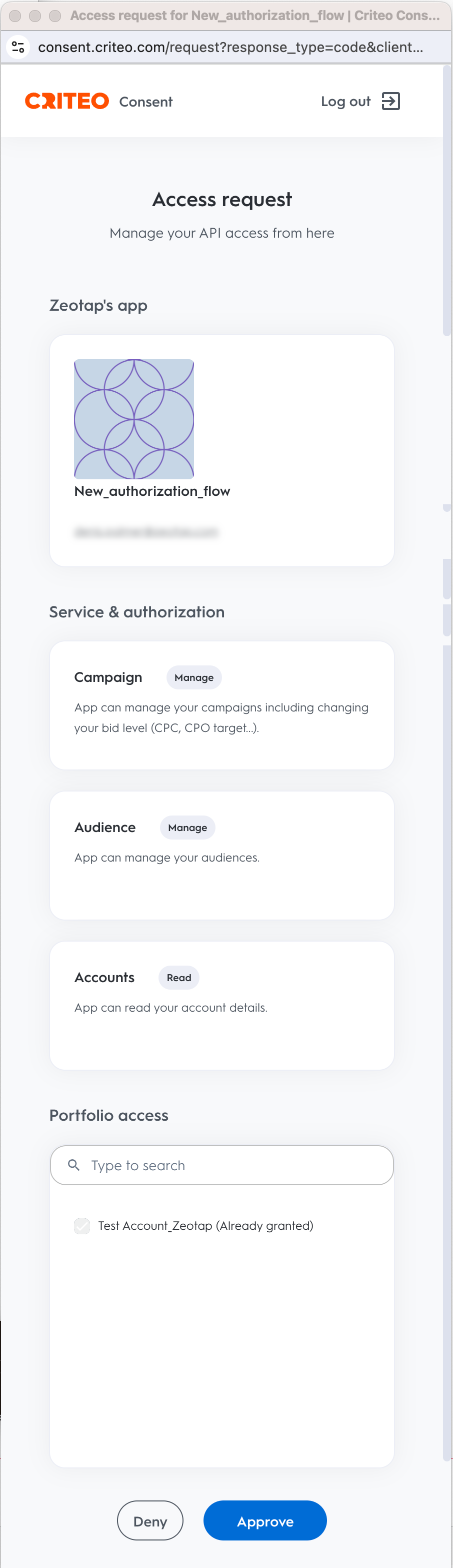
Start the Criteo connection. Zeotap CDP redirects you to the Criteo sign-in page. Sign in with an account that has admin access on the Criteo side, then approve the request that grants Zeotap CDP access to your Criteo account.

-
After you approve, Zeotap CDP returns you to the destination configuration screen, where the OAuth authorization is handled automatically in the background.
-
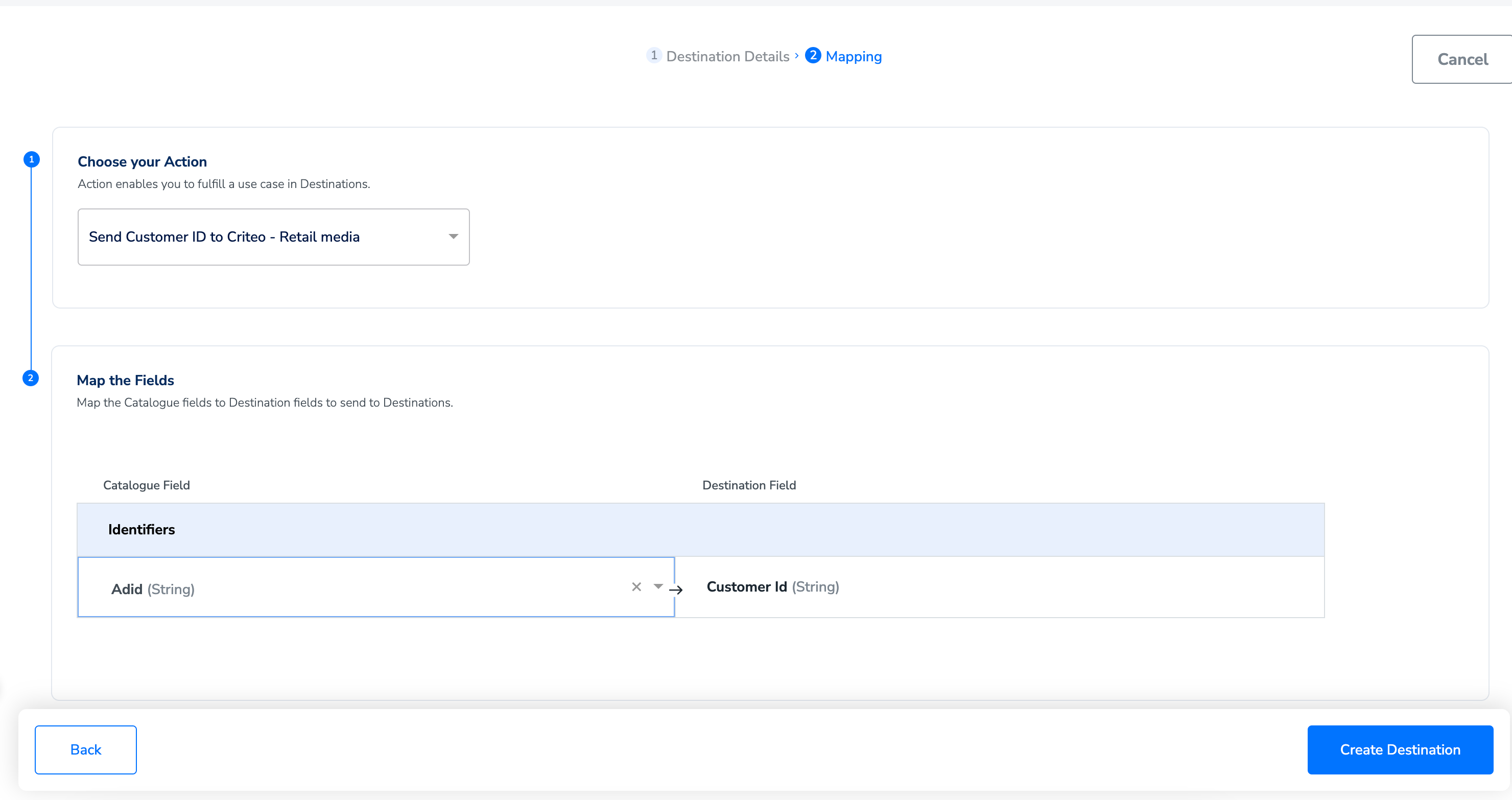
Select the action that matches the identifier you want to send:
- Send Email to Criteo - Retail media — for raw or SHA256-hashed email addresses. Requires the offsite permission on your retailer ID.
-
Map the output identifiers from your Zeotap CDP schema onto the fields Criteo expects for the action you selected, then save the destination.
Verify the destination is active
To confirm the setup worked end-to-end:- In Zeotap CDP, link the new destination to a small test audience and let the next refresh run.
-
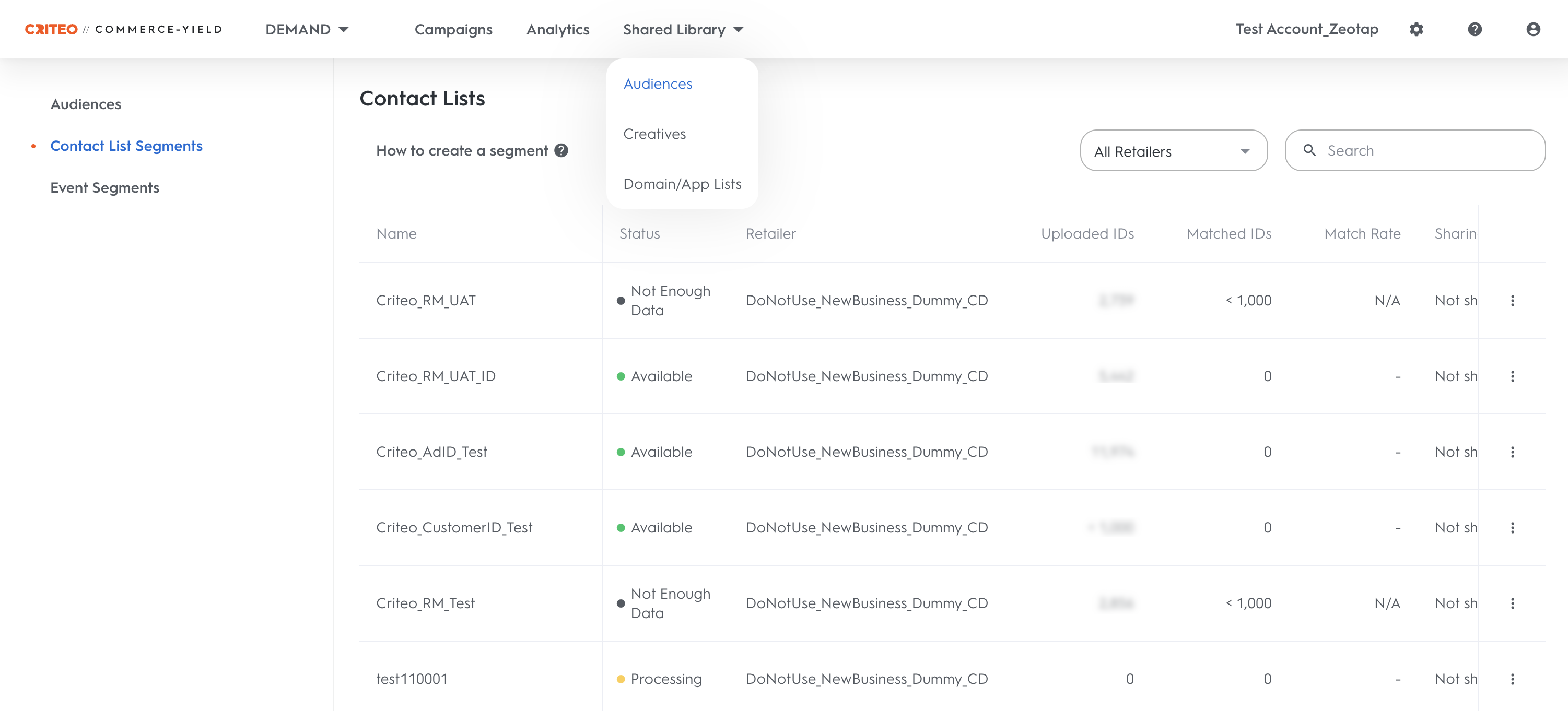
Sign in to Criteo (Commerce Yield or Commerce Max), go to Shared Library > Audiences and Segments and open the Contact List tab. The audience pushed from Zeotap CDP appears there under the name you gave the audience.
Troubleshooting
- Authorization did not complete. Confirm the person who signed in to Criteo has admin access on that Criteo account. Reopen the destination, restart the Criteo connection, and redo the sign-in and approval step with an admin account.
- Access token expired and did not refresh. Zeotap CDP uses the refresh token Criteo returned during authorization to renew the access token automatically. If refresh fails — for example, because the authorizing admin lost admin access, or the Criteo application authorization was revoked on the Criteo side — reopen the destination and redo the Criteo sign-in and approval step to regenerate both tokens.
- Email-based action rejected by Criteo. Confirm that your retailer ID has
offsitepermissions enabled in Criteo Retail Media. Without that permission, Criteo accepts only onsite identifiers on this integration. - Audience does not appear in Criteo. Confirm the audience refresh completed successfully on the Zeotap side and that the destination is linked to the audience. If the refresh succeeded but the segment is still not visible in Criteo, contact your Zeotap customer success representative.
- Wrong Criteo integration. Zeotap CDP offers three Criteo destinations. If you need programmatic Criteo activation with MAIDs, cookies (Gum IDs), or hashed emails, use Criteo instead. For attributing offline transactions back to campaigns, use Criteo Offline Sales Reporting.
Next steps
- Explore Criteo → — the programmatic Criteo destination for MAIDs, Adform-style cookies (Gum IDs), and hashed emails.
- Explore Criteo Offline Sales Reporting → — connect in-store or call-centre transactions back to your digital campaigns.
- Explore the Integrations Master List → — see every source and destination Zeotap CDP supports.