

What this is
The Insider destination sends data out of Zeotap CDP to Insider: the attributes and identifiers of a linked audience, and the events produced by workflows you build in Journeys. To bring data in the opposite direction, from Insider into Zeotap CDP, use the Insider Webhook source. Insider is a customer experience (CX) platform that enables businesses to deliver personalised and data-driven interactions across multiple channels. The platform helps companies analyse customer behaviour, segment audiences, and automate marketing efforts to enhance engagement and conversions. With this destination you can:- Share audience data from Zeotap CDP to Insider for activation and targeting.
- Forward events from Zeotap CDP to Insider.
- Trigger automation using custom events sent from Zeotap CDP Journeys to Insider.
- Send event properties and user attributes from workflows created in Zeotap CDP to Insider.
Supported identifiers and actions
You can use this integration to send any identifiers such as Email, Phone number (E.164 format), UUID, Custom identifiers and other attributes of your choice. The destination offers two activation routes. Which one you use decides which action is available on the mapping screen:
The Journeys actions are:
- Add to Cart Event
- Cart Page View Event
- Custom Event
- Item Removed from Cart Event
- Purchase Event
- Send Homepage View Event
- Send Listing View Event
- Send Product Detail Page View Event
Prerequisites
Obtain the following from your InOne (Insider) account before you create the destination in Zeotap CDP:- API key — generated in InOne. See Generate an Insider API key below.
- Partner name — the partner name of your Insider platform.
Generate an Insider API key
Insider uses Basic Authentication, which requires a username and an API key. After setting up your InOne (Insider) account, generate a Unified Customer Database (UCD) API key to push data using the Insider Upsert API. Perform the following steps in Insider to generate the API key:1
Log in to InOne.
2
Navigate to Username > Settings > InOne Settings > Integration Settings as shown below.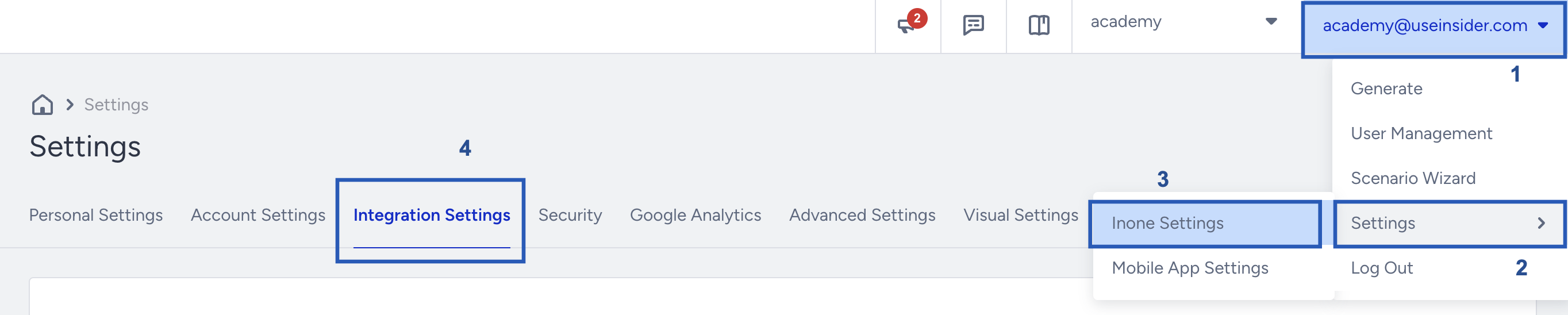
3
Scroll to the API Keys section and click Generate API Key.If you have existing API keys, they appear in this section.
4
Select the API type to generate the key and click Next to create the key.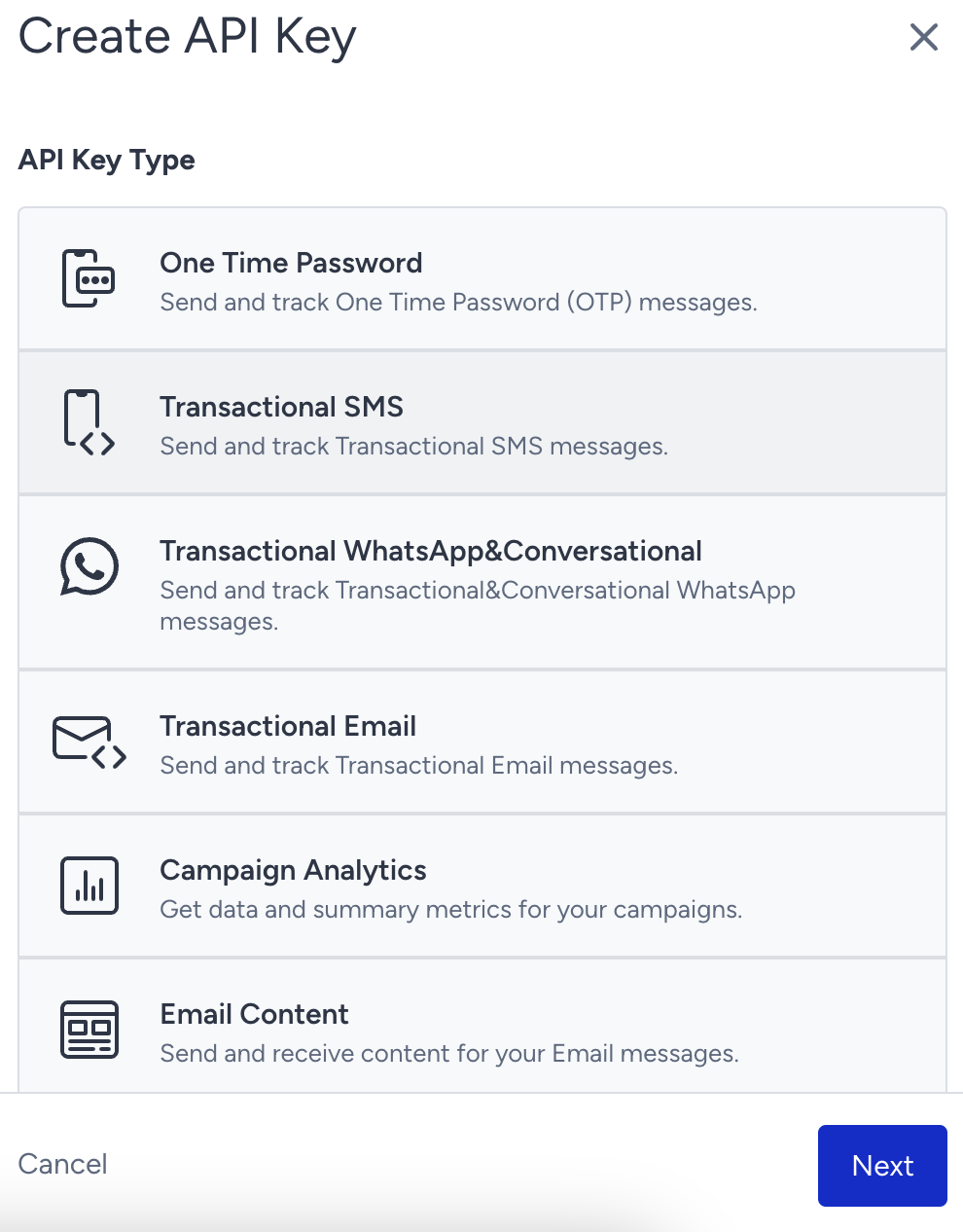
5
Click Copy to save the key before closing the prompt. You cannot access the key after closing the window, so copy and store it securely.
Delete an Insider API key
To delete an existing API key, click Delete next to the key in the API Keys section.Create the Insider destination
Perform the following steps to create the destination in Zeotap CDP:1
Log into the Zeotap CDP App and go to the DESTINATIONS application.
2
Click + Create Destination.
3
Under All Destinations, search for Insider.
4
Click Insider. A screen appears displaying details about the destination on the left and the required integration fields on the right. Enter the following details: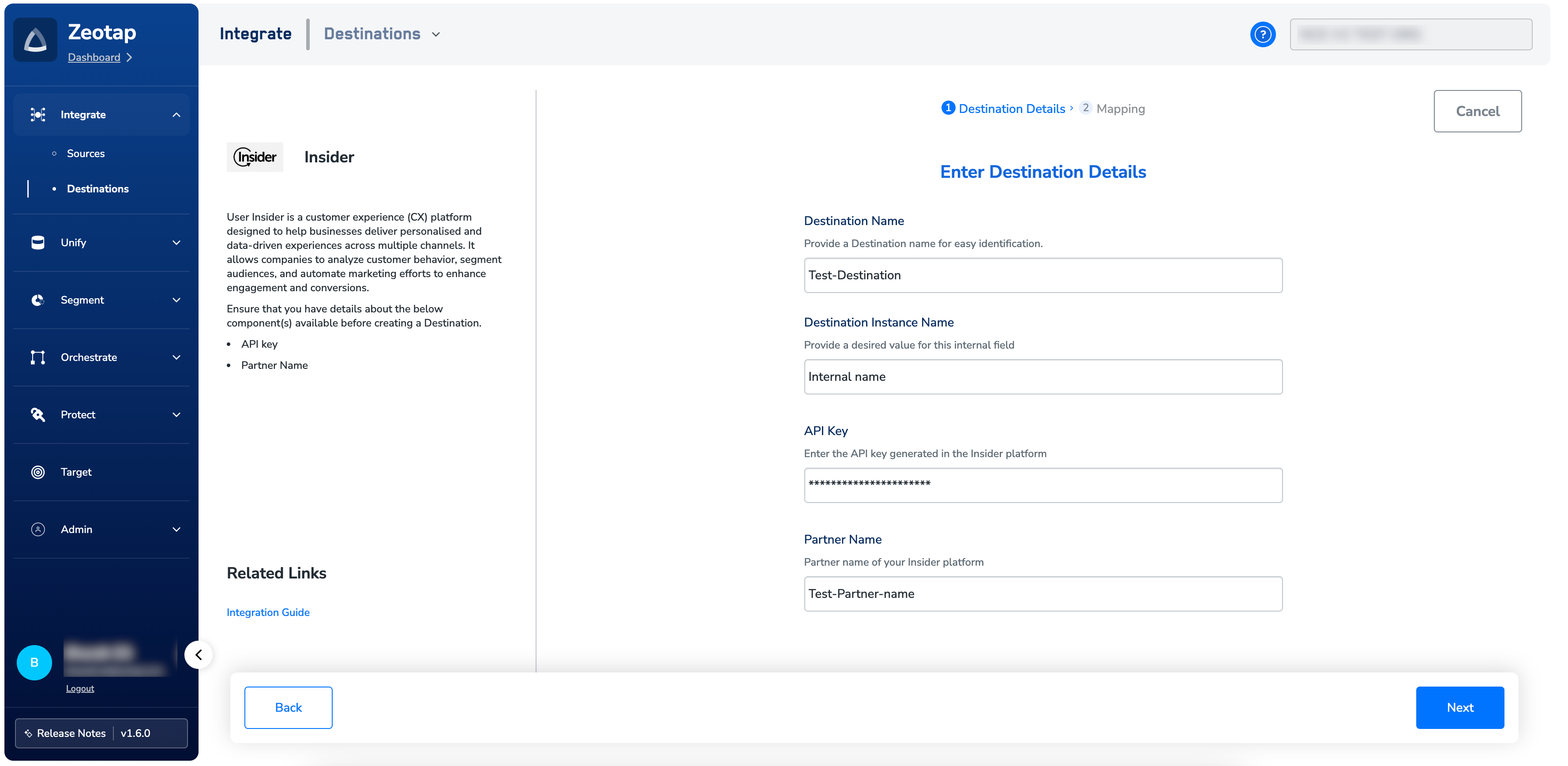
- Destination Name: Enter a name for the destination.
- Destination Instance Name: Provide a desired value for this internal field.
- API Key: Enter the API key generated in Insider.
- Partner Name: Enter your Insider partner name obtained from your Insider account.
To open the help documentation for this integration from inside the app, click Integration Guide under Related Links.
5
Click Next to proceed to mapping.
Choose the action and map the fields
On the Actions and Mapping screen, choose the action depending on whether you want to use Audiences (batched data activation) or Journeys (real-time activation), depending on your use case. For how mappings work in general, see Define the mapping.Audiences (batched data)
Supported action: Send Attributes and Identifiers Under Map the Fields, map Catalogue fields and Destination fields for audience attributes and identifiers. Required fields:- User Identifiers: Email, Phone number, UUID
- User Attributes: Name, Age, Gender, Language, City, Country, Custom attributes
Journeys (real-time activation)
Supported actions: the eight event actions listed under Supported identifiers and actions. Under Map the Fields, for each Journey action, the system populates a list of identifiers and attributes. Ensure to map Catalogue fields and Destination fields appropriately. Required fields:- You must mandatorily map the Event Name and Timestamp fields for all events.
- Map additional event parameters based on the event type you wish to target.

Link an audience to the destination
For the batch route, link an audience to the created destination in the Audiences application. See Link an Audience to the Destination. For the real-time route, attach the destination to a workflow in Journeys by adding a Send to Destinations node at the point in the workflow where the event should be sent. See Add or Delete a Node.Verify the activation worked
Check both sides of the delivery. In Zeotap CDP — confirm the audience–destination pair recorded a completed run with a non-zero qualified count, or, for the real-time route, that the workflow reached the Send to Destinations node. See Verify the activation worked. In Insider — the destination writes through the Insider Upsert API into the Unified Customer Database (UCD), so confirm the records and attributes you sent are present there.Troubleshoot the Insider destination
You no longer have the API key value
- In InOne, go to Username > Settings > InOne Settings > Integration Settings and generate a new API key, following Generate an Insider API key.
- Copy the new key before you close the dialog.
- Enter the new key in the API Key field of the Insider destination in the Zeotap CDP App.
- Delete the key you can no longer use, using the Delete control next to it in the API Keys section.
A Journeys delivery is rejected for a missing mandatory field
- Open the destination’s mapping for the action the workflow uses.
- Confirm a Catalogue attribute is mapped to Event Name and to Timestamp. Both are mandatory for every event action, and a delivery that omits a field the platform requires is rejected — see Why deliveries fail.
- Map any additional event parameters the event type needs, then re-run the activation.
When to escalate
If the symptom is not covered above, or the delivery records an error in Zeotap CDP, see Why deliveries fail and When to contact support for the error strings that surface on an audience–destination pair and the details to include in a support request.Next steps
Link an Audience to the Destination
Activate a batch audience against the destination you just created.
Add or Delete a Node
Add a Send to Destinations node so a Journeys workflow can deliver events.
Insider Webhook source
Bring Insider events into Zeotap CDP in the opposite direction.
Destinations
How destinations, actions and mappings work across every platform.