

What this is
The Facebook destination pushes audience membership from Zeotap CDP into a Meta Custom Audience attached to a Facebook Ad Account managed through Meta Business Manager. It uses mobile advertising IDs (MAIDs) as the match key and supports adding members (ID extension) and removing members (delete), so the Custom Audience in Facebook stays aligned with the source segment in Zeotap CDP. Once linked, you can target the audience across Facebook’s ad placements. For richer identifier support — hashed emails, phone numbers, names, and Facebook External IDs — with access-token authentication, use Facebook 1P (Meta) instead. For server-to-server event tracking, use Facebook Conversions API.Prerequisites
Complete each of the following before creating the destination in Zeotap CDP:
- A Meta Business Manager account with a Facebook Ad Account linked to it.
- The 16 digit Ad Account ID for that Facebook Ad Account.
- Accepted Custom Audiences Terms of Service for the Ad Account. Open the Custom Audiences Terms of Service page and click Accept in the left corner. This step is mandated by Facebook from September 2021.
- An audience in the Zeotap CDP Audiences application with MAID identifiers available for activation.
Locate your Ad Account ID
The Ad Account ID is a 16 digit number identifying the Facebook Ad Account that will receive audience data. Find it in Facebook Ads Manager under the Account drop-down menu. Confirm the Ad Account is linked to your Facebook Business Manager before proceeding.Supported identifiers and actions
This integration supports MAID identifiers for both Targeting and Audiences.
MAID identifier formats accepted by the destination:
Configure the Facebook destination
1
Open the Destinations application
Log into the Zeotap CDP App and go to the DESTINATIONS application. Click + Create Destination to open the destination catalogue.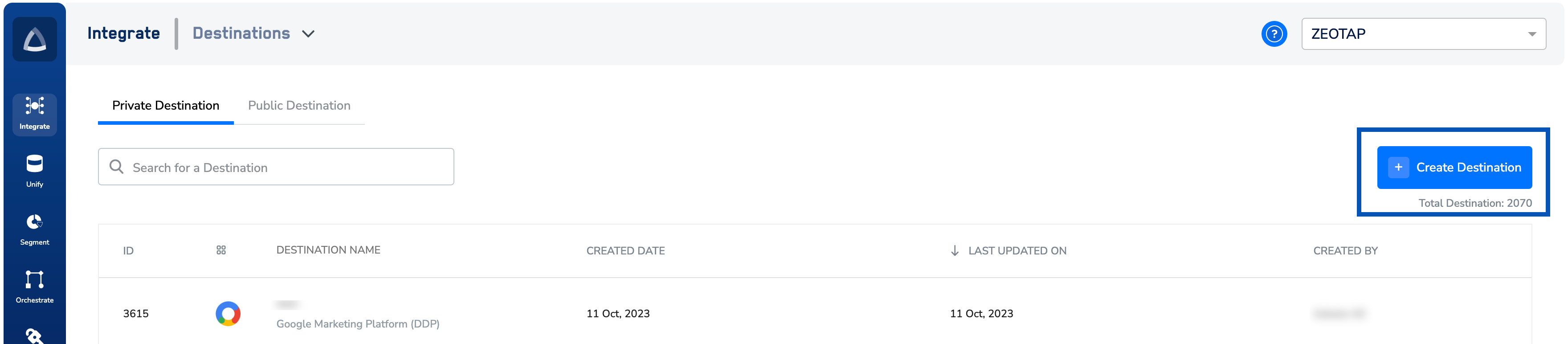
2
Select Facebook from the catalogue
Under All Destinations, search for Facebook and click the Facebook tile. The right pane displays the fields required to establish the integration.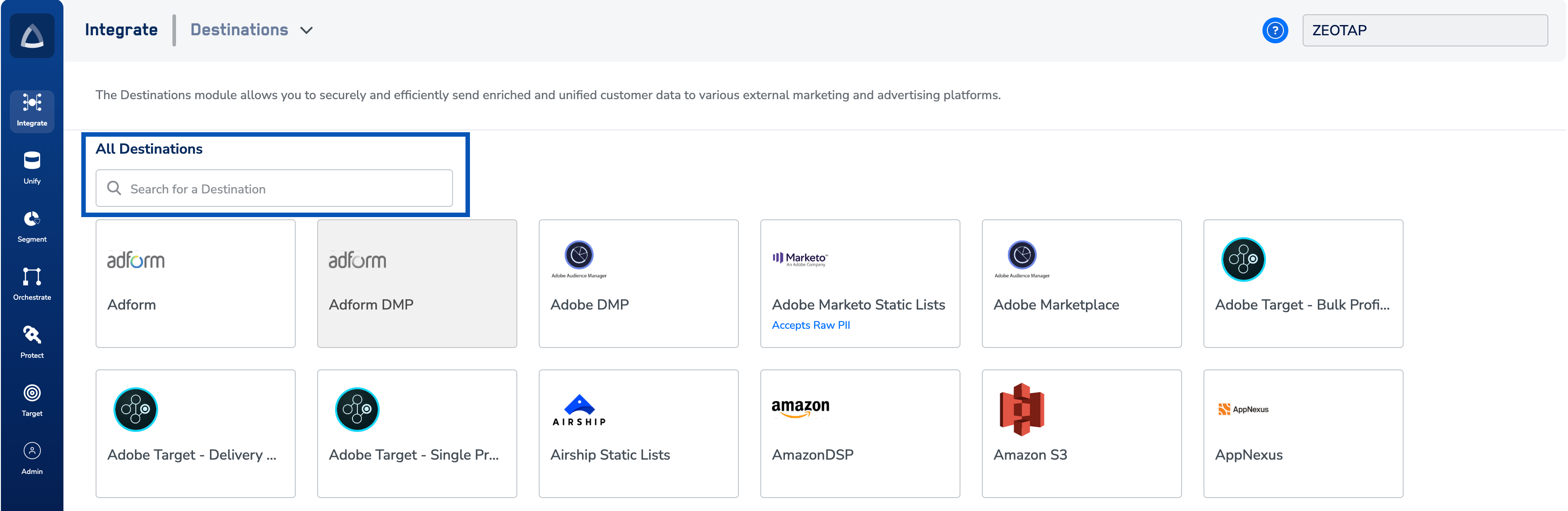
3
Enter the destination details
Provide the destination configuration:a. Enter a name for the destination.b. Enter the 16 digit Ad Account ID located above.c. Review the values and click Next.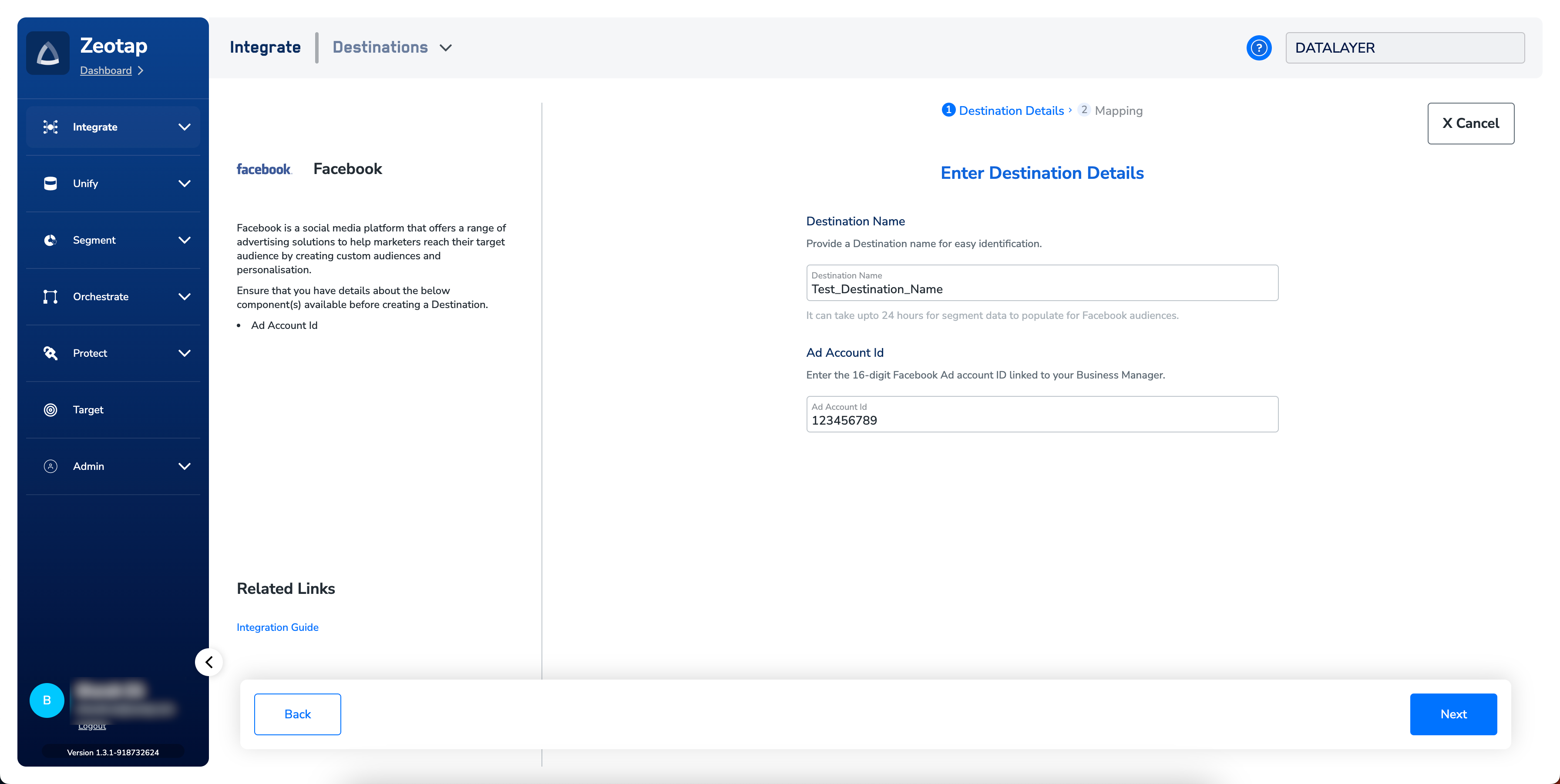
4
Choose the action and map identifiers
Under Choose your Action, select the desired action. Under Map the Fields, the Output Identifiers accepted by the platform (MAIDs, cookies, email IDs, and more) are displayed by default. Edit, add, or remove identifiers as needed — see the mapping reference for the field-mapping options.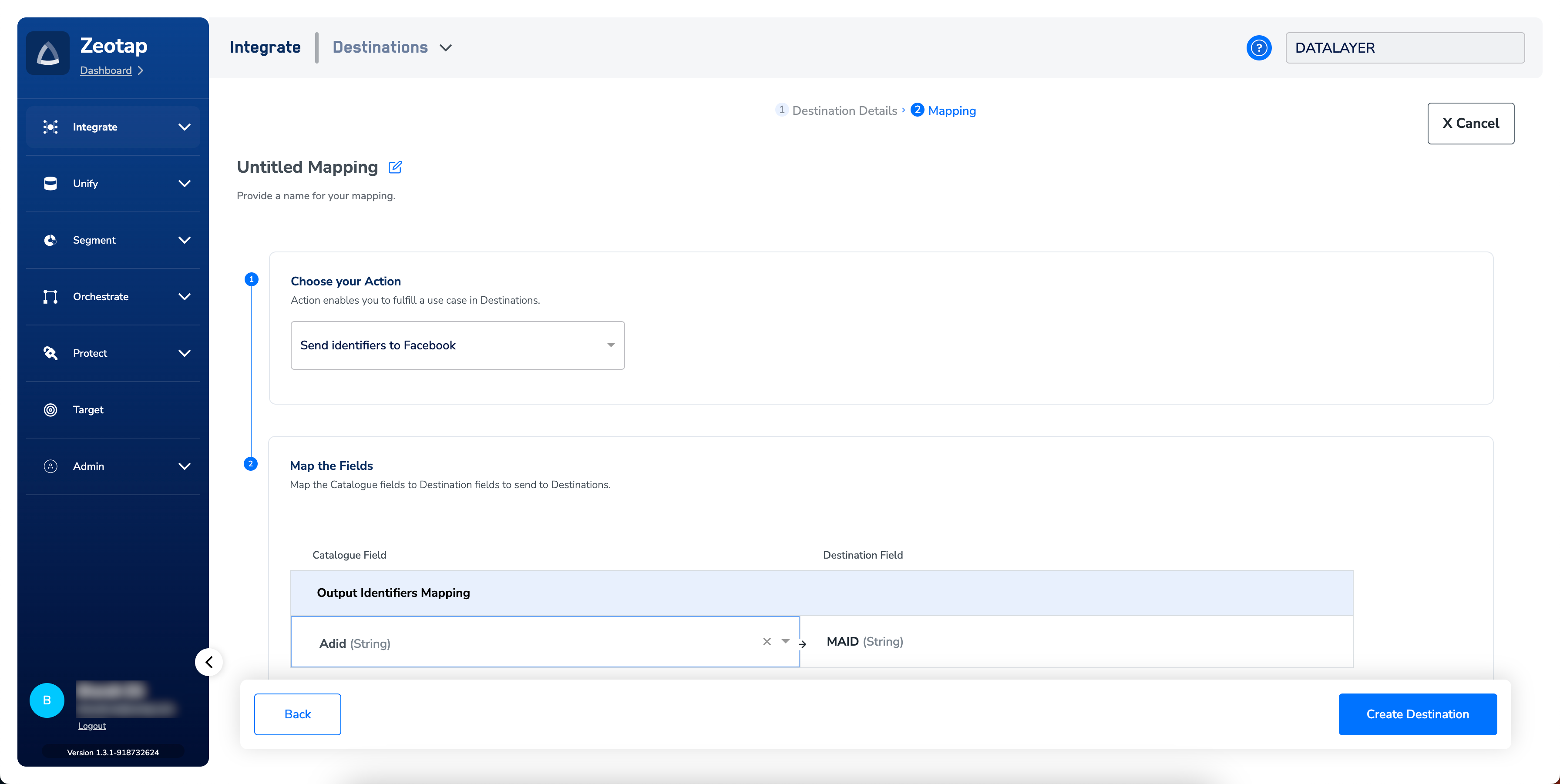
Link an audience to the destination
Attach the saved destination to an audience or segment in the Target and Audiences applications. Follow the steps in Link an audience to the destination.The terms Audiences and Segments are used interchangeably to refer to customer cohorts belonging to a specific category. For example, an audience can be a group of customers over 18 years of age who performed an
addToCart event within the last 30 days.Verify the audience reached Facebook
An audience takes up to one business day to become available at the Facebook seat after activation. Confirm the sync by logging into the Facebook console, opening All tools, and selecting Audiences — the segments pushed from Zeotap CDP are listed there under the Ad Account you configured. The audience appears in the list with the name assigned in Zeotap CDP.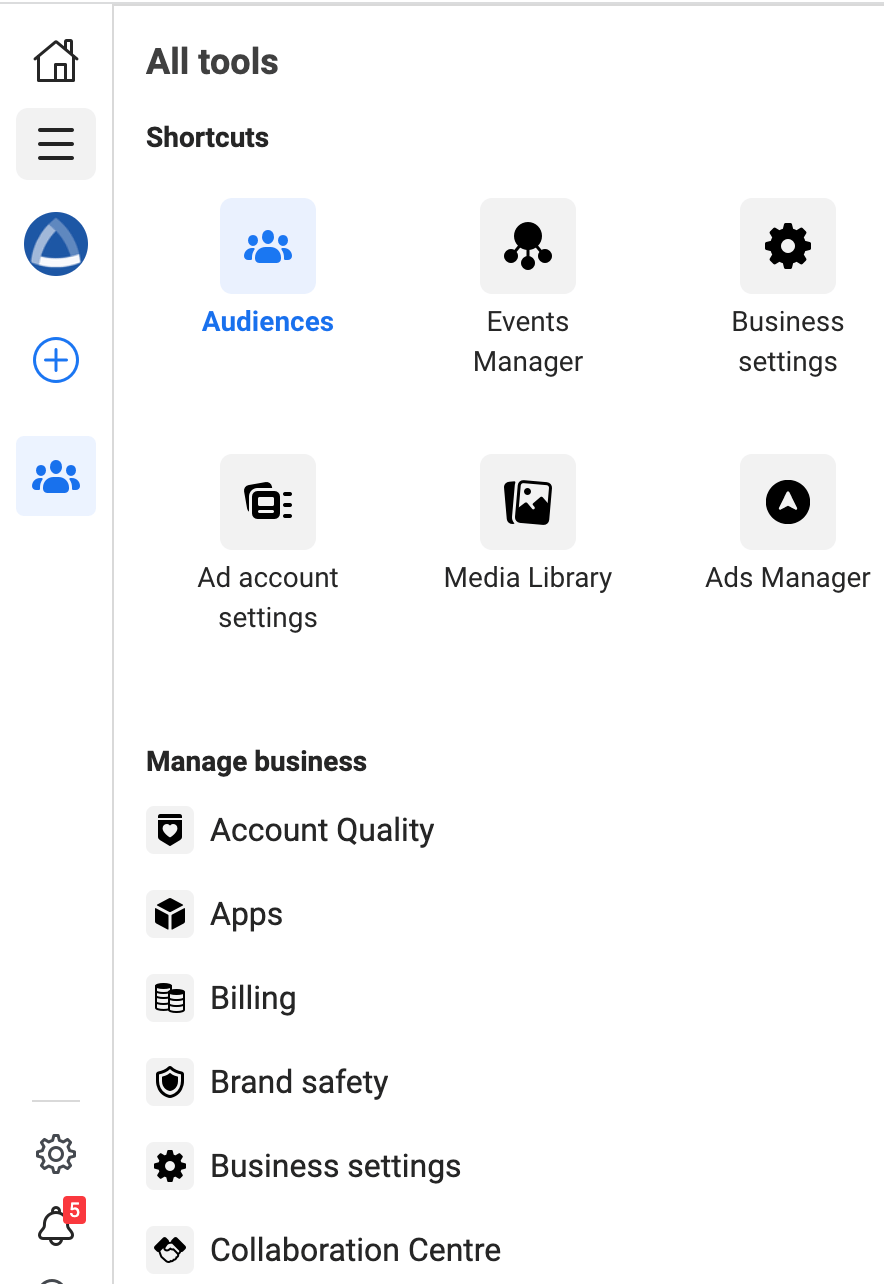

Troubleshooting
Common customer-observable issues when configuring or activating the Facebook destination:
If the audience does not appear after one business day and the Ad Account ID matches, contact your Zeotap customer success representative with the destination name, the last 4 digits of the Ad Account ID, the audience name, and the activation timestamp.
FAQ
Which identifiers can I send through this destination?
Which identifiers can I send through this destination?
This destination accepts MAID identifiers (GAIDs and IDFAs) for both Targeting and Audiences. To send hashed emails, phone numbers, names, or Facebook External IDs, use the Facebook 1P (Meta) destination instead.
How long does it take for an audience to appear in the Facebook Ad Account?
How long does it take for an audience to appear in the Facebook Ad Account?
Up to one business day from activation in Zeotap CDP to availability at the Facebook seat.
Do I need to accept the Custom Audiences Terms of Service for each Ad Account?
Do I need to accept the Custom Audiences Terms of Service for each Ad Account?
Yes. Acceptance is scoped to each Facebook Ad Account. Open the Custom Audiences ToS page while signed into the Ad Account and click Accept in the left corner.
Can I remove members from the Facebook Custom Audience after activation?
Can I remove members from the Facebook Custom Audience after activation?
Yes. The Send identifiers to Facebook action supports Delete, which removes members from the Custom Audience when they drop out of the source segment in Zeotap CDP.
Next steps
- Explore Facebook 1P (Meta) for richer identifier support →
- Explore Facebook Conversions API for server-to-server event tracking →
- Explore Facebook Enhanced Conversions API for offline conversion data →
- Explore how to link an audience to a destination →
- Explore ID Extension for expanding audience match →