

What this is
Google DDP (Data Delivery Platform) is Google’s channel for third-party data providers to license audience segments to clients running Google Ad Manager (formerly DoubleClick for Publishers, DFP) or Display & Video 360 (formerly DoubleClick Bid Manager, DBM). The Zeotap CDP integration sends mobile advertising IDs (MAIDs) and Google cookies to a Google DDP seat so publishers and advertisers can activate those audiences in their Google campaigns. In terms of data exposure, Google receives only the user IDs — never the profile attributes or events mapped to those IDs — and clients who consume the resulting lists at the seat cannot download them. This page covers what to gather in Google, how to configure the destination in Zeotap CDP, how to link an audience, and what to check when a delivery does not land at the seat.Prerequisites
EU user consent policy. Under Google’s EU User Consent Policy, this integration requires the
process_consent flag. Zeotap CDP sends process_consent=True for every upload, so you are responsible for obtaining end-user consent before sharing first-party seed data with Zeotap CDP. See Google’s documentation on how process_consent is handled in bulk uploads and the FAQs on the Google consent update.- Seat ID — the ID of the Google account that will receive the segments. For an Advertiser account this is the ID next to your account name; for a Publisher account this is the Audience Link ID.
- Product Type — which Google product the seat belongs to (see the table below).
- Currency — the currency configured for the destination seat.
- A Zeotap CDP account with permission to create destinations.
Choose the correct Product Type
Google DDP recognises four Product Type values. Use the one that matches your seat:- If the field is labelled Partner ID, use
INVITE_PARTNER. - If the field is labelled Advertiser ID, use
INVITE_ADVERTISER.
Configure the Google DDP destination
The destination is created inside the Destinations application of the Zeotap CDP App. You provide the Seat ID, Product Type, and Currency, then map source identifiers to the identifiers Google DDP accepts.-
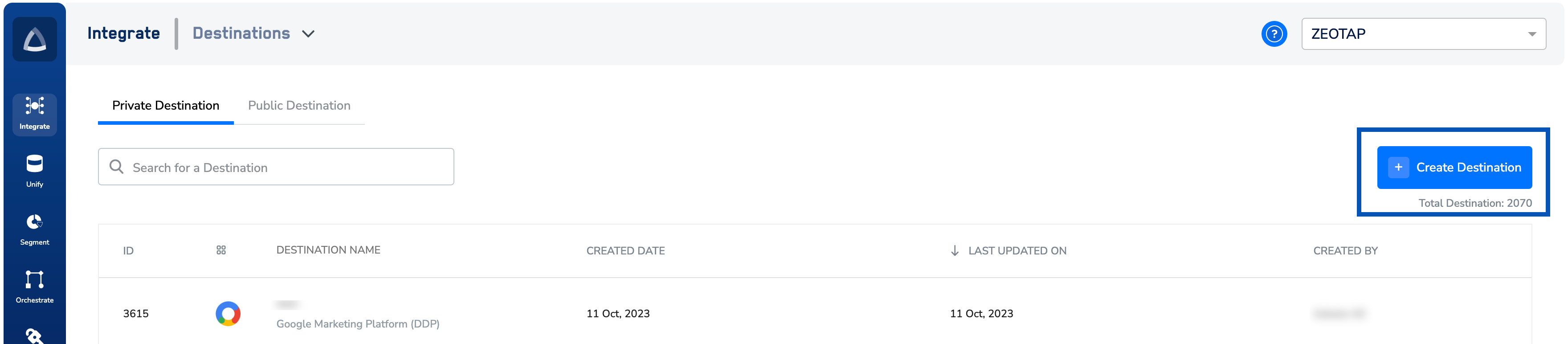
In the Zeotap CDP App, open the Destinations application and begin creating a new destination.
-
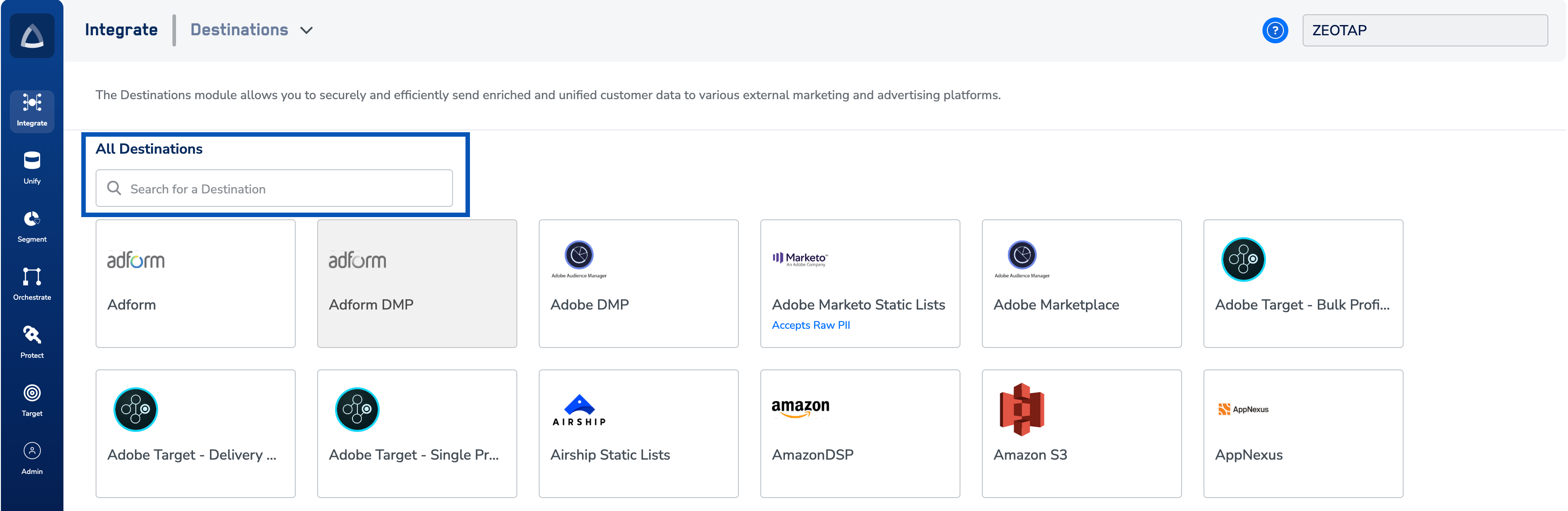
From the catalogue of available destinations, choose Google Marketing Platform (DDP).
-
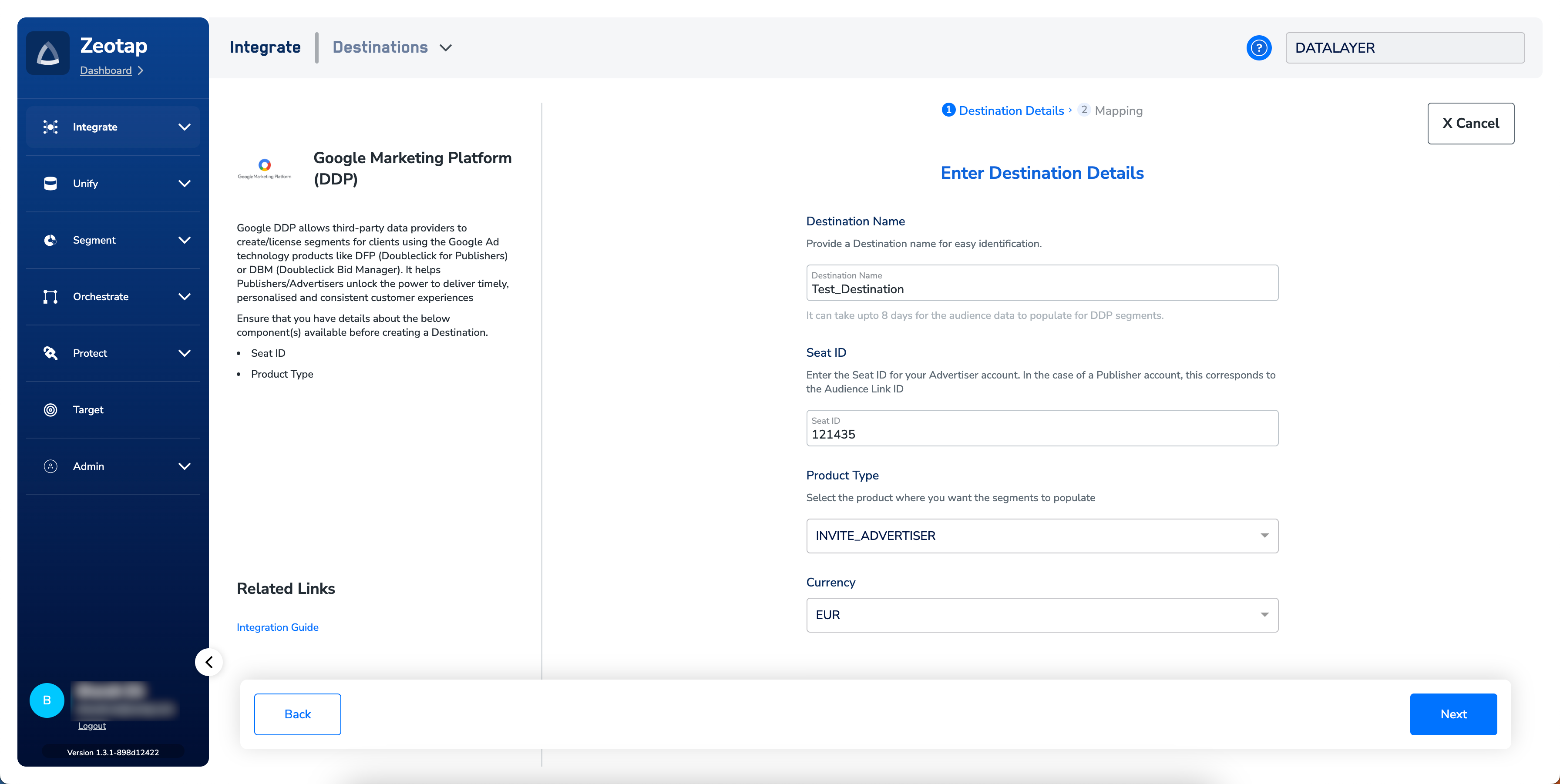
Enter the Seat ID, select the Product Type, and select the Currency you gathered above, then continue to actions and mapping.
-
Choose the action Send identifiers to Google Marketing Platform (DDP) and map your source identifiers to the accepted output identifiers. This integration accepts MAIDs and Google cookies — see Choose the output identifiers for how to edit, add, or remove identifiers in the mapping.

- Save the destination.
Verify the destination was created
You know the destination is ready when it appears in the destinations list under Integrate > Destinations, under the name you gave it. Open the destination and confirm that the Seat ID, Product Type, and Currency shown match the values you entered — those three fields drive where every subsequent refresh is delivered, so a mistyped Seat ID here silently routes deliveries to the wrong (or a nonexistent) Google seat.Link an audience to the destination
Once the destination exists, an audience (also called a segment — the terms are interchangeable in Zeotap CDP) can be linked to it from the Audiences or Target application. Follow the steps in Link an audience to the destination. After you link an audience, the audience is reflected almost instantly within the DDP platform. Google itself can take up to seven business days to make the segment available at the Google DDP seat for campaign use.Zeotap CDP enables the LAL (lookalike) extension for DV360 exclusively through the Google DDP destination. If you need lookalike expansion into DV360, this is the destination to use.
How user disqualification works
This integration supports user disqualification from audiences. When a user no longer meets an audience’s criteria — because of rules, consent changes, or other conditions set on the audience — Zeotap CDP issues a user-deletion request to Google DDP on the next refresh cycle for that audience. Disqualification is programmatic: it runs automatically on the audience’s configured refresh cadence, and disqualified users are excluded from the audiences linked to this destination on the following refresh. You do not need to trigger anything manually.Troubleshoot common issues
A Google DDP destination saves successfully as long as the fields are filled — the Seat ID and Product Type are only validated by Google when the first refresh runs. Work through the table below when a linked audience does not deliver to the seat as expected.
If none of the above matches your symptom and the audience still does not deliver after the next full refresh, contact your Zeotap customer success representative. Include: the destination name, the Seat ID and Product Type you entered, the linked audience name, and the timestamp of the refresh that did not deliver.
FAQ
Does Google get access to the underlying data mapped to the IDs I send?
Does Google get access to the underlying data mapped to the IDs I send?
No. Google receives only the user IDs (MAIDs and Google cookies) — it does not receive the attributes or events those IDs map to. Google also prevents the clients who consume the resulting lists from downloading them, so the mapped data stays inside Zeotap CDP.
Which identifiers does this destination accept?
Which identifiers does this destination accept?
MAIDs and Google cookies. If you need to send PPIDs (Publisher Provided Identifiers, raw or encrypted) to a Google Ad Manager seat instead, use the Google Ad Manager destination — Google Ad Manager is the recommended path for PPIDs, and Google DDP is the recommended path for MAIDs and cookies.
How long until an audience is usable at the Google DDP seat?
How long until an audience is usable at the Google DDP seat?
The audience is reflected almost instantly within the DDP platform after the refresh. Google itself can take up to seven business days to make the segment available at the seat for campaign use.
Do I need to trigger disqualification manually when a user drops out of an audience?
Do I need to trigger disqualification manually when a user drops out of an audience?
No. Disqualification is programmatic — when a user no longer qualifies for an audience, Zeotap CDP issues a deletion request to the linked destinations on the next refresh cycle for that audience.
Can I use this destination for DV360 lookalike expansion?
Can I use this destination for DV360 lookalike expansion?
Yes. The LAL extension for DV360 is enabled in Zeotap CDP exclusively through the Google DDP destination.
Next steps
- Explore how to link an audience to the destination →
- Explore the Google Ad Manager destination for sending PPIDs →
- Explore the Google Analytics 4 destination for GA Client ID activation →
- Explore the FAQs on the Google consent update →