

What this is
Sportradar is a global sports data and technology company whose advertising arm runs targeted campaigns across its media network. A Sportradar destination in Zeotap CDP delivers a linked audience to Sportradar as a list of user IDs, so Sportradar can apply it as a suppression list — the users in the audience are excluded from targeting rather than targeted. Because delivery is file-based, this destination is designed for batch audience delivery, not real-time event streaming. Event data cannot be sent through it.In the destination picker the tile is labelled Sportsradar. Search for
Sport to find it.Prerequisites
Before you start, confirm the following. Only the last two are entered in the Zeotap CDP app.
- Delivery location — the cloud storage location Sportradar reads from, and its credentials, are configured by Zeotap during onboarding. If your organisation has not been onboarded to Sportradar yet, contact your Zeotap account manager.
- Destination and audience permissions — you need access to the Integrate application to create destinations, and to the Audiences application to link an audience to one.
- The brand or property the audience belongs to — this determines which action you select, so identify it before you start.
- An audience — create the audience in Zeotap CDP first. See Create an audience.
Supported identifiers
This destination accepts a single destination field, User IDs (String) — the user identifier Sportradar matches against the users it can reach. Map one Catalogue attribute to it.Available actions and supported features
Your Sportradar destination is provisioned with one exclusion action per brand or property your organisation runs. Each action sends the user ID for that brand, so the action you choose and the audience’s brand must line up. Action names follow the patternSend User ID to [brand] for Exclusion.
If your organisation runs more than one brand, create a separate destination and mapping per brand, and name each one so the brand is obvious — for example
Sportradar – [brand] exclusion.
How the connection works
Zeotap delivers to Sportradar through a cloud storage drop rather than a direct API call:- Zeotap writes the audience to the storage location agreed during onboarding.
- Sportradar reads that location on a schedule and ingests the audience.
- As audience membership changes, Zeotap writes delta files so Sportradar’s copy stays current.
Configure the destination
1
Open the Destinations application
Sign in to the Zeotap CDP app and go to Integrate → Destinations.
2
Select the Sportradar destination
Click + Create Destination. Under All Destinations, search for 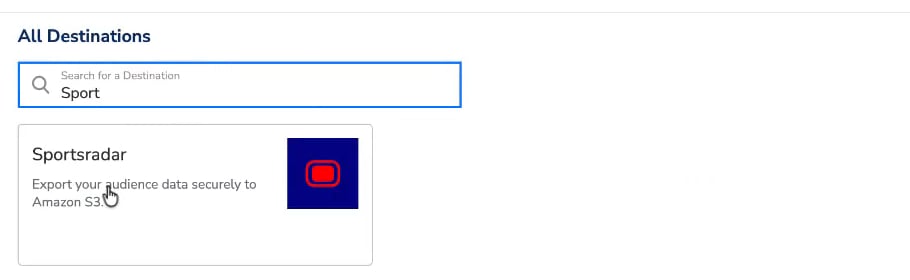
Sport and select the Sportsradar tile.3
Enter the destination details
On the Enter Destination Details screen: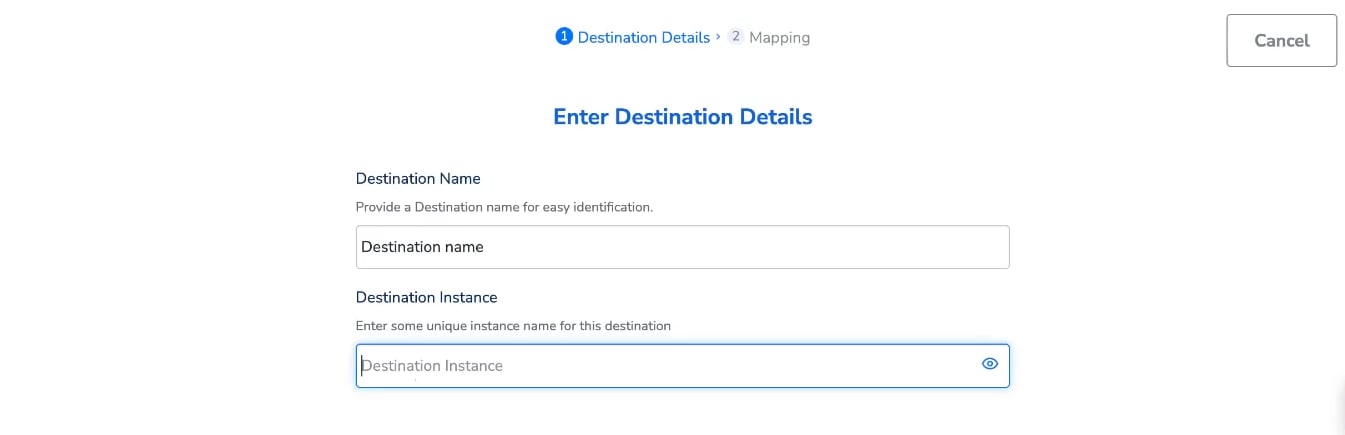
- In Destination Name, enter a name that makes the brand and purpose obvious — for example
Sportradar – [brand] exclusion. - In Destination Instance, enter a unique instance name for this destination. This value identifies the destination as distinct, so give each destination its own.
4
Name the mapping, choose the action and map the field
- At the top of the screen, click the pencil beside Untitled Mapping and give the mapping a name.
- Under Choose your Action, select the exclusion action for the brand this audience belongs to.
- Under Map the Fields, map the Catalogue attribute holding that brand’s user identifier to the User IDs destination field.
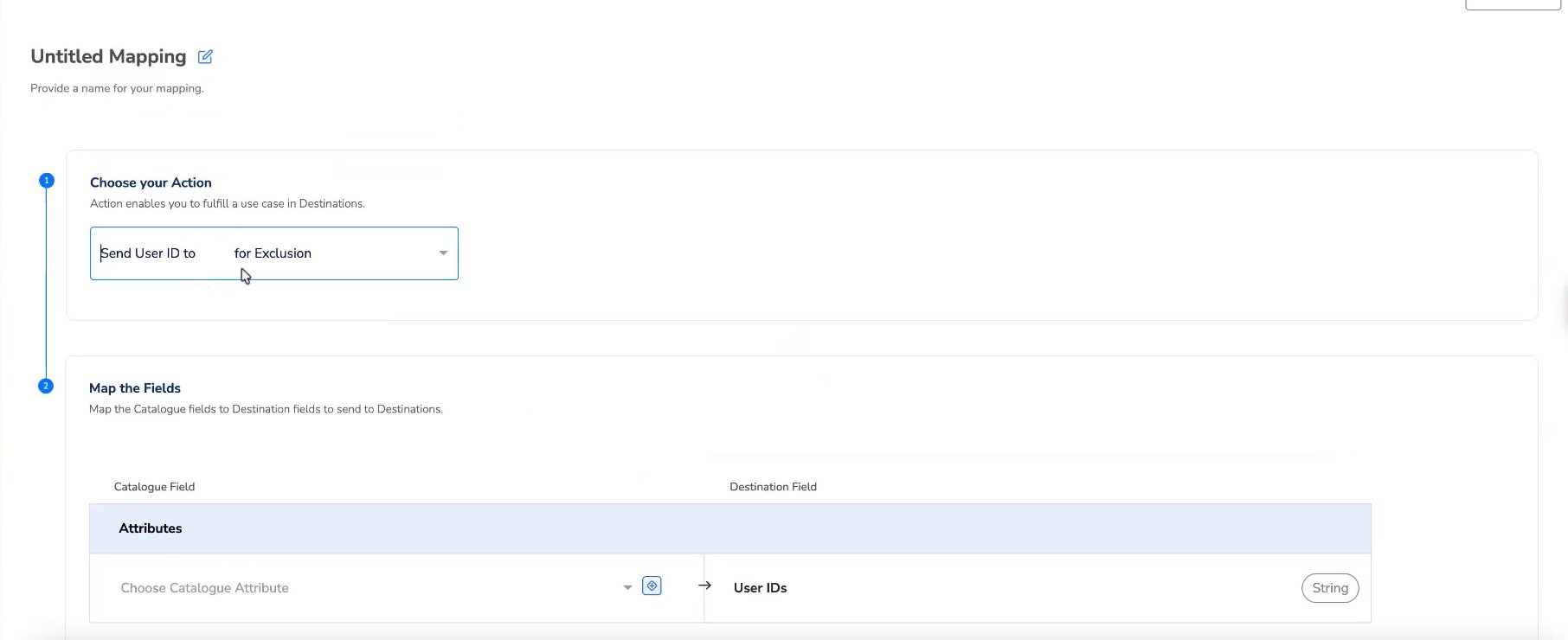
The brand name is redacted in this screenshot. In your workspace the action carries your own brand name — for example
Send User ID to [your brand] for Exclusion.5
Create the destination
Click Create Destination. The destination is added to the list in the Audiences application and can now be linked to an audience.
Link an audience to the destination
Once the destination exists, link an audience to it from the Audiences application. Open the audience, choose Select Destination, and search for the destination you created.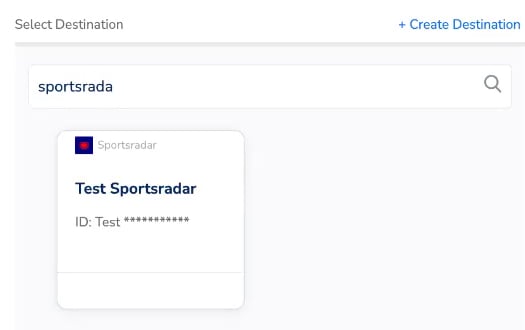
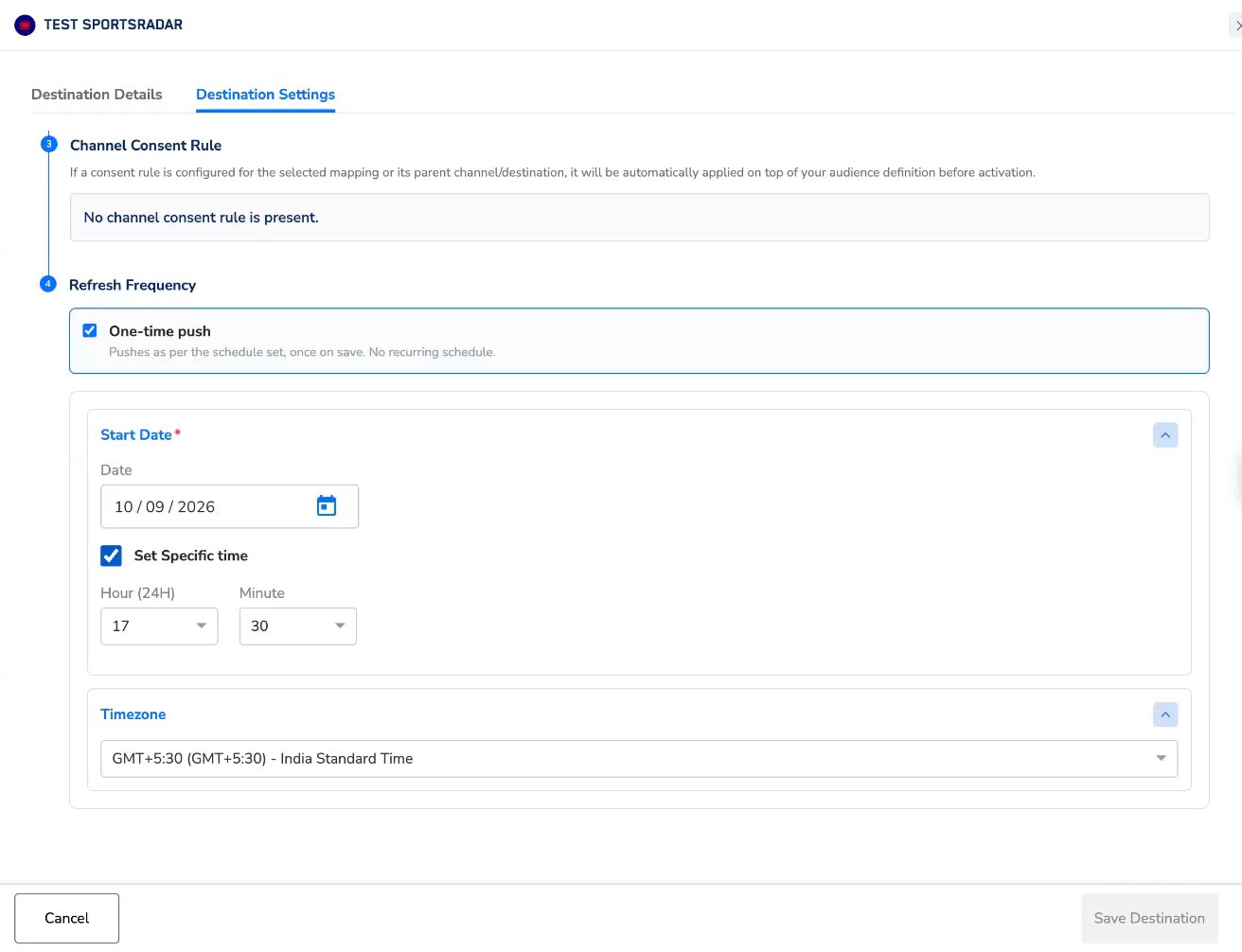
- One-time push sends the audience once and creates no recurring schedule — the destination becomes inactive after the push completes. By default it runs as soon as you click Save Destination; set a Start Date and a specific time, with a timezone, if you want the single push to run at a particular moment instead.
- A recurring schedule syncs on a cadence — hourly, daily, weekly or monthly — and requires an end date.
Understand delta updates
After the first delivery, Zeotap sends only what has changed. Both associations (users joining the audience) and dissociations (users leaving it) are handled automatically as delta updates, so Sportradar’s copy of the suppression list tracks the audience as it changes. You do not need to create a separate delta or removals mapping. Once the audience is linked and saved, the changes are sent on their own. For how delta and delete operations work across destinations, see Delta Upload and Delete functions.Confirm the audience was sent
Delivery goes straight from Zeotap to Sportradar’s cloud storage. That location is not exposed to you, so there is no bucket or folder you can open to check the files — you cannot verify the delivery yourself. What you can confirm in the Zeotap CDP app is that the audience was linked and the refresh ran:- Open the audience in the Audiences application and confirm the Sportradar destination card is attached, showing the mapping you selected.
- Check the destination’s last refresh against the schedule you set under Refresh Frequency.
Troubleshoot common issues
If the audience has refreshed successfully and none of the rows above match, contact Zeotap support with the destination name, the linked audience name, the mapping name, and the expected time of the last refresh in your time zone.
FAQ
Do I need a separate destination for each brand?
Do I need a separate destination for each brand?
The action is brand-specific, so the mapping must match the brand whose user IDs you are sending. Create a destination and mapping that reflect that brand, and name both clearly so the right one is easy to pick later.
What happens when a user drops out of the audience?
What happens when a user drops out of the audience?
That change is captured as a dissociation and sent to Sportradar as part of the automatic delta update. No manual action is needed.
Do I need to set up a separate delta or removals mapping?
Do I need to set up a separate delta or removals mapping?
No. Associations and dissociations are both handled automatically once the audience is linked and saved.
Do I need to provide storage credentials or a bucket path?
Do I need to provide storage credentials or a bucket path?
No. The storage location and its credentials are configured by Zeotap during onboarding. The destination form asks only for a destination name and an instance.
Can I see the files that were delivered to Sportradar?
Can I see the files that were delivered to Sportradar?
No. Delivery goes directly from Zeotap to Sportradar’s cloud storage, and that location is not exposed to you — there is no bucket or folder for you to open. You can confirm in the Zeotap CDP app that the audience is linked and the refresh ran; to confirm the audience arrived, contact Zeotap support or your Sportradar support contact.
Can I send event data or profile attributes through this destination?
Can I send event data or profile attributes through this destination?
No. The action sends a single destination field, User IDs. This destination delivers audience membership for suppression, not event data or profile attributes.