

Overview
This integration allows you to send audience data from Zeotap CDP directly into a Decentriq Data Clean Room, enabling privacy-safe data collaboration with partners and advertisers. By connecting the two platforms, you can securely share matching identifiers, audience segments, and demographic attributes — all encrypted before they leave your environment. This means your teams can unlock powerful insights and activation use cases without ever exposing raw customer data.How It Works
- You create a dedicated DataLab inside Decentriq that will receive your audience data.
- In Zeotap CDP, you set up Decentriq as a destination using the Integrate module and authenticate with an API Token.
- When audience data — such as user IDs, segment memberships, and demographics — is ready in Zeotap, it is encrypted on your side and sent into the Decentriq DataLab as structured datasets.
- Once the data lands in Decentriq, it is validated, provisioned, and made available inside the clean room for privacy-safe analysis and collaboration.
Prerequisites
In Decentriq
- An active Decentriq account with permission to create DataLabs and generate API tokens
- A DataLab created (or the ability to create one) that will receive the audience data
- Your API Token generated and copied from the Decentriq platform
- Your DataLab ID copied from the DataLab you want to send data into
- The email address associated with your Decentriq account (or service account)
In Zeotap CDP
- Access to the Integrate module with permission to create new destinations
- Audience segments and/or demographic data ready to send
- A clear understanding of which matching identifier you will use (for example, hashed email or phone number)
Create a Destination for Decentriq
Part 1: Get Your Credentials from Decentriq
Follow these steps to gather the API Token and DataLab ID you will need.1
Log in to your Decentriq account.
2
Click your profile icon or menu in the top-right corner of the screen.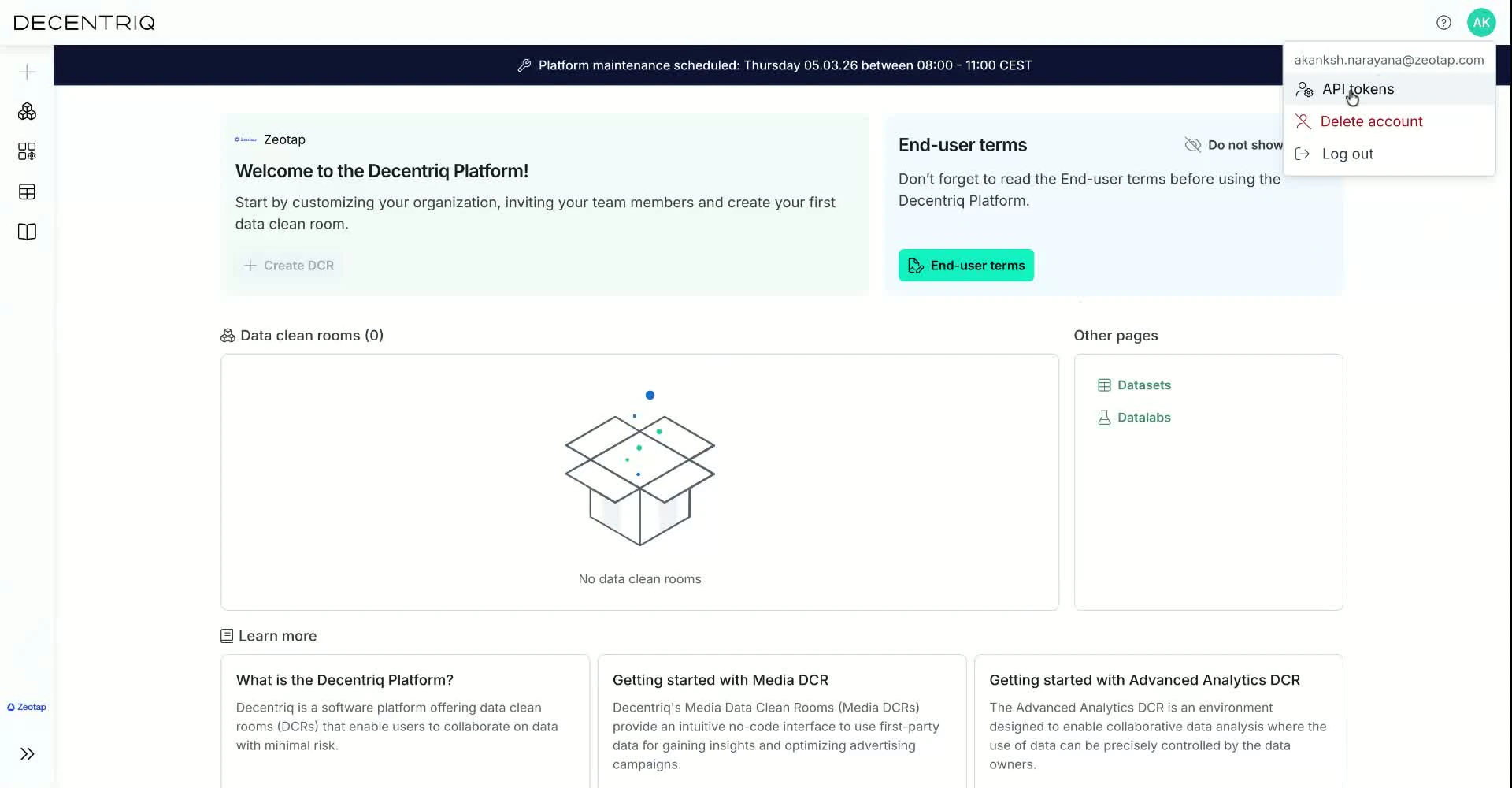
3
Select API Tokens from the dropdown menu.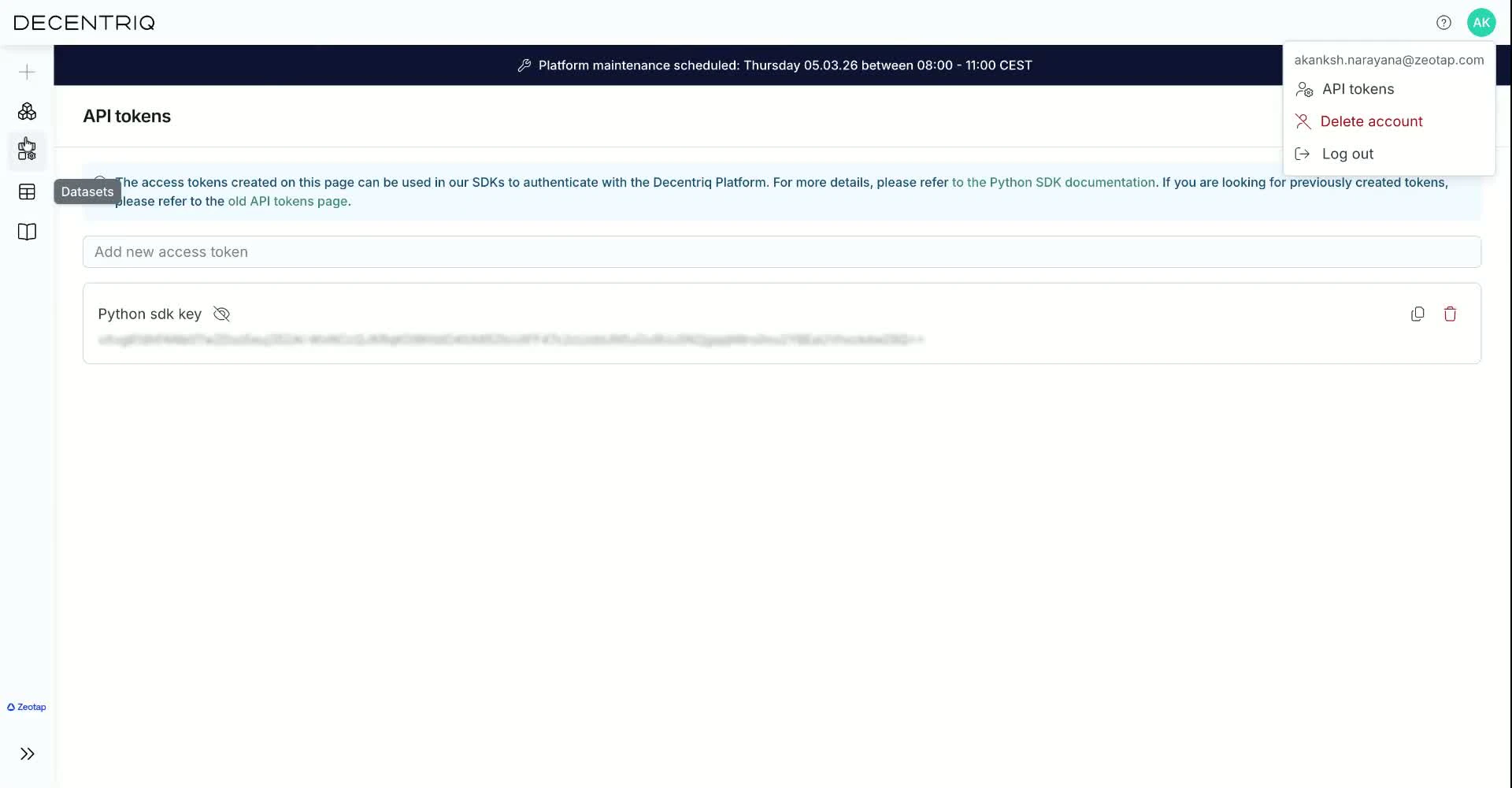
4
Generate a new token (if you have not already) or locate your existing long-lived API token.
5
Click Copy to copy the token to your clipboard. Save it somewhere secure — you will paste it into Zeotap shortly.
6
Navigate to the DataLabs section from the main menu.
7
Open the DataLab you want to use as the destination for your audience data, or create a new one if needed. The DataLab is where your matching data, segments, and demographics will be stored.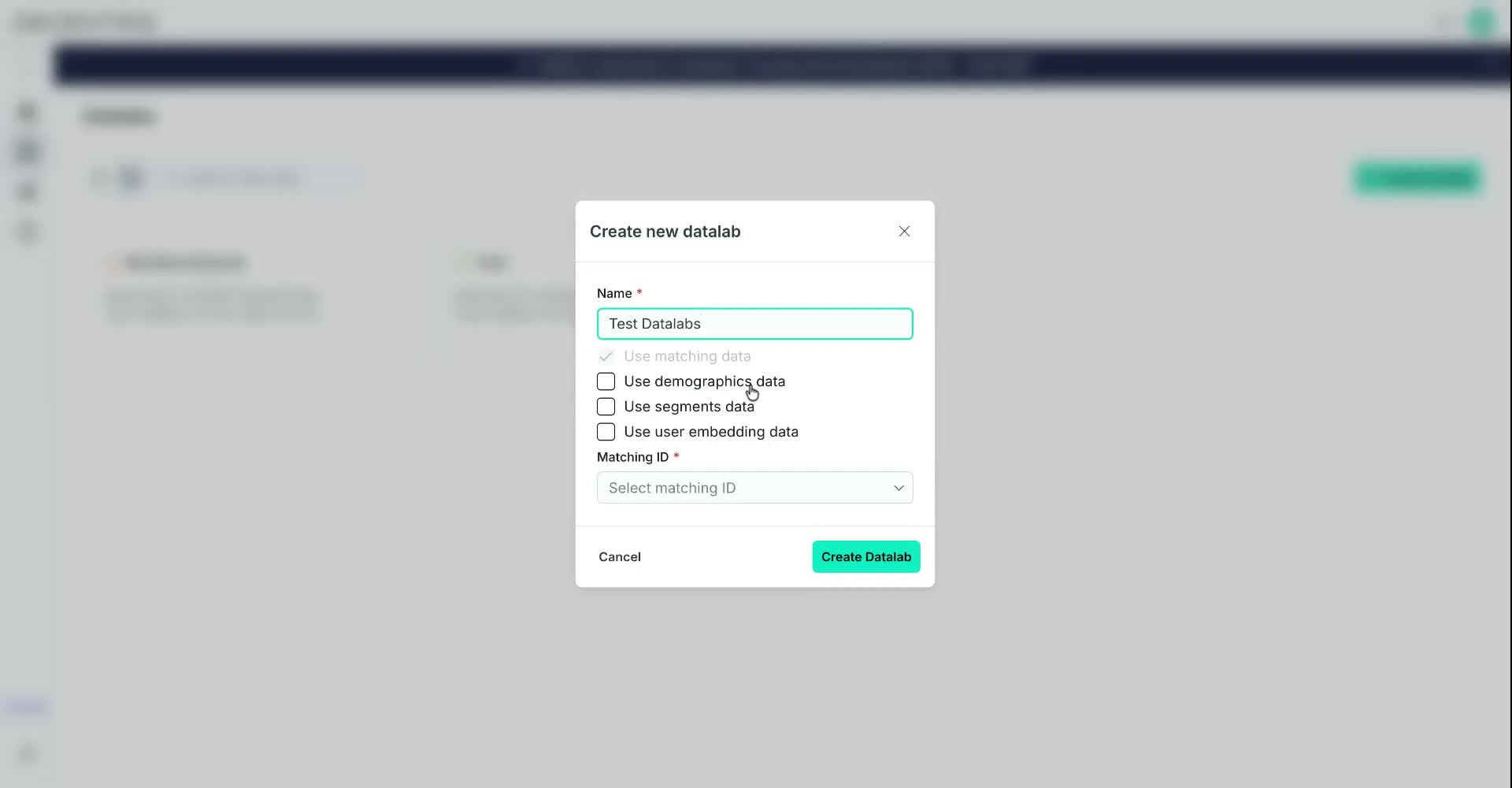
8
Copy the DataLab ID displayed on the DataLab detail page. Save it alongside your API Token.
- Your Decentriq email address
- Your API Token
- Your DataLab ID
Part 2: Set Up the Connection in Zeotap CDP
Now head over to Zeotap to create the destination.1
Log in to Zeotap CDP.
2
Navigate to the Integrate module from the main navigation menu.
3
Select Destination from the menu bar.
4
Click the button to Create a new destination.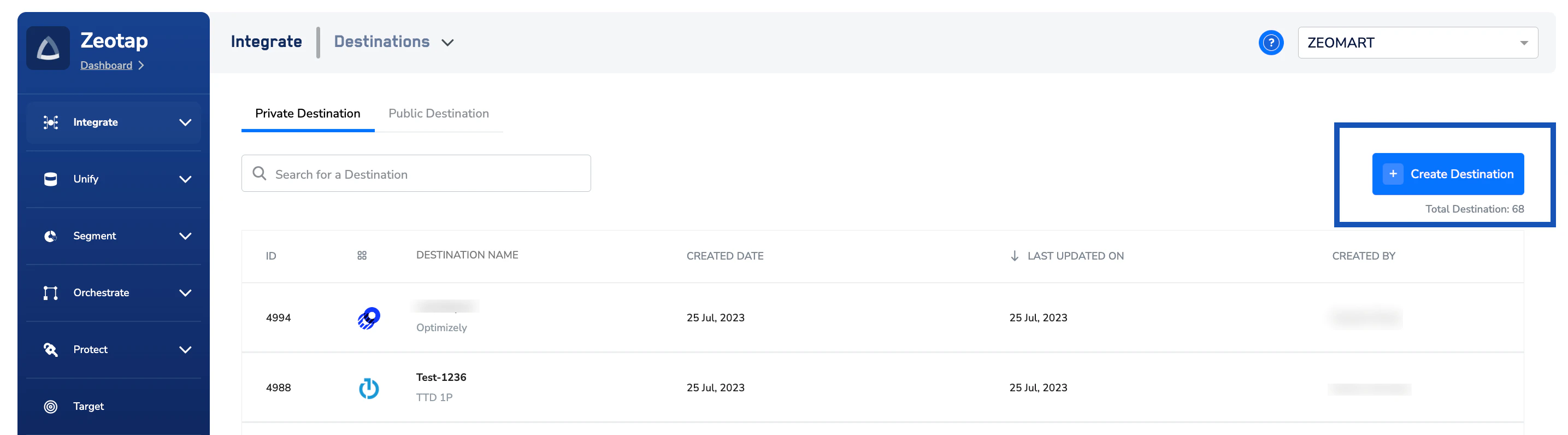
5
In the search bar, type Decentriq and select the Decentriq integration card from the results.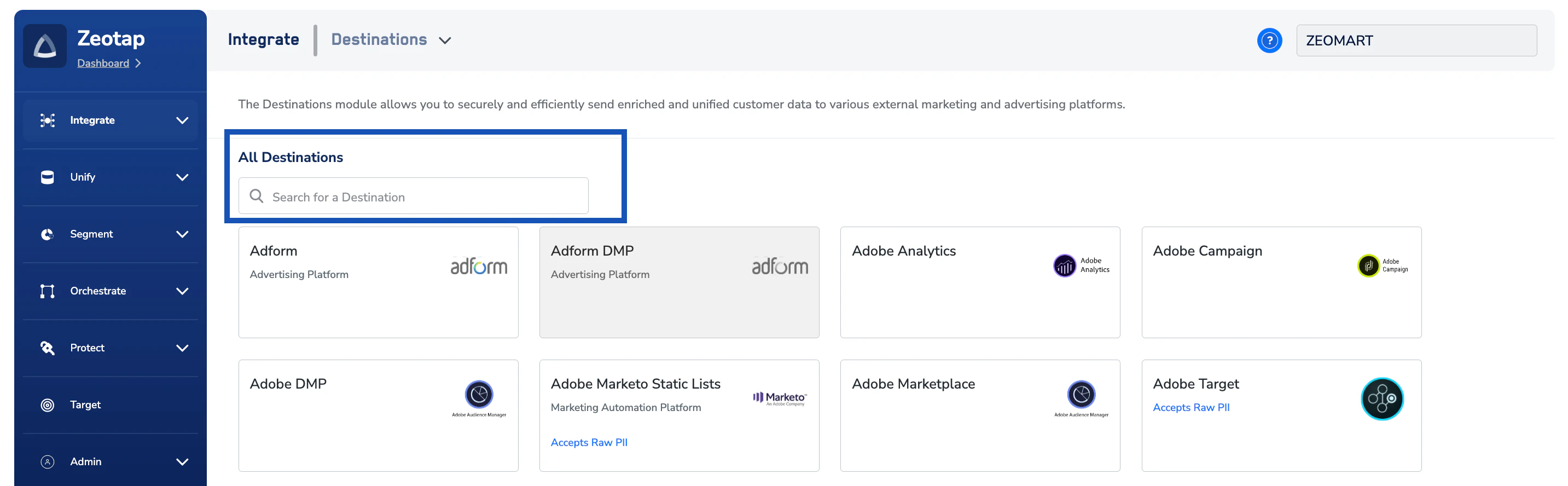
6
Fill in the required fields:a. Destination Name — Enter a descriptive name (for example, “Decentriq - Q1 Audience Sync”).b. API Token — Paste the API Token you copied from Decentriq.c. Email ID — Enter the email address associated with your Decentriq account.d. DataLab ID — Paste the DataLab ID you copied from Decentriq.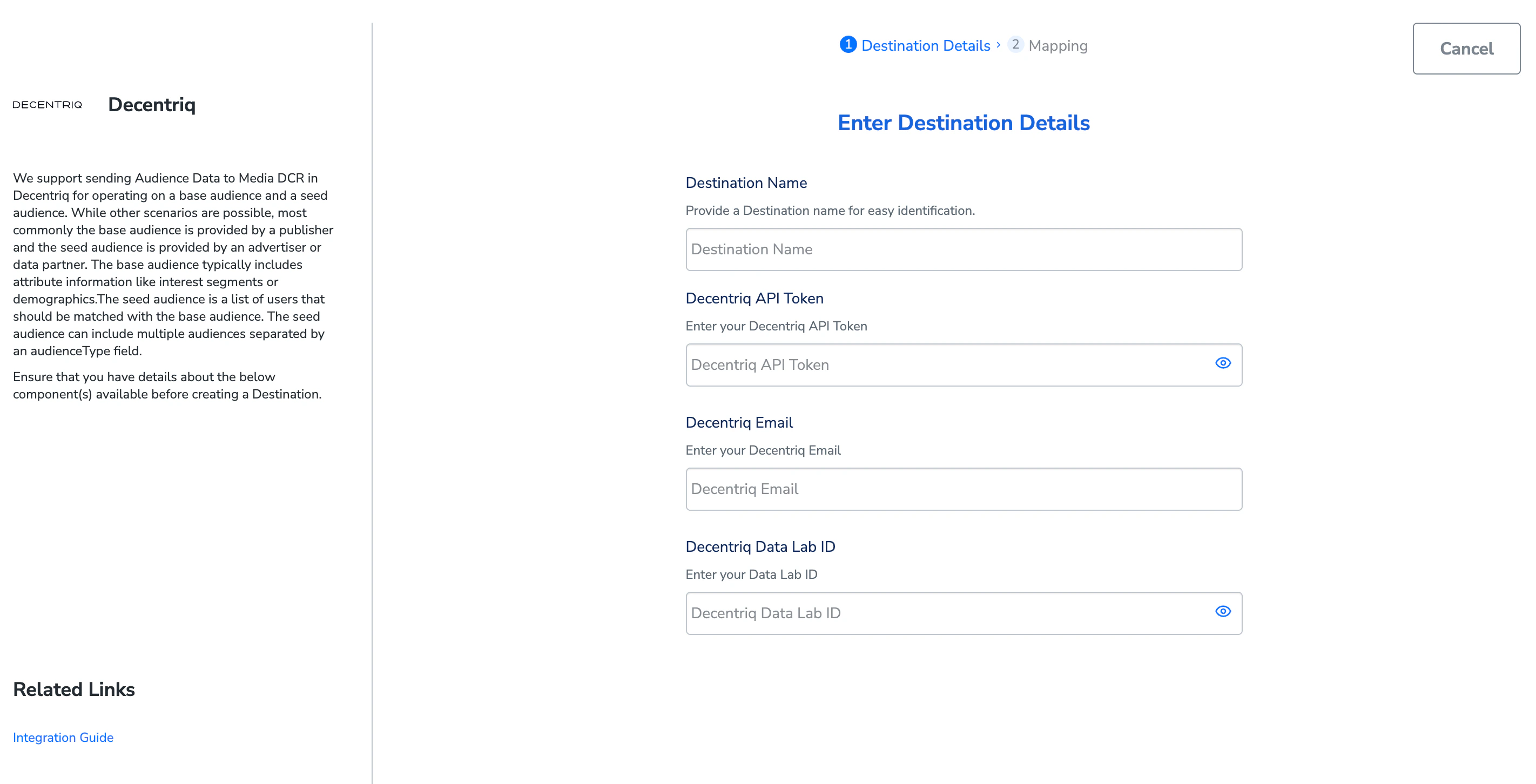
7
Under Data Types to Send, select the datasets you want to include:a. Matching Data — This is mandatory and must always be selected.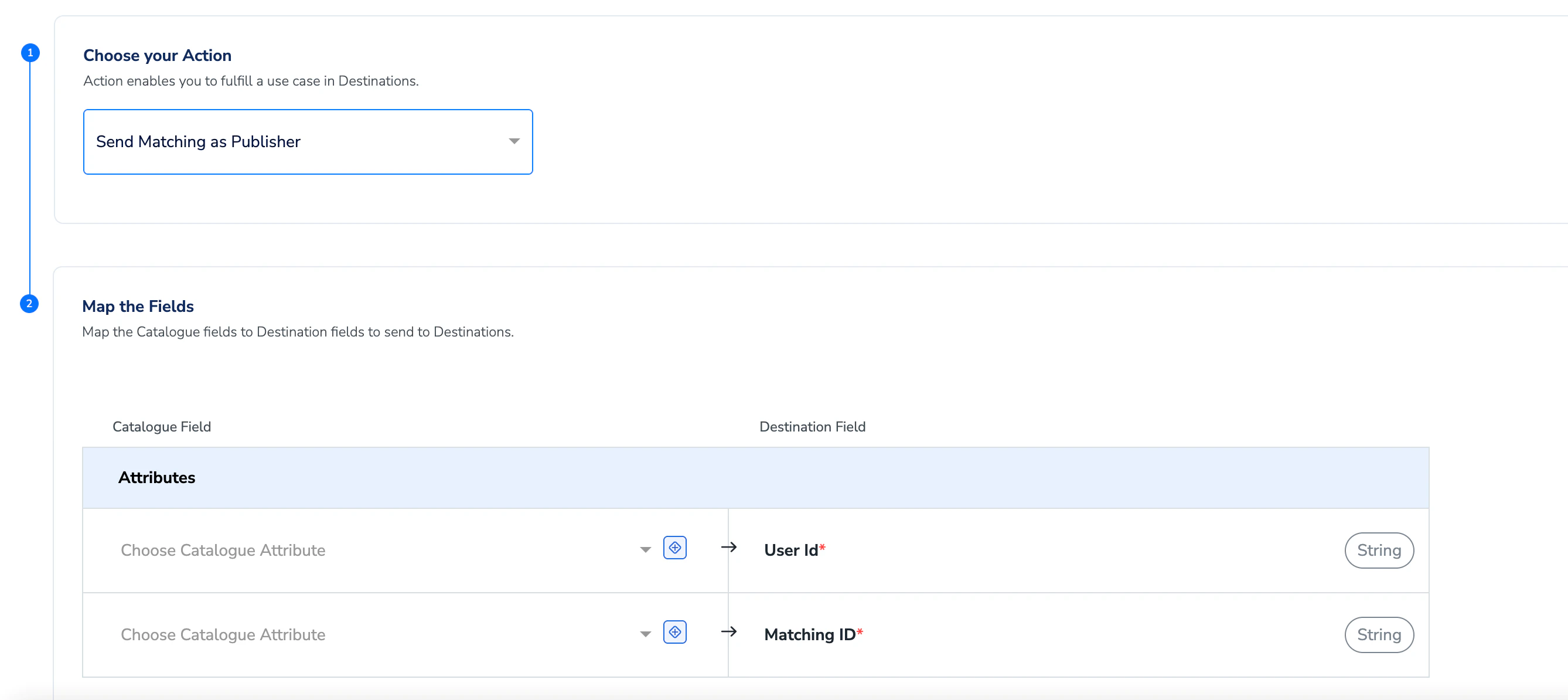
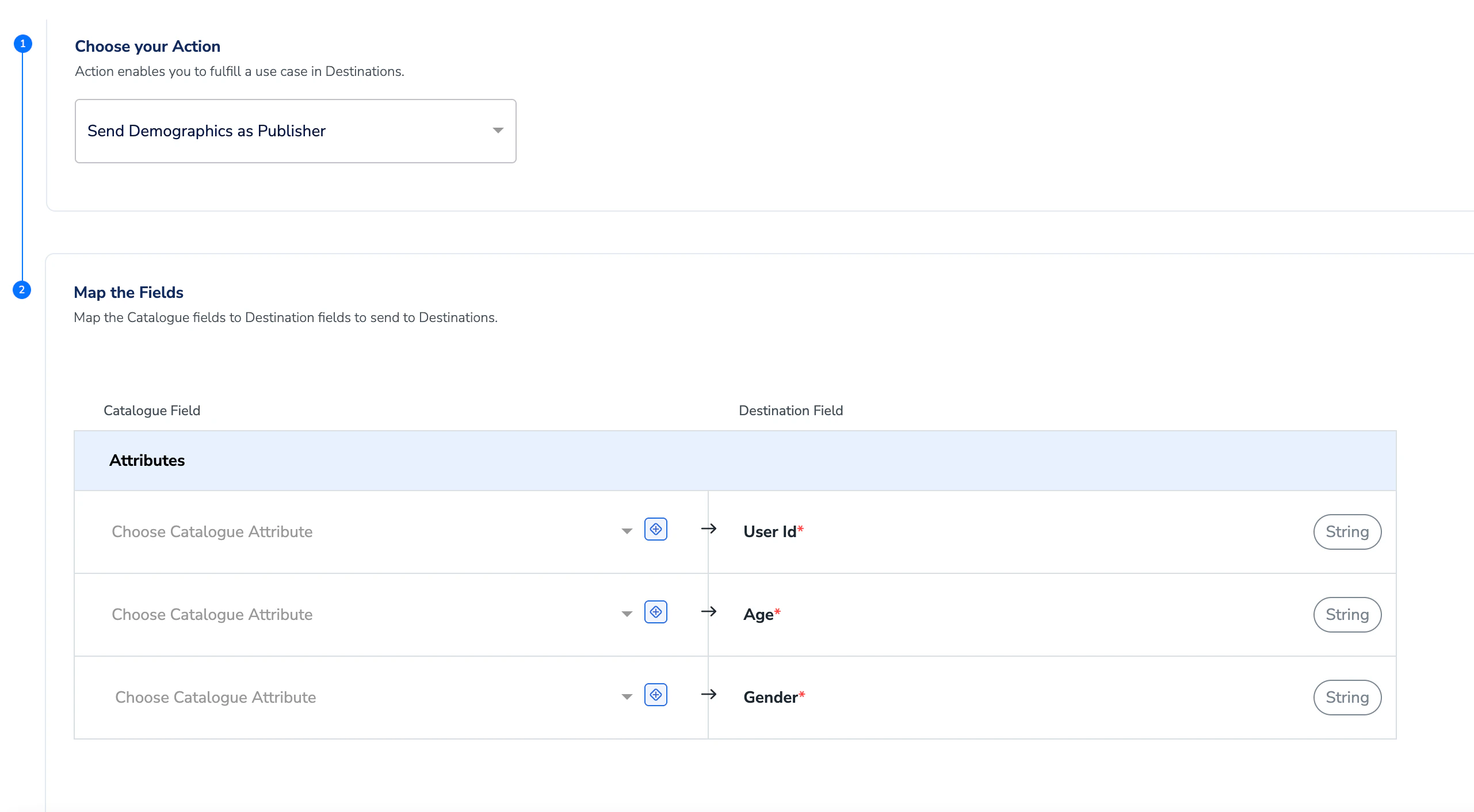
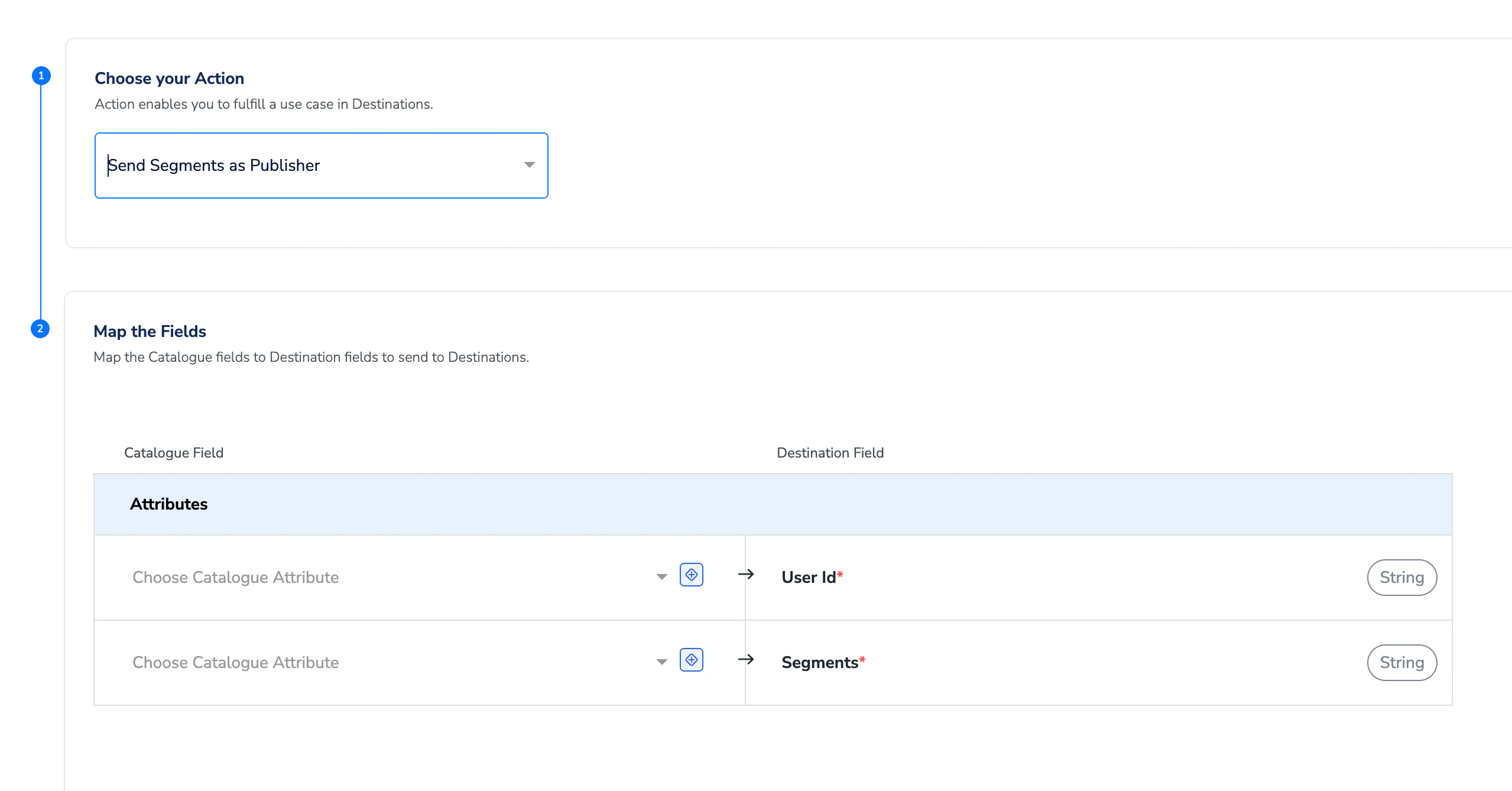
Note:Embeddings data is not supported in this integration. Do not select it.
8
In the Matching ID configuration, enter your User ID and select the matching identifier you will use (for example, hashed email).
9
Review all fields for accuracy, then click Create to save the destination.
Field Mapping
The data you send from Zeotap CDP will arrive in Decentriq as structured datasets. Below is how fields map across the two systems.Matching Dataset (Required)
Segments Dataset (Optional)
Demographics Dataset (Optional)
Activating and Testing the Integration
Once your destination is created, follow these steps to verify everything is working.1
In Zeotap CDP, trigger a data send to your new Decentriq destination by selecting the relevant audience segments and initiating the export.
2
Wait for the data transfer to complete. Zeotap will process and encrypt the data before sending it to Decentriq.
3
Log in to Decentriq and navigate to the DataLab you configured as the destination.
4
Check that the ingested files have been validated and provisioned to the DataLab. You should see your datasets (Matching, Segments, and optionally Demographics) listed and available.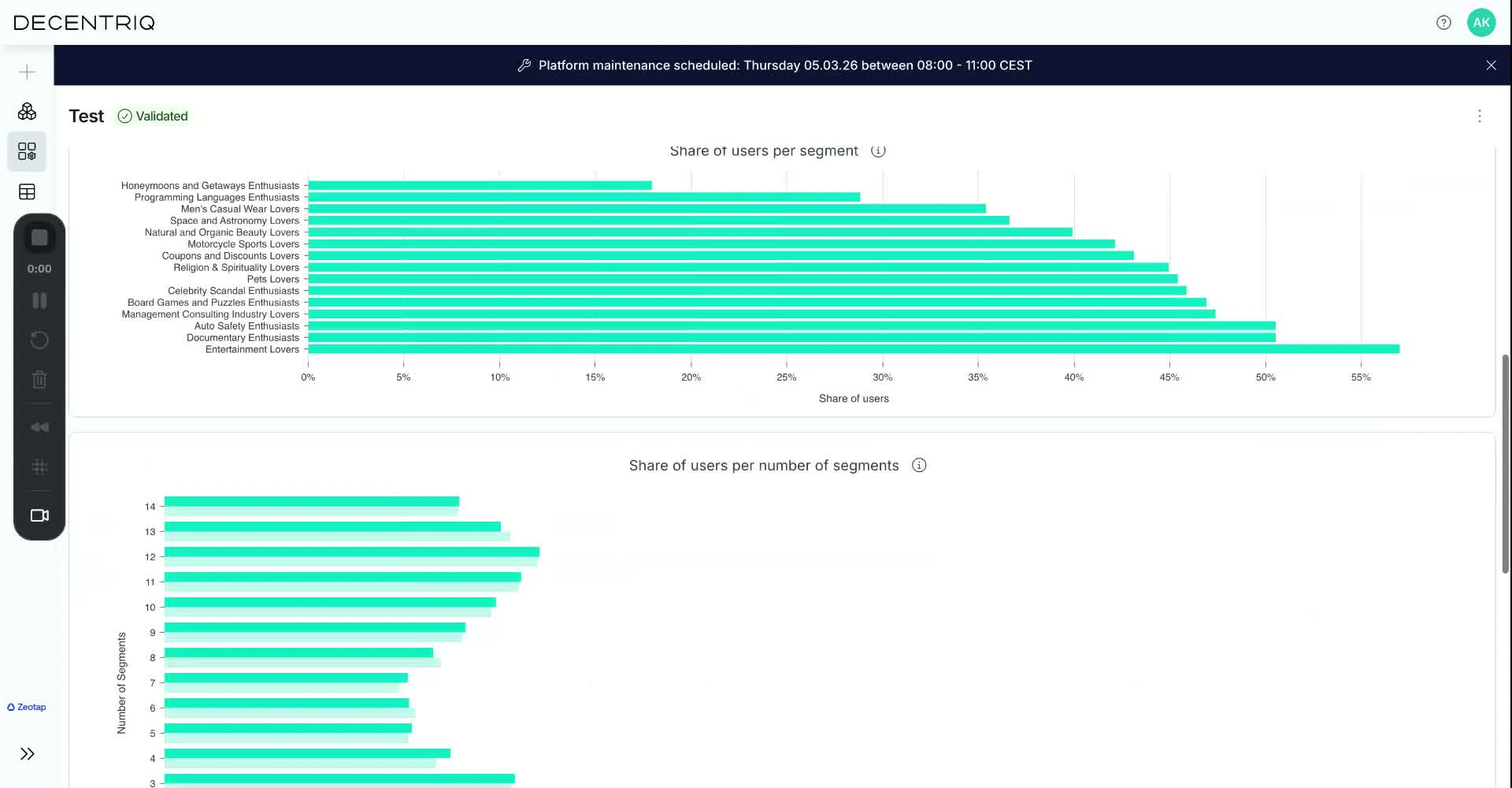
5
Open each dataset to confirm the data looks correct — verify that user IDs, segment names, and demographic values appear as expected.
Link an Audience to the Decentriq Destination
For information about how to link an Audience or segment to the created Destination in the Audiences and Target applications, refer here.Important Notes and Limitations
Note:
- Embeddings data is not supported in this integration. Do not attempt to send embeddings datasets — only Matching, Segments, and Demographics are available.
- All data is encrypted on the client side before it is uploaded to Decentriq. This ensures your audience data remains protected in transit.
- The
matchingIdfield in the Matching dataset must contain unique values only. Duplicate matching IDs will cause validation errors. - Segment labels and gender values must be consistently spelled across your data. For example, “Male” and “M” will be treated as two different values, which can skew your analysis in the clean room.
- Double-check your API Token and DataLab ID for accuracy before saving the destination. Incorrect credentials will prevent the connection from working.