

What this destination does
The Apache Kafka destination sends data out of Zeotap CDP into a Kafka topic you own. It is a real-time destination: you attach it to a Send to Destinations node in a Journeys workflow, and the identifiers and attributes you map are published to your Kafka topic as users flow through the journey. Apache Kafka is an open-source distributed event streaming platform used for high-performance data pipelines, streaming analytics, data integration, and mission-critical applications.Zeotap CDP also has a Kafka source, which does the opposite — it ingests data from a Kafka topic into Zeotap CDP. If you want Kafka to feed Zeotap rather than receive from it, see Kafka (source) under Message Queue.In the Zeotap CDP app, this destination is listed in the destination catalogue as Kafka, not “Apache Kafka”.
Prerequisites
Before you create the destination, collect the following from your Kafka administrator or your cloud provider’s Kafka management interface, and configure the topic on the Kafka side:
-
Kafka Broker host — the hostname and port of the Kafka broker. This is typically specified in the
server.propertiesfile under thelistenersproperty in the Kafka installation directory, or provided by the administrator managing the Kafka cluster. For example,broker1.example.com:9092. - Broker API key — the API key used to authenticate with the Kafka broker. Usually obtained from the administrator or through the Kafka management interface of the cloud provider, such as Confluent Cloud or AWS MSK.
- Broker API Secret — the API secret paired with the Broker API key for authentication. Also provided by the administrator or available in the Kafka management interface of the cloud provider.
-
Data Format — the format in which data is sent from Zeotap CDP to Kafka. AVRO and JSON are supported. If you choose AVRO, you also need the three Schema Registry values below.
- Schema Registry URL — the endpoint URL of the Schema Registry service, available during setup or in the Kafka deployment’s configuration settings. For Confluent Cloud, this is listed in the “Schema Registry” section of the dashboard.
- Schema Registry API key — the API key required to access the Schema Registry. Obtain it from the administrator, or generate it in the “API Keys” section of the Schema Registry management interface in Confluent Cloud.
- Schema Registry API Secret — the secret corresponding to the Schema Registry API key, available in the same section as the API Key or provided by the administrator.
- Topic Name — the label used for organising and identifying the grouped data in Kafka. Configure the topic in Kafka, along with its attributes, before you use it in Zeotap CDP. For example, if the Topic Name is “Topic 1”, the information grouped under it might include attributes such as First Name, Last Name and Email.
Supported identifiers and actions
This integration lets you send any identifiers and attributes of your choice from the Catalogue. The topic and its attributes must already exist in your Kafka account before you map to them in Zeotap CDP.
For how objects and lists of objects behave in a destination upload, see Object, List of Objects and NCE Support in Destination Upload. For what each data type means in the Catalogue, see Data Types in Catalogue.
Create the Kafka destination
This flow creates the destination from inside a Journeys workflow. In the workflow, click + and choose Send to Destinations.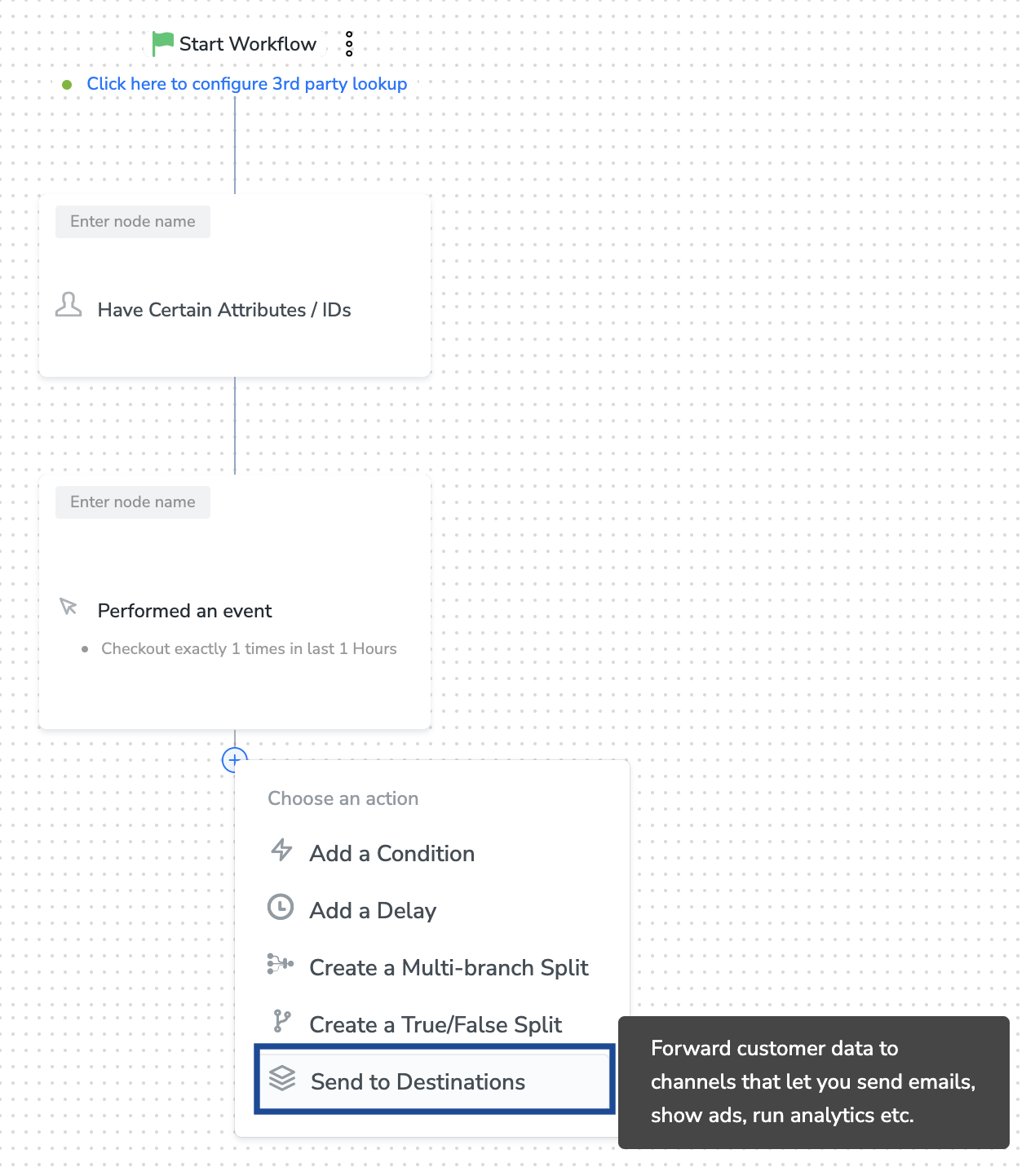
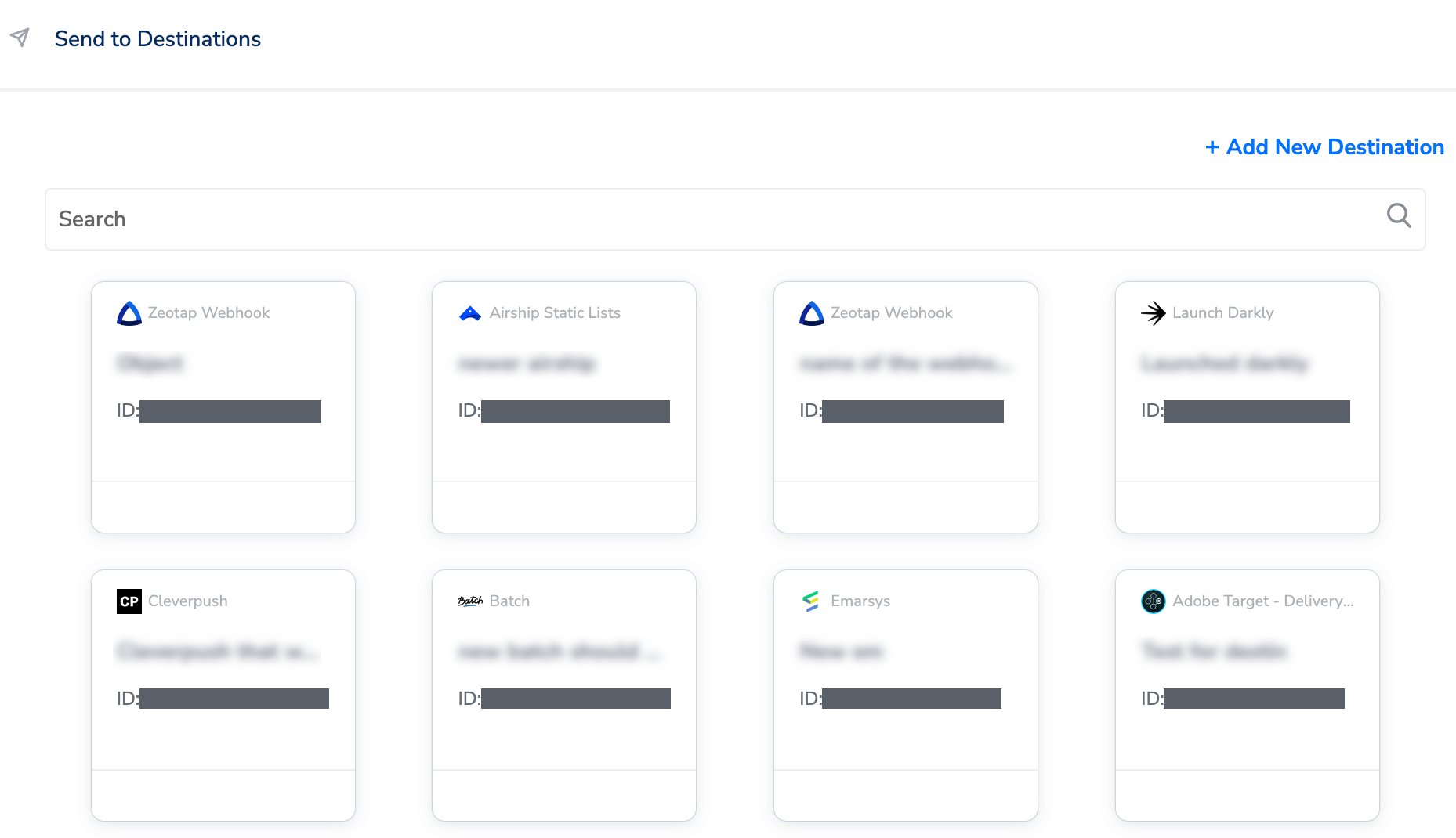
If a Kafka destination already exists in your workspace, skip this section and go straight to Link the destination to a Journeys workflow.
1
Start a new destination
Click + Add New Destination.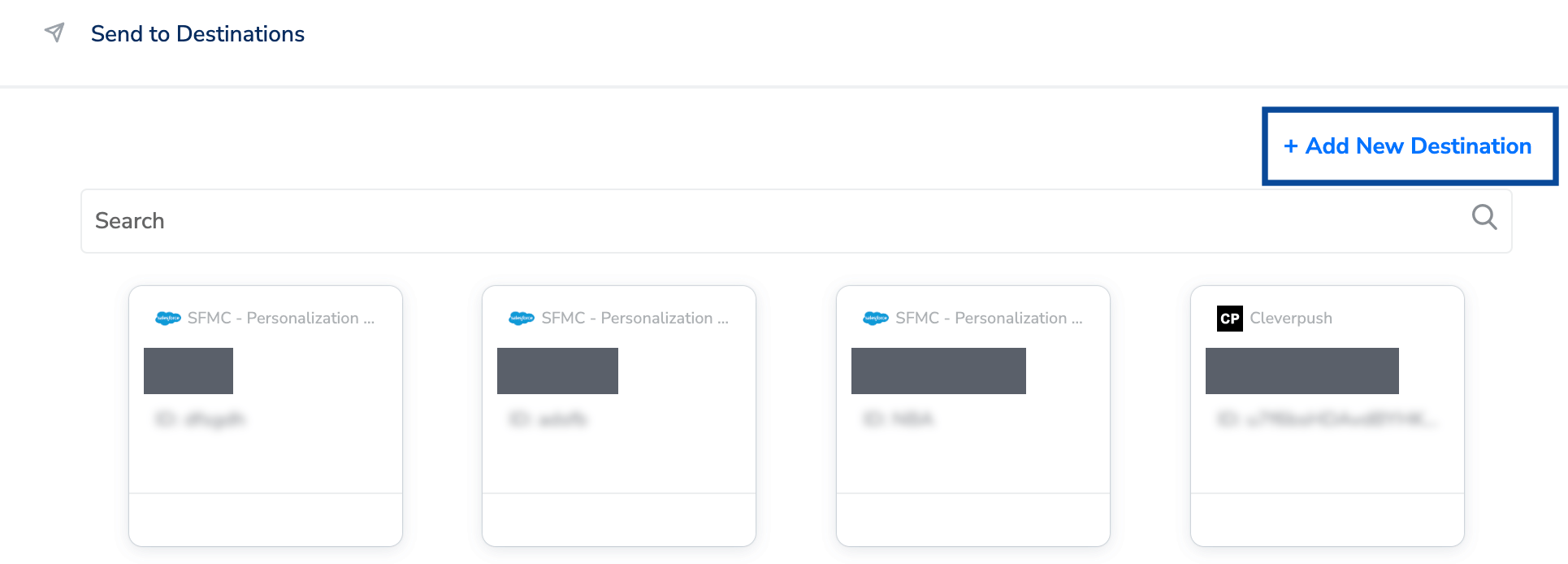
2
Select Kafka from the catalogue
Search for Kafka, click Kafka, and enter a name for the destination.
3
Enter the connection details
Provide a Connection Name for the Kafka connection in Zeotap CDP, then enter the Kafka Broker host, Broker API key and Broker API Secret obtained from your Kafka account, as listed in Prerequisites.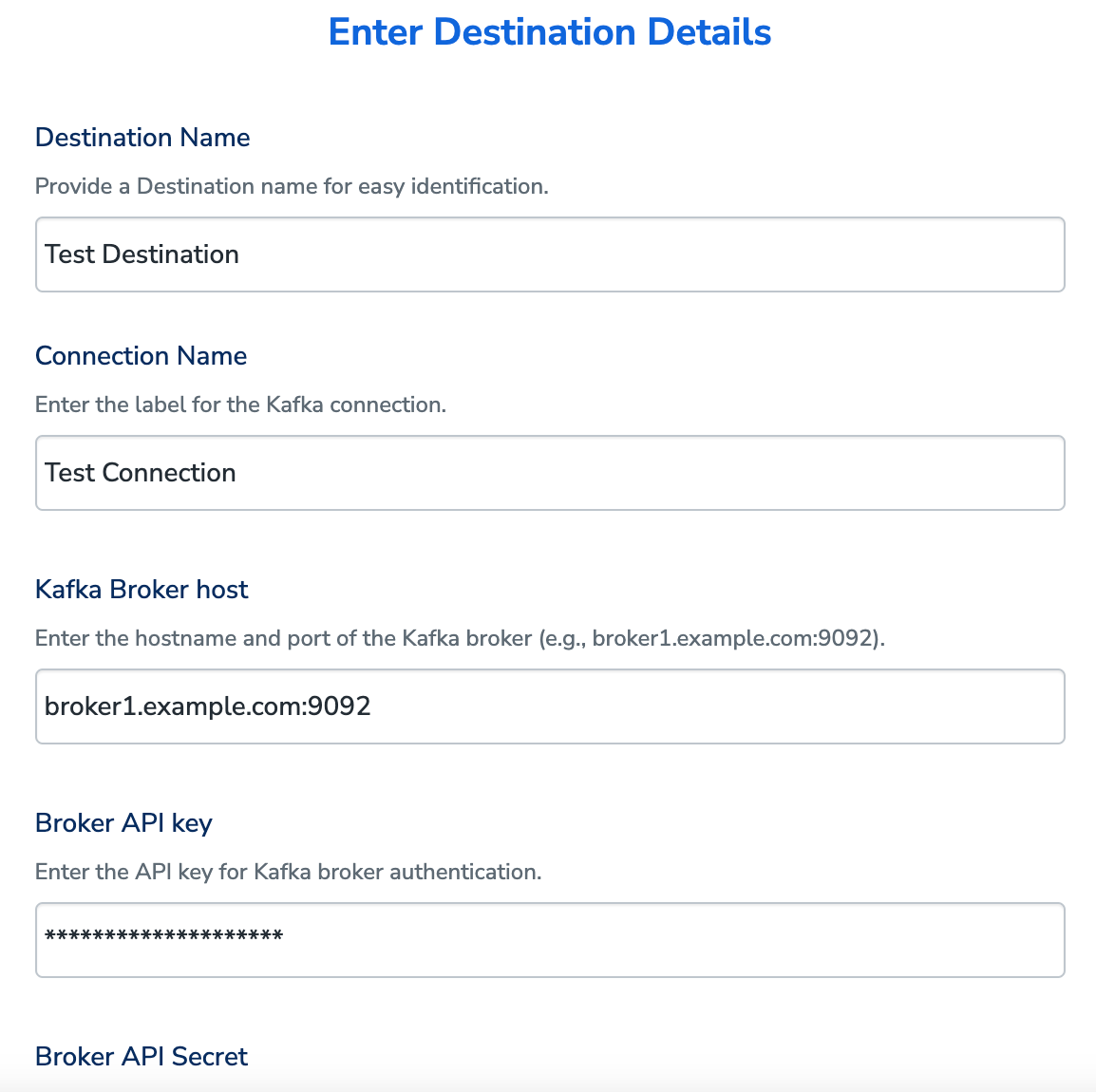
4
Choose the data format
Under Data Format, choose either AVRO or JSON as the format in which data is sent to Kafka.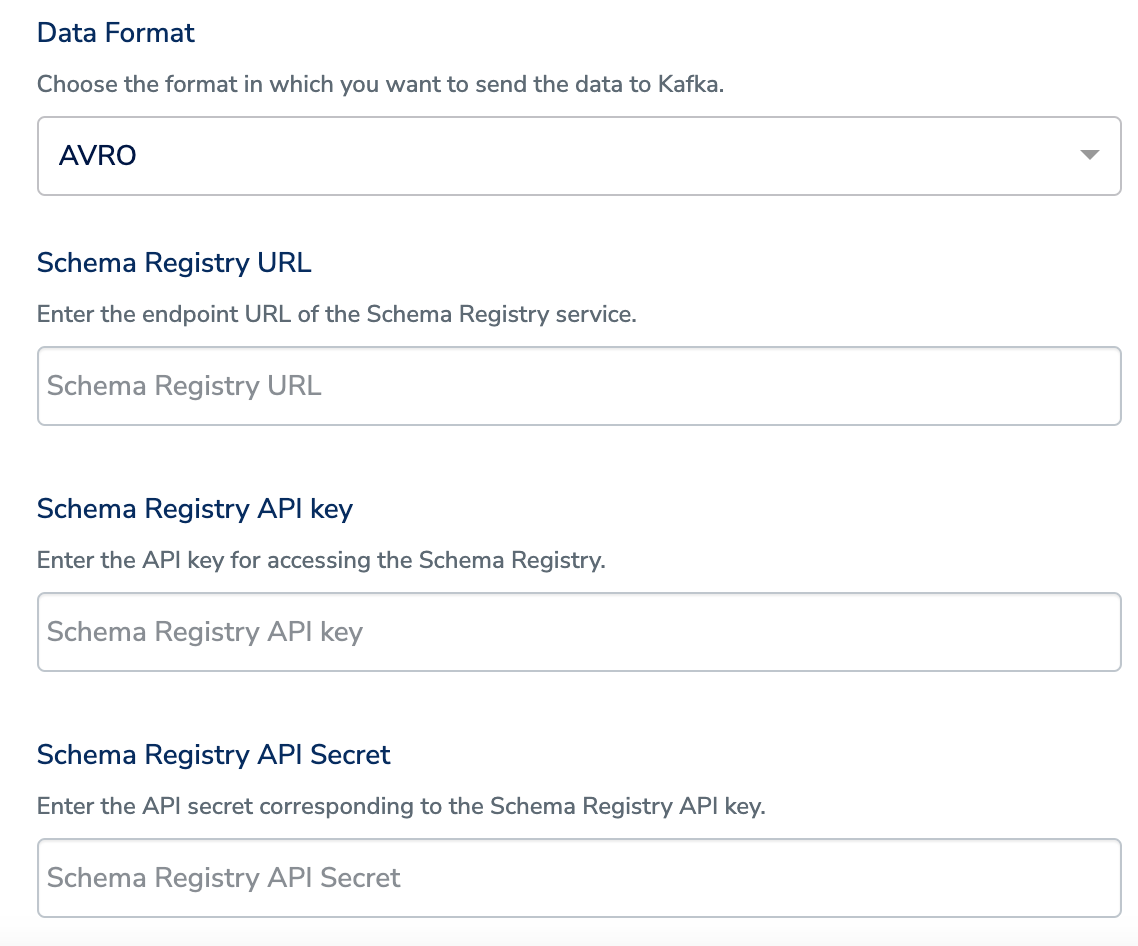
- If you choose AVRO, enter the Schema Registry URL, Schema Registry API key and Schema Registry API Secret obtained from your Kafka account, as listed in Prerequisites.
- If you choose JSON, no additional fields are required — proceed to the action and mapping.
5
Review and continue
Review the fields you entered and click Next to move from Destination Details to Mapping.
6
Choose the action
On the mapping screen, under Choose your Action, select Stream data to Kafka as the action for sending data from the workflow you created in Journeys.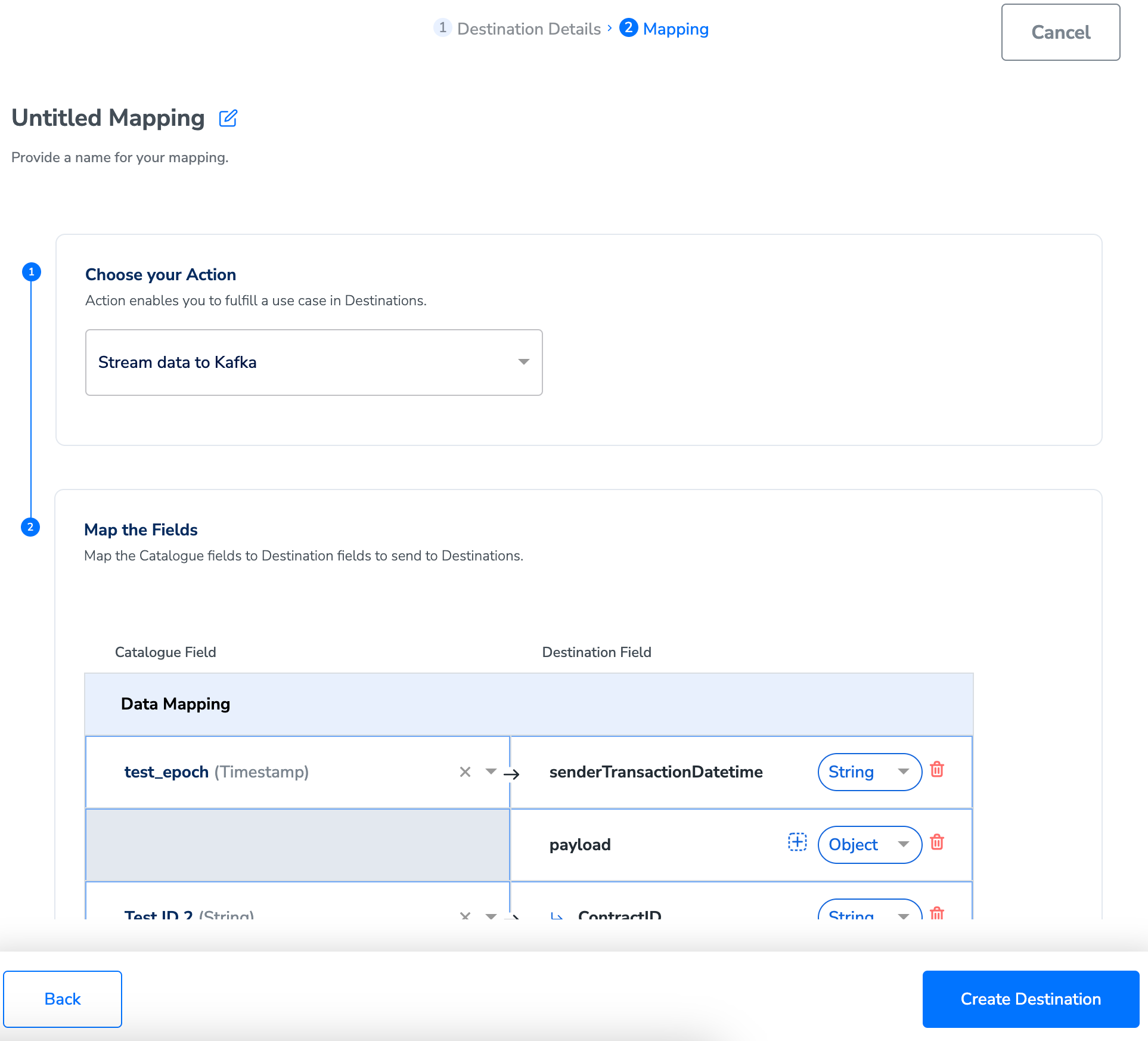
7
Map the fields
Under Map the Fields, use + Add Mapping Field to add the identifiers and attributes you want to send to Kafka. Configure the topic and its attributes in Kafka before you map them here.Use the drop-down against each field to choose the data type for the attribute or identifier, and map the corresponding Catalogue fields to the Destination fields. If you choose Object or List of Object, you must also map the object’s properties beneath the object, as shown below.
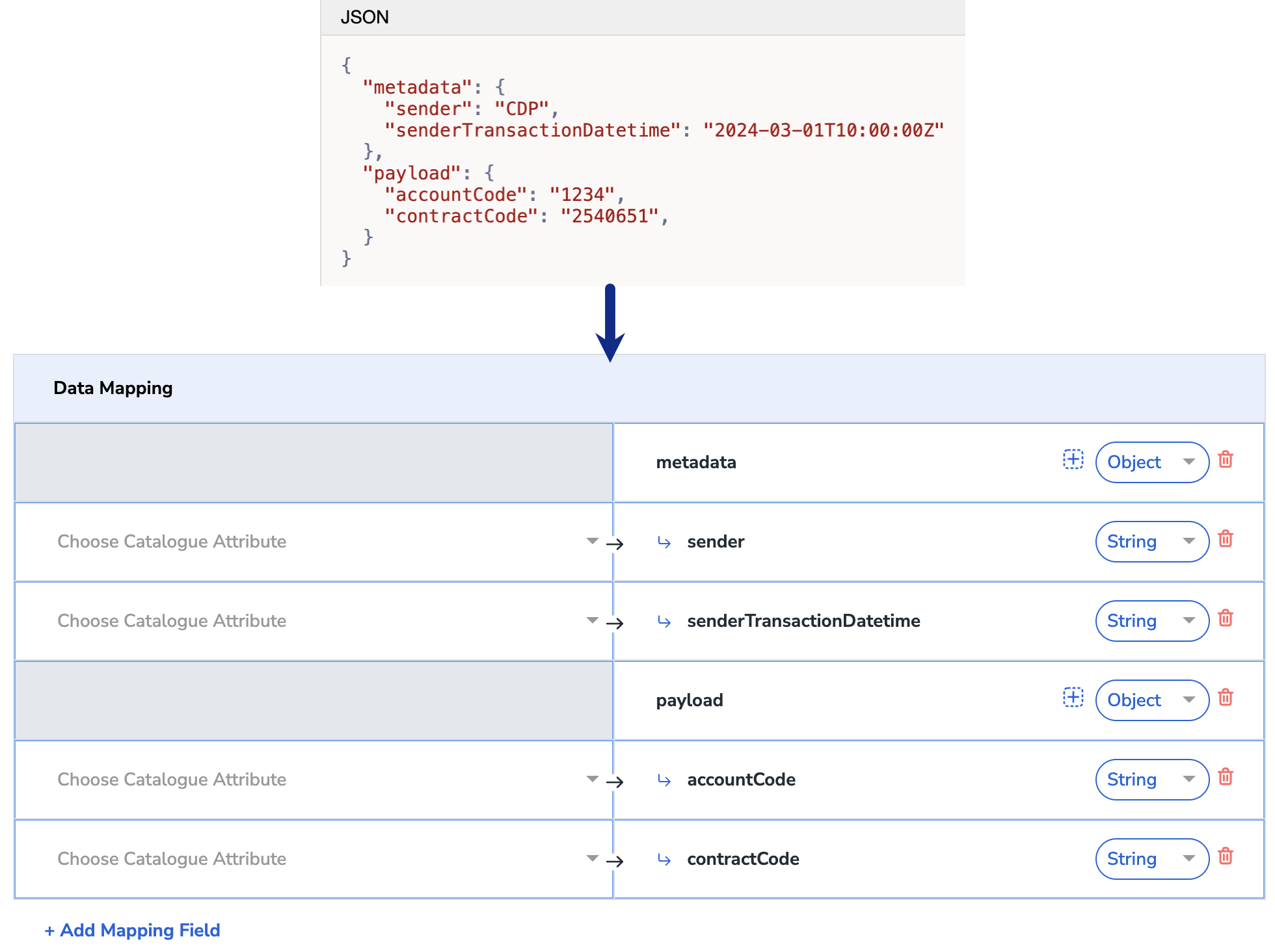
metadata object and a payload object, and how each of their properties becomes a row in the mapping table.8
Create the destination
Once the mapping is complete, click Create Destination. The destination is created and made available for activation in Journeys.
Link the destination to a Journeys workflow
After the destination exists, link it in the Send to Destinations node of your workflow.1
Add the Send to Destinations node
In the workflow, click + and choose Send to Destinations.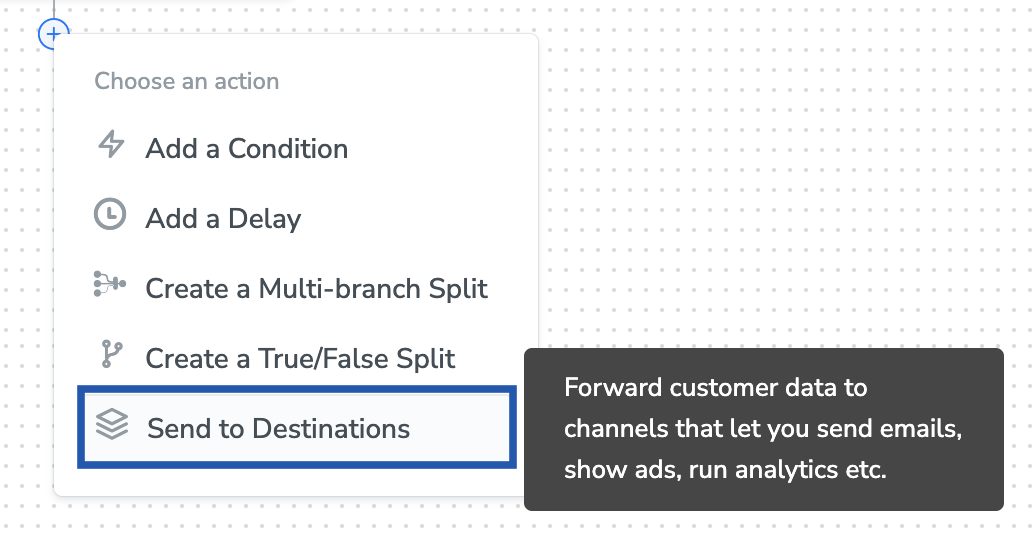
2
Choose the Kafka destination
Choose the destination from the list of available destinations, using the search field if needed.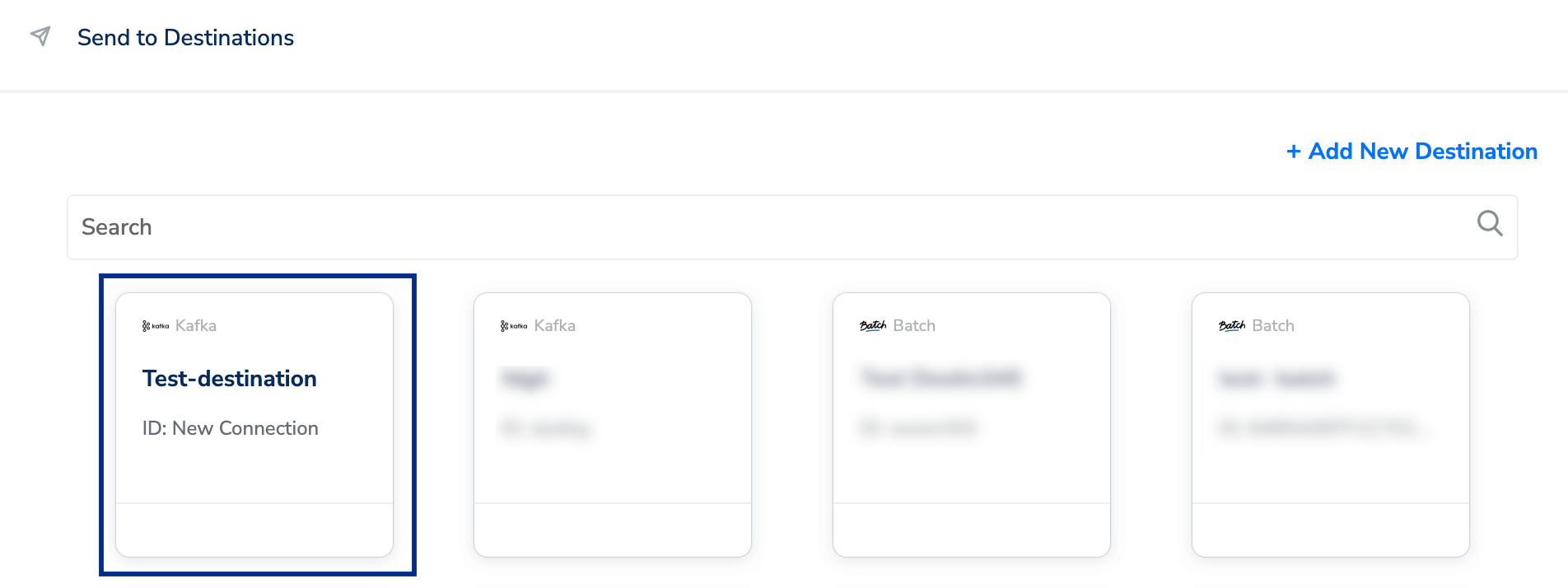
3
Set the topic and partition key
Under the Destination Details tab, the Connection Name, Kafka Broker host, Broker API key, Broker API Secret, Schema Registry URL, Schema Registry API key and Schema Registry API Secret fields are populated automatically from the values you entered while creating the destination.Enter the Topic name, then use the Partition key Required? drop-down to choose whether a is required.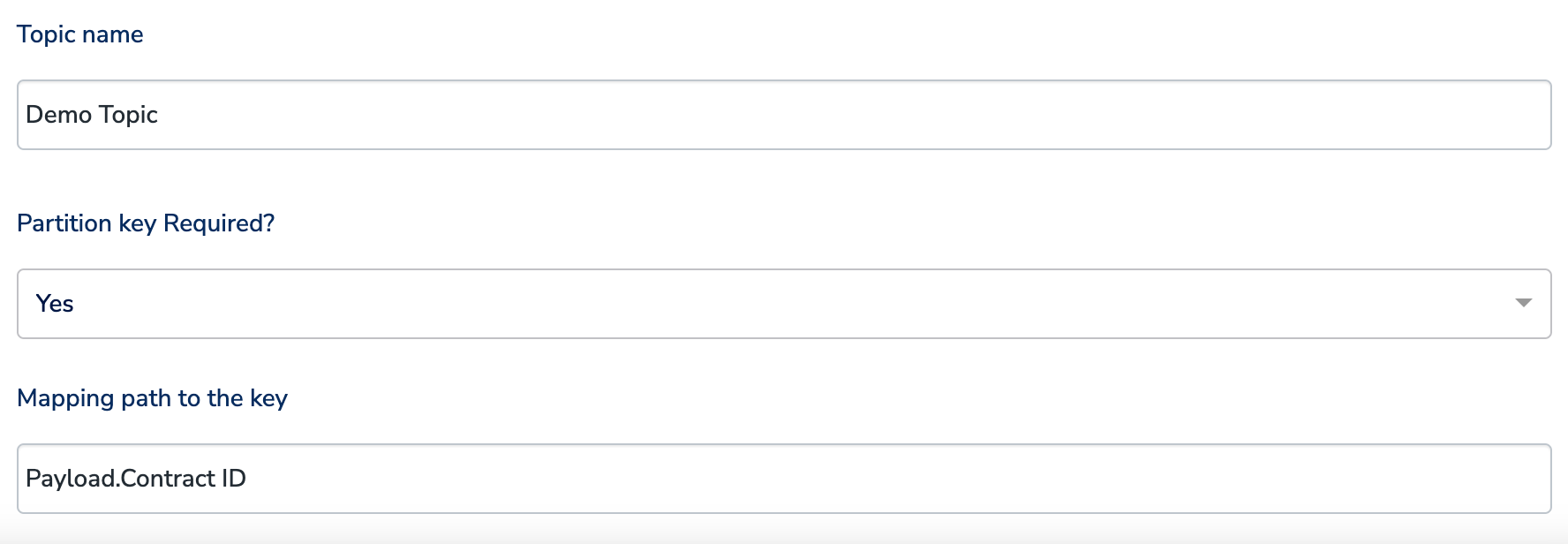
- If you select Yes, enter the name of the attribute to use as the partition key in the Mapping path to the key text box. Select an attribute that determines how data partitions occur when the incoming data exceeds the data size limit.
- If you select No, proceed to the Destination Settings tab.
To use a property of an Object as the partition key, enter the attribute name given in the Destination field (right-hand side) in the format
objectname.attributename. For example, if an object named payload includes properties such as Contract ID, Contract Start Date and Contract End Date, and you want to use Contract ID as the partition key, enter payload.ContractID in the Mapping path to the key text box. The value for the partition key is case sensitive.4
Choose the action and mapping
Under the Destination Settings tab, choose the action and mapping as per your requirement.
5
Save the destination on the node
Click Save Destination. The destination is attached as shown below.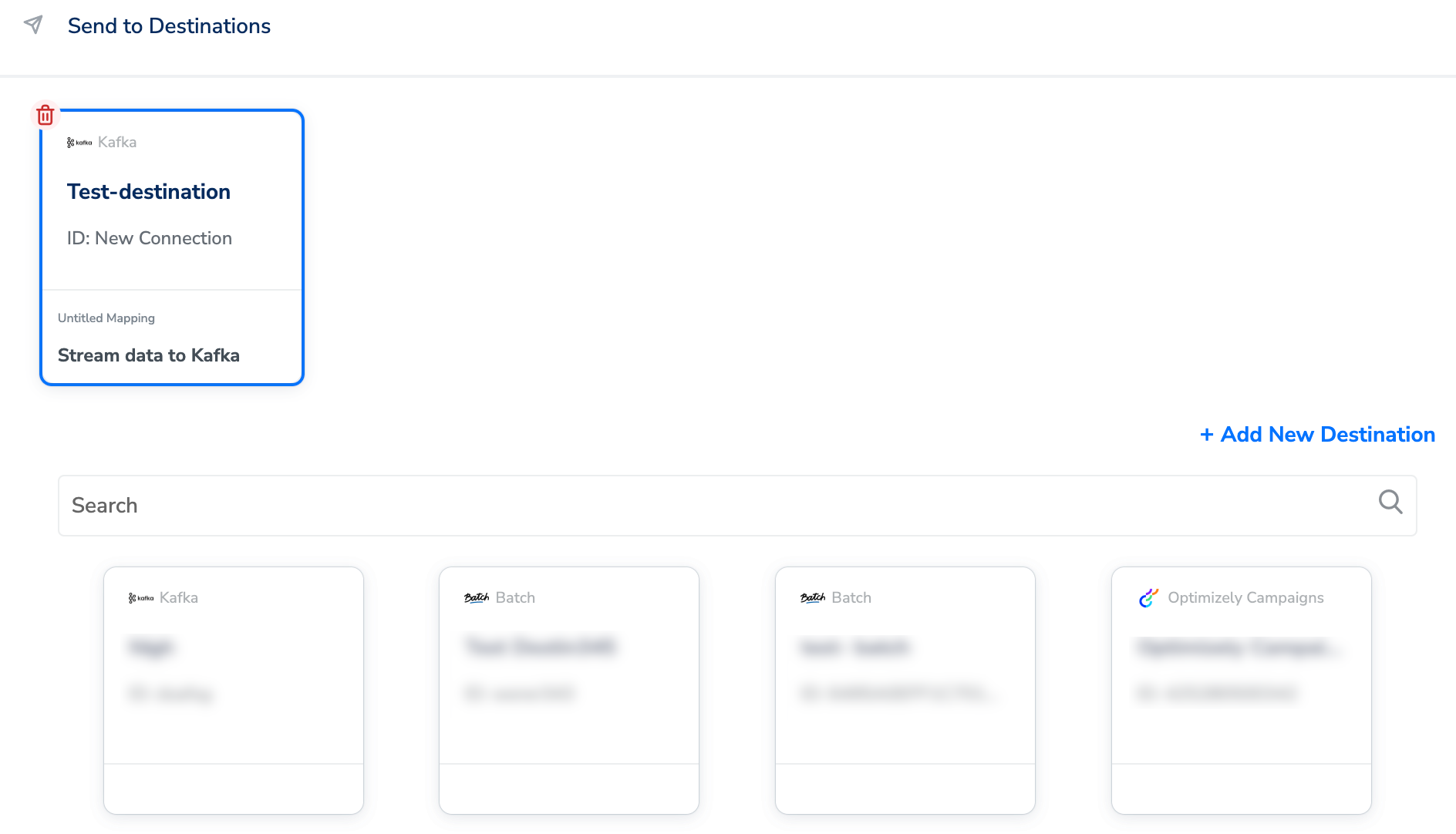
6
Add the destinations to the node
Click Add Destinations. You can add multiple destinations at this step if needed.
7
Continue building the workflow
The linked destinations appear in the Send to Destinations node within the workflow. You can then build and customise the workflow by clicking +. Enter a name for the workflow in the text box provided so that it can be saved.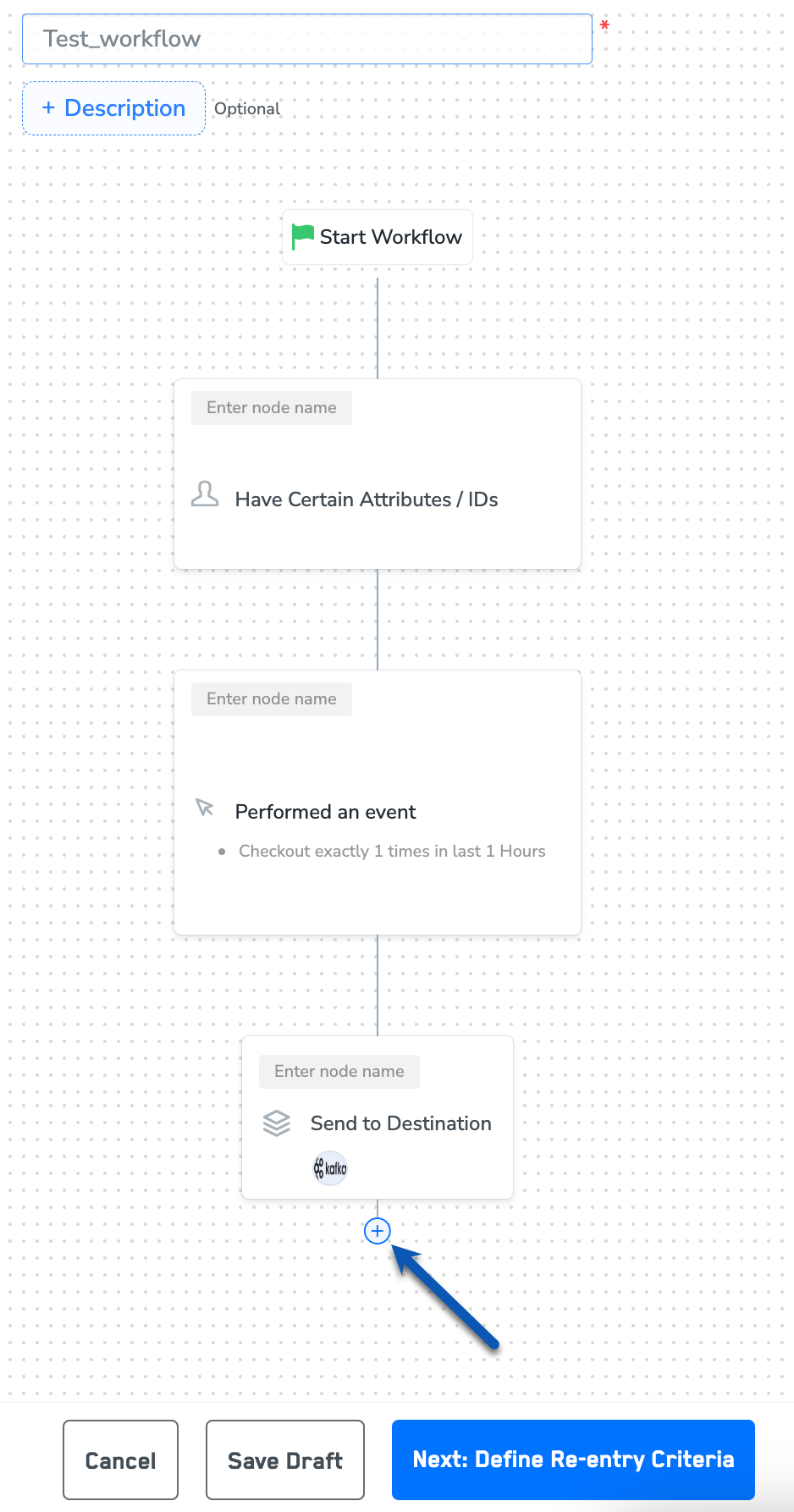
8
Choose how to proceed
After adding conditions and filters for users, choose one of the following:
- Save Draft — revisit and edit the workflow before publishing.
- Next: Re-entry Condition — determine whether a user can re-enter the same workflow.
9
Publish the workflow
After defining the re-entry criteria, click Publish Workflow. The workflow appears on the Workflow listing screen with a Published status.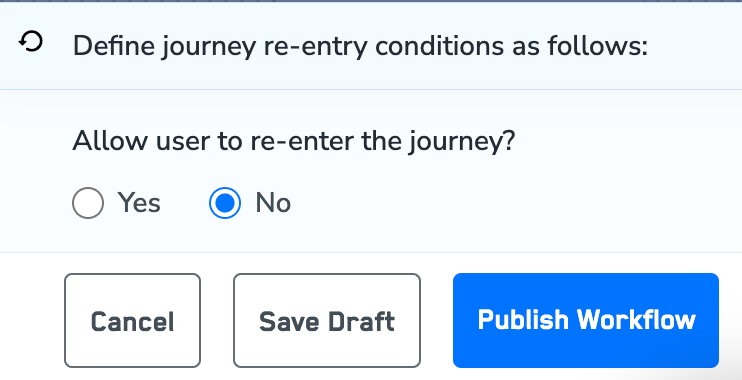
Verify the destination is live
Check the following in order:- The destination was created. After you click Create Destination, it appears in the list of available destinations in the Send to Destinations picker.
- The destination is attached to the node. After you click Save Destination, the destination card appears inside the Send to Destinations node, showing the mapping name and the action.
- The workflow is published. The workflow shows a Published status on the Workflow listing screen.
- Records arrive on the topic. Consume from the topic you configured in Kafka and confirm the mapped fields appear with the data format (AVRO or JSON) you selected.
Troubleshooting
FAQ
Is this the same as the Kafka source?
Is this the same as the Kafka source?
No. This page covers the Kafka destination, which sends data out of Zeotap CDP to your Kafka topic through a Journeys workflow. The Kafka source does the opposite — it ingests data from a Kafka topic into Zeotap CDP. The two are configured separately — the source in the Sources application under Integrate, this destination from a Journeys workflow.
Does Zeotap create the Kafka topic for me?
Does Zeotap create the Kafka topic for me?
No. Configure the topic, and the attributes grouped under it, in your Kafka account before you reference the topic in Zeotap CDP.
Should I choose AVRO or JSON?
Should I choose AVRO or JSON?
Choose the format your Kafka topic consumers expect. AVRO additionally requires a Schema Registry URL, API key and API secret, and every field your schema marks mandatory must be mapped to a Catalogue field that contains data. JSON needs no extra configuration.
What is a partition key, and do I need one?
What is a partition key, and do I need one?
A partition key is a unique key used to split the data in Kafka when a large amount of data is received. It is optional — set Partition key Required? to No if you do not need one. If you set it to Yes, name the attribute that should determine how data partitions occur when the incoming data exceeds the data size limit.
Can I send nested data?
Can I send nested data?
Yes. In Map the Fields, set a Destination field’s data type to Object or List of Object and map its properties beneath it. See Object, List of Objects and NCE Support in Destination Upload.
Next steps
- Explore Real-Time Integrations → for the other real-time integrations Zeotap CDP supports.
- Explore Create a Workflow → to build the journey this destination attaches to.
- Explore Kafka (source) → to bring data from a Kafka topic into Zeotap CDP.
- Explore Destinations → for how actions and mappings work across all destinations.
- Explore Data Types in Catalogue → for what each mapping data type means.