

Overview
Amazon DSP is a programmatic advertising platform that allows marketers to buy display and video ads across Amazon-owned and third-party websites and mobile apps. The Amazon Conversions API integration with Zeotap creates a direct, server-to-server connection that forwards your conversion events to Amazon DSP, enabling you to reach your ideal audiences and optimise your campaigns in real-time.Supported Identifiers
This integration sends the following identity fields as Match Keys: Email, Phone Number, MAID, First Name, and Last Name. You can also send additional attributes using Custom Data Fields, and an Event Timestamp is required for every event.Note:Ensure that the Email, MAID, First Name, and Last Name values you map are SHA-256 hashed before they are sent to Amazon Conversions API.
Prerequisites
Before you create an Amazon Conversions API Destination in Zeotap CDP, ensure that you have the following:- An Amazon DSP (Amazon Ads) account.
- Your Advertiser ID (Amazon DSP Ad Account ID) and account Currency available.
- Permission to authorize Zeotap to access your Amazon Ads account through the Amazon sign-in (OAuth) flow.
Components of Amazon Conversions API
Ensure that you have the details about the below components before creating a Destination.Advertiser ID
This is your Amazon DSP Ad Account ID. You can obtain it from your Amazon DSP account.Account Region
This is the geographical region in which your Amazon DSP account operates — either North America or Europe.Creating a Destination
Perform the following steps to create a Destination for Amazon Conversions API:1
Log into the Zeotap CDP App and go to the DESTINATIONS application.
2
Click + Create Destination.
3
Under the All Destinations section, search for Amazon Conversions API and click Amazon Conversions API.
4
A screen appears displaying details about the Destination towards the left. On the right-hand side, provide the required details:a. In the Destination Name field, enter a name for the Destination.b. In the Advertiser ID field, enter your Amazon DSP Ad Account ID.c. Under Account Region, select the region where your Amazon DSP account operates (North America or Europe).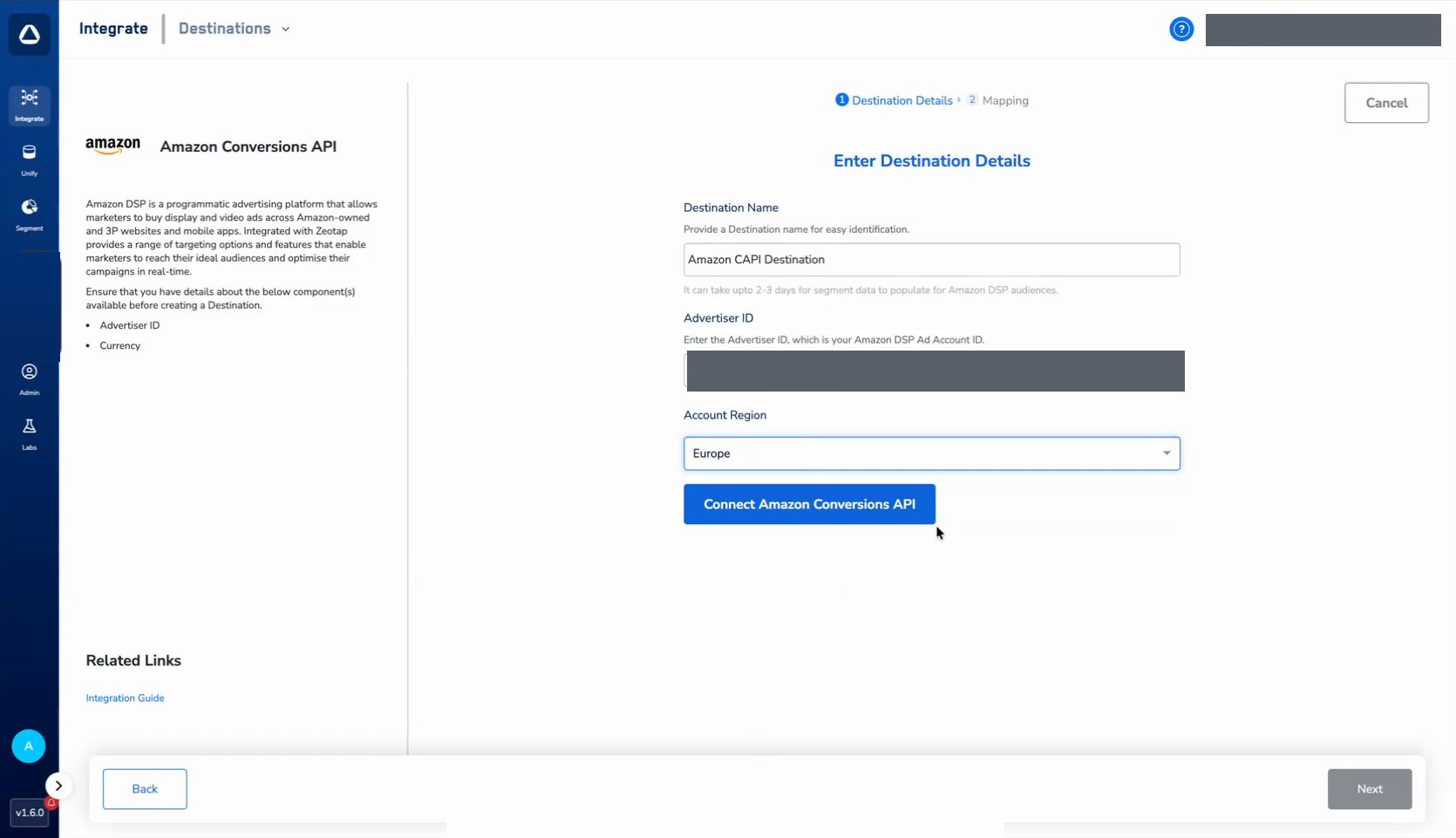
5
Click Connect Amazon Conversions API. In the Amazon sign-in window that opens, click Allow to authorize Zeotap to access your Amazon Ads account.
6
Once authorization is complete, the Destination screen confirms the connection. Click Next to proceed to the Mapping screen.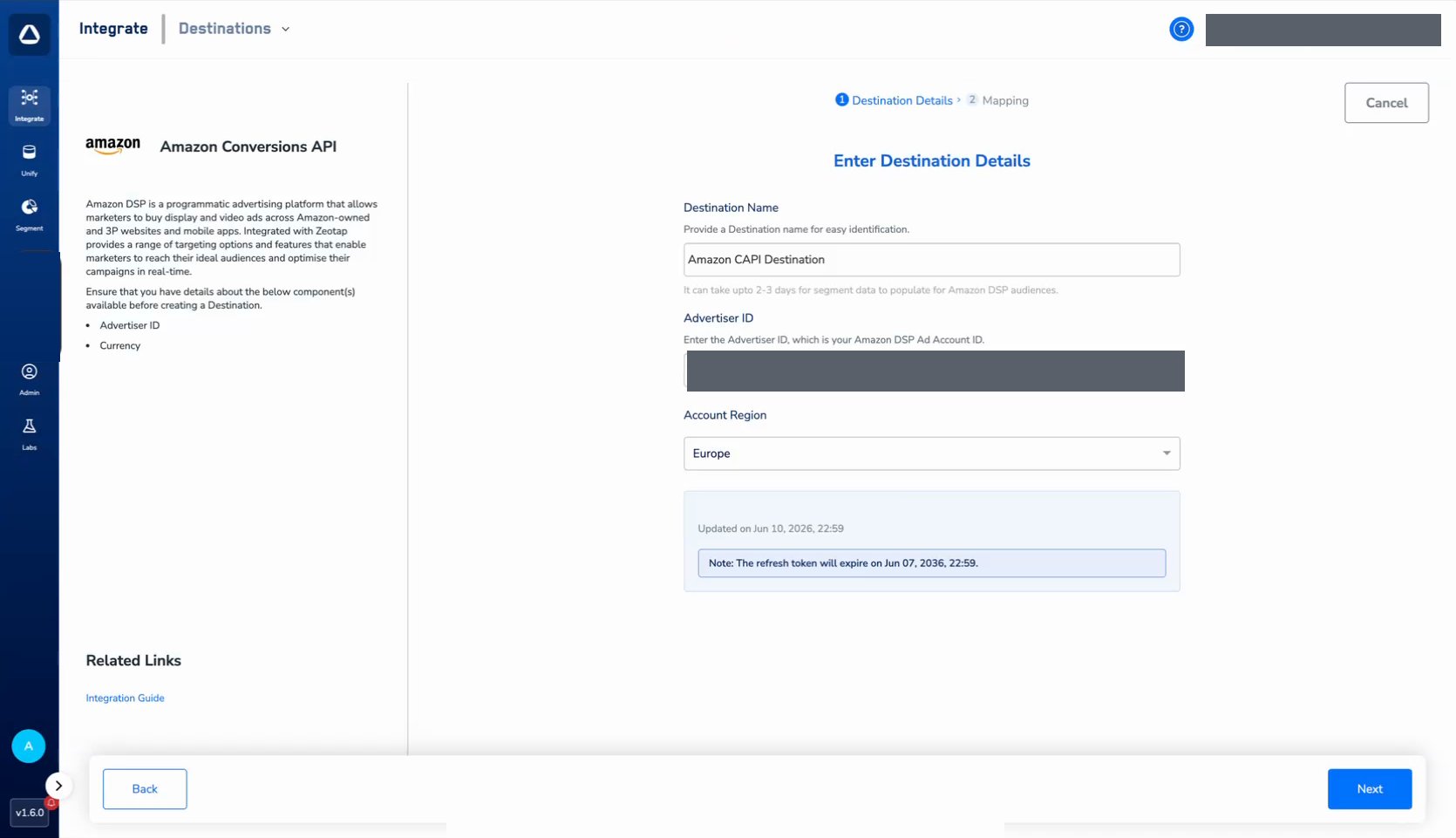
7
On the Mapping screen, provide a name for your mapping and configure the action and field mapping:a. Under Choose your Action, select Send Events to Amazon. This action sends your conversion events to Amazon DSP through Journeys.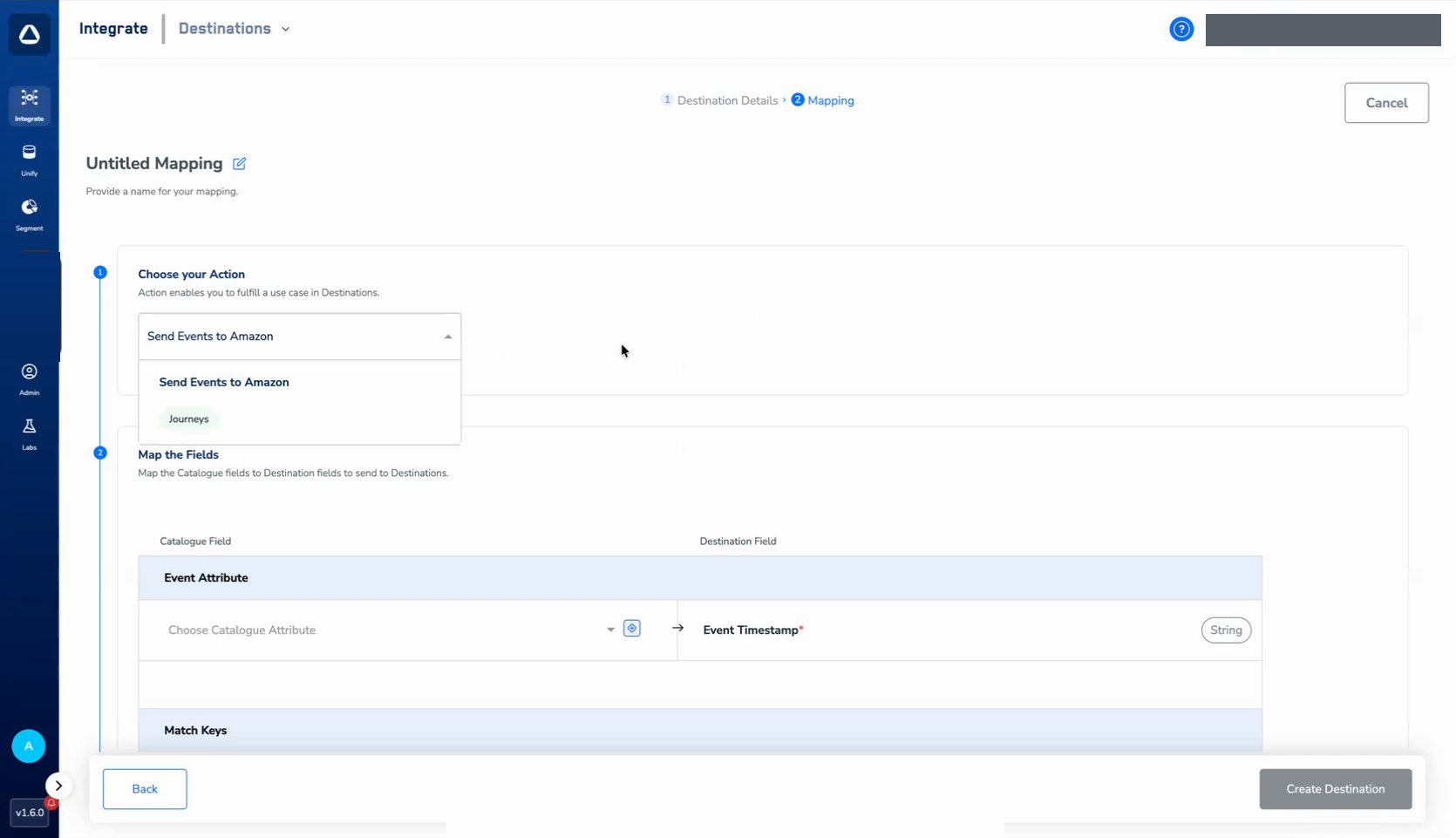
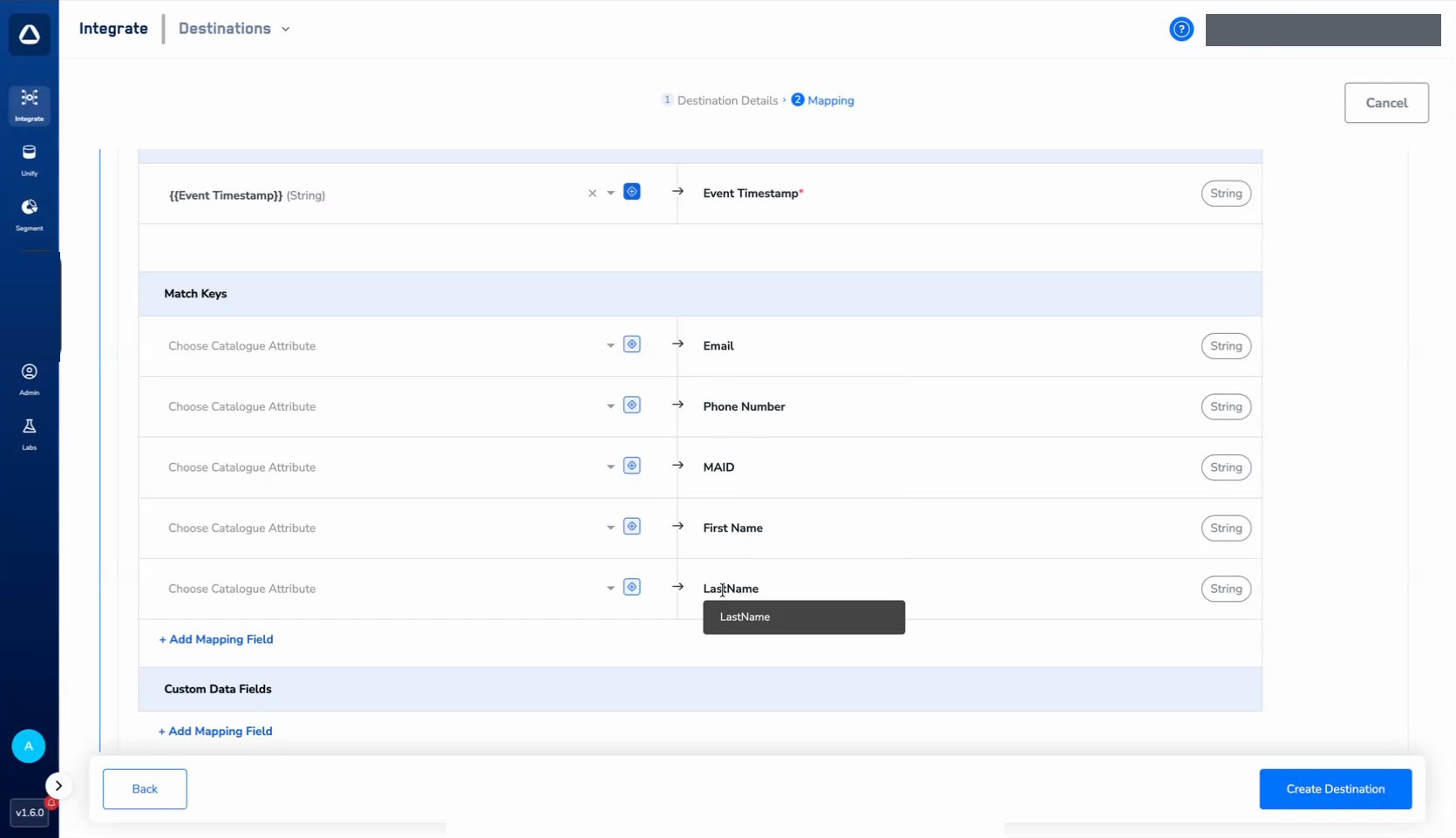
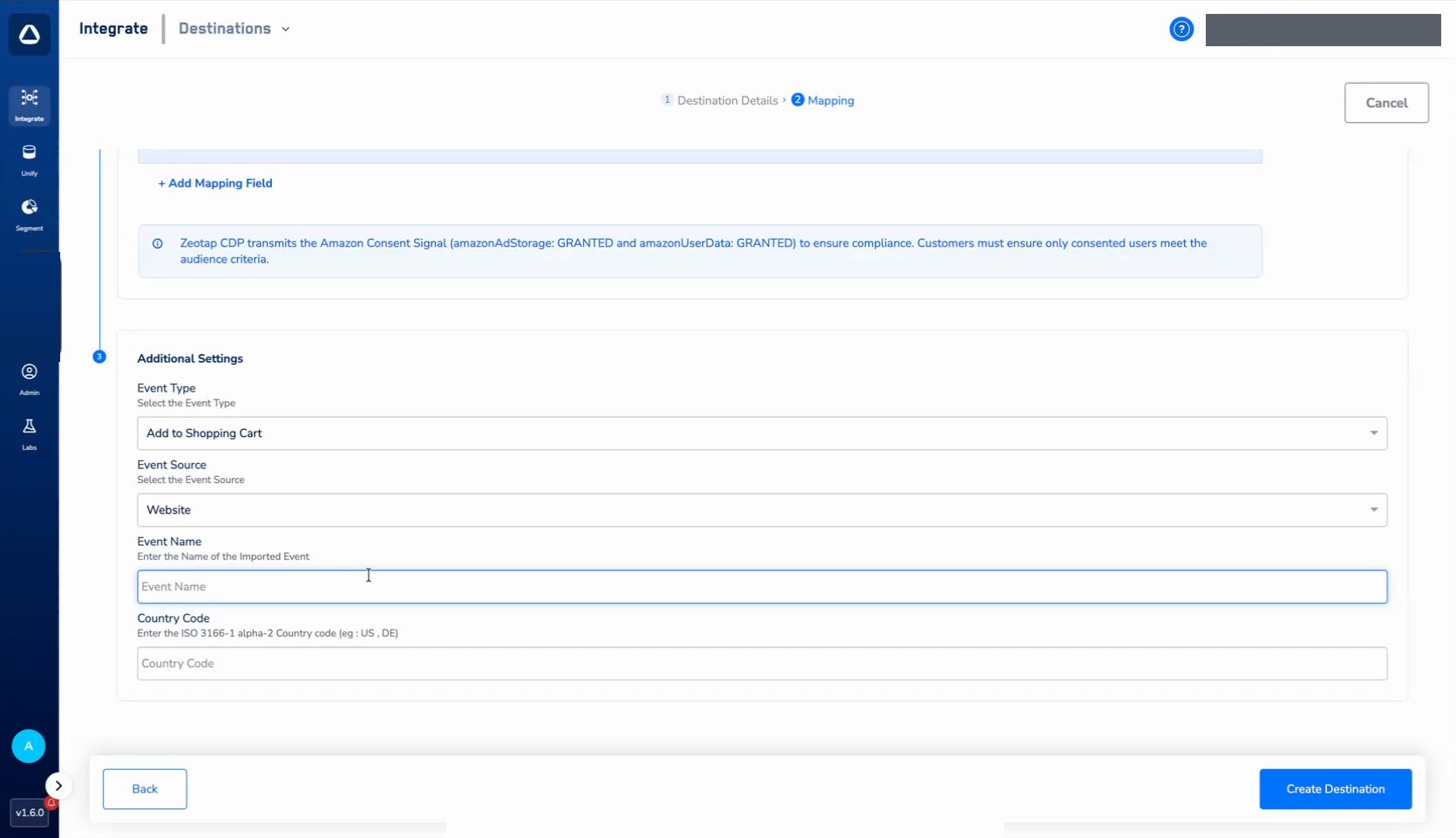
Zeotap CDP transmits the Amazon Consent Signal (
amazonAdStorage: GRANTED and amazonUserData: GRANTED) to ensure compliance. Ensure that only consented users meet your audience criteria.US or DE).Note:Keep the Event Name consistent for a given Event Type. Once an event type (for example, Add to Shopping Cart) is configured with a specific Event Name, use the same Event Name for all future occurrences of that event type to ensure accurate tracking and attribution.
8
Click Create Destination. The created Destination is listed in the Audiences application and can be activated through Journeys.
Activate the Destination on Journeys
The Send Events to Amazon action runs in Journeys. After creating the Destination, attach it using the Send to Destinations node within your workflow. For details on activating real-time destinations, refer here.Viewing Conversion Events in Amazon Ads
Once the destination is activated and events begin flowing, you can verify them in the Amazon Ads console:1
In the Amazon Ads console, open the advertiser linked to this destination.
2
From the left navigation, open Events manager.
3
Open the Conversions tab to see the conversion events received through the Conversions API. Each row shows the Data source (Conversions API), the Conversion name and Conversion type, the Count method, and the Event count.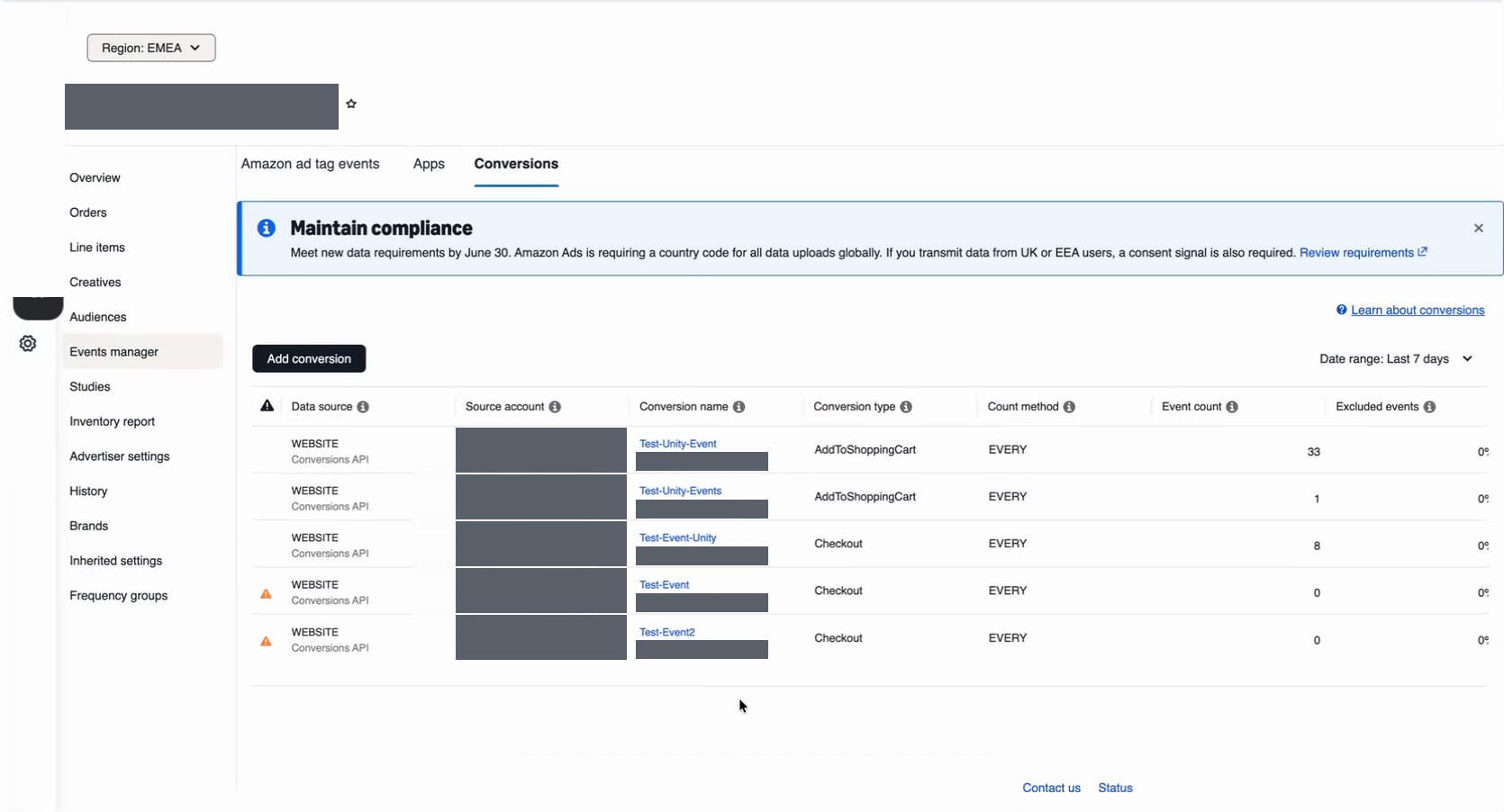
Note:The terms Audiences and Segments are used interchangeably to refer to customer cohorts belonging to a specific category. For example, an Audience or a segment could be a specific group of customers who are over 18 years of age and who have performed an
addToCart event within the last 30 days.