

Overview
Oracle Eloqua is a B2B marketing automation platform that enables marketers to create, manage, and execute sophisticated cross-channel campaigns including email, display advertising, and landing pages. It provides advanced tools for lead management, campaign orchestration, and real-time email triggering, helping marketers deliver personalised experiences at scale. The platform offers an Email Deployment API to trigger individual email sends to specific contacts in real time, making it well suited for event-driven, transactional, and journey-based communication. Integrated with Zeotap, it helps marketers deliver contextually relevant email experiences driven by unified first-party customer data.Available Actions and Supported Features
The following table lists the available action types for the integration and the supported features for each action type:Prerequisites
Before pushing data to Eloqua, ensure that you have completed the setup as mentioned below.- Create an Eloqua account with REST API access enabled and obtain your Company Name, Username, and Password.
- Identify the POD your Eloqua instance is hosted on (e.g.,
p03) from the login URL, or useGET https://login.eloqua.com/idto resolve it programmatically. - Pre-build the email asset you want to trigger inside Eloqua and note down its Email Asset ID.
- Ensure the Eloqua internal
contactIdis available on the Zeotap customer profile.
Create a Destination for Eloqua
Once you have obtained the prerequisites mentioned above, perform the following steps to create a destination for Eloqua:Open the Destinations module
Click + Create Destination
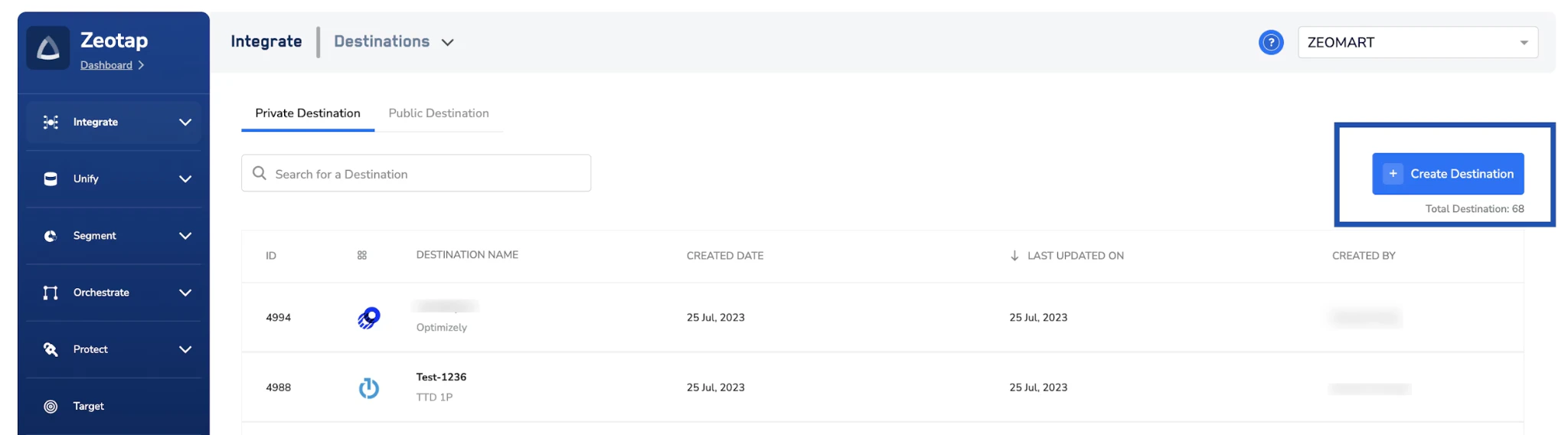
Figure 1 — Destinations listing page with the Create Destination button highlighted.
Search for Eloqua in the catalogue
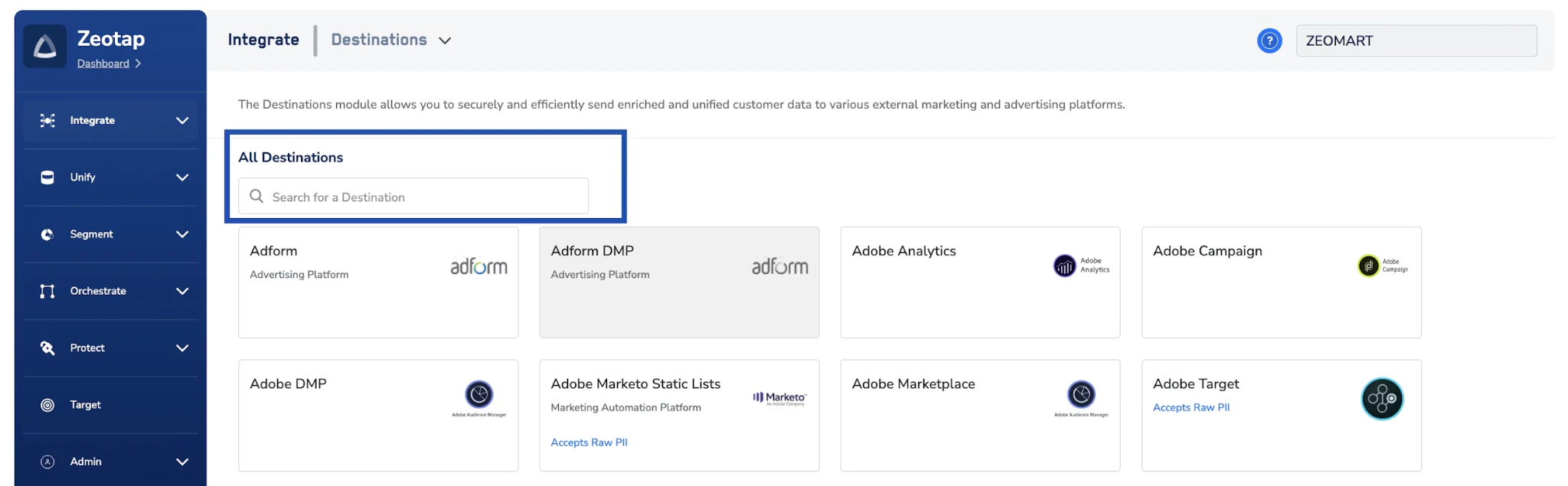
Figure 2 — Destination catalogue. Search for Eloqua to surface the destination card.
Enter the connection details
- Destination Name — a descriptive label (e.g.,
Eloqua — Production). - Username — the Eloqua username, prefixed with your Company Name separated by a backslash.
- Password — the password for your Eloqua account.
- Region — select the POD your Eloqua instance is hosted on.
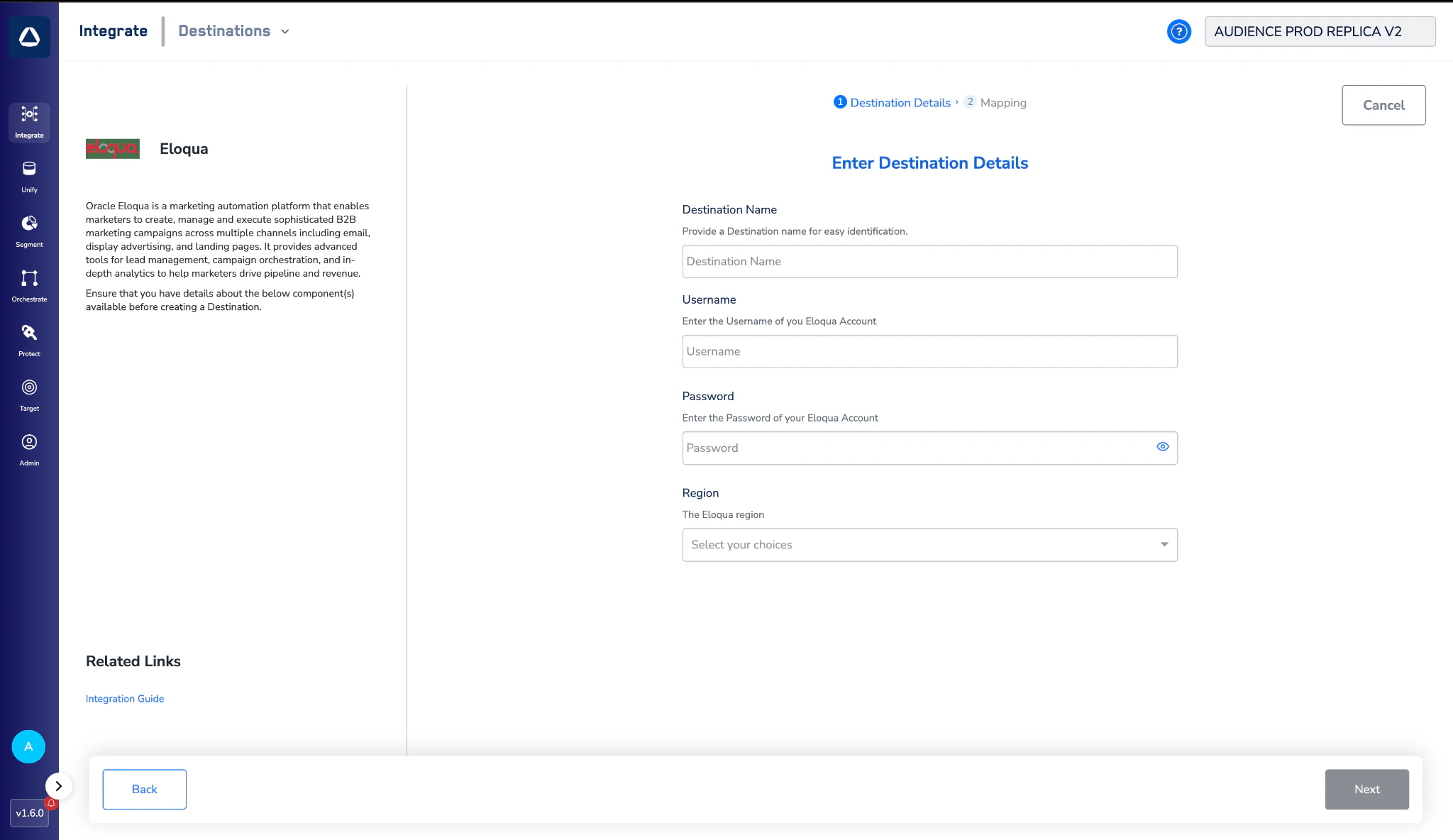
Figure 3 — Eloqua destination details form (Destination Name, Username, Password, and Region).
Choose the action and map the Contact ID
- Under Choose your Action, select Trigger Emails in Eloqua — this is the only action available for this destination.
- Under Map the Fields, the Contact Id destination field is pre-populated. Against it, select the Zeotap profile attribute that holds the Eloqua internal
contactId.
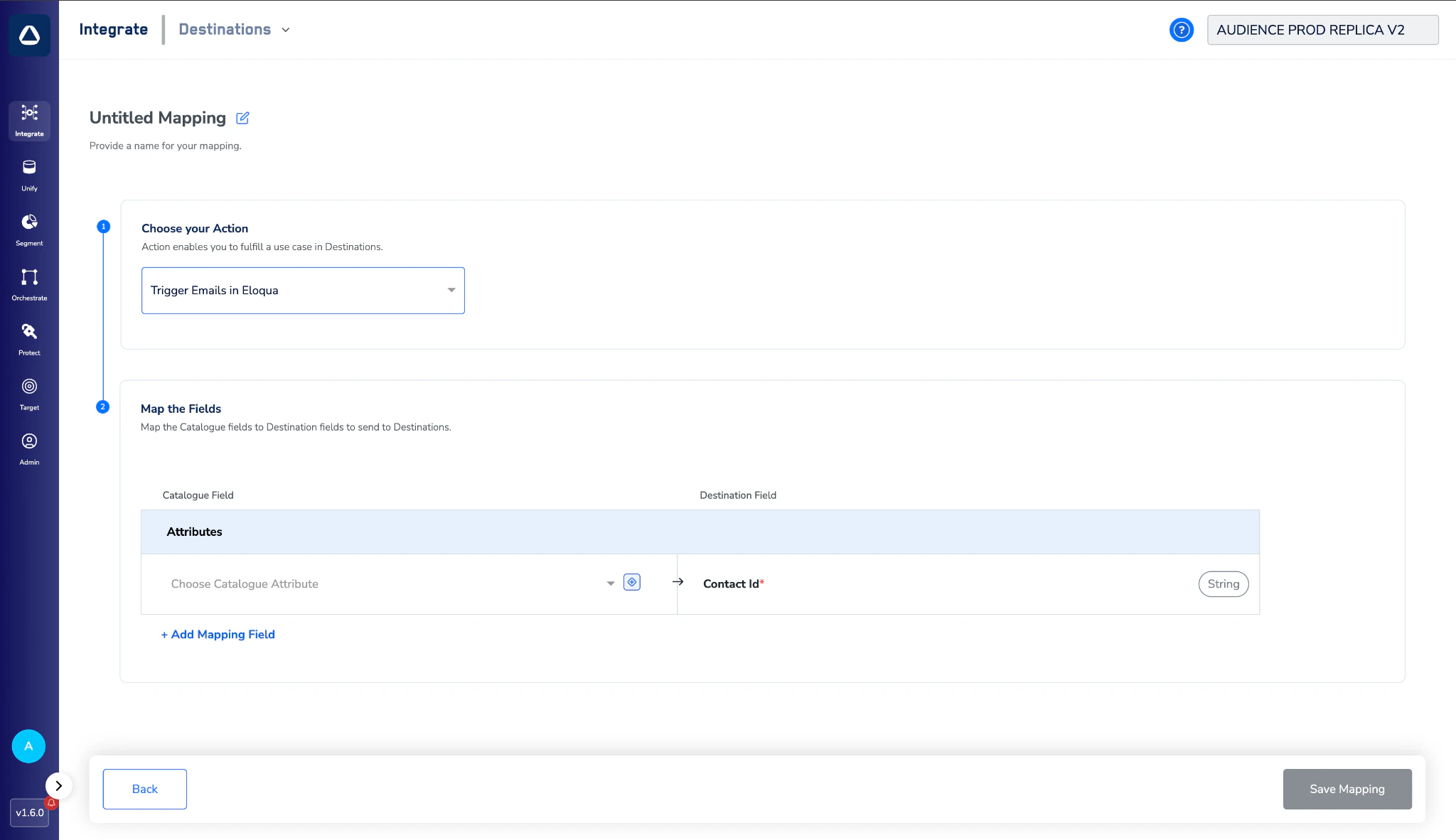
Figure 4 — Action set to Trigger Emails in Eloqua, with the Contact Id destination field ready to map.
Create the destination
Activate the Destination on Journeys
After creating the destination, link it inside the Send to Destinations node of a Journey workflow.Add a Send to Destinations action
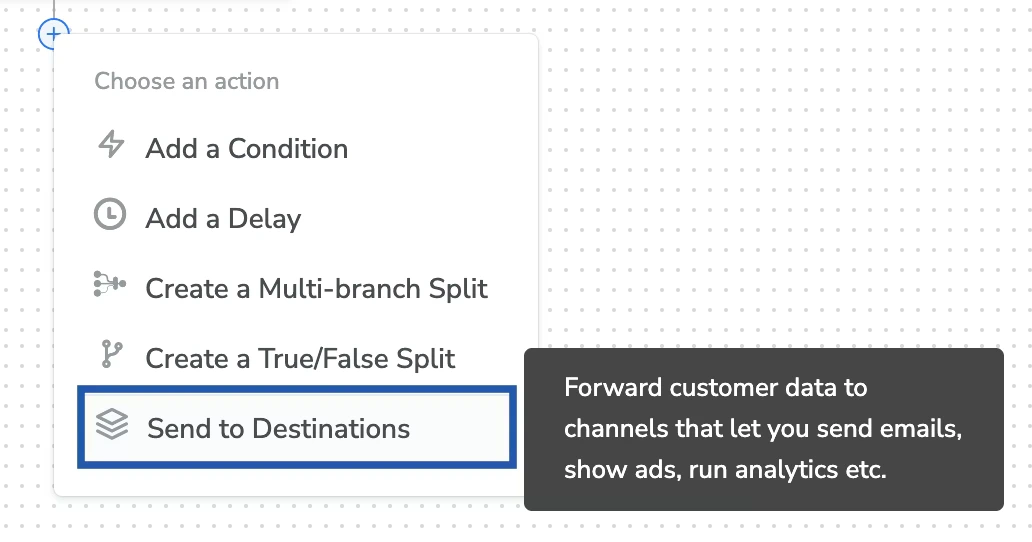
Figure 5 — Choose an action menu inside the Journey workflow with Send to Destinations highlighted.
Select the Eloqua destination
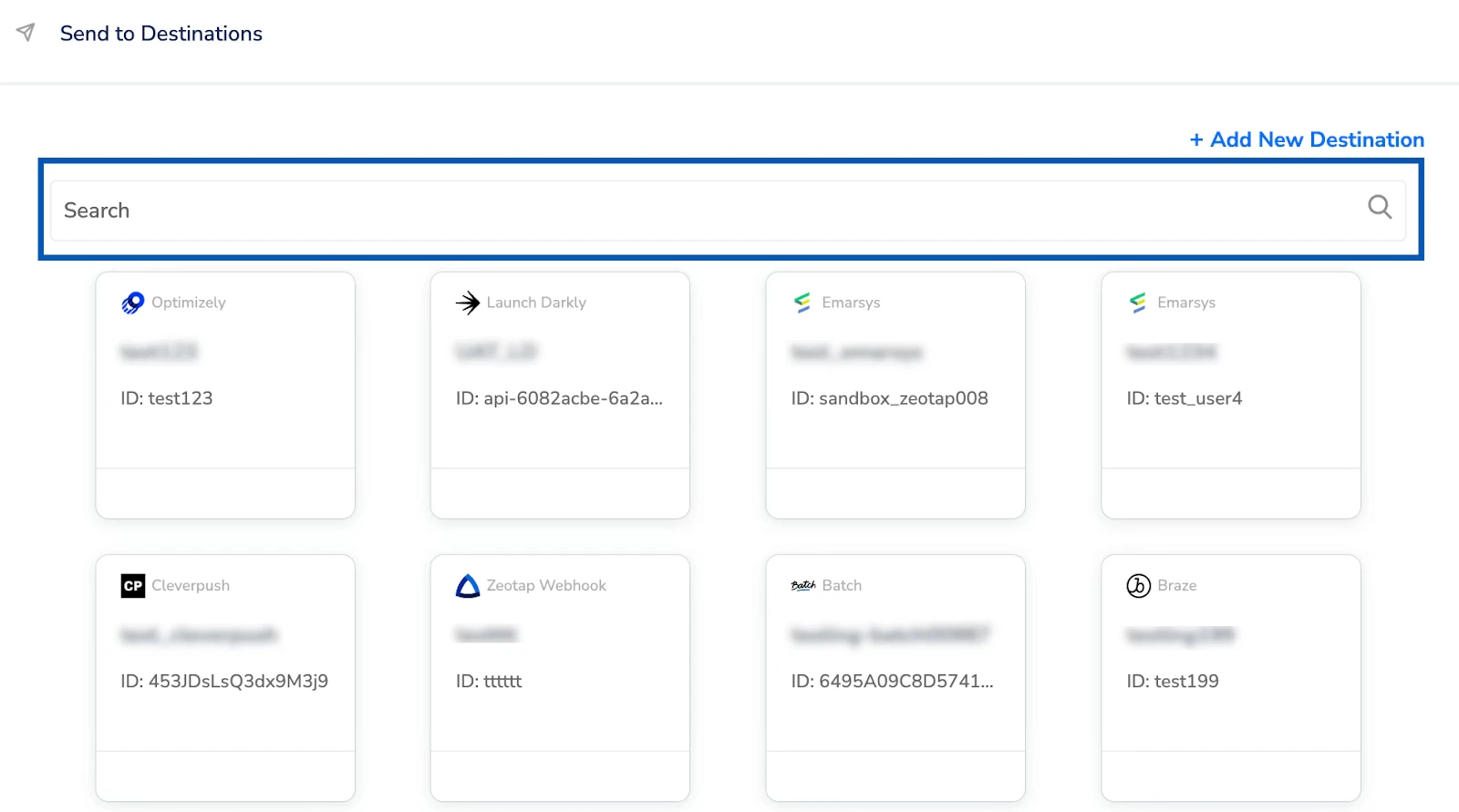
Figure 6 — Send to Destinations panel listing the available destinations to attach.
Confirm destination details and configure the email send
- Email ID — the Email Asset ID of the pre-built email in Eloqua. This is the unique numeric identifier of the email template you want to trigger; you can find it inside your Eloqua instance.
- Email Name — the email asset name as it appears in Eloqua. This is used for reference only and does not affect the delivery of the email.
- Name — a label for this deployment instance. This is an internal tracking identifier inside Eloqua and does not impact the email content or delivery.
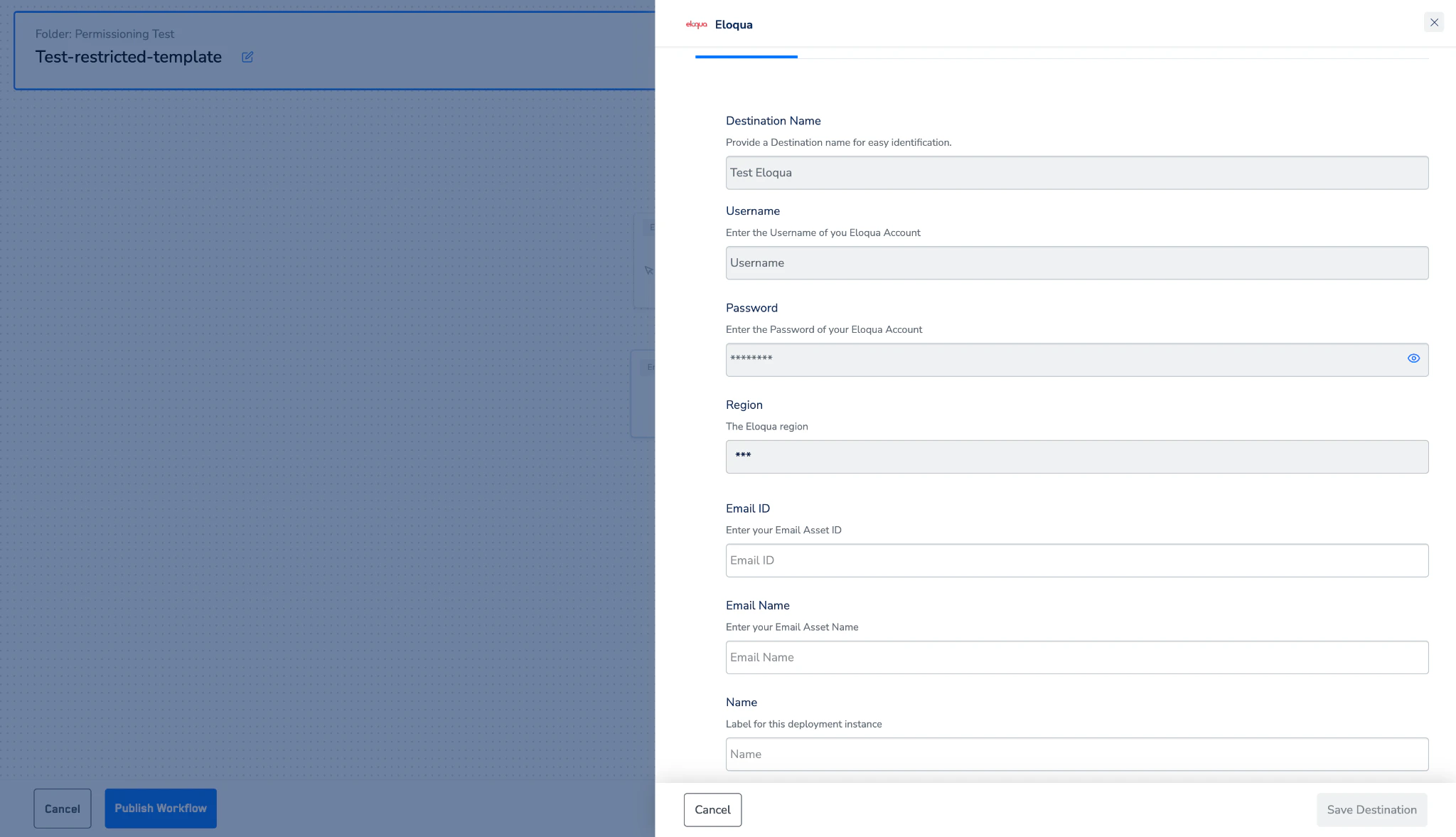
Figure 7 — Eloqua destination settings inside the journey node — Email ID, Email Name, and Name fields.
Save the destination
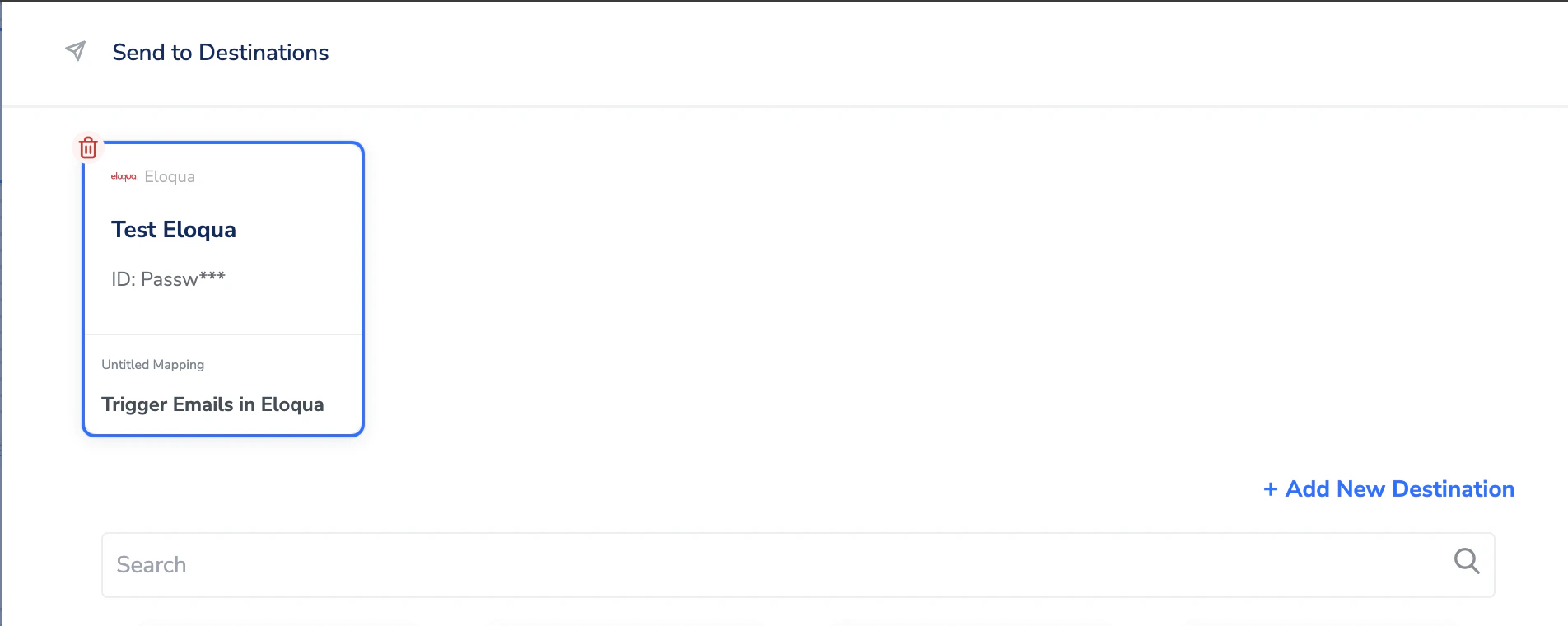
Figure 8 — Journey node with the attached Eloqua destination card and the Trigger Emails in Eloqua mapping.