

Add an ID Consent Category
Perform the following steps to add an ID Consent category:1
Enter a Catalogue Field. As you type, suggestions based on the existing Catalogue Fields appear. You can choose a suggested Catalogue Field or click +Add Catalogue Field to add a new field.
2
Map the Catalogue Field to its corresponding Source Field. Same as the above behaviour, you can choose a suggested Source Field or click +Add a new Source Field to add a new field.
3
Enter a description for easy identification.
4
Choose String as the Data Type.
5
Choose ID Consent as the Category.
6
Under advanced settings, a Group Name appears by default. Select the Group Name from the drop-down menu. Ensure to select the appropriate Group Name for which you are creating the ID Consent category.
7
Save the changes.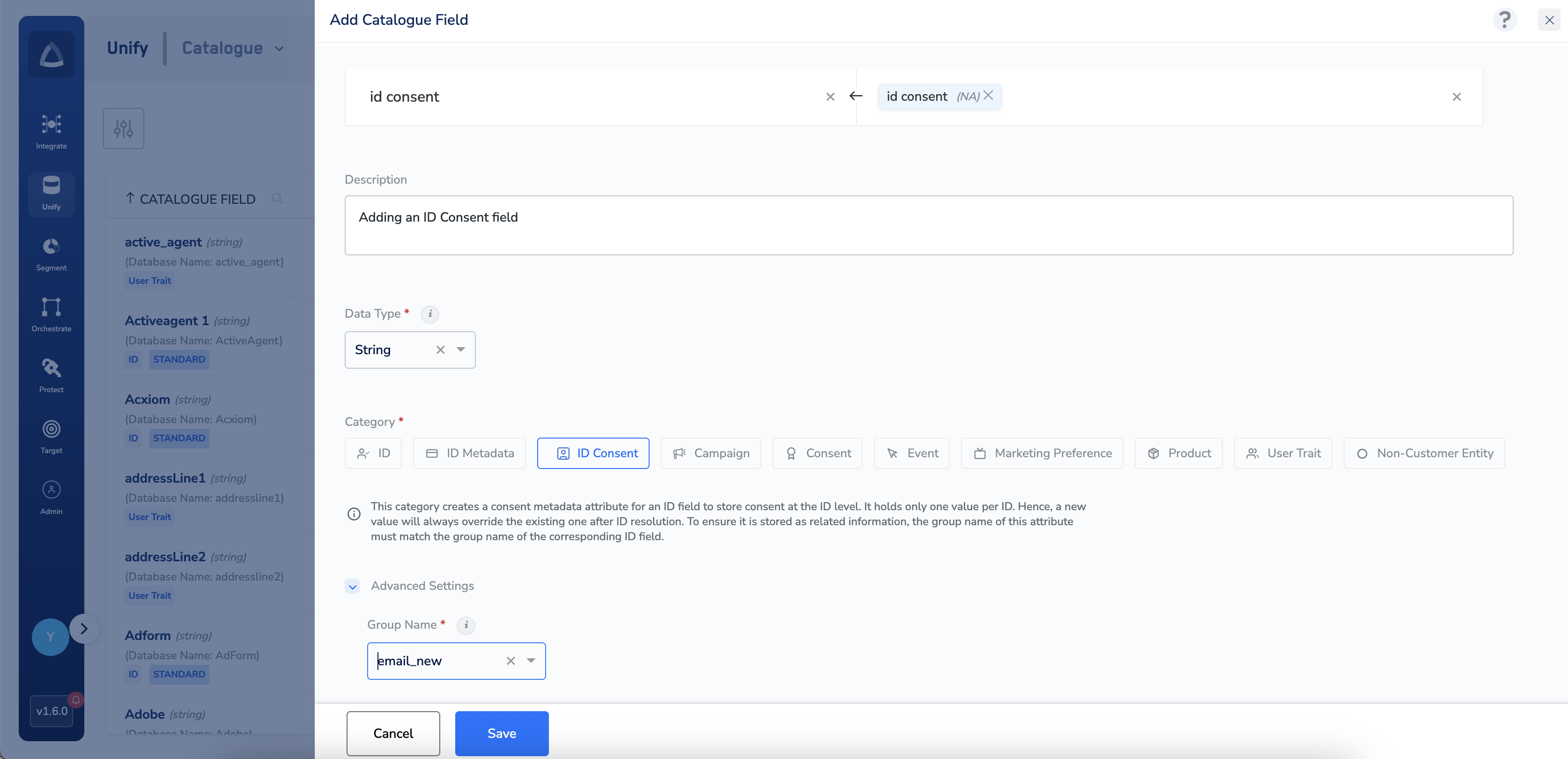
Filter ID on User Consent
When you activate an audience or a journey, you can filter the identifier values that are sent to a destination by consent status. The filter is set in destination mapping: a filter icon appears for every identifier you are sending. This is deliberately different from a consent rule on the audience itself. An audience-level consent rule disqualifies people; this filter decides only which identifier values leave with the audience. Destination mapping is also the only place an ID Consent field can be used — it cannot be used in audience or journey filtering. See Consent Orchestration for the audience-level and channel-level consent rules.Filter modes
A filter uses the same three consent states as audience rules — see Consent Information Operators:Filter by User Consent or by ID Consent
Consent can be stored at two levels: against the person (a Consent category field) and against a single identifier (an ID Consent field). Which level you filter on changes how much of the identifier is sent:
For example, a profile holds three values for one identifier and the ID Consent field qualifies only two of them. Filtering on ID Consent sends those two values. Filtering on User Consent sends all three, provided the person’s own consent qualifies.
NoteThe filter icon appears when a consent attribute is present in your catalogue, along with the option to filter by User Consent or by ID Consent.