ID or ID Metadata?These two categories are easy to mix up. An ID field holds the identifier value itself — the email address, the user ID, the cookie. An ID Metadata field holds information about one of those identifiers, such as whether it is still valid or where it sits in your identifier hierarchy. If you are adding the identifier itself, use Add an ID Category instead.
Steps
Perform the following steps to add an ID Metadata category:1
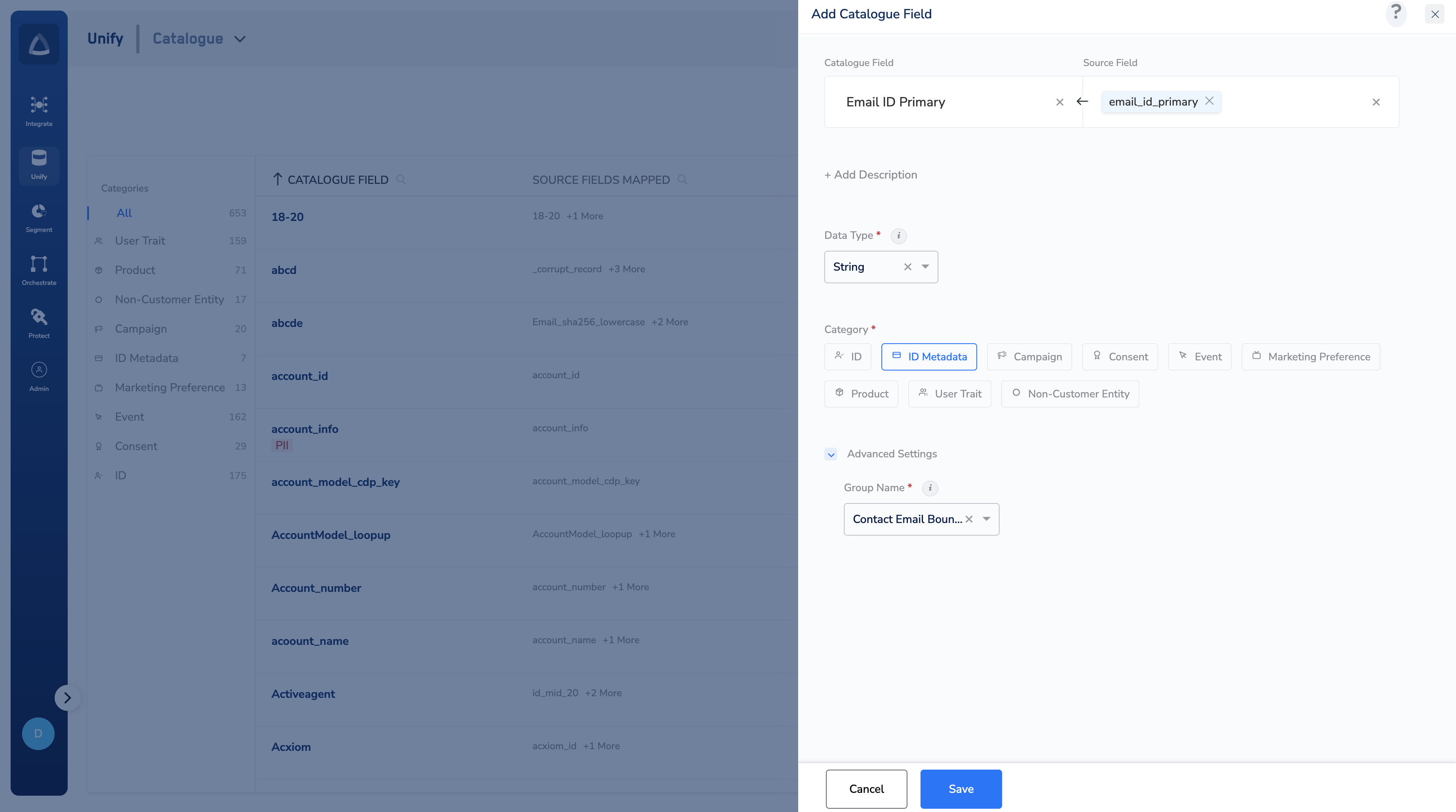
Enter a Catalogue Field. As you type, suggestions based on the existing Catalogue Fields appear. You can choose a suggested Catalogue Field or click +Add Catalogue Field to add a new field.
2
Map the Catalogue Field to its corresponding Source Field. Same as the above behaviour, you can choose a suggested Source Field or click +Add a new Source Field to add a new field.
3
Enter a description for easy identification.
4
Choose one of the following as the Data Type:
- String
- Integer
- Double
- Timestamp
5
Choose ID Metadata as the Category.
6
Under advanced settings, define the following options:
- A Group Name appears by default. Select the Group Name from the drop-down menu, and ensure it is the same group as the identifier this metadata describes — the group is what links the two. See Group Name.
- If Is this PII data? is not offered for the data type you chose, a Mask the data toggle appears instead — enable it to hide the field’s values in the interface.
7
Save the changes.