

Where CAs sit in the data flow
Calculated Attributes are a link in the chain between raw ingested events and activation:- Sources ingest events into the platform.
- The Catalogue defines the fields those events are mapped to.
- A CA aggregates those events per user — every value is computed per unified customer profile.
- The result sits on the unified customer profile.
- From the profile, the value is available to Audiences, directly to Journeys, and to Destinations through audiences.
The key distinction: a Catalogue field stores data you send; a Calculated Attribute is a value Zeotap computes from that data. Field definitions and source-to-field mapping live in the Catalogue and Sources areas, not in Calculated Attributes.
The three kinds of Calculated Attributes
For a full side-by-side comparison of batch and real-time behaviour, see Batch vs. Real-Time Calculated Attributes.
Anatomy of a Calculated Attribute
Every CA definition answers the same question: which aggregation, of which field, over which events, filtered how, across which time window? The create form expresses this as a sentence you complete:“For each user in my database, calculate a new attribute as: [operator] of [field] field, when they performed [event(s)]“
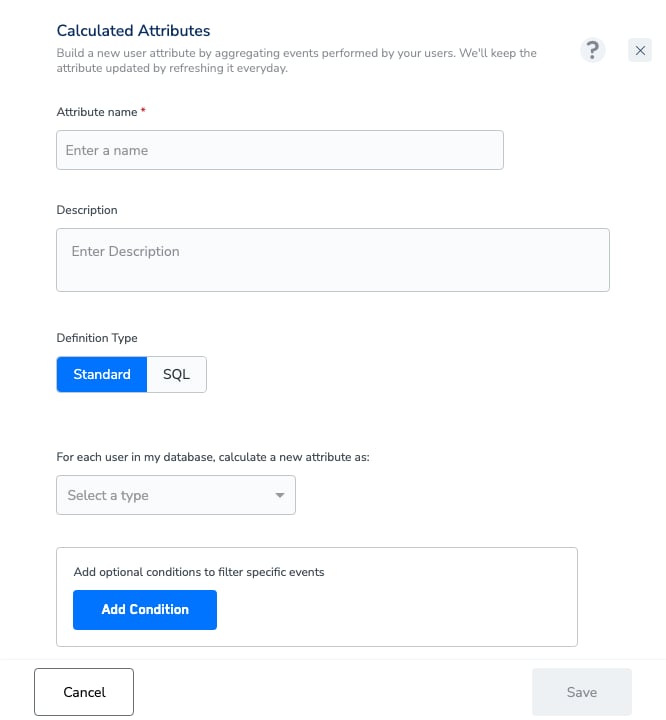
The Create Attribute form: name, description, Definition Type, and the sentence builder.
Operator
Batch CAs support 12 aggregation operators and real-time CAs support 3 — see Calculated Attributes: Guardrails & Limits for the full lists and per-operator data-type constraints.Conditions
You can filter which events qualify with up to 10 optional conditions, combined with AND / OR logic — for example, count onlypurchase events where the category is “electronics”. For fields with many distinct values, the value dropdown gives way to free-text entry. The full builder limits are consolidated in Guardrails & Limits.
Computation window
The Run computation setting defines the time range the aggregation covers, with three modes:- Over the last N units
- Over entire data
- From a fixed start date
Group By
A batch CA can be split into one value per group by adding up to 3 Group By fields — for example, order value grouped by Country yields a per-country value on each profile. The result is stored as a list-of-objects attribute — each entry holds the computed value alongside its group-by values — which you can use and filter directly in audiences and journeys. Only attributes at the same level as the aggregation field are offered. Group By is not available on real-time CAs.Definition Type: Standard vs SQL
Batch CAs have two Definition Types — Standard (the sentence builder above) and SQL (a query editor for aggregations the sentence builder can’t express — including aggregating attributes beyond event data, which form-based creation is limited to). Real-Time CAs are Standard only. The SQL CA Editor is Beta and enabled per account on request (raise a support ticket, as for real-time CAs). Both creation flows, including the SQL editor’s validation rules and query guide, are documented on Create a Batch Calculated Attribute.Lifecycle
A CA moves through a simple status lifecycle:- In Progress — the attribute is being processed; its first computation is running.
- Active — computed and refreshing as expected. Only an Active CA can be used in workflows.
- Paused — not refreshed; its values are cleared (set to null) at the account’s next daily refresh.
- Draft — a definition saved without being published for computation.
- Published — the definition is saved and queued for its first computation.
- Failed — the last computation did not complete; contact your Zeotap representative.
0) — see Guardrails & Limits → Users with no qualifying events.
Where CAs are consumed
- Audiences — “calculated attributes” is one of the rule types in the audience builder. See Apply Attributes to Your Audience.
- Real-time streaming filters — filter users and events coming through a real-time source.
- Journeys — use CAs directly in journey conditions. See Orchestrate.
- Destinations — activate on CAs through the audiences built on them. See Create a New Destination.