How to change a field that is already in your organisation’s catalogue, and which of its settings stay editable.
Once a field is part of your organisation’s catalogue you can still change some of its settings — this page covers how to do that and which settings are fixed. To create a new field instead, see Add a Catalogue Field.
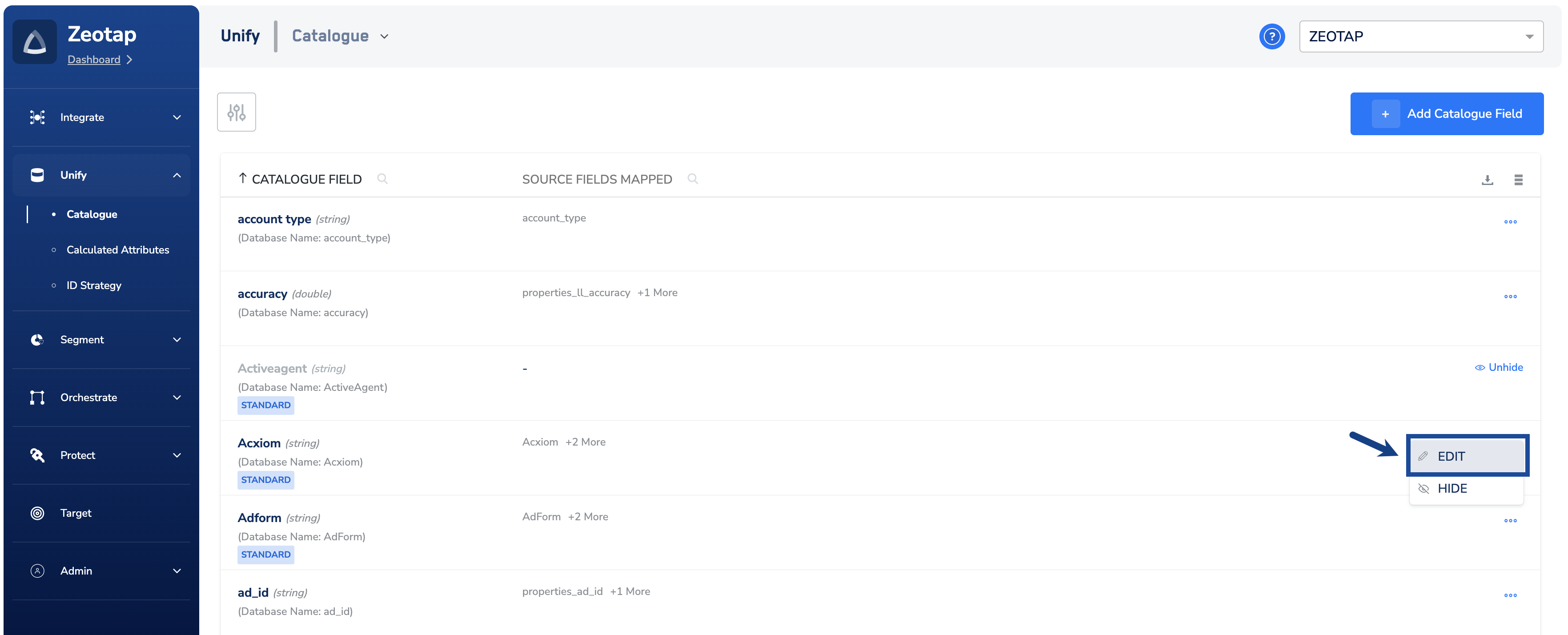
Under Unify, go to the Catalogue tab and locate the field you want to change. Use the lookup icon in the Catalogue Field column header to search for it by name.
2
Click the three dots next to the field and click EDIT.
3
Update the settings you need. The Category, Data Type and Raw PII flag are fixed once the field exists. You can rename the Catalogue Field — this changes its display name, not its internal Data Field Name — map it to a different Source Field, and add or update its Description. Most of what else you can change sits under Advanced Settings: TTL, Total Number of IDs and Restrict on Channels stay editable, while Group Name is greyed out because a field cannot move to a different group after it is added.
Advanced Settings on an existing field: Group Name is greyed out, while TTL, Total Number of IDs and Restrict on Channels remain editable.
4
Review your changes and click Save.
Refer to the table below to understand the editable and non-editable fields after a field is already added to your organisation’s catalogue.
You can also rename a Catalogue Field from a source’s mapping screen — see Editing a Mapping.
NoteWhich advanced settings appear depends on the field’s category. An ID field offers all four; ID Metadata and ID Consent fields offer Group Name only — which means an existing field in those categories has nothing editable under Advanced Settings; User Trait, Event, Campaign and Product fields offer Restrict on Channels only; and Consent, Marketing Preference and Non-Customer Entity fields have no Advanced Settings section at all.