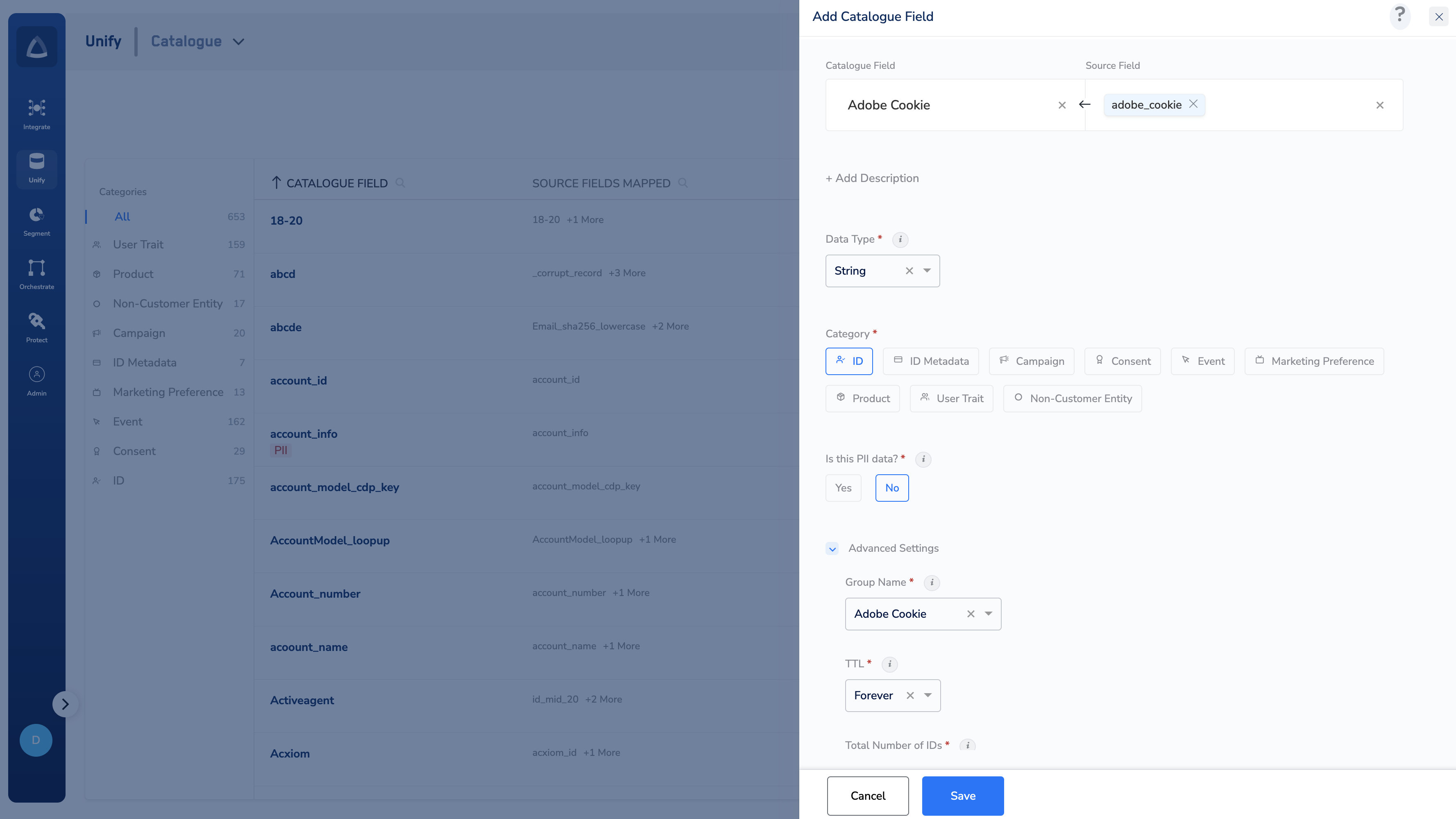
Steps
Perform the following steps to add an ID category:1
Enter a Catalogue Field. As you type, suggestions based on the existing Catalogue Fields appear. You can choose a suggested Catalogue Field or click +Add Catalogue Field to add a new field.
2
Map the Catalogue Field to its corresponding Source Field. Same as the above behaviour, you can choose a suggested Source Field or click +Add a new Source Field to add a new field.
3
Enter a description for easy identification.
4
You can choose String or Integer as the Data Type.
5
Choose ID as the Category.
6
For Is this PII data?, choose Yes or No.
- When set to Yes, this field contains sensitive PII information of the user.
- When set to No, this field does not contain sensitive PII information of the user.
7
As per advanced settings, define the following options:
- Under advanced settings, a Group Name appears by default. You can choose a value from the drop-down menu or click +Add a new group to add a new group name.
- Define the TTL for the ID. Forever is the default value. You can choose the number of Days for TTL as per your requirement. This is used to determine how long the ID can be retained based on the TTL value. For more information about TTL and how to configure it, refer here.
- Total Number of IDs determines the number of value to be stored against this Id attribute. Choose the appropriate number.
- Optionally, use Restrict on Channels to control the channels and destinations on which this identifier must not be activated. For a summary of every advanced setting, see Understand the Advance Fields.
- If Is this PII data? is not offered for the data type you chose, a Mask the data toggle appears instead — enable it to hide the field’s values in the interface.
8
Save the changes.