

What Happened
You received an automated email with a subject in the form[Audience Destination Alert] Updates for Audience <ID> in <workspace>. The email reports that an audience and one of its destinations either entered a failed state or returned to a healthy state. New activation runs for that audience to that destination are blocked until any failure is resolved.
Why This Happens
The platform sends an Audience Destination Alert email each time an audience’s destination upload transitions in or out of a failed state. The recipient list for these alerts is managed at the workspace level by your Zeotap account team and is not configured from the audience UI.Audience Destination Alert emails are a separate notification stream from Audience Alerts. Audience Alerts are sent to the creator of the audience, while the Audience Destination Alert recipient list is maintained per workspace by your Zeotap account team.
- A destination upload failed during processing and the run did not complete.
- A destination upload that was previously failing has recovered, and the alert confirms the resolution.
- Alerts may reach people who no longer work on the audience if the recipient list has not been updated after team changes.
How to Resolve
The right next step depends on what the alert says. Pick the matching section.The Alert Reports a Failure
1
Note the audience ID, the account/workspace name and the destination name printed in the email body.
2
Switch to the workspace named in the alert.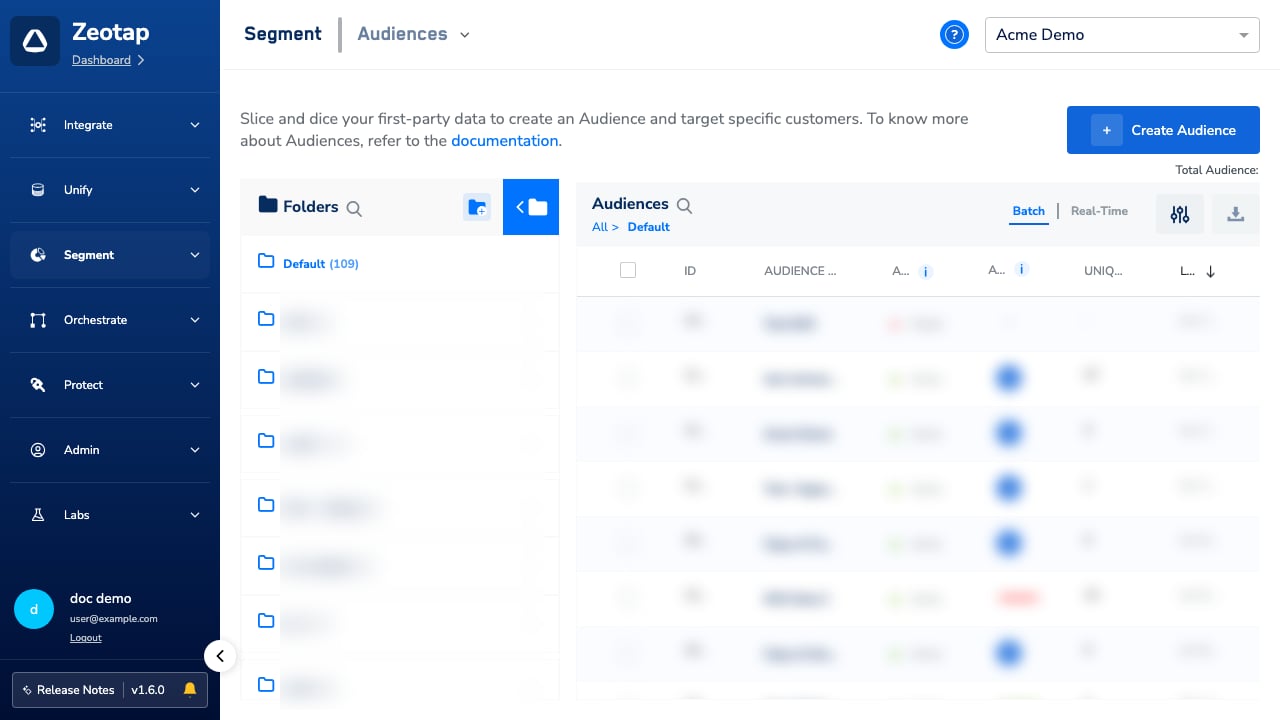
3
Open the audience by its ID from the audience list. The audience detail view shows the destinations linked to the audience and the state of each upload.
4
Read the destination state shown against the destination named in the alert. If it shows a failed state with a customer-visible error message (for example
No customers qualified, or a credential or access-token error from the destination platform), that message is the cause: resolve it on the destination side (refresh credentials, fix the destination configuration) and retry the activation.5
If the destination state has already returned to a healthy state by the time you open it, the failure has cleared itself and no further action is needed on this run.
The Alert Reports a Resolution
An email withAudience Destination Failure Resolved in the body is a notification that the prior failure has cleared on its own. No action is required.
To verify the fix worked: confirm the audience’s destination state is healthy and that the next scheduled run completes without a new failure alert.
Change Who Receives the Alert Emails
The alert recipient list is managed at the workspace level by your Zeotap account team. Request the change in writing so the account team can apply it across every relevant workspace in one pass.Alert-recipient changes are made by your Zeotap account team. Send the request to your Customer Success Manager — do not reply to the alert email itself, which is sent from an unattended mailbox.
You Are Getting a High Volume of Alert Emails
A burst of alert emails for a single audience points at a sustained failure on the destination side or a duplicated recipient on the distribution list. Open one of the alerts and follow The Alert Reports a Failure to find the underlying destination error: the alert volume drops once that failure clears. If the volume persists after the underlying failure is fixed, raise it with support so the alert duplication can be investigated. To verify the fix worked: after the underlying destination error is resolved, confirm that the alert email rate for that audience returns to one notification per state transition.When to Contact Support
Open a support request when:- The destination state for the alerted audience stays in a failed state after you have resolved the destination-side error and retried.
- You receive repeated
Audience Destination Failurealerts for the same audience ID even though the destination state shows healthy. - The volume of alert emails for a single audience is disproportionate to the number of state transitions (the same alert resent many times in one day).
- The alert references an audience ID or workspace you do not recognize.
- The full subject line of the alert email, including the audience ID and workspace name.
- The destination name from the alert body, and the customer-visible error message shown against that destination (if any).
- The timestamp of the alert email and of the last activation run you can identify in the audience.
- Whether you have already attempted to retry the activation, and the outcome.
For changes to the alert recipient list, contact your Zeotap Customer Success Manager instead of support — recipient configuration is handled by the account team.
FAQs
How do I stop receiving these alert emails?
How do I stop receiving these alert emails?
The alert system is configured per workspace by your Zeotap account team. To stop receiving alerts, ask your Customer Success Manager to remove you from the recipient list — use the written request format above so the change can be applied across every relevant workspace in one pass.
Can alert recipients be set per audience?
Can alert recipients be set per audience?
No. Alert recipients are configured per workspace, not per audience. To change who receives alerts for any audience in a workspace, send the addition or removal to your Customer Success Manager.
Do I need to act on an Audience Destination Failure Resolved email?
Do I need to act on an Audience Destination Failure Resolved email?
No. An
Audience Destination Failure Resolved email confirms the prior failure has cleared and the upload returned to a healthy state. No action is required.Can I reply to the alert email to ask a question or request a change?
Can I reply to the alert email to ask a question or request a change?
No. The alert email is sent from an unattended mailbox and replies are not monitored. Send recipient-list changes to your Customer Success Manager and technical issues to the support team.