

- Log into your GTM Account: Access your Google Tag Manager account at tagmanager.google.com.
-
Navigate to Templates:
In the left-hand navigation menu of your GTM workspace, click on Templates.
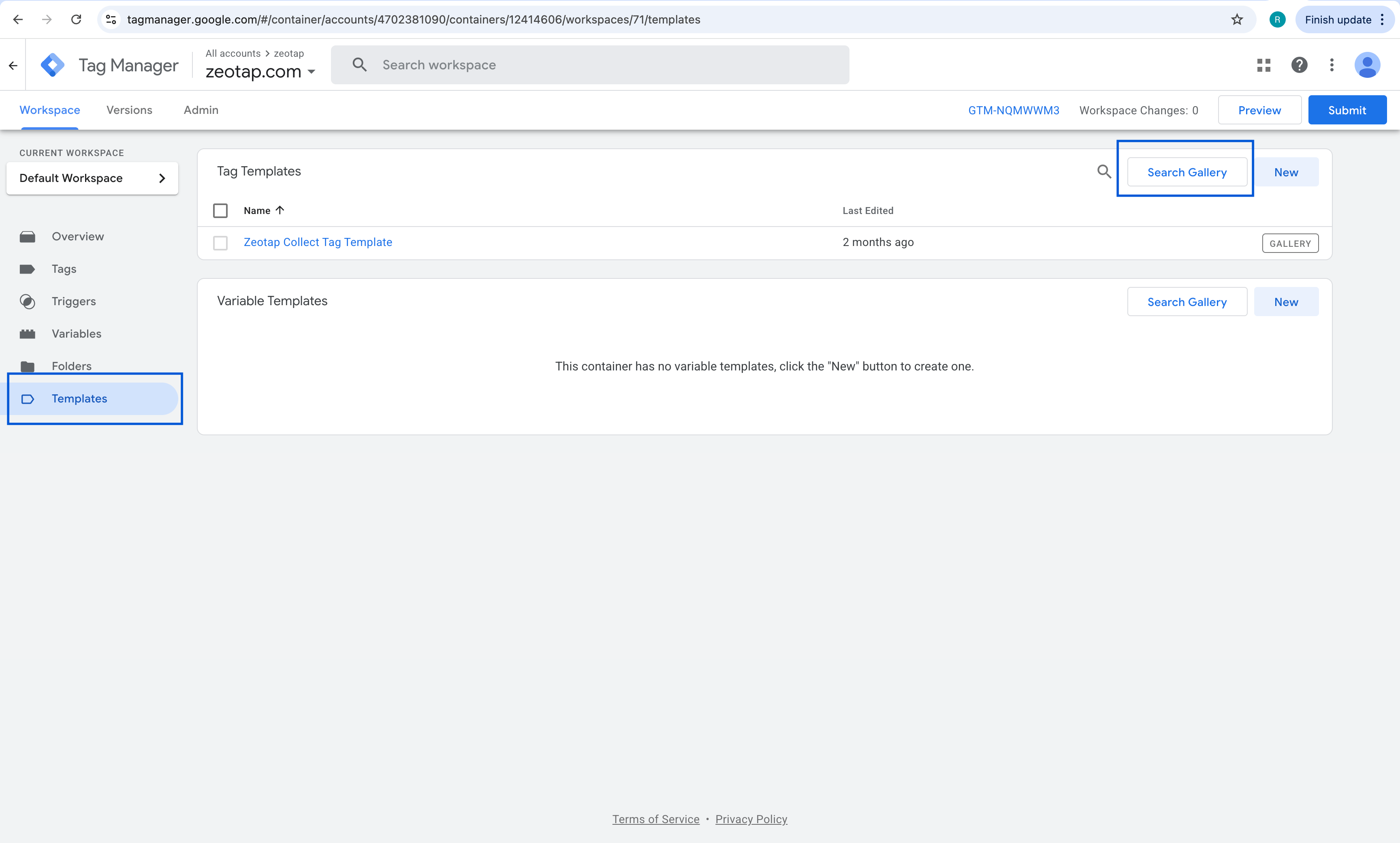
- Access the Template Gallery: Within the “Tag Templates” section, click on the Search Gallery button located on the top-right corner.
-
Search for Zeotap Collect Tag:
In the search bar that appears, type “Zeotap Collect Tag” and press Enter, or browse the list to find the Zeotap Collect Tag Template.
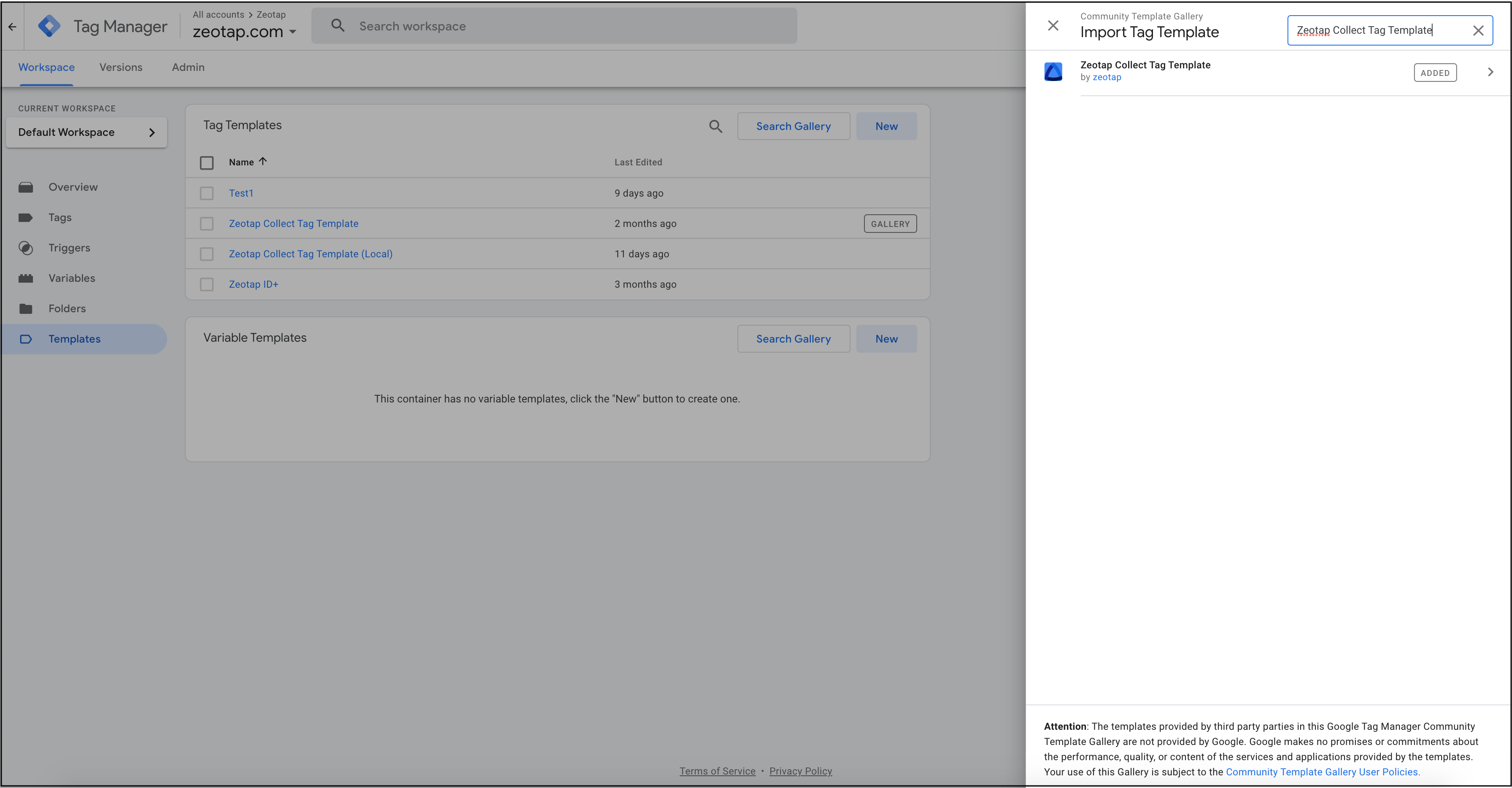
- Select the Template: Once you find the “Zeotap Collect Tag Template” in the search results, click on it to open the template details.
- Add to Workspace: Click the Add to workspace button. GTM will ask you to review the permissions the template requires.
- Confirm Permissions: Review the API permissions requested by the template. If you agree, click Add to incorporate the template into your GTM workspace.
Setup Guide
Step 1 - Importing Zeotap Tag template via GTM Gallery
Step-by-step guide to import the Zeotap Collect Tag Template to your Google Tag Manager workspace using the Community Template Gallery.
This method describes how to add the Zeotap Collect Tag Template to your Google Tag Manager (GTM) workspace by searching the Community Template Gallery.
Follow these steps:
Last modified on June 25, 2026
Was this page helpful?