Understanding and obtaining your Zeotap React Native SDK Write Keys for both Android and iOS platforms.
Important: Please ensure your CMP configuration includes new Vendor ID 1469 for 1st Party data tracking. Additionally, include Vendor ID 301 if cookie sync is enabled. Learn more
The Write Keys are unique identifiers essential for integrating the Zeotap React Native SDK with your mobile application. You need separate write keys for Android and iOS platforms to ensure that all data collected by the SDK is correctly attributed to your sources in your Zeotap account.
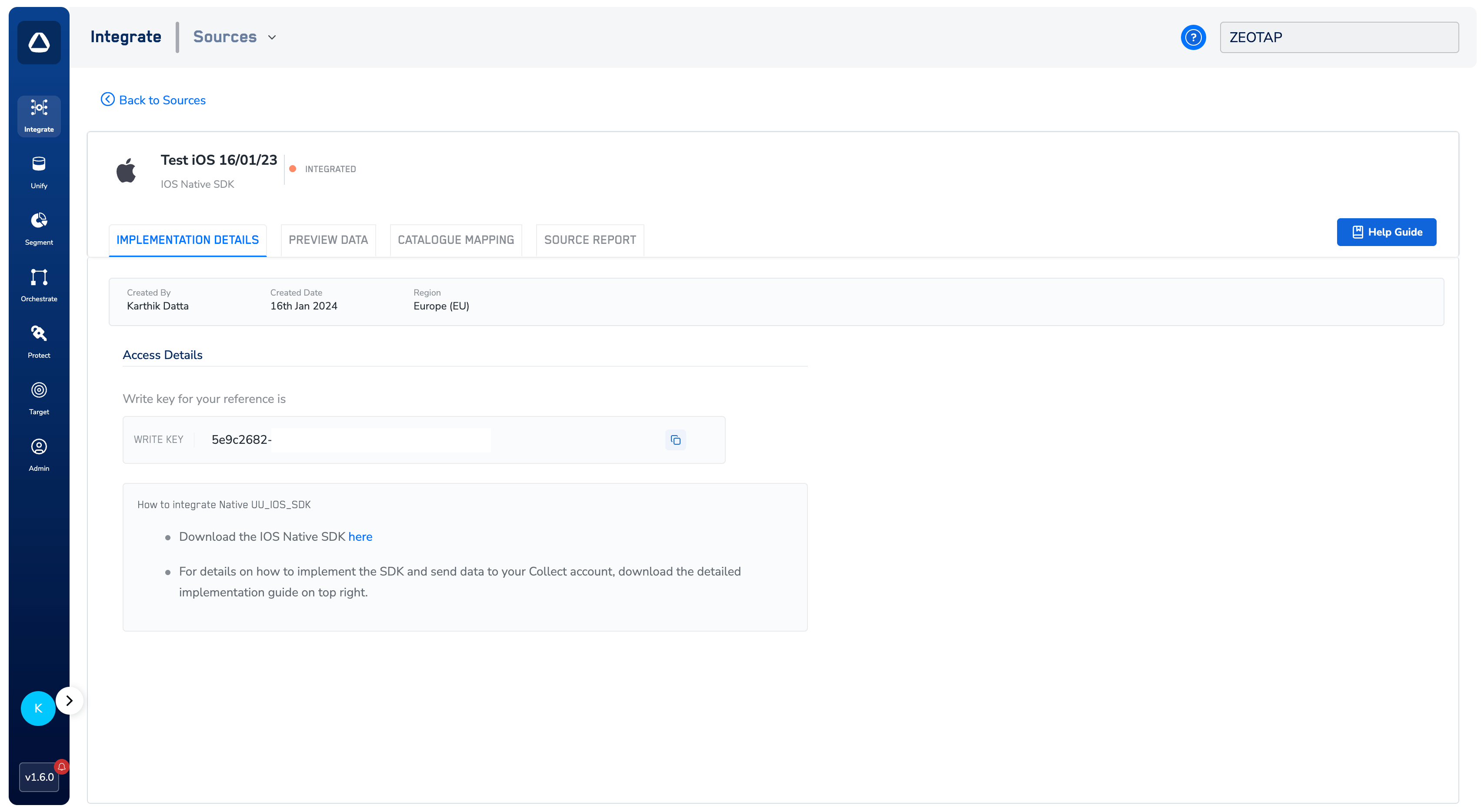
You can find your Write Keys within the Zeotap Customer Data Platform (CDP) after setting up both “Android Native SDK Source” and “iOS Native SDK Source.”Here’s a step-by-step guide:
Access Zeotap CDP:
Log in to your Zeotap Customer Data Platform account. If you don’t have access, please contact your Zeotap account manager or support team.
Create or Locate Your Native SDK Sources:
If you haven’t already, create both “Android Native SDK Source” and “iOS Native SDK Source” within the CDP. These sources represent your React Native application’s Android and iOS builds where you’ll be implementing the SDK.
If you have existing sources, navigate to integrate > sources section where all sources are listed.
View Source Details & Find the Write Keys:
For each source (Android and iOS), go to their respective “Implementation Details” sections.
The Write Key will be displayed in each source. They are long strings of alphanumeric characters.
Important: Make sure to copy the correct write key for each platform.
(The image above shows an example of the Zeotap CDP interface where the Write Key can be found.)