The listing labels each journey a Workflow — Workflow Name, Workflow Status, Create Workflow. A workflow and a journey are the same object; this page says journey throughout.
What a folder controls
All three are inherited downwards: a rule, a role’s folder access or a template set on a parent folder applies to every sub-folder beneath it. A mandatory template is configured on the parent folder, and only one template can be auto-applied per folder.
Two consequences are worth planning around:
- Journeys already running in a folder are not stopped when an admin blocks a source or a destination for that folder. They keep running on their current definition and are flagged for review, but you cannot publish any further change to them until the conflict is resolved.
- Moving a sub-folder under a different parent swaps its permissions for the new parent’s. A restricted sub-folder moved into an unrestricted parent loses its restrictions, and an unrestricted one moved into a restricted parent inherits them. See Folder Movement and Access Rules.
Before you begin
Every journey sits in exactly one folder — the one you filed it in, or Default. Two folders are created for you and behave differently from the ones you make. Every role keeps access to both; that access cannot be taken away.
Working with folders is permission-gated, and Create Folder, Create Sub Folder and Delete Folder are separate permissions on a role — so you may be able to add a sub-folder inside a folder you can see while the control for creating a top-level folder is not available to you at all. If a control you need is missing, ask an admin to adjust your role on the My Roles page.
Create a folder
1
In Orchestrate > Journeys, click the add-folder icon — a folder marked with a + — beside the Folders heading.
2
Type a name into the field that appears, then click the tick to save it. The cross abandons it.
Create a sub-folder
1
Point at the folder you want to nest under, and click the add-folder icon that appears on that folder’s row.
2
Type a name and click the tick. The sub-folder appears indented beneath its parent, and the parent gains a chevron for showing and hiding it.
Move a journey or reorder the folders
Drag and drop rearranges what you have already built: drag a journey onto the folder you want it in, and drag a folder or sub-folder to the position you want it in. Two things follow whatever you move:- A journey picks up the governance of its new folder — the role access, the access rules and the mandatory template that apply there.
- A sub-folder dragged under a different parent swaps its access rules for the new parent’s, and gains or loses that parent’s mandatory template accordingly.
What the count beside a folder means
The number in brackets after a folder name counts the journeys in that folder. A folder with nothing in it shows no number at all — not(0). Archiving a journey moves it into Archived, which keeps a count of its own.
Folder names and limits
Work with a long folder list
Search for a folder
Click the magnifier beside the Folders heading and type part of a folder name. The panel narrows to matching folders and sub-folders wherever they sit in the hierarchy, so you do not have to expand parents to reach a nested one. This searches folder names only — the separate magnifier above the journeys list searches journeys.Expand or collapse one folder
A folder that contains sub-folders carries a chevron beside its name. Click it to show or hide that folder’s sub-folders. A folder with no sub-folders has no chevron.Collapse the whole panel
The blue button in the top-right corner of the panel collapses the Folders panel, giving the journeys list the full width of the screen. Click the same button again to bring the panel back.How folders are ordered
Default sits at the top of the list and Archived at the end. The folders you create sit between them, a newly created folder is added at the top, and you can drag any of them into the order you want.Rename a folder
1
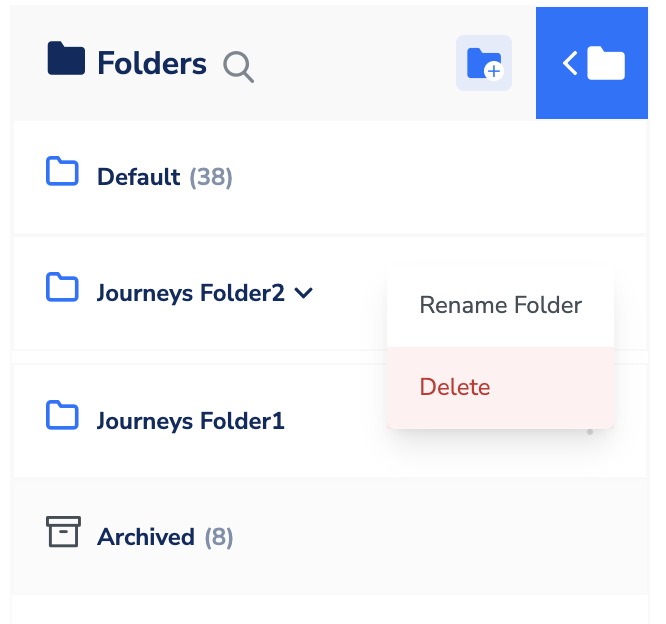
Click the three dots at the end of the folder’s row and choose Rename Folder.
2
Edit the name and click the tick. The naming rules above apply to the new name.
Delete a folder
1
Click the three dots at the end of the folder’s row and choose Delete.
2
Confirm at the prompt. Nothing is archived until you confirm.