Overview
Journey Templates let you define a set of conditions or configurations once and apply them across multiple journey workflows. Instead of manually recreating the same logic every time a new journey is built, you define it in a template — and it automatically becomes available to any workflow in your account. Key benefits:- Consistency — Every workflow using the template follows the same baseline logic.
- Reduced effort — No need to rebuild conditions from scratch for each new journey.
- Error prevention — Standardised configurations eliminate human error in repeated setups.
Accessing Journey Templates
Journey Templates are located in the Templates module, found under the Protect section in the left navigation.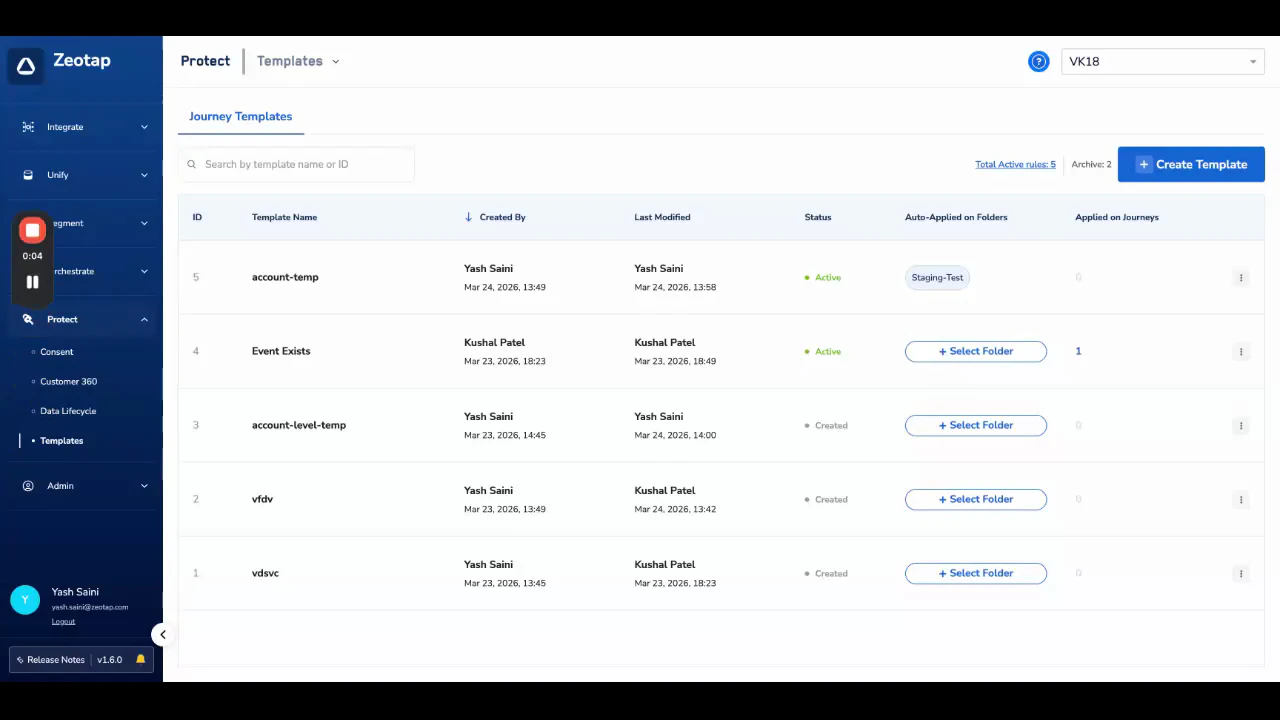
Creating a Template
1
Navigate to Templates
From the left sidebar, go to Protect → Templates and click + Create Template.
2
Add a name and description
Enter a clear template name and an optional description explaining what the template enforces (e.g., “GDPR consent check — required on all EU journeys”).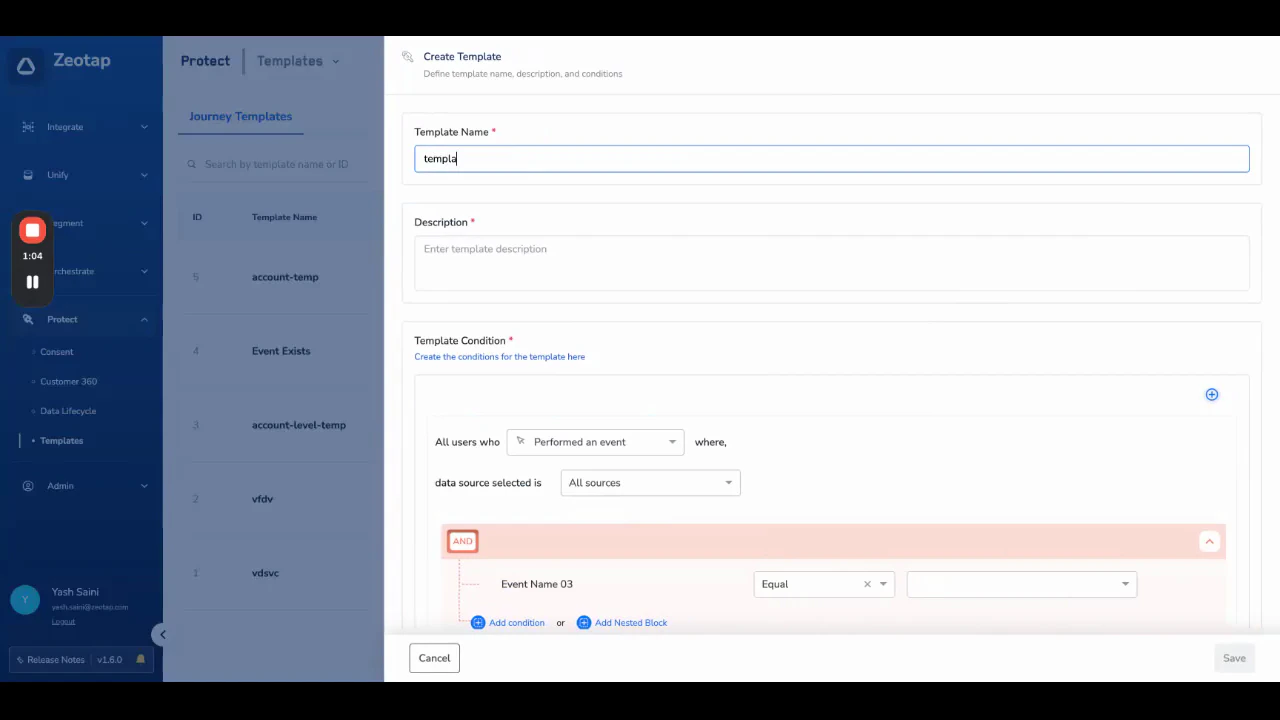
3
Define the conditions
Use the condition builder to define the logic that should be standardised. This is the same interface as creating an entry condition in a workflow — for example, 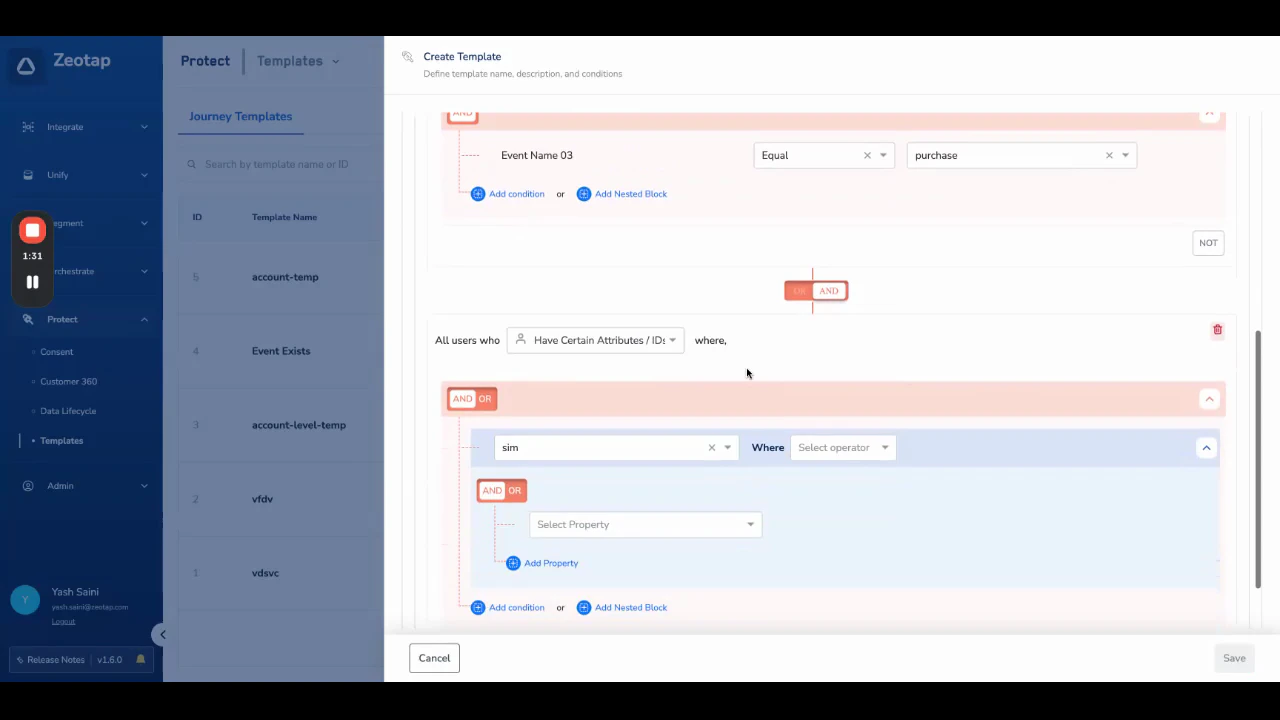
event_name equals purchase or conditions based on specific identifiers.The template condition builder is identical to the workflow condition builder. Any logic you can define in a workflow entry condition can be saved as a template.
4
Save the template
Click Save. The template is created and moves to Created status, meaning it exists but is not yet applied to any workflow.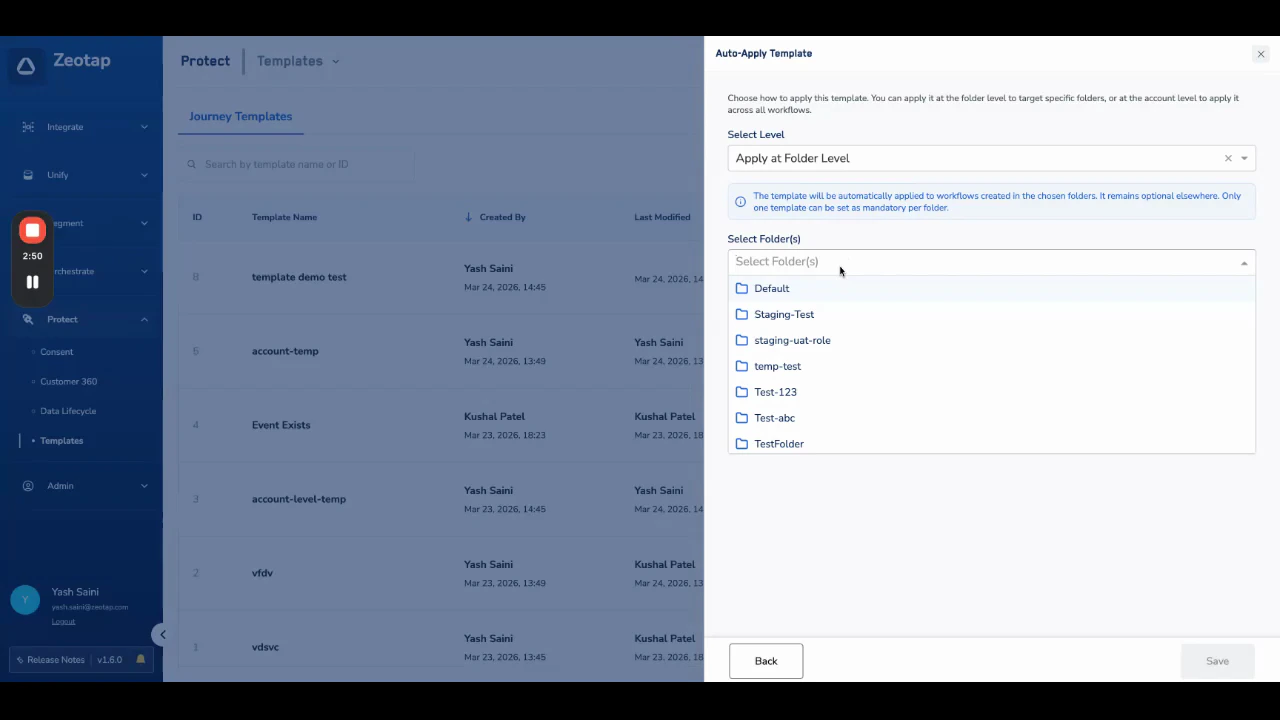
Template States
Auto-Applying Templates
Templates can be configured to apply automatically to all workflows within a specific folder or across the entire account. This ensures every journey created in that scope automatically inherits the template conditions.Only one template can be enabled for auto-apply per folder.
Setting Up Auto-Apply
1
Open the template and click Select Folder
From the template listing, click + Select Folder in the Auto-Applied on Folders column.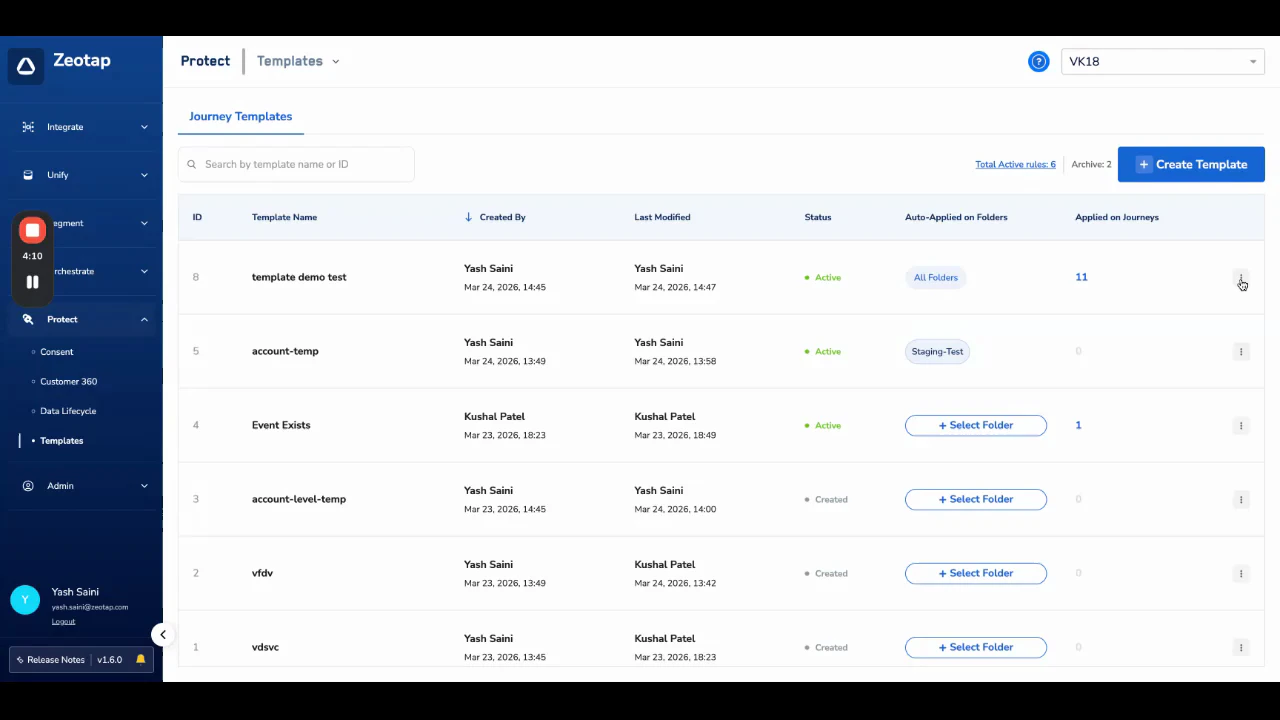
- Auto-apply to workflows in a selected folder — applies to all existing and future journeys within that folder.
- Auto-apply to all workflows in the account — applies to every workflow regardless of which folder it lives in.
2
Select the scope and save
Choose a specific folder or select account-level, then save. The template will immediately attach to the top layer of all matching workflows as an entry condition.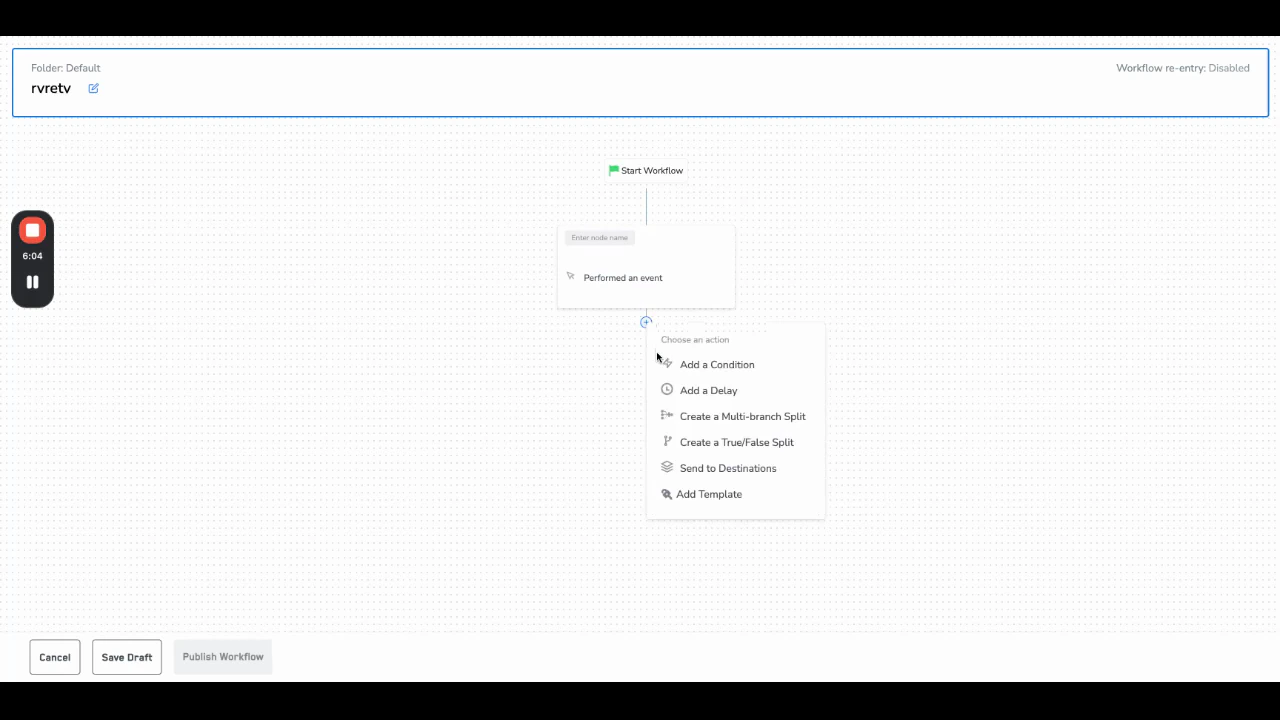
How Auto-Apply Works
- Folder-level: The template attaches to all existing and future journeys in the selected folder. Child folders inherit the same configuration — if a child folder is created under a parent with an auto-applied template, all workflows in the child folder also receive the template.
- Account-level: The template applies to all workflows in the account, regardless of folder. When account-level is selected, all folders appear as selected in the folder list.
- Position: Auto-applied templates always appear at the top of the workflow as the first entry condition. Users cannot move or remove them.
Editing or Removing Auto-Apply
Admins can edit the auto-apply configuration at any time from the template’s Edit Auto Apply option. Changes (including removing a folder or switching from account-level to folder-level) take effect immediately across all affected workflows.Applying a Template Manually
Any user can manually add a template to a workflow while building it in the Journey canvas.1
Open the workflow canvas
Navigate to Orchestrate → Journeys and open or create the workflow you want to add a template to.
2
Click Add Template
Inside the workflow canvas, click Add Template. A panel opens showing all available templates.
3
Select and apply
Click on a template to preview its full configuration (read-only — you cannot edit the template from here), then click Apply. The template conditions are added to the workflow automatically.
Templates applied manually can be removed by the user at any time. However, templates applied at the folder level or account level via auto-apply cannot be removed by regular users — only admins can change auto-apply configurations.
Template Permissions & Roles
Permission settings for View Template and Edit Template can be configured per user in the admin UI under Protect → Admin.