

1. Introduction to Journey Traces
Journey Traces is a powerful debugging and event tracking tool within the Zeotap CDP Orchestrate module. It provides granular, per-user visibility into how individual events flow through a journey workflow — from the initial input event, through each node in the journey canvas, to the final output event sent to each destination. Unlike aggregate execution views that show summary counts (e.g., “500 succeeded, 12 failed”), Journey Traces lets you drill down to a single user’s journey and inspect the exact data that was received, how it was transformed, which nodes the user qualified for, and what was ultimately delivered to each destination. This level of detail is essential for diagnosing data transformation issues, conditional routing problems, and destination-specific failures.1.1 Key Capabilities
- Per-User Event Tracing — Search for any user by UUID and see their complete journey path, including which nodes they qualified for.
- Input Event Inspection — View the raw JSON payload of the event that triggered the journey for a specific user, including all customer attributes and event metadata.
- Output Event Inspection — View the transformed output event sent to each destination, with a dropdown to switch between destination nodes.
- Visual Path Highlighting — On the journey canvas, green checkmarks appear on every node the user qualified for, providing an instant visual map of the user’s journey path.
- Customer 360 Integration — A “View Profile” link connects directly from a trace record to the user’s full Customer 360 profile in the Protect module.
- JSON & Raw Toggle — Switch between formatted JSON and raw data views for both input and output events, making it easy to copy data for debugging.
- Time-Range Filtering — Filter traces by date range (e.g., “Last 7 Days”) to focus on recent executions.
1.2 Target Audience
2. Accessing the Journeys Dashboard
The starting point for Journey Traces is the Journeys Dashboard within the Orchestrate module. From here, you select the specific journey workflow you want to debug.Navigate to Orchestrate > Journeys
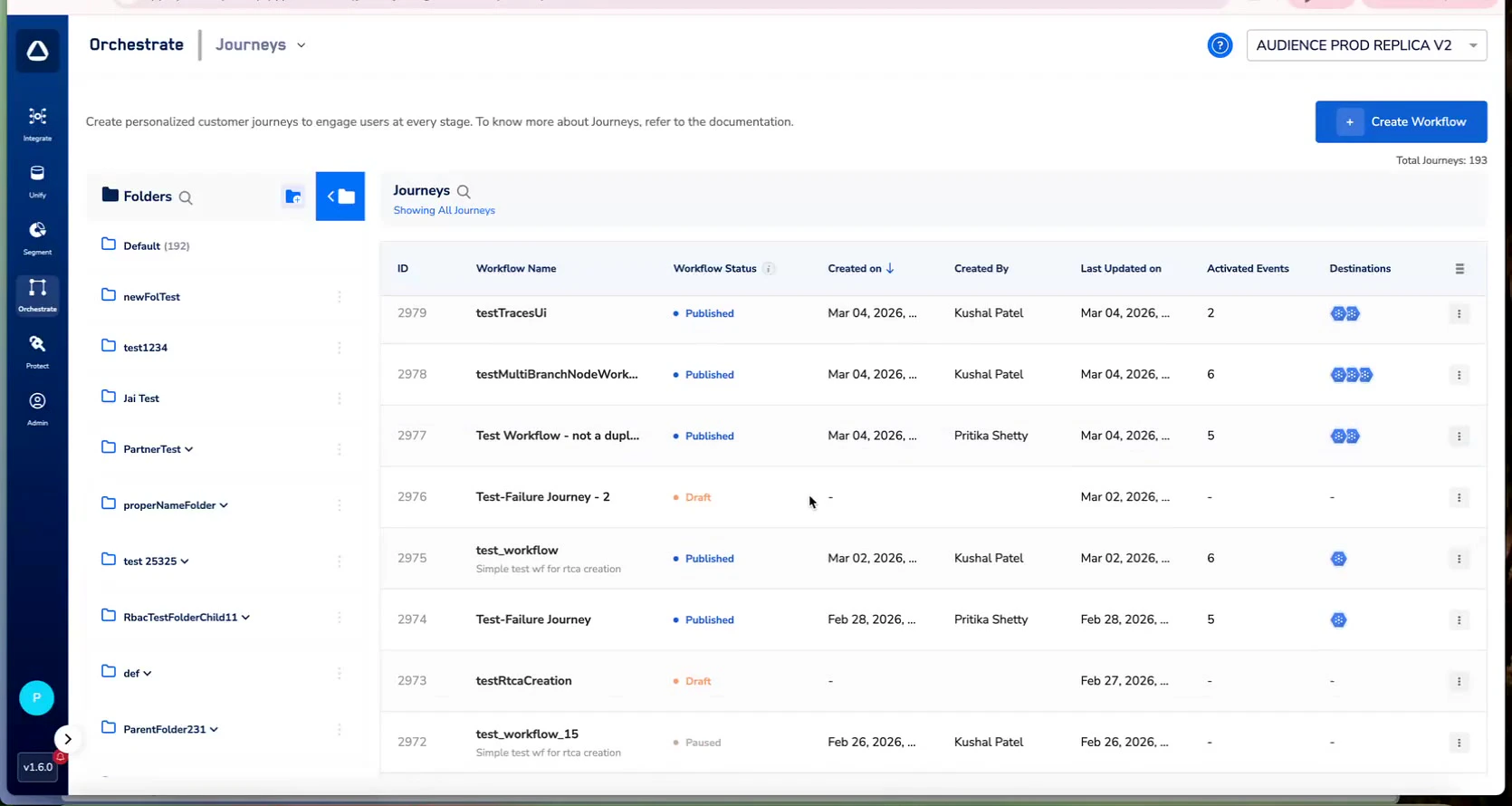
Figure 2.1 — Journeys Dashboard showing all workflows with Published/Draft status, creators, and destination icons
Select a Journey to Debug
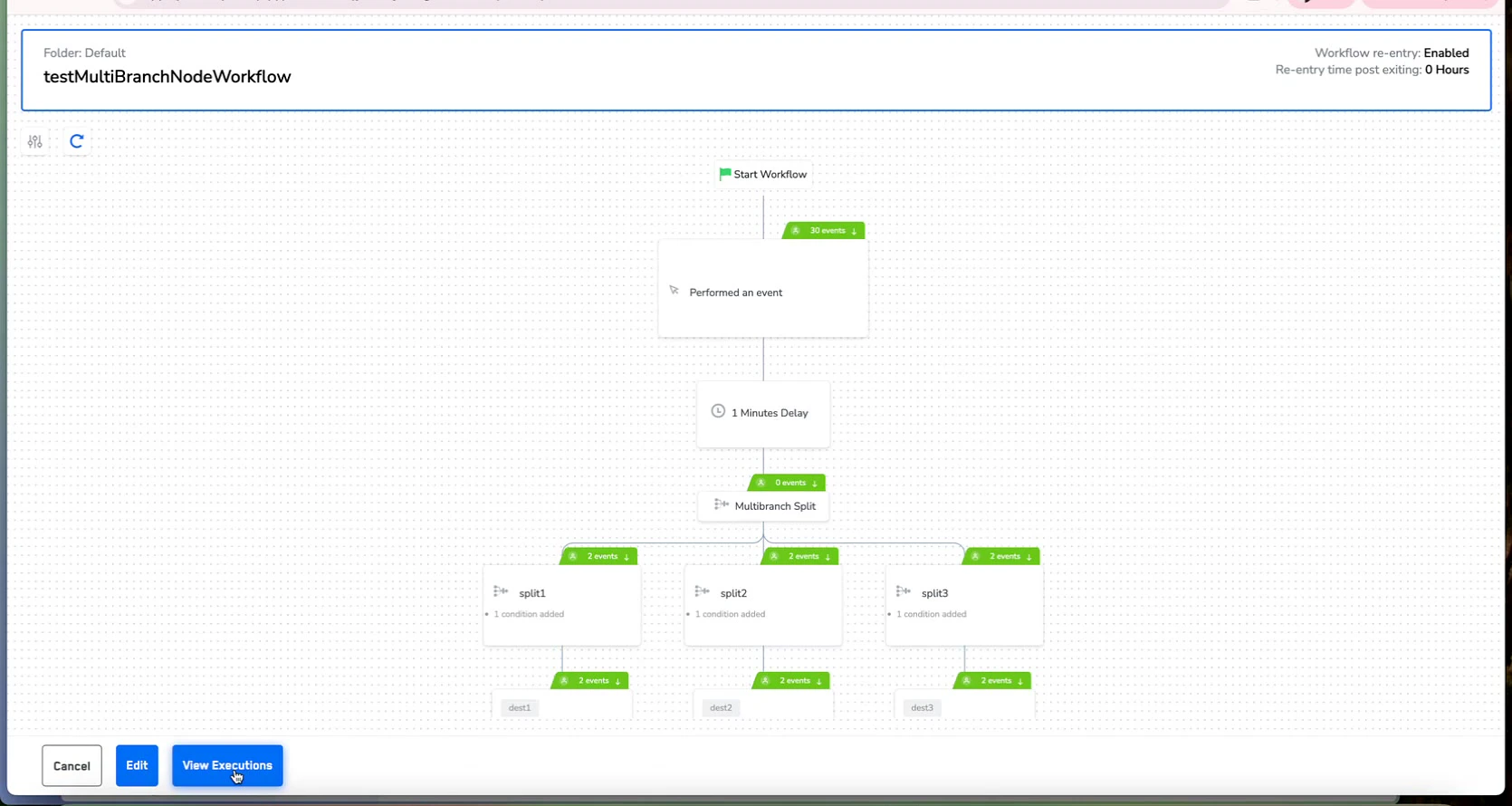
Figure 2.2 — Journey canvas for testMultiBranchNodeWorkflow showing the full workflow with View Executions button
3. Opening the Workflow Traces Panel
The Workflow Traces panel is accessible directly from the journey canvas. It provides a searchable list of individual user traces for the selected journey.3.1 Accessing the Traces Panel
Open the Journey Canvas
Open Workflow Traces
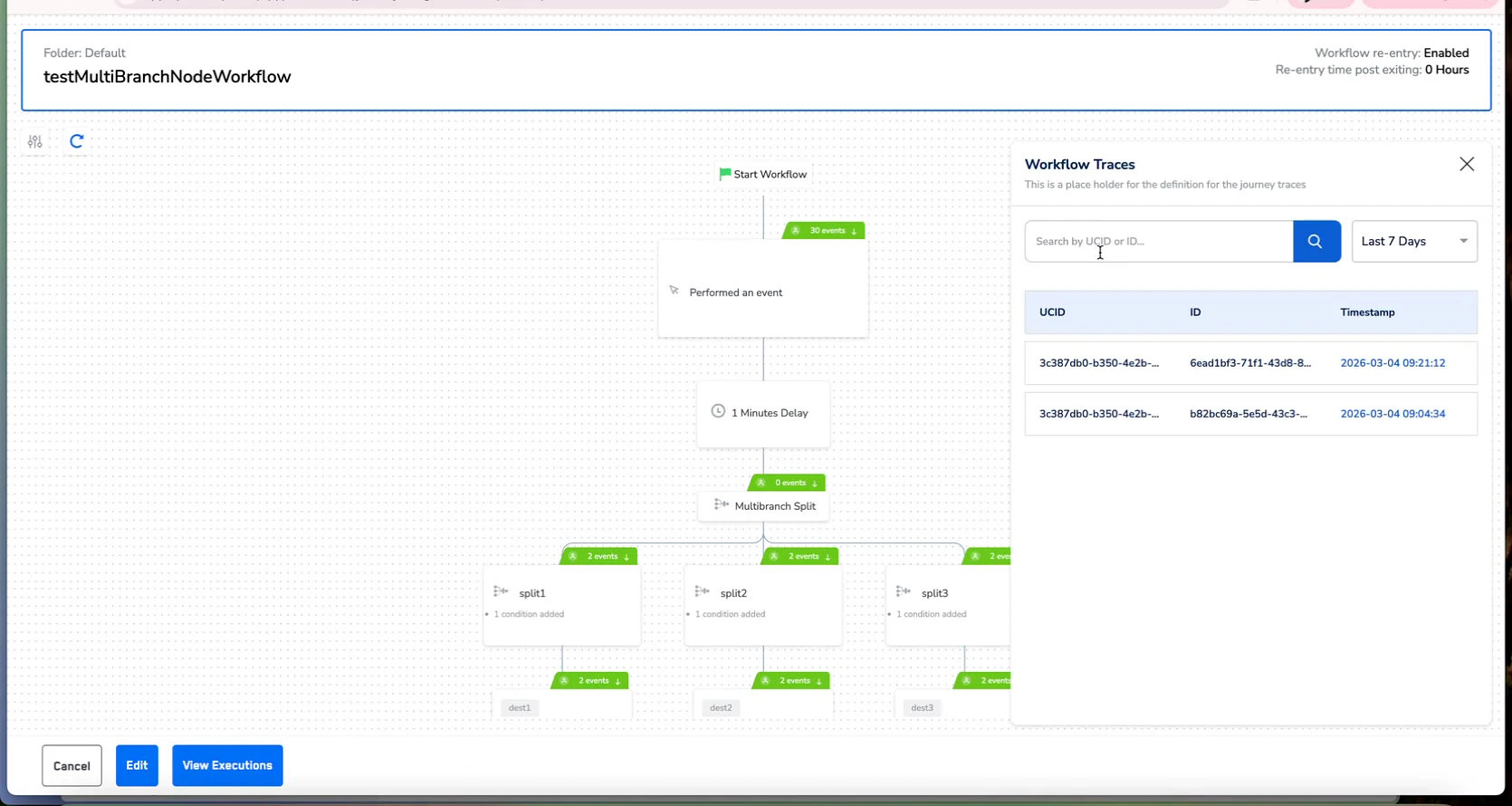
Figure 3.1 — Workflow Traces panel showing search bar, time filter (Last 7 Days), and trace result list
3.2 Traces Panel Layout
The Workflow Traces panel contains the following key elements:4. Searching & Filtering Traces
The Traces panel provides flexible search capabilities to locate specific user traces within your journey execution history.4.1 Search by UUID
Enter a user’s UUID (or partial UUID) into the search bar at the top of the Traces panel. The system performs a real-time search and returns matching trace records. Each result shows the full UUID, the user’s name or identifier, and the timestamp of the trace.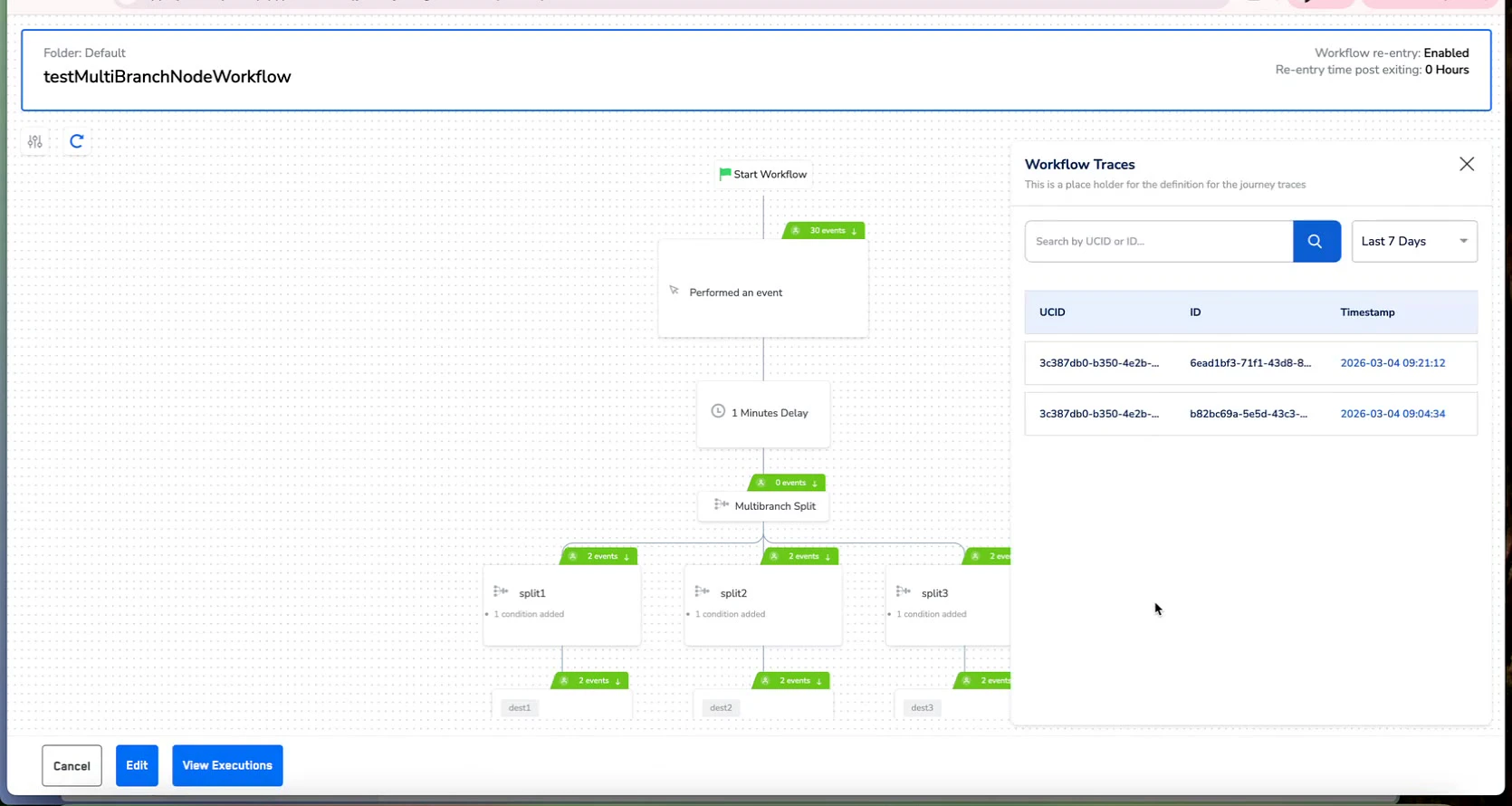
Figure 4.1 — Searching for traces by UUID with results showing matching entries and timestamps
4.2 Time Range Filtering
Use the time filter dropdown (displayed as “Last 7 Days” by default) to narrow results to a specific date range. This is particularly useful when:- You know approximately when an issue occurred
- You want to compare traces across different execution windows
- You need to focus on the most recent executions for active debugging
4.3 Interpreting Search Results
Each trace result in the list shows three key pieces of information:- UUID — The unique identifier string for the trace (e.g.,
b387Abd1-b090-4a3b-a752...) - Name/Identifier — A human-readable name or identifier associated with the user
- Timestamp — The exact execution timestamp (e.g., 2026-03-04 09:08:12)
5. Inspecting a Trace Record
Clicking on a trace result opens the full trace detail view — the core of the Journey Traces debugging experience. This view provides comprehensive information about the selected user’s journey execution.5.1 Trace Detail Header
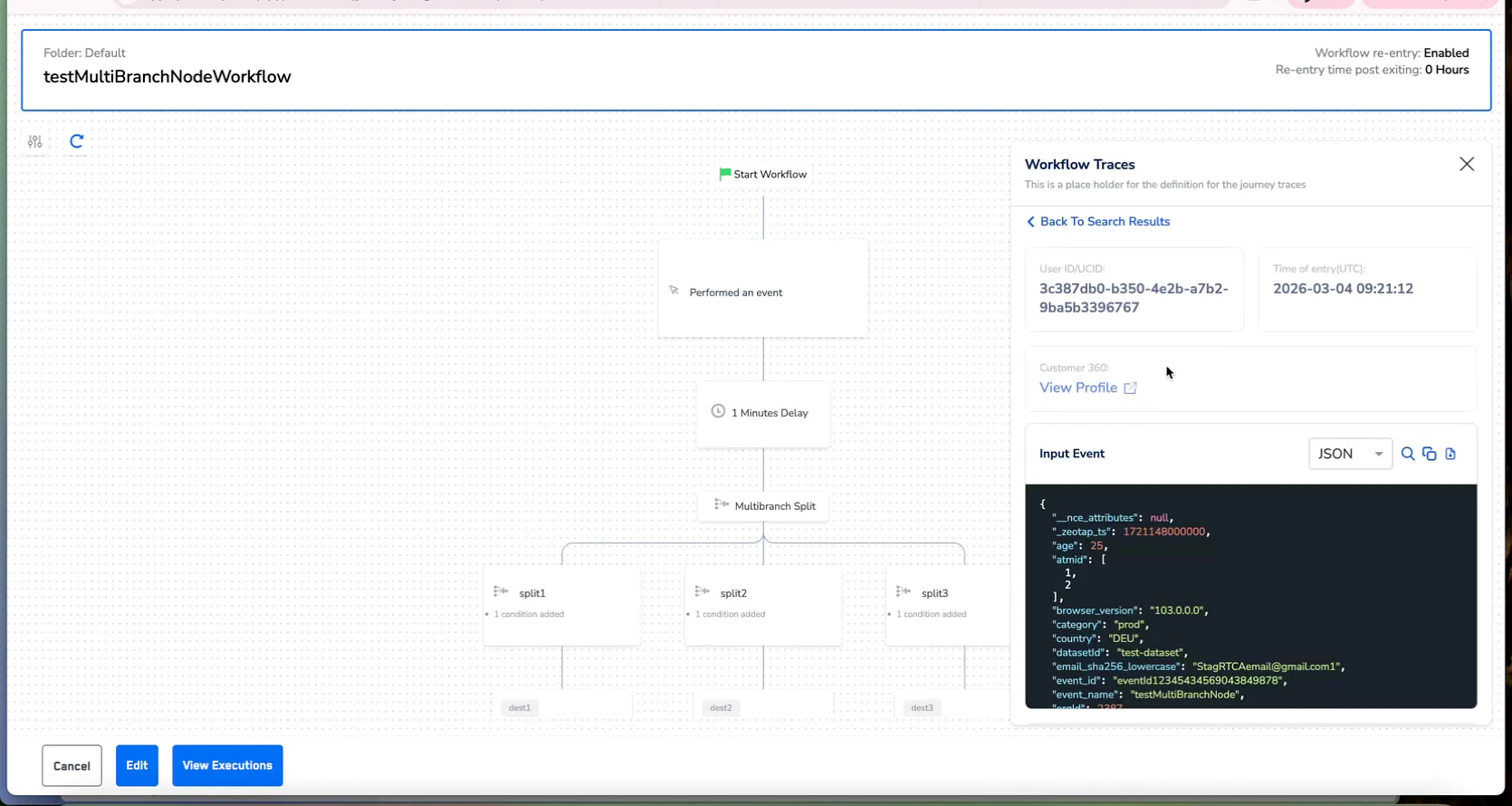
Figure 5.1 — Trace detail view showing UUID, timestamp, profile ID, View Profile link, and Input Event JSON panel
5.2 Trace Detail Sections
Below the header, the trace detail view is divided into two primary sections:- Input Event — The raw event data that entered the journey for this user. Shows the complete JSON payload with all customer attributes, event metadata, and identifiers.
- Output Event — The transformed event data sent to each destination. Includes a dropdown to select which destination’s output to view.
6. Understanding Input Event Data
The Input Event section displays the complete raw event that triggered the journey for the selected user. This is the data as received by the Orchestrate engine before any transformation, filtering, or routing logic was applied.6.1 Input Event Structure
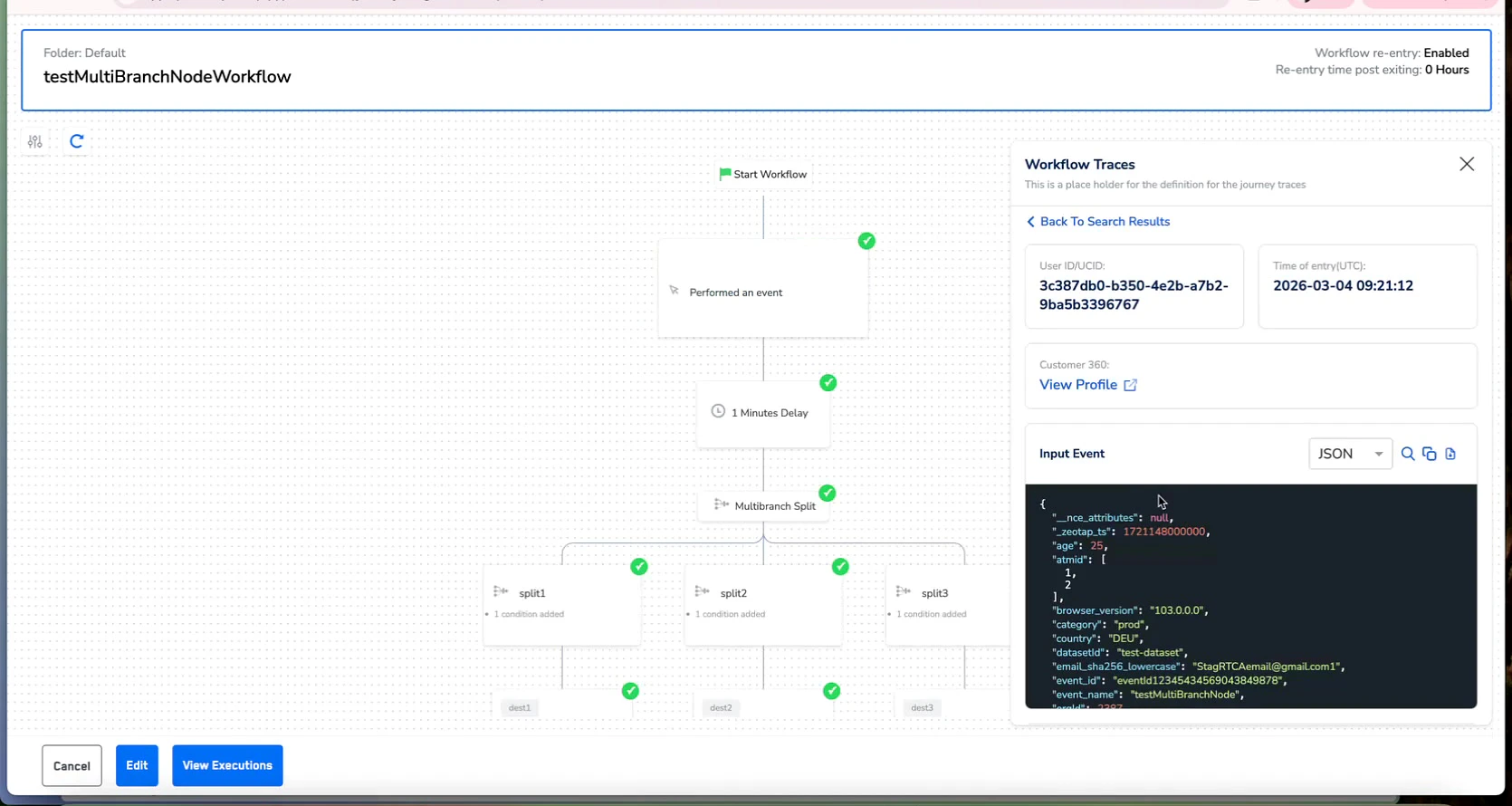
Figure 6.1 — Input Event panel showing JSON-formatted event data with customer attributes and metadata fields
6.2 Reading the Input Event JSON
When inspecting the Input Event, focus on these debugging priorities:- Are all expected fields present? — Missing fields often explain why conditional branches don’t route users as expected.
- Are field values correct? — Null or empty values can cause downstream failures.
- Is the event type correct? — Check
event_nameto confirm the right trigger event is being processed. - Are identifiers populated? — Ensure
ucidand other identity fields are present for proper profile resolution.
7. Understanding Output Event Data
The Output Event section shows the transformed data sent to each destination — the final payload after all journey transformations, field mappings, and enrichments have been applied.7.1 Destination Selector
At the top of the Output Event section, a dropdown selector allows you to choose which destination’s output to inspect. Each destination node in the workflow has its own output event payload.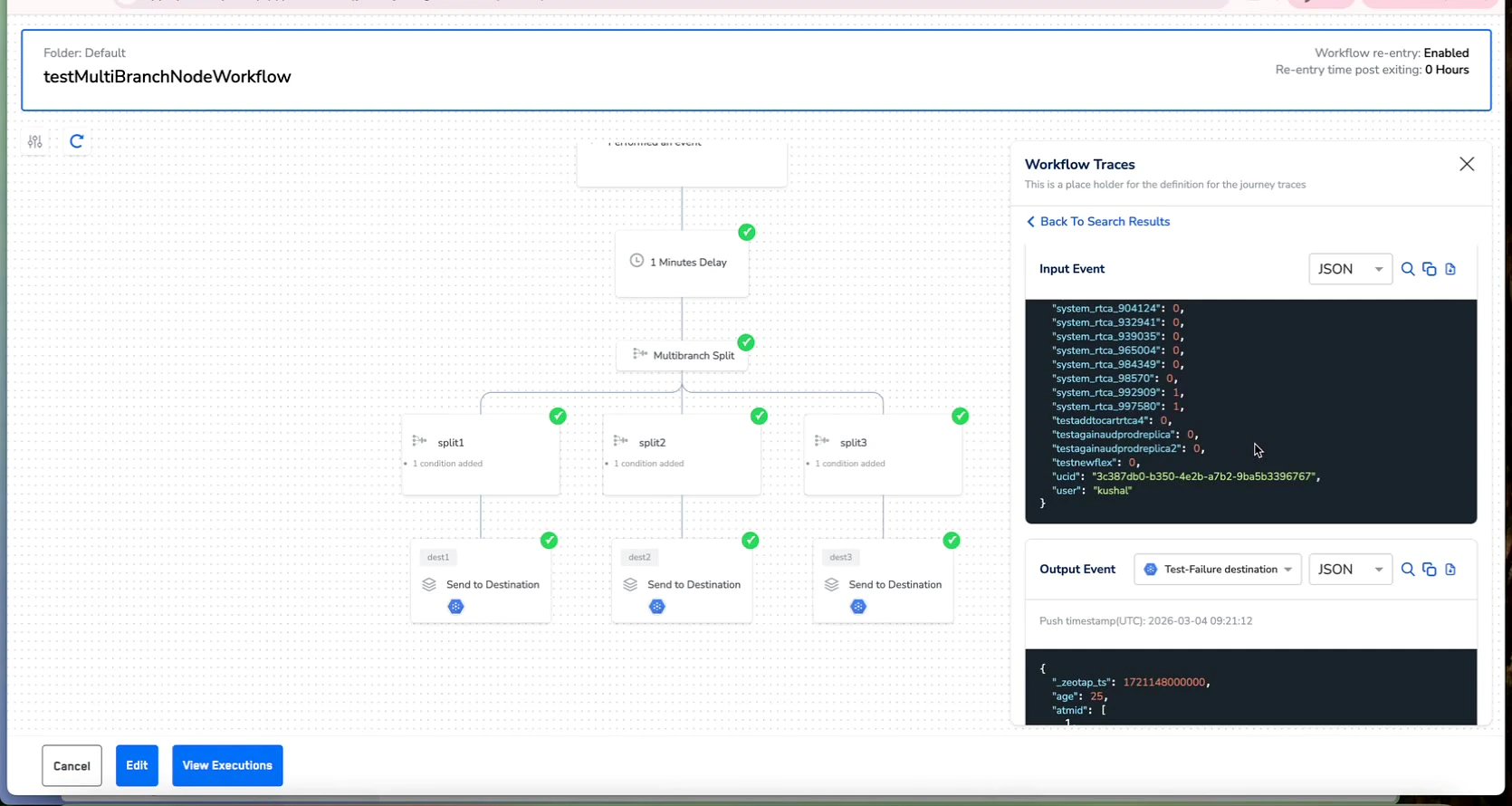
Figure 7.1 — Output Event section with destination dropdown selector and JSON payload showing transformed data
7.2 Output Event Structure
The output event JSON contains the transformed and enriched data ready for the destination API:- Mapped Fields — Customer attributes mapped to the destination’s expected field names and formats.
- Destination-Specific Metadata — Additional metadata required by the destination API (e.g., API keys, list IDs, campaign identifiers).
- Enriched Data — Any data added or transformed during journey processing (e.g., computed fields, concatenated values, formatted dates).
7.3 Comparing Input vs. Output
Comparing the Input Event with the Output Event side by side reveals:- Transformation Issues — Fields that were incorrectly mapped, truncated, or formatted.
- Missing Fields — Input fields expected in the output but absent, indicating a mapping configuration gap.
- Data Type Mismatches — Fields that changed type during transformation (e.g., number to string).
- Enrichment Verification — Confirm computed or enriched fields are correctly derived from input values.
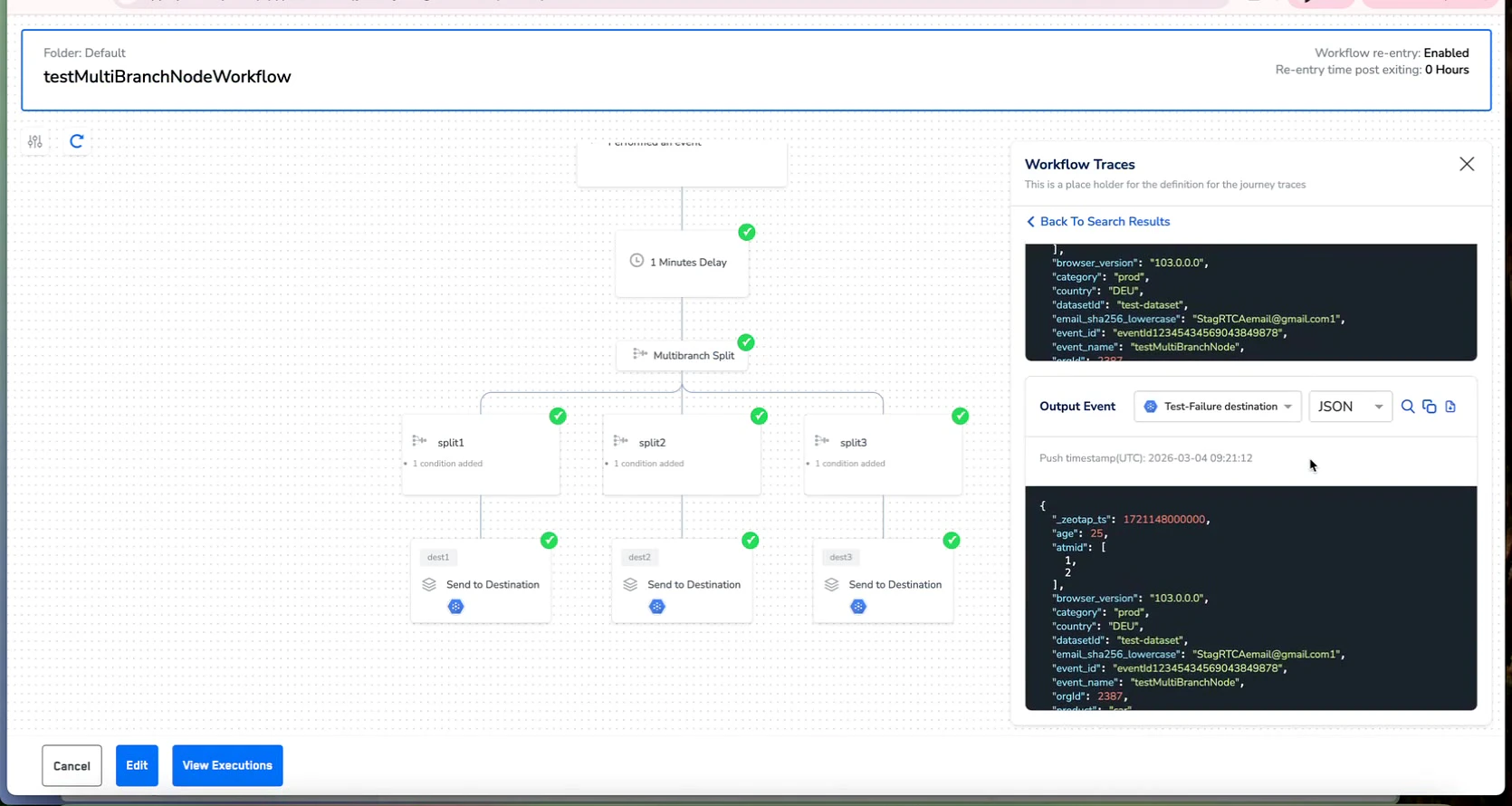
Figure 7.2 — Output Event JSON showing destination-level transformed data with mapped attributes
8. Visual Node Path Highlighting
When you open a trace for a specific user, the journey canvas dynamically updates to show the exact path that user took through the workflow.8.1 How Path Highlighting Works
Green checkmark indicators (✓) appear on every node the user qualified for during their journey execution:- Entry Point — The Start Workflow node confirms the user entered the journey.
- Event Qualification — The Participate in Event node shows whether the user qualified for the triggering event.
- Delay Processing — Wait/Delay nodes show the user passed through the timer.
- Branch Routing — In If/Else and Split nodes, only the branch(es) the user was routed to show checkmarks.
- Destination Delivery — Send to Destination nodes show whether the user’s data reached each configured integration.
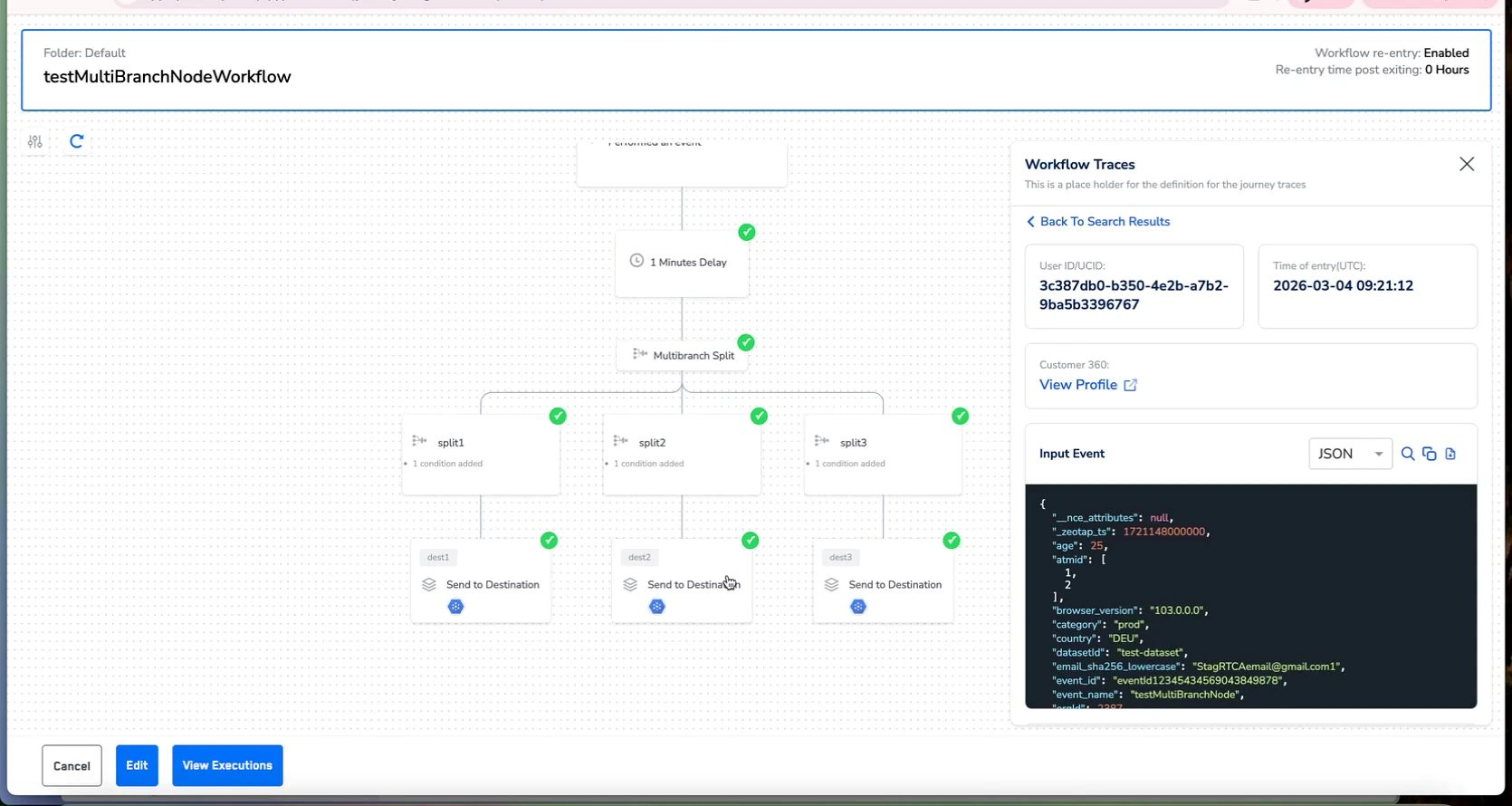
Figure 8.1 — Journey canvas with green checkmarks on qualified nodes showing the specific path a user took through the multi-branch workflow
8.2 Reading the Path for Multi-Branch Workflows
For the “testMultiBranchNodeWorkflow” example, path highlighting shows:- The user entered through the Start Workflow node
- Qualified for the Participate in Event condition
- Passed through the 5 Minutes Delay timer
- Was routed through the Multibranch Split node
- Flowed down specific split branches based on the routing logic
- Reached specific Send to Destination nodes — only the ones the user qualified for
9. Navigating to Customer 360 from Traces
Journey Traces provides a direct link to the Customer 360 profile for any traced user, enabling seamless cross-module debugging.9.1 Using the View Profile Link
Locate the View Profile Link
Navigate to Customer 360
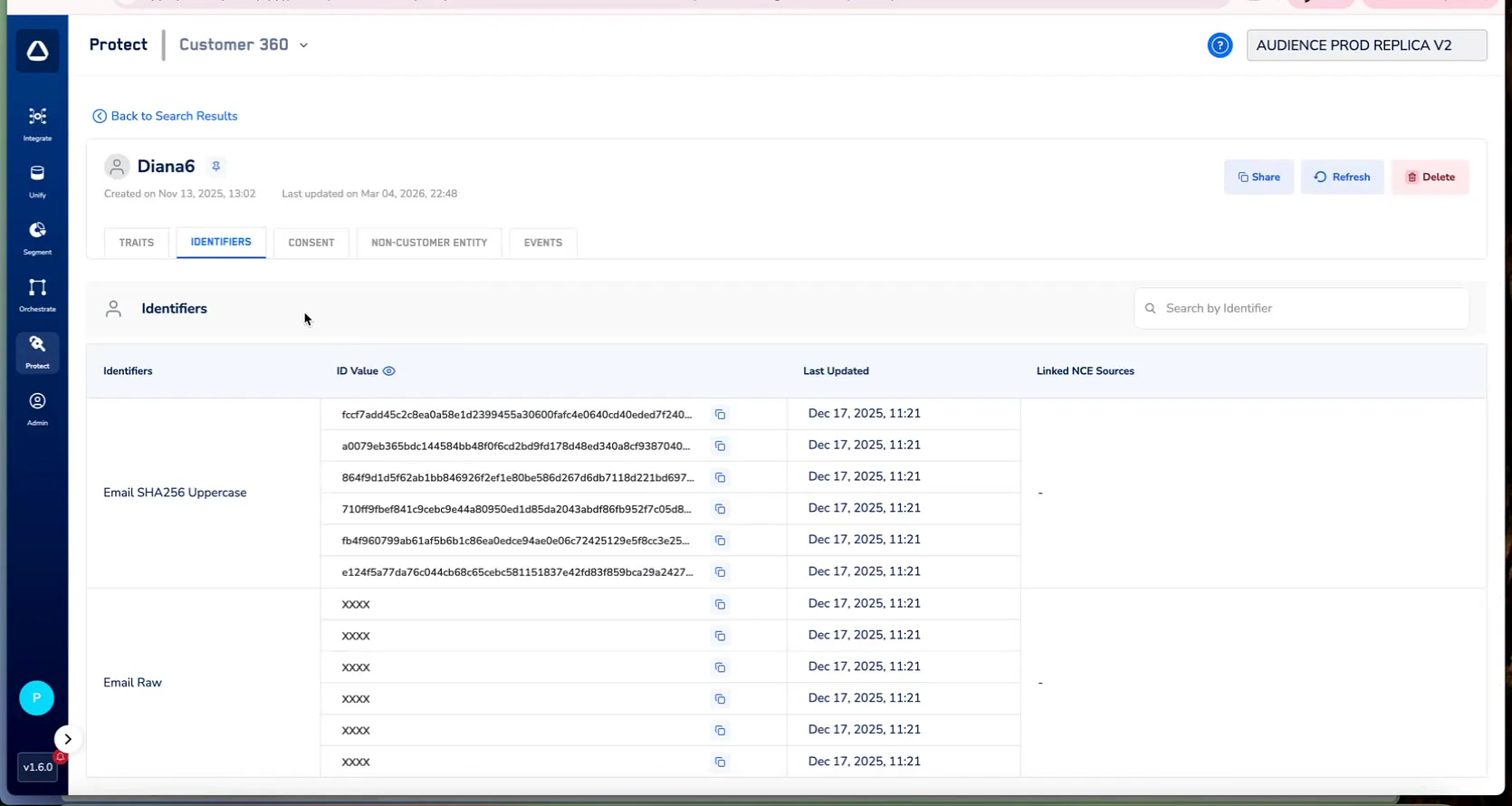
Figure 9.1 — Customer 360 profile view showing identifiers including Email SHA256, Email Raw, and associated ID values
9.2 What You Can Verify in Customer 360
- Identity Resolution — Confirm the user has the expected identifiers (Email, Phone, Device ID, etc.) and that identity stitching is correct.
- Attribute Values — Check that user attributes match what appeared in the journey trace Input Event.
- Consent Status — Verify consent flags that may have caused
CONSENT_NOT_PROVIDEDerrors in the journey. - Event History — Review the user’s recent events to understand the sequence that led to the journey trigger.
- Segment Membership — Confirm the user is part of the expected audience segments that feed the journey.
10. Key Debugging Fields Reference
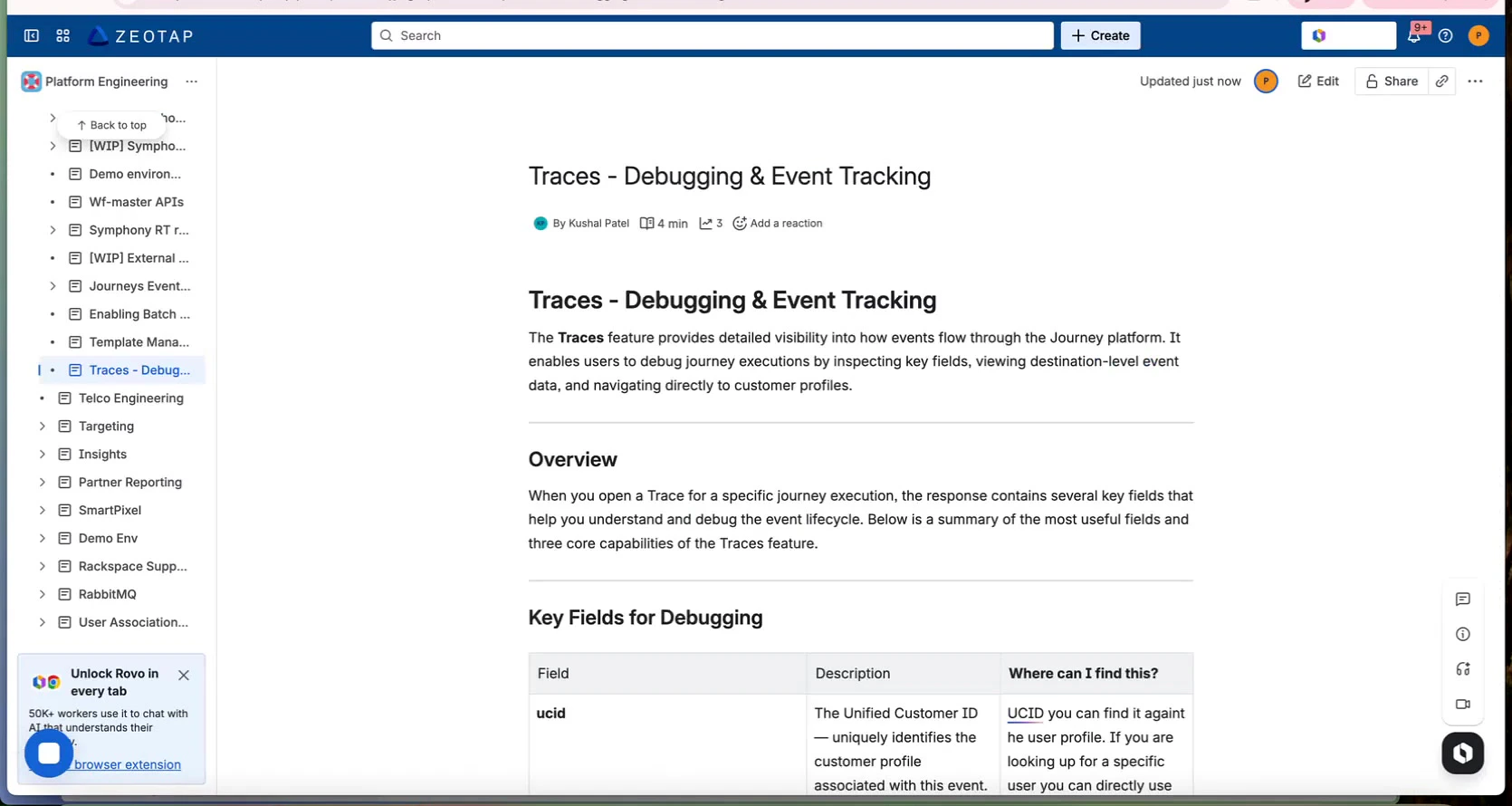
Figure 10.1 — Traces feature overview with key debugging fields reference
10.1 Trace Header Fields
10.2 Additional Lookup Fields
- String Match / Lookup Identifier — An alternative identifier for performing string-based searches to find traces for a specific user.
- Profile ID — The Zeotap internal profile identifier, directly linkable to Customer 360.
- Destination Node Name — Shown in the Output Event dropdown, identifies which destination processed the output.
11. Common Troubleshooting Scenarios
11.1 User Not Reaching Expected Destination
Symptoms: A user was expected to receive a message via a specific destination, but they did not.11.2 Destination Receiving Incorrect Data
Symptoms: A destination is receiving data but with wrong or missing field values.11.3 Users Entering Journey Unexpectedly
Symptoms: Users who should not be in a journey are appearing in execution results.11.4 Verifying End-to-End Data Flow
Use Case: Validate that a journey is correctly processing and delivering data for a test user.12. Best Practices for Using Traces
12.1 Efficient Debugging Workflow
- Start with the Path — Always check visual node path highlighting first. It’s the fastest way to identify where in the workflow the issue occurred.
- Compare Input and Output — For data transformation issues, systematically compare the Input Event JSON with each destination’s Output Event JSON.
- Use the UUID as a Correlation Key — When working with destination teams, share the trace UUID and execution timestamp for precise cross-system investigation.
- Check Customer 360 for Identity Issues — If a user’s trace shows unexpected attribute values, use View Profile to verify the underlying profile data.
12.2 When to Use Traces vs. View Executions
12.3 Tips for Complex Workflows
- Trace Test Users First — Before launching a new journey, send a test user through and verify the complete trace end-to-end.
- Save Important UUIDs — Note the trace UUID and timestamp for future reference and escalation.
- Check All Destinations — In multi-destination workflows, always cycle through each destination in the Output Event dropdown.
- Cross-Reference with Error Reporting — Combine Journey Traces (per-user debugging) with Journey Error Reporting (aggregate error analysis) for a complete picture.