

What this is
The Braze Currents source carries data into Zeotap CDP. Braze Currents is a real-time stream of the engagement events exported out of the Braze platform; once the connection is established, Braze sends the events you select to the endpoint Zeotap CDP generated for your source, as batched JSON payloads. Setting the integration up takes two halves. Creating the source in Zeotap CDP is covered in Create a Braze Currents Source, and for what the integration is for, see Braze Currents. This page covers the other half — the Custom Currents Export you configure on the Braze side. To send data in the opposite direction, out of Zeotap CDP to Braze, use a Braze destination instead:- Braze pushes audiences built in Zeotap CDP to Braze for engagement and activation.
- Braze Integration covers the methods for sending user traits and real-time events to Braze.
Supported identifiers and events
Each record that reaches Zeotap CDP must carry at least one identifier — for example an email address, a phone number, a cookie ID or an advertising ID. See Best Practices for Braze Currents for the wider guidance on the data you send. Only the events you tick under Data Configuration in Braze are exported, so the event selection you make in step 5 below decides what Zeotap CDP receives.Prerequisites
Before you start in Braze, make sure you have the following:- A Braze Currents source created in Zeotap CDP. See Create a Braze Currents Source.
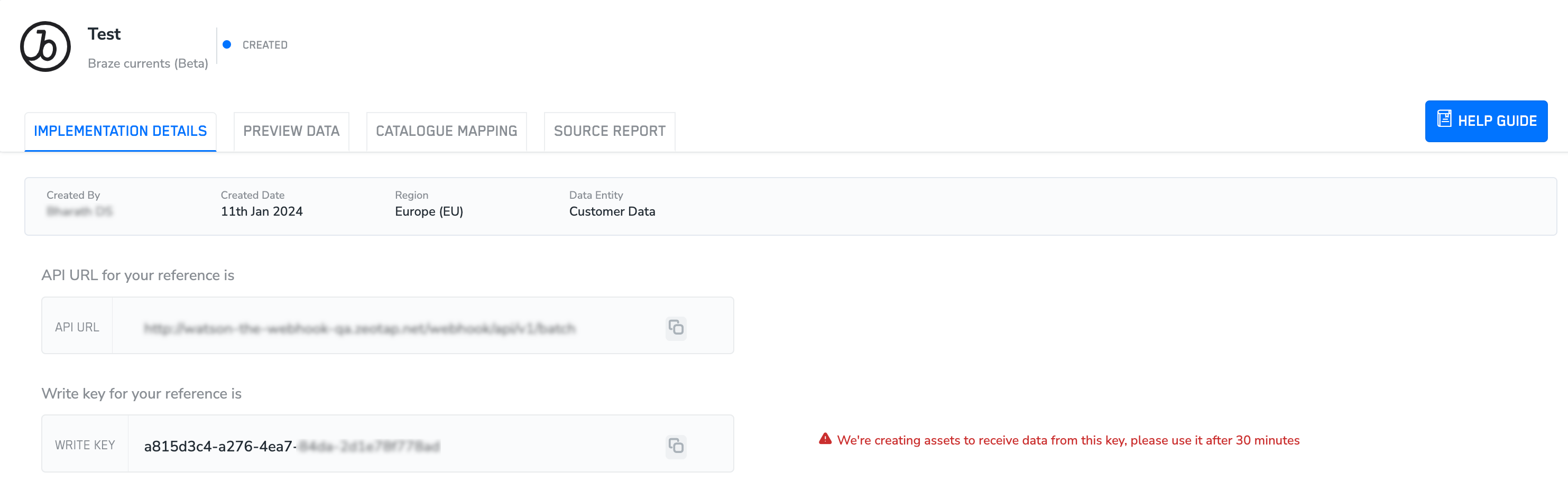
- The API URL and the write key for that source. Both are generated when the source is created and appear on the source’s IMPLEMENTATION DETAILS tab under Write key for your reference is, each with a copy button. The API URL establishes the connection between Braze and Zeotap CDP; the write key authorises the data being ingested. You paste both into Braze below.
- Access to your Braze dashboard, with Partner Integrations > Data Export available.
Configure data streaming in Braze
These steps establish the streaming connection between Braze Currents and Zeotap CDP, and let you choose which events are streamed.1
Open Data Export
Log into the Braze platform and go to Partner Integrations > Data Export.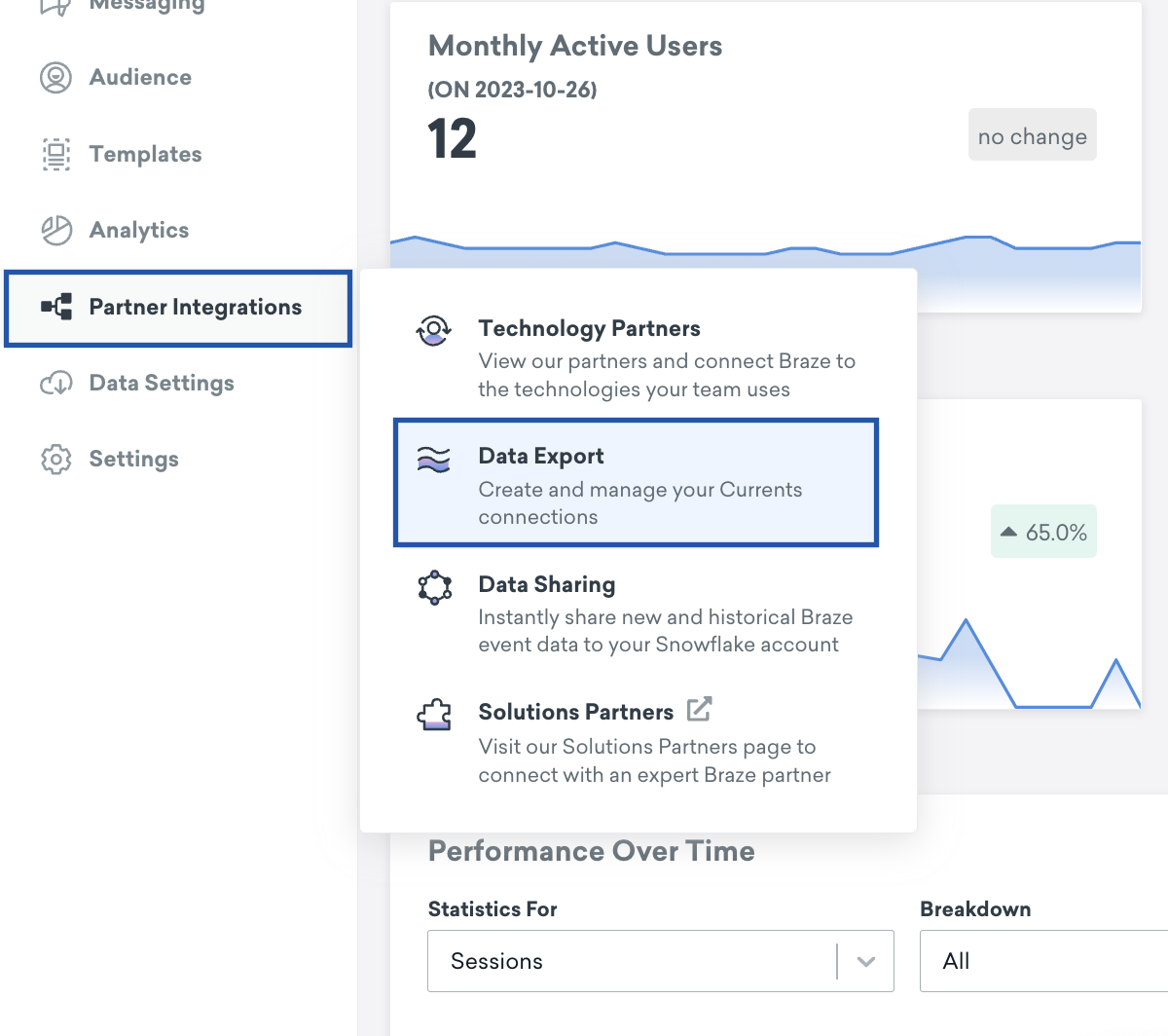
2
Create a Custom Currents Export
Click Create New Current and choose Custom Currents Export from the list to send data to Zeotap CDP.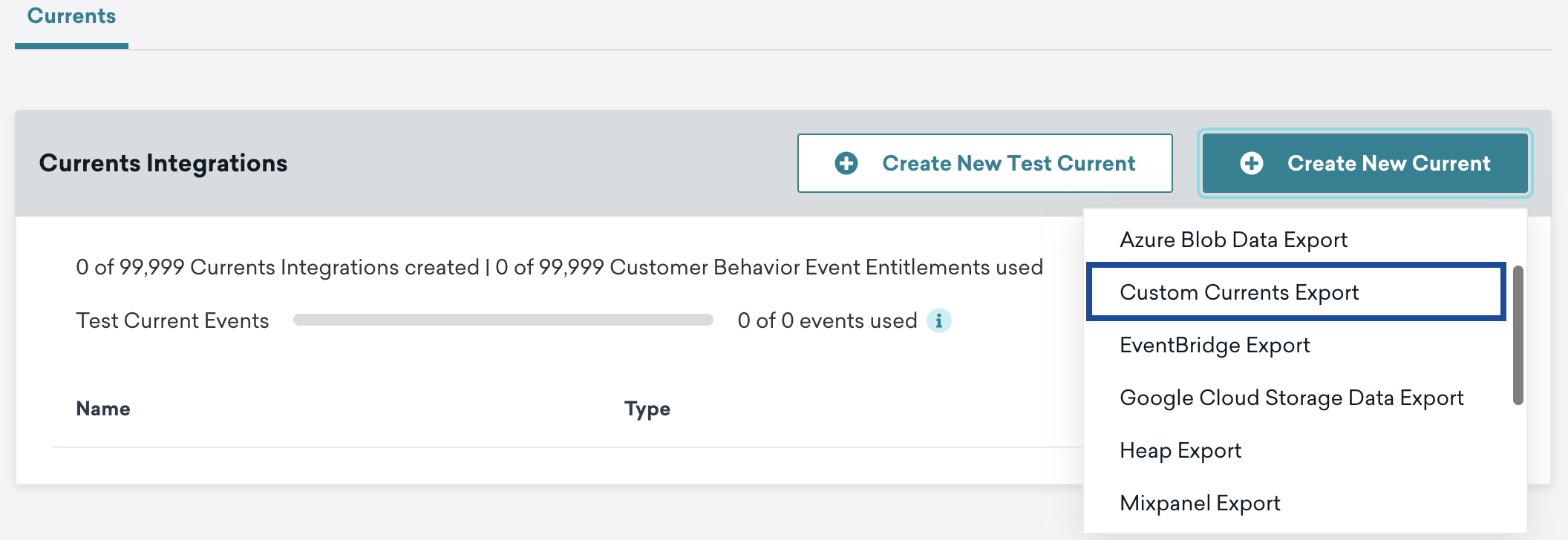
3
Name the integration
In the window that appears, enter an Integration Name and a Contact Email address.
4
Enter the Zeotap CDP credentials
Under Credentials, enter the API URL from your source’s IMPLEMENTATION DETAILS tab as the Endpoint, and the write key from the same tab as the Bearer Token.
5
Select the events to export
Under Data Configuration, select the events you want to send to Zeotap CDP. Braze groups them as Campaign Events, Canvas Events, Experiment Step Events, Subscriptions, Canvas Exit and Message Events.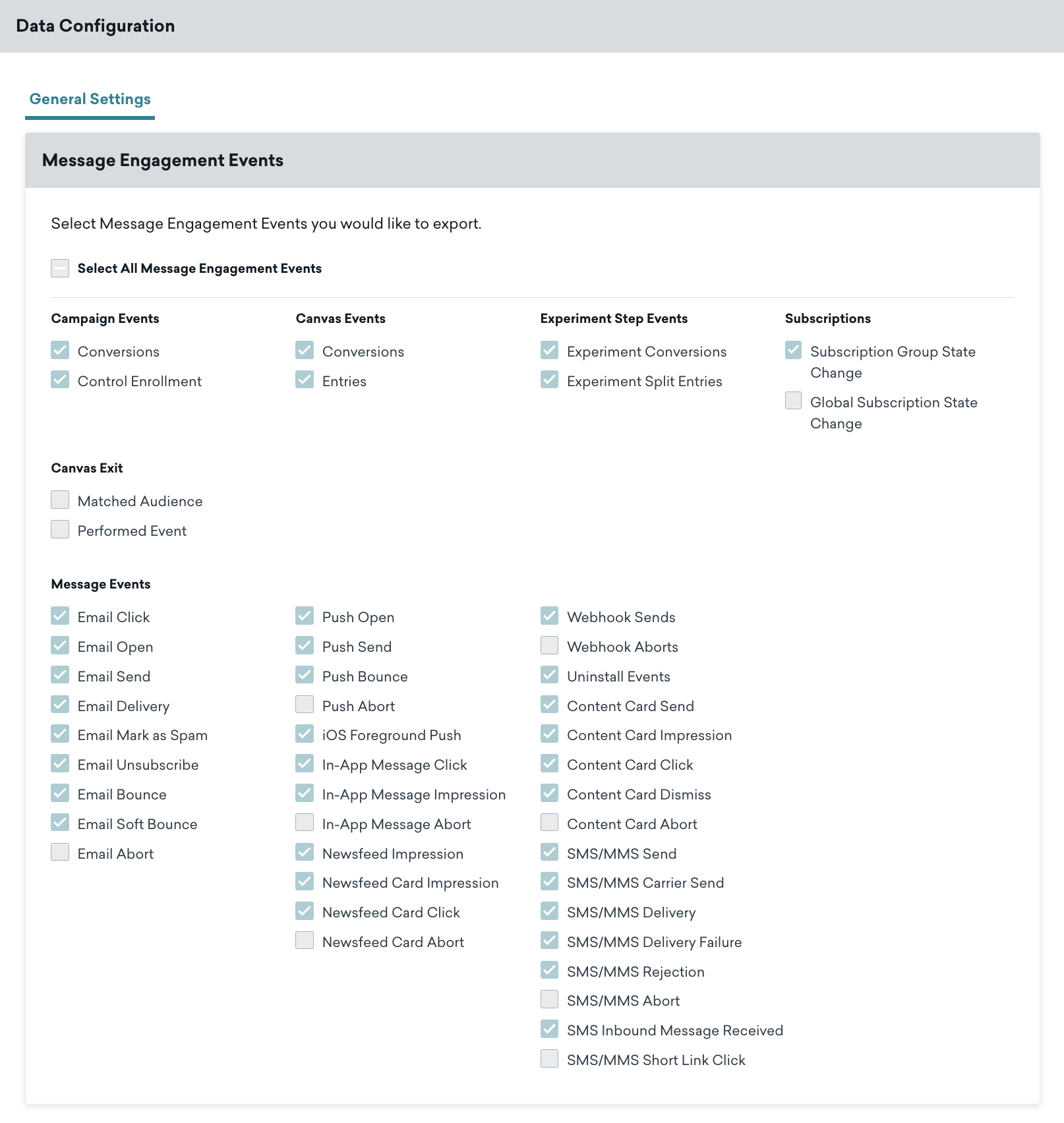
6
Launch the current
Scroll to the bottom of the screen and click Launch Current to save the changes.
Verify the connection
Once events start reaching Zeotap CDP, the status of the source changes from Created to Integrated on the Sources listing page. Created means the source exists but has not yet received any data; see Components of the Source Listing Page for the full set of statuses.- Open the source and check the PREVIEW DATA tab to see the data flowing in.
- Use the SOURCE REPORT tab for the ingestion health and status of the source.
Troubleshoot the connection
The source stays in the Created state and nothing appears under PREVIEW DATA. Re-check the Braze current:- The Endpoint is the API URL from the IMPLEMENTATION DETAILS tab of this source, not of another source.
- The Bearer Token is the write key from that same tab.
- At least one event is selected under Data Configuration — only selected events are exported.
- The current was saved with Launch Current.