

What this is
A Braze Currents source brings data into Zeotap CDP: Braze streams your engagement events out of the Braze platform and Zeotap ingests them as batched JSON payloads. For background on the integration and a worked use case, see Braze Currents. Creating the source is the first of two steps. This page covers the Zeotap CDP side — naming the source, choosing its region and data entity, and collecting the API URL and write key that are generated for it. The Braze side, where you create the Current and paste those two values in, is covered in Implement a Braze Currents source. Data flowing the other way — audiences built in Zeotap CDP and pushed out to Braze for engagement — goes through the Braze destination instead.Supported identifiers and data
A Braze Currents source carries customer data (CE) only. See Source integrations for how it sits alongside the other source types. Every record must carry at least one identifier — for example an email address, a phone number, a cookie ID or an advertising ID. Records that carry none cannot be ingested. See Best practices for Braze Currents. For the customer behaviour, user events and message engagement events that this source accepts, see Braze source — attributes supported.Prerequisites
Before you start, make sure you have:- Access to the Sources application under Integrate in the Zeotap CDP App.
- A Braze account from which you can create a Current under Partner Integrations > Data Export, and a contact email address to attach to it.
- The region that the incoming data belongs to. Ingest data against the region it belongs to, for data privacy and compliance reasons.
- Country values on your records. Records must be tied to a country; Zeotap recommends alpha ISO 3 country codes.
Note:If the Braze Currents source is not available in your workspace, contact your customer success manager to have it enabled.
Create the Braze Currents source
1
Log into the Zeotap CDP App and navigate to the Sources application under Integrate.
2
Click CREATE SOURCE.
3
Choose Customer Engagement Channels as the Category.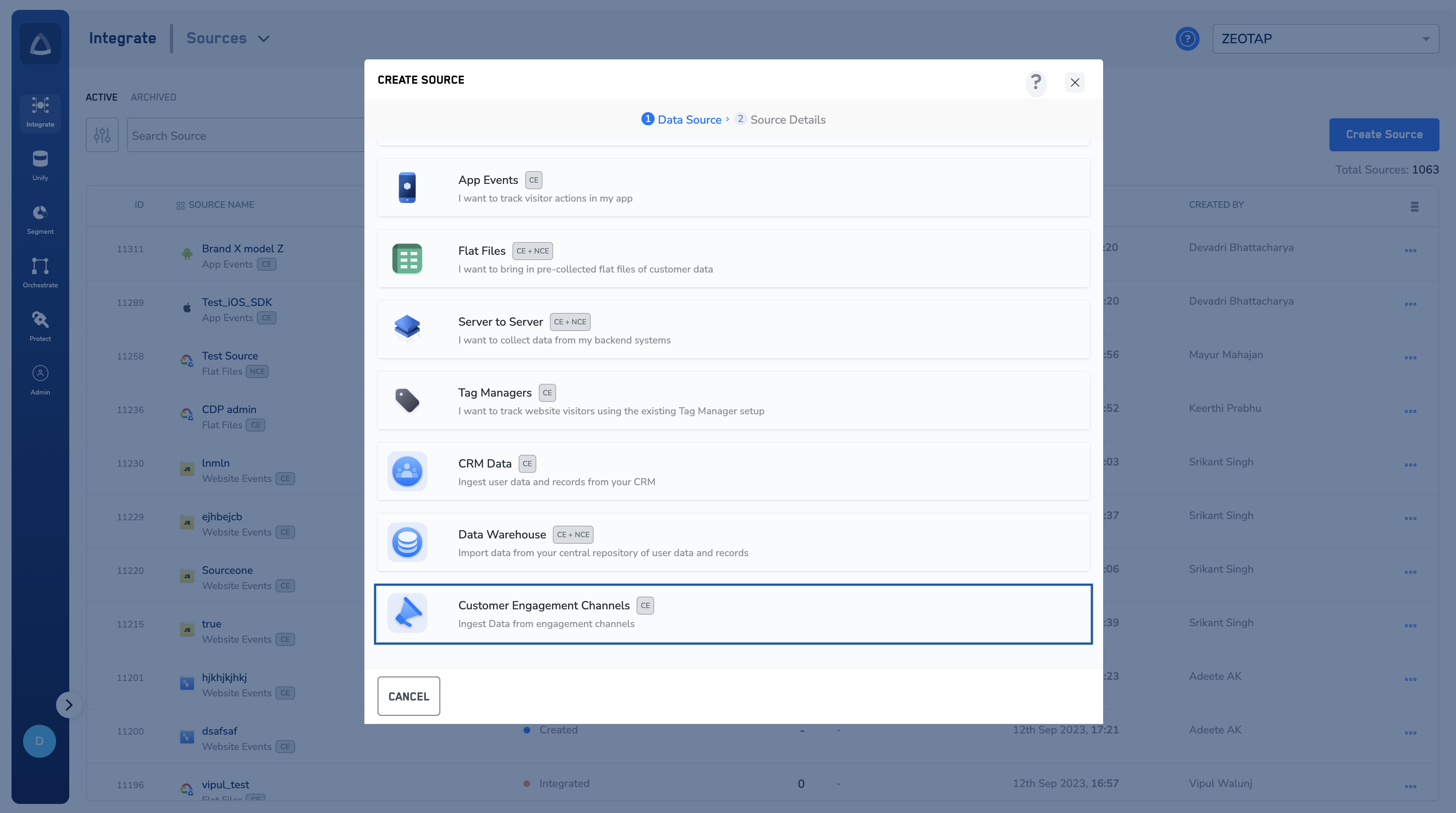
4
Click Braze Currents as the Data Source.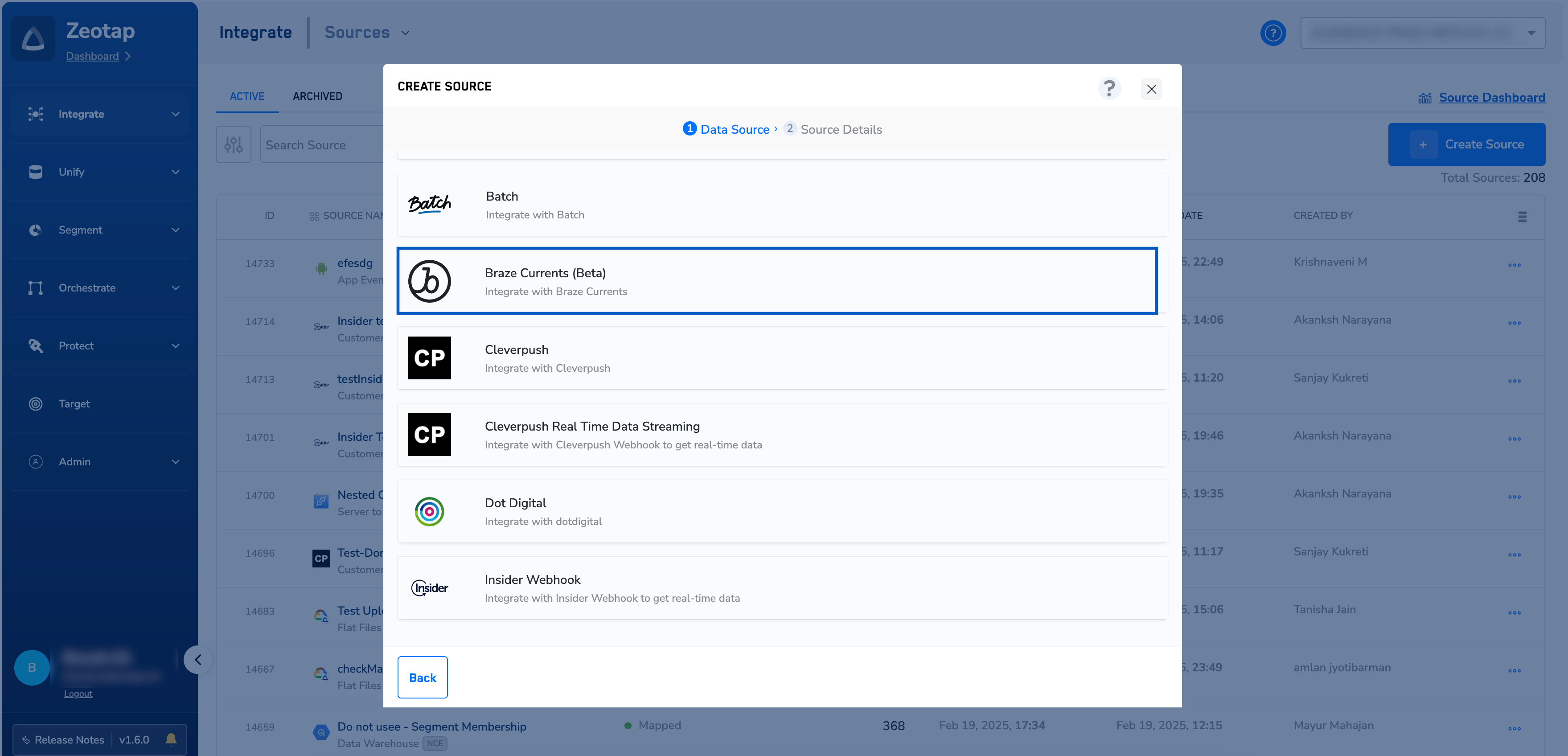
5
Enter a name for the source.
6
Select a Region using the option button provided. If you are unsure which region applies, use the country-to-region mapping reference linked beside the field.
7
Select Customer Data as the Data Entity.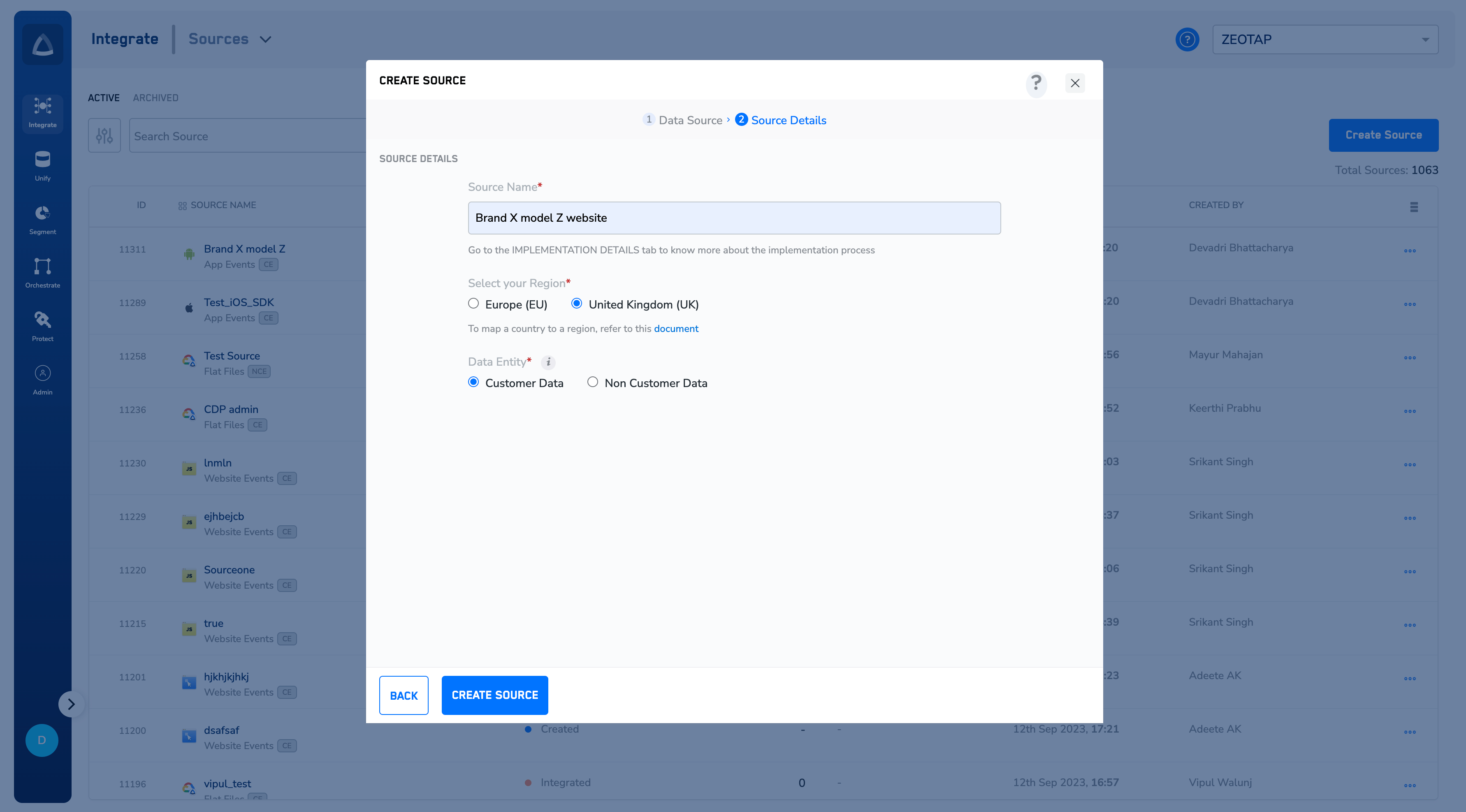
8
Click CREATE SOURCE. Upon successful creation, an API URL and a write_key is generated and is available under the IMPLEMENTATION DETAILS tab as shown in the image below. The API URL and the write_key are essential to complete the integration.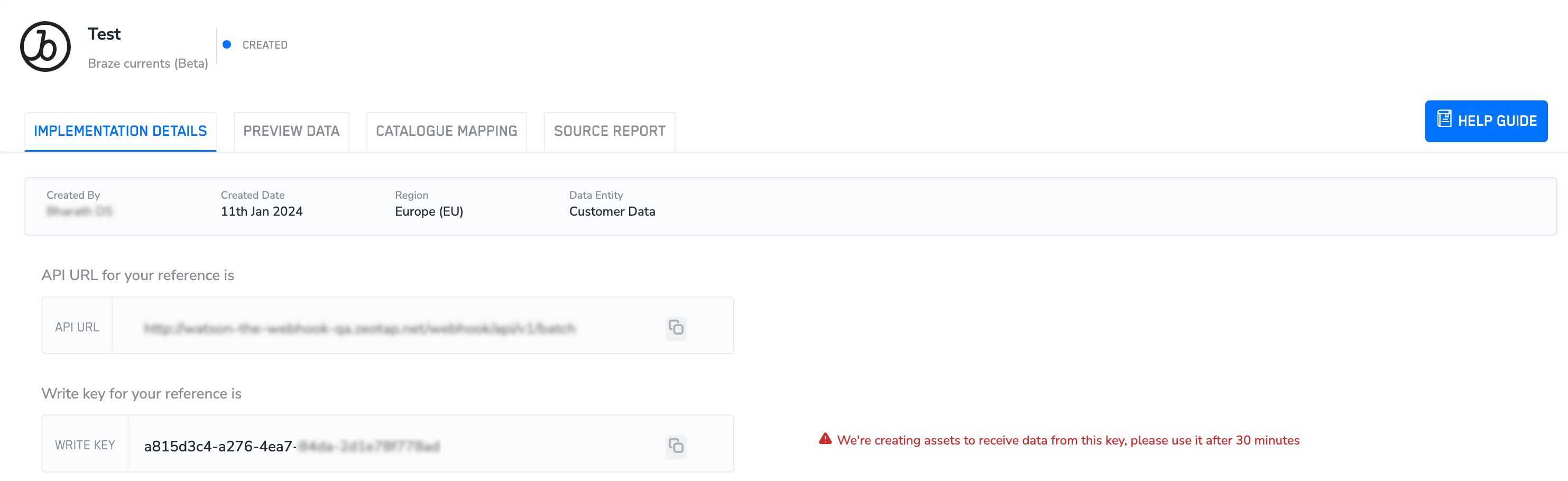
Note:The app displays a notice that assets are still being created for the write key and that it should be used after 30 minutes. Wait for that period before configuring the Current in Braze.
Verify the source was created
- Open the source and check the IMPLEMENTATION DETAILS tab. The API URL and write_key are both present, and the source shows its created date, region and data entity.
- On the source listing, the status is Created — this means the source exists but has not received any data yet. Once data starts flowing it becomes Integrated, and once at least one data collection is built on top of it, Mapped. See Components of the source listing page.
- After you have configured the Current in Braze, open the PREVIEW DATA tab. It shows a sample from the last five ingested files. See Components of the Preview Data tab.
Troubleshoot
If the problem persists, contact support at support@zeotap.com.
Next steps
- Implement a Braze Currents source — configure the Current in Braze using the API URL and write key.
- Best practices for Braze Currents — identifiers, country values and catalogue mapping.
- Braze destination — send audiences from Zeotap CDP to Braze.