Create the Zeotap CDP source that receives event data from Insider, and collect the API URL and write key needed to finish the webhook setup on the Insider side.
An Insider Webhook source brings event data into Zeotap CDP from your Insider account — page views, user events, email and messaging events, and the attributes you attach to them.This page covers the Zeotap CDP half of the integration: creating the source, and collecting the two values the webhook needs. The webhook itself is configured inside Insider afterwards, in Implement an Insider source. Create the source first — the API URL and write key it generates are what you paste into Insider.To send data the other way, out of Zeotap CDP to Insider for activation and targeting, use the Insider destination instead.
Log into the Zeotap CDP App and navigate to the Sources application under Integrate.
2
Click CREATE SOURCE.
3
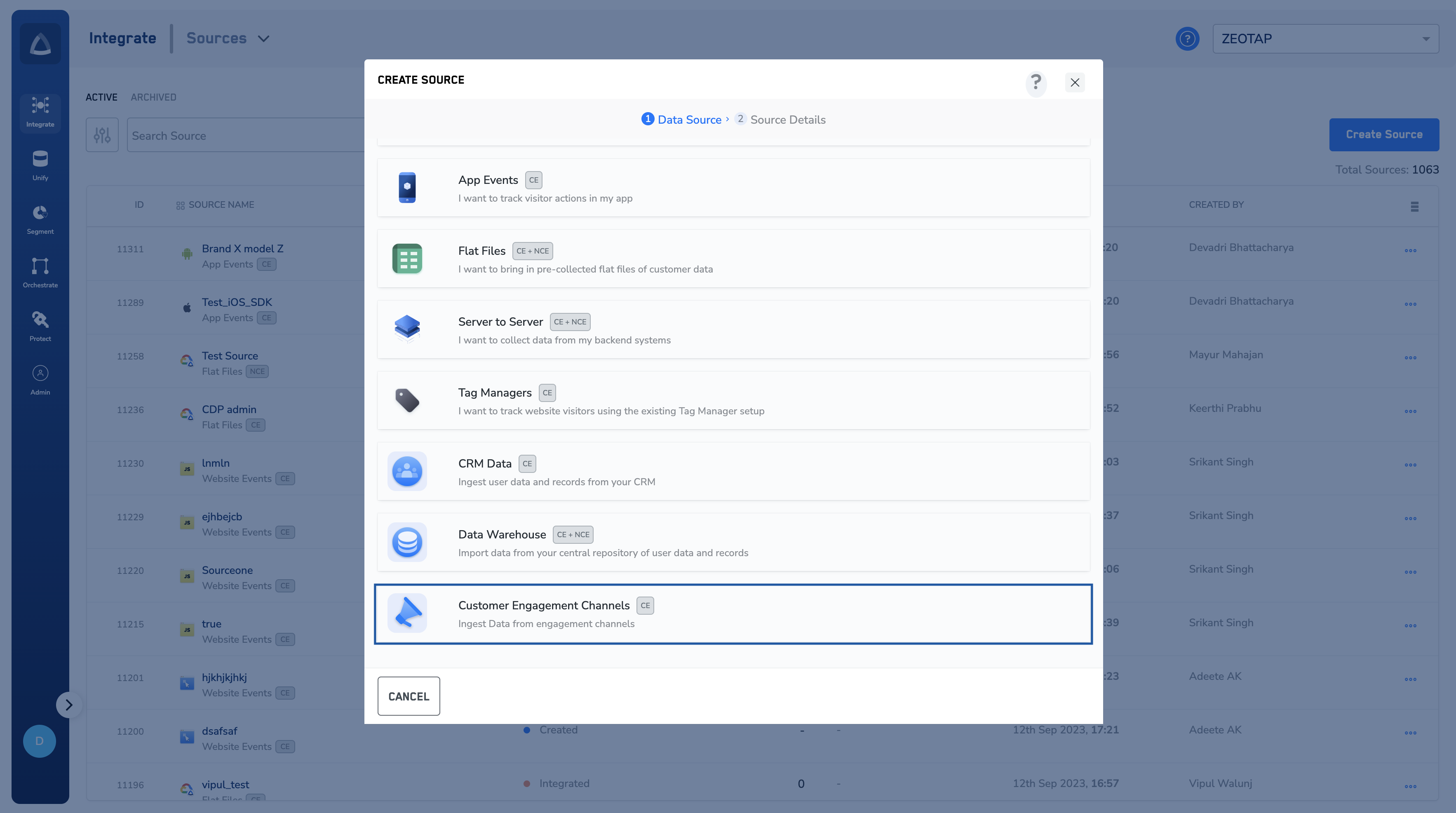
Choose Customer Engagement Channels as the category.
Step 1 of the CREATE SOURCE dialog — choosing a source category.
4
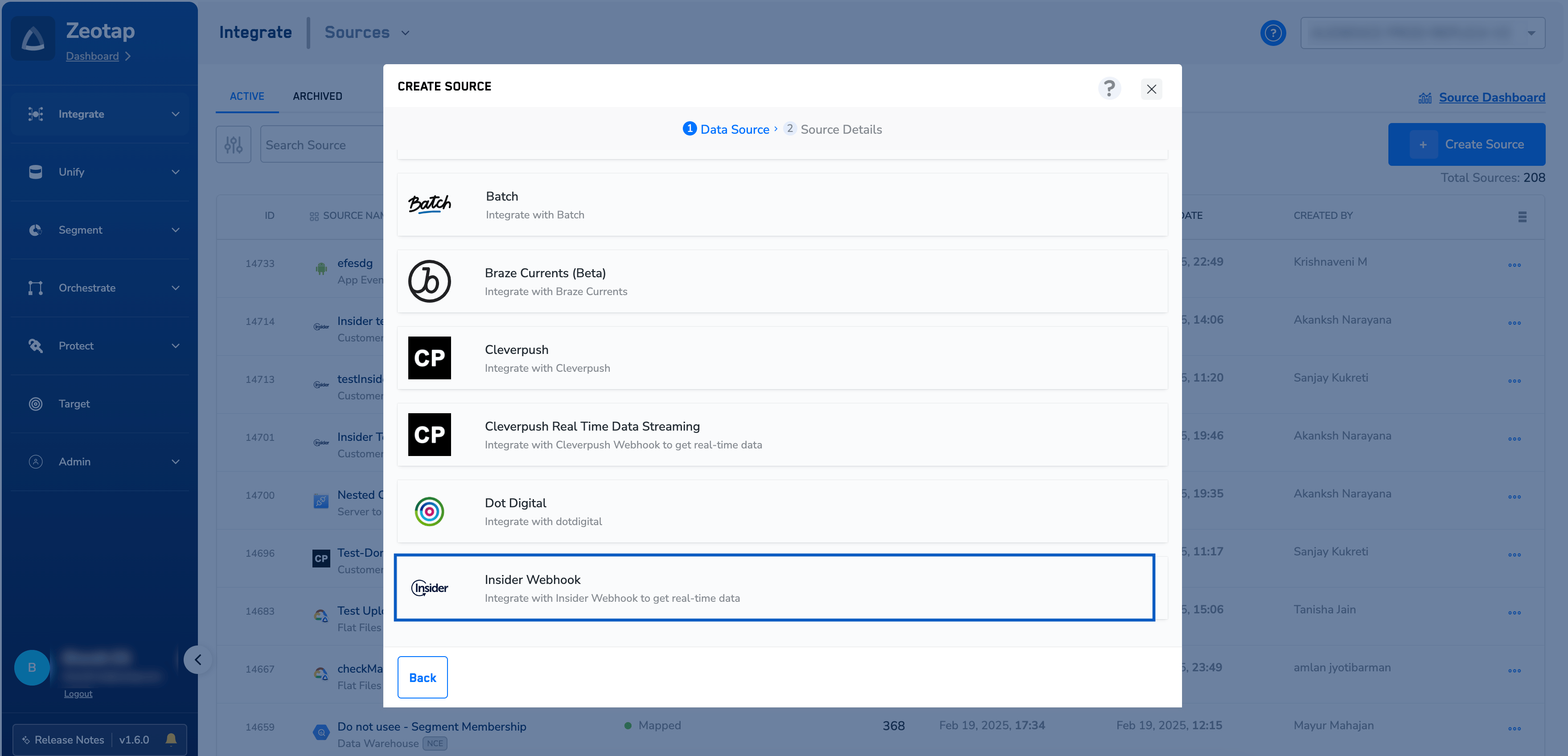
Click Insider Webhook as the data source.
The Customer Engagement Channels list, with Insider Webhook selected.
5
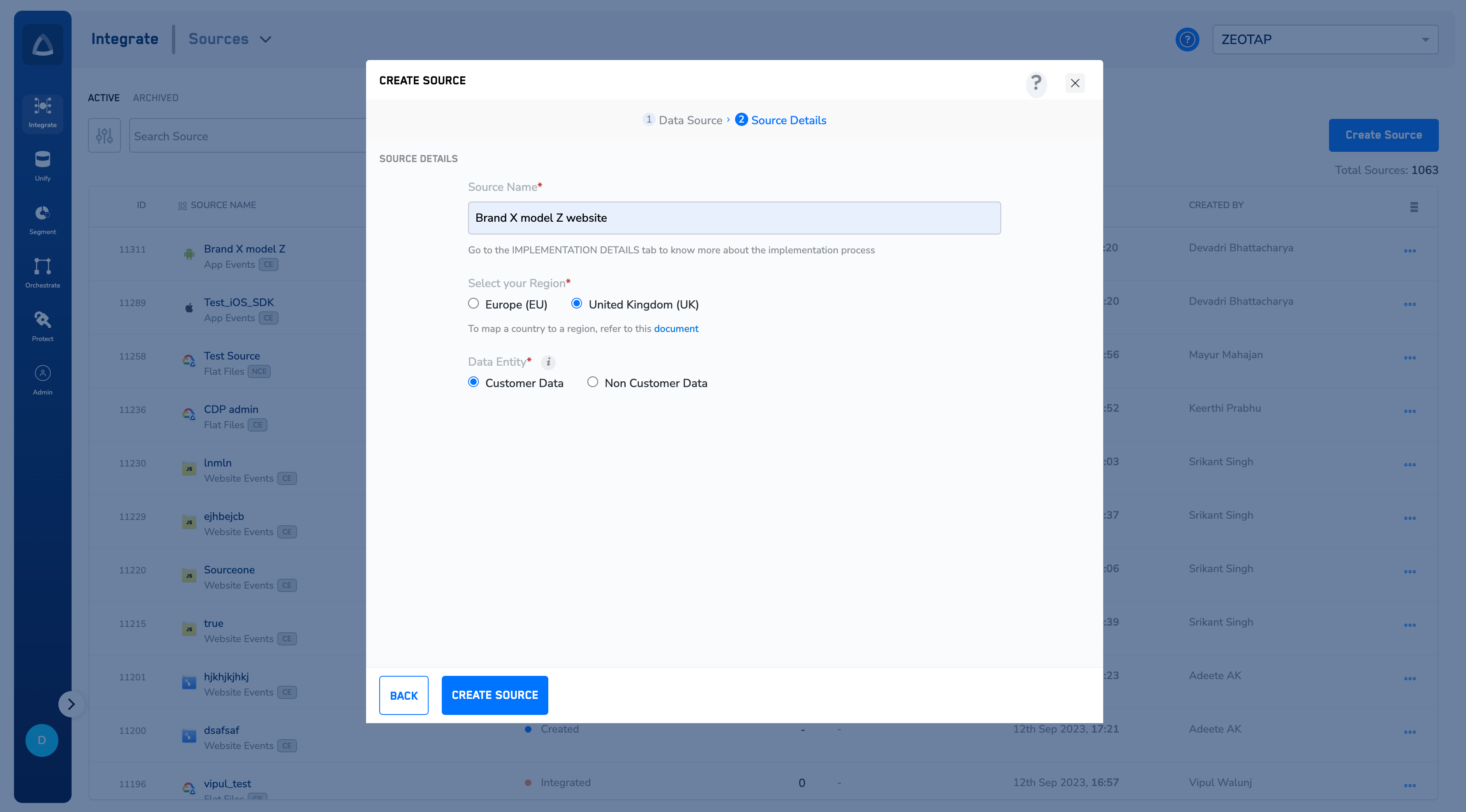
Enter a Source Name.
6
Select your Region — Europe (EU) or United Kingdom (UK).
7
Select the Data Entity. Customer Engagement Channel sources carry Customer Data.
Step 2 of the CREATE SOURCE dialog — source name, region and data entity.
8
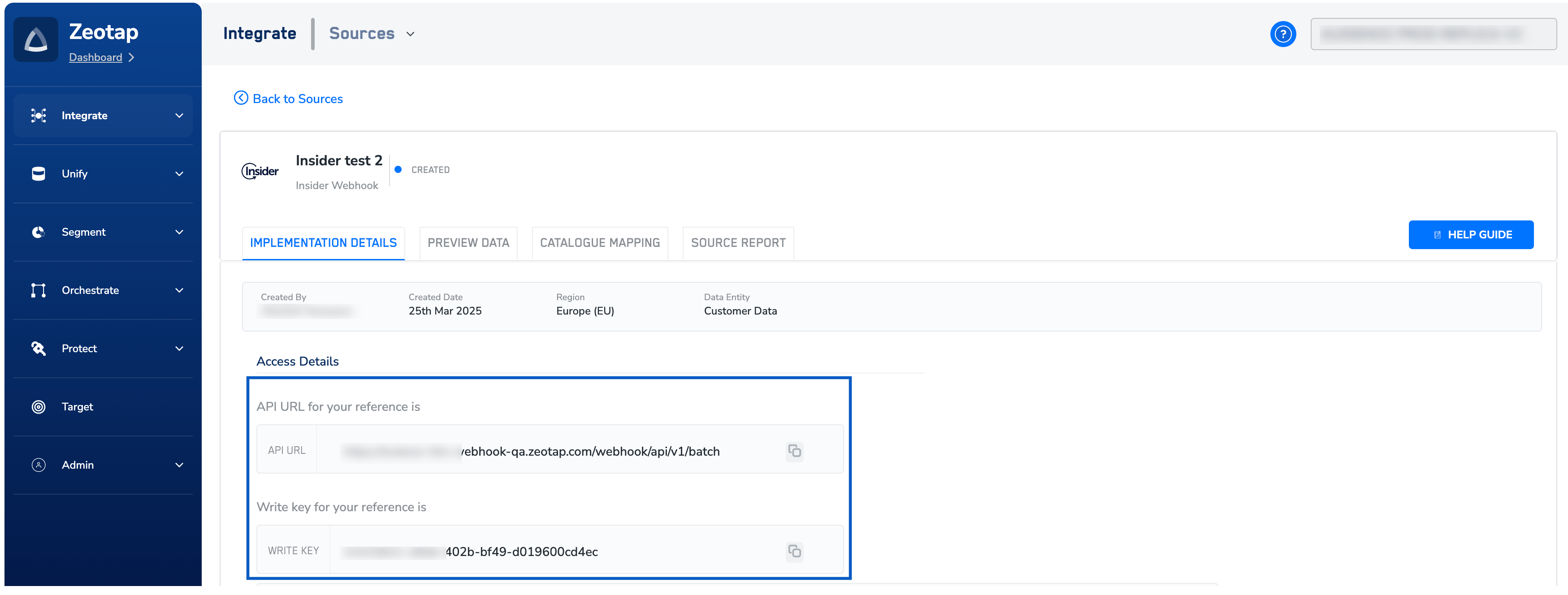
Click CREATE SOURCE.On successful creation, an API URL and a write key are generated for the source and appear under Access Details on the IMPLEMENTATION DETAILS tab. Use the copy icon beside each field to copy them.Both values are needed to complete the integration in Insider: the API URL is the endpoint the webhook posts to, and the write key is what lets Insider ingest data into this source securely. Store the write key as you would any other credential.
The source detail page of a newly created source, on its IMPLEMENTATION DETAILS tab.
The new source opens on its IMPLEMENTATION DETAILS tab, alongside the PREVIEW DATA, CATALOGUE MAPPING and SOURCE REPORT tabs, and carries the status Created.Status tells you how far the source has progressed:
Created — the source exists, but has not received any data yet. An Insider source stays at Created until you finish configuring the webhook in Insider and it sends its first event.
Integrated — data has started flowing in, but taxonomy standardisation has not been applied yet. You can inspect the incoming data on the source’s PREVIEW DATA tab.
Mapped — at least one data collection has been created on top of the integrated source, based on the common taxonomy.
The source never leaves the Created status. Nothing has reached it yet. Check the webhook in Insider: the endpoint must be the API URL from the IMPLEMENTATION DETAILS tab, the Authorization header must carry the write key from the same tab, and the integration must be launched as Active rather than left as Draft or Paused. Insider’s Test Webhook button reports the response status for a test request. The steps are in Implement an Insider source.An alert icon appears beside the source in the listing. An erroneous record was ingested in the last 90 days. The icon remains until the errors are fixed.Data stops arriving after the source is paused. Pausing data collection invalidates the write key on the source, which stops collection. Resume data collection from the three-dot ACTIONS menu against the source on the source listing.To be notified by email when a source fails, configure Source alerts.
Implement an Insider source — configure the webhook inside Insider using the API URL and write key from this source, choose the events and attributes to send, and launch the integration.
Insider Webhook — overview of the Insider source integration.
Insider — the opposite direction: send audiences and events from Zeotap CDP to Insider.
Last modified on September 24, 2026
Was this page helpful?
Assistant
Responses are generated using AI and may contain mistakes.