This page documents an inbound task — moving your data files into Zeotap CDP. When your source is a Zeotap Google Cloud Storage source, Zeotap provisions a Google Cloud Storage bucket for your dataset and reads the files you place in it. The Cloud Storage browser in the Google Cloud Console gives you a browser-based way to drop those files in, without installing anything — an alternative to the gsutil command line or a desktop client such as Cyberduck. This page covers the folder structure Zeotap expects inside the bucket, how to upload files through the console, and how to confirm the upload was picked up.If instead you want to send audiences out of Zeotap CDP into a bucket you own, that is the opposite direction — see the Google Cloud Storage destination.
Before you start, gather the following from your source in Zeotap CDP. Open the source and go to the Implementation Details tab, where the Access Details and Path Details sections hold what you need.
G Suite account — the account listed under Access Details for your dataset; you sign in to the Google Cloud Console with it.
Project and bucket — the project ID listed under Access Details, and the bucket path listed under Path Details.
Role — only users with the Editor role have access to this feature. Users with the Viewer role must ask their Zeotap administrator to upload files.
Encryption setting — whether the source was created with PGP Encrypted set to True or False, because it decides which folder structure you upload into. See PGP encryption in sources.
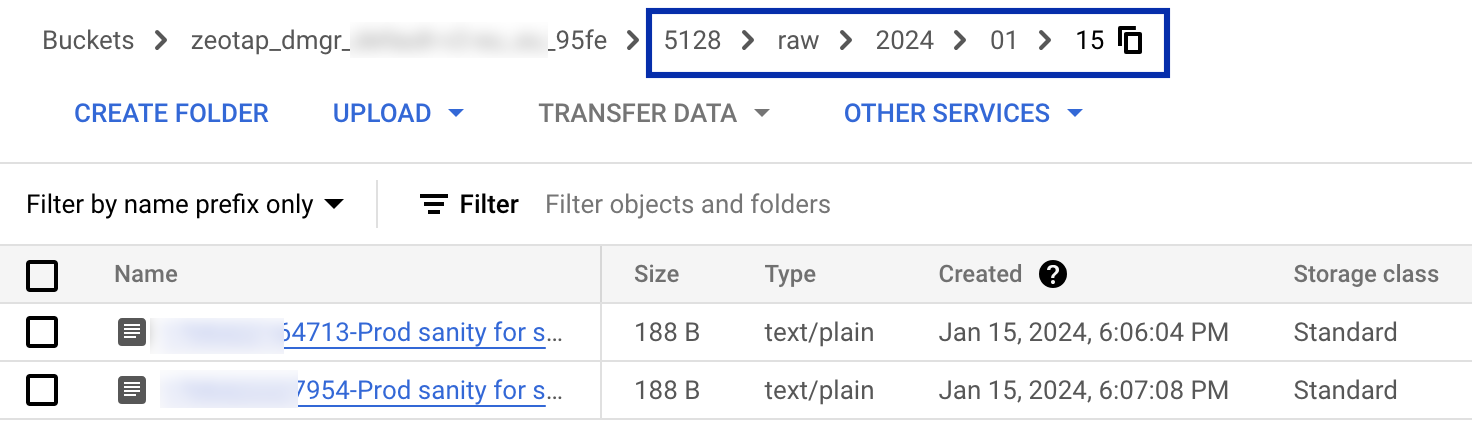
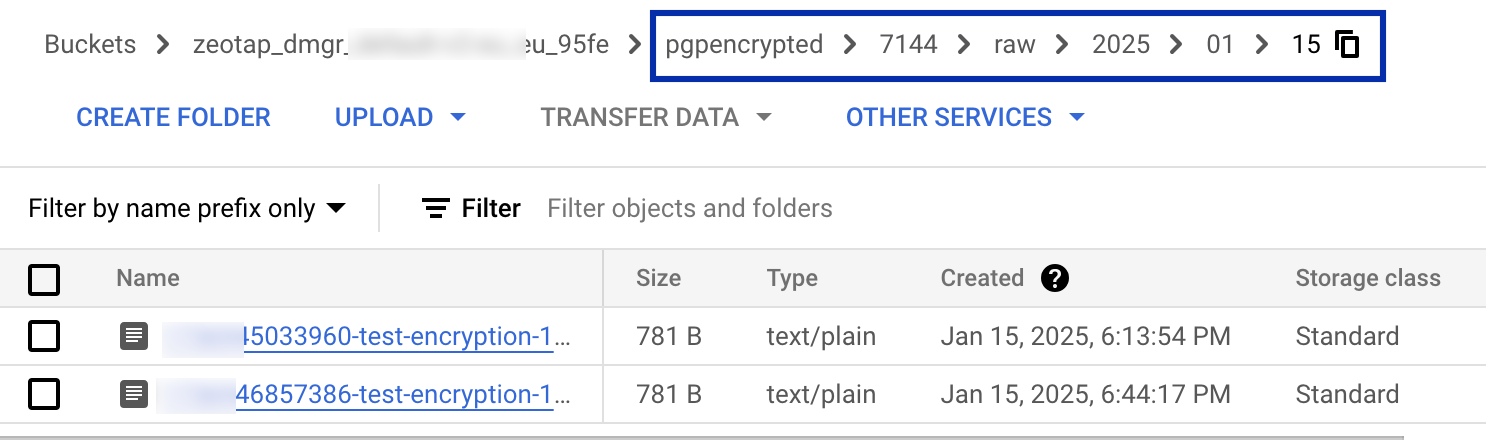
Files must land in a dated folder path inside the bucket. Use the structure that matches your source’s encryption setting, replacing sourceid with your source’s ID and yyyy/mm/dd with the date of the upload.
Log in with the G Suite account specified in the access details for your dataset.
3
Open your bucket
In the target project, select Buckets, then choose the desired bucket.
4
Open or create the dated folder
Navigate to the folder structure described above for your encryption setting. If a level of the path does not exist yet, create it with CREATE FOLDER before continuing.
5
Upload the files
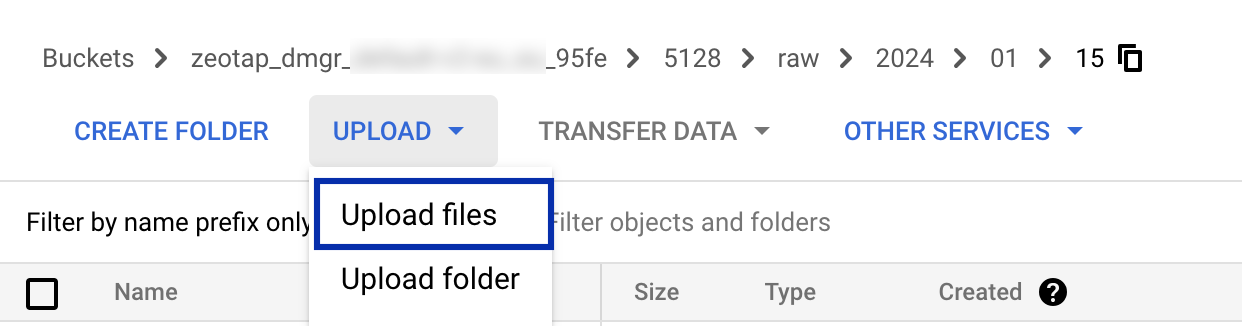
With the dated folder open in the OBJECTS tab, perform either of the following steps:a. Drag and drop the desired files from your desktop or file manager to the main pane in the Cloud Console.b. Click UPLOAD, choose Upload files, select the files you want to upload in the dialog that appears and then click Open.
The UPLOAD menu in the OBJECTS tab, with Upload files selected.
The upload has landed when all of the following hold:
The file appears by name in the OBJECTS tab under the dated folder you uploaded into, with its size and creation time listed.
Back in Zeotap CDP, the source’s status changes to Integrated once data begins flowing in.
A sample of the ingested records appears on the source’s Preview Data tab.
If the file is in the bucket but nothing arrives in Zeotap CDP, check that it sits under the folder structure that matches your source’s encryption setting, and that files for a PGP-encrypted source carry the .pgp extension.
Explore uploading from the source’s own page → to add files directly from the Implementation Details tab, and to find the Access Details and Path Details used here.